






You’re in the middle of something (a video call, a form half-filled, a dozen tabs of research) and the Wi-Fi icon on your Chromebook blinks out. A minute later it’s back. Then it’s gone again. If this keeps happening, you’re dealing with one of a handful of known causes, and Google actually publishes a specific order for working through them.
This guide walks through that official troubleshooting order first, then covers the extra steps worth trying when the basics don’t fix it — router checks, extensions, hard resets, and when to just contact the manufacturer. Along the way, we’ll also cover the part Google’s guidance doesn’t: what happens to your open tabs while all this restarting is going on, and how to make sure a dropped connection never costs you your work.
Why Does My Chromebook Keep Disconnecting From Wi-Fi?
The most common causes are a router or network issue, an outdated ChromeOS build, a misbehaving extension, or the Wi-Fi radio itself needing a restart. Google’s official guidance for Chromebook connection problems is to first make sure the device is connected to the internet, then use the Diagnostics tool to pin down the specific issue, then restart the Chromebook — testing after each step.
That order matters more than it looks. Skipping straight to a hard reset or a factory wipe often “fixes” a problem that a simple restart would have solved anyway, at the cost of your local files and a lot of your time. Work through the cheap steps first.
Here’s a fast reference for the situations people usually land in:
| Situation | Try this first |
|---|---|
| Wi-Fi drops on this Chromebook only, other devices are fine | Run Diagnostics, then restart the Chromebook |
| Wi-Fi drops for everyone on the network | Restart the router, not the Chromebook |
| Disconnects started right after installing an extension | Disable recent extensions in Chrome menu > More tools > Extensions |
| Disconnects started after a ChromeOS update | Restart, then check Settings > About ChromeOS for a pending follow-up update |
| Nothing above works after several tries | Contact the manufacturer or the Chromebook Community Forum |
If those steps don’t resolve it, Google directs users to their Chromebook’s manufacturer or the Chromebook Community Forum rather than a single fix-all setting, which tells you something useful: there isn’t one universal cause. It’s worth working through the list methodically instead of guessing.
What Should I Try First When My Chromebook Wi-Fi Keeps Dropping?
Start with confirming the problem is real and isolated to the Chromebook, then follow Google’s stated order. This costs nothing and takes a few minutes, and it’s the step most people skip because it feels too basic to matter.
- Check other devices. If your phone or another laptop on the same network also drops, the problem is the router or your internet provider, not the Chromebook.
- Run the Diagnostics tool. Use it to check the Connectivity test specifically, which is built for exactly this kind of intermittent issue.
- Restart the Chromebook. A normal restart clears no data and is the first device-side step Google recommends — test the connection again once it’s back up.
- Only then look further. If the drops continue after a restart, move on to extensions, router settings, or a hard reset rather than repeating the same step.
Notice that “restart” comes after “diagnose,” not before. Restarting blind can mask a pattern you’d otherwise catch — for instance, disconnects that only happen a specific number of minutes after boot, which points more toward a background process than the network itself.
Test after every single step. Google’s own hardware troubleshooting guidance repeats one instruction across almost every Chromebook problem: test after each step to find out if it fixed things. Changing three settings at once means you’ll never know which one mattered.
How Do I Use the Diagnostics Tool to Check My Chromebook’s Connection?
Open Diagnostics from the launcher by typing “Diagnostics,” or go to Settings > About ChromeOS > Diagnostics, and run the Connectivity test to check your active network connection. The same tool also tests Battery, CPU, and Memory, which is worth knowing because a Chromebook under memory pressure can sometimes look like it’s having network trouble when the browser itself is just struggling to keep up.
Diagnostics requires ChromeOS version 90 or later. If you’re on an older build than that, you likely have bigger problems than Wi-Fi — check Settings > About ChromeOS > Check for updates first, since an outdated build is itself a plausible cause of connectivity glitches that a newer release has already patched.
- Open Diagnostics. Use the launcher search or go to Settings > About ChromeOS > Diagnostics.
- Run the Connectivity test. This checks the active network connection specifically.
- Check Memory and CPU too. If either looks maxed out, a resource issue could be compounding what looks like a Wi-Fi problem.
- Note the pattern. Does it fail immediately, after a few minutes, or only under load? That detail helps if you end up contacting the manufacturer.
If Diagnostics reports the connection is fine but your browser still says otherwise, that’s a meaningful clue: it suggests the issue lives in Chrome’s networking stack or an extension rather than the Wi-Fi radio hardware itself.
Could My Router or Network Be the Real Problem?
Yes — and it’s more common than people assume, especially in shared homes, offices, or dorms with a lot of devices competing for the same access point. If other devices on the network also lose connection, or the disconnects line up with times of day when network use spikes, the router is the more likely culprit, not your Chromebook.
A few things worth ruling out on the network side before you touch the Chromebook again:
- Band congestion. Older routers on the crowded 2.4GHz band drop more often under load than 5GHz ones.
- Router firmware. Most router manufacturers push their own updates separately from ChromeOS; check the router’s admin page if it hasn’t restarted in a while.
- Physical distance and interference. Microwaves, thick walls, and neighboring networks all degrade a signal in ways that look exactly like a flaky Chromebook.
- ISP-side drops. If your provider is having an outage, no amount of Chromebook troubleshooting will fix it.
Does Restarting My Chromebook Fix Wi-Fi Disconnects?
Often, yes — a normal restart is Google’s first recommended device-side step and it erases no data, which makes it the cheapest thing to try. It clears out whatever state the network stack was stuck in, and for a lot of intermittent drops, that’s genuinely enough.
The catch is what a restart does to whatever you had open. Chrome doesn’t guarantee every tab survives a restart in a clean, ready-to-go state, especially if the disconnect itself caused a page to hang or a form to lose its draft mid-save. If you’ve got a browser full of tabs you don’t want to reconstruct from memory, it’s worth protecting them before you restart, not after.
That’s a small aside now, but it becomes the central problem later in this piece: every fix on this page, from a simple restart up through Powerwash, risks your open tabs to some degree. We’ll come back to exactly how to remove that risk in a later section.
What If a Hard Reset or Powerwash Is Needed?
A hard reset forces a stubborn Chromebook to restart when a normal restart hasn’t worked, and Powerwash is a full factory reset that should only be used as a last resort. Google is explicit that a hard reset should be tried only after other troubleshooting has failed. It’s not a routine fix, it’s a “nothing else worked” step.
To do a hard reset, hold Refresh and tap Power, releasing Refresh once the Chromebook starts back up. If that doesn’t help and the connection problems persist, Powerwash is available from the sign-in screen: hold Ctrl + Alt + Shift + R, select Restart, then Powerwash and Continue.
Here’s how the escalation ladder compares, since people often reach for the most drastic option first out of frustration:
| Option | What it erases | When to use it |
|---|---|---|
| Restart | Nothing | First step for almost any glitch |
| Hard reset | Nothing | Device unresponsive to a normal restart |
| Powerwash | Downloads, apps, local settings | Persistent issues after other steps fail |
| Recovery | Entire hard drive | ChromeOS is corrupted or won’t boot at all |
Recovery is more destructive than Powerwash and reinstalls ChromeOS entirely, so it’s reserved for a Chromebook that won’t boot properly — not a garden-variety Wi-Fi drop. Don’t jump there unless the earlier steps in this guide, and Google’s own guidance, point you toward it.
Can Extensions or Recent Changes Cause Chromebook Wifi Problems?
Yes, and it’s one of the more overlooked causes because people don’t associate a browser extension with a network-level symptom. Google’s own troubleshooting steps for a misbehaving Chromebook explicitly include reviewing and disabling recently installed extensions from Chrome menu > More tools > Extensions.
- Recently added extensions. Anything installed in the days before the drops started is the first suspect — disable it and test.
- VPN or proxy extensions. These sit directly in your network path and are disproportionately likely to cause intermittent drops.
- Auto-refresh or scraping tools. Extensions that hammer the network on a timer can look like a Wi-Fi problem when it’s really the extension.
If disabling extensions one at a time fixes it, you’ve found your answer without needing a hard reset or Powerwash at all — which is exactly why this step belongs earlier in the process than most people put it. It’s tedious to test extensions individually, but it’s far less disruptive than wiping the device.
It’s also worth checking whether the disconnects started right after a ChromeOS update rather than an extension. If the timing lines up with an update instead, a restart plus a follow-up update check is the more relevant fix; chasing extensions in that case wastes time you don’t need to spend.
When Should I Contact the Manufacturer or Google Support?
Contact your Chromebook’s manufacturer or post in the Chromebook Community Forum once you’ve confirmed the disconnect is real, run Diagnostics, and restarted the device without lasting improvement. That’s the exact next step Google’s own support page names — not a deeper settings menu, not a random forum thread, but those two specific channels.
This matters because it tells you something about where the limit of self-service troubleshooting sits. Google isn’t hiding a magic setting past this point; if restarting and Diagnostics haven’t resolved it, you’re likely looking at a hardware issue (a failing Wi-Fi card, for instance) or something specific enough to your model that only the manufacturer’s support team can diagnose it properly.
Before you make that call or file that forum post, it helps to have already gathered what Diagnostics told you: whether the Connectivity test passed or failed, how often the drops happen, and whether they’re tied to any pattern you noticed. Manufacturer support moves faster when you’re not starting from scratch on their end too.
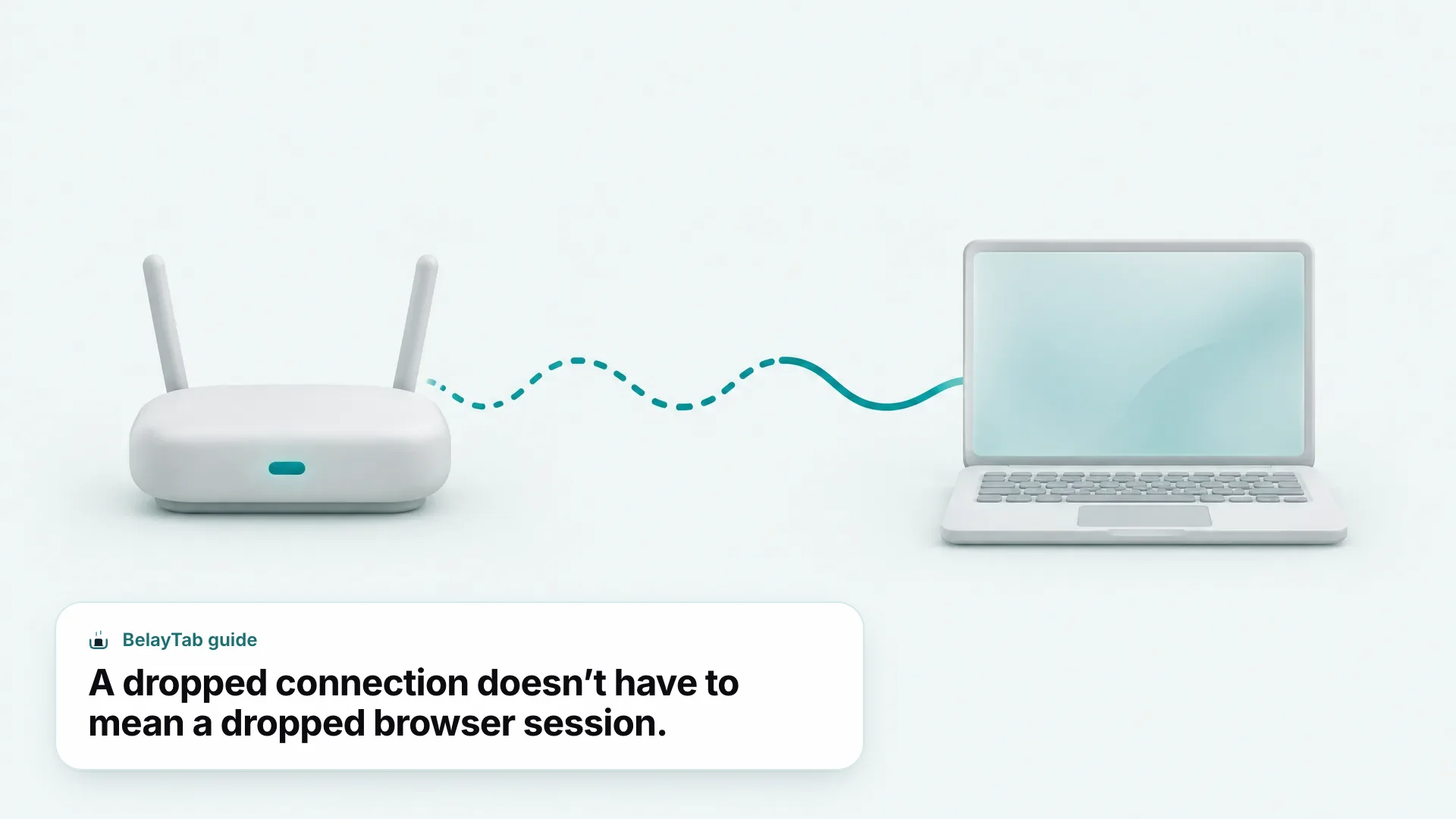
How Do I Stop Losing Open Tabs Every Time Wi-Fi Drops or I Restart?
Turn on Chrome’s “Continue where you left off” startup setting as a baseline, then add a tool that snapshots your tabs independently of that setting for real protection. Chrome’s own startup options, found at Chrome menu > Settings > On startup, let you choose “Continue where you left off” instead of a blank New Tab page, which reopens your previously open pages (including signed-in sessions) the next time Chrome launches.
That setting genuinely helps, but it has a real limit worth naming honestly: it depends on Chrome shutting down and reopening in a normal way. It doesn’t give you version history, it doesn’t survive a Powerwash, and it doesn’t let you recover a specific window from three restarts ago if you realize an hour later that you closed the wrong one. It’s a single, current snapshot — not a safety net with any depth to it.
That gap is exactly where a dedicated session tool earns its place, especially on a device where Wi-Fi drops mean you’re restarting more often than you would on a typical laptop. If you’ve read through /blog/why-does-my-chromebook-keep-freezing/ or /blog/why-does-my-chromebook-keep-crashing/, you’ll notice the same pattern shows up there too: the fix for the underlying problem almost always involves closing windows, restarting, or resetting something, and none of Google’s official steps are designed to protect what was open in your browser while that happens.
How Does BelayTab Protect My Tabs During Chromebook Wi-Fi Problems?
BelayTab takes an automatic snapshot of every open window every 5 minutes and again whenever a window closes, so a dropped connection, a forced restart, or even a Powerwash never wipes out tabs you haven’t explicitly saved. It’s a free browser extension (no account required) that works on Chrome, which is exactly the browser a Chromebook runs.
Where Chrome’s own “Continue where you left off” gives you one current state, BelayTab keeps the last 20 versions of each session, and restoring never overwrites what’s there. It just adds a new version on top. Everything lives in one Recovery screen: your automatic snapshots, anything you deleted in the last 30 days, the browser’s own recently closed windows, and any export files, all in the same place instead of scattered across different menus.
- Install BelayTab from /download/. It works the same way on a Chromebook’s Chrome browser as it does anywhere else.
- Let automatic snapshots run. No setup needed — every open window gets captured every 5 minutes and on close, with no limit on sessions or tabs.
- Open Recovery after a disconnect or restart. Pull up the snapshot from right before the problem and restore it into a new window or the current one.
This is worth being precise about: BelayTab does not fix Wi-Fi disconnects, and it can’t resolve a browser freeze or crash by itself. It doesn’t touch your network settings and it can’t recover tabs that were open before you installed it. What it does is make sure that whatever troubleshooting you’re forced to do (a restart, a hard reset, even Powerwash) doesn’t cost you the work you had open when the Wi-Fi dropped in the first place. If tab groups and pinned tab order matter to your setup, /features/tab-groups/ and /features/save-tabs/ cover how those are preserved through a save and restore. And if you ever want your sessions available from a browser on another machine too, /features/sync/ covers the optional paid tier that handles that.
Chromebooks already lean on the cloud more than most computers do, which is part of why Google built things like Diagnostics and Powerwash the way it did — your account data was never meant to live only on the device. Your open browser tabs, though, are a different story: nothing about ChromeOS itself snapshots them independently of a single Chrome setting. Pairing the official troubleshooting order in this guide with a tool that treats your tabs as worth protecting on their own closes that gap without adding much to your routine.
If you’re dealing with a Chromebook that’s acting up in more ways than just Wi-Fi, it’s worth reading /blog/chromebook-restart/ and /blog/how-to-reset-my-chromebook/ to understand exactly what each reset level does before you reach for it, and /blog/chromebook-extensions/ if you suspect something you installed is the actual root cause.