







You deleted something in Chrome’s History page, and now you need it back. Maybe it was one link buried in a hotel confirmation email, or you hit Clear browsing data with the wrong time range selected. Either way, you’re here because you want to know how to recover Chrome history, and the honest answer is that Chrome does not keep a backup of what you deleted. There is no trash can for history the way there is for files on your desktop.
That does not mean you are completely out of options. If you were signed in with sync turned on, there is a real chance, though not a guarantee, that some of that activity survives somewhere Chrome does not control: your Google Account. This post walks through what you can actually check, what to skip, and how to stop landing in this exact spot again.
How to Recover Chrome History After You’ve Deleted It
You generally cannot recover Chrome history once it is deleted from your device; Chrome does not keep a local backup or an undo option for browsing history. There is no “restore” button on the History page, and no settings menu that brings deleted entries back.
The one place worth checking is Google’s My Activity, but only if you were signed in to Chrome with sync turned on when the browsing happened. Even then, it depends heavily on how the deletion happened, which is the nuance most articles on this topic skip over. Before you spend time chasing that lead, it helps to know which situation you’re in.
| Situation | Can You Recover It? | What To Do Instead |
|---|---|---|
| You cleared history yourself (signed in or out) | Not locally | Check My Activity if you were signed in at the time |
| You just want to find something you haven’t deleted | Yes | Search the History page or use Ctrl + H |
| You need the actual page back, not just a link | Not from history | Check Recently Closed or a saved session instead |
| History was cleared on a shared or work computer | Not locally | Same as row one; ask IT about separate device backups |
| You want to avoid this happening again | N/A | Turn on sync, or save sessions with a tool like BelayTab |
If your situation matches row one or four, skip ahead to the section on My Activity. If you’re not even sure whether the page is gone, read the next section first, since it’s easy to assume the worst before checking properly.
Why Deleted Chrome History Can’t Be Undone in Chrome
Chrome treats browsing history as something you control directly, and deleting it is meant to be final, not a reversible action you can walk back. When you clear history through the History page or the Clear browsing data dialog (Ctrl + Shift + Delete on Windows and Linux, Cmd + Shift + Delete on Mac), Chrome removes those records from its local database. There’s no recycle bin sitting behind it.
This is a design choice, not an oversight. History deletion exists precisely so people can remove sensitive browsing, a medical search, a surprise gift, a job hunt, without worrying that it’s recoverable by someone else who picks up the device later. If Chrome quietly kept a shadow copy anywhere, that privacy guarantee would be worthless.
The Clear browsing data dialog lets you pick a time range (the last hour, 24 hours, seven days, four weeks, or all time) and which data types to clear, cookies, cached files, and history among them. That flexibility is useful, but it also means a rushed click on the wrong range can take out more than you meant to. If you’re trying to recover deleted history on Chrome and you’re not sure how much you cleared, check the time range you likely used; it tells you the outer bound of what you lost.
One detail catches people out: if you were signed in when you cleared history, Google states that the deletion removes that activity from your other synced devices and from your Google Account, not just from the one device you were using. That single fact shapes almost everything in the next few sections.
How to Check Whether Your History Is Really Gone
Before assuming the worst, confirm it’s deleted and not just hard to find. Open History with Ctrl + H on Windows, Linux, and ChromeOS, or Cmd + Y on Mac, and use the search box at the top of the page to look for the site name or a keyword instead of scrolling through the list by eye.
Chrome’s History page also includes a grouped view that clusters related visits by topic, sometimes labeled “By group.” Whether you see it, and exactly how it behaves, has shifted across Chrome versions, so don’t be surprised if your screen doesn’t match a screenshot you find elsewhere online. If you can’t locate that view, it doesn’t mean your history is gone; it may just mean your version of Chrome presents it differently.
It’s also worth separating “I can’t find it” from “I definitely deleted it.” If you’re not sure which is true, search first. If a thorough keyword search across your History page still comes up empty, and you remember explicitly clicking Delete or running Clear browsing data, then you’re dealing with an actual deletion, not a search problem, and the next section is where you go from here.
For quick lookups going forward, our browser history viewer can help you scan and search what’s currently stored without digging through Chrome’s own menus.
How to Recover Deleted Chrome History From Google’s My Activity
My Activity is worth checking, but it usually won’t help if you deleted the same browsing history while signed in to Chrome, because Google removes it from your account at the same moment it removes it from the device. Where My Activity sometimes still has something is when the browsing was synced to your account earlier, and the later deletion happened while you were signed out, or sync had been turned off in between.
- Open My Activity. Go to myactivity.google.com and sign in with the same Google Account you use in Chrome.
- Filter by date. Use the date filter to jump straight to the day you’re trying to check, rather than scrolling.
- Search by keyword. Type a site name or term into the search box at the top instead of browsing the full list.
- Check the result. If the visit shows up, you can open it directly; if it’s not there, or you’ve already deleted it from My Activity too, it won’t come back.
This is the part of “how to recover deleted Chrome history” that most guides oversimplify. My Activity isn’t a magic undo button sitting outside Chrome’s reach; in the common case, signed in, syncing, clear history, it’s just as gone from your account as it is from your browser.
What Happens If You Weren’t Signed Into Chrome?
If you weren’t signed in when you cleared history, there is no account-side copy to check, and the answer to how to recover deleted history on Chrome in that situation is simply that you can’t. My Activity requires a Google Account tied to Chrome’s sync, and without that connection, there’s no second location where the record could have been kept.
This also applies to Guest sessions and any period where you were browsing without an active Chrome sign-in. Guest mode specifically doesn’t save browsing activity to local history at all, and closing a guest session deletes whatever cookies and site data it accumulated. There’s nothing hiding in the background waiting to be recovered.
It’s a slightly frustrating answer, because it means the people who most want their history back, the ones who weren’t signed in, are the ones with zero options. If that describes you, there’s no workaround to reach for here, no hidden settings menu, no cache file to dig through. The honest move is to stop searching for a fix that doesn’t exist and instead put something in place so the next loss doesn’t matter as much. We’ll get to that.
One thing that can help in the moment: think about whether the page you need is still open in another tab or window, rather than something you visited days ago. History and open tabs are different problems, and conflating them wastes time you could spend checking the one that’s solvable.
Do Third-Party Chrome History Recovery Tools Work?
No, not in any way that Google or Chrome supports. Chrome doesn’t leave behind a recoverable file that a generic data recovery tool can scan and rebuild, the way deleted photos or documents sometimes can be pulled from a hard drive. Browsing history lives inside Chrome’s own internal database, and once an entry is removed, there’s no fragment left for outside software to reconstruct reliably.
If a tool claims it can restore Chrome history that’s already been deleted, treat that claim skeptically, especially if it asks for payment before showing you any actual results, or wants permissions well beyond reading a history file. There’s no official Chrome API or export feature that would let a third party recover something Chrome itself can’t.
The realistic path forward isn’t finding a better recovery tool. It’s accepting that Chrome history recovery, in the after-the-fact sense people search for, mostly doesn’t exist, and building a habit that prevents the situation instead.
How to Recover History on Chrome Across Multiple Devices
You can’t recover history across devices any better than you can on one, but sync does raise your odds if it was already on. When you sign in to Chrome, sync turns on by default and shares bookmarks, history, open tabs, passwords, payment info, addresses and phone numbers, and settings across every device where you’re signed in.
For history specifically, only URLs you typed or entered in the address bar get synced, not everything you clicked through to. That’s a narrower net than people expect, which is one reason My Activity sometimes has less than you’d hope even when sync was working correctly the whole time.
Synced data is encrypted by default, and Chrome lets you add an optional passphrase for extra protection on top of that. One warning worth knowing ahead of time: if you set a custom sync passphrase and forget it, there’s no official recovery path for it either, the practical fix people report is resetting sync entirely, which clears synced data and starts over. That’s a steep price to pay for a forgotten passphrase, so store it somewhere safe if you set one.
You can review exactly what syncs, and turn individual categories on or off, from Chrome’s sync settings. Our guide to setting up sync walks through the toggles if you want more control than the default “sync everything” setup gives you.
Why Chrome History Isn’t the Same as Your Saved Tabs
Chrome history is a log of links you’ve visited; it was never designed to be a way to get an actual working session back. That distinction matters more than it sounds like it should, because a lot of “I need my history back” requests are really “I need those forty tabs back,” and history was the wrong place to look from the start.
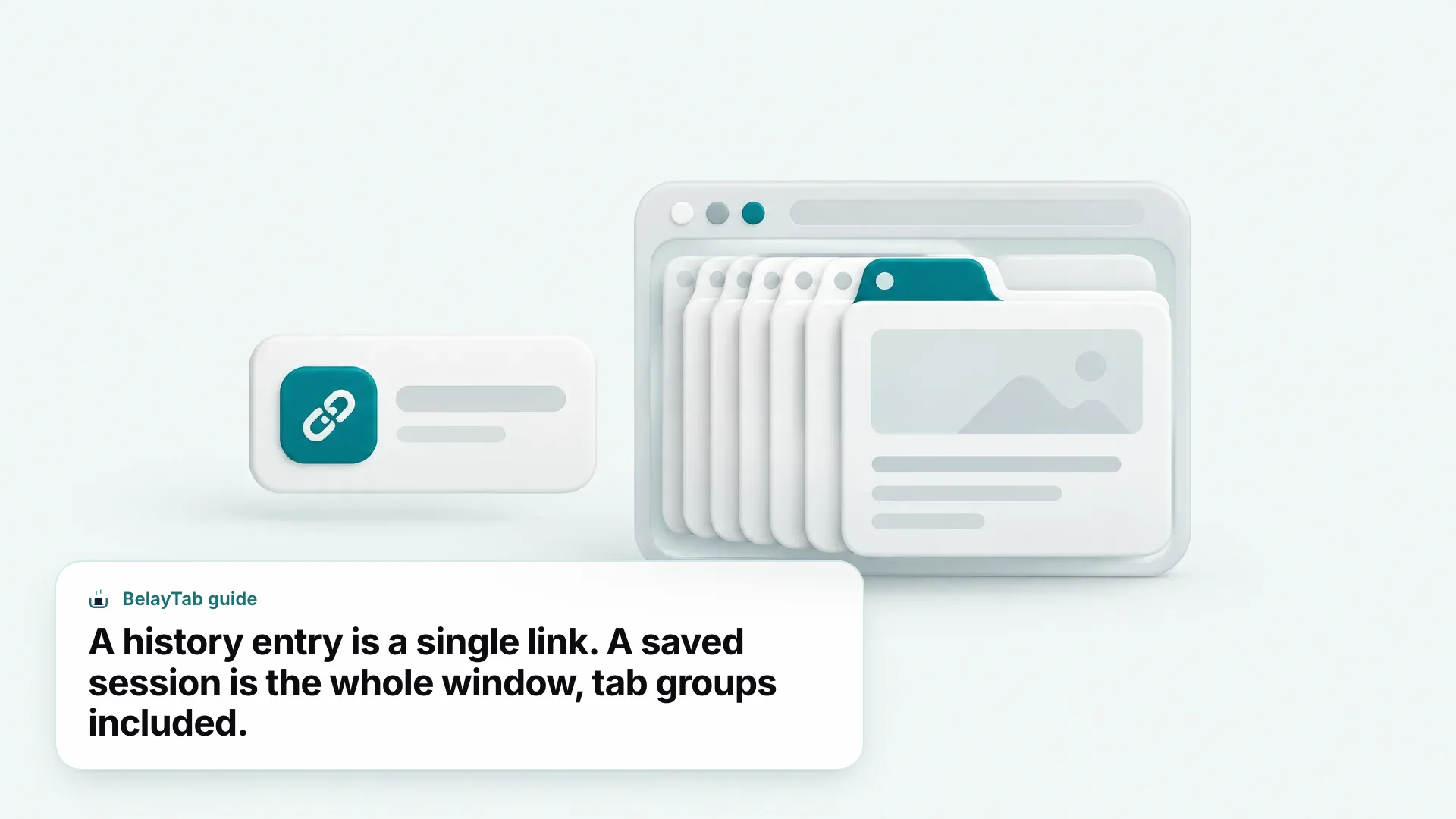
A history entry gets you a URL, nothing more. It doesn’t preserve which tabs were grouped together, what order they were in, which ones were pinned, or the fact that three of them were part of the same research task. A saved session captures all of that, and it isn’t affected by anything you do on the History page.
| What You Get | Chrome History | A Saved Session |
|---|---|---|
| A link you can revisit | Yes | Yes |
| Survives you clearing browsing history | No | Yes |
| Keeps tab groups, order, and pinned tabs | No | Yes |
| Recoverable after being deleted | No built-in undo | Yes, 30-day trash |
| Restores the whole window as it was | No | Yes |
This is why the fix for “I lost my history” and the fix for “I lost my tabs” end up being different tools entirely. History is best treated as a search index for things you might revisit; anything you can’t afford to lose belongs in a session, a bookmark, or both. You can read more about how saved sessions differ from ordinary browser recovery on our tab restore feature page.
How to Make Sure You Never Need to Recover History Again
The most reliable fix is to stop depending on history as your safety net in the first place. History was built for browsing back through what you’ve seen, not for guaranteeing you can get a specific page or window back weeks later, and treating it as a backup system sets you up for exactly the situation you’re in now.
- Turn on sync. It’s free, built into Chrome, and gives deleted local history at least a chance of surviving in your account, provided you don’t clear it while signed in too.
- Bookmark what matters. A bookmark isn’t affected by clearing history at all, and it takes one click, Ctrl + D on Windows and Linux, Cmd + D on Mac, to create.
- Save whole sessions, not just links. Tools like BelayTab keep the entire window, tab groups and order included, independent of your history entirely.
None of this requires giving up on clearing history when you want to. The point isn’t to stop clearing it, privacy reasons for doing that are perfectly valid, it’s to make sure the things you can’t afford to lose don’t live only inside that log in the first place. Once your important tabs are saved elsewhere, clearing history becomes routine housekeeping instead of a risk.
What to Do the Moment You Notice History Is Gone
Stop clicking around in Clear browsing data or History settings, and figure out what you’re missing before you do anything else. Panicked extra clicks in the same menus are how people accidentally clear more than they meant to the first time.
- Stop clearing anything else. Leave the Clear browsing data dialog alone until you know exactly what you’re trying to recover.
- Check My Activity if you were signed in. Follow the steps earlier in this post; it’s the only place a copy might still exist.
- Look at what’s still open first. The page you want might already be sitting in another tab or window, which makes history irrelevant for that one case.
- Set up protection before you close anything else. Turn on sync, and save your current tabs as a session so this particular loss can’t repeat itself.
If none of that turns anything up, it’s genuinely gone, and no amount of extra searching or third-party software changes that. The better use of your time at that point is making sure it’s the last time you’re in this position rather than continuing to dig for a fix Chrome doesn’t offer. Grab BelayTab and save your current windows now, before the next accidental clear-out costs you something you needed.