






Safari is the browser that comes pre-installed on every Mac, iPhone, and iPad, and if you’ve never used anything else, it’s easy to underrate how much it’s changed. This safari browser review sticks to what’s actually documented by Apple as of September 2026: what Safari does well, where it lags behind Chrome and Edge, and what really happens when you close a window full of research tabs by accident. Safari runs on Apple’s own WebKit engine rather than Chromium, which explains both its speed claims and a few of its extension quirks. It ships free with macOS, iPadOS, and iOS — no download, no account required. Below you’ll get a plain comparison of privacy, speed, tab groups, bookmarks, shortcuts, and extensions, plus one honest gap: what Safari does and doesn’t do when you close a window you didn’t mean to, and where BelayTab picks up the slack on Mac.
What Is the Safari Browser, and Which Devices Does It Run On?
Safari is Apple’s own web browser, built into macOS, iPadOS, and iOS and running on the WebKit engine instead of Chromium. It ships free as part of the operating system. There’s no separate purchase or download flow the way there is with a third-party app. Apple’s own Safari page confirms it runs on Mac, iPad, iPhone, and Apple Watch, and the newest documented release as of this writing sits alongside macOS 27, which Apple calls “Golden Gate.”
Here’s the short version for the situation you’re in right now:
| Situation | Quick answer |
|---|---|
| Using a Mac | Safari comes preinstalled and free; no download needed. |
| Using an iPhone or iPad | Safari is the default browser and syncs through iCloud. |
| Using Windows | No current Safari build exists; see the Windows section below. |
| Using Android | Safari isn’t available on Android at all. |
| Worried about losing tabs to a crash or accidental close | Safari’s native recovery is limited to one step back; a session manager like BelayTab covers more ground. |
If you’re deciding which browser to run day to day rather than just what Safari is, our best browser for Mac comparison walks through Safari alongside Chrome, Edge, Firefox, and a few others on the same machine. And if you want the full picture of what Safari looks like today, including its extension model and privacy defaults, the Safari browser hub is the place to start.
One more thing worth knowing up front: macOS 27’s Safari guide adds the ability to build custom Safari extensions using Apple Intelligence, just by describing the functionality you want on a page. That’s new for 2026, and we’ll come back to it in the extensions section below.
Is Safari a Good Browser for Privacy?
Yes — Safari blocks third-party cookies by default and layers on tracking prevention that a lot of competing browsers leave switched off unless you go looking for the setting. Apple’s own comparison chart states that, unlike Chrome, Safari blocks third-party cookies from tracking you automatically, fights tracking with on-device machine learning, strips unique trackers from URLs while you’re in Private Browsing, hides your IP address from known trackers, and blocks web extensions from seeing your browsing activity by default.
That machine-learning piece has a name: Intelligent Tracking Prevention, or ITP. Apple describes it as using on-device intelligence to prevent cross-site tracking and stop known trackers from using your IP address, which makes it “incredibly difficult to learn who you are and what you’re interested in.” Safari also ships a Privacy Report you can check to see what’s been blocked.
Worth contrasting with Chrome here, since it’s the browser most people are switching from or comparing against. Google’s own cookie-settings help page confirms Chrome blocks third-party cookies by default only inside Incognito mode — in regular browsing, you have to manually turn on “Block third-party cookies” yourself. Safari doesn’t ask; it’s already on.
Private Relay isn’t free or universal. iCloud Private Relay routes your traffic through two separate relays so no single party, not even Apple, can see both who you are and what sites you’re visiting. It’s part of a paid iCloud+ subscription, though, and Apple notes it isn’t available in every country or region, so don’t assume it’s covering you by default.
If privacy is your main driver for picking a browser at all, it’s worth reading how Safari stacks up directly against Chrome’s defaults in our Safari vs Chrome comparison, since the two take genuinely different approaches to what’s on by default versus what you have to switch on yourself.
Is Safari Faster Than Chrome?
According to Apple’s own 2026 testing, yes — Safari claims noticeably faster page loads and much longer battery life than Chrome on the same Mac. Apple’s marketing page states Safari is “35% faster on average at loading frequently visited websites than Chrome,” and separately claims “up to 5 hours more” video streaming time and “up to 18 hours” of video playback compared with the same test.
The reasoning Apple gives is architectural: WebKit is built specifically for Apple hardware, and Apple describes “deep WebKit integration between Mac hardware and macOS” as what lets Safari “deliver the fastest performance and the longest battery life of any browser on the platform.” That’s a real, credible mechanism — a browser tuned specifically for one chip family and one OS has an advantage a general-purpose Chromium build doesn’t.
It’s worth being precise about what these numbers are, though: they’re Apple’s own tests, run in August 2026, comparing Safari against Chrome on the same Mac. They aren’t an independent lab’s results, and Apple hasn’t published the exact test methodology alongside the headline figures in the pages checked for this review. Treat the direction (Safari tends to be lighter on battery on a Mac) as credible and the exact percentage as a vendor claim rather than a universal constant.
Which speed claim matters to you. If you’re comparing browsers specifically on a Mac and care most about battery life on a laptop, Safari’s WebKit integration is a real advantage worth weighing. If your priority is cross-platform extension support or Chromium-specific developer tools, that tradeoff points the other way, and the raw speed numbers matter less than compatibility.
How Do Tab Groups and Profiles Work in Safari?
Safari lets you name Tab Groups, edit them, and switch between them across your Apple devices, and Profiles keep a separate set of history, extensions, Tab Groups, favorites, and cookies for different parts of your life. Apple’s own copy describes Profiles as a way to “separate your history, extensions, Tab Groups, favorites, cookies, and more” — useful if you want a hard line between, say, a work context and a personal one, without running two different browsers.
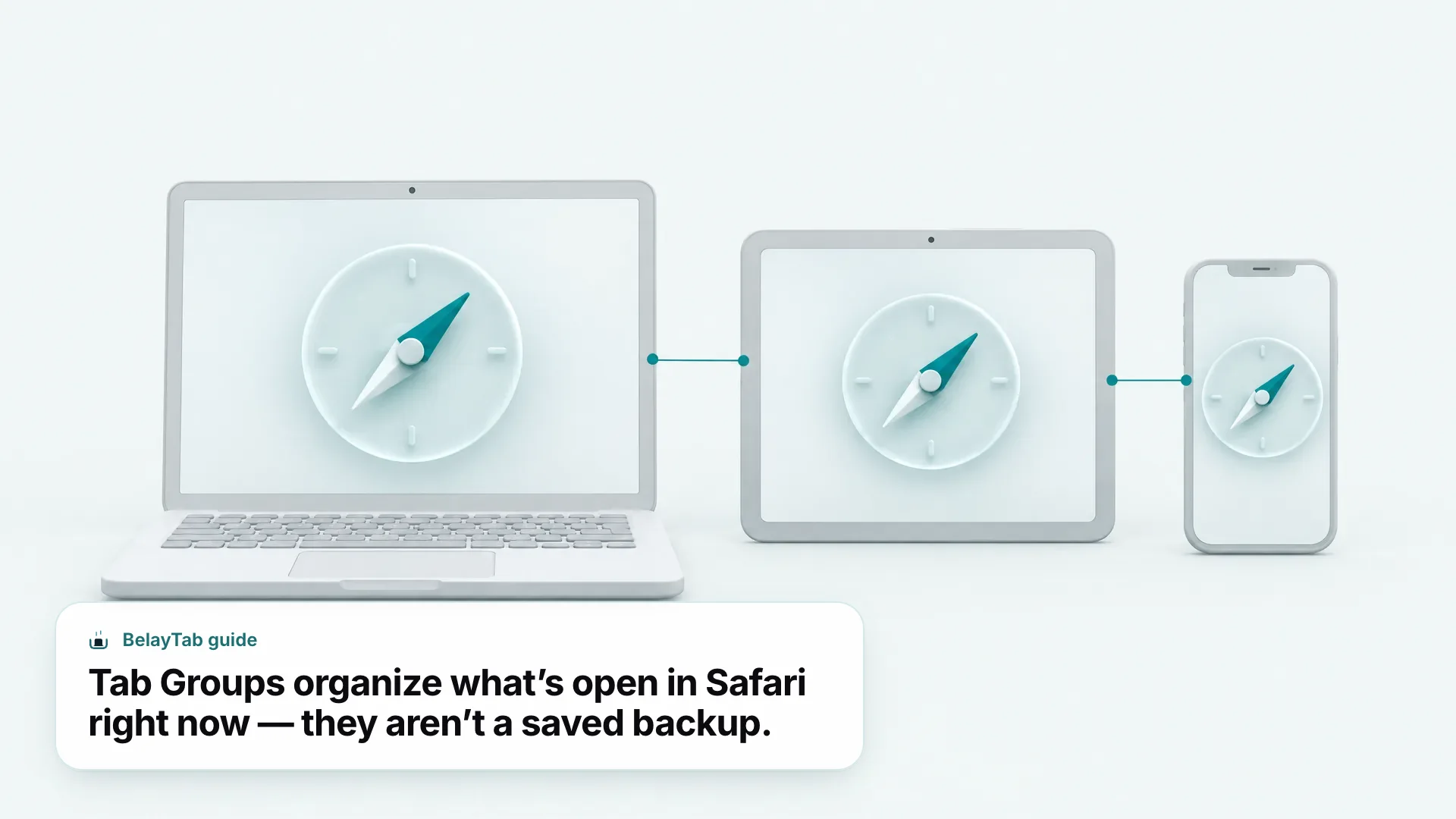
Tab Groups are genuinely good for keeping a research project or a set of related tabs together while you’re actively working. What they’re not is a backup. If a window gets closed by mistake, or Safari doesn’t relaunch the way you expected, the Tab Group structure disappears along with everything else — Safari’s own documented recovery for that scenario is a single shortcut, which we cover further down.
This is where a dedicated session tool earns its place. BelayTab saves an open window as a named session with one click or a shortcut, and it keeps tab groups, pinned tabs, and tab order intact when it does — on browsers where the extension platform exposes that information to extensions. On Safari specifically, tab groups aren’t part of what gets captured, because Safari doesn’t expose that structure to extensions the way Chrome and Edge do; a BelayTab session saved from Safari preserves your open tabs, just not the group names and colors. It’s an honest limitation worth knowing before you rely on it. You can read more about how session saving works generally on the Save Tabs feature page.
How Do I Add, Find, and Sync Bookmarks in Safari?
You add a bookmark in Safari on Mac by opening the page, clicking the toolbar icon, choosing Add Bookmark to, picking a folder, and clicking Add. Here’s the full process, straight from Apple’s own Safari User Guide:
- Open the page you want to save. Go to the webpage in Safari.
- Click the toolbar icon. Choose Add Bookmark to.
- Pick a folder. The default is Favorites; you can rename the bookmark and add a description here too.
- Click Add. The page is now saved as a bookmark.
To find a bookmark later, click Bookmarks in the sidebar (toggle the sidebar open from the toolbar icon if it’s hidden), then use the search field at the top. Managing existing bookmarks works through Control-click, which gives you rename, edit-URL, copy, delete, create-folder, and move options, or through Bookmarks > Edit Bookmarks in the menu bar.
A faster way to save your most-used sites. Click the Smart Search field to reveal a site’s address and icon, then drag that icon straight to the Favorites bar. Command-click a folder on the Favorites bar to open every bookmark inside it at once.
Bookmarks sync across your Apple devices through iCloud — turn it on for Safari on each device and the same list follows you from Mac to iPhone to iPad. On iPhone specifically, you add a bookmark by opening the page, tapping the toolbar icon, tapping Add Bookmark to, choosing a location, and tapping Save, and you can see your Mac’s bookmarks on iPhone through Settings > [your name] > iCloud, as long as Safari is turned on in both places under the same Apple Account.
If you ever need to move your Safari bookmarks somewhere other than another Apple device (a spreadsheet, a different browser, a backup file) our Safari Bookmarks guide covers the details, and the Safari Bookmarks Exporter tool can save you the manual work. Apple’s own iOS 27 guide even lists pages titled “Import browser data into Safari” and “Export Safari data to another browser,” confirming the feature exists, though the exact steps weren’t published in enough detail to repeat here confidently.
What Are the Most Useful Safari Keyboard Shortcuts?
The shortcuts worth memorizing in Safari on Mac cover search, tabs, and navigation — here’s the confirmed list straight from Apple’s own shortcuts guide.
| Action | Shortcut |
|---|---|
| Search current webpage | Cmd + F |
| Select Smart Search field | Cmd + L |
| Print current webpage | Cmd + P |
| Show tab overview | Shift + Cmd + \ |
| Select tabs 1–8 | Cmd + 1 through Cmd + 8 |
| Select last tab | Cmd + 9 |
| Close active tab | Cmd + W |
| Reopen last closed tab or window | Shift + Cmd + T |
| Open Safari settings | Cmd + , |
| Go back / forward | Cmd + [ / Cmd + ] |
| Zoom in / out | Cmd + + / Cmd + - |
| Show/hide Bookmarks sidebar | Control + Cmd + 1 |
| Show/hide Reading List sidebar | Control + Cmd + 2 |
| Open/close Reader | Shift + Cmd + R / Esc |
That reopen-closed-tab shortcut, Shift-Cmd-T, is the one to remember above all the others here, since it’s your main built-in recovery move — more on its limits in the last section.
You’ll see Cmd + T for a new tab and Cmd + N for a new window quoted everywhere online, and they do work in practice. Apple’s own current shortcuts guide doesn’t list them, though, so treat them as widely known community knowledge rather than something Apple has formally documented right now. For the complete list with every gesture and menu path, see our dedicated Safari Shortcuts guide, sourced from Apple’s official Safari keyboard shortcuts guide.
How Do I Install Extensions in Safari?
You install Safari extensions from a dedicated Safari category on the Mac App Store, which Apple describes as “the safest and easiest way to discover and install extensions.” Once installed, extensions update automatically as long as Automatic Updates is turned on, which takes one more piece of manual maintenance off your plate.
Permissions are handled per extension rather than as a blanket grant. You click an extension’s toolbar button to choose exactly how much access it gets to webpage content, and Safari will actively warn you if an extension appears to be slowing down your browsing. That’s a meaningfully different model from browsers where an extension gets broad access the moment you install it.
New for macOS 27: Apple’s own Safari User Guide describes the ability to create custom Safari extensions using Apple Intelligence, simply by describing the functionality you want a webpage to have. That’s a notable shift. It moves extension creation from “find one someone else built” to “describe what you need,” at least for the kinds of tasks Apple Intelligence can handle.
Extensions also travel with you across Apple devices. Apple’s guide states plainly: “If extensions you install on an iPhone or iPad are supported on Mac, those extensions are also available on your Mac.” That confirms iPhone and iPad are legitimate installation surfaces in their own right, not just a Mac-first afterthought.
For a rundown of specific extensions worth installing rather than just the mechanics of how installation works, see our Best Safari Extensions guide.
Is There a Safari Browser for Windows?
No — Apple doesn’t currently ship Safari for Windows. Its own 2026 marketing benchmarks make this obvious just by how they’re framed: they compare “Safari on macOS” against “Chrome on Windows 11” and “Edge on Windows 11,” never “Safari on Windows,” because that product doesn’t exist to test.
It’s widely reported, though not confirmed on any current Apple page, that Safari 5.1.7 from May 2012 was the last version Apple released for Windows before quietly discontinuing the platform. Treat that specific date as community-sourced rather than something Apple currently states, since it isn’t documented on an official page today.
Be skeptical of ‘Safari for Windows’ downloads. Since Apple ships no current Windows build, any installer claiming to be “Safari for Windows” today is not an official Apple release. If you need Apple’s ecosystem features on a Windows PC, the legitimate path is iCloud for Windows through the Microsoft Store, not a Safari installer.
iCloud for Windows is Apple’s actual official answer for Windows users who want iCloud data without Safari itself. The current release needs Windows 11 or later, and Outlook integration specifically needs Outlook 2021 or later; it also doesn’t support Managed Apple Accounts, which matters if you’re on a work or school-managed Apple ID. For day-to-day browsing on Windows, you’re choosing between Chrome, Edge, Firefox, or another Chromium-based option — our Safari browser for Windows explainer goes deeper on what’s available and why.
Safari vs Chrome vs Edge vs Firefox: Which Should You Use?
It mostly comes down to your devices: Safari is the strongest pick if you live in the Apple ecosystem, Chrome and Edge make more sense if you’re on Windows and want the widest extension support, and Firefox is worth a look if you want a non-Chromium engine with tracking protection switched on by default.
| Browser | Engine | Platforms | Extensions from | Blocks 3rd-party cookies by default |
|---|---|---|---|---|
| Safari | WebKit | Mac, iPad, iPhone, Apple Watch | Mac App Store | Yes |
| Chrome | Blink (Chromium) | Windows, Mac, Android, iOS | Chrome Web Store | Only in Incognito |
| Firefox | Gecko | Windows, Mac, iOS, Android, Linux | addons.mozilla.org | Yes (Total Cookie Protection) |
| Edge | Blink (Chromium) | Windows, Mac, Linux, Android, iOS | Not published on Microsoft’s features page | Not published |
Market share tells a related but separate story from feature parity. Per StatCounter’s global browser market share data for August 2026, Chrome sits at 69.39% of overall usage worldwide with Safari second at 15.83%, and on desktop specifically Chrome leads at 73.28% with Safari at 5.24%, behind Edge’s 10.46%. Safari’s overall number is propped up almost entirely by iPhone and iPad usage rather than desktop share.
- Chrome. The default choice if you want the widest extension library and the most cross-platform consistency, at the cost of weaker cookie defaults out of the box.
- Edge. A solid Windows-first pick with Chromium compatibility plus Microsoft account and Microsoft 365 integration baked in.
- Firefox. The non-Chromium option, with tracking protection on by default and no single company controlling the rendering engine underneath Chrome, Edge, Brave, Opera, and Vivaldi.
- Vivaldi. A Chromium-based browser built around heavy tab customization — see our Vivaldi browser review if you want more control over how tabs are organized than Safari currently offers.
None of this is really about which browser is “better” in the abstract. It’s about which tradeoffs (engine, platform reach, default privacy settings) line up with how and where you work.
How Do You Get a Closed Tab Back in Safari?
Press Shift-Cmd-T to reopen the last tab or window you closed. That’s Safari’s documented recovery shortcut, and it only goes back one step. Close two windows in a row and that shortcut brings back the most recent one, not both.
Beyond that one shortcut, Safari’s current official guide doesn’t document a deeper built-in recovery path for a window closed an hour ago, a Mac that restarted unexpectedly, or a Safari relaunch that didn’t bring back what you expected. That’s not a flaw exactly. It’s just the edge of what the built-in tool is designed to do, and it’s exactly the situation a dedicated session tool is built to cover.
- Install BelayTab for Safari on Mac. Get it from the download page.
- Save a session before you close anything risky. Press Cmd + Shift + S, name the window, and save it.
- Let automatic snapshots back you up too. BelayTab snapshots every open window every 5 minutes and again the moment a window closes, with no setup needed.
- Recover from one screen. Open the Recovery screen to find snapshots, deleted sessions, and export files, then restore into a new window or the current one.
Because BelayTab is free with no account and no limits on sessions or tabs, it’s a reasonable habit to build even if you only lean on it a few times a year. On Safari specifically, worth repeating: it saves and restores your open tabs, pinned tabs, and order, but not Tab Group names and colors, since Safari’s extension platform doesn’t expose that structure. Everything BelayTab stores stays on your Mac unless you turn on the optional paid Sync, and it never reads what’s on the pages you have open — see the Restore Tabs feature page for the full mechanics.
The Bottom Line on Safari in 2026
Safari is a genuinely good browser for anyone living inside Apple’s ecosystem, with default privacy protections and battery-life claims that most competitors still have to opt into or can’t match at all. Its biggest structural limit isn’t a feature gap so much as a platform one: it only exists on Mac, iPad, iPhone, and Apple Watch, so it’s a non-option the moment you touch a Windows PC or an Android phone.
Where it genuinely falls short of a dedicated tool is tab recovery beyond a single step back. Tab Groups and Profiles are good organization, iCloud sync is reliable across Apple devices, but neither one is a backup in the way a named, versioned session is. If you’ve ever closed the wrong window in Safari and realized Shift-Cmd-T only got you halfway there, that’s the gap BelayTab was built to close — free, local-first, and built to work with how Safari behaves rather than around it.