






Searching for an adblock extension used to be simple: pick the popular one, click install, done. As of September 2026, it’s a little more complicated, because Chrome’s switch to Manifest V3 has quietly retired the extensions a lot of people grew up with. The classic version of uBlock Origin is gone from the Chrome Web Store, and any ad blocker still built on the old Manifest V2 architecture stopped working months ago.
This guide sorts out what’s actually available right now: which extension replaced classic uBlock Origin, which browsers block ads without any extension at all, and how to install one safely without breaking anything. We’ll also flag the one thing an ad blocker extension has nothing to do with — the tabs you lose track of while you’re busy testing new ones.
What Is an Adblock Extension and How Does It Actually Work?
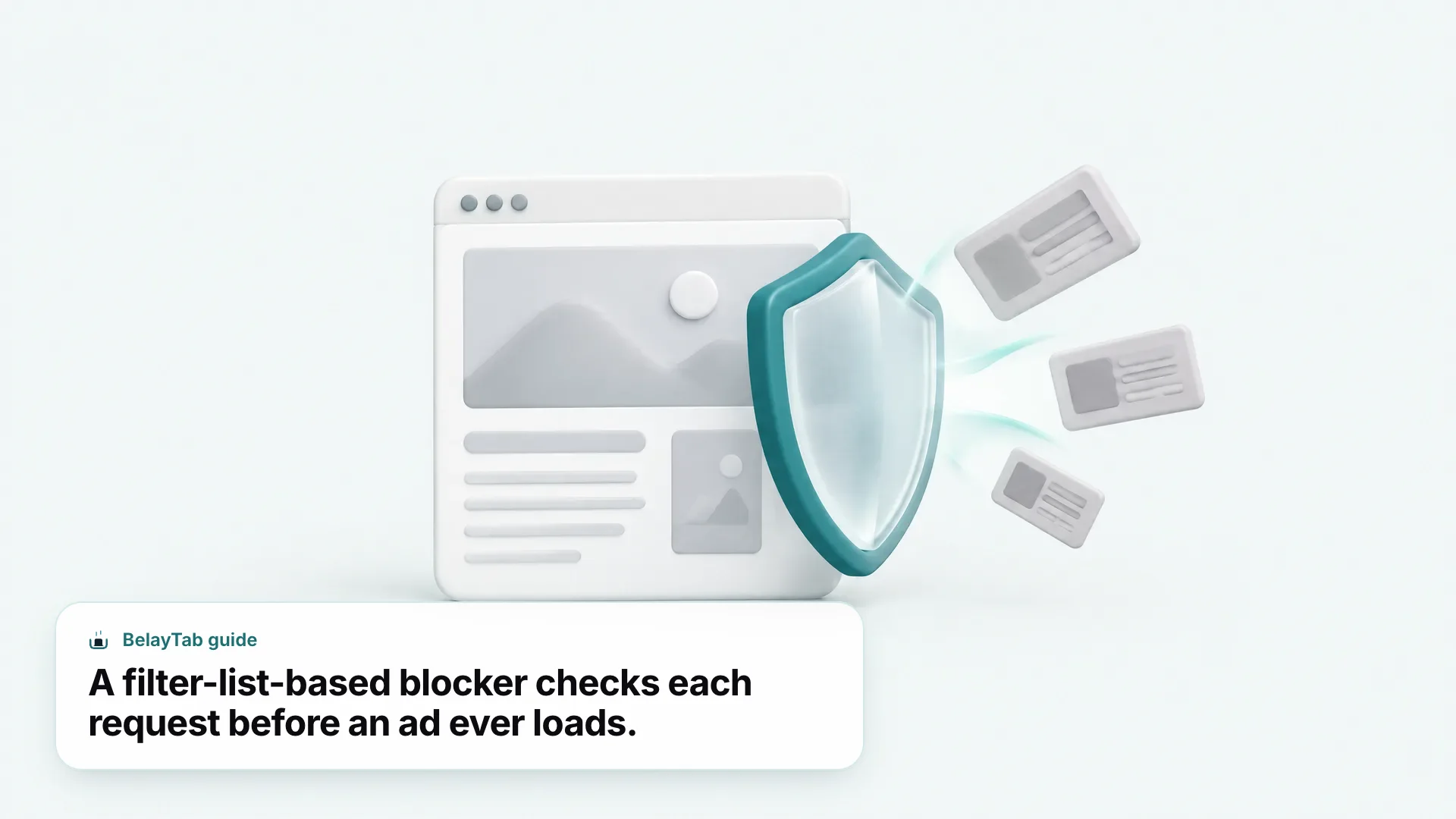
An adblock extension is a browser add-on that checks each web request against filter lists and blocks the ones matching known ad or tracking patterns, before the ad ever loads. It doesn’t scan what a page says; it matches URLs and network requests against rules maintained by the filter list’s authors, then tells the browser to drop or modify the ones that match.
How that matching happens has changed. Older, Manifest V2 extensions could inspect and block network traffic directly through a synchronous webRequest API. Chrome’s Manifest V3 restricts that in favor of declarativeNetRequest, where the extension hands the browser a set of rules up front and the browser itself does the blocking. That’s a real architecture shift, not just a rebrand, and it’s why some familiar extension names disappeared rather than simply updating.
Here’s the short version by browser, before we get into details:
| Browser | Best ad-blocking option in 2026 |
|---|---|
| Chrome | uBlock Origin Lite (uBOL), Manifest V3-native |
| Firefox | Full uBlock Origin — still supported, works best there |
| Brave | Built-in Brave Shields, no extension needed |
| Opera | Built-in ad blocker, shield icon in the address bar |
| Vivaldi | Built-in tracker/ad blocker, three levels |
| Edge | uBOL via Edge Add-ons; built-in tracking prevention covers trackers only |
| Safari | uBOL via the Safari App Store |
What Is Manifest V3, and Why Does It Matter for Ad Blockers?
Manifest V3 is Chrome’s current extension architecture, and it matters here because it removed the API most classic ad blockers were built on. Manifest V2 is fully deprecated in Chrome: warning banners appeared in mid-2024, MV2 extensions started getting disabled in stable Chrome in late 2024, MV2 was off by default everywhere by March 31, 2025, and as of Chrome 138 in July 2025 there was no way to re-enable it. Remaining MV2 listings were permanently removed from the Chrome Web Store on August 31, 2026.
For ad blockers specifically, the sticking point was the blocking (synchronous) version of the webRequest API, which let an extension inspect and stop a network request in real time. MV3 restricts that in favor of declarativeNetRequest, where the browser applies a static or dynamic ruleset the extension supplies, rather than the extension examining every request itself.
Google’s Chrome extensions team has acknowledged the friction this caused, saying it has been “improving content filtering support by providing more generous limits in the declarativeNetRequest API for static rulesets and dynamic rules.” It’s not a total downgrade, but it is a different way of working, and it’s the reason some extensions rebuilt from scratch rather than patching their old code.
MV2 extensions cannot run in current Chrome. If you still have an old ad blocker installed that hasn’t been updated for Manifest V3, it stopped functioning by mid-2025 at the latest, and its listing was removed from the Chrome Web Store by August 31, 2026. Reinstalling won’t bring it back. You need an MV3-native replacement.
Is uBlock Origin Still Available as a Chrome Extension?
No, the classic, full uBlock Origin extension is no longer on the Chrome Web Store. Its own GitHub README confirms it was removed along with the rest of the remaining Manifest V2 listings when the store’s August 31, 2026 cleanup happened, and that it “works best on Firefox,” where it remains available for both desktop and Android.
That’s not a small caveat. The full uBlock Origin depends specifically on the blocking webRequest API, and Firefox’s own Manifest V3 implementation chose to keep that API rather than remove it — Mozilla has said its MV3 “diverges where we think it matters and where our values point to a different direction” from Chrome’s approach. So if the exact, full-featured uBlock Origin experience matters to you more than which browser you use, Firefox is currently the browser where it still runs as originally built.
Chrome users aren’t left without an equivalent, though. The same development team built a Manifest V3-native alternative specifically because the old approach stopped being an option in Chrome, which is the extension covered next.
What Is uBlock Origin Lite (uBOL), and How Is It Different?
uBlock Origin Lite is a separate, Manifest V3-native content blocker from the uBlock Origin team, built specifically around Chrome’s newer, declarative filtering model. Its own README describes it as “an efficient content blocker based on the MV3 API,” where the browser itself handles the CSS and JavaScript injection for content filtering, rather than the extension running that logic continuously in the background.
That “continuously running” distinction matters for anyone who cares about resource use. uBOL’s service worker “only activates when users interact with the popup or options panels,” so it isn’t sitting active in memory the way older, persistent background-script extensions did. Its default ruleset covers the same filter-list foundations people expect: EasyList, EasyPrivacy, and Peter Lowe’s tracking server list, with optional extra rulesets available if you want broader coverage.
- Search the Chrome Web Store for uBlock Origin Lite. Confirm it’s the uBOL listing, not an unrelated extension using a similar name.
- Click Add to Chrome. Review the permissions dialog, then click Add extension.
- Pin the icon. Click the puzzle-piece icon in your toolbar and pin uBOL so it’s visible.
- Check the ruleset. Open its popup to confirm EasyList, EasyPrivacy, and Peter Lowe’s list are enabled, and add extra rulesets if needed.
- Reload open tabs. Pages you already had open won’t apply the new filtering until refreshed.
uBOL isn’t Chrome-only, either. It’s distributed for Chromium browsers through the Chrome Web Store, for Firefox through Firefox Add-ons, for Microsoft Edge, and for Safari through the Safari App Store — so it’s a reasonable pick even if you split your browsing across more than one browser.
Do I Need an Adblock Chrome Extension If My Browser Already Blocks Ads?
It depends on the browser — several popular ones block ads or trackers natively, without any extension installed at all. If you’re already on one of these, adding a separate ad blocker extension on top is often redundant, though not necessarily harmful.
- Brave. Brave Shields is on by default and blocks ads and trackers with “no extra downloads, no settings to configure.” Brave’s own guidance states you “won’t need an extension-based ad blocker in Brave” because Shields already handles it.
- Opera. Opera’s built-in ad blocker turns on with a single toggle: click the shield icon next to the address bar and switch on Block Ads. Opera says it removes video ads before they load, with no extension needed.
- Vivaldi. Vivaldi ships its own tracker and ad blocker with three levels (No Blocking, Block Trackers, Block Trackers and Ads) set at Settings, then Privacy and Security, then Tracker and Ad Blocking, or per-site from the address bar.
- Edge. Edge’s tracking prevention (Basic, Balanced, Strict) targets trackers, not visual ad removal specifically, so an extension like uBOL still adds value here for actual ad blocking.
Vivaldi’s own guidance is a good general rule regardless of which browser you use: block trackers everywhere, but reserve aggressive ad blocking for sites where ads are genuinely intrusive. If your built-in blocker already handles the annoying stuff, adding a duplicate extension mostly costs you a bit of memory and one more thing to manage in your toolbar.
How Do I Install an Ad Blocker Extension Safely?
You install it through your browser’s official extension store, reviewing the permissions dialog before you click confirm. Chrome’s own Web Store help is direct about this: a permission warning “doesn’t mean the app is dangerous, just that it can be,” and permissions fall into three general risk tiers — high alert for access to all computer data and all websites, medium alert for access to specific or all websites, and low alert for narrower access like bookmarks, history, or tabs.
- Go to the extension’s official store listing. The Chrome Web Store for Chrome, Firefox Add-ons for Firefox, Edge Add-ons for Edge, or the Safari App Store for Safari.
- Read the permissions before installing. An ad blocker legitimately needs broad site access to filter requests everywhere. That’s expected, not a red flag on its own.
- Click Add, then confirm the dialog. Chrome and Edge both show a confirmation prompt before the extension activates.
- Pin it and check its options. Most content blockers let you review or adjust the active ruleset from their toolbar icon.
- Run a safety check if you’re unsure. Chrome’s Safety Check, under Settings, then Privacy and Security, can flag risky installed extensions.
Will an Adblock Extension Block Ads on YouTube?
Generally yes, because filter-list-based blockers apply the same rules to every site, including video platforms, rather than treating YouTube as a special case. uBOL’s default ruleset (EasyList, EasyPrivacy, and Peter Lowe’s tracking server list) matches ad and tracking requests by network pattern, and those patterns aren’t limited to traditional banner or sidebar ads.
That said, this guide can’t promise a specific outcome for any one site, YouTube included, because how effectively a blocker works on a given platform depends on that platform’s own systems, which change over time and aren’t something covered in the fact sheet this article is built from. If you’re specifically hunting for a “YouTube adblock extension” separate from a general-purpose one, know that there isn’t a dedicated YouTube-only product covered here — the same general blockers, uBOL on Chrome or the full uBlock Origin on Firefox, are what’s doing the filtering, not a YouTube-specific tool.
What About the Adblock Plus Chrome Extension and Other Ad Blockers?
This guide doesn’t have verified, sourced facts about Adblock Plus’s current Chrome Web Store status, so it won’t make a claim about it either way. If you’re specifically searching for the “adblockplus chrome extension,” the safest approach is the same one that applies to any ad blocker you’re considering: check its own store listing directly for whether it’s built on Manifest V3, since Chrome removed remaining Manifest V2 listings on August 31, 2026 and any extension still running the old architecture simply won’t work.
The names covered with confidence in this guide (uBlock Origin, uBlock Origin Lite, and the built-in blockers in Brave, Opera, and Vivaldi) are the ones with official documentation backing every claim made about them here. That’s a deliberate choice, not an oversight: recommending a specific third-party extension without being able to verify its current permissions, maintenance status, or Manifest version isn’t something this article is set up to do responsibly. If a name matters to you that isn’t listed here, look up its own official store page and apply the same permissions check covered above before installing it.
Ad Blocker Extension vs Built-In Browser Blocking: Which Should You Use?
Use your browser’s built-in blocking if it has one and covers what you need; add an extension when you want more control, a different filter list, or your browser has no native option. Here’s how the two approaches compare directly.
| Ad blocker extension (e.g., uBOL) | Built-in browser blocking (Brave, Opera, Vivaldi) | |
|---|---|---|
| Setup | Install from a store, one time | Already active, or a single toggle |
| Customization | Choose your own rulesets | Fixed levels the browser defines |
| Works across browsers | Yes, same extension on multiple browsers | No, tied to that specific browser |
| Update cadence | Depends on the extension’s maintainers | Tied to the browser’s own release cycle |
| Manifest V3 affected | Yes, directly | No — not delivered as a Chrome Web Store extension |
The practical takeaway: if you already use Brave, Opera, or Vivaldi, you likely don’t need to add anything on top for basic ad blocking. If you’re on Chrome, Edge, Safari, or a browser without a built-in option, an MV3-native extension like uBOL is the current, working choice, since it’s what the classic extensions were replaced by rather than an alternative to them.
How Do I Make Sure Switching Ad Blockers Doesn’t Cost Me My Open Tabs?
You protect your tabs separately from whatever ad blocker you’re running, because neither uBOL nor a browser’s built-in blocking has anything to do with keeping tabs open across a crash, an update, or an accidental close. Testing a new extension often means disabling the old one, restarting the browser, and reloading a batch of tabs to compare results — exactly the kind of moment where a crash or a fat-fingered window close costs you real work.
Chrome’s own session restore can bring tabs back after a normal close, but it’s a single slot that gets overwritten, not a history you can browse. If you’re the type of person with forty tabs open while comparing filter lists and checking whether ads disappeared, that’s a fragile setup even before you touch an extension’s settings. Our guide on managing Chrome extensions covers the general workflow for installing, disabling, and comparing extensions if you want the broader picture, and how to vet a Chrome Web Store listing covers what to check before you install anything new.
BelayTab is built for exactly this kind of session. It’s free, needs no account, and takes automatic snapshots of every open window every five minutes, and again the moment you close a window, with the last 20 versions of each session kept so restoring never overwrites older work. You can also save a window manually with one click or Ctrl + Shift + S (Cmd + Shift + S on Mac) before you start swapping extensions, name it something like “ad blocker testing,” and get every tab back exactly as it was if something goes wrong.
- Install BelayTab before you start testing. It runs on Chrome, Edge, Brave, Opera, Vivaldi, Arc, Firefox, and Safari on Mac.
- Save your current tabs as a named session. One click, or the keyboard shortcut, captures the whole window.
- Disable, install, or compare ad blockers freely. Automatic snapshots keep running every five minutes in the background.
- Restore from the Recovery screen if anything goes sideways. Snapshots, deleted sessions, and recently closed windows are all in one place.
BelayTab has no host permissions and never reads what’s on the pages you have open, so it doesn’t interact with your ad blocker or the content it’s filtering in any way. It just makes sure the tabs survive whatever you throw at your extensions setup. For the full picture of how saving and restoring works, see the save tabs feature page and the restore tabs feature page, or head straight to the download page for links to every supported browser.