






Chrome freezes when a tab, extension, or your graphics driver overloads the browser faster than it can keep up. Press Shift + Esc to open Chrome’s own Task Manager, find the process using the most CPU or memory, and end it. That fixes most freezes without closing the whole browser. If Chrome won’t respond to that either, force quit it from your operating system, relaunch, and work through the fixes below in order.
This guide covers every real fix for Chrome freezing or showing “not responding,” from the fastest (kill one tab) to the more drastic (reset settings, new profile). None of them require reinstalling Chrome as a first step, and most take under a minute. If Chrome is actually closing or showing an “Aw, Snap!” page rather than just freezing, see our guide on what to do when Chrome crashed instead — the causes overlap, but the recovery steps differ.
What Causes Chrome to Freeze or Stop Responding?
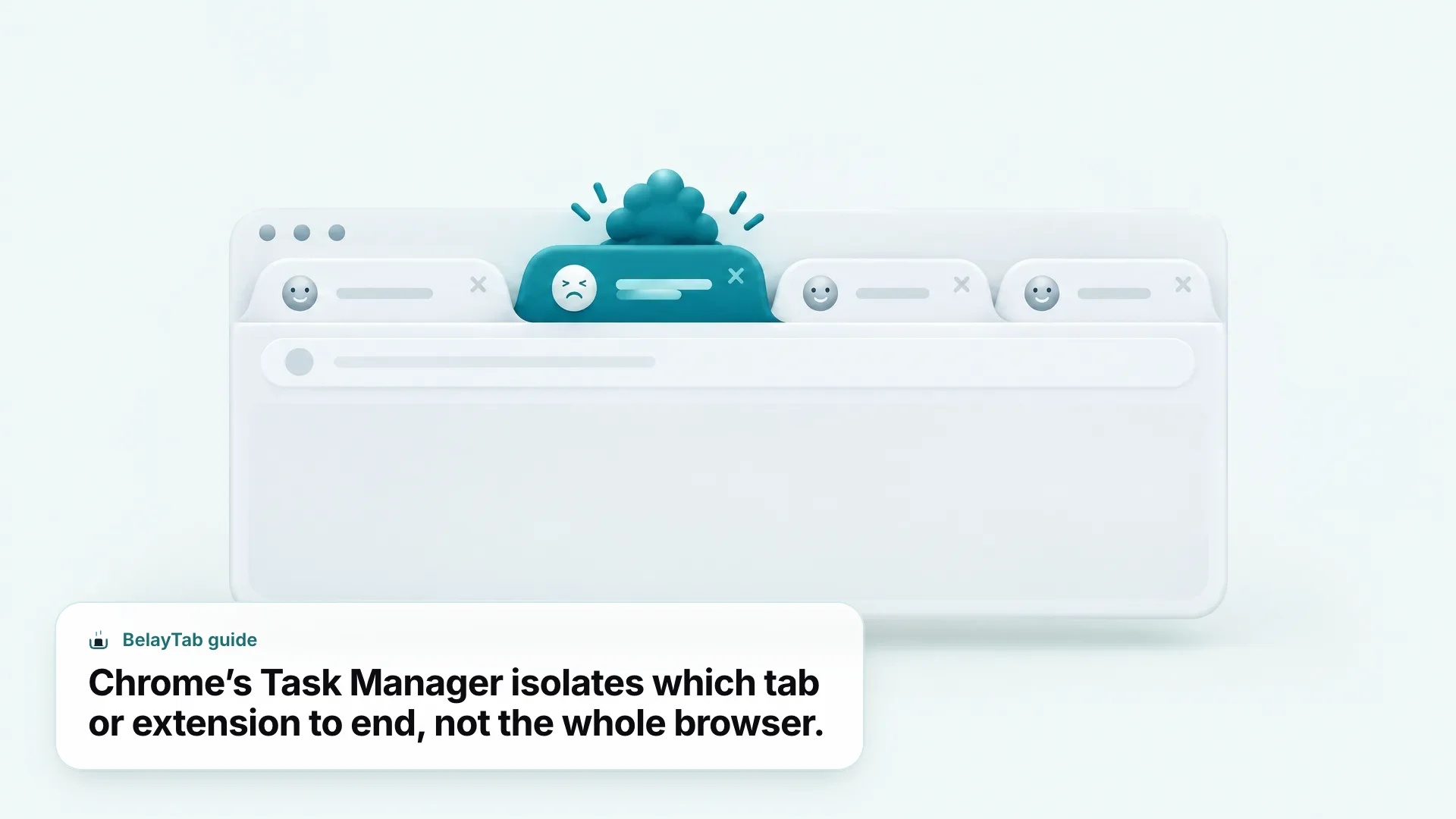
Chrome freezes when one process (a tab, an extension, or the browser’s own rendering) consumes more CPU, memory, or GPU than your computer can supply right now. The browser’s main thread stops responding to clicks and keystrokes while it waits. Modern Chrome runs most tabs as separate processes specifically so one bad page shouldn’t be able to take the whole browser down with it, but a few things can still get past that isolation: the GPU process that handles rendering for every tab, an extension with permission to run on every page, or simply running out of memory across the board.
The most common causes, roughly in order of how often they show up:
| Situation | Most likely cause | Try this first |
|---|---|---|
| Freezes on one specific website | A runaway script or ad on that page | Task Manager, end that tab |
| Freezes only in video calls or games | Hardware acceleration | Turn off graphics acceleration |
| Freezes gradually get worse over a session | Too many open tabs | Close or save tabs, reduce count |
| Freezes started after installing something | A specific extension | Disable extensions one by one |
| Freezes happen browser-wide, even on new tabs | Full cache or corrupted profile | Clear cache, then try a new profile |
| Chrome won’t even open a new window | Outdated Chrome or corrupted install | Update Chrome, then reinstall |
Give it a few seconds first. Chrome sometimes reports “not responding” for a few seconds while a heavy page finishes loading, then recovers on its own. If it’s been frozen for more than 10–15 seconds, move on to Task Manager.
How Do I Force Quit Chrome When It Won’t Respond at All?
Force quit Chrome from your operating system’s task manager, not Chrome’s own menus, since a fully frozen window won’t respond to clicks. This closes every Chrome window and tab at once, so try Chrome’s own Task Manager first if you can still see the browser at all.
There’s no real downside to waiting 15–20 seconds before force quitting. Chrome sometimes recovers once a heavy script finishes, and you avoid losing anything typed into an open form. Once you’re past that point and nothing has changed, force quitting is safe and won’t damage Chrome or your profile. It’s the same as closing the app any other way, just skipping the graceful shutdown.
- Windows. Press Ctrl + Alt + Delete, choose Task Manager, select Google Chrome (it may list several entries), and click End task.
- Mac. Press Cmd + Option + Esc to open Force Quit Applications, select Google Chrome, and click Force Quit.
- Chromebook. Chrome is the operating system’s shell, so a frozen browser usually means a frozen tab, not the whole OS. Use Chrome’s own Task Manager from the menu first.
Unsaved work will be lost. Force quitting closes Chrome immediately, with no chance to save anything open in a form or editor. It’s a last resort after Chrome’s own Task Manager has failed to end the frozen process.
How Do I Use Chrome’s Task Manager to Kill the Tab That’s Freezing It?
Open Chrome’s Task Manager with Shift + Esc on Windows and Linux, or from the menu on any platform, then end the process using the most resources. This is the fastest fix because it closes only the offending tab or extension, not your whole browsing session.
- Open Task Manager. Press Shift + Esc, or click the three-dot menu, then More Tools, then Task Manager.
- Sort by CPU or Memory. Click either column header to find the process using the most resources.
- Select the process. It’s usually labeled “Tab:” followed by the page title, or “Extension:” followed by its name.
- Click End process. This closes only that tab or extension; the rest of Chrome keeps running normally.
- Reopen the tab if you need it. Press Ctrl + Shift + T (Cmd + Shift + T on Mac) to reopen the last closed tab, and watch whether it freezes again.
If ending the process doesn’t get Chrome responding again within a few seconds, close Task Manager and move on to a full force quit.
The Task Manager list is worth reading closely. Entries prefixed “Tab:” are individual pages, “Extension:” are extensions, and “GPU Process” or “Browser” cover Chrome’s own internal work rather than any specific site. If the process using the most CPU is the GPU process itself rather than a tab, that points toward hardware acceleration as the cause, which is the next thing to check.
Does Hardware Acceleration Cause Chrome to Freeze?
Hardware acceleration can cause Chrome to freeze or render incorrectly, particularly with an outdated or mismatched graphics driver. Chrome uses your GPU to speed up video, animations, and page rendering by default; turning that off shifts the work back to your CPU, which is slower but avoids driver-related freezes.
To test it: open Settings, then System, then turn off “Use graphics acceleration when available,” and relaunch Chrome when prompted. If freezing stops, the cause was your graphics driver interacting badly with Chrome, and you can leave acceleration off or update your GPU driver and turn it back on.
Hardware acceleration is on by default because most people benefit from it — video playback, WebGL pages, and smooth scrolling all rely on it. Leaving it off works fine for everyday browsing but costs you some smoothness on graphics-heavy sites, so treat it as a diagnostic step rather than a permanent setting unless it’s the only thing that stops the freezing.
Can Too Many Open Tabs Make Chrome Hang?
Yes. Each open tab uses its own share of memory and, for most sites, its own process, so a large number of tabs can exhaust your computer’s RAM and cause Chrome to hang or freeze under the load. This is more likely on computers with 8GB of RAM or less, or when several tabs are running heavy pages like video calls, spreadsheets, or social media feeds.
Reducing tab count is the direct fix, but closing tabs you might need again feels risky. That’s the actual reason people let tab counts spiral in the first place. If a page just needs a clean reload rather than closing outright, our hard refresh tool explains the shortcut for every browser.
Chrome has a built-in setting for this: open Settings, then Performance, and turn on Memory Saver. It automatically puts inactive tabs to sleep to free up memory, then reloads them the moment you click back to them. You can choose how aggressively it does this and list specific sites you always want to stay active, like a music player or a chat app.
Do Chrome Extensions Cause Freezing, and How Do I Test That?
Yes, a poorly built or outdated extension can freeze Chrome by running a script that never finishes or conflicts with the page. Testing is straightforward: disable every extension, confirm the freezing stops, then re-enable them one at a time.
Extensions that inject content into every page (ad blockers, password managers, shopping assistants) are the most common offenders, simply because they run on more pages than an extension scoped to one site. That doesn’t make them bad extensions; it just means they have more chances to hit a page that trips them up.
- Open the extensions page. Type
chrome://extensionsinto the address bar and press Enter. - Turn every extension off. Use the toggle on each extension’s card.
- Use Chrome normally for a while. Revisit the sites or tasks where it used to freeze.
- Re-enable one extension at a time. Wait between each one; if freezing returns after enabling a specific extension, that’s your cause.
- Remove or update the culprit. Click Remove on its card, or check if an update is available.
Should I Clear Chrome’s Cache and Cookies to Fix Freezing?
Clearing Chrome’s cache can fix freezing caused by a corrupted cached file or a cache so large it’s slowing down page loads. It’s a reasonable middle step: quick to do, and it won’t remove your bookmarks or saved passwords, only temporary site data.
Open the three-dot menu, then Delete browsing data (or press Ctrl + Shift + Delete, Cmd + Shift + Delete on Mac). Choose a time range, select “Cached images and files,” and click Delete data. You can leave “Browsing history” and “Cookies and other site data” unchecked if you only want to clear the cache.
A cache that’s grown very large, or that contains a file Chrome can’t parse correctly, can slow down every page load and make the browser feel like it’s freezing even when it technically isn’t. This is more likely if you haven’t cleared it in months or if the freezing started after visiting one particular site repeatedly.
Does Resetting Chrome Fix Freezing, and What Does It Reset?
Resetting Chrome’s settings to their original defaults can fix freezing caused by a misconfigured setting or corrupted preference file, and it keeps your bookmarks, history, and saved passwords. It’s a broader fix than clearing cache, so try it after the more targeted steps above haven’t worked.
| Kept | Reset to default |
|---|---|
| Bookmarks | Default search engine |
| Browsing history | Homepage and new tab page |
| Saved passwords | Pinned tabs |
| Saved addresses and payment methods | Site content permissions (pop-ups, camera, microphone, etc.) |
Open Settings, then Reset settings, then “Restore settings to their original defaults,” then confirm with Reset settings.
This is a broader fix than clearing cache because it also clears startup preferences and per-site permissions that a stuck extension or a bad browser update might have left in an odd state. It won’t touch your installed extensions themselves, though — if an extension is the real cause, you still need the test in the previous section.
Could an Outdated Chrome Version or a Corrupted Profile Be the Cause?
An outdated Chrome build can cause freezing that a newer version has already fixed, and a corrupted user profile can cause freezing that persists even after every other fix. Both are worth ruling out if the fixes above didn’t help.
Update Chrome
Click the three-dot menu, then Help, then About Google Chrome. Chrome checks for an update on that screen automatically; click Relaunch if one appears. Chrome normally updates itself in the background whenever you close and reopen it, so this screen often just confirms you’re current.
If Chrome has been running for weeks without a full relaunch, an update may already be downloaded and waiting for a restart to take effect. That’s worth ruling out before anything else in this section, since it takes about ten seconds to check.
Try a new profile
- Open profile settings. Click your profile icon at the top right, then “Add” or “Manage profiles.”
- Create a new profile. Give it a name so you can tell it apart from your main one.
- Switch to it and browse normally. If the freezing stops in the new profile, your original profile’s data was likely corrupted.
- Move what you need over. Bookmarks and passwords can be exported and imported between profiles if you decide to keep using the new one.
A corrupted profile usually shows itself as freezing that happens even on a blank new tab page, with no other site or extension pattern to it. That’s different from the other causes above, which tend to be tied to a specific tab, extension, or setting — if nothing else in this guide has matched what you’re seeing, the profile is worth testing.
Chrome Freezing vs Chrome Crashing: What’s the Difference?
Freezing means Chrome’s window stays open but stops responding to clicks and typing; crashing means Chrome, or a single tab, closes unexpectedly, sometimes showing an “Aw, Snap!” page. Both can share causes like memory pressure or a bad extension, but a crash needs a different recovery path because the window and its state are already gone.
A useful way to tell them apart in the moment: if you can still see your tabs, titles, and content but nothing responds to clicks, that’s freezing. If the window closed, a tab disappeared, or you’re looking at an “Aw, Snap!” page, that’s a crash, and the fixes in this guide (Task Manager, hardware acceleration, extensions) won’t apply in the same way. There’s no frozen process left to end.
If your Chrome window disappeared entirely rather than just freezing, our guide to Chrome crashed: how to get every tab back covers session restore and recovery in detail. For general tab recovery after any kind of restart, see how to restore tabs in Chrome.
How Do I Stop Losing Tabs While I Troubleshoot a Frozen Chrome?
Before you try a risky fix like resetting settings or reinstalling Chrome, make sure your open tabs are backed up somewhere Chrome’s own crash doesn’t reach. Chrome’s built-in session restore is useful, but it depends on Chrome having a chance to save its state cleanly — something a freeze, by definition, interrupts.
BelayTab runs alongside Chrome and takes an automatic snapshot of every open window every 5 minutes, and again whenever a window closes, without you doing anything. It keeps the last 20 versions of each saved session, so restoring never overwrites what you had before, and everything (snapshots, deleted sessions, Chrome’s own recently closed windows, and any export files) shows up in one Recovery screen. It’s free, with no account and no limit on sessions or tabs.
BelayTab can’t fix a frozen or crashed browser itself (that’s what the fixes above are for) but it makes sure the freeze never costs you the tabs you had open. See how automatic snapshots work or download BelayTab to set it up in a couple of minutes.
Which Fix Should I Try First?
Start with Chrome’s own Task Manager, since it solves most freezes in under a minute without losing anything. Work down this list only as far as you need to:
- Open Chrome’s Task Manager (Shift + Esc) and end the tab or extension using the most resources.
- If Chrome won’t respond to that, force quit it from your operating system and relaunch.
- Turn off hardware acceleration and see if the freezing stops.
- Close excess tabs or turn on Memory Saver to ease memory pressure.
- Test your extensions by disabling them all, then re-enabling one at a time.
- Clear cached images and files.
- Update Chrome to the latest version.
- Reset Chrome’s settings to their original defaults.
- Create a new Chrome profile to rule out a corrupted one.
If none of these fix it, the problem may be your computer’s memory, storage, or graphics driver rather than Chrome itself — at that point, checking your operating system’s own performance monitor over a full browsing session will tell you more than another Chrome setting will.