






To restore tabs in Chrome, press Ctrl + Shift + T (Cmd + Shift + T on Mac) to bring back the tab or window you just closed. For tabs closed earlier in the session, open History with Ctrl + H and look under Recently closed. After a crash, Chrome usually shows a Restore bar the next time it opens. And if you want your tabs back every time Chrome starts, turn on “Continue where you left off” under Settings > On startup.
You might type this search as restore tabs chrome, chrome restore, restore pages chrome, chrome restore last session, google restore tabs, or restore tab google chrome. They all point to the same handful of fixes, which this guide covers in order from fastest to last resort.
None of Chrome’s built-in tools require an extension or a settings change you haven’t already made, but each one covers a different kind of loss. A single accidental close, a browser crash, a computer restart, and a tab you need from another device all call for a slightly different fix, which is why it helps to know all of them rather than just the shortcut.
What’s the Fastest Way to Restore Tabs in Chrome?
The fastest fix depends on how the tabs went missing, but a keyboard shortcut solves most cases in under a second. Chrome tracks what you closed during the current session and lets you step back through it, whether that was one tab or an entire window.
The table below is a quick lookup — find your situation, then jump to the matching section for details.
| Situation | What to do |
|---|---|
| Just closed one tab by accident | Press Ctrl + Shift + T |
| Closed several tabs or a whole window | Press Ctrl + Shift + T repeatedly, or open History > Recently closed |
| Chrome crashed or closed unexpectedly | Click Restore on the bar Chrome shows at next launch |
| Restarted your computer | Turn on Continue where you left off in Settings > On startup |
| Need a tab from your phone or another computer | History > Tabs from other devices, with Sync turned on |
| Reinstalled Chrome, or it’s been days since you closed it | Chrome’s own tools can’t help; see the last-resort section below |
Try the shortcut before anything else. Before opening any menu, press Ctrl + Shift + T (Cmd + Shift + T on Mac). It works from any tab, in any window, and covers the vast majority of “I closed a tab by mistake” moments.
How Do I Reopen the Last Tab I Closed?
Press Ctrl + Shift + T (Cmd + Shift + T on Mac) to reopen the most recently closed tab, exactly where it was, including its scroll position and form entries in many cases. This shortcut is listed in Chrome’s official keyboard shortcuts.
Pressing it again reopens the tab before that one, and again after that, working backward through your closed tabs in order. If you closed an entire window, the same shortcut reopens that window with every tab it had, restored together rather than one by one.
You can also right-click any open tab and choose “Reopen closed tab” from the context menu, which does the same thing as the shortcut without touching the keyboard.
This only covers the current browsing session. Once you quit Chrome completely and later reopen it, the list of what Ctrl+Shift+T can restore is reset to whatever Chrome remembers from that new session.
Tab groups, pinned tabs, and their order are generally preserved when you reopen a whole window this way, since Chrome restores the window as a unit rather than rebuilding it tab by tab. If you only closed one tab out of a group, that single tab reopens back into its original position rather than as a loose tab elsewhere.
Multiple windows work independently. If you closed two separate windows, Ctrl+Shift+T brings back the most recently closed one first; you’ll need to repeat the shortcut, or use History, to bring back the other.
How Do I Use Chrome’s History to Recover Older Tabs?
Open History with Ctrl + H, or from the Chrome menu, and look at the Recently closed section for a fuller list than the keyboard shortcut gives you at a glance. Instead of stepping through tabs one at a time, you can scan the whole list and click directly on the one you want.
- Open the Chrome menu. Click the three dots in the top-right corner of the window.
- Choose History. Hover over History in the menu, then click History again in the submenu (or just press Ctrl + H / Cmd + Y on Mac to skip the menu).
- Look under Recently closed. This section, near the top of the History page, lists individual tabs and whole windows you closed recently.
- Click any entry to reopen it. A single tab reopens as a tab; a window entry reopens every tab it contained.
The Recently closed list is generally limited to a modest number of items from your current or very recent session. It is not a full log of every tab you have ever opened. For that, Chrome’s regular browsing history (the rest of the History page) shows pages you visited, though reopening from there recreates the page rather than restoring it as a live tab with its previous state.
The regular browsing history further down the same page is worth checking separately when you need a specific page rather than a whole tab. Typing a keyword into the search box at the top of the History page searches page titles and URLs across your full history, not just the Recently closed section, which is useful if you remember what an article was about but not exactly when you closed it.
A few keyboard shortcuts are worth having memorized alongside Ctrl+Shift+T:
| Shortcut (Windows/Linux) | Shortcut (Mac) | What it does |
|---|---|---|
| Ctrl + Shift + T | Cmd + Shift + T | Reopen the last closed tab or window |
| Ctrl + H | Cmd + Y | Open History |
| Ctrl + T | Cmd + T | Open a new tab |
| Ctrl + Shift + A | Cmd + Shift + A | Open tab search |
How Do I Make Chrome Always Reopen My Tabs on Startup?
Turn on “Continue where you left off” under Settings > On startup, and Chrome will reopen whatever tabs and windows you had open the next time you launch it, without you needing to press anything. This setting change is documented on Chrome’s help page for setting your homepage and start-up page.
- Open Settings. Click the three dots in the top-right corner, then choose Settings.
- Select On startup. It’s in the left-hand menu of the Settings page.
- Choose “Continue where you left off.” This replaces the default “Open the New Tab page” option.
With this setting on, closing Chrome and reopening it (even after a restart) brings back your tabs automatically. It’s the closest thing Chrome has to what people mean by “chrome restore last session,” since there’s no separate button with that exact name in current Chrome. This setting is the mechanism.
The On startup section also offers “Open the New Tab page” and “Open a specific page or set of pages” as alternatives. The specific-pages option is different from session restore: it always opens the same fixed list of pages you choose once, rather than whatever you happened to have open last, so it’s better suited to a small set of sites you check every morning than to full tab recovery.
If you use more than one Chrome profile, this setting is per profile. Switching profiles or adding a new one means checking On startup again for that profile specifically, since it doesn’t carry over automatically from your main one.
What Does the Restore Bar Mean After Chrome Crashes?
When Chrome detects that it closed abnormally, it shows a bar near the top of the window on your next launch that reads something like “Chrome didn’t shut down correctly,” with a Restore button next to it. Clicking Restore reopens every window and tab that was open at the time, in the same arrangement.
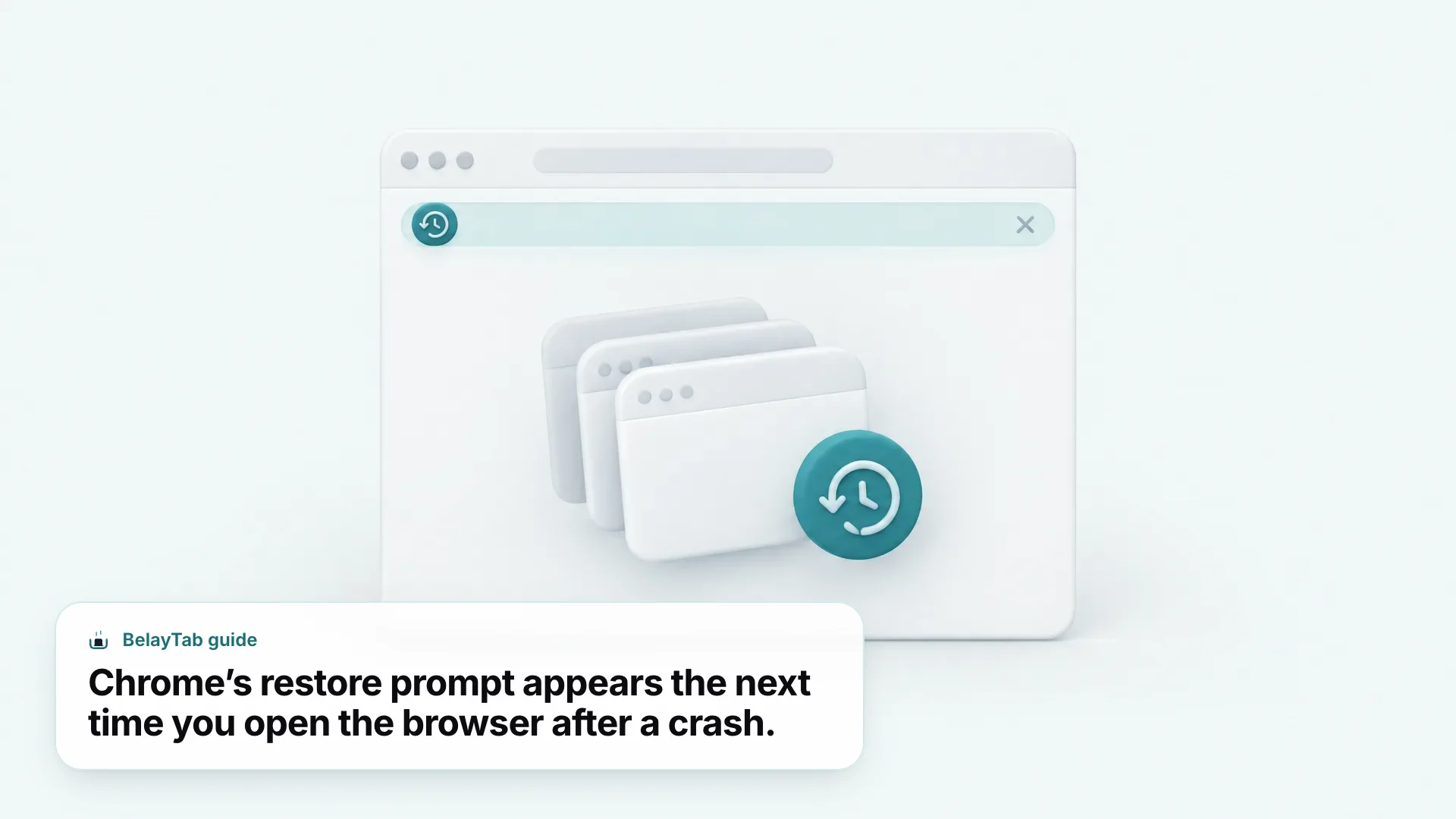
This detection isn’t guaranteed to work every time. If the operating system force-killed the Chrome process, if the computer lost power, or if the session data got corrupted during the crash, the Restore bar may not appear at all.
Ending Chrome through Task Manager (Windows) or Force Quit (Mac) tends to trigger the same “didn’t shut down correctly” detection as an actual crash, since Chrome sees an abrupt exit either way rather than the clean shutdown sequence it expects. A normal restart of your computer, by contrast, is a clean shutdown from Chrome’s point of view as long as you closed it (or let the OS close it) properly first. That’s a separate case, handled by the “Continue where you left off” setting above rather than the crash-detection bar.
No restore bar doesn’t mean the tabs are gone forever. If Chrome doesn’t offer to restore your session, try Ctrl + Shift + T and check History > Recently closed before assuming the tabs are unrecoverable — Chrome sometimes still has the data even when the prompt fails to show.
How Do I Find a Tab Fast With Tab Search?
Press Ctrl + Shift + A (Cmd + Shift + A on Mac) to open Chrome’s tab search panel, which filters your currently open tabs as you type any part of the title or URL. This is different from restoring a closed tab. It’s for finding one that’s still open somewhere among many windows.
Tab search also lists recently closed tabs below your open ones, which makes it a reasonable second option to Ctrl+Shift+T when you’re not sure exactly how many tabs to step back through. Typing part of a page’s title narrows the list faster than scrolling the full History page.
If you regularly lose track of tabs because you have dozens open across several windows, tab search is worth using on its own, separately from any recovery scenario. It’s one of the more useful ways to navigate a browser that’s grown out of control.
Tab search also works well alongside tab groups. Rather than clicking through each collapsed group to find a specific tab inside it, typing part of the page title in tab search finds it directly, regardless of which group or window it’s sitting in.
Tab search doesn’t cover other devices. Tab search only shows tabs and recently closed tabs on the device you’re using. For a tab open on your phone or another computer, you need the “Tabs from other devices” method below instead.
How Do I Get Tabs From My Phone or Another Computer?
Open History and select “Tabs from other devices” to see and reopen tabs that are currently open on your phone, tablet, or another computer signed into the same Google Account with Sync turned on. This works because Chrome shares a live list of open tabs between devices as part of syncing your browsing data.
Both devices need Sync enabled with the same account, and the tabs need to still be open on the source device. This feature shows what’s currently open elsewhere, not a permanent archive. If you close the tab on your phone, it disappears from this list on your computer too.
To turn this on, sign in to Chrome with your Google Account from the profile icon in the top right, and make sure Sync itself is switched on rather than just being signed in. Chrome treats being signed in for things like autofill separately from having full Sync enabled for tabs, bookmarks, and history, and both need to be active on each device for tabs from other devices to show up. Chrome’s help page on syncing across devices covers the full setup.
- Reinstalled Chrome. History and Recently closed reset with a fresh install; only a session saved beforehand (by you or a tool) survives.
- Cleared browsing data. Clearing “Browsing history” also wipes the Recently closed list, even though open tabs in other windows are unaffected.
- Used Incognito. Incognito windows don’t keep a recently closed list at all, so tabs closed there can’t be recovered once the window is gone.
- Switched to a new computer. Sign in and turn on Sync to pull over bookmarks and tabs from other devices, but tabs already closed on the old machine won’t transfer.
This is also the closest built-in answer to “google restore tabs” for people specifically thinking of Google’s account-level sync rather than Chrome’s local session. It’s the same Sync feature either way, since Chrome and your Google Account are tied together.
What if Chrome Never Offers to Restore My Tabs?
If none of the above works, Chrome technically stores session data in files on disk, but reading them isn’t something most people should attempt. These are the binary session and tab-state files Chrome uses internally, not a document you can open and edit directly; our browser file locations tool can help you find where your browser stores its profile data if you need to locate them.
Editing browser files directly is risky. Chrome’s internal session files aren’t meant to be opened or edited by hand, and doing so can corrupt your profile. Treat this as a true last resort, and only with a browser fully closed beforehand.
In practice, once you’ve reinstalled Chrome, cleared history, or let too much time pass, Chrome’s own tools have nothing left to offer. There’s no built-in list of tabs from more than a session or two ago. This is the gap that a dedicated session-saving tool is meant to fill, since it keeps a record independent of Chrome’s own memory.
It’s also worth ruling out simpler explanations before assuming your tabs are gone for good. A second Chrome window you forgot about, a different Chrome profile you’re not currently using, or a tab that got moved into a tab group and collapsed out of view can all look like a missing tab when nothing has actually been closed. Checking all open windows, and any other profiles listed under the profile icon, takes a few seconds and sometimes solves the problem without any recovery step at all.
How Do I Make Sure This Never Happens Again?
Turn on “Continue where you left off” for baseline protection, and add a tool that saves your sessions on its own schedule so you’re not relying on Chrome to detect a crash correctly or on you remembering to check History in time. BelayTab is a free browser extension that does exactly this: it takes an automatic snapshot of every open window every five minutes and whenever a window closes, with no account and no limit on sessions or tabs.
Restoring is one click, into a new window or your current one, and BelayTab keeps the last 20 versions of each saved session so restoring never overwrites what came before. Everything — the snapshots, deleted sessions, your browser’s own recently closed windows, and any exported files — shows up in one Recovery screen, covered in more detail on the restore-tabs feature page.
Works the same way across browsers. BelayTab supports Chrome, Edge, Brave, Opera, Vivaldi, Arc, and Firefox, plus Safari on Mac, so the same recovery habit works if you ever switch browsers. It doesn’t read your page content and needs no host permissions — see the download page to install it.
BelayTab can’t fix a Chrome crash or freeze itself, and it can’t recover tabs from before it was installed — for those, the built-in methods above are still your first move. What it does is make sure that from the moment it’s running, closing Chrome, crashing, restarting, or even reinstalling doesn’t put your open tabs at risk again.
Saving is deliberate too, not just automatic: pressing Ctrl + Shift + S (or the one-click toolbar button) saves the current window, selected tabs, a single tab, or all windows as a named session on the spot, keeping tab group names and colors, pinned tabs, and tab order intact. That’s useful before a big change (clearing history, updating an extension, or restarting your computer for updates) rather than only relying on the five-minute automatic snapshot.
For people who use more than one browser, or more than one computer, BelayTab’s optional paid Sync extends the same idea across browsers you sign in to, with 90 days of cloud version history and web access at app.belaytab.com; see the sync feature page for details. Everything is encrypted in transit and at rest, though it is not end-to-end encrypted. The free tier has no account requirement and no limit on sessions or tabs, and it works without reading the content of any page you visit.
For step-by-step help with a Chrome crash specifically, see Chrome crashed: how to get every tab back; for shortcuts and menus across other browsers, see how to reopen closed tabs in any browser.