






If you’ve turned on Edge Workspaces and then, weeks later, gone looking for a workspace that just isn’t there anymore, you’re not imagining it. Workspaces is a genuinely useful way to keep a research project or a client’s tabs separate from everything else in your browser, but it’s an organizing tool, not a backup tool, and Microsoft’s own materials don’t promise otherwise. This guide covers what Edge Workspaces actually does, how it differs from tab groups and sync, where it’s honestly weaker than a dedicated session manager, and how a tool like BelayTab fits alongside it rather than replacing it.
What Are Edge Workspaces?
Edge Workspaces is Microsoft’s built-in feature for grouping related tabs into separate, named, colored contexts inside the browser. Microsoft’s own support page describes it as a feature that “helps you organize your work, browser tabs, and projects based on activities across multiple contexts” and that “lets you group related tabs into Workspaces.”
Think of it as a way to keep your “client project” tabs, your “apartment hunting” tabs, and your “Tuesday’s meeting prep” tabs in entirely separate buckets, each with its own color, instead of all of them crowded into one long strip at the top of the window. Microsoft’s own Edge features page adds that you can “add colors to make each workspace easier to find,” which is the visual cue that does most of the work once you have more than two or three workspaces going.
| Question | Answer |
|---|---|
| What it is | A way to group related tabs into named, colored contexts inside Edge |
| Cost | Free, built into Edge |
| Where it lives | Inside your local Edge browser profile |
| Syncs across devices? | Not specifically named among what Microsoft’s own page lists as syncing (passwords, favorites, settings) |
| Backs up or keeps version history? | Not described in Microsoft’s own materials on the feature |
| Works alongside BelayTab? | Yes — BelayTab saves and restores Edge sessions independently of Workspaces |
How Do You Create and Use a Workspace in Edge?
You create a Workspace by opening the Workspaces area in Edge, naming it, giving it a color, and then adding the tabs you want grouped under that activity or project. Microsoft’s own description keeps this fairly high level. It names the outcome (grouped, colored, organized tabs) without publishing a detailed click-by-click walkthrough on the page available for this guide.
- Open the Workspaces panel. Look for the Workspaces area in Edge’s toolbar to see any existing workspaces or start a new one.
- Create and name it. Give the new workspace a name and a color, since Microsoft’s own materials describe color as the way to “make each workspace easier to find.”
- Add your tabs. Open or move the tabs for that project or activity into the workspace so they’re grouped together, separate from everything else.
- Switch when your task changes. Move to a different workspace when you switch contexts; each keeps its own tabs organized independently.
The practical benefit shows up the moment you have more than one active project going. Instead of scrolling through fifteen mixed tabs trying to remember which three belong to the report you’re writing, you switch to that workspace and only those tabs are there. It’s a genuinely good habit if you tend to let tabs pile up across unrelated tasks, and it costs nothing since it’s built into Edge already.
Start with two or three workspaces, not ten. Workspaces earns its keep when it separates a small number of genuinely distinct projects. Creating a workspace for every minor task tends to recreate the same clutter problem one level up, just with color labels on it.
How Are Workspaces Different From Tab Groups?
Workspaces and tab groups solve related but different problems, and it’s easy to mix them up because both involve grouping tabs by color. Tab groups, a feature found across Chromium-based browsers, cluster a handful of tabs together within a single window, usually for a short-lived task you’ll ungroup once it’s done.
Workspaces, per Microsoft’s own framing, is built specifically around “activities across multiple contexts”. It’s meant to be a more durable, project-level separation rather than a quick clustering of five tabs you’re using right now. In practice, you might use a tab group inside a workspace: the workspace holds everything related to “Q4 planning,” and within it, you might still group three tabs together for a specific sub-task using ordinary tab grouping.
The distinction matters most when you’re deciding which tool to reach for. If you just want to visually separate five tabs you’re using for the next hour, a tab group is the lighter-weight option. If you’re setting up a recurring context you’ll return to over days or weeks (a client, a course, a home renovation) Workspaces is the feature built for that scale. Neither one, on its own, guarantees those tabs survive a browser crash or a fresh install, which is the theme running through the rest of this guide.
How Are Workspaces Different From Edge’s Sync Feature?
Workspaces organizes tabs inside one browser profile; sync, per Microsoft’s own page, is what carries your passwords, favorites, and settings across the different devices you’re signed into. These are separate systems, and it’s worth being precise about what each one promises, because it’s easy to assume Workspaces travels with you the way bookmarks do.
Microsoft’s own Edge features page states that signing in lets you “sync your passwords, favorites, and settings across all your devices.” Workspaces isn’t named in that specific list. That doesn’t necessarily mean a workspace can never show up on a second device, but it does mean you shouldn’t plan around that assumption without checking Edge’s own sync settings for yourself, since the vendor’s own marketing copy stops short of promising it.
This gap is exactly the kind of thing that trips people up: they build out a detailed workspace on their work laptop, sit down at a second machine expecting the same tabs, and find an empty workspace list instead. If cross-device tab continuity matters to you specifically, it’s worth testing on your own devices rather than assuming Workspaces behaves like bookmark or password sync just because it’s another Edge feature living in the same settings area.
Don’t assume Workspaces travels with sign-in. Microsoft’s own copy names passwords, favorites, and settings as what syncs across devices. Workspaces isn’t called out in that list, so treat cross-device workspace continuity as unconfirmed rather than guaranteed.
Why Do My Workspace Tabs Go Missing or Disappear?
Workspace tabs usually go missing for the same reasons any locally stored browser data can disappear: a profile reset, a fresh reinstall, a corrupted profile, or clearing certain browsing data. Microsoft’s own materials on Workspaces don’t publish a specific list of causes or a troubleshooting page for lost workspaces, so this section is general reasoning about how locally stored browser data behaves, not a documented Microsoft explanation.
Any feature that lives inside your browser’s local profile (bookmarks, saved passwords, tab groups, and Workspaces alike) is only as durable as that profile. If you ever reset Edge to fix a problem, switch to a new computer without exporting things first, or hit a rare profile corruption issue, whatever lived only in that profile goes with it. Workspaces isn’t uniquely fragile here; it shares the same underlying risk as most built-in browser organization features that don’t have their own separate backup system.
The frustrating part is that Workspaces feels persistent day to day, because it usually is, right up until the moment something resets the profile it lives in. That gap between “feels permanent” and “isn’t backed up anywhere else” is the exact problem a session manager is built to close, since it keeps an independent copy outside the browser’s own local state.
Do Edge Workspaces Back Up or Save Version History?
No, not based on Microsoft’s own published materials for this guide. The Workspaces support page describes the feature as an organizing tool (grouping tabs into named, colored contexts) without describing any automatic backup, snapshot, or version-history system attached to it.
That absence is worth sitting with for a second. Version history means being able to go back to what a workspace looked like yesterday, or last Tuesday, after you’ve accidentally closed a tab you needed or reorganized something you shouldn’t have. Nothing in Microsoft’s own copy suggests Workspaces offers that. It shows you the current state of each workspace, which is exactly what an organizing tool is supposed to do, and nothing more.
This is a reasonable design choice, not a flaw. Workspaces is trying to solve “help me keep my current tabs organized,” not “help me recover last week’s tabs.” The two goals pull in different directions: a pure organizing tool stays simple and fast by not tracking history, while a backup tool has to store multiple versions of your tab state over time, which is a meaningfully different job. If you need the second job done, you’ll want a tool built for it specifically.
Check what has version history. BelayTab’s free plan keeps the last 20 versions of each saved session, and restoring never overwrites a version. It adds a new one. That’s the kind of history Workspaces doesn’t claim to offer on its own.
How Do Workspaces Compare With a Session Manager Like BelayTab?
Workspaces organizes tabs you have open right now; a session manager like BelayTab saves a standalone copy of those tabs you can restore later, independent of whatever state the browser is currently in. That’s the core distinction, and it explains most of the practical differences below.
- Edge Workspaces. Groups current tabs into named, colored contexts inside one browser profile; free and built in, with no documented version history.
- BelayTab. Saves tabs as named sessions with automatic snapshots every five minutes and on window close, a 30-day trash, and 20 versions per session; free, no account required.
- Both together. Use Workspaces to keep today’s tabs organized by project, and let BelayTab quietly back up whatever’s inside each of those workspaces.
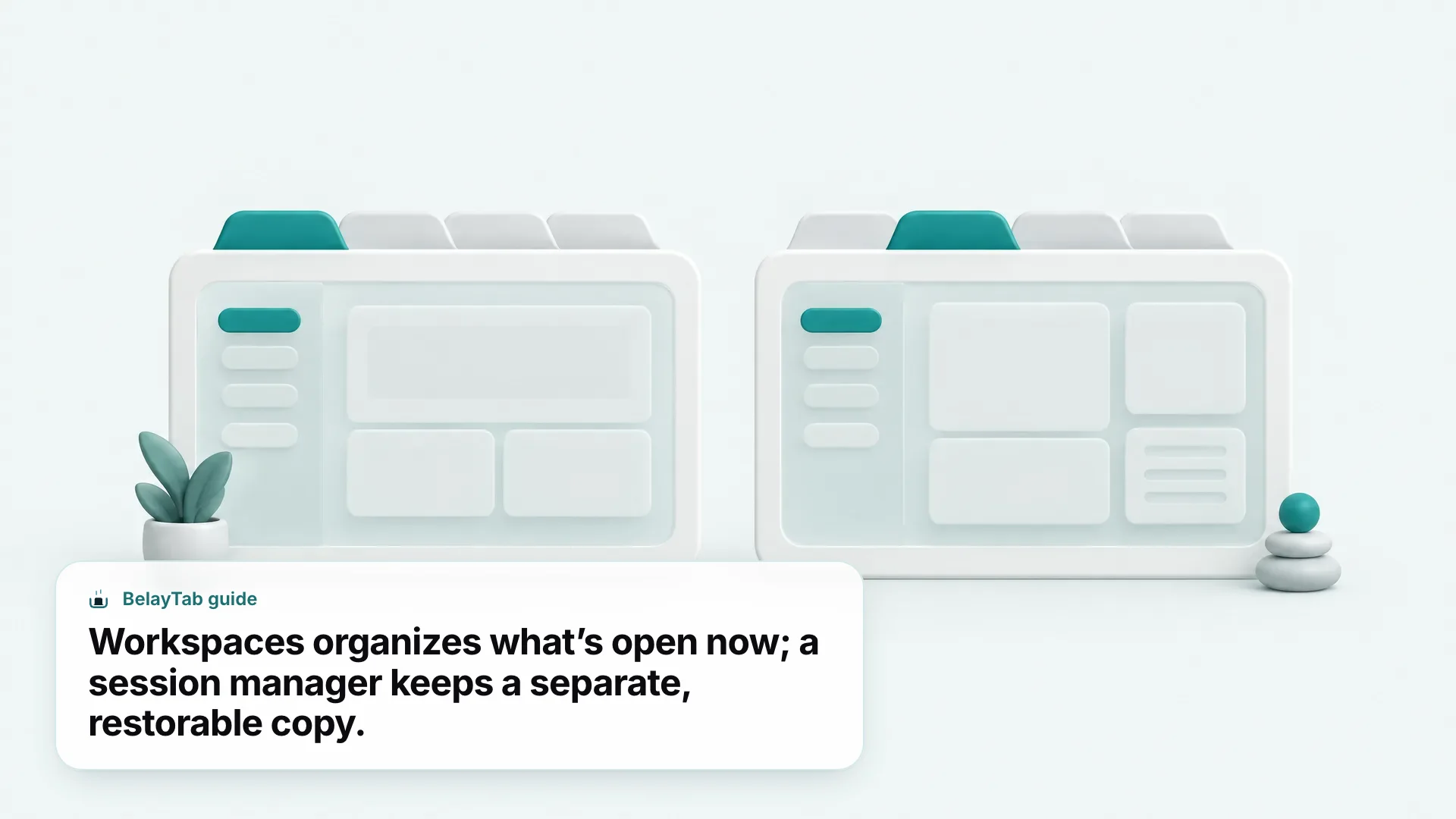
The two tools genuinely aren’t competing for the same job, even though they both touch tabs. Workspaces is closer to a filing system for tabs you’re actively using. BelayTab is closer to an insurance policy: it doesn’t care how you organized your tabs, it just makes sure a copy of them exists somewhere that survives a crash, a reset, or a moment of clicking the wrong “close” button. If you’ve ever lost forty research tabs the night before a deadline, you already know which kind of loss a filing system can’t prevent.
Can You Use Workspaces and BelayTab Together in Edge?
Yes, and that’s the setup worth recommending rather than picking one over the other. BelayTab works in Edge alongside Workspaces without conflict, since it doesn’t read page content or interfere with how Edge organizes tabs internally. It simply watches your open windows and saves them.
- Install BelayTab in Edge. Add it from the download page; it works in Edge alongside Chrome, Brave, Opera, Vivaldi, Arc, and Firefox.
- Save a session manually when it matters. Click the BelayTab icon or press Ctrl + Shift + S (Cmd + Shift + S on Mac) to name and save a window, whether or not it’s inside a Workspace.
- Let automatic snapshots run in the background. BelayTab snapshots every open window every five minutes, and again the moment you close a window, with no action needed from you.
- Check the Recovery screen if something’s missing. One screen shows snapshots, deleted sessions, version history, and Edge’s own recently closed windows together.
BelayTab keeps a Workspace’s tab groups, pinned tabs, and tab order intact when it saves a Chromium-browser session, so restoring a session doesn’t flatten the organizing work you already did inside Workspaces. That means you get to keep the day-to-day organizing benefit of Workspaces while adding the durability that Microsoft’s own materials don’t describe the feature as having.
How Do Other Browsers Handle This Kind of Tab Organization?
Most Chromium-lineage browsers offer their own version of project-based tab organization, and none of them, per their own published materials, add automatic version history to it either. Comparing the approaches is useful mainly to see that this gap isn’t unique to Edge.
| Browser | Similar feature | What it does |
|---|---|---|
| Edge | Workspaces | Groups tabs into named, colored contexts for different activities |
| Opera | Workspaces / Tab Islands | Manages tabs by topic; move a tab to a workspace from its right-click menu |
| Vivaldi | Tab Stacks + Sessions | Stacks tabs visually, and separately lets you save your current open tabs as a named, reopenable session |
| Firefox | Tab Groups | Drag one tab onto another, or use “Add Tab to New Group,” then name and color it |
| Safari (Mac) | Tab Groups | Organizes tabs into topics automatically or lets you build custom groups |
Vivaldi’s approach is the closest thing to a built-in answer to this whole problem: its own help pages describe Sessions as letting you “save your current open tabs as a named ‘session’ and access them again later,” which is closer to what BelayTab does than what Edge’s Workspaces or Opera’s Workspaces describe. That’s a meaningful difference if browser choice is on the table for you — see our Vivaldi review for more on how its Sessions feature works day to day.
Opera and Firefox’s tab-organization tools both read like closer cousins to Edge’s Workspaces: useful for keeping tabs visually separated by topic, without a documented backup layer underneath. If you’re comparing browsers specifically on this point, our Chrome vs Edge comparison covers more of the everyday differences beyond just tab organization.
Which Should You Trust to Protect Your Tabs: Workspaces or a Session Manager?
Trust Workspaces to organize your tabs day to day, and trust a dedicated session manager to protect them, because those are genuinely different jobs and Workspaces was never built to do the second one. That’s not a criticism of Microsoft’s feature (it does what it says it does) it’s a reminder to match the tool to the actual risk you’re trying to cover.
The scenario that exposes the gap is rarely dramatic. It’s not usually a browser crash mid-sentence; it’s more often something mundane, like resetting Edge to fix an unrelated problem, setting up a new laptop and forgetting to check whether workspaces carried over, or a sync hiccup that leaves a workspace looking different than you remembered. None of those are edge cases exactly. They’re the normal wear and tear of using a computer for years. Workspaces, on its own, doesn’t publish a way to recover from any of them.
If you only take one thing from this guide, let it be this: keep using Workspaces for what it’s good at, and add a tool underneath it that keeps its own independent record of your tabs. BelayTab is free, has no account requirement, works in Edge, and its snapshots live outside Edge’s own profile data, which means a Workspaces-side problem doesn’t take your tabs down with it. It’s a fifteen-second install that answers the “what if” question Workspaces itself doesn’t.