






You’ve got Chrome open in one window and Edge in another, trying to decide which one deserves the permanent spot in your dock. That’s a fair question in 2026: both are free, both run on the same Chromium engine, and on paper they look close enough to be twins with different last names.
The real differences show up once you dig into daily use — how each one organizes tabs, what AI assistant sits in the toolbar, and how much of your browsing Google or Microsoft ends up seeing. This guide walks through the actual chrome vs edge comparison: what each one does well, where they overlap, and where your choice comes down to habit rather than a feature list.
One thing neither browser handles well on its own: keeping every tab you’ve opened when a crash hits, an update misfires, or you decide to switch entirely. Say you’ve got a dozen tabs of vacation research, three client dashboards, and a half-written email draft open — none of that survives a browser switch by accident. We’ll get to how to protect it later in this guide.
Chrome vs Edge: The Quick Answer
Chrome and Edge are both solid, free, Chromium-based browsers, and for most people the choice comes down to which ecosystem you already live in. Pick Chrome if your accounts and habits run through Google; pick Edge if you’re on a Windows machine tied to a Microsoft account. Below is a fast breakdown by situation so you don’t have to read the whole comparison to get an answer.
| Your Situation | Better Fit | Why |
|---|---|---|
| You live in Gmail, Docs, and Android | Chrome | Deepest Google account integration and Gemini in Chrome for AI help across the web |
| Windows work PC on Microsoft 365 | Edge | Signed-in Copilot access and Workspaces for separating projects |
| You want split-screen browsing built in | Edge | Native split screen shows two pages side by side in a single tab |
| You want named, color-coded tab groups | Chrome | Confirmed grouping and color-coding; Edge’s organizing tool is Workspaces instead |
| You want the browser most of the web is built for | Chrome | About 69% global share and 73% desktop share as of August 2026 |
That table is a starting point, not a verdict — plenty of people would be perfectly happy in either browser, and a lot of the difference is muscle memory more than capability. If you’ve spent years clicking through Chrome’s menus, Edge’s equivalent settings will feel one extra click away for a while, and vice versa.
None of that changes what happens when either browser crashes mid-session, though. Keep the table in mind as we go deeper, but don’t treat it as the whole story — the sections below cover the parts that actually change how your day-to-day browsing feels, plus what to do about the one thing neither browser guarantees: that your tabs will still be there tomorrow.
What Is Google Chrome, Exactly?
Google Chrome is Google’s free web browser, built on the open-source Chromium project and rendered with the Blink engine. It’s the browser most people picture when they hear “browser” at all, and it’s available on Windows, macOS, Android, and iOS, with Linux and ChromeOS support as well.
Chrome’s headline organizing feature is tab groups: you can group, label, and color-code tabs to keep a messy window readable, and vertical tabs display them down the side of the window instead of squeezing them along the top as your tab count grows. For memory, Chrome’s Memory Saver mode can save up to 148 MB, according to Google, by putting inactive tabs to sleep in the background until you click back into them.
Extensions come from the Chrome Web Store, and syncing your Google account across devices carries your bookmarks, saved passwords, and open tabs with it, so a phone and a laptop stay roughly in step. Chrome also ships Gemini in Chrome, described by Google as “your partner in figuring it all out”. It helps explain page content, complete tasks, generate images through a feature called Nano Banana, and save reusable prompts as “Skills” you can call up again later. On the security side, Chrome offers Enhanced Safe Browsing, which checks sites more aggressively before you land on them, and a Safety Check tool that audits your saved passwords, extensions, and settings in one pass.
Because Chrome is the browser most websites are built and tested against, compatibility issues are rare — if a page looks broken, it’s more often the page than the browser.
Third-party cookies aren’t blocked by default. Here’s a detail that surprises people: Chrome only blocks third-party cookies automatically in Incognito mode. In regular browsing, you have to turn on “Block third-party cookies” yourself in Chrome’s cookie settings.
What Is Microsoft Edge, Exactly?
Microsoft Edge is Microsoft’s free web browser, also built on Chromium and rendered with the Blink engine, which is why so many sites behave identically in both. It runs on Windows and macOS, alongside the well-established Android and iOS mobile apps, so the same account can follow you between a work laptop and a personal phone.
Edge’s answer to tab overload is Workspaces — separate, color-coded areas for keeping different browsing tasks apart, so your research project doesn’t blend into your open shopping tabs or a dozen unrelated work links. Edge also has native split screen, which Microsoft describes as letting you “work across two pages without switching tabs,” displaying them side by side inside a single tab rather than forcing you to resize two separate windows.
Edge’s AI assistant is Copilot, and it covers more ground than a simple chat box: summarization for long pages, “Browse with Copilot” for completing tasks in-window, voice-driven “Copilot Vision” so you can ask questions aloud about what’s on screen, and memory personalization that carries context between sessions instead of starting fresh every time. Privacy-wise, Edge offers InPrivate browsing, an Enhanced security mode, Microsoft Defender SmartScreen for catching malicious downloads, and a scareware blocker aimed at fake “your PC is infected” pop-ups. Sync is tied to your Microsoft account, and Copilot’s connectors can reach into your emails, files, and calendars if you choose to enable them, which makes Edge feel less like a browser and more like a front door into your whole Microsoft account.
Copilot connectors see more than the page you’re on. If you turn on Copilot’s connectors, it can access your emails, files, and calendars, not just the tab in front of you. Worth knowing before you flip that switch on a shared or work machine.
Chrome vs Edge: Speed, Memory, and Resource Use
Neither Chrome nor Edge publishes a head-to-head speed benchmark against the other, so there’s no verified number to hand you here — and we’re not going to invent one just to fill a table. What’s true is that both run on the same Blink engine, so pages render at a comparable baseline speed in either browser; the real-world difference you feel day to day usually comes from how many tabs, extensions, and background processes are piling up rather than which logo is in your toolbar.
Chrome does publish one concrete figure worth knowing: its Memory Saver mode can save up to 148 MB of memory by putting background tabs to sleep until you need them again. Microsoft hasn’t published an equivalent number for Edge on its official features page, so we’re not going to pretend one exists just to make a tidy comparison. That’s the kind of gap you write around rather than guess at.
What moves the needle for most people isn’t the browser’s internal memory tricks anyway, it’s how many tabs they’re carrying around out of habit. Forty tabs open “just in case” cost memory regardless of which browser is holding them, and no built-in memory-saving feature fully offsets a browsing habit of never closing anything. The fix usually isn’t switching browsers at all. It’s changing what you do with tabs you’re not actively using.
Chrome vs Edge: Tab and Window Organization
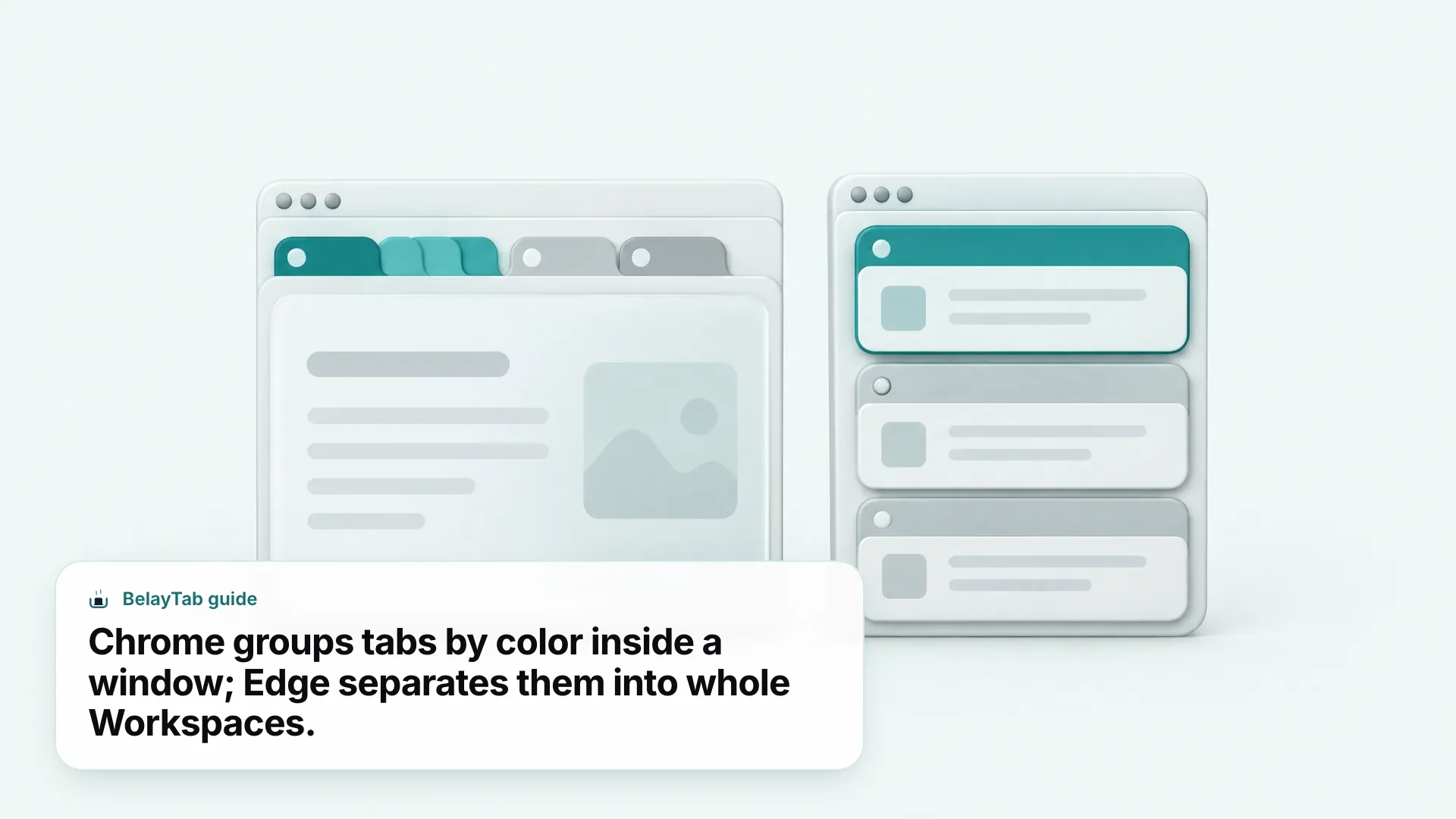
Chrome and Edge take genuinely different approaches to the same problem: too many open tabs. Chrome groups tabs within a window. You label a cluster, give it a color, and collapse it out of the way, with an optional vertical layout running down the side once a horizontal row of tabs gets unreadable. Edge instead separates tabs into Workspaces, distinct color-coded areas you switch between entirely, plus a built-in split screen that shows two pages inside one tab without opening a second window at all.
Both approaches solve the same underlying issue: a single flat row of tabs stops being useful somewhere around tab fifteen, when every favicon looks identical and you’re hunting by trial and click. Chrome’s method keeps everything in one window with visual dividers, which suits people who want one place to see everything at a glance. Edge’s method keeps entire projects physically separate, which suits people who context-switch hard between, say, “work” and “personal” and don’t want the two visually mixing at all.
Picture a freelancer juggling three clients: in Chrome, that’s three colored tab groups inside one window, collapsed until needed. In Edge, that’s three separate Workspaces, each opening to only the tabs that belong to it.
Neither feature, though, protects those groups from a crash, an accidental “close window,” or a browser update that resets your session. Organization and backup are two separate problems, and it’s easy to assume the first one quietly solves the second. It doesn’t. A perfectly labeled tab group is still gone the moment the window closes without warning.
Chrome vs Edge: Built-In AI Assistants
Chrome and Edge both bundle an AI assistant now, and they lean into slightly different jobs. Gemini in Chrome positions itself as a general helper for the page in front of you — explaining content, completing tasks, generating images through Nano Banana, and letting you save prompts you reuse often as “Skills” so you’re not retyping the same request every week.
Copilot in Edge goes a step further into acting on your behalf: it summarizes pages, can “Browse with Copilot” to complete multi-step tasks inside the window instead of just describing what to click, answers questions aloud through Copilot Vision, and personalizes its memory of past conversations over time so it can pick up context you gave it days earlier. The trade-off is scope — Copilot’s optional connectors can read your emails, files, and calendars, which is a meaningfully bigger surface than a page-summarizing assistant that only ever sees what’s on screen.
Neither assistant, notably, touches your tab history the way a dedicated tab manager does. Asking Gemini or Copilot to “find that tab I closed an hour ago” isn’t what either is built for. They’re built to help you think through the page you’re on, not to recover the ones you’ve lost. If tab recovery is what you need, that’s a job for the browser’s own history or a tool built specifically for it.
Chrome vs Edge: Privacy and Security
Chrome and Edge both take security seriously, they just name the tools differently and draw the line between “automatic” and “opt-in” in different places. Chrome’s toolkit includes Enhanced Safe Browsing, which checks sites and downloads more aggressively before you interact with them, plus a Safety Check feature that audits your passwords, extensions, and settings in one pass and flags anything that looks weak or outdated. What Chrome doesn’t do is block third-party cookies by default in regular browsing. That protection is automatic only in Incognito mode, per Google’s own help documentation, so anyone assuming regular Chrome blocks trackers automatically is working from an outdated impression.
Edge’s toolkit covers similar ground with different labels: InPrivate browsing for a session that doesn’t save history or fill in your saved passwords automatically, an Enhanced security mode for stricter defaults, Microsoft Defender SmartScreen for catching malicious sites and downloads before they load, and a dedicated scareware blocker for the fake “your computer is infected” pop-ups that trick people into calling scam phone numbers.
Neither browser’s official page details every tracking-prevention level or default toggle in full, so if granular tracking controls matter most to you, check each browser’s current settings directly rather than relying on last year’s default behavior. These settings do shift between versions, and what was on by default a year ago isn’t guaranteed to still be.
Is Microsoft Edge Better Than Chrome for Syncing Across Devices?
Not exactly better, just built around a different account: Edge syncs through your Microsoft account, Chrome syncs through your Google account, and both cover the basics once you’re signed in on each device. Chrome carries your bookmarks, saved passwords, and open tabs between devices automatically when you’re logged in, which means picking up your phone shows roughly the same tabs you had open on your laptop. Edge ties sync to your Microsoft account too, though Microsoft’s page doesn’t itemize the full sync list the way Chrome’s does — what it does detail is that Copilot’s connectors, separately from sync, can reach your emails, files, and calendars once you opt in.
What neither sync system does is protect you from the specific moment a browser crashes before it finishes syncing, or the moment you decide to move to a browser that isn’t in either ecosystem at all. Account sync moves data between your own devices on the same browser; it doesn’t help when you’re changing browsers entirely, and it doesn’t help when the browser itself is the thing that failed mid-session.
That’s a different job, and it’s the one BelayTab is built for — not replacing account sync, but backing up the actual tabs regardless of which browser or account they happen to be sitting in at the time.
How Do I Import Bookmarks From Edge to Chrome?
Moving your bookmarks from Edge to Chrome takes one export and one import, but bookmarks alone won’t bring your open tabs, tab groups, or windows with you. Both browsers handle bookmark files the same standard way, so the transfer itself is quick; our full bookmark walkthrough covers the exact menu clicks for both browsers if bookmarks are all you need.
If you also want the tabs you haven’t gotten around to bookmarking yet (the ones sitting open right now, half-read) that’s a different transfer, and BelayTab covers it directly.
- Save your session. In Edge, open BelayTab and press Ctrl + Shift + S (Cmd + Shift + S on Mac) to save the open window as a named session.
- Export it. From BelayTab’s Recovery screen, export the session as JSON, CSV, a URL list, or HTML bookmarks.
- Install BelayTab in Chrome and import. Open BelayTab in Chrome and import that same file — every tab reopens in order, with tab groups and pinned tabs intact.
BelayTab can also import sessions from OneTab, Session Buddy, Tab Session Manager, Tablerone, or a plain list of URLs, so the same process works whether you’re coming from another tool or straight out of Edge or Chrome itself. See import and export for the full list of formats.
How Do I Switch From Chrome to Edge, or Back, Without Losing Any Tabs?
You switch safely by treating the move as a real migration, not a hope that everything just carries over. Account sync only covers the browser you’re leaving, so a full switch between Chrome and Edge needs a separate plan for the tabs, groups, and pinned pages that sync never touches. Here’s the practical version, whichever direction you’re going.
BelayTab already keeps automatic snapshots running in the background — every open window gets backed up every 5 minutes and again whenever a window closes, with no setup required — so most of the safety net is already in place before you even start planning a switch. The steps below cover the part that’s specific to moving to a new browser.
- Confirm your snapshot is current. Open BelayTab’s Recovery screen in your current browser and check that your latest windows appear as recent snapshots before you touch anything else.
- Save a named session for the move. Give it an obvious name like “Before switching to Edge” so it’s easy to find later, separate from your automatic snapshots.
- Install your new browser and BelayTab in it. Set up Chrome or Edge as usual, then install BelayTab there too. It’s free either way, with no account required.
- Restore into the new browser. Import your saved session; large sessions open in batches of 20 tabs so the new browser doesn’t get overwhelmed all at once.
- Double-check the Recovery screen. Your old browser’s snapshots, deleted sessions, and any exported files are all still there if anything didn’t come across the way you expected.
Version history has your back. Every restore adds a new version instead of overwriting the last one, and BelayTab keeps the last 20 versions of each session. If a migration goes sideways, you can step back to an earlier version rather than starting over.
This is also the safer order of operations if you’re not fully committing yet. You can install BelayTab in the new browser, import a copy of your tabs, and keep using your old browser in parallel until you’re sure the switch is worth making permanent.
Chrome vs Edge: Which One Should You Actually Use?
There’s no single winner here — Chrome and Edge solve overlapping problems in different ways, and the better one depends on what you’re already using rather than which one is objectively stronger. Chrome makes sense if your accounts, apps, and phone are all Google; Edge makes sense if you’re on a Windows machine already signed into Microsoft 365 and living in Outlook and Teams.
- Chrome. Best if you’re deep in Google’s ecosystem (Gmail, Docs, Android) and want Gemini AI and color-coded tab groups.
- Edge. Best on a Windows work PC, especially if you’re already signed into Microsoft 365 and want Copilot and Workspaces.
- Both. Plenty of people run Chrome for personal browsing and Edge for work, or switch entirely — BelayTab keeps every tab and tab group portable either way.
Market share tells part of the story too, even if it isn’t a verdict on quality. As of September 2026, StatCounter Global Stats puts Chrome at roughly 69% of global browser share and Edge at about 5%; narrow it to desktop only and Chrome holds around 73% against Edge’s 10%.
| Metric (August 2026) | Chrome | Edge |
|---|---|---|
| Global share, all platforms | 69.39% | 5.36% |
| Desktop share | 73.28% | 10.46% |
Wider adoption mostly matters because more of the web gets tested against the browser people use, not because a bigger number makes one browser objectively better for you personally. If you’re happy in Edge on your work laptop, a Chrome market-share lead isn’t a reason to switch, and the reverse is just as true.
What matters more day to day is whatever survives the switch, the crash, or the update. Chrome and Edge, Firefox, Safari, Brave, Opera, Vivaldi, and Arc all handle tabs slightly differently — see the full browser comparison hub if you’re weighing more than these two, or the dedicated Chrome vs Firefox and best browser guides for a wider view — but none of them back up your open tabs the way a dedicated tool does.