






You star a page, meaning to read it later, and six months on you can’t find it in the pile. Exporting and importing bookmarks in Chrome is how you back that pile up, move it to a new laptop, or hand a folder of links to a browser that isn’t Chrome at all. The good news: Chrome’s export and import tools are genuinely simple, once you know where they’re hiding. There’s no separate settings page to hunt through, and no account required to do it. This guide walks through both directions, how to confirm the export actually worked before you trust it, and where bookmarks alone stop being enough. That last part matters more than it sounds like it should, because the moment people usually panic is when they realize the tabs they had open mattered more than the links they’d saved.
Quick Answer: Export and Import Chrome Bookmarks by Situation
Different situations call for different tools, and picking the wrong one wastes time you don’t have. Here’s the short version before the full steps below, so you can jump straight to the section that matches what you’re trying to do.
| Situation | What to do |
|---|---|
| Exporting bookmarks from Chrome | Bookmark Manager > More menu > Export Bookmarks (saves an HTML file) |
| Importing bookmarks into Chrome | Bookmark Manager > More menu > Import Bookmarks (pick the HTML file) |
| Importing directly from another installed browser | Chrome menu > Bookmarks and lists > Import bookmarks and settings |
| Moving bookmarks to a new computer | Turn on Chrome sync, or export the HTML file and import it there |
| Saving your open tabs, not just starred links | Use a session tool like BelayTab instead of bookmarks |
Notice the pattern in that table: every official path runs through Bookmark Manager’s three-dot menu, and every file Chrome produces is HTML. There’s no separate export tool hiding elsewhere in Settings, and no CSV or JSON option for bookmarks specifically, no matter how you get there. If what you care about is the state of your open windows (tab groups, order, which tabs were pinned when you closed the laptop lid) bookmarks were never built for that job. The last row above is worth reading twice before you assume an export will cover something it was never designed to hold.
How Do I Export Bookmarks From Chrome?
You export bookmarks from Chrome’s Bookmark Manager, using the three-dot menu inside that page rather than the main Chrome menu. It takes under a minute and produces one HTML file containing your entire bookmarks tree, folders included.
- Open Bookmark Manager. Click the three dots at the top right of Chrome, then choose Bookmarks and lists > Bookmark Manager. On Windows or Linux you can also press Ctrl + Shift + O; on Mac it’s Cmd + Option + B or the same menu path.
- Open the More menu. Click the three vertical dots near the top of the Bookmark Manager page.
- Choose Export Bookmarks. Chrome opens your system’s save dialog immediately, with no extra confirmation screen in between.
- Pick a folder and save. Documents or Downloads both work fine; just remember exactly where you put it.
That’s the whole process — Chrome doesn’t ask which folders to include, and it doesn’t preview the file for you first. It grabs everything: your bookmarks bar, Other bookmarks, and any nested folders you’ve built up over the years, all flattened into one HTML document. If you only wanted a single folder, there’s no built-in filter for that, which is worth knowing before you export expecting a smaller, more targeted file.
One quirk is worth flagging early, because it shapes the rest of this guide: this export captures bookmarks only. It has no idea what’s currently open in your windows, which tabs are pinned, or which ones you’ve grouped and color-coded for a project. If you close Chrome right after exporting, thinking you’ve backed everything up, you’ll find out the hard way that “everything” meant your saved links and nothing about your actual working session.
Name the file by date. Chrome doesn’t timestamp the export automatically. Renaming it something like bookmarks-2026-09.html before you save makes it obvious which version is newest if you ever export more than once, which is common if you do this before every big computer change.
How Do I Check That My Bookmarks Export Actually Worked?
The fastest way to check an export worked is to open the saved HTML file directly and confirm your folders and links show up, before you delete anything or wipe the old computer. It sounds obvious, but skipping this step is the single most common reason people discover a bad backup only after it’s too late to fix.
Double-clicking the file should open it as a plain page in a browser tab, listing your bookmark folders as headings with the links underneath, clickable and everything. That’s because the export is still valid HTML under the hood. You’re not opening a proprietary format, just a webpage Chrome happens to generate. If it opens blank, throws an error, or the file size looks suspiciously tiny compared to how many bookmarks you know you have, something went wrong and it’s worth re-exporting rather than trying to patch the file by hand.
A slightly more thorough check, if you’re about to wipe a computer or hand it off to someone else, is a dry-run import. Bring the exported file into a spare browser profile first (or even a fresh guest-style window) and confirm the folder structure looks right before you trust it as your only copy. This costs a couple of minutes and removes almost all the risk of finding out later that a folder silently didn’t make it into the file.
Browsing an export without importing it. If you just want to skim what’s inside an exported file without adding it to any browser’s bookmarks yet, BelayTab’s bookmarks viewer lets you open and read the file directly, which is a faster check than opening it in a browser tab if you’re comparing several exports.
How Do I Import Bookmarks Into Chrome?
You import bookmarks the same way you exported them, through Bookmark Manager’s three-dot menu, by selecting the HTML file you want to bring in. Chrome reads the file and rebuilds the folder structure exactly as it was saved.
- Open Bookmark Manager. Same path as export: three dots > Bookmarks and lists > Bookmark Manager.
- Click the More menu. The three vertical dots near the top of the page.
- Choose Import Bookmarks. Chrome opens a file picker right away.
- Select your HTML file. Pick the file you exported earlier, or one exported from a different browser entirely.
There’s a second way in, too, and it’s easy to miss: from the main Chrome menu, go to Bookmarks and lists > Import bookmarks and settings. That option is more flexible than the file-based route, because it can pull bookmarks (and sometimes other data) straight from a different browser installed on the same machine, without you needing an export file at all. The Bookmark Manager route above is the one to reach for when you’re working from a file someone emailed you, or one you saved yourself from another computer.
Either way, Chrome won’t overwrite what’s already there, which is the detail that trips people up least but matters most. New bookmarks get added alongside your existing ones rather than replacing them, a safer default that does mean duplicates are possible if you accidentally import the same file twice. If you’re not sure whether an import already happened once, check for a folder named Imported before running it again.
Where Do Imported Bookmarks Land in Chrome?
Imported bookmarks land in a new folder if you already have bookmarks saved, or fill your bookmarks bar directly if you don’t. Chrome makes this decision automatically based on whether your profile already has content, and you don’t get a choice in the matter.
Look for Imported or Other bookmarks. If you had bookmarks before importing, check the folder named Imported (or sometimes Other bookmarks) to find everything that just came in. From there you can drag items wherever you want them to live.
This behavior is worth planning around if you’re merging bookmarks from two computers into one profile. Rather than getting a single unified, alphabetized list, you’ll get your original bookmarks plus a separate folder holding the imported set, sitting side by side. Combining them into one clean structure is a manual job afterward — Chrome makes no attempt to deduplicate matching links or merge folders that happen to share a name, so a “Work” folder from each source stays as two separate “Work” folders until you move things yourself.
If your bookmarks bar was completely empty before the import, the opposite happens: everything from the file populates the bar directly, which can make a previously tidy bar look suddenly crowded with folders you’d forgotten existed. Either outcome is easy enough to fix by hand, but it’s worth budgeting a few minutes afterward for cleanup rather than assuming the import will land exactly where you want it on the first try. Treat the import as a starting point, not a finished result.
How Do I Move Bookmarks to a New Computer?
You move bookmarks to a new computer either by turning on Chrome sync, which carries them over automatically once you sign in, or by exporting an HTML file on the old machine and importing it on the new one. Both are officially supported ways to do it; which one fits depends on whether this is a computer you’re setting up for the long term or a one-time transfer.
Sync is the better choice if this is a device you’ll keep using day to day — sign in once and bookmarks, along with history, open tabs, passwords, and settings, stay current without any manual steps afterward. Export and import make more sense for a one-off move, a computer you’re only borrowing, or a situation where you don’t want to sign in to a Google Account on the new machine at all. Some people run both: sync for convenience, plus an occasional export kept somewhere separate as a standalone archive that doesn’t depend on staying signed in.
Neither approach, on its own, brings over what you had open at the time you switched computers — just what you’d bookmarked ahead of it. If the new computer needs your actual working session, the ten tabs mid-research or the grouped tabs for a project you’re not done with, that’s a separate job, and it’s the one place where both bookmarks and sync fall short by design rather than by accident.
Can Chrome Import Bookmarks Directly From Another Browser?
Yes — Chrome can import bookmarks directly from another installed browser without you needing to export a file first. This uses the “Import bookmarks and settings” option from the main Chrome menu rather than the file-based Import Bookmarks tool inside Bookmark Manager.
- From Firefox. Chrome detects an installed Firefox profile and offers to pull bookmarks, and sometimes history and passwords, straight from it.
- From Edge. Since both browsers share Chromium underpinnings, importing from Edge tends to be the most reliable of the direct options.
- From Safari (Mac only). Chrome can read a local Safari profile the same way, provided Safari is installed on that same Mac.
- From a file instead. If the other browser isn’t installed locally, say it’s on a different computer entirely, export its bookmarks to HTML there and use Chrome’s file-based import instead.
Direct import is genuinely convenient because it skips the export step altogether, which saves a round trip when both browsers happen to live on the same computer already. But it only works when the source browser is installed on the machine you’re setting up Chrome on. It can’t reach across the network to a different laptop, and it won’t help if you already uninstalled the old browser before thinking to do this. If you’re consolidating bookmarks from a browser on a different device, the file-based route from the earlier sections is the one that applies instead.
Either method lands the bookmarks in the same place once it’s done — a new or existing folder, exactly as covered above. Worth noting: if you’re not sure which method will be cleaner, direct import tends to preserve folder names more faithfully than round-tripping through an HTML file, simply because there’s one fewer conversion step involved.
What File Format Does Chrome Use for Bookmark Exports?
Chrome exports bookmarks as a single HTML file, and that’s the only format it offers natively. There’s no CSV, JSON, or plain-text option for bookmarks specifically, no matter which menu you use to get there. The HTML format is a long-standing standard, which is why it opens correctly in Firefox, Safari, Edge, and most other browsers without any conversion needed.
That universality is genuinely useful for moving between browsers, but it’s also limiting if what you wanted was structured data, say, a spreadsheet of your links with columns for folder name and date added. Chrome’s bookmarks file doesn’t give you that; it’s built for other browsers to read, not for people to sort and filter in a spreadsheet app.
| Format | Chrome bookmarks export | BelayTab session export |
|---|---|---|
| HTML | Yes — the only bookmarks format | Yes, compatible with bookmark importers |
| JSON | No | Yes |
| CSV | No | Yes |
| Plain URL list | No | Yes |
This is where the two tools genuinely diverge in what they’re built for, and it’s worth being honest about which one you need. Chrome’s export exists to move starred links between browsers, full stop, and it does that one job well. A session tool that supports multiple formats, including HTML bookmarks, gives you the same portability for links while also covering the CSV or JSON use cases Chrome was never designed to handle, like feeding a list of URLs into a spreadsheet or another tool. See BelayTab’s import and export options for the full format list, or the export a session guide for the exact steps.
Should I Turn On Chrome Sync Instead of Exporting Bookmarks?
Turning on Chrome sync is worth doing if you want bookmarks kept current across devices without ever thinking about it again, but it’s not a full replacement for an export file, since sync only works while you’re signed in and connected. Once you sign in, sync is on by default and covers bookmarks along with history, open tabs, passwords, payment info, addresses, and settings, all in one bundle.
Synced data is encrypted by default, and Chrome also offers an optional custom passphrase for extra encryption on top of that if you want stronger control over your own data. The trade-off comes down to convenience versus something you physically hold: sync means one less thing to remember day to day, but an export file is a copy you can store somewhere entirely separate from your Google Account, which some people prefer as a genuine backup rather than a live, always-connected copy. Reasonable setups often use both together, sync for daily convenience and an occasional export as a standalone archive that survives even if your account access ever changes.
If sync feels like the right layer for your open tabs too, not just bookmarks, that’s a different kind of sync entirely. See BelayTab’s tab session sync and the setup guide for how that works across browsers, not just across a signed-in Chrome profile.
Why Did My Chrome Bookmark Export or Import Fail?
The export or import usually fails because you’re working with the wrong kind of file, not because anything about Chrome itself is broken. Chrome’s Import Bookmarks tool expects the specific HTML format that browsers use for bookmarks — a plain text list of URLs, a spreadsheet, or a different browser’s proprietary backup format simply won’t parse correctly, even though the file might look similar at a glance.
A few other things are worth checking before you assume something’s seriously wrong. Make sure you’re selecting the file itself in the picker, not the folder it’s saved inside, since that’s an easy misclick. Confirm the file wasn’t accidentally renamed with a different extension somewhere along the way, since Chrome relies on the file genuinely being valid HTML to read it. If you’re importing from a much older export, the format has stayed stable for a long time, so age by itself shouldn’t be the cause of a failure.
If none of that resolves it, exporting again from the source browser and trying a completely fresh file rules out a corrupted download or a partial save as the culprit. It’s a rare failure mode overall, and in most cases the fix is simpler than the panic that comes with a bookmarks tool that suddenly won’t cooperate.
What About the Tabs You Have Open Right Now?
Bookmarks don’t include your open tabs. They only save the pages you’ve deliberately starred, with no record at all of what’s currently loaded across your windows. If you close Chrome, or it crashes, or you switch computers, your bookmarks survive intact but your actual working session doesn’t, unless something else was watching it the whole time.
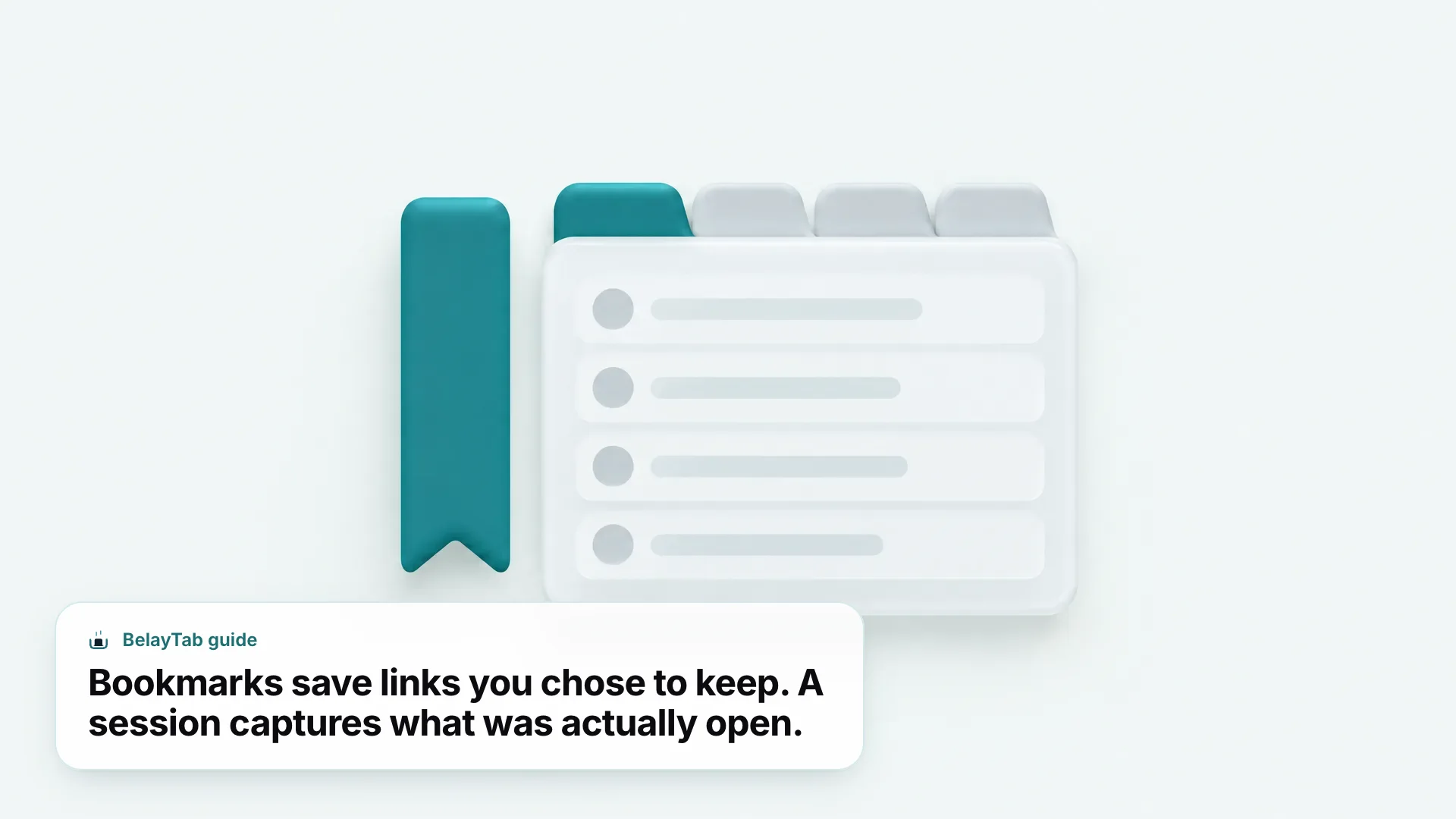
This is the gap that trips people up most often: forty research tabs open the night before a deadline, three of them sitting in a named tab group, one pinned to the far left — none of that is a bookmark, and none of it survives a crash or an accidental “close window” the way a bookmark would. Export and import bookmarks give you real portability for links you’ve already decided to keep, but they were never designed to be a safety net for your live, in-progress browsing session, and expecting them to behave like one is how people lose real work.
Between Chrome’s built-in bookmark export, sync, and a proper tab session tool, you’ve got the full picture covered: links you chose to keep, and the windows you had open when it mattered most. For more on organizing what you already have, our complete guide to Chrome bookmarks and best bookmark managers roundup are good next reads, and BelayTab’s bookmarks viewer is a quick way to browse an exported file without importing it anywhere first. If you’d rather start with your tabs instead, install BelayTab and save your first session in one click.