






Chrome bookmarks are the quiet workhorse of your browser. You star a page once, and it’s there whenever you need it again, long after the tab that led you there is closed and forgotten. Most people use them for years without ever opening the Bookmark Manager or thinking about where that data actually lives — until they get a new laptop, switch from Firefox, or watch a folder of years of saved recipes vanish after a factory reset.
This guide covers the whole lifecycle: bookmarking a page or a whole window of tabs, organizing folders, showing or hiding the bookmarks bar, and (the part most people search for) how to export, import, transfer, and migrate Chrome bookmarks between browsers and computers. Every step below comes from Google’s own Chrome documentation, current as of September 2026. Near the end, we’ll cover the one thing bookmarks don’t protect: the tabs you haven’t starred yet.
What Are Chrome Bookmarks and Where Do They Live?
A Chrome bookmark is a saved shortcut to a webpage that stays put after you close the tab, kept locally in your Chrome profile and, if you’re signed in, synced to your Google Account. Each Chrome profile keeps its own separate set of bookmarks, along with its own history, passwords, and extensions — useful to know if you’ve ever opened Chrome and wondered where your bookmarks went, because you’re probably looking at a different profile.
You add bookmarks one page at a time or in bulk, organize them into folders inside the Bookmark Manager, and optionally pin the ones you use daily to the bookmarks bar under the address bar. None of this requires an account; sync is opt-in and layered on top.
Google doesn’t publish an official page describing exactly where the underlying bookmarks file sits on disk, so treat any specific file path you find in a forum post with some skepticism. If you need to locate it directly (for a manual backup, or to inspect it after a crash) our bookmarks file viewer and browser file location finder are a safer starting point than guessing.
Here’s the quick-reference version of everything in this guide:
| Task | What to do |
|---|---|
| Bookmark this page | Ctrl + D (Cmd + D on Mac) |
| Bookmark all open tabs | Ctrl + Shift + D |
| Open Bookmark Manager | Ctrl + Shift + O (Cmd + Option + B on Mac) |
| Show or hide bookmarks bar | Ctrl + Shift + B |
| Export bookmarks | Bookmark Manager → More → Export Bookmarks |
| Import bookmarks | Bookmark Manager → More → Import Bookmarks |
| Move to a new computer | Sign in and sync, or export/import the HTML file |
How Do I Bookmark a Page in Chrome?
Press Ctrl + D on Windows or Linux, or Cmd + D on Mac, with any page open, and Chrome saves it instantly. A small panel drops down from the address bar so you can rename the bookmark or file it straight into a folder before confirming — worth the extra two seconds if you don’t want everything landing in one giant, unsorted list.
The star icon at the right edge of the address bar does the same thing with a click, and it fills in solid once a page is bookmarked, so you can tell at a glance whether you’ve already saved something. That’s handy for avoiding duplicates, though Chrome won’t stop you from bookmarking the same page twice if you’re not paying attention.
If you want to save an entire browsing session rather than one page, press Ctrl + Shift + D. Chrome bookmarks every open tab in the current window in one move, filing them into a new folder. It’s the closest thing Chrome has to a built-in “save my window” button, and it’s genuinely useful before you close a laptop lid for the night. Google’s own keyboard shortcuts page for bookmarks lists both shortcuts if you want the primary source.
That distinction matters more than it sounds. A bookmark folder is a list of links; it doesn’t remember which tabs were grouped together, which were pinned, or what order they were in. If you regularly bookmark whole windows just to preserve a research session, you’re using bookmarks as a workaround for a job Chrome’s tab groups and BelayTab’s session saving do better.
How Do I Open and Organize the Bookmark Manager?
Open the Bookmark Manager with Ctrl + Shift + O on Windows or Linux, or Cmd + Option + B on Mac. This is the full view of everything you’ve saved (folders on the left, bookmarks on the right) and it’s where export, import, and reorganizing all happen.
- Keyboard (Windows/Linux). Press Ctrl + Shift + O to jump straight into the Bookmark Manager.
- Keyboard (Mac). Press Cmd + Option + B instead.
- Chrome menu. Click the three-dot menu, then Bookmarks and lists, then Bookmark Manager — works the same on every platform.
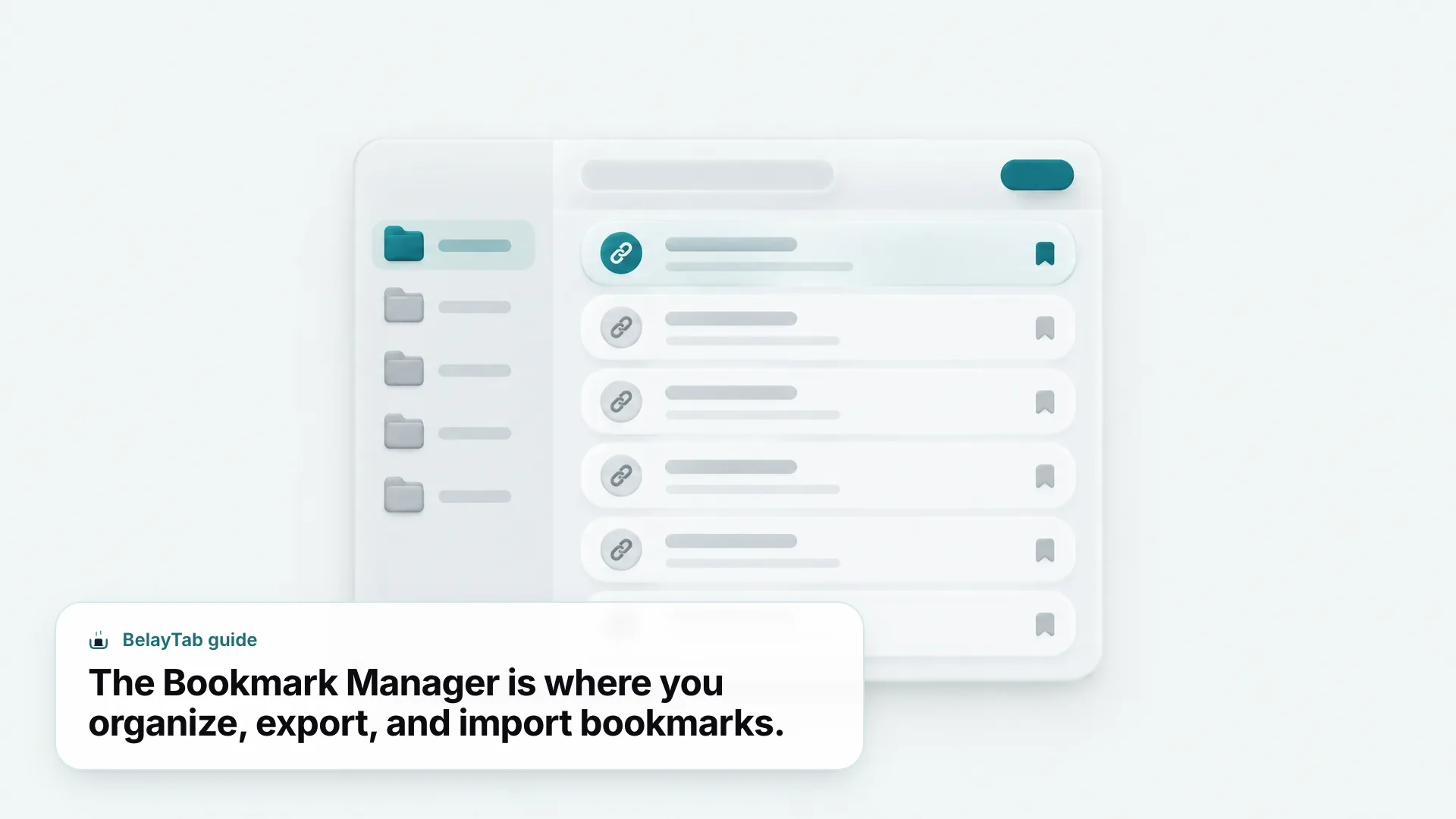
Inside, you can drag bookmarks between folders, create new folders with the New Folder option, and right-click any item to rename, edit its URL, or delete it. Chrome also supports opening bookmark folders in the side panel, which is convenient if you want your bookmarks visible alongside a page you’re reading — though that side panel isn’t available on Android tablets, so don’t expect the same layout there.
If your bookmark collection has grown into a mess of duplicates and dead links over the years, this is the tool to clean it up in, folder by folder. There’s no built-in “find duplicates” button, so it’s manual work, but the search box at the top of the Bookmark Manager at least lets you hunt by keyword instead of scrolling. For a broader comparison of tools that go further than Chrome’s built-in manager, see our roundup of the best bookmark managers.
How Do I Show or Hide the Bookmarks Bar?
Press Ctrl + Shift + B to toggle the bookmarks bar on or off. It’s the row of shortcuts sitting directly under the address bar, and it’s meant for the handful of pages you open constantly — not your whole collection.
Small screen? Hide it. On a small window or lower resolution, Chrome can keep the bookmarks bar hidden automatically to save vertical space. If yours disappeared after resizing a window, that’s likely why — toggle it back with Ctrl + Shift + B.
Anything you drag onto the bar becomes a one-click shortcut, and folders work there too — drop a folder on the bar and it becomes a small dropdown menu, which is a decent way to keep a dozen related links accessible without cluttering the bar itself. Most people put a mix of daily tools and one or two folders on it and leave the rest in the full Bookmark Manager.
There’s no rule about how many bookmarks belong on the bar, but in practice more than about ten or fifteen individual items starts to feel cramped, especially with longer bookmark names. If you’re running out of room, that’s usually a sign it’s time to start using folders instead of adding more single items. For a broader look at showing, hiding, and organizing this bar across different browsers, our guide to the bookmarks bar covers Chrome alongside the others.
How Do I Export Chrome Bookmarks?
Open the Bookmark Manager, click the three-dot More menu, and choose Export Bookmarks — Chrome saves your entire collection as a single HTML file. This is the official method, and it’s the same file format nearly every browser can read back in, which is exactly why it’s the backbone of moving bookmarks anywhere.
- Open the Bookmark Manager. Press Ctrl + Shift + O (Cmd + Option + B on Mac), or use the Chrome menu.
- Open the More menu. Click the three dots in the top right of the Bookmark Manager.
- Choose Export Bookmarks. Chrome generates an HTML file and asks where to save it.
- Pick a folder and save. Keep this file somewhere you’ll remember. It’s your entire bookmark collection in one portable file.
That HTML file isn’t a live sync connection or a database; it’s a snapshot frozen at the moment you exported it. If you add ten more bookmarks tomorrow, today’s export won’t have them, so if you’re using export as a backup strategy rather than a one-time migration, you’ll need to repeat it periodically. There’s no scheduled or automatic export built into Chrome. It’s a manual click every time. Google’s Bookmark Manager help page documents the export and import flow in more detail.
How Do I Import Bookmarks Into Chrome?
In the Bookmark Manager, click the three-dot More menu and choose Import Bookmarks, then select an HTML file — Chrome reads it and adds everything inside. This works with the file Chrome itself exported, or an export from any other browser that uses the same standard bookmarks HTML format.
There’s a second import path too, reached from the main Chrome menu: Bookmarks and lists, then Import bookmarks and settings. That option can pull bookmarks (and often more) directly from another browser installed on the same computer, without you needing to export a file from it first — genuinely the fastest route when both browsers live on the same machine.
Either way, it’s worth opening the Bookmark Manager right after an import to check where things landed and whether folder structure survived the trip intact. Nested folders sometimes flatten out a little differently than you’d expect, especially coming from browsers with a different folder model. For the full walkthrough on getting bookmarks in both directions (including edge cases we don’t have room for here) see our dedicated post on importing and exporting Chrome bookmarks.
How Do I Transfer Bookmarks to Chrome From Another Browser?
Use Chrome’s Import bookmarks and settings option if the other browser is still installed on the same computer — Chrome reads its bookmarks directly, no exported file required. If the other browser isn’t installed here, or it’s on a different device entirely, export an HTML file from it first and import that file into Chrome instead.
Which route makes sense depends entirely on your setup:
| Situation | Best method |
|---|---|
| Old browser still installed on this computer | Chrome menu → Bookmarks and lists → Import bookmarks and settings |
| You only have an exported HTML file | Bookmark Manager → More → Import Bookmarks, then select the file |
| Moving from Firefox | Export an HTML file from Firefox, then import it into Chrome |
| Moving from Safari | Export bookmarks from Safari, then import the file into Chrome |
| Switching between your own devices | Sign in and turn on Chrome sync instead of exporting anything |
For the Firefox and Safari export steps specifically, our guides on exporting Firefox bookmarks and Safari bookmarks on Mac and iPhone walk through each browser’s own menu.
One thing worth flagging before you transfer bookmarks Chrome-bound from an old profile: check for duplicates afterward. If you’ve already got some overlapping bookmarks saved locally, an import doesn’t merge intelligently. It just adds everything from the file, folder structure and all, which can leave you with two copies of the same link in two different places. A quick pass through the Bookmark Manager’s search box after any transfer catches most of it.
How Do I Move or Migrate Chrome Bookmarks to a New Computer?
Sign in to Chrome and turn on sync, and your bookmarks move to the new computer automatically the moment you sign in there too. If you’d rather not use a Google Account, export bookmarks to an HTML file on the old computer and import that same file on the new one — both are officially supported.
- Decide sync or file. Signing in with sync turns on automatic, ongoing bookmark transfer; exporting and importing an HTML file is a one-time manual copy that works even without a Google Account.
- For sync: click the profile icon, sign in, and confirm sync is on — your bookmarks appear on the new computer once it’s signed in too.
- For a file: export bookmarks on the old computer, copy the HTML file to the new one by USB drive, cloud storage, or email, then import it there.
- Check your folders. However you moved them, open the Bookmark Manager afterward and confirm folders and order look right.
Sync is the lower-effort choice if you’re already comfortable being signed in to Chrome, since it also carries over history, passwords, and settings, not just bookmarks. The file-based route takes an extra couple of minutes but keeps everything local and works even for a one-off move to a computer you’re not planning to sign in on, like a shared or work machine. Either way, this is a genuinely simple job — the file-based version has almost no failure modes, which is more than can be said for moving open tabs, which we’ll get to. For a step-by-step focused purely on this scenario, see how to move Chrome bookmarks to a new computer.
How Does Chrome Sync Handle Bookmarks Across Devices?
Chrome sync carries your bookmarks to every device you’re signed in on, automatically and continuously, once you turn it on from the profile icon. Bookmarks are one of several data types synced by default, alongside history, open tabs, passwords, payment info, addresses, and general settings.
Only URLs you’ve typed or entered into the address bar sync as part of history — but bookmarks sync in full, regardless of how you created them. You can customize exactly which data types sync from Settings under “You and Google,” if you’d rather keep, say, passwords local while still syncing bookmarks. Synced data is encrypted by default, and you can add an extra custom passphrase for additional encryption on top of that.
The part people miss: sync is bidirectional and ongoing, not a one-time copy. Delete a bookmark on your laptop, and if sync is on, that deletion propagates to your phone and any other signed-in device too. That’s convenient when you’re tidying up on purpose, and unwelcome the one time you delete something by accident and only notice after it’s already gone everywhere. Google’s page on how Chrome sync works covers exactly what does and doesn’t sync. For BelayTab’s own take on cross-browser sync (a different, paid layer built for saved sessions rather than bookmarks) see Sync and setting up sync.
What Happens If Chrome Bookmarks Go Missing?
Chrome bookmarks go missing most often from a sync deletion spreading across devices, a browser reset, or a computer wipe before you exported a backup — and Chrome doesn’t offer an official on-device undo for any of it. The only real protection is the export file covered earlier in this guide, kept somewhere separate from the computer it came from.
That’s a solvable problem for bookmarks. It’s a much bigger problem for something bookmarks were never designed to protect: your open tabs. A bookmark only exists because you deliberately starred it. Everything else — the forty research tabs open the night before a deadline, the half-read article, the window with a flight booking in it that you haven’t finished — has no bookmark and no backup, and a crash, an accidental window close, or a Chrome update can take all of it in one shot. Our guide on restoring tabs in Chrome covers what Chrome itself can and can’t recover, and too many tabs is worth a read if that scenario sounds familiar.
BelayTab isn’t a bookmarks tool and doesn’t try to be. It saves and restores whole sessions, with tab groups, pinned tabs, and order intact, and its own Recovery screen brings snapshots, deleted sessions, and recently closed windows into one place. It does share one habit with good bookmark hygiene, though: it can export sessions as an HTML bookmarks file too, so you can hand a saved session to anyone using just their browser’s own import tool. Think of exporting your bookmarks and letting automatic snapshots run as two halves of the same backup instinct, covering two different things Chrome quietly forgets.