






iPhone Safari manages tabs through one tabs button: tap it to open, close or reopen a tab, drag tabs into named Tab Groups, or swipe into a private tab that saves nothing. This guide covers every native way to organize tabs in Safari on iPhone — including the tab bar position setting, Safari profiles, and how to see the same tabs on a Mac — and where those built-in tools stop.
Whether you searched “iphone safari” because you are new to the phone or because a specific tab just vanished, the steps below are current as of September 2026 and checked against Apple’s own support pages, not guessed from memory.
What Is iPhone Safari and How Is It Different From Safari on Mac?
iPhone Safari is Apple’s built-in web browser for iOS, and it shares its bookmarks, history and iCloud Tabs with Safari on Mac and iPad, but not every feature. The core browsing engine is the same, and Tab Groups, Private Browsing and Safari profiles all exist on both platforms.
What changes is the interface. iPhone Safari is built around one tabs button and touch gestures instead of a menu bar, and some Mac-only settings — like choosing how many days to keep the reading list, or per-website settings in a full System Settings pane — simply do not exist on a phone screen.
Every Safari setting on iPhone lives in one place: Settings, then Apps, then Safari. That single screen is where you change the tab bar layout, add a profile, turn on Automatically Create Topics, and choose whether new tabs open in the background. There is no separate in-browser settings menu the way desktop browsers have one.
| If you want to… | Do this |
|---|---|
| Reopen a tab you just closed | Tap the tabs button, touch and hold the new-tab button, then pick it from the list. |
| Keep tabs from ten sites together | Create a Tab Group and move those tabs into it. |
| Browse without saving history | Swipe to Private Browsing and open a new tab there. |
| See your Mac’s open tabs on iPhone | Turn on iCloud Tabs and sign in with the same Apple Account on both devices. |
| Stop losing tabs for good on a Mac | Safari alone cannot promise this — see how BelayTab protects tabs below. |
How Do I Open, Close and Reopen Tabs in Safari on iPhone?
Tap the tabs button, then tap the new-tab control to open a tab, or tap the X in a tab’s corner to close it. Every tab action in Safari on iPhone starts from that same button.
- Open a link in a new tab. Touch and hold the link, then tap Open in New Tab.
- See all your open tabs. Tap the tabs button at the bottom (or top, depending on your layout) of the screen.
- Close one tab. Tap the X in the upper-right corner of that tab.
- Close every tab in the current group. Touch and hold the tabs button, then tap Close All Tabs.
- Reopen a tab you just closed. Tap the tabs button, then touch and hold the new-tab button and choose from the list of recently closed tabs.
If you would rather stay on the page you are reading when you open a link, go to Settings, tap Apps, tap Safari, tap Open Links, then choose In Background. That keeps new tabs from stealing focus every time you tap a link.
For the full picture on closing tabs in bulk (including the difference between closing a Tab Group and closing everything) see how to close all tabs on iPhone. If you split time between iPhone and a computer, how to reopen closed tabs in any browser and close-tab keyboard shortcuts for every browser cover the desktop side too.
How Do I Reorder or Review a Tab’s History in Safari on iPhone?
Touch and hold a tab and drag it to a new position to reorder tabs, or use the built-in sort option to arrange them automatically. Both live in the same tabs view as everything else in this guide.
- Drag to reorder. Touch and hold any tab, then drag it left or right to where you want it.
- Sort automatically. Tap the tabs button, tap the more-options button, tap Arrange Tabs By, then pick an option such as most recent.
- Check a tab’s history. Touch and hold the back or forward arrow while a tab is open to see the pages you visited in that tab.
None of this is destructive — reordering and reviewing history do not close anything, so it is a safe way to tidy up a crowded tabs view before you decide what to close or group.
How Do I Create and Use Tab Groups in Safari on iPhone?
You create a Tab Group by touching and holding a tab, tapping Move Tab, then New Tab Group, and giving it a name. From then on, that group of tabs stays separate from the rest of your open tabs until you switch to it.
Tab Groups are useful the moment you have two unrelated projects open at once (say, trip research and a work task) and do not want them tangled together in one long list. Instead of scrolling past twenty unrelated tabs to find the one you need, you switch groups and only see the ones that belong there.
- Open the tabs view. Tap the tabs button to see your open tabs.
- Touch and hold a tab. Keep pressing until the context menu appears.
- Tap Move Tab, then New Tab Group. This starts a fresh group instead of adding to an existing one.
- Name it and confirm. Give the group a name you will recognize later, like “Trip Planning” or “Recipes.”
- Switch groups anytime. Tap the Tab Group name at the bottom center of the screen to jump between groups.
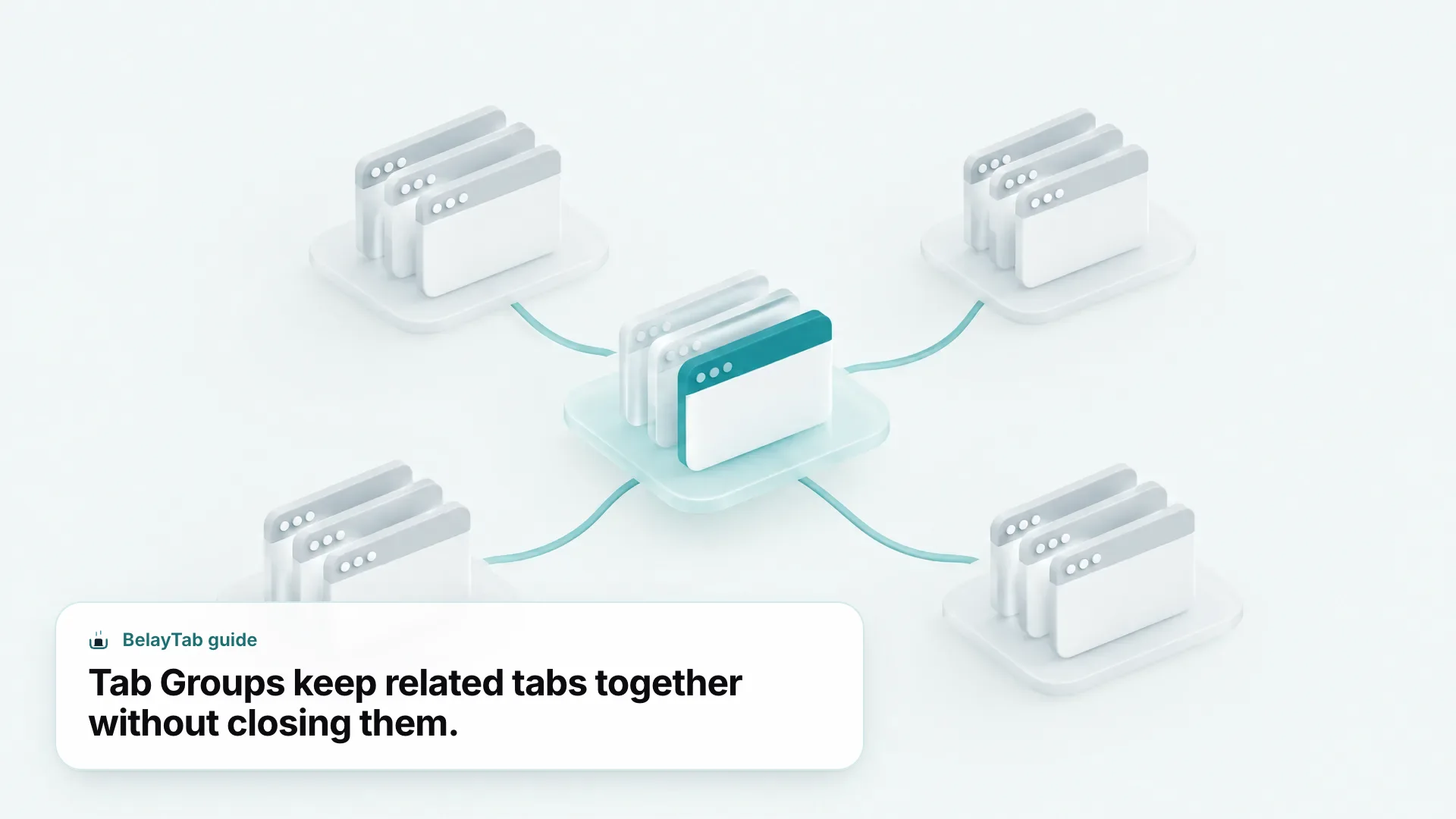
To move an existing tab into a group later, touch and hold it, tap Move Tab, then choose the group. You can also share a Tab Group with other people through iCloud — everyone needs their own Apple Account, Safari turned on in iCloud settings, and two-factor authentication enabled, and a shared group can hold up to 100 participants who see each other’s additions in real time. See Apple’s guide to organizing tabs with Tab Groups for the collaboration details.
How Do I See My iPhone’s Tabs on My Mac (or Vice Versa)?
Turn on iCloud Tabs to see the same open tabs across your iPhone, iPad and Mac. On iPhone, that setting lives under your name in Settings, then iCloud, then Safari.
- Turn on iCloud Tabs on iPhone. Go to Settings, tap your name, tap iCloud, tap See All, then make sure Safari is on.
- Turn on Safari in iCloud on your Mac. Open System Settings, sign in to iCloud with the same Apple Account, and enable Safari there too.
- Confirm two-factor authentication. Both devices need it enabled for tabs to sync between them.
- View the tabs. In Safari on iPhone, tap the tabs button and scroll down on the start page to see tabs open on your other devices.
This only shows what is currently open. It is a live mirror, not a backup. Close a tab on your Mac and it disappears from that list on your iPhone too, because there is nothing saved behind it. You can also close a tab on another device remotely: touch and hold its link in the list, then choose Close. For the exact steps, Apple’s guide to viewing Safari tabs from another Apple device walks through the account requirements.
How Does Safari Automatically Organize Tabs Into Topics?
As of September 2026, Apple Intelligence can group related open tabs into suggested topics on eligible iPhone models, separate from the Tab Groups you create yourself. It looks at what your open tabs have in common (like several news articles) and clusters them into a labeled thumbnail on the Tab screen.
From a topic, you can preview its tabs, close them all at once, copy every link, or move the whole topic into a permanent Tab Group. If a suggestion is not useful, tap the more-options button on it and choose Something Isn’t Right, or tap Never to turn the feature off entirely.
To turn the whole feature on or off rather than dismissing one suggestion, tap the tabs button, tap the more-options button, then tap Automatically Create Topics. This is a toggle, not a one-time choice, so you can switch it off if the suggestions get in the way and turn it back on later.
Not every iPhone gets this feature. Automatic topic suggestions need Apple Intelligence, which as of September 2026 requires an iPhone 15 Pro, iPhone 15 Pro Max, iPhone 16 or later, running iOS 27 or later. On other iPhones, Tab Groups still work the normal, manual way.
How Do I Browse Privately in Safari on iPhone?
Swipe right on the tab bar until Private Browsing opens, then tap Unlock if it is locked. Tabs you open there do not appear in History, do not sync to your other devices, and are forgotten once you close them.
Private Browsing also blocks known trackers, strips some tracking parameters out of URLs, and adds protection against advanced fingerprinting. Any Safari extension that can read browsing data is automatically turned off while you are in a private tab.
A closed private tab cannot be recovered. Unlike regular tabs, private tabs do not appear in the recently closed list. If you close one without saving what you needed, there is no built-in way to get it back on iPhone.
If your iPhone has a passcode set, Private Browsing locks itself when you switch away from it, and you will need Face ID, Touch ID or your passcode to get back in. Apple’s guide on turning Private Browsing on or off has the full walkthrough.
How Do I Change the Tab Bar Position in Safari on iPhone?
Go to Settings, tap Apps, tap Safari, scroll to Tabs, then choose Compact, Bottom or Top. Each option changes where the tab bar sits and how much of it is visible while you browse.
| Layout | Tab bar position | What you get |
|---|---|---|
| Compact | Bottom, condensed | Smallest tab bar, extra controls on both sides |
| Bottom | Bottom, expanded | Full-size tab bar with controls along the bottom |
| Top | Top of the screen | Tab bar above the webpage, controls still at the bottom |
There is no automatic tab-closing setting in iPhone Safari the way there is on Mac, where you can tell Safari to close tabs after a day, a week or a month. On iPhone, tabs stay open until you close them yourself, close a whole Tab Group, or Safari’s memory management closes an inactive one in the background — which you would not notice unless you were counting.
What Are Safari Profiles and How Do I Set One Up?
A Safari profile is a separate browsing identity (its own favorites, history, cookies, tabs and Tab Groups) that you switch into for a specific context like Work or School. Create one from Settings, tap Apps, tap Safari, then tap New Profile.
Give the profile a name, pick an icon and color, and choose which installed extensions it can use. Profiles you create on iPhone also show up in Safari settings on any other iPhone, iPad or Mac signed in to the same Apple Account, per Apple’s guide to creating multiple Safari profiles.
A common setup is a Personal profile for everyday browsing and a Work profile that keeps work logins, history and Tab Groups completely separate, so a search you did for a gift does not show up in your work browsing history and vice versa.
- Tab Groups. Organize tabs inside one identity; switch between named clusters of tabs you built yourself.
- Topics. Apple Intelligence suggests groupings automatically based on what your open tabs have in common.
- Profiles. A full separate identity — different history, favorites and cookies, not just different tabs.
What Happens to My Tabs If I Lose or Reset My iPhone?
If iCloud Tabs and iCloud Backup are on, your current tabs and Tab Groups typically reappear when you set up a new or restored iPhone signed in to the same Apple Account. Without those turned on, Safari on iPhone has no separate mechanism for pulling tabs back after a reset.
Recently closed is not a backup. The recently closed tabs list is short-lived and lives on-device. It will not save you after a factory reset, an app reinstall, or if you never had iCloud Backup enabled in the first place.
This is the one place where iPhone Safari’s tools genuinely run out: there is no version history, no scheduled snapshot, and no recovery screen for tabs the way you can build on a computer. If you use Safari on a Mac as well, that is a gap worth closing on the desktop side, even though it does not extend to the phone itself.
Should You Use BelayTab With Safari on iPhone?
No — BelayTab does not run on iPhone, iPad or Android, because it is a browser extension and Apple’s mobile version of Safari does not support extensions with that level of access. If your tabs matter enough to protect, do it on the device where the protection actually works: Safari on Mac.
BelayTab is a free extension for Safari on Mac, Chrome, Edge, Brave, Opera, Vivaldi, Arc and Firefox that saves an open window as a named session with one click, or automatically snapshots every open window on a five-minute timer and again when a window closes. Restoring never overwrites. It adds a new version, and BelayTab keeps the last 20 versions of every session plus a 30-day trash.
On Safari specifically, BelayTab cannot read tab group colors and names the way it can on Chrome, and it cannot see your recently closed windows, because Safari does not expose that information to extensions. It still saves and restores everything you had open, which is the part that matters most after a crash, a bad update or an accidental quit.
BelayTab also does not need broad website access to do this: it only asks for permissions related to tabs, tab groups, sessions and storage, and it never reads what is on the pages themselves. Nothing leaves your computer unless you turn on the optional paid Sync, and even then it is encrypted in transit and at rest, though not end-to-end. Start with how BelayTab saves tabs, or go straight to the download page if you use a Mac.
None of that changes what you should do on the phone itself. iPhone Safari’s own tools (Tab Groups, topics, profiles, iCloud Tabs and Private Browsing) cover everyday organizing well, and they are free, built in, and already on your phone. The gap only appears the moment a window closes for good and there was nowhere for it to land, and on iPhone that gap currently has no native fix. Treat this guide as the mobile half of managing tabs, and pair it with a desktop-side safety net if losing a browsing session on your Mac would cost you something.