






Press Ctrl + W (Cmd + W on a Mac) to close the tab you’re on. That close tabs shortcut works the same way in Chrome, Edge, Firefox, Safari, Brave, Opera, and Vivaldi, on Windows, Mac, Linux, and ChromeOS. Closed the wrong one? Ctrl + Shift + T (Cmd + Shift + T) brings it straight back. Below is the full reference for every situation: one tab, a whole window, every other tab, and the accidental close you want to undo.
What Is the Close Tabs Shortcut for Every Browser?
The close tabs shortcut is the same three-key pattern in almost every desktop browser: press Ctrl + W (Cmd + W on a Mac) to close one tab, add Shift to close the whole window, and add Shift + T to bring a closed tab back. The table below is the short version; the sections after it walk through each case in more detail.
| Action | Windows / Linux / ChromeOS | Mac |
|---|---|---|
| Close the current tab | Ctrl + W | Cmd + W |
| Close the current window | Ctrl + Shift + W | Cmd + Shift + W |
| Reopen the last closed tab or window | Ctrl + Shift + T | Cmd + Shift + T |
| Close every other tab | No default shortcut — right-click a tab | Same |
One shortcut, almost every browser. Chrome, Edge, Firefox, Safari, Brave, Opera, and Vivaldi all treat Ctrl + W and Ctrl + Shift + T the same way, so the muscle memory carries over when you switch browsers.
These three actions cover almost everything people mean when they search for a close tabs shortcut: closing the one tab you’re looking at, closing the whole window at once, and undoing whichever of those you didn’t mean to do. The sections below go through each one, including the one action (closing every other tab) that no browser gives a default shortcut for.
How Do You Close One Tab at a Time?
Ctrl + W (Cmd + W on a Mac) closes whichever tab currently has focus, no confirmation dialog involved. Click the small “x” on the tab itself, or middle-click it, if you’d rather use the mouse.
The close tabs shortcut chrome uses is no different from Edge’s or Brave’s, since all three share the same Chromium engine: Ctrl + W on Windows and Linux, Cmd + W on a Mac. If you were searching for the shortcut to close tab in chrome specifically because a recent update seemed to change something, it hasn’t. This has been Chrome’s tab-close shortcut since its first release, according to Google’s Chrome keyboard shortcuts page.
Firefox and Safari follow the same pattern. Mozilla documents Ctrl + W as the shortcut to close a Firefox tab, and it also closes the window if that tab is the only one open. Apple lists Cmd + W for closing the active tab in Safari’s keyboard shortcuts guide.
There’s one wrinkle worth knowing. Your cursor doesn’t need to be on the page itself for the shortcut to work — if it’s in the address bar, a bookmark, or a side panel, Ctrl + W still closes the active tab in Chrome, Edge, Firefox, and Safari. Pinned tabs behave the same way: none of these browsers block Ctrl + W on a pinned tab or ask for confirmation first, so it’s easy to close one by habit.
Why Doesn’t Ctrl+W Always Seem to Work?
It almost always does — what usually stops it is a prompt the page itself put up, not the shortcut failing. Some sites use a browser feature called beforeunload to ask “Leave site?” when you have an unsaved form, a message half-typed, or a file mid-upload. That prompt comes from the website, and every browser respects it the same way, whether you close the tab with a shortcut, the mouse, or the window’s close button.
A download in progress doesn’t stop the shortcut either. Current versions of Chrome, Edge, and Firefox let you close a tab without interrupting an active download, since the download itself runs independently of the tab that started it and keeps going in the background.
How Do You Close an Entire Browser Window?
Ctrl + Shift + W (Cmd + Shift + W on a Mac) closes every tab in the current window in one action, without touching any other window you have open. It’s a close window shortcut, not a “close tab” one — there’s no confirmation step, so a window with forty tabs closes exactly as fast as one with two.
That speed is the catch. Once the window is gone, your only way back is the reopen shortcut below, and it only restores what the browser happened to keep track of. If you keep more than one browser window open (one for work, one for personal browsing, say) the shortcut only affects whichever window is currently in focus; the rest stay exactly as they were, tab groups and all.
A tab is one page, and a window is the frame that holds one or more tabs, so closing a window closes every tab inside it in a single step. It’s easy to mix the two shortcuts up, since they differ by only the Shift key. This matters most on a Mac, where quitting the app entirely is a separate action from closing a window: Cmd + Shift + W closes the window you’re looking at, but the browser keeps running in the background with any other open windows intact, and you’d need Cmd + Q to quit the browser itself. Windows and Linux don’t draw that line as sharply — closing the last window usually ends the browser process, too.
How Do You Close Every Other Tab at Once?
None of the major desktop browsers assign a default keyboard shortcut to “close other tabs”. You reach it from the right-click menu instead. It’s one of the few tab actions left out of every browser’s built-in shortcut list.
- Right-click the tab you want to keep open. In Chrome, Edge, Firefox, Brave, Opera, and Vivaldi this opens a context menu on the tab strip.
- Choose “Close other tabs.” Wording varies slightly by browser, but every Chromium browser and Firefox include this option. Safari’s equivalent is “Close Other Tabs,” also in the tab’s right-click menu.
There isn’t a separate keyboard shortcut to close all tabs, either — closing every tab in a window is exactly what Ctrl + Shift + W (Cmd + Shift + W on a Mac) already does, since a window is just a container for tabs. With several browser windows open, you’d repeat that shortcut once per window, or close each one from the taskbar or dock. Right-click menus also offer “Close tabs to the right,” and some browsers add “Close all but pinned” — both are variations on the same close-other-tabs idea, a narrower selection with the same missing default shortcut.
You can select several tabs and close them together, though. Chrome, Edge, Firefox, Brave, and Vivaldi all let you Ctrl-click (Cmd-click on a Mac) several tabs to select them, then right-click one and choose Close Selected Tabs, or press Ctrl + W once with the group selected. Shift-click selects a contiguous range instead of picking tabs one at a time. It’s the closest thing to a keyboard shortcut for closing “these tabs, not those.” Safari doesn’t support multi-selecting tabs this way, as of September 2026.
How Do You Reopen a Tab You Just Closed?
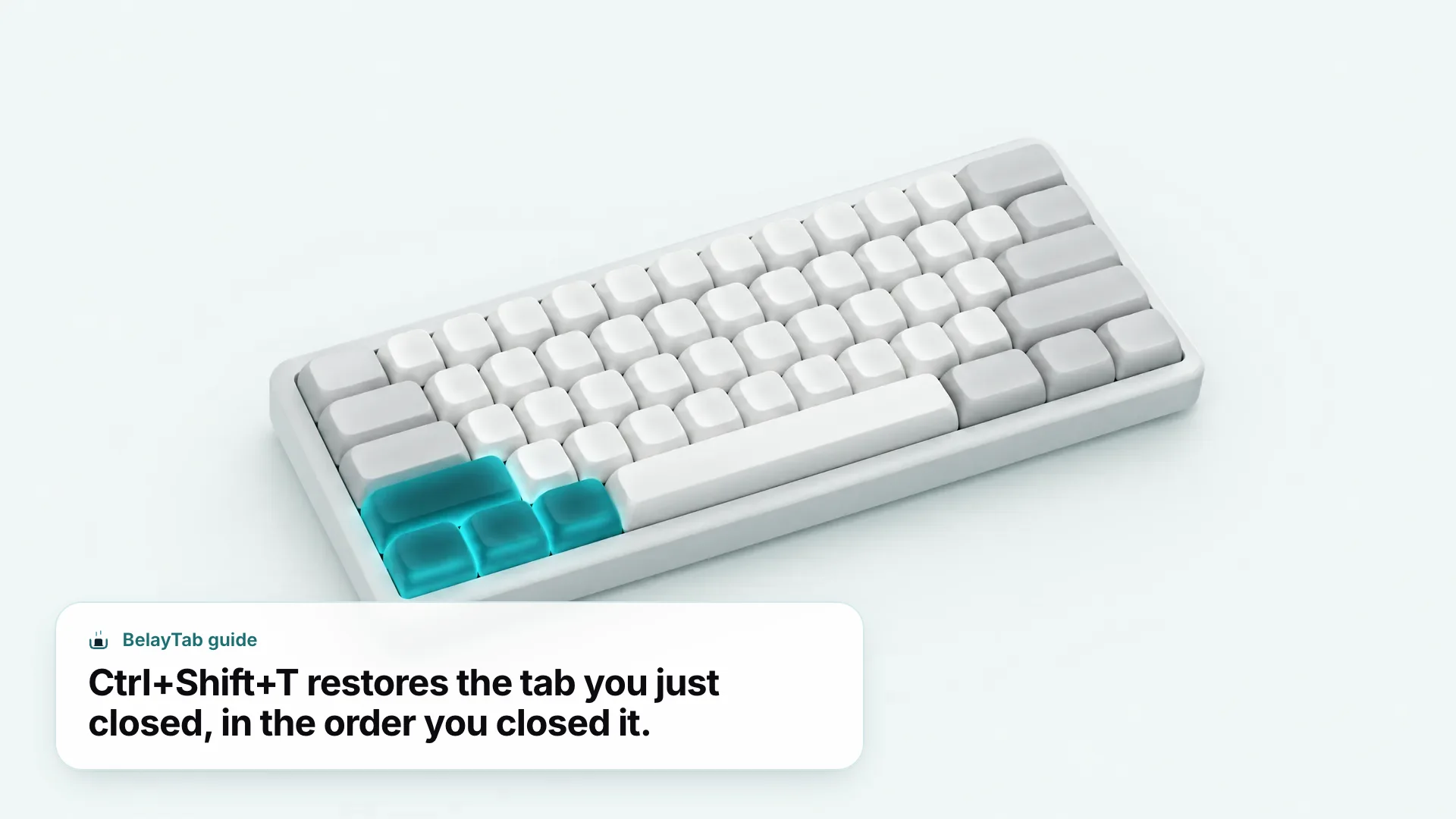
Ctrl + Shift + T (Cmd + Shift + T on a Mac) is the reopen closed tab shortcut, and it works in Chrome, Edge, Firefox, Safari, Brave, Opera, and Vivaldi. Pressing it again keeps working backward through whatever you closed most recently, tabs and whole windows included.
- Press the shortcut. Ctrl + Shift + T on Windows, Linux, or ChromeOS; Cmd + Shift + T on a Mac.
- Press it again for more. Each press restores the next-most-recent tab or window, in the reverse order it was closed.
- Check the History menu if nothing happens. Open History > Recently Closed Tabs (or Recently Closed Windows) and click the one you want directly.
One exception: tabs closed in Incognito, Private Browsing, or InPrivate windows generally don’t show up when you press the shortcut. Private modes are built not to keep a browsing history, and the recently-closed-tabs list relies on that history, so there’s nothing left for the shortcut to restore once a private tab is gone.
Do Brave, Opera, Vivaldi, and Arc Use the Same Shortcuts as Chrome?
Yes, because all four are built on the same Chromium engine that Chrome uses, so Ctrl + W, Ctrl + Shift + W, and Ctrl + Shift + T behave identically.
- Brave. Same three shortcuts as Chrome, on Windows, Mac, and Linux, with no changes to the defaults. Its built-in ad and tracker blocking doesn’t touch tab behavior at all.
- Opera. Also Chromium-based since 2013, so the tab shortcuts match Chrome’s exactly. Opera’s sidebar and workspaces features sit alongside the same tab strip, not in place of it.
- Vivaldi. Ships with Chrome’s defaults, then lets you remap any of them under Settings > Keyboard — including tab actions with no default shortcut elsewhere, like closing every other tab.
- Arc. Inherits Chromium’s tab shortcuts on Mac and Windows, so Cmd + W and Cmd + Shift + T work as expected. See our Arc browser guide for where Arc stands today and what to use if you move on from it.
Here’s the same comparison as a table, including the one action (closing other tabs) that stays menu-only everywhere.
| Browser | Close tab | Close window | Reopen closed tab | Close other tabs |
|---|---|---|---|---|
| Chrome | Ctrl/Cmd + W | Ctrl/Cmd + Shift + W | Ctrl/Cmd + Shift + T | Right-click menu |
| Edge | Ctrl/Cmd + W | Ctrl/Cmd + Shift + W | Ctrl/Cmd + Shift + T | Right-click menu |
| Firefox | Ctrl/Cmd + W | Ctrl/Cmd + Shift + W | Ctrl/Cmd + Shift + T | Right-click menu |
| Safari (Mac) | Cmd + W | Cmd + Shift + W | Cmd + Shift + T | Right-click menu |
| Brave | Ctrl/Cmd + W | Ctrl/Cmd + Shift + W | Ctrl/Cmd + Shift + T | Right-click menu |
| Opera | Ctrl/Cmd + W | Ctrl/Cmd + Shift + W | Ctrl/Cmd + Shift + T | Right-click menu |
| Vivaldi | Ctrl/Cmd + W | Ctrl/Cmd + Shift + W | Ctrl/Cmd + Shift + T | Right-click menu, or your own shortcut |
| Arc | Ctrl/Cmd + W | Ctrl/Cmd + Shift + W | Ctrl/Cmd + Shift + T | Right-click menu |
How Do You Close Tabs on a Chromebook?
The keyboard shortcut to close all tabs on a Chromebook is identical to desktop Chrome, because ChromeOS runs the Chrome browser itself rather than a separate build. Ctrl + W closes a tab, Ctrl + Shift + W closes the window, and Ctrl + Shift + T reopens the last one you closed.
The only real difference is the keyboard itself: most Chromebook keyboards don’t have a dedicated Delete key in the usual spot, and the row of shortcut icons replaces function keys, but neither change affects these tab shortcuts, since none of them use those keys. Split screen and the overview key (usually shown as a rectangle icon) don’t interfere either — Ctrl + W closes whichever tab is focused in whichever window is active, split-screen or not. An external keyboard plugged into a Chromebook uses the same combinations, since ChromeOS maps physical Ctrl keys the normal way. For everything else specific to Chromebooks (window snapping, the overview key, split screen) see our guide to managing tabs on a Chromebook.
Can You Customize These Shortcuts?
Only in Vivaldi, out of the browsers covered here. Its Settings > Keyboard panel lets you reassign nearly any command, including tab actions that have no default shortcut in other browsers, like closing everything except the current tab.
Chrome, Edge, Firefox, and Safari don’t expose their built-in tab commands for remapping. Chrome’s own keyboard-shortcuts settings page, at chrome://extensions/shortcuts, only covers commands that extensions register (a save-session shortcut an extension defines, for example) not the browser’s own Ctrl + W or Ctrl + Shift + T. Firefox has a similar Manage Extension Shortcuts screen with the same limitation: it changes what an extension does, not what the browser itself does.
If you want a genuinely different key combination for closing or reopening tabs everywhere, that has to happen outside the browser, with an operating-system-level remapping tool — PowerToys’ Keyboard Manager on Windows, or Karabiner-Elements on a Mac. Both intercept the keypress before it reaches any app, so they can turn a spare key into Ctrl + W for every program, not just the browser.
Should You Bookmark Tabs Instead of Relying on the Shortcut?
For a tab you might need again in a week, yes — a bookmark survives browser restarts, crashes, and clearing your history, none of which the reopen shortcut does. For a tab you closed five seconds ago, the shortcut is faster: two keys, versus opening the bookmarks bar, naming a folder, and filing it away.
The two aren’t really competing for the same job. Bookmarks are for pages you’ve decided you want to keep; Ctrl + Shift + T is for undoing a click you didn’t mean to make. Neither one covers an entire window of a dozen unsaved tabs you were still reading through. That’s closer to what session-saving tools handle, including BelayTab’s own save shortcut described below.
What Should You Do When a Shortcut Isn’t Enough?
Reach for something that doesn’t depend on the browser’s short-term memory of what you closed. Ctrl + Shift + T is genuinely useful for the tab you closed a second ago, but it can’t help once you’ve quit the browser, restarted your computer, or run past the small number of items each browser keeps track of.
BelayTab covers that gap without changing how you close tabs day to day. Its own save shortcut, Ctrl + Shift + S (Cmd + Shift + S on a Mac), saves the current window (or selected tabs, or all your windows) as a named session with tab groups, order, and pinned tabs intact. See the full list on the BelayTab keyboard shortcuts page.
Closing tabs is instant by design, and that’s exactly what makes it worth having a backstop. Learn more about how restoring tabs works and how saving sessions works, or check version history and the Recovery screen for what happens after the shortcut runs out.
To recap the close tabs shortcut in one place: Ctrl + W (Cmd + W) closes a tab, Ctrl + Shift + W (Cmd + Shift + W) closes a window, and Ctrl + Shift + T (Cmd + Shift + T) undoes either one. They work the same way in Chrome, Edge, Firefox, Safari, Brave, Opera, Vivaldi, and Arc, on Windows, Mac, Linux, and ChromeOS — the only gap, in every one of them, is closing every other tab, which stays a right-click away rather than a keystroke.