






Tor Browser has one job: make you as anonymous as possible online. It routes your traffic through three volunteer-run relays, encrypts it in layers, and works to make your browser look like everyone else’s Tor Browser. That’s a different goal from the one your everyday browser is chasing, and it changes almost everything about how the software behaves — how fast pages load, whether extensions are a good idea, even whether your tabs are still there tomorrow.
This review sticks to what the Tor Project itself publishes, dated where it can go stale, as of September 2026. You’ll get the mechanics of the Tor network, the real trade-offs in its Security Levels, what’s actually true about Tor on phones, and the parts the vendor is upfront about not doing, like torrenting or session syncing. Near the end, we’ll cover what happens to your tabs in a privacy-first browser like this one, and exactly where a tool like BelayTab fits — and where it doesn’t.
What Is Tor Browser?
Tor Browser is a free, privacy-focused browser built and maintained by the Tor Project, a nonprofit organized as a 501(c)(3) in the US. In the vendor’s own words, it exists for “real private browsing without tracking, surveillance, or censorship.” Instead of connecting straight to a website, it bounces your connection through a chain of relays run by volunteers worldwide, so no single point on that path knows both who you are and what you’re visiting.
That’s a meaningfully different pitch than a regular browser’s private or incognito window. Private modes in Chrome, Firefox, or Safari stop your own device from keeping a local record — history, cookies, form data. They don’t change how your traffic looks to your internet provider, to the site you visit, or to anyone watching the network in between. Tor Browser addresses that second problem directly, at the cost of speed and occasional compatibility issues with sites that don’t expect visitors from a Tor exit node.
Here’s a fast reference for who it fits, based on how the vendor describes its design goals:
| Situation | Does Tor Browser Fit? | Why |
|---|---|---|
| Journalist, researcher, or activist hiding identity and location | Yes | Built around relayed, layered encryption specifically for anonymity |
| Everyday browsing, shopping, streaming | Not ideal | Multi-hop routing adds latency, and some sites block exit-node traffic |
| Blocking one tracker script on a site you use daily | Overkill | A tracker blocker or a privacy-leaning browser like Brave handles this without full onion routing |
| Needing your tabs and sessions to persist across restarts | No | Tor Browser’s documented behavior leans toward clearing state, not preserving it |
| Wanting to blend in and resist fingerprinting | Yes | The vendor states the browser is built to make individual users hard to distinguish |
How Does the Tor Network Route Your Traffic?
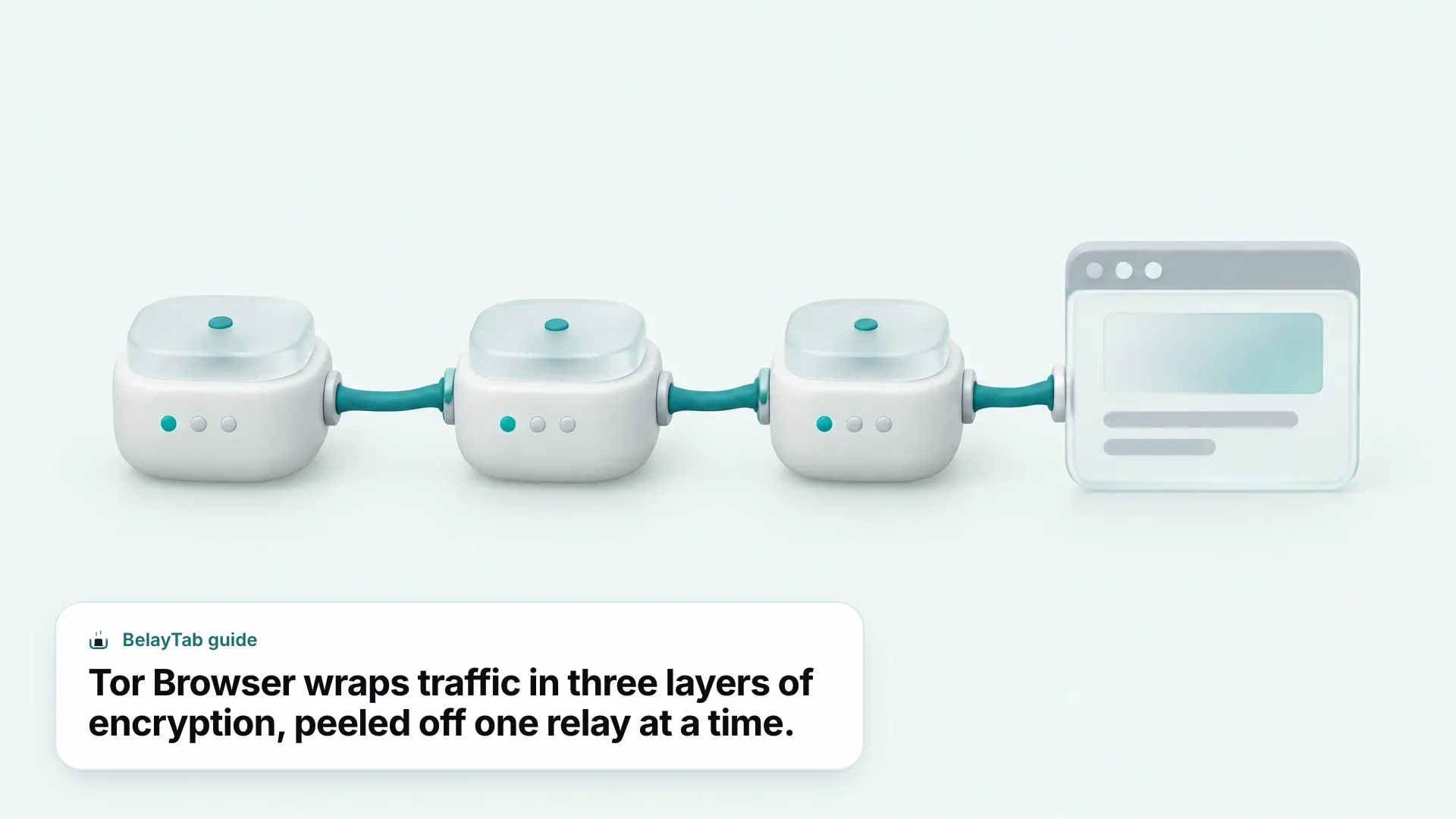
Tor Browser routes your traffic through three relays, encrypting it in three layers so no single relay can see both where you came from and where you’re going. This is the onion routing the “onion browser” nickname refers to. Your device wraps a request in three layers of encryption; each relay peels off one layer, learns only the next hop, and passes it along. The final relay, the exit node, sees the destination but not your original IP address.
The Tor Project’s homepage names three headline protections built on top of this routing. First, tracker isolation: it “isolates each website you visit so third-party trackers and ads can’t follow you” from site to site. Second, the multi-layered encryption itself, relayed through volunteer-run servers before it reaches its destination. Third, fingerprinting resistance — the browser is built so individual copies of it look as similar to each other as possible, making the usual fingerprinting signals (fonts, screen size, plugins) far less useful for tracking one specific person.
Tracker isolation happens per site automatically. You don’t need to configure anything for the per-site tracker isolation to work. It’s part of how Tor Browser treats every new site you visit as its own separate circuit.
This is also why a Tor network connection feels slower than your regular browser: every request takes a longer physical and cryptographic path than a direct connection would. That’s the deliberate trade at the center of the whole design — anonymity in exchange for speed and, sometimes, site compatibility.
Is Tor Browser Free, and Who Makes It?
Tor Browser is completely free, with no pricing tier mentioned anywhere on the Tor Project’s own homepage. There’s no premium version, no paid add-on, and no account required to use it. You download it and go.
The Tor Project itself describes its structure on its own site as a 501(c)(3) nonprofit organization based in the US. That nonprofit status shapes a lot of how the software is positioned: there’s no commercial upsell path, no data-monetization business model being described anywhere in the vendor’s own materials, and the mission language throughout the site centers on censorship resistance and surveillance avoidance rather than product growth.
That combination (free, nonprofit, mission-driven) is part of why Tor Browser gets recommended in contexts like investigative journalism, activism under repressive regimes, and general privacy research, where a commercial vendor’s incentives might raise questions a nonprofit’s don’t. It’s also worth being clear-eyed about what “free” doesn’t mean here: free of cost doesn’t mean free of trade-offs. You’re still giving up speed and, as we’ll get into, some flexibility around extensions and file-sharing tools, in exchange for the anonymity the Tor Project’s network provides.
If your interest in Tor Browser is purely about privacy features rather than full anonymity, it’s worth comparing it against a mainstream option first — see our Brave Private Browser review for a browser that ships tracker blocking by default without the onion-routing overhead.
How Do I Download Tor Browser Safely?
Download Tor Browser only from download.torproject.org, the Tor Project’s own distribution point, rather than a search-result mirror or third-party app listing. The official Tor Browser download page covers desktop installers for Windows, macOS, and Linux, plus a separate official Android app.
- Go to the official page. Open download.torproject.org directly rather than trusting a search result.
- Pick your platform. Choose the Windows, macOS, or Linux installer, or the Android app link.
- Run the installer. Install it like any other desktop application, or install the Android build through Google Play or F-Droid.
- Launch and connect. Open Tor Browser and let it establish a connection to the Tor network before browsing.
- Set your Security Level. Adjust it in settings before you start, based on the sites you plan to visit.
There’s a reason the vendor is strict about this: a modified copy of Tor Browser is exactly the kind of thing that could quietly undo the anonymity it’s supposed to provide, without you noticing until it’s too late. The install itself is otherwise routine (nothing more exotic than any other browser’s installer) but the source has to be right.
What Are Tor Browser’s Security Levels?
Tor Browser has three Security Levels (Standard, Safer, and Safest) each one trading more website functionality for stronger protection. You choose one based on how sensitive your browsing session is and how much broken functionality you’re willing to tolerate in return.
| Level | What It Changes | Best For |
|---|---|---|
| Standard (default) | All Tor Browser and website features enabled | Everyday anonymous browsing where site functionality matters most |
| Safer | Disables JavaScript on non-HTTPS pages; disables certain fonts and math symbols; audio/video become click-to-play | Extra caution while keeping most sites usable |
| Safest | Disables JavaScript on all sites by default; restricts fonts, icons, math symbols, and images; multimedia click-to-play | Maximum protection, accepting that many pages will look or behave differently |
Changes need a restart. Security Level settings apply on both the desktop and Android versions of Tor Browser, but a change only takes effect after you restart the app.
My honest take: Standard is fine for most sessions where you just want the anonymity of the Tor network without babysitting broken pages. Safer is a reasonable middle ground if you’re visiting sites you don’t fully trust. Safest is for situations where the content of the page matters far less than making sure nothing on it can execute against you — expect a noticeably different, more static web when you’re on it.
Can I Use Tor Browser on Android or iPhone?
Tor Browser is officially available on Android but not on iPhone. The Android app requires Android 5.0 or newer and is distributed through Google Play, F-Droid, or the Tor Project’s own site directly, per the vendor’s mobile browser support page.
- Android. Official Tor Browser app, Android 5.0+, available on Google Play, F-Droid, or torproject.org.
- iPhone / iPad. No official Tor Browser build exists; the Tor Project itself recommends Onion Browser instead.
- Desktop. Windows, macOS, and Linux installers, all distributed from download.torproject.org.
There’s no official iOS version of Tor Browser, and there isn’t going to be one under Apple’s usual rules — third-party browser engines have historically been restricted on iOS. Instead of leaving iPhone users with nothing, the Tor Project’s own support page points to Onion Browser, described as an open-source app “made by someone who works closely with the Tor Project” that uses Tor routing. The same page is candid that Apple’s WebKit requirement keeps Onion Browser from matching Tor Browser’s full set of protections. It’s the closest official-adjacent recommendation, not a like-for-like substitute.
If mobile privacy is your main concern rather than full network-level anonymity, it’s worth weighing a dedicated privacy browser against Tor Browser’s mobile limitations before committing either way.
Should I Install Extensions or Torrent Through Tor Browser?
No, the Tor Project actively discourages both. Its own support page states plainly that “installing other plugins or add-ons is strongly discouraged because they can harm your privacy, weaken security, and make you easier to track,” and that it “will not offer support for these configurations.” NoScript ships by default as the one built-in exception to that rule.
NoScript is the exception, not the pattern. NoScript comes pre-installed because it’s part of Tor Browser’s own security design, not an example of extensions generally being safe to add.
Torrenting carries its own specific warning. The Tor Project’s guidance states that torrent file-sharing applications “have been observed to ignore proxy settings and make direct connections even when they are told to use Tor,” and that even a torrent client configured to use Tor “will often send out your real IP address in the tracker GET request.” That’s a direct leak of the exact identifying information Tor Browser exists to hide, and the vendor notes it also degrades network performance for everyone else sharing those relays.
The underlying logic applies more broadly than just these two examples: anything that adds its own network behavior, its own identifiable fingerprint, or its own connection habits works against the uniformity Tor Browser depends on. If you find yourself wanting an extension badly enough to install one anyway, that’s usually a sign Tor Browser isn’t the right tool for that particular task — a regular browser with the specific extension you need is probably the better fit.
What Does Tor Browser’s “New Identity” Feature Do?
New Identity closes every open tab and window, clears cookies and browsing history, and builds a fresh set of Tor circuits for whatever you do next, per the Tor Project’s own glossary. It’s a one-action reset rather than a setting you leave on.
- Trigger New Identity. Use the option from Tor Browser’s menu when you want a clean slate.
- Everything closes. Every open tab and window shuts down at once.
- Local data clears. Cookies and browsing history from the session are wiped.
- A new circuit builds. Your next connections route through a fresh set of relays, unlinked from the previous session.
Use it between sessions, not mid-task. New Identity works best as a deliberate break between separate, unrelated things you’re doing — not as your only safeguard while you’re actively researching or reading something sensitive, since it will close everything you have open without warning.
This is the moment where Tor Browser’s priorities become very visible. In a regular browser, closing a window by accident is a bad afternoon. You lose the flight booking tab, the half-written email draft, the forty research tabs you’d been collecting all week. In Tor Browser, that closure is a feature working exactly as designed: the whole point is that nothing sticks around longer than you intend it to.
Does Tor Browser Save My Tabs or Sync Across Devices?
Not in any documented way. The Tor Project’s own support pages don’t describe session-restore behavior on relaunch or any form of account-based sync across devices, and New Identity’s habit of wiping tabs on demand reinforces that this browser isn’t built around persistence.
Practically, that means you should treat every Tor Browser session as self-contained. If you close it, restart your computer, or trigger New Identity, expect to rebuild whatever tabs you had open rather than finding them waiting for you. There’s also no cross-device sync mechanism documented anywhere in the vendor’s own materials — if you use Tor Browser on both a laptop and an Android phone, they’re two separate, unconnected sessions.
Set it up once with Ctrl + Shift + S (Cmd + Shift + S on Mac) to save a window as a named session, and every automatic snapshot after that happens in the background without you touching it. That’s a fundamentally different relationship with your tabs than Tor Browser is built to offer — and it’s meant for a different browser entirely.
Is Tor Browser Right for You, or Should You Use Something Else?
Use Tor Browser when full anonymity, not just privacy, is the actual goal — hiding your identity and location from the sites you visit, your network, and anyone in between. Use a different browser when you mainly want fewer trackers, faster everyday browsing, and features like tab groups or synced bookmarks that Tor Browser isn’t built to provide.
That distinction matters more than it sounds. A lot of people reach for Tor Browser when what they want is a browser that blocks ads and trackers by default and doesn’t sell their data. That’s a real need, but it’s a different one, and options like our Firefox browser guide or Brave Private Browser review cover it without the speed and compatibility costs of onion routing. Tor Browser’s own Firefox-based lineage means it shares some DNA with those options, but its network layer is what sets it apart, not its interface.
If you’re weighing Tor Browser against other Firefox-based or privacy-focused alternatives, our reviews of Waterfox, Zen Browser, and Helium Browser cover different points on that same spectrum — none of them route traffic through relays the way Tor Browser does, but each makes different privacy and interface trade-offs worth knowing about before you settle on one main browser. For a broader side-by-side, our browsers hub and comparison page are good starting points.
My take: don’t make Tor Browser your only browser unless anonymity is genuinely the priority for that session. Keep a regular, fully-featured browser (with its tabs protected) for everything else, and reach for Tor Browser deliberately when the task calls for it. If you haven’t set up automatic tab protection in your daily browser yet, that’s worth doing before you need it, not after a crash. You can grab BelayTab from the download page in a couple of minutes.