






Zen Browser keeps showing up in threads about Arc’s uncertain future, and there’s a reason for that: it borrows the same workspace-and-sidebar idea, wraps it around Firefox instead of Chromium, and gives it away free and open source. If you’ve searched “zen browser” wondering whether it’s worth installing or just another niche Firefox skin, this review answers that straight from Zen’s own site and GitHub, as of September 2026.
We’ll cover what Zen actually is, how Workspaces and Split View work, whether it’s safe, how it compares to Firefox and Arc, and (because tab loss ruins a good afternoon faster than almost anything else) what happens to your tabs if Zen crashes, updates, or you switch back to something else. No invented ratings, no percentages nobody can check. Just what Zen’s team and documentation say, plus where BelayTab does and doesn’t fit if tab safety is what brought you here.
What Is Zen Browser?
Zen Browser is a free, open-source desktop browser built by an independent group called the Zen Team, designed around Workspaces and a calmer, more customizable interface than mainstream browsers offer. It’s led by creator Mauro V., and its source is published on GitHub under the MPL-2.0 license, which is the same permissive-but-attributed license family used by a lot of Mozilla-adjacent projects.
Unlike a browser backed by a large company with a dedicated support team, Zen is closer to a passion project that happens to be genuinely usable. That shows up in small ways: releases ship on two channels (a stable Release channel and a faster-moving Twilight pre-release channel), the homepage itself is upfront about calling the current build “Beta,” and documentation lives in a separate docs site rather than a sprawling help center. None of that is a knock (plenty of respected open-source tools work this way) but it does set expectations for support response time and polish compared to Firefox or Chrome itself.
Here’s the quick shape of it before we go section by section:
| Detail | Zen Browser |
|---|---|
| Maker | The Zen Team, led by Mauro V. |
| Base engine | Firefox (Gecko) |
| Price | Free and open source |
| License | MPL-2.0 |
| Current version | 1.22.3b |
| Release status | Beta (per Zen’s own homepage) |
| Platforms | macOS, Windows, Linux |
| Mobile app | None (official) |
Beta means beta. As of September 2026, Zen’s own homepage still labels the current build “Beta.” That’s worth remembering before you move a heavily customized daily-driver setup over — expect the odd rough edge that a fully stable release wouldn’t have.
Is Zen Browser Built on Firefox or Chrome?
Zen Browser is built on Firefox, not Chrome. Zen’s own GitHub repository describes it directly as “a firefox-based browser,” and its Release channel currently builds on Firefox 156.0.1, with the Twilight pre-release channel tracking Firefox RC 156.0.1.
That distinction matters more than it sounds. Because Zen inherits Firefox’s Gecko engine, it also inherits Firefox’s compatibility quirks, its extension ecosystem, and a good chunk of its privacy defaults, rather than starting from Chromium like Arc, Brave, or Edge do. Zen’s own security documentation states the browser is “built on the latest version of Firefox,” with updates deployed “within 0–72 hours” of upstream Firefox releases — so security fixes from Mozilla generally reach Zen within a few days, not weeks.
If you’re the kind of person who reads release notes, this cadence is reassuring: Zen isn’t trying to fork Firefox and then quietly fall behind on patches. It’s riding upstream closely and layering its own interface on top. If you’d rather skip the fork entirely and just use Firefox with some tab-organizing extensions, our Firefox browser review and the main Firefox page cover that path directly.
Is Zen Browser Free to Use?
Yes, Zen Browser is free and open source, with no premium tier mentioned anywhere on its own materials. Zen’s homepage states this plainly and links straight to its GitHub repository, so you can read the code rather than take the claim on faith.
There’s no account requirement to install and use it, no trial period, and no feature gate that unlocks with payment, based on everything published by Zen’s own team. That puts it in a different category from some other independent browsers that pair a free core with an optional paid add-on — Waterfox, for instance, is free itself but earns revenue partly through an optional paid search subscription, as covered in our Waterfox browser review. Zen’s own pages simply don’t mention any comparable paid layer, which is worth noting as an absence rather than a guess.
Read the source if you’re cautious. Because Zen is fully open source under MPL-2.0, anyone with the skills can inspect exactly what the browser does before installing it — a level of transparency mainstream browsers generally don’t offer.
Being free doesn’t mean being risk-free, though. A small, volunteer-driven team maintaining a Firefox fork is a different support situation than Mozilla’s own release engineering, so treat “free” and “actively maintained” as two separate questions worth checking before you commit your daily browsing to it.
What Are Zen Browser’s Standout Features?
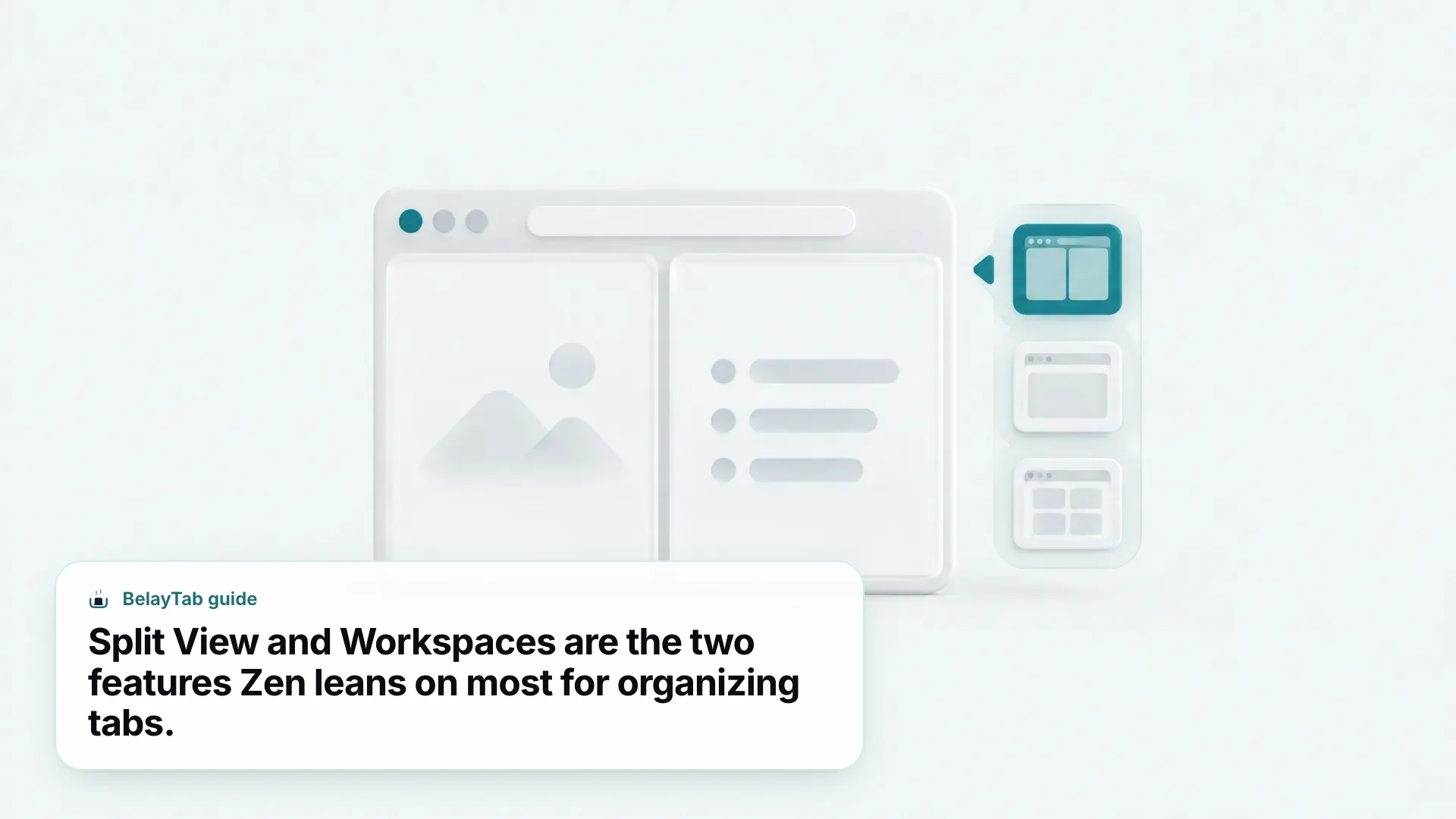
Zen’s standout features are Workspaces, Split View, Compact Mode, and Glance, all aimed at making tab management feel less chaotic. Workspaces let you “organize tabs into Workspaces to keep your projects separate,” per Zen’s homepage — think one Workspace for client work, another for personal browsing, each with its own set of open tabs.
Split View goes further: it “lets you view up to 4 tabs side by side, so you can compare information or multitask easily,” and you create it by dragging a tab from the sidebar onto another open tab. Compact Mode strips away toolbars and the sidebar for a wider view of whatever page you’re reading, and Glance lets you peek at another tab’s content without fully switching away from what you’re doing.
| Feature | What It Does |
|---|---|
| Workspaces | Separates tabs into distinct project spaces |
| Split View | Shows up to 4 tabs side by side |
| Compact Mode | Hides toolbars and sidebar for a wider page view |
| Glance | Lets you peek at another tab without switching |
- Open two tabs you want side by side. Have both visible in Zen’s sidebar first.
- Drag one tab onto the other. This creates a Split View pane automatically.
- Pick a layout. Use Alt + Ctrl + H for horizontal, Alt + Ctrl + V for vertical, or Alt + Ctrl + G for a grid layout.
- Toggle Compact Mode if you want more room. Press Ctrl + S or right-click the toolbar to switch it on.
None of these features are unique in concept (vertical tabs and side-by-side views exist elsewhere) but Zen bundles them into one coherent workflow rather than making you assemble them from separate extensions.
Does Zen Browser Support Extensions?
Yes, Zen supports Firefox add-ons from addons.mozilla.org because, in Zen’s own words, “Zen is based on Mozilla Firefox, you can install extensions from the same source.” Practically, that means most ad blockers, password managers, and productivity extensions you’d install on Firefox should install the same way on Zen — see our Firefox extensions guide for options worth trying.
There’s one documented exception: Firefox browser themes specifically don’t carry over, “due to fundamental difference on how Zen does theming.” Zen builds its own theming system on top of the Firefox base, so the visual customization layer works differently even though functional extensions transfer normally.
This compatibility is one of Zen’s real advantages over building a browser from scratch: instead of asking developers to publish to a brand-new store, it plugs directly into an extension catalog that’s been maintained for years. If you’re moving from Firefox to Zen, most of your existing add-on setup should just work, which lowers the switching cost considerably compared to jumping to an entirely different engine.
Which Devices and Operating Systems Run Zen Browser?
Zen Browser runs on macOS, Windows, and Linux, with no official mobile app for Android or iOS. Zen’s own download page states plainly, “Zen is available for macOS, Windows, and Linux,” and its FAQ explains the mobile gap directly: “our team does not have the time or resources to develop Android or iOS versions.”
- macOS. A universal .dmg installer covers both Intel and Apple Silicon Macs.
- Windows. Separate x86_64 and ARM64 installers are offered for standard and ARM-based PCs.
- Linux. x86_64 and AArch64 tarballs are available, plus a Flathub package for easier installs.
- Go to the official download page. Use zen-browser.app/download to avoid unofficial mirrors.
- Pick the build for your OS. Choose the macOS universal installer, the correct Windows architecture, or a Linux tarball or Flathub package.
- Install and launch it. Run the installer or package manager command for your platform.
- Create your first Workspace. Open the sidebar and set one up before you start importing bookmarks or logging into sites.
If you’re primarily on a phone, Zen simply isn’t an option yet, and there’s no stated timeline for that changing. Anyone who needs the same tabs on both desktop and mobile should factor that in before adopting Zen as a full-time browser. You’ll be running something else on your phone regardless.
Does Zen Browser Sync Tabs Across Devices?
Only partly, and it’s easy to misread this one. Zen’s Window Sync feature mirrors open windows on a single device, so “changes in one window are reflected across the others instantly” — but Zen’s own documentation is explicit that this “only works on the same device.”
Window Sync tracks details like Essential tab designation, pinning, and Split View configuration, which is genuinely useful if you run multiple Zen windows on one machine and want them to stay consistent. But it is not the same thing as syncing your open tabs between your laptop and your desktop. For actual cross-device continuity, Zen’s docs point to a separate “Send to Device” option tied to a Mozilla account, and note that full multi-device sync support is “planned” but not yet shipped.
For most people, that gap is the practical reason to keep a separate habit (a bookmark folder, an export, or a dedicated tool) for anything you genuinely need on more than one computer.
Is Zen Browser Safe and Private to Use?
Yes, based on what Zen’s own security documentation describes: tracking protection with Standard, Strict, or Custom levels, HTTPS-Only Mode you can apply to all windows or just private ones, DNS over HTTPS with three protection levels, OCSP certificate-validity checking, and phishing or malware URL filtering.
That’s a genuine privacy stack, not just marketing language, and it lines up with what you’d expect from a Firefox-based browser inheriting Mozilla’s underlying protections. One area worth flagging: Zen’s security documentation, as fetched for this review, made no specific mention of anti-fingerprinting measures, so don’t assume Zen matches browsers that advertise fingerprinting resistance explicitly. That claim simply isn’t documented for Zen.
As with any smaller, independent project, the code being open source (MPL-2.0, hosted publicly on GitHub) gives outside researchers a way to audit it, which is a meaningful trust signal even without a large company’s security team behind it. If privacy is your main reason for browser-shopping, it’s worth comparing Zen’s documented stack against Firefox’s own settings directly, since you’re getting a layer on top of Firefox rather than a wholly separate privacy model.
How Does Zen Browser Compare to Arc and Firefox?
Zen Browser and Arc share the same core idea (Workspaces and a sidebar-first approach to tabs) but they’re unrelated products built on different engines. Arc’s maker, The Browser Company, was acquired by Atlassian in October 2025 in a $610 million all-cash deal, and Atlassian’s own announcement frames a newer AI-focused browser, Dia, as the company’s product focus going forward.
That acquisition and pivot is a big part of why so many people search for a browser like Arc that doesn’t depend on one company’s changing roadmap. Zen fills that space differently: it’s a small, independent, Firefox-based project rather than a venture-backed one, which means a different risk profile — less chance of a sudden corporate pivot, but also a smaller team and no guaranteed long-term funding. If you want to see where Arc’s own maker went next, our Dia browser review covers that in detail.
Compared to plain Firefox, Zen adds Workspaces, Split View, Compact Mode, and Glance on top of the same Gecko engine and the same extension ecosystem. So the practical choice comes down to this: if you like Firefox’s engine and extension support but want Arc-style visual organization, Zen is a reasonable thing to try, with the caveat that it’s still labeled Beta and run by a much smaller team than Mozilla. If you’d rather see other independent, privacy-leaning options in the same general space, our reviews of Waterfox and Helium cover two more.
How Do You Protect Your Tabs in Zen Browser?
Zen doesn’t publish any documented crash-recovery or session-restore behavior on relaunch, and it isn’t one of the browsers BelayTab currently supports, so tab safety in Zen is mostly on you for now. That’s not a criticism unique to Zen — plenty of smaller browsers don’t spell out exactly what happens to your open tabs after a crash — but it’s worth knowing before you build a critical workflow entirely inside a beta browser.
A few habits help regardless of what Zen ships internally. Lean on Workspaces to keep projects separated so a crash affects a smaller, more recoverable set of tabs rather than everything at once. Bookmark anything genuinely important rather than trusting it will still be open tomorrow. And don’t treat Window Sync as a backup — as covered above, it only mirrors windows on the same device and isn’t designed as a recovery tool.
BelayTab’s own supported browser list is Chrome, Edge, Brave, Opera, Vivaldi, Arc, Firefox, and Safari on Mac — Zen isn’t on it, and we won’t pretend otherwise. If you regularly work in Zen but also keep a profile in plain Firefox or one of the Chromium browsers above, that’s where BelayTab’s automatic snapshots and tab restore apply.
If cross-browser habits aren’t your style and you’d rather just pick one supported browser and stick with it, our Firefox browser review is a reasonable starting point that keeps most of what draws people to Zen in the first place (the underlying engine and extension ecosystem) minus the beta label.