






Vivaldi doesn’t have its own extension store. Instead, it plugs straight into the Chrome Web Store, so if you’ve ever installed a Chrome extension before, you already know most of what you need to install a Vivaldi extension too.
What trips people up is everything after that first click: where the management page lives, why an extension that worked fine in Chrome suddenly looks or behaves a bit off, and whether you even need an ad-blocker extension when Vivaldi already ships with its own tracker and ad blocking built in.
This guide covers how vivaldi extensions actually work — installing, managing, reordering icons, Vivaldi’s built-in blocking versus a dedicated extension, and which ones are worth adding first, including one that protects the tabs you’ll inevitably have open while you’re testing the others. None of this requires switching away from habits you already built in Chrome; the store, the permission prompts, and most of the extensions themselves are the same ones you already know.
What Are Vivaldi Extensions and Where Do They Come From?
Vivaldi extensions are the same extensions you’d find in the Chrome Web Store — Vivaldi doesn’t run a separate marketplace of its own. Vivaldi is built on Chromium, the same open-source engine behind Chrome, and its own help documentation confirms that “extensions available in the Chrome Web Store can also be installed in Vivaldi.”
That’s a meaningfully different approach from some of its Chromium-based rivals. Microsoft Edge maintains its own Edge Add-ons store as its primary storefront, and Opera runs addons.opera.com alongside Chrome Web Store compatibility. Vivaldi skips building a parallel store entirely and just points you at Google’s, which means the catalog you’re choosing from is exactly as large as Chrome’s — no smaller, curated subset to work around.
The trade-off is that every extension in that catalog was reviewed and published with Chrome specifically in mind, not Vivaldi. Vivaldi’s own docs are upfront about this: extensions “may occasionally behave differently” once installed in Vivaldi than they do in their native browser. Most of the time that difference is cosmetic (a popup that renders slightly off, an icon that doesn’t quite match Vivaldi’s theme) but it’s worth knowing going in, especially if an extension you rely on suddenly looks a little different after switching browsers.
There’s an upside to that trade-off, too. Because Vivaldi doesn’t maintain its own review pipeline separate from Chrome’s, you’re not waiting on a smaller team to approve new extensions or push updates through a second gate. Whatever ships to the Chrome Web Store is available to you the same day, without a Vivaldi-specific delay. The cost is that nobody at Vivaldi is specifically vetting each listing against Vivaldi’s own interface, so the occasional cosmetic mismatch is the price of that speed.
How Do I Install Extensions in Vivaldi?
Open the Chrome Web Store, find the extension you want, and click Add to Vivaldi — Vivaldi’s own instructions describe this exact button. There’s no separate account to sign into and no extra download step; the extension installs the moment you click through.
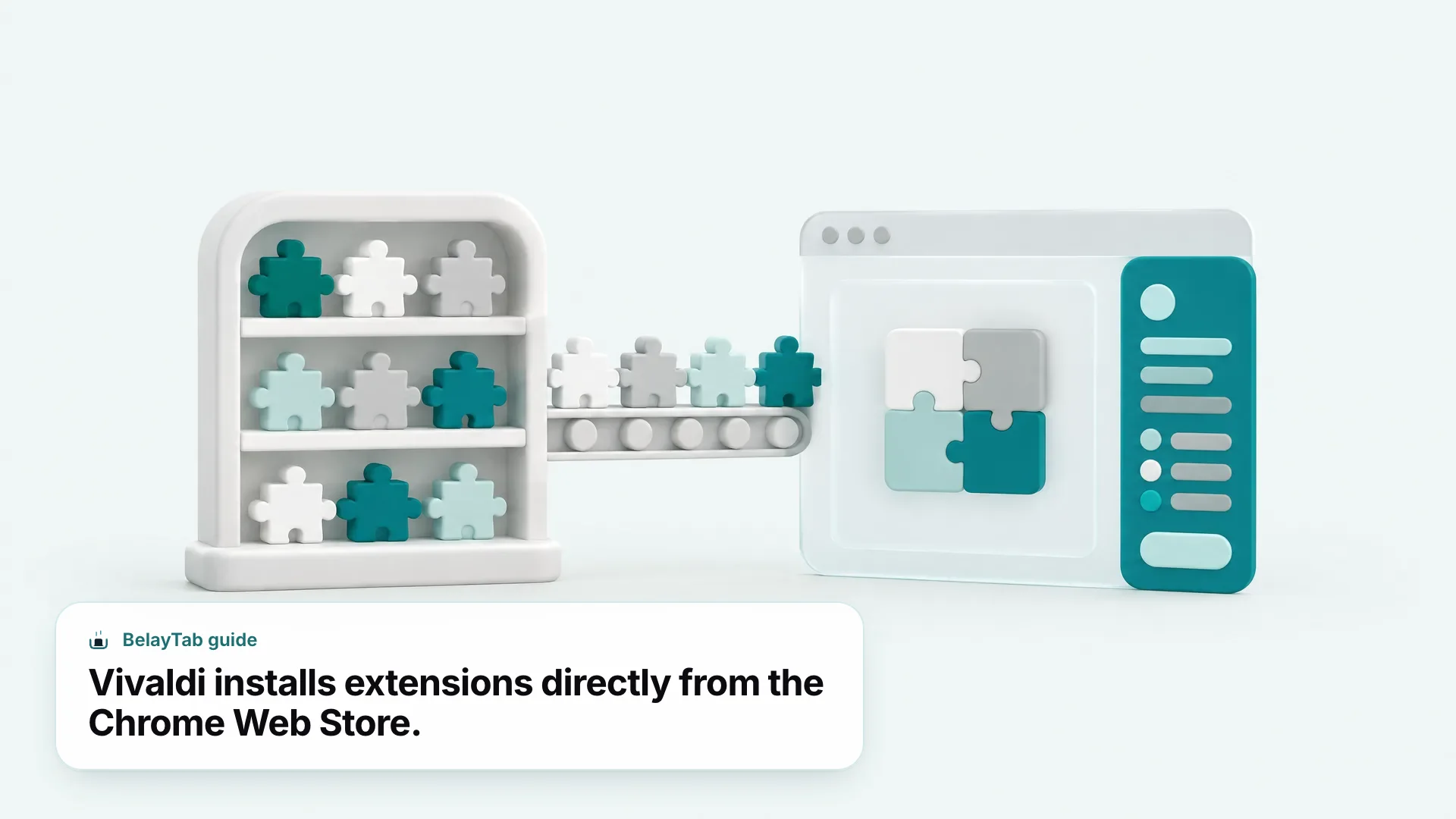
- Browse the Chrome Web Store. Open chromewebstore.google.com in Vivaldi and search for the extension you want.
- Click Add to Vivaldi. This is the same install action other browsers label Add to Chrome — Vivaldi’s build of the store adapts the wording.
- Confirm any permissions dialog. Approve it if the access it’s requesting matches what the extension is supposed to do.
One thing worth knowing before you get too far into installing extensions: the Chrome Web Store’s own help documentation states that extensions can’t be added while browsing in Incognito mode or as a Guest. Since Vivaldi pulls from that same store, the same restriction applies — install extensions in a regular window, then decide separately whether to allow them in private browsing later.
If you’re coming from a different Chromium browser, the muscle memory carries over almost exactly. The Chrome Web Store page looks and behaves the same no matter which browser has it open; only the install button’s label changes to match whichever browser you’re using at the time. That consistency is one of the quieter benefits of the whole Chromium ecosystem sharing one extension catalog instead of each browser maintaining a walled-off version of its own.
Quick Answer: Vivaldi Extensions at a Glance
Vivaldi extensions install from the Chrome Web Store and are managed on their own dedicated page inside the browser. The table below covers the most common questions in one place.
| Question | Answer |
|---|---|
| Where do Vivaldi extensions come from? | The Chrome Web Store — click “Add to Vivaldi.” |
| How do I manage installed extensions? | vivaldi://extensions, Tools > Extensions, or Ctrl+Shift+E. |
| Do I need a separate ad blocker? | Usually not — Vivaldi has its own built-in tracker and ad blocker. |
| Do Chrome extensions work exactly the same? | Mostly, but Vivaldi’s help notes they “may occasionally behave differently.” |
| Can I reorder extension icons? | Yes — hold Ctrl/Cmd and drag on the address bar. |
| Does Vivaldi have its own extension store? | No — it relies entirely on the Chrome Web Store. |
Keep this table handy if you’re comparing Vivaldi against other Chromium browsers like Edge or Opera, both of which run their own dedicated add-on stores alongside Chrome Web Store compatibility.
How Do I Manage, Disable, or Remove a Vivaldi Extension?
Open vivaldi://extensions to see everything you’ve installed, disable individual extensions with a toggle, or remove them entirely with a right-click. All three access points — typing the address directly, going to Tools > Extensions, or pressing Ctrl + Shift + E — land on the same page.
Each extension shows as a card with details and a toggle switch. Disabling an extension keeps it installed but inactive, which is useful if you’re troubleshooting whether a specific extension is causing a problem without losing your settings for it. Removing it deletes it outright, and you’d need to reinstall from the Chrome Web Store to get it back.
- Open vivaldi://extensions. Type it into the address bar, use Tools > Extensions, or press Ctrl+Shift+E.
- Toggle an extension off to disable it. Click the switch in the lower-right corner of its card. This doesn’t uninstall anything.
- Right-click and choose Remove Extension to delete it. You can do this from the toolbar icon or directly on the card.
If you’re not sure whether a slowdown or odd behavior is coming from an extension, disabling suspects one at a time on this page is faster than uninstalling and reinstalling each one to test.
Removing an extension is worth treating as a deliberate, occasional cleanup task rather than something you only do when troubleshooting. A few minutes on vivaldi://extensions every month or two, scanning for anything you installed for a one-off task and never opened again, keeps the list short enough that the next troubleshooting pass is faster too.
Can I Reorder or Hide Extension Icons in Vivaldi?
Yes — hold Ctrl (Cmd on Mac) while dragging an icon on the address bar to move it, and you can hide extension icons into a dropdown menu instead of showing every single one in the toolbar. Vivaldi’s own help documentation confirms both behaviors.
This matters more than it sounds like once you’ve installed more than four or five extensions. A toolbar crowded with icons is harder to scan quickly, and the ones you use daily can end up buried between ones you installed once and forgot about. Reordering puts your most-used extensions first; hiding the rest into a dropdown keeps the address bar itself uncluttered without forcing you to uninstall anything.
Group by how often you use them. Keep two or three extensions pinned and visible (the ones you click constantly) and hide the rest into the dropdown. You lose nothing functionally; you just stop scanning past icons you rarely touch.
There’s no confirmed limit on how many extensions you can install and manage this way, but a cluttered toolbar is a sign it’s worth doing a pass through vivaldi://extensions and removing anything you haven’t opened in months.
Reordering doesn’t require the extension to be pinned first, either. You can drag any icon that’s currently visible in the toolbar, whether you added it yesterday or a year ago, and the new position sticks until you move it again. It’s a small thing, but it means you don’t have to plan the “right” install order in advance; you can always rearrange later once you know which extensions you reach for.
Does Vivaldi Need an Ad Blocker Extension?
Usually not, because Vivaldi ships with its own built-in tracker and ad blocker that’s completely separate from any extension. It’s set globally at Settings > Privacy and Security > Tracker and Ad Blocking, or adjusted per site using the Content Blocker button in the address bar.
There are three levels to choose from, and you don’t need to pick one universally — Vivaldi lets you set a different level per site if a particular page needs it.
| Level | What it does |
|---|---|
| No Blocking | Trackers and ads load normally. |
| Block Trackers | Trackers are blocked; ads still load. |
| Block Trackers and Ads | Both trackers and ads are blocked. |
Because this is built into Vivaldi’s engine rather than delivered as a Chrome Web Store listing, it isn’t affected by the extension review process, permission dialogs, or update cycle that a separate ad-blocker extension goes through. That’s one less thing to maintain if the built-in option covers what you need.
Setting the level per site is worth using rather than picking one setting and forgetting about it. A news site loaded with intrusive ads might warrant “Block Trackers and Ads,” while a smaller independent site you want to keep supporting might get “Block Trackers” only, so its ad revenue still comes through. That per-site flexibility is something a single global toggle in a separate extension usually doesn’t offer as cleanly.
How Does Vivaldi’s Built-In Blocking Compare to Other Browsers?
Vivaldi’s approach (a built-in blocker with adjustable levels) is similar to what a few other Chromium-based browsers now offer natively, though each implements it a little differently. Knowing the differences helps you decide whether you need an extension at all, regardless of which browser you’re using.
Brave Shields, also built in rather than an extension, offers Standard and Aggressive modes providing “third-party ad & tracker blocking, on every page you visit,” with Brave’s own materials emphasizing “no extra downloads, no settings to configure.” Microsoft Edge takes a narrower angle: its tracking prevention has three levels (Basic, Balanced (labeled recommended), and Strict) but it’s explicitly about blocking trackers, not visually removing ads the way Vivaldi’s “Block Trackers and Ads” level does. Opera also ships a built-in ad blocker, toggled from a shield icon next to the address bar, which Opera describes as removing “video ads before they load” with “no extensions needed.”
The common thread: browsers that build blocking into the engine itself tend to promote it as something you don’t need to think about beyond flipping a toggle. That’s a real advantage over an extension, since it skips the permission dialogs, install step, and update dependency that come with anything from the Chrome Web Store. If Vivaldi’s built-in blocker already covers what you need, there’s little reason to add a redundant extension on top of it. It’s one more thing that can go out of date or conflict with something else.
Where a dedicated extension still earns its place is filter-list customization beyond what a browser’s own blocker exposes. Vivaldi’s three levels are simple by design, and that simplicity is the point for most people, but if you want granular control over specific filter lists, an extension like uBlock Origin Lite gives you that layer without turning off Vivaldi’s built-in protection first.
Do Chrome Extensions Really Work the Same in Vivaldi?
Mostly yes, but not guaranteed identically, and Vivaldi’s own documentation is upfront about that. Because Vivaldi is Chromium-based, it uses the same underlying extension APIs Chrome does, which is why the vast majority of Chrome Web Store extensions install and run without issue. The caveat is Vivaldi’s own wording: store extensions “may occasionally behave differently” once running inside Vivaldi.
In practice, the differences people report tend to be cosmetic rather than functional — a popup window that renders with slightly different spacing, an icon that clashes with Vivaldi’s theme, a keyboard shortcut that happens to collide with one of Vivaldi’s own built-in shortcuts. None of that is a dealbreaker, but it’s worth testing an extension for a day or two in real use before you build a workflow around it, rather than assuming it behaves pixel-for-pixel the way it does in Chrome.
This is also why disabling an extension (rather than immediately assuming your whole browser is broken) is the right first move if something starts acting strangely after an install. Vivaldi’s extensions page makes that a two-click process, which is faster than troubleshooting blind.
If you install several extensions in one sitting and something breaks afterward, resist the urge to reinstall everything at once to fix it. Disable them all, then re-enable one at a time, checking after each. It’s slower than a bulk reinstall, but it’s the only way to know for certain which extension caused the problem instead of guessing.
What Are the Best Vivaldi Extensions to Install First?
The most useful first extensions for Vivaldi cover the gaps its built-in features don’t already close — content filtering beyond the default blocker, and tab or session backup, since Vivaldi itself doesn’t include a dedicated session-saving tool as an extension.
- Extra content filtering. Vivaldi’s built-in blocker covers most people, but uBlock Origin Lite (uBOL) (a Chromium-native content blocker available via the Chrome Web Store) adds more granular filter-list control if you want it.
- Tab and session backup. BelayTab saves an open window, selected tabs, or every window at once as a named session, including tab groups, pinned tabs, and order, and works on Vivaldi.
- Translation or productivity tools. The Chrome Web Store’s curated collections rotate seasonally, but tab-and-bookmark-management and focus-tool categories are consistently well stocked if you’re browsing for extras.
Keep the list short at first. Every extension you install is one more thing that could be the cause the next time something behaves oddly, and Vivaldi’s built-in features already cover ad blocking, a lot of tab organization, and reading tools without adding anything from the store at all.
A reasonable order to install in: get your tab and session backup set up first, since it protects everything you do afterward, then add content filtering if the built-in blocker doesn’t cover a specific site’s behavior, and only after that start browsing for productivity or translation extras. That sequence means the riskiest phase of testing new, less-familiar extensions happens after your open work is already backed up somewhere else.
How Do I Make Sure I Don’t Lose Tabs While Testing Extensions in Vivaldi?
Save your open tabs as a named session before you install or test anything new, since a buggy extension crashing or freezing a window is one of the more ordinary ways people lose research, half-written drafts, or a dozen tabs they meant to get back to. Vivaldi doesn’t include a built-in way to snapshot and restore a full window the way a dedicated tool does, so this step is worth doing deliberately rather than assuming Vivaldi will always recover everything on its own.
This is exactly the gap BelayTab is built to cover. It’s a free extension (no account, no limits) that saves any open window, a selection of tabs, or every window at once as a named session with a single click or Ctrl + Shift + S (Cmd + Shift + S on Mac). It keeps tab groups, pinned tabs, and order intact, and it also saves a snapshot of every open window on its own every 5 minutes and whenever a window closes, so even if you forget to save manually right before installing something, there’s a recent snapshot waiting on the Recovery screen.
Restoring a session with BelayTab never overwrites anything. It adds a new version instead, and it keeps the last 20 versions of every saved session plus a 30-day trash for anything deleted by mistake. It won’t fix a crashed extension or a frozen Vivaldi window by itself, but it makes sure whatever was open survives the process, which is the part that matters when you’re experimenting. If you want to see how saving and restoring works in more detail, the save tabs and restore tabs pages cover the full flow, and it’s free to install in a couple of clicks.
None of this replaces good habits elsewhere. You should still only install extensions from the Chrome Web Store itself, and still pay attention to the permission dialog before approving one. But even careful installs occasionally go wrong, and that’s exactly the moment a saved session turns a frustrating afternoon back into a two-minute fix instead of a lost window of tabs.