






You’re mid-scroll on a login page or a site you’ve opened a dozen times, and Safari throws up a screen that just says “A problem repeatedly occurred.” You tap Reload. It happens again. You tap Reload once more — maybe it works this time, maybe it doesn’t.
If you searched safari iphone not working and landed here, you’re not imagining things: this message shows up often enough that it’s become one of the more common Safari complaints on iPhone. Here’s the honest part first — Apple hasn’t published an official support article that names this exact error, explains what causes it, or lists a confirmed fix. Everything written about it, including this article, is built on patterns other users have reported, not a documented cause.
That doesn’t mean you’re stuck. It means the fixes below are the same general Safari troubleshooting people already use for stubborn page-loading problems, plus a few ways to get your tabs back if the error costs you some along the way.
What Does “A Problem Repeatedly Occurred” Mean in Safari on iPhone?
It’s a Safari error screen that replaces a webpage when the page can’t finish loading, even after you’ve tapped Reload more than once — hence “repeatedly.” You’ll usually see it on a specific site: a login screen, a banking portal, an article behind a paywall. The rest of Safari keeps working fine. Other tabs load normally. It’s the one page, stuck in the same failure, over and over.
What makes this Safari error message on iPhone frustrating to research is that it doesn’t point to a cause. It’s not tagged with an error code you can look up, and it doesn’t say whether the problem is your connection, the site’s server, a Safari setting, or something else entirely. People searching for it end up piecing together theories from other users who’ve hit the same wall, because Apple hasn’t put out a support article naming this exact message.
That gap matters for how you should treat any fix you read online, including the ones further down this page. None of them come with an Apple stamp of approval for this specific error. They’re the standard moves people use for stubborn Safari loading problems, tried by people who happened to be seeing this message when they tried them.
None of this means anything is broken on your phone in a lasting way. The message is Safari giving up on a specific page load, not a sign of hardware trouble. It usually clears up once you find the right combination of restart, connection check, or data clear for your situation — the sections below walk through those roughly in order of how often they help.
Quick Answer By Situation
The fastest fix depends on whether the error hits one site or every site, and whether it started recently.
| Situation | Try This First |
|---|---|
| Error on one specific site | Test it in a Private Browsing tab, then clear that site’s data |
| Error on most or all sites | Restart Safari, then restart your iPhone |
| Started right after an iOS update | Check for a newer iOS update — Apple patches Safari bugs quickly |
| You lost tabs while troubleshooting | Touch and hold the New Tab button to reopen them |
| Safari keeps saying a problem occurred no matter what | Report it to Apple through Feedback Assistant, since there’s no confirmed fix |
Start with whichever row matches what you’re seeing. It narrows a long list of maybes down to one or two things worth trying first. If the error is only on one site, spending an hour clearing your whole browser’s data is overkill; test that one page in a fresh, private tab before you touch anything else.
If it’s happening everywhere, the site isn’t the problem, so the site-specific fixes won’t help much. That points toward Safari itself, your connection, or something a recent update changed.
None of these are Apple-confirmed fixes for this exact message — worth repeating, because it changes how you should approach troubleshooting. Instead of hunting for “the” fix, treat this as elimination: work through the list, note what changes, and stop once the page loads normally twice in a row. If you get through everything below and it’s still happening, that’s a signal worth reporting rather than a fix you’re missing. Feedback Assistant is Apple’s own channel for exactly this kind of pattern — an error with no listed cause that keeps recurring for a specific set of users. It won’t get you an instant fix, but it’s the closest thing to making sure the right people at Apple see it.
Is This an Official Apple Error, and What Are People Reporting?
No. It’s not documented in Apple’s official support guides, so everything about it comes from user reports on Apple’s own community forums.
| What People Report | Where It’s Reported | Confirmed by Apple? |
|---|---|---|
| Happens on login or account pages; retrying sometimes works | Apple Community discussion thread | No |
| Started after installing a Safari or iOS update | Apple Community discussion thread | No |
| Turning off JavaScript stops the loop but breaks site features | Apple Community discussion thread | No |
| Clearing cache, cookies, or extensions sometimes helps | Apple Community discussion thread | No |
That’s worth sitting with for a second, because it changes what “fix” even means here. Everything in the table above is a pattern other iPhone owners noticed, typed up, and posted on Apple’s community discussion boards — not a diagnosis from Apple engineering. Forum threads are genuinely useful: when enough people independently notice the same trigger, that’s real signal. But nobody on those threads works for Apple, and nobody has confirmed why the error happens or which fix is the actual fix versus something that happened to coincide with the page finally loading on its own.
The JavaScript theory is a good example of why that distinction matters. Some users report that turning off JavaScript in Safari makes the reload loop stop. That might be true for them. It also breaks a lot of modern websites, since JavaScript runs the interactive parts of nearly every page you use — search bars, login forms, comment sections. Trading a broken error message for a broken website isn’t really a fix; it’s a different problem. If you try it, treat it as a diagnostic test, then turn it back on.
The practical takeaway: read forum fixes as options to test, not instructions to follow. Try the low-risk ones first (the kind you can undo in a tap) before anything that changes how the rest of Safari behaves.
What Should I Try First When Safari Isn’t Loading Pages on iPhone?
Start with the basics that fix most temporary glitches: close Safari completely, check your connection, and give the page a minute before you try anything more involved.
- Force close Safari. Open your app switcher and swipe Safari away, then reopen it from the Home Screen. This clears out whatever got stuck without touching your bookmarks, passwords, or open tabs.
- Restart your iPhone. A full restart resets more than closing an app does, and it’s the single most effective fix for temporary software glitches across every app, not just Safari.
- Rule out your connection. Switch from Wi-Fi to cellular data (or the other way around) and try the page again, or toggle Airplane Mode on for ten seconds and back off to force a fresh connection.
A weak or congested connection can produce exactly this kind of “loads partway, then fails” behavior, and it looks identical to a Safari-side problem from where you’re sitting. Give each attempt a minute before you move to the next one — reloading the same broken page five times in a row rarely changes the outcome, while changing one variable at a time tells you more about what’s actually wrong. If the page loads after any single step, you’re done; there’s no need to work through the rest of this article for a one-off glitch.
Does Turning Off JavaScript or Extensions Fix It?
Some users report that it does, but turning off JavaScript is a trade you should make carefully, not a setting to leave off long-term.
JavaScript runs most of what makes a modern webpage interactive: login buttons, comment sections, embedded video, search-as-you-type. A handful of users on Apple’s community forums say switching it off inside Safari’s settings stops the repeating error, at least on the page that was failing. That’s a real result for the people who tried it, but it comes at a cost — plenty of sites simply stop working right without JavaScript, showing blank sections or buttons that don’t respond.
Treat this as a test, not a permanent setting. Turn JavaScript off, reload the specific page that was giving you trouble, and see what happens. If the page loads, you’ve learned something useful even if you turn JavaScript back on afterward: the problem is tied to something the page’s script is doing, which narrows down where to look next — often it means the fix has to come from the site, not from you. If the page still fails, JavaScript wasn’t the issue, and you can rule it out and move on.
Extensions are a lower-risk thing to test before JavaScript. If you’ve installed content blockers, password managers, or shopping tools in Safari, turn them off one at a time and reload the troublesome page between each one. A content blocker that’s too aggressive can interfere with how a page finishes loading, and disabling it costs you nothing you can’t turn back on in a tap. It’s also worth checking whether the extension has its own update available, since outdated extensions are a common source of exactly this kind of intermittent breakage.
Does Clearing Safari’s History and Website Data Help?
It can, especially if the problem is tied to a login session or a cached version of the page, but it’s a broader move than the fixes above.
Clearing history and website data forces Safari to drop any cached, half-broken version of a page and any stuck login session tied to it. That combination is a common culprit behind a page that fails the same way every time, since Safari keeps trying to load from the same broken cache. In the Settings app, open Safari and look for the option to clear history and website data. Confirm it, then reopen the site fresh.
The trade-off: this signs you out of pretty much everything, not just the one troublesome site, and it clears your browsing history along with it. That’s a bigger swing than restarting Safari or checking your connection, so it’s worth saving for after you’ve ruled out the smaller fixes. If the page that was failing needs a login, have your password ready. You’ll be typing it again.
This is also a good moment to separate “clearing data” from “losing your tabs.” The two aren’t the same thing. Clearing history and website data doesn’t close your open tabs or touch your bookmarks. It targets cached files and login sessions, not the tabs sitting in your tab overview. If you’re worried about losing tabs while you troubleshoot, that’s covered a bit further down, including what to do if you’ve already lost a few.
One more thing worth knowing: this general approach (clear data, reload, check the connection, update the software) is the same kind of troubleshooting people reach for with any Safari page-loading trouble. None of it is confirmed as the fix for this specific message, but it’s the established starting point for a page that won’t load, whatever the underlying cause turns out to be.
Does Updating iOS Fix the Error?
Sometimes — Apple ships Safari fixes inside regular iOS updates, so an update released after you first saw the error might already cover whatever’s causing it.
The current release is iOS 27, which came out on September 14, 2026. If you’re behind that, checking for an update is worth doing regardless of whether it fixes this specific error, since Apple folds Safari bug fixes into these releases on an ongoing basis. An error that’s been reported across multiple Safari and iOS versions, as this one has, doesn’t necessarily mean every version shares the same cause. It can also mean several different bugs have produced a similar-looking message over time, and some of those have likely already been patched.
iOS 27 also changed how Safari handles tabs in a way that’s worth knowing about even if it doesn’t touch this error directly: Safari can now group tabs into topics automatically using Apple Intelligence, looking at what you have open and organizing related tabs together without you doing it by hand. That feature needs an iPhone 15 Pro, iPhone 15 Pro Max, iPhone 16, or later. Older iPhones running iOS 26 keep the same tab basics (tab overview, Recently Closed Tabs, Tab Groups) described throughout this article, just without the automatic organizing.
Don’t expect an update to be an instant fix if the error is tied to something on a specific website’s side rather than Safari itself. If a site’s login system has a bug, no amount of updating your iPhone changes that — the site has to fix it on their end. Updating rules out one category of cause; it doesn’t rule out all of them.
What if the Error Only Happens on One Website?
That’s good news. It usually means the problem is tied to that site or your saved data for it, not to Safari or your iPhone as a whole.
Confirm the scope first: open two or three other sites you use often and see if they load normally. If they do, the problem is narrow, and narrow problems have narrower fixes. You don’t need to reset your whole phone over one stubborn page. If you’re already juggling too many tabs while you troubleshoot, it’s worth closing the extras so you can focus on the one that matters.
From there, it helps to figure out whether it’s your Safari, your account, or the site itself. Try loading the same page on a different device, or ask someone else to load it on theirs. If it fails for them too, the problem is very likely on the site’s end — a server issue, a bug in their login system, something outside anything you can fix from your iPhone. In that case, the honest answer is to wait it out or contact that site’s support directly, since clearing Safari’s data doesn’t change a problem sitting on someone else’s server.
If it loads fine for other people but not for you, that points back toward something specific to your account or your saved data for that site: an old cookie, a stuck login token, a cached version of a page that’s since changed. That’s exactly the situation where clearing that one site’s data, rather than everything in Safari, is worth trying, along with the private browsing test mentioned earlier — a fresh private tab has none of your saved data for the site, so if it loads there, you’ve found your answer.
One thing not worth doing: retrying the same broken page ten or fifteen times in a row. Past the first two or three attempts, it’s not gathering new information, and it won’t change a server-side problem no matter how many times you tap Reload.
How Do I Recover Safari Tabs on iPhone I Lost While Troubleshooting?
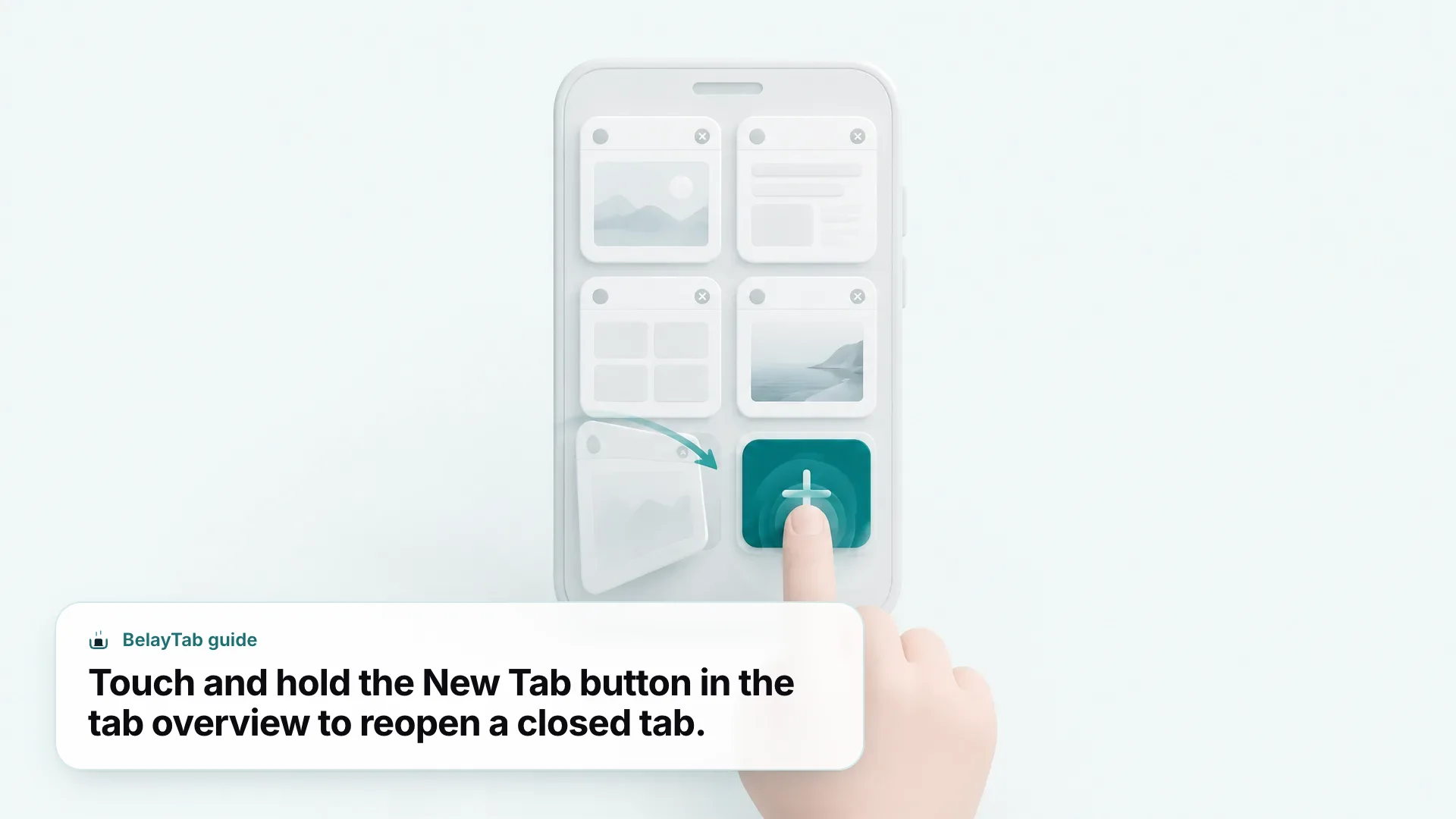
Touch and hold the New Tab button in the tab overview. That opens Recently Closed Tabs, where Safari keeps a list of what you’ve closed on this iPhone.
Safari doesn’t delete a tab the moment you close it, which is useful to know before you panic mid-troubleshoot. Closed tabs move into a Recently Closed Tabs list you can reach from the tab overview, and they land there the same way whether you closed one tab by accident or used Close All Tabs on purpose, according to Apple’s guide to opening and closing tabs.
- Open the tab overview. Tap the tabs icon at the bottom of Safari.
- Touch and hold the New Tab button (+). A short menu appears above it.
- Tap Recently Closed Tabs. Pick the tab you want back and it reopens where you left off.
If Recently Closed Tabs doesn’t have what you’re after (maybe it’s aged out, or you’re not sure which of several tabs it was) check History instead. Tap the Bookmarks icon (it looks like an open book) and then History. Everything you’ve visited recently is listed there in order, and you can search or scroll to find the exact page. For a fuller walkthrough of every method, our guide to restoring closed tabs in Safari on iPhone covers each one step by step, and the general how to reopen closed tabs guide covers other browsers if you split your time between devices.
There’s a third option if the tab you lost was open on a different device: iCloud Tabs. When you’re signed in to iCloud with the same Apple Account on more than one device, Safari can show you tabs open on your other Apple devices right from the tab overview, per Apple’s guide to viewing tabs from another device. If you had the page open on your Mac or iPad while troubleshooting on your iPhone, that’s often the fastest way back to it.
- Recently Closed Tabs. Touch and hold the New Tab button in the tab overview for a list of tabs you’ve closed on this iPhone.
- History. Bookmarks icon, then History, for a full, searchable list of pages you’ve visited, closed tab or not.
- iCloud Tabs. See tabs open on your other Apple devices when you’re signed in to the same Apple Account.
One thing this doesn’t cover: Private Browsing tabs. Because they’re not saved to History by design, a private tab you closed isn’t recoverable the way a regular tab is. If you were testing the error in a private tab, as suggested earlier, keep that in mind before you close it.
What Is the Auto-Close Tabs Setting, and Could It Explain Missing Tabs?
It’s a Safari setting that closes tabs automatically based on how long they’ve sat unused, and it’s worth checking if tabs have vanished without you closing them.
If you’ve noticed tabs disappearing on their own (separate from the loading error) this setting is worth a look before you assume something’s broken. Safari can be set to close tabs automatically once they’ve sat inactive for a day, a week, or a month, on top of the option to leave that entirely up to you.
- Open Settings. Then tap Apps.
- Tap Safari. Scroll down to Close Tabs.
- Choose an interval. Manually, After One Day, After One Week, or After One Month.
If it’s set to After One Day and you’ve got a habit of leaving tabs open for research or later reading, that’s a completely plausible explanation for tabs going missing that has nothing to do with the error you searched for. Switching it to Manually stops the automatic cleanup, but it also means tabs pile up until you close them yourself — worth knowing before you flip it, especially if you’re already someone who ends up with dozens of tabs open at once.
This setting is also a good reminder that “missing tab” and “Safari error” aren’t always the same problem wearing different clothes. One is Safari tidying up on a schedule you set, or didn’t realize you’d set. The other is a page failing to load. It’s worth ruling this one out early, since it takes about ten seconds to check and rules out an entire category of “where did my tab go” confusion, including tabs you might otherwise blame on the loading error covered earlier in this piece.
Does This Kind of Glitch Happen in Safari on Mac Too?
Safari on Mac is a different codebase from Safari on iPhone, so this article’s research on the specific error above doesn’t carry over — but tab loss from crashes, freezes, and browser glitches happens on both.
What does carry over is the general shape of the problem: browsers on any device occasionally crash, freeze, or lose a tab you meant to keep, and the fix for that isn’t a setting buried inside the browser, it’s having a copy of your session somewhere else. That’s the gap BelayTab fills, and only on desktop. It doesn’t run on iPhone or iPad, so nothing in this section applies to the troubleshooting above.
On Safari for Mac, along with Chrome, Edge, Brave, Opera, Vivaldi, Arc, and Firefox, BelayTab saves your open tabs as a named session with one click or Cmd + Shift + S, and it also takes automatic snapshots of every open window every 5 minutes, plus each time a window closes — so even if you never click save, there’s a recent version waiting in Recovery. Restoring never overwrites what you had; BelayTab keeps the last 20 versions of a session, so an older version is still there if the newest one isn’t the one you wanted. If you use more than one computer, optional Sync carries that version history across them too.
None of that is trying to diagnose why a page failed to load. It’s making sure that whatever tabs you had open survive the crash, the freeze, or the moment you accidentally close a window you needed. On Safari for Mac specifically, it’s worth knowing that Safari doesn’t support tab groups the way Chrome does, and Safari doesn’t let extensions read recently closed windows — part of why an outside safety net is more useful there than on browsers with stronger native recovery.
It’s free, with no account required and no limit on how many sessions or tabs you save.