






You didn’t mean to end up with fifty tabs open. It started with one product you were comparing, then a coworker’s link, then three more tabs to fact-check something for later, and before you noticed it, the tab strip turned into a row of tiny, unreadable icons you can’t tell apart anymore.
Too many tabs open at once is one of the most common browser complaints there is, and it’s rarely about laziness or bad habits. It’s usually a sign of tab overload: you’re using tabs as a to-do list, a bookmark folder, and a filing cabinet all at once, three jobs no browser was ever built to do well at the same time. The fix isn’t more willpower. It’s giving each of those jobs its own tool instead of asking one tab strip to do everything.
This guide covers what actually helps if you’ve got too many Chrome tabs open right now: deciding what’s worth keeping, freeing up the memory the rest eat, organizing what’s left, and (the part most guides skip) how to close tabs without losing them when you finally decide to clean house.
What’s the Fastest Fix for Too Many Tabs?
The fastest fix depends on what’s bothering you: a slow computer, a lost tab, indecision about what to keep, or the fear of losing your research if you close things. There isn’t one universal answer, because “too many tabs” usually means a few of these problems stacked on top of each other, which is exactly why generic advice to “just close some tabs” rarely sticks.
Someone with two hundred tabs open because their laptop fan won’t stop running has a different problem than someone with twelve tabs who just can’t find the one with their hotel confirmation. Both count as too many tabs open, and the fix for one won’t touch the other. Use the table below to find the section that matches your actual problem right now.
| Situation | Try This First |
|---|---|
| Computer feels slow with a lot of tabs open | Turn on Memory Saver |
| You know a tab is open somewhere but can’t find it | Tab Search (Ctrl + Shift + A) |
| You can’t tell what’s worth keeping open | Use the keep-or-close triage |
| You want to keep tabs organized by project | Tab groups |
| You’re ready to close tabs but don’t want to lose them | Save a session, then close |
| You already closed something by accident | Reopen closed tab (Ctrl + Shift + T) |
Remove the fear, not just the tabs. Most tab hoarding comes down to one fear: closing something you’ll need later. Save the window as a session first, and that fear stops driving your browsing habits.
None of these fixes require you to change how you browse day to day. Memory Saver runs quietly in the background once you turn it on. Tab groups take a few seconds per tab, and Tab Search takes none at all once you’ve built the habit of using it instead of hunting by eye. The only real change is the last one on the list: saving before you close, instead of closing and hoping you remember what was there.
If you only read one section of this guide, make it the one on closing tabs without losing them further down. Everything else here is about making the tabs you keep more manageable. That last section is about finally letting go of the rest.
Why Do You End Up With So Many Tabs Open?
Tabs pile up because they’re doing three jobs at once (reminder, bookmark, and open task) and closing any of them feels like losing progress. Every tab represents a small, unfinished decision, and closing it feels riskier than leaving it open, even when you never look at it again for days.
This isn’t really about attention span or discipline. It’s a mismatch between what a browser tab is good at, which is holding your place in one thing you’re actively doing, and what you’re asking it to do, which is hold your place in forty different things at once, some of them weeks old. No amount of trying harder fixes a tool being used for a job it wasn’t built for.
A few patterns show up again and again once you start paying attention to why a particular tab is still open.
- The research spiral. One search leads to ten open comparisons, reviews, and forum threads you meant to skim and never quite finished.
- The read-it-later pile. Articles and threads you’re not ready to close because you haven’t read them yet, and closing feels like admitting you won’t.
- The open task reminder. A tab that’s really a to-do item in disguise: the form you need to finish, the email draft you haven’t sent, the order you haven’t placed.
Notice that none of these three need to stay open as a tab. A comparison spiral belongs in a tab group you can collapse. A read-it-later pile belongs in a reading list or a bookmark folder. An open task reminder belongs on an actual to-do list, not buried between eleven other tabs where you’ll forget it exists anyway. Once you can name which pattern a tab belongs to, deciding what to do with it gets a lot easier, which is exactly the problem the next section tackles directly.
How Do I Decide Which Tabs to Keep Open?
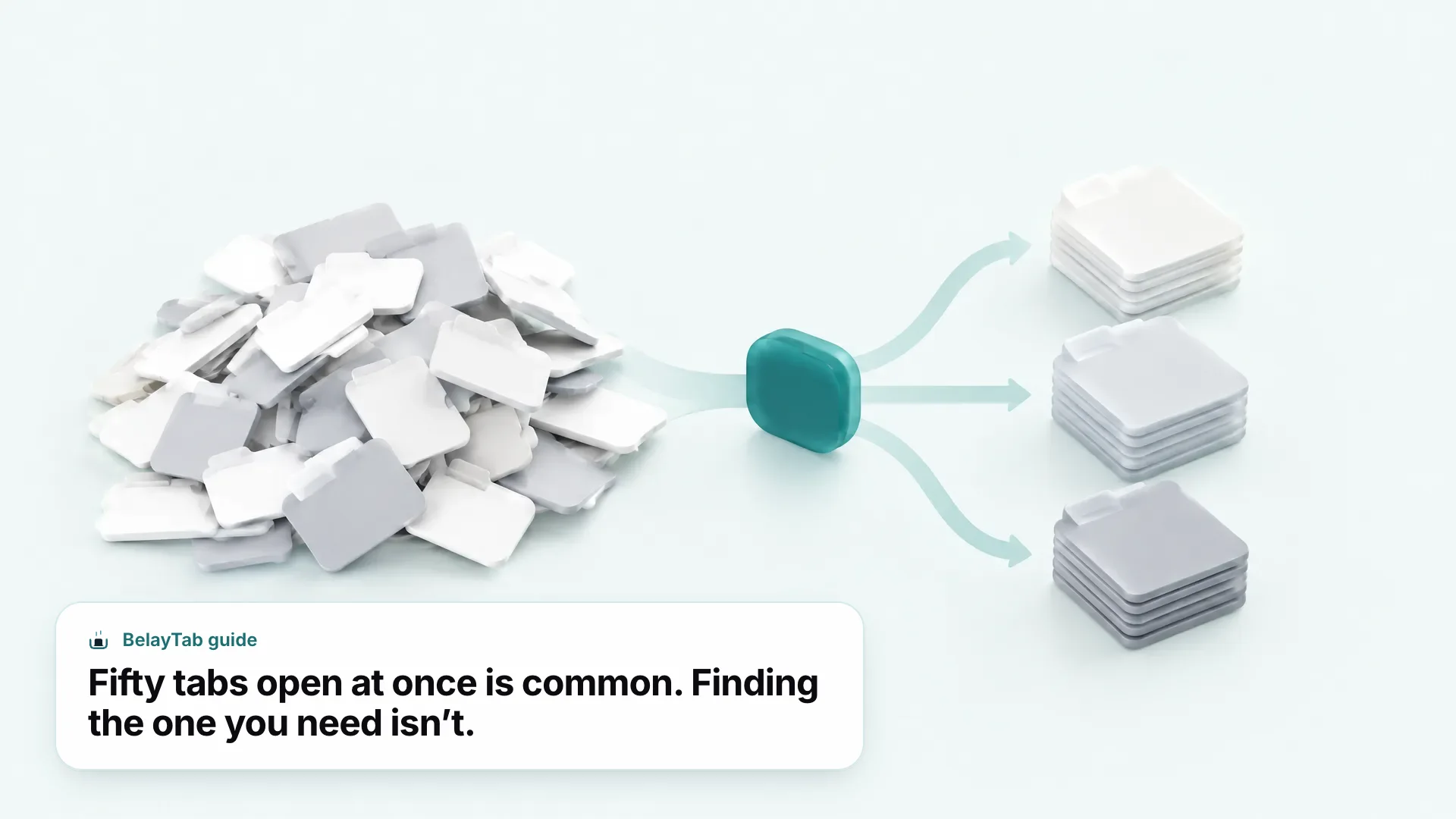
Sort every open tab into one of three piles: active, pending, or reference, and only the active pile earns a permanent spot in your tab strip. This is a five-minute exercise, not a deep organizational overhaul, and it works whether you’ve got fifteen tabs or a hundred and fifty.
Active means you’re working in it right now, today, or you’ll be back in it within the next hour or two. This pile should be small: five to ten tabs at most for most people, fewer if you’re someone who gets overwhelmed easily. Everything else fails the test.
Pending means you’ll genuinely need it again this week, but not right this second. This is exactly what tab groups exist for. Group these tabs by project or topic, name the group, collapse it, and move on. You haven’t lost anything, you’ve just stopped it from competing for your attention.
Reference means you’re keeping it in case you need it later, with no real deadline attached. This is the pile that should never live as an open tab at all. Bookmark it, add it to a reading list, or save the whole window as a session and close it. If you genuinely need it again in a month, it’ll be exactly where you left it, without costing you memory or mental space every day between now and then.
When in doubt, save before you sort. If sorting feels overwhelming because you’re worried about losing something mid-triage, save the whole window as a session first. Then you can sort at your own pace with zero risk, since the original is already backed up.
The triage only works if you’re honest about the pending pile. Most tab overload isn’t really the active tabs, it’s dozens of tabs stuck in “pending” that never get worked on. Give a pending group a real deadline, even an informal one, and revisit it at the end of the week. If it’s still untouched, it was reference material the whole time, and it belongs in a bookmark, not your tab strip.
Is Too Many Tabs Bad for Your Computer?
Yes — every open tab holds some memory, and a browser with dozens of active tabs can noticeably slow down an older or memory-constrained computer. Each tab keeps its page, scripts, and images loaded in RAM, and that adds up fast once you’re past twenty or thirty tabs, especially on sites with a lot of images, video, or embedded ads.
Chrome has an internal page, chrome://discards, that lists your tabs and lets you manually test what happens when one gets discarded, including an “Urgent Discard” action for testing the behavior yourself. According to Google, a discarded tab can use up to 80% less memory than an active one, which is the same mechanism behind Memory Saver below. Chrome also has a separate Energy Saver setting that limits CPU-intensive background tabs to save battery on Windows, Mac, and battery-equipped Chromebooks — tabs playing audio or on a video call are exempt from it, so a music tab in the background won’t get throttled.
None of this means a high tab count is inherently dangerous to your computer. It means memory is a finite, shared resource, and every tab you leave open indefinitely is a small, ongoing cost. The next section covers the fastest way to reduce that cost without manually closing anything.
How Do You Turn On Chrome’s Memory Saver?
As of September 2026, Memory Saver lives in Chrome’s Settings under Performance, and turning it on is the single biggest lever for a sluggish, tab-heavy browser. It deactivates tabs you haven’t used in a while, freeing their memory while keeping the title and favicon visible in the tab strip so you don’t lose track of what’s there. Clicking back into a deactivated tab reloads it automatically, usually quickly enough that you won’t notice a delay on most sites.
- Open Chrome’s menu. Click the three dots (⋮) in the top-right corner.
- Go to Settings, then Performance. This is also where Energy Saver lives, if you want that too.
- Turn on Memory Saver and pick a level. Balanced is Chrome’s recommended default for most people.
| Level | What It Does |
|---|---|
| Moderate | Takes longer to deactivate tabs; smallest memory savings |
| Balanced (recommended) | Chrome’s suggested middle ground |
| Maximum | Deactivates tabs fastest; largest memory savings |
Start with Balanced. Balanced is the right place to start. Only move to Maximum if you’re still short on memory, since faster deactivation means more reload delay when you switch back into an old tab, which gets annoying if you jump between tabs constantly.
Memory Saver is not a substitute for reducing how many tabs you keep open long term, but it buys you real breathing room while you work through the triage above, and it costs nothing to leave on permanently. See Google’s Memory Saver settings for the full breakdown of both features.
Should You Try a Third-Party Tab Suspender?
Be careful — Chrome’s built-in Memory Saver already does this job natively, and the most well-known third-party alternative has a bad history worth knowing before you go looking for one. The Great Suspender, once a popular extension for freeing memory from unused tabs, was pulled from the Chrome Web Store and force-disabled by Google in February 2021, after a change of ownership added code that was flagged as malware, including tracking and ad-fraud exploit code.
The lesson generalizes beyond this one extension. A browser feature that touches every tab you open, every page you visit, is a lot of trust to hand a small team maintaining a free tool, and ownership of extensions can change hands quietly. Before installing anything that promises to manage your tabs for you, it’s worth checking whether Chrome already does the same thing natively, which increasingly, it does.
If you’re still hunting for URLs from tabs The Great Suspender suspended years ago, there’s an unofficial workaround for recovering old suspended tab URLs. For a broader look at whether you need any suspender at all in 2026, see our guide to tab suspender extensions, per 9to5Google’s report on the removal.
How Do Tab Groups Cut Down Tab Overload?
Tab groups let you cluster related tabs under one colored, named label, so instead of scanning forty individual icons, you’re scanning five or six group headers instead. Collapsing a group hides its tabs entirely without closing them, which is the closest thing Chrome has to “putting a project away” without losing your place in it or your progress within it.
- Right-click any tab. Choose “Add tab to group,” then pick an existing group or create a new one.
- Name it and give it a color. Right-click the group’s colored circle or name to rename it or change its color.
- Collapse it when you’re not using it. Click the circle or name again to collapse the group down to a single label in the tab strip.
Tab groups auto-save and sync across devices where you’re signed in with History-and-tabs sync on, and closing a group saves it to your bookmarks bar or menu rather than deleting it, per Chrome’s tab group documentation. That makes groups a reasonable home for the “pending” pile from the triage section above: name a group after the project, collapse it, and it stays out of your way without disappearing.
BelayTab preserves tab group names, colors, and order too when it saves a window as a session, so grouped tabs stay grouped even after you close the window and restore it days or weeks later. That matters if you’re the kind of person who groups tabs carefully and doesn’t want that effort undone the moment you close everything down. See our tab groups feature page for how that works.
How Do You Find One Tab Among Fifty?
Press Ctrl + Shift + A (the same shortcut on Mac) to open Tab Search, which lets you type part of a page’s title and jump straight to it, no scrolling or squinting at tiny favicons required. You can also click the small dropdown arrow icon at the end of the tab strip to open the same panel with your mouse if you’d rather not use the shortcut.
This one habit does more for tab overload than almost anything else on this list, because it removes the actual reason you were keeping so many tabs visible in the first place: not wanting to lose track of them. Once you trust you can find a tab in two seconds by typing a few letters of its title, you stop needing to see every tab laid out in front of you at all times, which is what makes collapsing tab groups and reducing your active pile feel safe instead of stressful.
It’s worth building this into muscle memory before you try any of the more structural fixes above, because it changes how much anxiety the whole situation produces. A hundred tabs you can search through instantly feels very different from a hundred tabs you have to scroll past one by one. If you want the full list of Chrome’s tab and window shortcuts in one place, Google keeps an official keyboard shortcut reference for Windows, Linux, and Mac.
Should You Bookmark All Your Open Tabs?
Yes, for anything you want to keep permanently — press Ctrl + Shift + D (Cmd + Shift + D on Mac) to bookmark every open tab into a new folder in one step. It’s fast, it’s built in, and it works no matter how many tabs you have open, unlike some workflows that get unwieldy past a certain count.
Bookmarks flatten everything. Bookmarking all your tabs saves the URLs, but it drops tab groups, pinned status, and window order into one flat folder. You’ll get your pages back. You won’t get your setup back exactly as it was.
That trade-off is fine for reference material you’ll dip into occasionally, where the URL is all that really matters. It’s frustrating for an active project you’ll want to pick back up exactly as you left it, with the same groups, the same tab order, the same pinned tabs sitting where you expect them. Bookmarking treats every tab the same, whether it was a pinned tab you check daily or a random article you opened once and forgot about.
If you’re not sure which to use, a simple rule helps: bookmark things you’ll search for again by topic, and save a session for a window you’ll want to restore as a whole, exactly as you left it.
How Do You Close Tabs Without Losing Them?
Save the window as a named session first, then close every tab in it. That’s the whole trick, and it takes one keyboard shortcut instead of an afternoon of careful sorting. This is the core of how to manage too many tabs long-term: stop treating open tabs as your only save file, because your browser was never built to be one, and every crash, accidental click, or update reminds you of that the hard way.
- Press Ctrl + Shift + S (Cmd + Shift + S on Mac). This saves the current window, a single tab, selected tabs, or all your windows as a session with BelayTab.
- Name it something you’ll recognize. “Kitchen reno research” beats “Session 12” when you come back to it in three weeks and can’t remember what half these tabs were for.
- Close the tabs. You can keep them open or close them right from the save dialog. Either way, BelayTab also snapshots every open window automatically every 5 minutes and whenever a window closes, so even tabs you never saved on purpose are covered.
There’s no account to create and no limit on how many sessions or tabs you save, and every version is kept, going back through the last 20 versions of a session, so restoring never overwrites what you already have. Large sessions restore in batches rather than dumping fifty tabs on your computer at once. See the save tabs feature page for the full picture, or our close tabs shortcut guide for every browser’s version of the shortcut.
How Do You Recover Tabs You Already Closed by Accident?
For a single tab, press Ctrl + Shift + T (Cmd + Shift + T on Mac) to reopen it instantly; for anything bigger, like a whole window you closed by mistake, Chrome’s own history only goes so far, and it’s easy to lose track of what was in it once too much time has passed.
This is where a dedicated Recovery screen earns its keep. BelayTab’s Recovery screen brings together automatic snapshots, deleted sessions still inside their 30-day trash window, your browser’s recently closed windows, and any export files, all in one searchable place, instead of scattered across different menus you have to remember separately. It can’t recover tabs from before you installed it, and it can’t fix a frozen or crashed browser on its own, but it makes sure the tabs that were open after that point survive whatever happens next.
Check our reopen closed tabs guide for the shortcut version of all this across different browsers, or the restore tabs feature page for how the full recovery flow works end to end. If you haven’t installed BelayTab yet, it’s free with no account and no limits, and worth downloading before your next big research session, not after you’ve already lost one. Read more about how automatic snapshots and the Recovery screen work together, or check the keyboard shortcuts reference to save, restore, and search tabs without touching your mouse.