






You tap away to answer a text, and when you swipe back to Safari, the tab you were reading has vanished. Maybe you got trigger-happy with Close All Tabs and wiped out a dozen shopping tabs you actually needed. Or Safari closed something on its own and you never touched a thing. On an iPhone, none of that usually means the tab is gone for good. It just means you need to know how to restore closed tabs in Safari on iPhone, and where Safari is hiding them.
This guide walks through every place a closed tab can turn up: the Recently Closed Tabs list behind the New Tab button, the longer trail in History, what really happens after Close All Tabs, the setting that quietly auto-closes old tabs, and how iCloud Tabs can pull one back from your iPad or Mac. It also covers the one kind of closed tab you can’t get back, so you know when to stop looking. For the fuller picture of managing tabs on your phone, our guide to Safari on iPhone covers tab groups and settings beyond recovery.
What’s the Fastest Way to Restore a Closed Tab in Safari on iPhone?
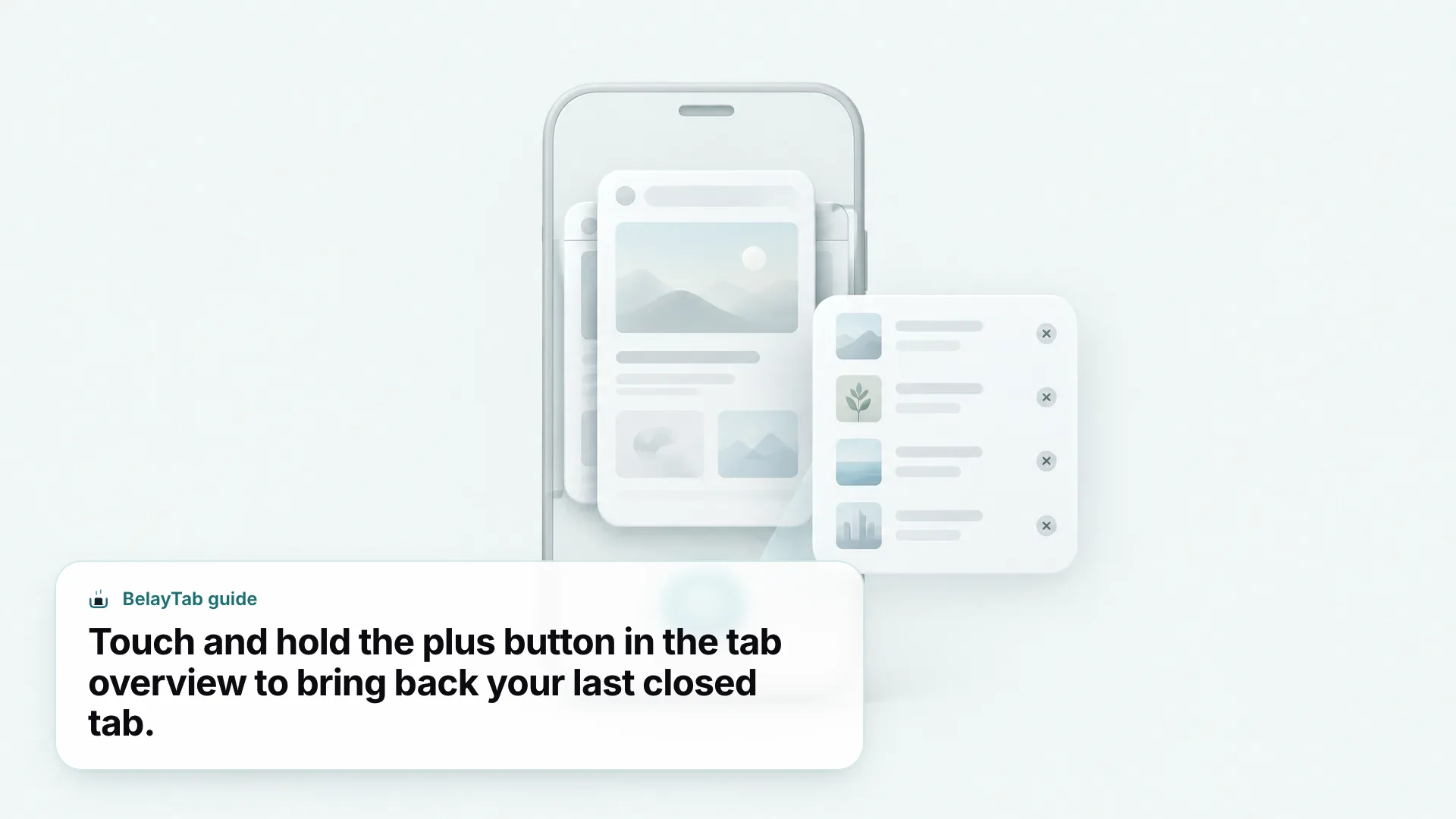
The fastest way to restore a closed tab in Safari on iPhone is to open the tab overview, touch and hold the New Tab button (the plus icon at the bottom right of the screen) and tap the tab you want from the Recently Closed Tabs list that appears. It works whether you swiped away a single tab by mistake or cleared out a dozen at once with Close All Tabs. There’s no settings screen to dig through and no History list to scroll. You press, you hold, you pick the tab, and it reopens right where you left it.
That one gesture covers most situations, but Safari keeps a few other doors open depending on how the tab was lost. If it closed a while back and has scrolled off the short Recently Closed list, History goes back much further and lets you search by page title instead of remembering when you closed it. If tabs have been disappearing without you touching anything, that’s almost always a setting quietly doing its job, not a glitch, and it’s worth checking before you assume something’s broken. And if the tab you want was never open on this iPhone at all (it was on your iPad this morning) Recently Closed Tabs won’t have it. iCloud Tabs will.
Here’s which door to try first, based on what happened:
| Situation | Where to look |
|---|---|
| Closed one tab by mistake | Touch and hold + > Recently Closed Tabs |
| Used Close All Tabs | Same place — closed tabs aren’t deleted |
| Need something from days ago | History (Bookmarks icon > History) |
| Tabs vanished with no warning | Settings > Apps > Safari > Close Tabs |
| Tab was open on iPad or Mac | Tab overview > Tabs from Other Devices |
| Closed a Private Browsing tab | Not recoverable — Private tabs skip History |
None of these routes are mutually exclusive — if one comes up empty, try the next. Safari doesn’t erase a tab the instant you close it; it just relocates the address somewhere you have to go looking, and each method below explains exactly where to look and why it might succeed when another doesn’t. In practice, that gives you a comfortable window to change your mind about almost any closed tab.
How Do You Reopen the Last Closed Tab in Safari on iPhone?
To reopen the tab you just closed in Safari on iPhone, open the tab overview and touch and hold the New Tab button. The most recent closure always sits at the top of the Recently Closed Tabs list, so you don’t need to scroll or search for it. This works within seconds of closing a tab, and it also works if you’ve closed several tabs since — the list holds more than just the last one, with each entry showing the page title so you can tell them apart at a glance.
The tab overview itself is the small icon that looks like two stacked squares, usually in Safari’s bottom toolbar next to the address bar (its exact position shifts slightly depending on how your toolbar is set up). Tapping it doesn’t close anything. It just shows every tab you currently have open, plus the New Tab button used to add more.
Touch and hold, not tap. A quick tap on the New Tab button just opens a fresh blank tab. You have to press and hold the plus icon for a beat before the Recently Closed Tabs menu shows up.
- Open the tab overview. Tap the tabs icon (two overlapping squares) at the bottom of Safari.
- Touch and hold the New Tab button. Keep pressing the plus icon until a menu pops up above it.
- Tap Recently Closed Tabs. A list of your latest closures appears, newest at the top.
- Tap the tab you want. Safari reopens it in a new tab, exactly where you left off.
This same path works no matter how the tab closed — swiped away in the tab overview, closed with the small X, or caught up in Close All Tabs. Safari doesn’t treat an accidental close differently from an intentional one, so there’s no separate undo button hiding elsewhere. If you’ve just closed a tab and want it back, this is the only trick worth learning; everything else in this guide is for when the tab you need is older, or came from a different device entirely.
How Do You See All Recently Closed Tabs, Not Just the Last One?
Recently Closed Tabs isn’t limited to just the last tab you closed. It keeps a running list, and every entry you see was closed at some point during this browsing stretch, newest at the top. That matters if you closed several tabs in a row and only realized a few minutes later that you needed one of them. You don’t have to have caught it immediately — as long as it hasn’t scrolled off the bottom of the list, it’s still one tap away.
The list shows each tab by its page title rather than its web address, which makes it easy to spot the one you want if you remember roughly what the page was about but not the exact URL. Tapping any entry reopens that tab and dismisses the menu; tapping anywhere outside it closes the menu without reopening anything, so there’s no harm in checking just to see what’s there.
As of September 2026, the current release is iOS 27, which added a feature called Organize by Topic that uses Apple Intelligence to group open tabs by subject on supported iPhones. That’s a way to sort what’s currently open, not a replacement for Recently Closed Tabs, and it doesn’t change how closed-tab recovery works. iPhones running iOS 26 without Apple Intelligence support use the same Recently Closed Tabs and History described throughout this guide.
How many tabs the list holds isn’t something Apple documents publicly, so treat it as a short-term safety net rather than a permanent archive. For anything older, History is the better tool, and that’s covered next.
How Do You Find Closed Tabs in Safari History on iPhone?
Open the Bookmarks icon in Safari, switch to the History tab, and scroll for the page you’re after. Every regular tab you’ve closed passes through History on its way out, which makes it the deeper backup to Recently Closed Tabs — useful once a tab has aged off that shorter list, or if you’re not sure exactly when you closed it. There’s also a shortcut that skips the Bookmarks icon entirely: long-press the Back button (the left-pointing arrow) at the bottom of the screen, and Safari jumps straight to your recent History. For the full rundown of tab basics, see Apple’s guide to opening and closing tabs in Safari.
- Tap the Bookmarks icon. It looks like an open book, usually in the bottom toolbar.
- Tap History. You’ll see a list of pages you’ve visited and closed.
- Find the page you need. Scroll, or use the search field at the top if you remember part of the title.
- Tap it to reopen. Safari opens the page in a new tab.
History and Recently Closed Tabs overlap, but they’re not identical. Recently Closed Tabs is built for speed — a short list of your latest closures, one press away. History is built for depth, covering everything you’ve visited over a longer stretch, closed tab or not. If you’re trying to find a tab you closed sometime last week rather than an hour ago, skip straight to History instead of hunting through the shorter list first.
One thing worth knowing: History is also where cleared browsing data disappears from — if you, or anyone else using your iPhone, clears History, that closes this door for anything you closed before the clear. It’s a good reason to check Recently Closed Tabs first, while it still has an entry, rather than treating History as a guaranteed fallback.
What Happens to Tabs After You Use Close All Tabs in Safari?
Using Close All Tabs doesn’t delete anything. Every tab you had open moves straight into History and Recently Closed Tabs, the same as if you’d closed each one individually. That’s easy to forget in the moment — watching dozens of tabs disappear from the tab overview at once feels final, but nothing is gone. You can reopen any of them the same way you’d reopen a single accidentally closed tab: touch and hold the New Tab button, or dig through History if it’s been a while.
If you regularly close every tab at once to start fresh, it’s worth knowing you’re building a fairly reliable habit rather than a risky one — the tabs are recoverable, not deleted, right up until they eventually age out of both lists.
Don’t count on Close All Tabs forever. Recently Closed Tabs and History both have limits on how far back they reach, and Safari’s Close Tabs setting, covered next, can also delete old tabs outright based on their age, not just how you closed them. If a tab genuinely matters, save it somewhere more permanent (a bookmark, a reading list, or a note) before you close everything.
That’s especially relevant if you use Close All Tabs as a cleanup ritual, say once a week to deal with too many tabs piling up. The habit itself is fine. The mistake is assuming Close All Tabs is a soft, always-reversible action the same way undo works in other apps. It’s reversible for a while, through the same Recently Closed Tabs and History mechanisms as anything else, not because Safari treats a bulk close specially. This applies whether you closed everything from the tab overview’s Close All Tabs option or picked a smaller batch and closed them together — Safari doesn’t distinguish based on how many tabs you closed at once, only on how long ago you closed them. If you want a step-by-step walkthrough of the gesture itself, see our guide on closing all tabs on iPhone.
How Do You Stop Safari From Auto-Closing Your Tabs on iPhone?
Go to the Settings app, then Apps, then Safari, then Close Tabs. You’ll see four options: Manually, After One Day, After One Week, and After One Month. Pick Manually, and Safari will only close a tab when you close it yourself — nothing gets swept away in the background. This setting is the most common explanation for tabs that “disappear” without any obvious cause. It’s based purely on how long a tab has sat inactive, not on how many tabs you have open or how full your tab overview looks, so it can catch people off guard the first time it kicks in.
| Option | What it does |
|---|---|
| Manually | Tabs stay open until you close them yourself |
| After One Day | Inactive tabs close after roughly 24 hours |
| After One Week | Inactive tabs close after about a week |
| After One Month | Inactive tabs close after about a month |
Whichever option is set, closed tabs land in Recently Closed Tabs and History the same as if you’d closed them by hand, so switching to a shorter setting isn’t dangerous. It just means you’ll rely on those recovery paths more often. And this setting only touches open tabs. It doesn’t delete bookmarks, saved passwords, browsing history, or anything in your Reading List, so a tab closing on its own is an inconvenience, not data loss.
Which setting is worth using. If you regularly leave research tabs open for days at a time, Manually is worth the slightly messier tab overview. If your tabs are mostly short-lived (receipts, articles, one-off searches) After One Week is a reasonable default that keeps things tidy without much risk.
The setting applies per device, not per Apple Account, so if you’ve got an iPhone and an iPad both signed in to iCloud, you can set one to Manually and the other to something shorter without it affecting the other. Check both if you’re troubleshooting tabs that vanish on one device but not the other. It’s worth ruling this out before assuming anything is wrong with Safari itself.
Can You Restore a Tab That Was Open on Your iPad or Mac?
Yes. If you’re signed in to the same Apple Account with iCloud on your iPhone and your other Apple devices, Safari can show you what’s open on them. Open the tab overview and look for Tabs from Other Devices. It lists tabs currently open on your iPad, Mac, or any other Safari you’re signed into, and tapping one opens it right there on your iPhone. This is iCloud Tabs, and it’s separate from Recently Closed Tabs entirely: it’s not about tabs you closed, it’s about tabs that are still open somewhere else. Tab Groups sync through the same iCloud connection, so a group you set up on your Mac shows up with the same tabs on your iPhone. See Apple’s guide to viewing tabs from another device for the full setup.
Where this gets useful for recovery is when you’re sure a tab still exists, just not on the device you’re holding. Started reading something on your iPad this morning and now you’re on your iPhone at lunch? iCloud Tabs is the fastest way to pick it back up, faster than trying to remember the site and search for it again. It won’t help with a tab that’s closed on every device — for that, you’re back to Recently Closed Tabs and History on whichever device it was open on.
Setting this up takes one check: on both devices, make sure you’re signed in to the same Apple Account and that Safari is turned on in iCloud settings. If Tabs from Other Devices shows nothing, that’s usually the culprit rather than anything specific to the tab you’re looking for.
Why Can’t You Find a Private Browsing Tab You Closed?
Private Browsing tabs never get added to History. That’s the entire point of Private Browsing — pages you visit in it don’t show up in your browsing history, which also means Safari has nothing to reference once you close the tab. Recently Closed Tabs won’t have it either. Whatever was on that page is genuinely gone once the tab closes, not hidden somewhere you haven’t checked yet. If you’re going to need a page again, the safer move is copying the link or bookmarking it before you close the tab, rather than counting on finding it afterward. See Apple’s guide to browsing privately in Safari for more on how the mode works.
It’s a fair trade-off. Private Browsing exists specifically so your activity doesn’t leave a trail, and a recoverable “recently closed” list would undercut that. If you often find yourself wishing you could get back a Private tab, it’s worth asking whether Private Browsing is the mode you want for that kind of tab — regular tabs give you the full safety net covered throughout this guide, at the cost of showing up in History like anything else.
This holds across every Apple device, not just iPhone — Private Browsing tabs on a Mac or iPad follow the same rule, so switching devices won’t uncover a closed Private tab either. There’s no setting that changes this behavior, so treat anything you open privately as temporary from the moment you open it, and plan accordingly before you close it.
What Do You Do When Recently Closed Tabs Is Missing or Empty?
If you touch and hold the New Tab button and nothing useful shows up, there are really only a handful of explanations. The tab might have been a Private Browsing tab, which never gets added in the first place. It might have aged out — either off the short Recently Closed list naturally, or because your Close Tabs setting closed it a while ago and it’s since dropped off. Or you might simply be looking in the wrong place if the tab was open on a different device.
- Check History. Tap the Bookmarks icon, then History, and search for the page. It reaches further back than Recently Closed Tabs.
- Check your Close Tabs setting. Settings > Apps > Safari > Close Tabs. If it’s set to After One Day, tabs you left open overnight close automatically.
- Check Tabs from Other Devices. Open the tab overview — if the tab was open on your iPad or Mac instead, it’ll show up there, not here.
Work through those three in order and you’ll almost always land on the answer. It’s rarely a bug — Safari doesn’t silently lose tabs without one of these explanations behind it. If you’ve checked all three and you’re still missing a tab you’re confident was a regular, non-Private tab open recently, that’s unusual enough to be worth restarting Safari or your iPhone before assuming the tab is unrecoverable, since a stuck app state can occasionally cause the tab overview to show stale information.
None of this applies to bookmarks, saved logins, or your Reading List. Those live independently of open tabs and aren’t affected by any of the scenarios above, so if something else is missing, the cause is somewhere else entirely. Tabs are the only thing these settings touch. Keep that distinction in mind before you go looking in the wrong settings menu.
What’s Safari’s Safety Net for Accidentally Closed Tabs?
Safari’s safety net isn’t a confirmation dialog stopping you before you close a tab. It’s what happens after: the tab doesn’t disappear immediately, it moves into Recently Closed Tabs and History, sitting there until it ages out or you clear it. That’s a different approach from apps that make you tap “Are you sure?” before anything happens, and it works well for tabs specifically because closing one is such a common, low-stakes action. You do it dozens of times a day, and stopping to confirm every single one would get old fast. The trade-off is that the safety net lives after the fact, not before it, so it’s worth knowing where it is rather than assuming Safari will ask first.
This design also explains why Close All Tabs can feel alarming the first time you use it — a whole tab overview clearing out at once, with the tabs still fully recoverable a moment later. If you’d rather have a more deliberate warning built in, that’s not something Safari currently offers on iPhone, so the practical fix is building the habit of checking Recently Closed Tabs whenever something disappears that you didn’t mean to close, rather than waiting for Safari to ask permission first.
It also means the burden is on you to know the recovery steps ahead of time, not in the moment you need them — which is really the point of this guide: knowing where to look before you’re standing there wondering if a tab is gone for good. If Safari itself is acting up rather than just losing tabs (reload loops, pages that won’t finish loading) that’s a different problem, and our guide to “A problem repeatedly occurred” in Safari on iPhone covers it separately.
How Is Restoring Tabs Different Between Safari on iPhone and Safari on Mac?
The core mechanics are similar on both. Close a tab in Safari on Mac, and it’s still findable through History, much like on iPhone. Where the two really differ is that Safari on Mac supports browser extensions, and iPhone doesn’t allow any app, including extensions, to read Safari’s recently closed windows the way a Mac extension can. That’s a meaningful gap if you’re someone who treats tab loss as a real risk rather than a minor annoyance — on iPhone, you’re limited to exactly what Safari itself offers: Recently Closed Tabs, History, the Close Tabs setting, and iCloud Tabs. On a Mac, extensions can add automatic backups and version history on top of what Safari does natively.
If you split your browsing between an iPhone and a Mac, that difference is worth planning around rather than fighting. Use iCloud Tabs to bridge the two for tabs that are still open, lean on Recently Closed Tabs and History for anything closed recently on either device, and if Safari on your Mac is where the bulk of your research, tab hoarding, or work-in-progress tabs live, an extension like BelayTab covers the gap iPhone can’t close on its own — automatic snapshots every few minutes mean a crash or an accidental close is rarely the disaster it feels like in the moment.
None of this makes iPhone’s built-in tools worse for what they’re designed to do — quick, everyday recovery of a tab you just closed. It just means the ceiling is higher on a Mac, where extensions can watch tabs continuously instead of only reacting after you go looking for something. If you want the fuller comparison of Safari’s tab tools, Safari on iPhone and our how to reopen closed tabs guide for every browser are good next reads.