






Most “which browser should I use” questions are really “which Chromium skin should I use,” whether people realize it or not. Chrome, Edge, Brave, Opera, Opera GX, Vivaldi, Arc, Dia, and Comet all run on Chromium, the open-source engine Google maintains, which is why they share extension support and a lot of underlying behavior. The best Chromium browser for you comes down to what each maker builds on top of that shared foundation: privacy defaults, AI features, built-in apps, or raw simplicity. This guide compares the main options so you can pick one without guessing, and shows what to do with your tabs before you switch.
What Is a Chromium Browser, and What Is the Best One?
A Chromium browser is any browser built on the Chromium open-source project, which supplies the Blink rendering engine and much of the code that handles tabs, extensions, and page loading. The best Chromium browser overall for most people is still Chrome, thanks to the widest extension support and largest user base, but Edge, Brave, Vivaldi, and Opera GX each beat Chrome for specific needs.
Chromium itself isn’t a consumer product you download directly for daily use. It’s the shared plumbing. Google builds Chrome from it and adds sync, Gemini, and the Chrome Web Store. Microsoft, Brave Software, Opera, Vivaldi Technologies, and The Browser Company each do the same thing with their own additions, which is why a chromium based browser list ends up looking like most of the browser market outside Apple and Mozilla’s products.
| Your priority | Best Chromium browser | Why |
|---|---|---|
| Widest extension and device support | Chrome | Largest install base, Chrome Web Store |
| Windows-specific tools and AI | Edge | Workspaces, split screen, Copilot |
| Privacy without configuring anything | Brave | Ad and cookie-pop-up blocking on by default |
| Deep customization and built-in apps | Vivaldi | Tab Stacking, Tiling, Mail, Calendar, Notes |
| Gaming and streaming | Opera GX | CPU/RAM limiter, Twitch and Discord built in |
| AI-native browsing | Comet or Dia | Built-in AI search and task features |
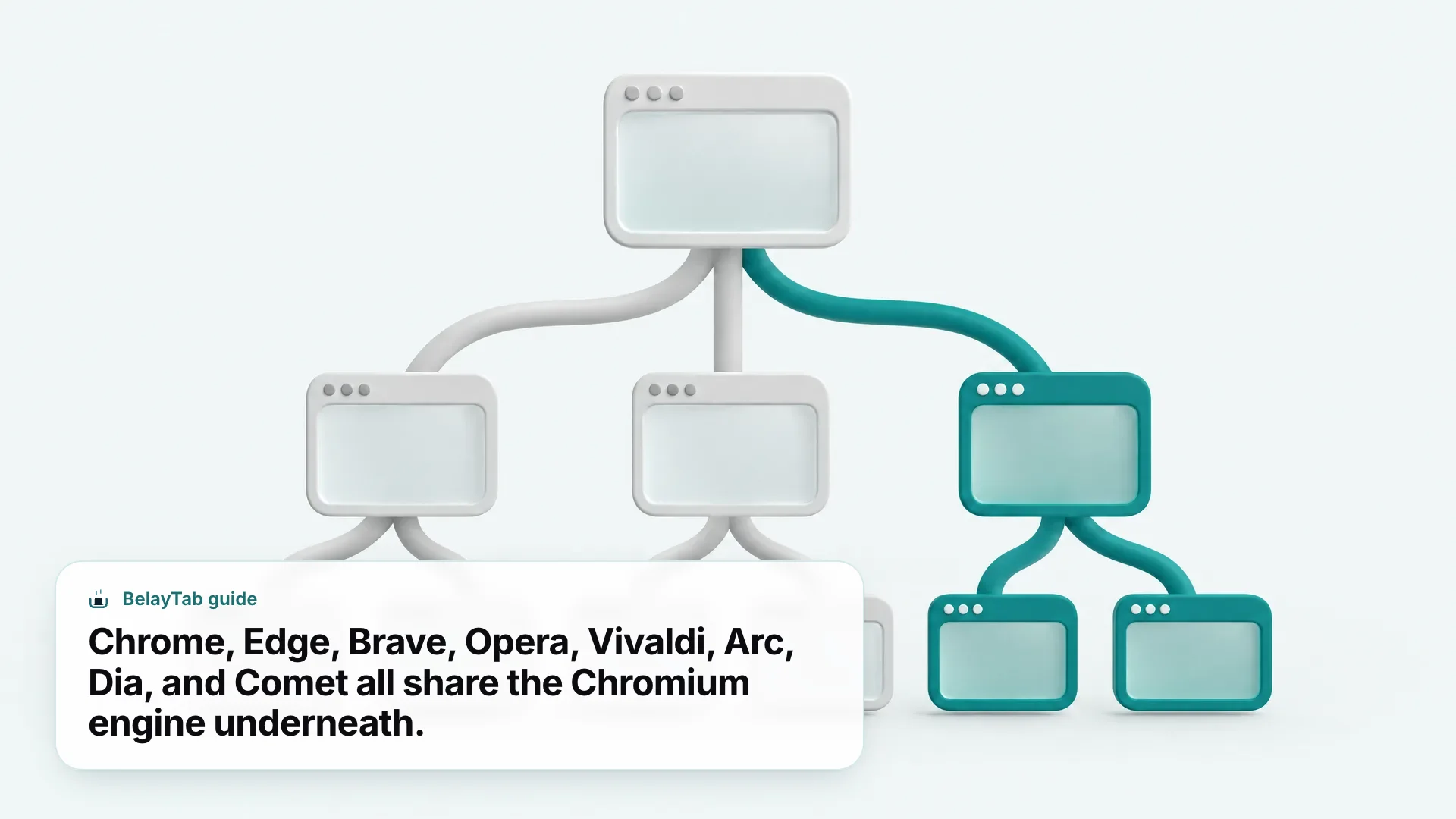
Not every popular browser is Chromium. Firefox runs on Mozilla’s own Gecko engine and Safari runs on Apple’s WebKit engine — neither is Chromium-based. That’s part of why Chrome extensions don’t work natively in either one. See our Firefox browser guide if you’re weighing a non-Chromium option too.
Google Chrome: The Reference Chromium Browser
Chrome is the browser most other Chromium browsers get compared against, and for good reason: it’s Google’s own build of the project, free across Windows, macOS, Android, and iOS, with Linux and ChromeOS support well established too. Because Chrome effectively sets the pace for the Chromium project, new engine features tend to land here first.
Tab Groups let you group, label, and color-code tabs, and vertical tabs run down the side of the window if you prefer that layout. Memory Saver mode can free up to 148 MB of memory per inactive tab, useful but not a full fix for a machine buried under dozens of tabs. Gemini in Chrome adds an AI assistant for understanding page content, plus Nano Banana image generation and saved-prompt “Skills.” Sync covers bookmarks, saved passwords, and tabs when you’re signed in, and extensions install from the Chrome Web Store, the largest extension marketplace of any browser here.
One default worth knowing if privacy is a priority: Chrome only blocks third-party cookies automatically in Incognito mode. In regular browsing, you have to turn that setting on yourself, unlike some of the other Chromium browsers on this list.
See the full Chrome browser overview for more detail on tab tools and settings.
Microsoft Edge: Chromium With Windows and Copilot Extras
Edge takes the Chromium engine and layers Microsoft’s own productivity and AI tools on top. It’s made by Microsoft, runs on Blink, and the current stable build (154.0.4258.37, released 24 September 2026) incorporates Chromium’s latest security fixes, per Microsoft’s own release notes.
Workspaces keep browsing tasks and tabs organized into separate, color-coded groups, and split screen shows two pages side by side without switching tabs. Copilot in Edge uses the context of your open tabs to compare options and complete tasks, and Copilot Vision can analyze what’s on your screen aloud. Microsoft also names a scareware blocker, an image generator, automatic tab organization, and theme generation as Copilot-adjacent tools. Startup Boost and Sleeping Tabs handle performance, and Microsoft claims Energy Saver mode delivers “an average of 25 more minutes of battery life.”
Edge is free across Windows, macOS, iOS, and Android, with a Linux .deb package available too. Microsoft Defender SmartScreen and a built-in “Edge Secure Network” VPN cover security, and sync handles passwords, favorites, and settings across your devices.
For a deeper feature breakdown, read the full Edge browser guide.
Brave: The Privacy-First Chromium Browser
Brave is the best Chromium browser if you want privacy protections active from the first launch, with no settings to dig through. Made by Brave Software, Brave’s own homepage states it is “built off the open-source Chromium Web core, which powers browsers used by billions of people worldwide,” and it’s free across Windows, macOS, Linux, Android, and iOS.
Brave Shields blocks third-party ads across video, search, and social platforms by default, and blocks cookie-consent pop-ups too, out of the box. Brave Search is the default search engine, positioned by Brave as delivering results “without user profiling.” Brave Rewards stays opt-in only. You can choose to view privacy-protecting ads and earn BAT, or skip it entirely.
Brave Leo, its built-in AI assistant, is free on desktop and mobile, with an optional premium tier for more models and faster responses. Brave states Leo “doesn’t retain or share chats, or use them for additional model training” and requires no account to use.
Chrome’s cookie default is looser than Brave’s. If you assumed all Chromium browsers block third-party cookies by default the way Brave does, double-check your settings. Chrome only does this automatically in Incognito mode — regular browsing needs a manual toggle.
Opera and Opera GX: Chromium With Built-In Apps and Gaming Tools
Opera packs more built-in tools into its Chromium base than almost any other browser on this list. Made by Opera, running on Blink, and free, its standout features include Tab Islands for grouping related tabs, Workspaces for organizing groups into customizable areas, vertical tabs, and a sidebar with one-click access to Slack, Discord, WhatsApp, Telegram, Messenger, Instagram, X, Bluesky, and YouTube.
Opera’s built-in AI is free to use and includes an image generator plus a “Browser AI” panel that references ChatGPT and Gemini. A free built-in VPN and free ad blocker round out the privacy side, and Opera Sync keeps your setup consistent across devices.
Opera GX is Opera’s gaming-focused variant and the only major Chromium browser built specifically around gaming. GX Control lets you cap the browser’s own CPU and RAM usage so it doesn’t compete with your game for resources, a GX Network Limiter caps bandwidth use, and Twitch and Discord are integrated directly rather than added through extensions. GX Corner adds in-browser gaming news, a release calendar, and deal tracking.
- Opera. Sidebar apps, free VPN, free ad blocker, built-in AI.
- Opera GX. Same base, plus CPU/RAM limiters and Twitch/Discord.
- Extensions. Both run Chromium, so most Chrome extensions install cleanly.
Read our full Opera gaming browser guide if Opera GX’s specifics matter most to you, or the Opera browser overview for the standard version.
Vivaldi: The Most Customizable Chromium Browser
Vivaldi takes the Chromium base and builds the deepest customization layer of any browser on this list. Made by Vivaldi Technologies on the Blink engine, it’s free across Windows, macOS, Linux, Android, and iOS, with the current desktop version at 8.2.4133.76.
Tab Stacking groups tabs into two-level stacks, Tab Tiling opens tabs in a split-screen view for side-by-side comparison, Workspaces organizes tabs and stacks into categories, and Tab Hibernation puts inactive tabs to sleep until needed. Vivaldi also bundles a Mail client, Calendar, Feed Reader, Notes app, Web Panels, screen capture, mouse gestures, and command chains, tools most Chromium browsers don’t offer at all.
Vivaldi’s own site states directly, “Bring your favorite Chrome extensions with you. They work great in Vivaldi too,” confirming Chrome Web Store compatibility straight from the maker. Privacy tools include a built-in ad blocker, tracker blocker, private windows, password manager, Proton VPN integration, and a cookie-notice hider, with sync end-to-end encrypted across passwords, bookmarks, history, and tabs.
One thing Vivaldi skips: a built-in AI assistant. No official page confirms one, which will read as a plus or a minus depending on what you’re looking for in a Chromium browser. Read the full Vivaldi browser review for more.
Arc and Dia: The Browser Company’s Two Chromium Browsers
Arc and Dia are both Chromium browsers from The Browser Company, but they’re no longer at the same stage of development. Arc’s own site states plainly, “Arc receives Chromium updates only. For active security patches and enterprise-grade protection, download Dia instead,” while still offering Windows and Mac downloads.
Dia is Arc’s designated successor, confirmed by its own Security page as “built on the open-source Chromium engine — the same foundation as Chrome and Edge.” Dia inherits Chromium’s security patches on what its Security page calls “an aggressive upgrade cadence,” with weekly Thursday releases plus critical fixes within 48 hours. It’s free, currently available for macOS with Windows listed as “coming soon.” Atlassian completed its acquisition of The Browser Company on 21 October 2025 in a $610 million all-cash deal, and now frames Dia as built for “workflows, rather than just browsing.”
Dia’s AI features include a “Morning Brief” summarizing your calendar, inbox, and key links, a cross-tool “Synthesis” search that digs into your context across Google Workspace and Teams, and a “Decks” feature that turns research into slides. Data is encrypted and stored locally by default, and Dia’s Security page states data isn’t sold and browsing isn’t collected for ad profiling, though it’s also explicit that Dia is “not HIPAA-compliant.”
If you’re currently on Arc and weighing whether to move, our Arc browser guide covers your options, and the Dia browser guide goes deeper on what’s new there.
Comet: An AI-First Chromium Browser
Comet is Perplexity’s Chromium browser, built around AI search rather than traditional tab and bookmark tools. It became free for everyone worldwide on 2 October 2025 (Perplexity’s own blog states it “will always be free” at the base level) with optional paid layers on top: Comet Plus at $5/month for premium publisher content, and Perplexity Pro at $20/month, which unlocks Comet Plus.
Perplexity publishes separate enterprise install guides for both macOS and Windows, confirming desktop support on both platforms, and references a mobile build in its official changelog. Because Comet runs on Chromium, it inherits the same extension compatibility story as the rest of this list in principle, though Perplexity’s own site doesn’t spell out Chrome Web Store support directly.
Comet sits in a fast-moving category. OpenAI’s ChatGPT Atlas and Microsoft’s Copilot Mode in Edge are chasing similar ground: Atlas launched 21 October 2025 as a Chromium-based browser with ChatGPT in a sidebar, initially on macOS only, while Copilot Mode adds “Copilot Actions” for task completion and “Journeys” that auto-group past browsing into resumable projects.
AI browser details change fast. Pricing, availability, and even ownership have shifted more than once across this category in the past year. Treat any specific AI browser claim as current only as of September 2026 and check the vendor’s own site before switching. Our AI browser comparison tracks the fuller picture.
Is Chromium Safer or Riskier Than Other Engines?
Chromium itself isn’t inherently safer or riskier than Gecko or WebKit — the difference comes from what each maker does with the shared engine, not the engine itself. Because Chrome, Edge, Brave, Opera, Vivaldi, Arc, Dia, and Comet all pull from the same open-source project, security patches to Chromium’s core tend to reach all of them, though not always on the same schedule.
That schedule matters more than people assume. Dia’s own Security page describes weekly Thursday releases plus 48-hour turnarounds on critical fixes — an “aggressive” cadence by its own description. Arc, by contrast, now receives Chromium updates only, without the same active patching Dia gets, according to Arc’s own site. Edge ships near-constant updates tied to Microsoft’s own release notes. When you’re choosing between two Chromium browsers that look similar on the surface, how often the maker actually ships engine updates is worth checking.
Where these browsers really diverge is in what they layer on top of Chromium for privacy: default cookie handling, ad blocking, and tracking prevention.
- Check how often your current browser ships updates. A fast, frequent cadence like Dia’s weekly Thursday releases keeps Chromium’s security fixes current.
- Look for maintenance-mode warnings from the maker itself. Arc’s own site flags itself as Chromium-updates-only, which is worth weighing before you rely on it daily.
- Weigh the privacy layer on top of the engine, not just the engine. Third-party ad and cookie blocking differ browser to browser even though the underlying Chromium code is shared.
- Match the browser to your risk tolerance, not just its feature list — an actively patched browser with fewer extras beats a feature-rich one that updates slowly.
| Chromium browser | Blocks third-party ads by default | Built-in VPN |
|---|---|---|
| Chrome | No (cookies blocked by default only in Incognito) | No |
| Edge | Not stated by default; SmartScreen covers phishing | Yes (Edge Secure Network) |
| Brave | Yes, across all browsing | Optional paid add-on |
| Opera | Yes, free ad blocker included | Yes, free |
| Vivaldi | Yes, built-in ad and tracker blocker | Via Proton VPN integration |
How Do You Choose the Best Chromium Browser for You?
Start with what you do in a browser most days, not the feature list. If you want the safest default with the widest extension support, stay on Chrome. If you’re on Windows and want built-in AI task help, Edge or Copilot Mode make more sense than adding extensions to Chrome to get similar results. If privacy defaults matter more than convenience, Brave beats Chrome without any setup.
- Confirm your current browser and engine. Open our What Is My Browser tool if you’re not sure what you’re already running.
- Match your priority to the table above. Widest support points to Chrome; privacy points to Brave; customization points to Vivaldi; gaming points to Opera GX.
- Check the extension you can’t live without. Search for it in the new browser’s extension store before you commit, even though most Chromium browsers share the Chrome Web Store.
- Save your tabs before you switch. Export bookmarks and save your open tabs as a session so a fresh install doesn’t start you from zero.
Once you’ve picked, don’t treat the switch as a one-time event. A lot of people end up running two or three Chromium browsers side by side, Chrome for work logins, Brave for personal browsing, Opera GX for gaming, and none of those browsers talk to each other. BelayTab works across eight of the browsers covered in this guide, including Chrome, Edge, Brave, Opera, Vivaldi, Arc, Firefox, and Safari on Mac, saving named sessions you can move between them with the built-in import and export tools, free with no account required.
Compare more full browser rankings in our top 10 browsers guide, or download BelayTab once and let it back up whichever Chromium browser (or three) you end up running.