






Chrome extensions mobile support is a common assumption that turns out to be wrong the first time you open the Chrome Web Store on your phone. You search for the extension you use every day at your desk, tap what looks like an install button, and nothing happens the way it does on a laptop. That’s not a bug. Chrome simply doesn’t run extensions on Android or iPhone, and the workaround Google built instead confuses more people than it helps.
This guide walks through exactly what does and doesn’t work: which Android browsers can install real extensions, how Safari on iPhone handles them differently, why Firefox for iOS is locked out entirely, and what to do with your extension-dependent workflow once you accept that your phone isn’t going to run it. Understand this once, and you’ll stop hunting for an extension Chrome iOS install path that was never going to appear. And if all you actually want is a closed tab back rather than an extension, see How to Restore Closed Tabs in Chrome on Mobile instead.
Can You Use Chrome Extensions on Mobile?
No, not inside Chrome itself, on either Android or iPhone. Google’s mobile version of Chrome has no extension runtime, so anything built for chrome://extensions on a computer simply won’t load on a phone. That single fact answers most of what people are asking when they search “chrome extensions mobile”: they want ad blockers, password managers, or productivity tools on their phone, and Chrome isn’t the app that will provide them.
The table below is the quick version. If you only read one section, read this one.
| Browser | Runs Chrome-style extensions? | What you get instead |
|---|---|---|
| Chrome (Android) | No | “Add to Desktop” queues it for your computer |
| Chrome (iPhone/iPad) | No | Same behavior — desktop-only queuing |
| Safari (iPhone) | No | App Store extensions, enabled per-site |
| Firefox (Android) | Yes, from addons.mozilla.org | Full add-ons manager, since Dec 2023 |
| Firefox (iPhone/iPad) | No | Not supported at all (Apple’s WebKit rule) |
| Samsung Internet | Yes | Installed via the Galaxy Store |
| Yandex Browser (Android) | Yes, its own catalogue | Also pulls from Chrome/Opera catalogs |
| Microsoft Edge (Android) | Limited (reported) | A small, Microsoft-curated set |
| Opera / Opera GX (Android) | Unconfirmed | Not verified for this guide |
Notice the split. Pure Chromium-style extensions only run on Android inside Firefox, Samsung Internet, and Yandex, not inside Chrome itself. Safari plays by a different rulebook entirely, sourcing extensions from the App Store rather than a web store. And on iPhone, no browser gets a desktop-style extensions folder, because Apple requires every iOS browser to run on WebKit, and WebKit doesn’t expose the hooks Chromium’s extension model needs.
What people usually mean by this search. Most people typing “chrome extensions mobile” already suspect the answer is no. What they want is the closest working alternative for their specific phone and browser, which is exactly what the rest of this guide covers.
Why Doesn’t Chrome Support Extensions on Android or iPhone?
Chrome doesn’t support extensions on mobile because Google built its mobile browsers around a lighter interface without an extension runtime, and Apple’s rules for iOS block the desktop extension model there regardless of which vendor makes the browser.
People searching for Google extensions Android are usually hoping the Play Store hides a toggle somewhere. It doesn’t. Chrome for Android has no Developer mode, no chrome://extensions page, and no Web Store install button; the only Web Store action available on a phone is “Add to Desktop.” That page exists specifically so you can queue an install for later rather than pretend a phone-side install is coming.
There have been reports of a future Chrome for Android build capable of loading extensions, but that’s unconfirmed as of September 2026, so treat it as speculation rather than a roadmap item you can plan around. Searches for an extension Google Chrome Android build keep surfacing because the demand is real, even though the feature isn’t.
On iPhone, the restriction isn’t Google’s choice at all. Apple requires every browser on iOS, Chrome included, to run on the WebKit engine rather than each vendor’s own rendering engine. WebKit doesn’t expose the extension APIs Chromium uses, which is exactly why Firefox for iOS can’t ship its own add-ons and Chrome for iPhone never offers a chrome://extensions equivalent. Whatever the app is called on your phone, if it’s on iOS, WebKit is doing the rendering underneath, and that engine sets the rules for every browser wearing it.
No official explanation, just an official workaround. Google hasn’t published a stated reason for skipping extensions on mobile Chrome. The closest official mechanism is “Add to Desktop,” which queues installs for your computer instead of your phone.
What Does “Add to Desktop” Actually Do on Chrome Mobile?
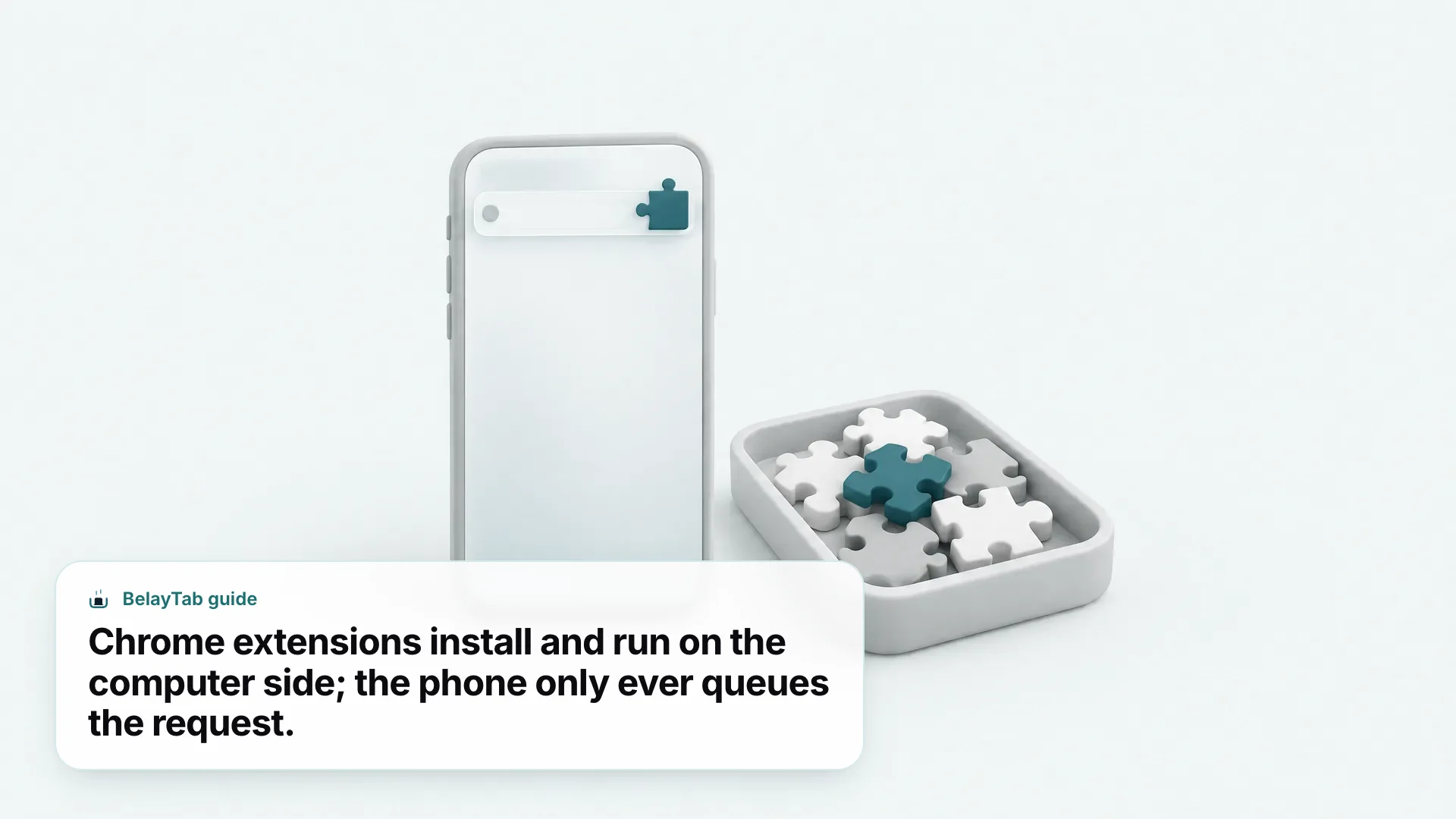
“Add to Desktop” queues an extension so it installs automatically the next time you open Chrome on a computer signed into the same Google Account, not on your phone.
- Open the extension’s Chrome Web Store page. Use Chrome on your phone and search for the extension you want.
- Tap “Add to Desktop.” This replaces the install button you’d normally see on a computer.
- Open Chrome on your computer, signed into the same Google Account. The extension installs there automatically, without any further action from you.
That’s the entire mechanism, and it’s worth being honest about its limits. Nothing changes on your phone: no icon appears, no functionality activates, and no data syncs to Chrome’s mobile app. If you don’t own a second computer, or you’re not signed into the same account there, “Add to Desktop” has nothing to queue toward. It’s a convenience for people who research on a phone and work on a laptop later, not a hidden mobile installation method.
It’s also easy to misread the button and assume the extension is now running somewhere. It isn’t, until you physically open Chrome on a desktop machine. If you install a lot of extensions this way, it’s worth checking chrome://extensions on your computer periodically, since a queued install can sit unnoticed if you don’t open Chrome on that machine for a while.
For everything else Chrome for Android does well, including tab groups, the inactive-tabs shelf, and cross-device sync, see our Chrome Android guide.
Which Android Browsers Support Extensions, and Which Don’t?
Firefox for Android, Samsung Internet, and Yandex Browser install real extensions on Android; Chrome, standard Edge, and Opera do not, as of September 2026.
| Android browser | Extension support | Notes |
|---|---|---|
| Chrome | No | “Add to Desktop” only |
| Firefox for Android | Yes, full catalogue | Opened December 2023 |
| Samsung Internet | Yes | Installed via Galaxy Store |
| Yandex Browser | Yes | Own catalogue plus Chrome/Opera stores |
| Microsoft Edge | Limited (reported) | Small curated set, per March 2025 reports |
| Opera / Opera GX | Unconfirmed | Not verified for this guide |
This matters most for the three things people want on mobile: ad blocking, password management, and reading tools. If a mobile browser extension Chrome itself can’t run is the reason you’re reading this, Firefox for Android is the closest like-for-like replacement, since most popular ad blockers and password managers publish an Android build for it. Samsung Internet is a solid second option if you’re already on a Galaxy device, since its extension list runs through the same Galaxy Store you use for apps, so nothing feels bolted on.
Yandex is a less obvious pick for most Western users, but it’s genuinely capable: it can install its own extensions or reach into the Chrome Web Store and Opera’s add-on catalog, giving it more raw coverage than Samsung Internet in some categories. Edge for Android has started offering a small set of extensions according to press reports, but there’s no official page confirming numbers or scope, so don’t expect Chrome Web Store parity there. Opera and Opera GX for Android remain unconfirmed for extension support; don’t assume either one matches its desktop sibling until Opera publishes something official.
See our full breakdown of what these browsers do outside of extensions too in Best Internet Browser for Android.
Can You Install Extensions in Safari on iPhone?
Yes, Safari on iPhone supports extensions, but they come from the App Store, not the Chrome Web Store.
- Open Settings on your iPhone. Go to Apps, then Safari, then Extensions.
- Tap the extension you want. You’ll see a switch labeled “Allow Extension.”
- Turn on “Allow Extension.” Then check per-site access inside Safari by tapping the icon at the left of the search field and choosing “Manage Extensions.”
This is a genuinely different system from Chrome’s, and it’s worth not confusing the two searches. If what you typed was extension chrome iOS, the honest answer is that path doesn’t exist: Chrome on iPhone can’t load extensions any more than Safari can load Chrome Web Store ones. What you can do instead is look for a Safari-compatible version of the same tool in the App Store, since developers increasingly ship both a Chrome extension and a Safari Web Extension from one codebase using Apple’s own Safari Web Extension Converter.
One genuine upside: extensions that support multiple Apple platforms sync automatically across iPhone, iPad, and Mac once you’re signed into the same Apple Account, so setting one up once covers every Apple device you own. That’s more automatic than Chrome’s desktop-only queuing, even if the extension catalogue itself is smaller.
For the rest of Safari’s tab and settings layout on iPhone, see Safari on iPhone; for specific picks worth installing, see Best Safari Extensions. Apple’s own guide to Safari extensions on iPhone covers the exact settings path if a future iOS update moves anything around.
Whatever Happened to Kiwi Browser?
Kiwi Browser, the Android browser that used to run Chrome extensions directly, was discontinued and pulled from Google Play in early 2025.
For a while, Kiwi was the go-to answer whenever someone asked how to get real Chrome extensions on an Android phone. It was Chromium-based and could load CRX files, which made it a genuine workaround rather than a half-measure. That’s exactly why its disappearance still shows up as a dead end in older search results and forum threads.
Outdated advice is still floating around. A lot of older “how to get Chrome extensions on Android” articles still recommend Kiwi Browser. It’s gone, and chasing an install link for it wastes time at best and points you toward an unofficial APK at worst.
If you land on a site offering a “Kiwi Browser APK” outside the Play Store now, treat that as a red flag rather than a lucky find. An app that no longer receives official updates or security patches isn’t worth the extension convenience it used to offer. The safer move is to redirect that effort toward one of the browsers still actively supporting extensions on Android: Firefox, Samsung Internet, or Yandex, covered in the next section. None of them will feel exactly like Kiwi did, but all three are maintained, and none of them require sideloading anything.
What Extensions Can You Actually Get on Firefox, Samsung Internet, and Yandex?
Firefox for Android gives you the full add-ons catalogue at addons.mozilla.org, Samsung Internet routes installs through the Galaxy Store, and Yandex Browser can pull from its own catalogue or the Chrome Web Store.
- Firefox for Android. Open the in-browser Add-ons/Extensions manager, or browse addons.mozilla.org/android directly; Mozilla opened the full catalogue to Android in December 2023, and you can manage permissions or uninstall an add-on from inside the browser itself.
- Samsung Internet. Extensions install through the Galaxy Store on Galaxy phones and tablets, which keeps the catalogue smaller but vetted by Samsung’s own review process.
- Yandex Browser. Install extensions built by Yandex’s own developers, or reach into the third-party Chrome Web Store and Opera add-on catalogs for wider coverage.
Practically speaking, most people land here looking for the same three categories: content blockers, password managers, and read-later or translation tools. Firefox for Android tends to have the deepest bench, since it’s pulling from Mozilla’s full desktop-grade catalogue rather than a curated subset. Extension permissions on Firefox for Android can also be reviewed and revoked from inside the browser, which gives you the same kind of control you’d expect on desktop rather than a locked-down mobile version of it.
Samsung Internet’s Galaxy Store route trades some breadth for a tighter review process, which is a reasonable trade if you’d rather not sift through a long list yourself. Yandex sits in between: its own catalogue is smaller, but the ability to reach into Chrome’s and Opera’s stores means it can often match whatever you were using on desktop, even if the browser itself is less familiar to most Western users.
Why Can’t Firefox for iOS Run Extensions Either?
Firefox for iOS can’t run add-ons at all, because Apple requires every iOS browser to build on WebKit, and WebKit doesn’t support the add-on architecture Firefox uses on desktop and Android.
This trips people up because Firefox clearly does support extensions elsewhere. The desktop version has a full add-ons manager, and Firefox for Android has had a complete catalogue since December 2023, as covered above. On iPhone, though, Apple’s platform rules override what Mozilla would otherwise ship. Every browser on iOS, regardless of the name on the icon, is required to render pages through WebKit rather than its own engine, and WebKit simply doesn’t expose the hooks Firefox’s add-on system needs to function.
That makes Firefox for iOS functionally closer to Safari without extensions than to Firefox anywhere else. You get Firefox’s interface and sync features, but not its add-ons.
Safari remains the only extension-capable browser on iPhone as a result, which is worth remembering if you’re choosing a default browser specifically because of an extension you use daily. Switching to Firefox on iPhone for its interface is fine; switching to it expecting Android-style add-on support will disappoint you.
What Should You Do on Desktop Instead of Waiting for Mobile Extensions?
Treat your computer as the place your extensions live, and keep that setup organized on chrome://extensions instead of waiting for mobile to catch up.
That starts with the basics: pin the extensions you use constantly by clicking the puzzle-piece icon in the toolbar and clicking the pin next to each one, and unpin the ones cluttering your bar by right-clicking and choosing “Unpin.” From chrome://extensions itself, you can toggle any extension on or off, remove ones you no longer trust, and turn on Developer mode if you’re testing something unpacked. It’s also worth checking each extension’s site-access level from its Details page; Chrome offers three tiers, from access only when you click the extension, to specific sites, to every site, and tightening that down reduces what a compromised extension could see.
Chrome’s Safety Check, reachable from Settings, then Privacy and security, can also flag risky extensions worth removing, and Enhanced Safe Browsing extends warnings to extensions Google didn’t previously know about. Once your extension shelf is trimmed down to what you use, saving a snapshot of that window matters more than the mobile gap ever will, since a browser crash or an accidental “close all windows” click loses far more than any missing phone feature would. Press Ctrl + Shift + S (Cmd + Shift + S on Mac) to save your current window as a named BelayTab session in one step. For extension picks worth pinning in the first place, see Best Chrome Extensions for Productivity, and for the full save flow, see Save Tabs.
How Do You Keep Your Tabs Synced Between Desktop and Mobile?
You can’t sync Chrome extensions to your phone, but you can sync the tabs and sessions those extensions were helping you manage, using Chrome’s own sync or a dedicated tool like BelayTab.
Chrome’s official sync carries bookmarks, passwords, and other data, up to 100,000 bookmarks, to your Google Account, which is why a tab you had open on your computer can show up under recent tabs on your phone once you’re signed into the same account there. That’s genuinely useful for checking a single link on the go, and Google’s own sync support page covers exactly what it moves between devices.
What Chrome sync doesn’t do is carry saved sessions, named window setups, or any version history, and it doesn’t help at all once you’re using a browser Google doesn’t own. If you split your work across more than one desktop browser, or you just want your tabs protected against an accidental closed window rather than merely mirrored to a phone, that’s the gap BelayTab is built for. It doesn’t run on iPhone or Android, and it never will pretend to, but its optional Sync does keep your named sessions consistent across every desktop browser you’re signed into, with 90 days of cloud version history behind them.
That web view is the honest way to bridge the mobile gap: not an extension pretending to run somewhere it can’t, but a browser-based page you can open from Safari, Chrome, or anything else on your phone to see what’s saved on your computer. Setup takes a few minutes; see Set Up Sync for the steps, or start from the download page if you haven’t installed BelayTab yet.