






Restoring closed tabs on Chrome mobile (whether you’re on Android or an iPhone) usually comes down to how fast you notice. Close a tab by mistake and Chrome gives you a couple of seconds to tap Undo before it’s really gone. Miss that window and you’re not necessarily out of luck: Chrome’s tab switcher keeps a short, searchable list of recently closed tabs, and if you’re signed in, you can even pull a tab back from another device entirely.
This guide covers the fastest fix first, then the slower options, then the point where Chrome mobile genuinely can’t help you anymore — including why Incognito tabs break all of these rules, and why a fully automatic desktop backup like BelayTab isn’t something you can install on your phone at all.
What’s the Fastest Way to Restore a Closed Tab in Chrome Mobile?
The fastest fix is the Undo option that appears for a couple of seconds right after you close a tab — tap it before it disappears and the tab reopens exactly where it was. Miss that window and you’re still not out of luck; Chrome’s tab switcher keeps a short list of recently closed tabs you can search for and reopen with one tap, on both Android and iPhone.
Which method applies depends on how long ago the tab closed and which device you’re on. The table below is the short version — the sections after it walk through each row step by step, including the one case (an old tab, not signed in) where Chrome mobile genuinely can’t bring anything back.
| Situation | What to do | Works on |
|---|---|---|
| Just closed a tab (last few seconds) | Tap Undo at the bottom of the screen | iPhone and Android |
| Closed a tab a few minutes ago | Open the tab switcher, search for “recently closed” | iPhone and Android |
| Using an Android tablet | Tap More (⋮), then Recent tabs | Android tablets |
| Tab was open on another signed-in device | Sign in to Chrome, check synced tabs | Any device, once signed in |
| Tab closed days ago, not signed in | Not recoverable in Chrome mobile | — |
A few things worth flagging before you skip ahead. First, the Undo prompt is genuinely brief. It’s built for the moment right after a tap, not something you can come back to after switching apps. Second, “recently closed” in Chrome mobile means recently, not indefinitely; it’s a short rolling list, not an archive. Third, none of this touches Incognito tabs, which are designed to disappear the moment they close — more on that further down.
If you only remember one thing from this page, make it this: Chrome mobile’s safety net is short and thin compared to what desktop browsers offer. That’s fine for the occasional fat-fingered tab close, but if you regularly lose track of tabs (research sessions, half-filled forms, a dozen tabs you meant to read later) you’ll want something with real backups, which is where the desktop side of this story gets more interesting.
How Do I Reopen a Closed Tab in Chrome on Android?
Tap Undo the moment you close a tab, or open the tab switcher and search “recently closed” if you’ve already moved on. Android Chrome’s tab switcher lives right next to the address bar. It’s the icon showing your current tab count, and tapping it reveals every open tab as a scrollable grid.
- Catch the Undo prompt. The instant you close a tab, look for Undo at the bottom-left of the screen and tap it before it fades.
- Open the tab switcher. Tap Switch tabs next to the address bar to see all your open tabs.
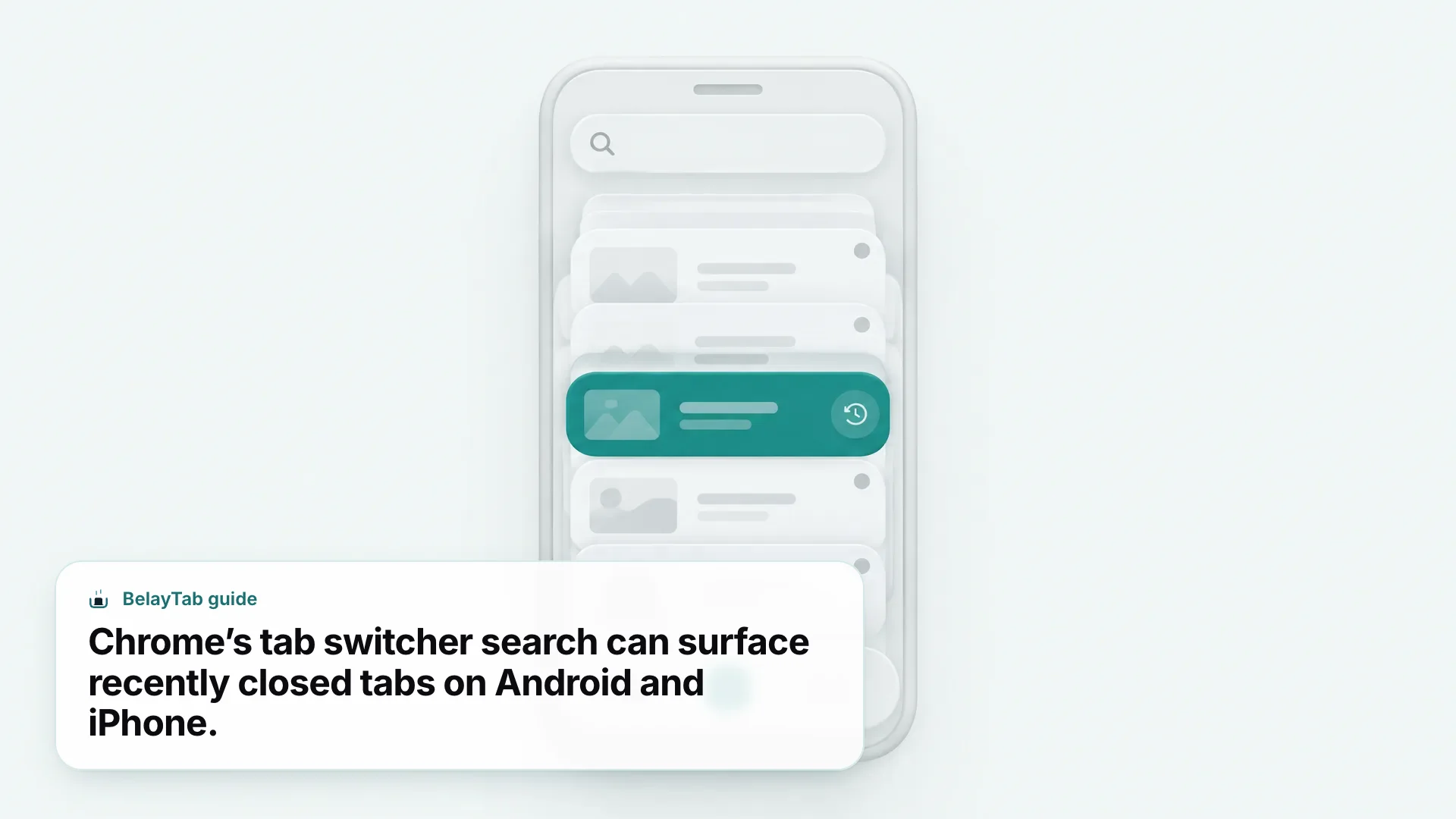
- Search recently closed tabs. Tap the search field inside the tab switcher and type “recently closed” — Chrome lists tabs you’ve closed, along with tabs open on your other signed-in devices.
- Tap to reopen. Select the tab from the list and it opens exactly where you left it.
If you closed several tabs at once (say you tapped “Close all tabs” by mistake) the same search trick usually finds them, since the recently closed list holds more than one entry. Chrome also keeps a plain History log, reachable from More (the three dots), then History, which is useful if you remember the page but not that it was open as a tab. For the official rundown, see Google’s help page on managing tabs in Chrome for Android.
Move fast. The Undo prompt only sticks around for a couple of seconds. If you’re mid-scroll when you close a tab, use the tab switcher search instead of trying to catch it.
None of this requires installing anything extra. It’s built into Chrome. What it doesn’t do is remember tabs from last week, or protect you if your phone loses its whole browsing session in a crash. For the broader picture of Android-specific tab tricks, see our guide to Chrome for Android.
How Do I Get Back a Closed Tab in Chrome on iPhone?
The same two-step fix works on iPhone: tap Undo right after closing a tab, or open the tab grid and search for it if you’ve already moved on. Chrome on iPhone and iPad organizes open tabs into a tab grid, with an inactive-tabs area near the top for tabs you haven’t touched in a while.
- Watch for Undo. Right after closing a tab, tap Undo at the bottom of the screen if it’s still there.
- Open the tab grid. Tap the tab-count square next to the address bar.
- Search for it. Use the search bar at the top of the tab grid and type “recently closed.”
- Reopen the tab. Tap the result to bring it back, groups and all if it belonged to a tab group.
Chrome on iPhone also supports tab groups the same way Android does — group names and colors are created on the device and automatically synced to your other signed-in devices, so a tab you group on your phone shows up grouped on your laptop too. As of September 2026, the current iPhone software is iOS 27, and Chrome for iOS still requires iOS 14 or later to run at all, so this applies to essentially every iPhone still getting updates.
One iPhone quirk worth knowing: Chrome doesn’t support the kind of desktop-style extensions that add features like automatic backups on Mac or Windows. Whatever safety net you want on iPhone has to come from Chrome’s own tools (Undo, tab grid search, and sign-in sync) because there’s no extension ecosystem to fill the gaps. For more on setting up Chrome on your phone, see our guide to Chrome on iPhone.
How Do I Find Recently Closed Tabs on Android Tablets?
On an Android tablet, tap More (the three dots), then Recent tabs, to see both recently closed tabs and tabs open on your other signed-in devices in one list. It’s a slightly different path than on an Android phone, where the same information lives inside the tab switcher’s search field instead of a dedicated menu item.
| Device | Menu path | Also shows |
|---|---|---|
| Android phone | Tab switcher → search → “recently closed” | Tabs from other signed-in devices |
| Android tablet | More (⋮) → Recent tabs | Recently closed tabs + other-device tabs |
| iPhone/iPad | Tab grid → search → “recently closed” | Recent tabs from other devices |
Tablets get this dedicated menu item partly because the larger screen has room for a proper “Recent tabs” panel, closer to what you’d find on desktop Chrome. It’s arguably faster than the phone’s search-based approach once you know it’s there, since you don’t have to type anything — just tap through two menus.
One tablet-specific limitation is worth knowing about too: tab groups can’t be pinned on Android Chrome, and you can’t pin individual tabs by dragging them either. That doesn’t affect recovery directly, but it does mean a tab group you’re relying on to stay put at the top of your tab list can still drift down and eventually land in the inactive tabs section if you don’t touch it for a couple of weeks — more on that below.
Can Chrome Sync Bring Back Tabs Closed on Another Device?
Yes — if you were signed in to Chrome before the tab closed, you can find it under Recent tabs or the tab switcher’s synced-tabs list on any other device using the same Google Account. Signing in to Chrome saves your bookmarks, passwords, and other browsing data to your Google Account, which is what makes that data (including open tabs) reachable from a different phone, tablet, or computer signed in to the same account, according to Google’s Chrome sync support page.
This is worth turning on even if you never plan to switch devices mid-task, because it means a tab you lose track of on your phone isn’t necessarily gone. It might just be waiting in the synced-tabs list on your laptop. Google also lets an account hold up to 100,000 synced bookmarks, which gives a sense of how much headroom the underlying sync system has for everyday use.
Sign in before, not after. Sync only carries over tabs that were open while you were signed in. If you close a tab while signed out, signing in afterward won’t bring it back.
Chrome’s own sync is genuinely useful, but it’s built for continuity between devices you’re actively using, not as a recovery net for a tab you closed weeks ago and forgot about. That distinction matters for what comes next.
Can You Recover a Closed Incognito Tab in Chrome Mobile?
No — once you close every Incognito tab, that browsing session is gone for good, by design. Opening a new tab while you’re still in Incognito mode just continues the same private session; it only fully ends once the last Incognito tab closes, and at that point Chrome doesn’t retain the browsing history or form data from that session.
Cookies and site data from an Incognito session are held only for as long as the session lasts and get deleted the moment you exit. A couple of things do survive, though: any bookmark you added or reading-list item you saved while in Incognito stays available afterward in regular browsing, and any file you downloaded stays on your device until you delete it yourself.
Both platforms let you lock Incognito tabs so they can’t be opened without authentication. On Android, it’s the Lock Incognito windows when you leave Chrome toggle under Settings, then Privacy and security. On iPhone, the equivalent setting sits under More, then Settings, then Privacy and security, and it uses Face ID, Touch ID, or your passcode.
Incognito isn’t a safety net. If a tab matters enough that you’d want it back later, don’t open it in Incognito. Closing an Incognito tab is meant to erase it, on Android and iPhone alike, per Google’s Incognito mode help page.
If you want the deeper dive on how private tabs behave on each platform, see our guides to Incognito on Android and Incognito on iPhone.
Why Can’t I Find an Older Closed Tab in Chrome Mobile?
Because Chrome mobile’s recently closed list only holds onto entries for a short while, and there’s no built-in archive that reaches back further. It’s designed to catch accidental closes, not to serve as a long-term tab history the way a desktop backup tool would.
There’s a related but separate mechanism that can make things more confusing: any tab or tab group you haven’t touched for 14 days automatically moves into an Inactive tabs section of the tab switcher, and if it sits untouched for six months after that, Chrome closes it automatically. That’s not the same as the recently-closed list — inactive tabs are still technically open until they age out, so if you’re missing a tab, check the inactive tabs area before assuming it’s closed for good.
If you can’t find the tab itself but remember roughly what page it was, your browsing History (via More, then History) will usually still have the page listed, even after the tab itself is gone. That gets you the page back, but not the tab’s state — scroll position, unsaved form fields, or its place in a tab group all disappear along with the tab. For a deeper look at searching and recovering browsing history specifically, see how to recover deleted Chrome history and how to search Chrome history.
This is the practical ceiling of what Chrome mobile can do for you. Past a certain point (days rather than minutes, tabs rather than pages) there’s no built-in way to get back to where you were.
What Happens to Tabs When Chrome Closes Inactive Tabs Automatically?
Chrome tucks away any tab or tab group you haven’t opened in 14 days into an Inactive tabs section, then closes it completely once it’s been inactive for six months. It’s a housekeeping feature aimed at people who let tab counts climb into the hundreds, not a punishment for anyone in particular — but it does mean a tab you’re “saving for later” can quietly vanish if later never comes.
The six-month window sounds generous, and for most people it is. Where it bites is the tab you opened for a project you paused — a house you were considering, a course you meant to finish, research you’ll pick back up eventually. Fourteen days of normal phone use goes by fast, and once a tab drops into Inactive, it’s easy to forget it’s even there until it’s gone.
The practical fix is to stop treating open tabs as a to-do list. If a tab matters beyond a week or two, bookmark it, add it to your reading list, or move it somewhere with actual permanence — our guide to Chrome bookmarks covers how to organize them so they don’t just become another pile you never revisit. Tabs are for now; bookmarks, or a proper backup, are for later.
This is also the clearest argument for keeping anything you truly can’t lose off your phone’s tab list entirely and on a device where a dedicated tool can back it up automatically — which is where desktop Chrome, and BelayTab specifically, changes the equation.
Does BelayTab Work on iPhone or Android?
No — BelayTab is a browser extension, and neither iPhone, iPad, nor Android Chrome supports the kind of extension platform it needs to run. If you’ve read this far hoping for a way to get BelayTab-style automatic backups on your phone, the honest answer is that it doesn’t exist yet, on any platform.
What BelayTab does cover is the desktop side of your browsing: Chrome, Edge, Brave, Opera, Vivaldi, Arc, and Firefox on any desktop OS, plus Safari on Mac. Install it there and it takes a snapshot of every open window automatically every five minutes, and again the moment a window closes, without you having to remember to save anything. Those snapshots, along with your named sessions, live on one Recovery screen alongside deleted sessions and the browser’s own recently-closed-windows list.
For the phone-and-laptop combination a lot of people actually use, the realistic setup is: rely on Chrome mobile’s Undo and recently-closed search for your phone, and let BelayTab handle the desktop browser where you’re more likely to have forty tabs open at once. It’s not a single tool covering both, but it’s a genuine safety net on the half of your browsing where losing tabs costs the most time.
How Do You Protect Tabs on Desktop Chrome So You Never Lose Them Again?
Install BelayTab, save your open window as a named session with one click or Ctrl + Shift + S (Cmd + Shift + S on Mac), and let its automatic snapshots handle everything you forget to save yourself. That one shortcut names and stores the tabs in your current window, or a selection of tabs, keeping tab groups, pinned tabs, and order intact.
Beyond the manual save, BelayTab is doing work in the background whether you touch it or not. It’s free, with no account required and no cap on sessions or tabs, and it keeps up to 20 versions of every session’s history so restoring never overwrites what you had before. It just adds another version. Deleted sessions sit in a 30-day trash rather than disappearing instantly, which covers the kind of “wait, I didn’t mean to delete that” moment Chrome mobile has no equivalent for at all.
- Save. One click or a shortcut turns any window into a named session, tab groups and all.
- Restore. Bring a session back into a new window, the current one, or reopen a single tab.
- Sync (optional). For $4/month or $36/year, sync sessions across desktop browsers you sign in to, with 90 days of cloud version history.
If you split your time between a phone and a laptop, the two halves of this guide work together: use Chrome mobile’s Undo and search tricks for the quick, everyday tab slip-ups on your phone, and let BelayTab quietly protect the browser where you accumulate the tabs that matter. See how BelayTab restores tabs or set up Sync across your desktop browsers to get started.