






Type “chrome remote desktop extension” into Google and you’re probably picturing something you’d install from the Chrome Web Store, pin to the toolbar, and click whenever you need it. That’s not quite how it works anymore. As of September 2026, Chrome Remote Desktop runs mainly as a web app at remotedesktop.google.com, and the whole flow (from installing the host software to generating an access code) happens through that site rather than an extension icon.
This guide covers what Chrome Remote Desktop actually is today, how to set it up on a computer you want to reach later, what a helper can see once they’re connected, and which browsers it plays nicely with. It also covers the case where full remote control is overkill: if all you really want is your open tabs on a different device, there’s a lighter way to get them there.
Is There Still a Chrome Remote Desktop Extension in 2026?
Not really. What you get today when you look for Chrome Remote Desktop is a website, remotedesktop.google.com, not a listing you add from the Chrome Web Store the way you’d add a password manager or a shopping tool. Older guides and habit are probably why the search term stuck around — for years, this really was distributed as something closer to an extension.
Searches like remote desktop extension for chrome, remote desktop extension chrome, chrome remote desktop browser extension, chrome extension remote desktop, chrome extension for remote desktop, and google chrome remote desktop extension all point at the same thing, and none of them lead to a Chrome Web Store “Add to Chrome” button anymore. Chrome’s own support instructions describe the setup happening entirely through the website: on the computer you want to reach later, you go to remotedesktop.google.com/support, choose Set up Remote Access, click Download, and install what the site gives you. There’s no separate step where you search the Chrome Web Store first.
It’s a small distinction, but it matters if you’ve been hunting through chrome://extensions for something that isn’t there. If you’re looking for Chrome Remote Desktop specifically, start at the website. If you landed here wanting to browse and manage regular extensions instead, that’s covered further down.
| You want to… | Where to go |
|---|---|
| Access your own computer from another device | remotedesktop.google.com/support → Remote Access |
| Help someone else, or get help right now | remotedesktop.google.com/support → Remote Support |
| Just get your open tabs on a different browser | BelayTab Sync (skip ahead) |
| Install or manage a regular Chrome extension | chrome://extensions |
How Do I Set Up Chrome Remote Desktop to Access My Own Computer?
You set it up from the computer you want to reach later (your home desktop, say) not from the laptop you’ll be connecting with on the road. The setup lives under Remote Access at remotedesktop.google.com/support, and once it’s done, that computer will accept incoming connections whenever it’s on and connected to the internet.
The process itself is short, but each step matters, because the host software needs system-level permissions to take over the screen, keyboard, and mouse later.
- Open the Remote Access setup page. On the computer you want to reach later, go to remotedesktop.google.com/support and choose Set up Remote Access.
- Download and install the host. Click Download, then follow the prompts, approving the operating system permissions Chrome Remote Desktop asks for.
- Finish the on-screen setup. Complete whatever prompts follow so the computer shows as ready to accept a remote connection.
Leave it plugged in and awake. Remote access only works while the host computer is on, connected to the internet, and not asleep. If you’re setting this up before a trip, check your sleep and power settings too.
Once setup finishes, you can open remotedesktop.google.com from any other device, sign in with the same account, and see that computer listed as available to connect to. If you’re troubleshooting a browser that won’t stay running at all, that’s a different problem than remote access can fix — see the guide on a Chrome that keeps crashing or freezing for that side of things.
How Do I Let Someone Else Access My Computer for Support?
Under Get Support, on the same remotedesktop.google.com/support page, click Generate Code. That produces a one-time access code you read out or send to whoever needs to get in — a friend fixing a printer setting, a relative walking you through something, or a support technician. They enter the code on their end, and the connection opens.
This is different from the Remote Access setup above. Remote Access is something you configure once, on your own computer, so you can reach it later from anywhere. Remote Support is a one-time session: the code expires, and there’s no lasting install or standing connection left behind once you close it.
Chrome’s support documentation is direct about what this grants: whoever uses that code gets full access to apps, files, email, documents, and history on the computer, the same as if they were sitting at the keyboard. Read the code out loud to someone you called for help, not someone who called you first.
| Remote Access | Remote Support | |
|---|---|---|
| Set up on | The computer you’ll reach later | The computer, at the moment help is needed |
| How you connect | Sign in and pick the computer from a list | Enter a one-time code |
| Access granted | Full — apps, files, email, documents, history | Full — apps, files, email, documents, history |
| Good for | Reaching your own devices repeatedly | A single help session |
What Permissions and Access Does the Other Person Get?
Whoever connects (you from another device, or someone you gave a support code to) gets full access to that computer, not a limited window into one app. That’s not a metaphor. It’s closer to someone sitting down at your desk than to a browser extension reading a single page.
It helps to put that next to how Chrome describes extension permissions, since the two get confused. Chrome’s permission risk tiers split ordinary extensions into three categories: high alert (access to all computer data and all websites), medium alert (access to specific or all websites), and low alert (access to things like bookmarks, history, tabs, or location). Even the riskiest ordinary extension permission tier is still scoped to your browser. Chrome Remote Desktop’s Remote Support access sits above all three tiers. It’s full control of the operating system, files and all, not just the browser.
That’s exactly why it’s worth pausing before you generate a code. It’s the right tool when you trust the person on the other end and you asked them for help yourself. It’s the wrong tool if someone you don’t know reached out first and is asking you to open it for them. There’s no partial or read-only mode described anywhere in Chrome’s setup flow. It’s all or nothing.
Do You Need an Internet Connection, and What Does It Cost?
Yes — Chrome’s support page for Chrome Remote Desktop states that an internet connection is required, on both the computer being accessed and the device connecting to it. Both ends need to be online at the same time. If the host computer loses its connection, or goes to sleep, it drops off the available-devices list until it reconnects.
On cost, Google’s own setup instructions for Remote Access and Remote Support don’t include a payment step anywhere in the flow. You go straight from choosing Set up Remote Access or Get Support to downloading, installing, and connecting. There’s no plan selection, no checkout page, nothing that reads like a paid tier in the process itself.
Where this trips people up isn’t the software cost, it’s the assumption that “set up” means “reachable right now.” If your home computer is off, asleep, or the internet is down at home, Remote Access won’t reach it no matter how good your connection is on the other end. That’s worth remembering if you’re relying on it for something time-sensitive, like grabbing a file before a meeting starts. A backup plan — a synced copy of what you need, rather than remote control of the machine that has it — avoids that failure mode entirely, which is the idea behind the lighter option covered later in this guide.
Does Chrome Remote Desktop Work in Edge, Firefox, Brave, or Safari?
The website and the host software aren’t locked to Chrome the browser. Remotedesktop.google.com is a regular site, and Chrome’s own instructions describe the actual installed piece as software that requests operating system permissions, not something that hooks into a particular browser’s extension system. In practice, that means you can likely open the setup page and generate codes from whatever browser you already have running — Edge, Firefox, Brave, or Safari — since none of that depends on the Chrome Web Store.
That said, Google’s support documentation doesn’t spell out a formal “supported browsers” list for the website itself, so treat this as a reasonable read of how the setup flow is described, current as of September 2026, rather than an official compatibility promise.
If you’re mostly interested in what your specific browser can and can’t do with extensions in general (Chrome, Edge, Firefox, Brave, Safari, or Opera) those specifics differ more than people expect, and it’s worth checking your own browser’s page before assuming a feature works identically everywhere.
How Do I Install, Manage, or Remove a Chrome Extension in General?
Everything for a regular Chrome extension — not Chrome Remote Desktop, but the ad blockers, password managers, and productivity tools you add from the Chrome Web Store — happens in one of two places: the Store listing itself, or the chrome://extensions management page.
Installing one is a single click, but Chrome always asks first if the extension wants any kind of access, per the Chrome Web Store’s install and management instructions.
- Find it in the Chrome Web Store. Search for the extension and click Add to Chrome.
- Approve the permissions dialog. If it appears, review what’s being requested, then click Add extension to confirm.
- Pin it if you want it visible. Click the puzzle-piece Extensions icon in the toolbar, then click the pin next to the extension’s name.
To turn one off, remove it, or check what it can access later, open chrome://extensions directly — either type it into the address bar or click the puzzle-piece icon and choose Manage extensions. Every installed extension shows up as a card with a toggle to enable or disable it and a Remove button. Right-clicking its toolbar icon offers a faster “Remove from Chrome” shortcut for the same action.
One thing worth knowing: extensions can’t be installed at all while you’re in an Incognito window or browsing as a Guest, so if Add to Chrome seems to do nothing, check which mode you’re in first. For a fuller walkthrough of pinning, disabling, and troubleshooting, there’s a dedicated guide to managing Chrome extensions.
Is Chrome Remote Desktop Safe, and How Do I Avoid Remote-Access Scams?
Chrome Remote Desktop itself is a legitimate, Google-built tool, and the access it grants is exactly what it says it is — nothing hidden. The actual risk almost never comes from the software; it comes from who you hand a code to. A caller claiming to be from “tech support” or “your bank” who asks you to open Chrome Remote Desktop and read them a code is running a well-known scam pattern, and once they’re in, they have the full access described earlier in this guide.
The safest habit is simple: only generate a code for someone you contacted first, for a problem you already know you have. If someone reaches out to you first and asks for remote access, hang up and verify through an official number instead of trusting the call.
For extensions more broadly (not Chrome Remote Desktop specifically) Chrome has a couple of built-in checks worth knowing about. Enhanced Safe Browsing warns about potentially dangerous sites, downloads, and extensions, even ones Google hasn’t previously flagged. Chrome’s Safety Check, under Settings > Privacy and security, can also surface risky extensions you’ve already installed and walk you through what to do about them.
What’s a Lighter Option When You Just Need Your Tabs, Not the Whole Computer?
If what you want is your open tabs on another device (not the ability to click around inside a different computer) Chrome Remote Desktop is more machine than you need, and it only works while that other computer is on and reachable.
BelayTab takes a narrower, lighter approach. It’s a free browser extension, no account and no limits, that saves your open tabs as a named session with one click or the shortcut Ctrl + Shift + S (Cmd + Shift + S on Mac). Tab groups, pinned tabs, and their order all come along with it — see how saving sessions works for the details. It also saves a snapshot of every open window on its own every five minutes, and again the moment you close a window, so a crash or an accidental close doesn’t cost you the tabs you were mid-research on.
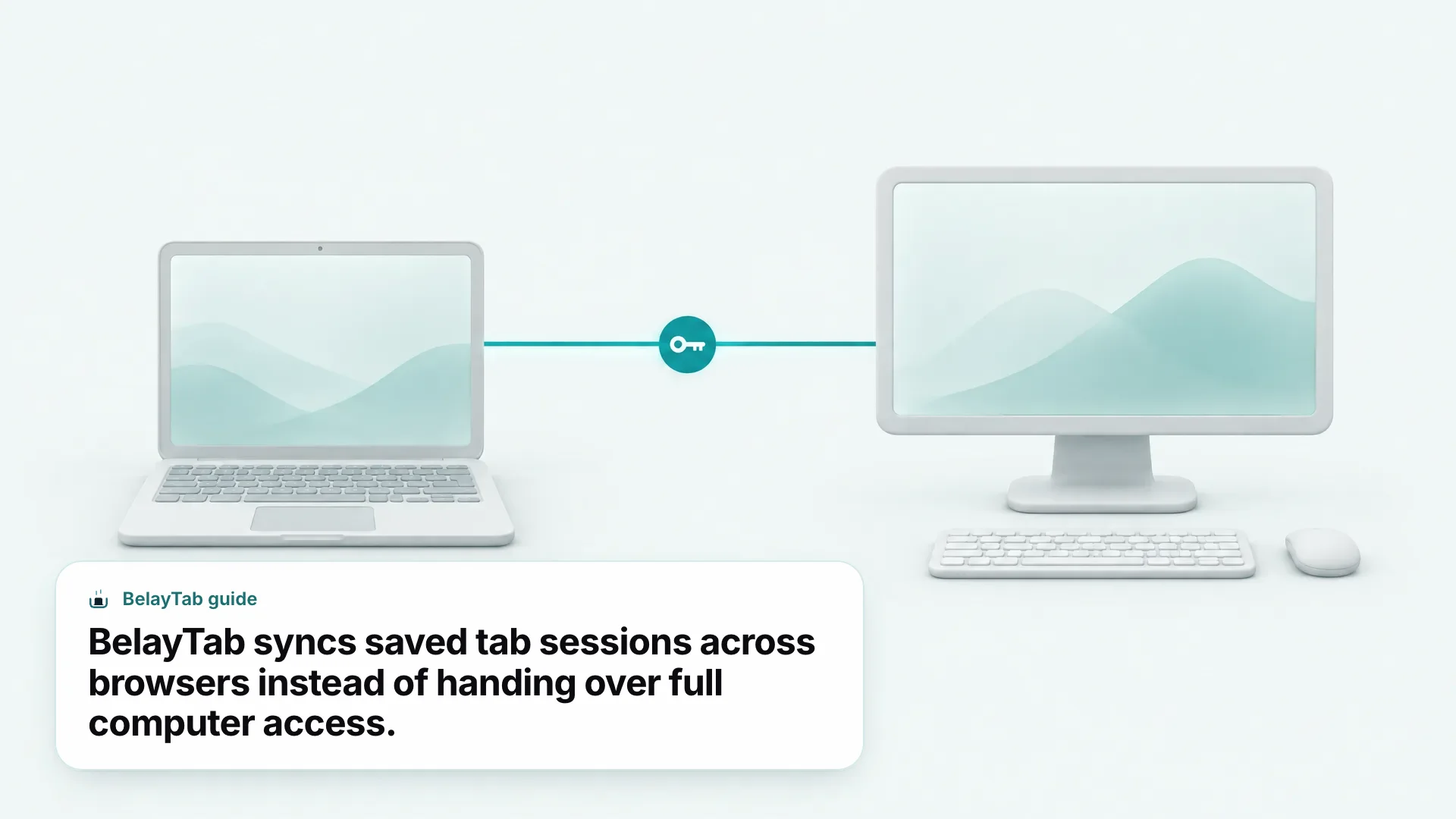
Getting those same tabs onto another computer is where the optional Sync plan comes in — four dollars a month or thirty-six dollars a year, with a 30-day refund if it’s not for you. Turn it on and your saved sessions sync across any browser you’re signed into, with 90 days of cloud version history and web access at app.belaytab.com if you’re ever on a computer that isn’t your own. Everything is encrypted in transit and at rest. Nothing about it hands the other device control of your computer. It moves your tabs, not your files, email, or system.
How Does Chrome Remote Desktop Compare to Other Ways to Get Your Tabs on Another Device?
For moving tabs specifically, Chrome Remote Desktop is the heaviest tool on this list. It works, but it demands the source computer stay on, connected, and fully exposed for as long as you’re using it — overkill if a saved list of tabs would do the job just as well.
Here’s how the realistic options stack up:
- Chrome Remote Desktop. Full control of another computer (screen, files, everything) but only while that computer is powered on and online.
- Browser sync (Chrome Sync, Firefox Sync). Carries open tabs between devices automatically, but only within the same browser and the same signed-in account.
- BelayTab Sync. Moves saved tab sessions across different browsers you’re signed into, without needing the other computer to be running at all.
If you’re already relying on your browser’s built-in sync and it’s working, there’s no reason to add anything on top. It’s worth reading how Chrome Sync handles open tabs before you assume it covers everything you think it does. If you’re juggling tabs across more than one browser, or you want version history in case you close the wrong window, that’s the gap BelayTab is built to cover; a broader look at what a tab manager does is a good next stop if you’re still comparing options. Either way, save the full-access route for when you genuinely need someone controlling the whole computer, not just its tabs. You can grab BelayTab from the download page when you’re ready.