






Search “chrome v firefox” and you’ll mostly find speed claims that go stale within a browser update or two, along with a decade-old rivalry that doesn’t match how either browser actually behaves today. What doesn’t go stale is who makes each browser, how they’re built, and what they turn on by default — and that’s what decides whether Chrome or Firefox fits how you work. This post sticks to those verifiable facts: engines, defaults, sync, extensions, AI and market share, as of September 2026. Then it walks through picking one by use case, by the kind of user you are, and how to switch between them without losing the forty tabs you’ve had open since Tuesday.
Chrome v Firefox: Quick Answer by Situation
If you want the widest extension library and the deepest Google integration, pick Chrome; if you want stronger tracking protection turned on the moment you install it, pick Firefox. Everything else (tab groups, sync, some form of built-in AI) the two now have in common, so the decision usually comes down to your ecosystem and how much setup you’re willing to do yourself.
The table below is meant to be used, not just read. Find the row that matches your actual situation rather than trying to average across all six, because most people only care about one or two of these in practice.
| Your situation | Better fit | Why |
|---|---|---|
| You live in Gmail, Docs and Google Workspace | Chrome | Deepest integration with Google’s own tools, plus Gemini in Chrome |
| You want tracking protection on with zero setup | Firefox | Total Cookie Protection and tracker blocking are on by default |
| You depend on a specific niche extension | Chrome | The Chrome Web Store is the largest extension marketplace |
| You’d rather use a browser made by a company other than Chrome’s maker | Firefox | Firefox is made by Mozilla, a separate company from Google |
| You move between Windows, Mac, Linux, Android and iOS | Firefox | Firefox officially lists support for all five platforms |
| You want AI built straight into the address bar | Chrome | Gemini in Chrome is native; Firefox instead lets you plug in outside chatbots |
None of these rows are a knockout blow on their own, and that’s the point. Chrome versus Firefox isn’t a contest with one universal winner. It’s a set of trade-offs that land differently depending on what you already use every day. If two or three rows point the same direction for you, that’s usually a clearer signal than any single feature comparison. If they split evenly, the sections below go deeper on each factor so you can weigh them properly instead of guessing.
Chrome vs Mozilla Firefox: What’s Actually Different Under the Hood?
The real difference between Chrome and Firefox isn’t a feature checklist. It’s who builds them and what renders the page underneath. Chrome comes from Google and runs on Blink, Google’s fork of the Chromium engine. Firefox comes from Mozilla and runs on Gecko, an engine Mozilla builds and maintains independently. Both are free to use, with no purchase required for either one.
Firefox is the outlier, engine-wise. Firefox is one of the last mainstream browsers not built on Chromium’s Blink engine. Edge, Brave, Opera and Vivaldi are all Blink-based under the hood, which means Firefox is doing more of its own independent engineering to keep up with the web.
That independence matters more than it sounds. When one engine renders most of the web, sites tend to get tested against that engine almost exclusively, and anything that behaves differently in Gecko risks getting blamed on “Firefox being broken” even when a site simply never checked its work anywhere else. Running a second major engine is also expensive and slow — Mozilla has to implement new web standards on its own timeline rather than inheriting them from a shared Chromium codebase the way Edge, Brave, Opera and Vivaldi do.
The practical upshot for the “chrome vs mozilla” question is this: Chrome benefits from being part of a much larger, shared engine ecosystem, which tends to mean faster adoption of new web platform features across a whole family of browsers at once. Firefox trades some of that speed for staying independent, which keeps the web from having only one company’s rendering engine to answer to. Neither approach is objectively correct. It depends whether you value ecosystem size or engine diversity more, and that’s a genuinely personal call rather than a factual one.
Is Firefox Better Than Chrome for Privacy?
Firefox is more private by default: it turns on Total Cookie Protection and automatic tracker blocking the moment you install it, while Chrome leaves third-party cookies on in regular browsing until you switch that setting off yourself. Mozilla’s own language for this is that “cookies can’t follow you across sites,” and Firefox blocks trackers automatically as part of normal browsing, not as an opt-in extra you have to discover in a settings menu.
Chrome’s cookie default might surprise you. Third-party cookies are blocked by default only in Chrome’s Incognito mode. In your everyday, signed-in browsing, they stay on until you go into Chrome’s cookie settings and turn on “Block third-party cookies” yourself.
Chrome isn’t defenseless on privacy. It offers Enhanced Safe Browsing and a Safety Check tool that audits your account and browser settings for known issues. But both of those are things you opt into and manage yourself, rather than protection that’s simply on the moment you install the browser. That’s a meaningful distinction if you’re the kind of person who never opens a settings menu after setup: Firefox’s defaults do more work for you out of the box, while Chrome’s stronger privacy tools exist but wait for you to find them.
If the phrase “is firefox better than chrome” is really asking “which one protects me without me having to configure anything,” the honest, source-backed answer is Firefox. If it’s asking “which one has more privacy tools available in total,” Chrome’s Safe Browsing and Safety Check features mean the answer is closer to a tie once you’re willing to turn things on yourself. Both answers are true; they’re just answering slightly different questions.
How Do Chrome and Firefox Compare on Tabs and Memory?
Both browsers let you group tabs by project or topic, but only Chrome publishes a specific number for memory savings. Chrome’s Memory Saver mode “can save up to 148 MB of memory” per inactive tab, and Chrome also offers vertical tabs shown down the side of the browser window. Firefox’s tab groups feature (described as a way to “organize your open tabs by project, mood, or task”) doesn’t come with a published memory figure or a confirmed vertical-tabs option on its official features page, so we’re not going to invent one just to fill the table.
| Feature | Chrome | Firefox |
|---|---|---|
| Tab groups | Yes — grouped, labeled, color-coded | Yes — organize by project, mood or task |
| Vertical tabs | Yes — shown down the side of the window | Not detailed on Firefox’s official features page |
| Published memory savings | Up to 148 MB via Memory Saver | No specific figure published |
Here’s the catch that applies to both browsers equally, and it’s the reason this whole post eventually gets to BelayTab: tab groups only survive the things the browser is designed to survive, like a normal restart or a quiet afternoon of tab hoarding. A crash, a corrupted profile, an accidental “clear browsing data,” or reinstalling the browser to fix a bug can all wipe a tab group out anyway, in either Chrome or Firefox. Memory Saver mode and Firefox’s tab groups were both built for organization and day-to-day performance while everything’s working normally — neither one is a backup system, and neither vendor claims it is.
That’s not a knock on either browser. It’s just worth knowing the boundary of what “tab groups” and “memory saving” promise you, so you’re not surprised the day one of them doesn’t come back.
Firefox Chrome Extension Compatibility: Can You Bring Your Add-ons Over?
No, a Chrome extension doesn’t install directly in Firefox — the two browsers use separate stores and separate extension formats, so you install through Firefox’s own add-ons catalog instead of the Chrome Web Store. That’s a real friction point if you’ve built a workflow around a handful of Chrome-only extensions, since not every developer bothers publishing a Firefox version of the same tool.
- Chrome Web Store. This is where Chrome installs its extensions, and it’s also the store that Chromium-based browsers like Edge, Brave, Opera and Vivaldi mostly source their add-ons from, since they share Chrome’s Blink engine.
- Firefox Add-ons (AMO). Firefox uses addons.mozilla.org, a separate catalog built for Firefox’s own extension format — the reason a “firefox chrome extension” doesn’t just drop straight in unchanged and needs its own listing.
Before you switch browsers permanently, it’s worth spending ten minutes checking each store for the extensions you rely on daily — a password manager, an ad blocker, a note-taking tool, whatever you’d genuinely miss. Popular tools are usually published in both places, since developers don’t want to lose either audience, but smaller or newer extensions sometimes only exist for one browser. It’s a quick check that saves you from switching, settling in, and then discovering a gap a week later.
Some extensions, including BelayTab, publish versions for both stores on purpose so a browser switch doesn’t cost you the feature at all. BelayTab’s download page covers Chrome, Firefox, and six other browsers from the same free install, so if tab management is the one thing you can’t live without, that particular worry is already handled no matter which side of this comparison you land on.
How Does Sync Work in Chrome vs Firefox?
Both browsers sync your data across your own devices when you sign in, but each keeps you inside its own account system rather than talking to the other. Signing in to Chrome syncs bookmarks, saved passwords and open tabs across the devices where you’re signed in with that Google account. Firefox offers the equivalent through Firefox Sync and a Firefox Account, though Mozilla’s current features page doesn’t itemize the full list of what it covers beyond showing a Firefox Sync view.
The detail that trips people up: neither sync system moves your tabs into the other browser. Chrome Sync only talks to other copies of Chrome you’re signed into, and Firefox Sync only talks to other copies of Firefox. They don’t bridge across each other, no matter how deliberately you set them up. Neither one keeps a meaningful history of older tab states, either; what you get is a live mirror of whatever’s currently open, not a record of what was open last Tuesday before you closed a window by mistake.
If you want tabs to move from Chrome into Firefox, or you want more than just “what’s open right now,” that’s a job neither browser’s built-in sync was designed for. BelayTab’s own sync feature is built for exactly that cross-browser case: it syncs sessions across whichever of the eight supported browsers you’re signed into, and keeps 90 days of cloud version history as an optional paid add-on priced at $4 a month or $36 a year, with a 30-day refund if it’s not for you. Data is encrypted in transit and at rest, though it’s worth being clear that this isn’t end-to-end encryption.
What AI Features Does Each Browser Offer?
Chrome ships Gemini in Chrome as a built-in assistant, described by Google as “your partner in figuring it all out,” including an image-generation tool called Nano Banana and saved-prompt “Skills” you can reuse. Firefox takes a different approach entirely: rather than one branded assistant baked in, it offers “Choose your AI tools — access multiple AI chatbots from one place, without being locked into a single provider.”
That’s a meaningful philosophical split, not just a feature gap. Chrome bets on a single, deeply integrated assistant that lives inside the browser and understands the page you’re on; Firefox bets on staying a neutral doorway to whichever AI tool you already prefer, without picking a winner for you. Other Chromium-based browsers have their own answers too, for context: Edge offers Copilot, with summarization and a “Browse with Copilot” mode that completes tasks inside the window, plus a voice feature called Copilot Vision. Opera offers a built-in Opera AI for chat and image generation alongside a “Browser AI” panel that references outside tools like ChatGPT and Gemini. Brave references a “Browser AI” and an “Ask Brave” AI-answers feature in its own search. Vivaldi, by contrast, doesn’t confirm a built-in AI assistant on its official features page at all — so if you specifically want a browser without one, that’s worth knowing too.
Chrome vs Firefox: Which One Has More Users in 2026?
Chrome has far more global users than Firefox. StatCounter’s August 2026 data puts Chrome at 69.39% of all browser usage worldwide across every platform, compared with just 2.98% for Firefox — with Safari at 15.83% (largely from iPhone users), Edge at 5.36%, and Opera at 1.94%. On desktop specifically, Chrome sits at 73.28% versus Firefox’s 5.31%, with Edge ahead of Firefox there too at 10.46% and Safari at 5.24%. Brave and Vivaldi aren’t broken out as their own rows in StatCounter’s primary tables and fall under a combined “Other” share instead.
That gap is real, but it’s not really a verdict on quality, and it’s worth being careful about how you read it. A large share of Chrome’s install base likely comes from how often it arrives pre-installed or pre-selected during device setup, and Safari’s overall number leans heavily on the iPhone, where it’s the default browser people never actively chose. Firefox has never had that kind of OS-level default advantage on any major platform, which makes its low single-digit share a much weaker signal of how good the browser is for the people who do go out of their way to install it.
If you’re picking a browser for yourself rather than reading tea leaves, market share tells you what other people ended up with by default — not what’s right for how you personally work. Our full browser comparison page breaks down more of these browsers side by side if you want the wider picture beyond just Chrome versus Firefox.
Which Browser Should Different Kinds of Users Choose?
The right browser depends more on what kind of user you are than on any single feature, so here’s how the trade-offs above tend to land for a few common cases.
- Students and researchers. If you’re juggling dozens of open tabs across browser windows for a paper or a project, tab groups in either browser help, but Chrome’s larger extension library gives you more citation and research tools to pick from.
- Developers and extension power users. Chrome’s Web Store is the bigger catalog, and Chromium-based dev tools tend to target Blink first, so Chrome is the safer default if your workflow depends on niche extensions.
- Privacy-first users. Firefox’s Total Cookie Protection and automatic tracker blocking are on the moment you install it, with no settings menu required — the clearest pick if privacy defaults matter more than anything else.
Beyond those three, there are a couple of other common profiles worth naming directly. If you’re a heavy multitasker who regularly has forty or fifty tabs open at once, the browser matters less than the habit of saving your work before something goes wrong — Chrome’s Memory Saver mode has a published number behind it, but neither browser’s tab groups are a substitute for an actual backup, as covered above. If you split your time across Windows, macOS, Linux, Android and iOS, Firefox’s official platform list explicitly covers all five, which makes it a simpler single choice if consistency across devices matters more to you than any one feature.
And if you’re a fairly casual, everyday user who just wants something that works without much thought, either browser is genuinely fine. Chrome’s Google integration means less setup if you already live in Gmail and Docs; Firefox’s stronger defaults mean less setup if you’d rather not think about privacy settings at all. Neither choice is a mistake. It’s about which set of defaults matches habits you already have.
Chrome Versus Firefox: Which Should You Pick for Your Use Case?
Pick Chrome if you’re deep in Google’s ecosystem, need a specific extension that’s Chrome-only, or want AI built into the browser without setting anything up. Pick Firefox if privacy-by-default matters to you, you’d rather use a browser from a company other than Chrome’s maker, or you regularly work across Windows, macOS, Linux, Android and iOS and want one browser that officially covers all five.
A few judgment calls worth making explicitly, since the feature lists alone won’t settle them:
- If you’re choosing based on “which one is faster,” skip that reasoning entirely — neither official page publishes a benchmark you can verify, and real-world speed depends more on your extensions and open tab count than the browser itself.
- If you’re an extension-heavy user, check the Chrome Web Store first for anything mission-critical before committing to Firefox; discovering a missing extension after you’ve switched is the more painful direction.
- If you’re privacy-first but need one specific Chrome-only extension, it’s fine to run both — plenty of people keep Firefox as a daily driver and Chrome open for the one holdout tool.
- Don’t let this year’s AI feature tip the scales; both companies are still actively reshaping that part of the product, and today’s headline feature may not exist by name in a year.
Chrome and Firefox each get updated on their own release schedule, and either one is a fine daily browser once you know which trade-offs you’re accepting. The Chrome browser page and Firefox browser page on BelayTab go deeper into each browser’s tab-handling specifics if you want more detail on the one you’re leaning toward. And if you’re weighing a third option instead, our Chrome vs Edge comparison and best browser roundup cover the rest of the field.
How Do You Switch Between Chrome and Firefox Without Losing Your Tabs?
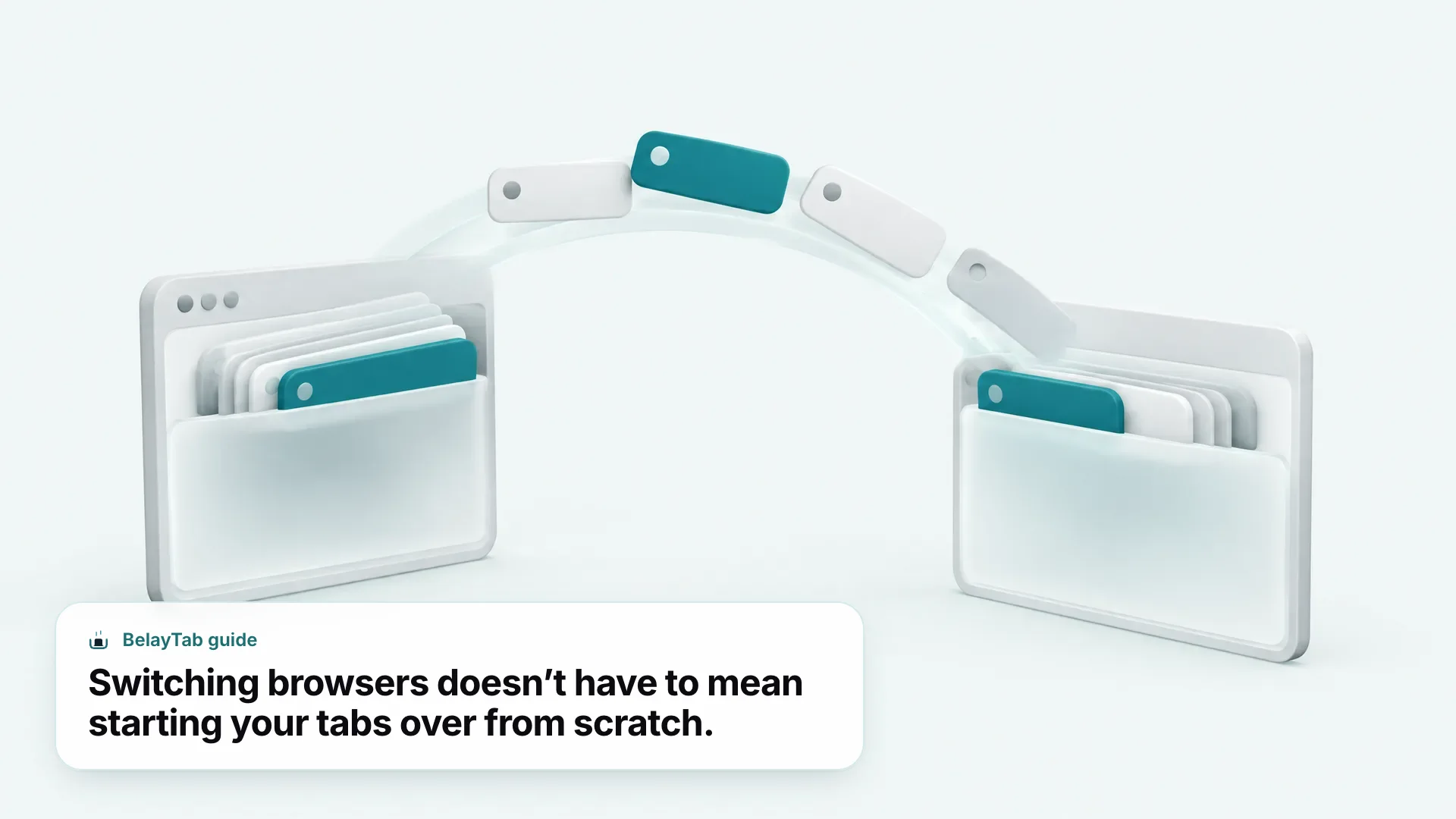
Switching is safe if you save your tabs as a session before you stop using the old browser, then import that session into the new one. Neither Chrome Sync nor Firefox Sync will do this for you, since each only talks to itself — so you need a tool that reads and writes a format both sides understand, rather than hoping the new browser’s built-in import handles open tabs the way it handles bookmarks.
- Install BelayTab in your current browser. Grab it free from the BelayTab download page. It works the same way in Chrome, Edge, Brave, Opera, Vivaldi, Arc, Firefox and Safari on Mac.
- Save your open windows as a session. Click the BelayTab icon or press Ctrl + Shift + S (Cmd + Shift + S on Mac), name the session, and choose to keep the tabs open or close them.
- Export it as a JSON file. BelayTab writes the file to your Downloads folder so it’s ready to hand off to the other browser.
- Install the new browser and BelayTab inside it. Same extension, same free install, now running in the browser you’re switching to.
- Import the file. BelayTab also reads exports from OneTab, Session Buddy, Tab Session Manager, Tablerone and plain URL lists, so this works even if you didn’t start with BelayTab on the old side.
- Restore the session. Open it into a new window or the current one; large sessions restore in batches of 20 so the new browser doesn’t choke trying to load fifty tabs at once.
BelayTab is free with no account and no limit on sessions or tabs, and it keeps up to 20 versions of each saved session plus a 30-day trash, so an accidental overwrite during a switch isn’t the end of the tabs either. See the import and export feature page and the restore tabs page for the full detail on both directions, including the Recovery screen that brings snapshots, deleted sessions and your browser’s own recently closed windows into one place.