






A CRX file is the packaged installer format Chrome and other Chromium-based browsers use to distribute extensions. It’s what gets fetched behind the scenes whenever you click “Add to Chrome” on a listing in the Chrome Web Store, and it’s also the format you’ll run into directly if someone sends you an extension outside of any store.
This guide covers what a CRX extension file actually is, how to install one the normal, official way, how to load one manually if you need to, and which browsers accept the format at all — Firefox and Safari, notably, don’t. It also covers what changed for older CRX files after Chrome’s Manifest V2 deprecation, and how to think about safety if a CRX file lands in your hands from somewhere other than an official store.
What Is a CRX File?
A CRX file is the packaged installer format Chrome and other Chromium-based browsers use to distribute extensions. It’s what you get, in one form or another, whenever you click “Add to Chrome” on a listing in the Chrome Web Store: Chrome fetches the packaged extension, shows a permissions dialog, and installs it once you click “Add extension” to approve.
Most people never see a raw .crx file directly, since the browser handles the download and install automatically as part of that Chrome Web Store flow. You’re more likely to encounter one as a standalone file if a developer sends it to you directly, you download it from a site other than an official store for testing, or you’re distributing an internal tool to a small team without going through public review.
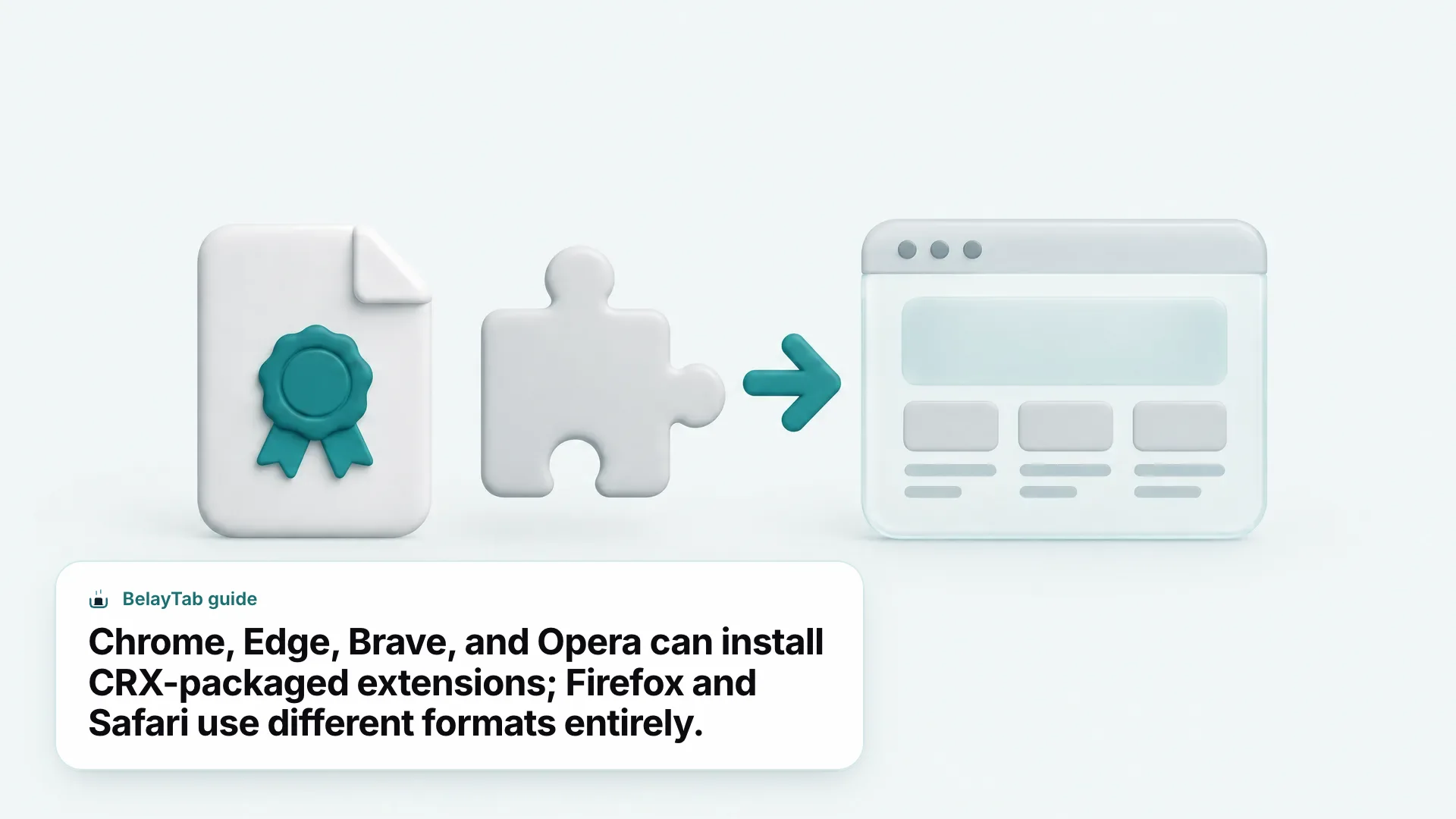
That second scenario is where most of the real questions about CRX files come from: how do you install one that isn’t already in a store, is it safe to do that, and which browsers even accept the format. Chrome, Edge, Brave, and Opera are all built on Chromium and can work with CRX-packaged extensions in some form. Firefox and Safari use entirely different formats, so a CRX file downloaded for Chrome won’t simply work if you try to load it into either of those. The rest of this guide walks through each case browser by browser, plus what changed for older CRX files after Chrome’s Manifest V2 deprecation.
Quick Answer: Which Browsers Can Open a CRX File in 2026?
Chrome, Edge, Brave, and Opera can all work with CRX-packaged extensions, while Firefox and Safari use their own separate formats instead.
| Browser | Uses CRX files? | Official install route |
|---|---|---|
| Chrome | Yes | Chrome Web Store “Add to Chrome,” or Developer mode + Load unpacked for local files |
| Microsoft Edge | Yes | Edge Add-ons store; other-store extensions need the “Allow extensions from other stores” toggle |
| Brave | Yes | Any Chrome Web Store extension installs and runs in Brave |
| Opera | Yes | Opera’s own addons.opera.com store, or “Add to Opera” for a Chrome Web Store listing |
| Opera GX | Likely, unconfirmed for full parity | Treat as Opera until confirmed on an official page |
| Firefox | No | Uses its own add-on format via addons.mozilla.org (AMO) |
| Safari (Mac) | No | Mac App Store extensions, or a developer-converted Safari Web Extension |
The table above covers the default, no-setup path for each browser, but two things are worth flagging before you go further. First, “supports CRX files” doesn’t mean every browser treats an unpacked or externally sourced CRX file the same way Chrome does — Edge specifically gates non-store installs behind an extra confirmation toggle, which a later section covers in detail. Second, Opera GX shares Opera’s Chromium base, but this guide couldn’t independently confirm that its store and install flow fully match Opera’s for CRX files sourced outside its own store, so it’s listed separately rather than assumed identical.
How Do I Install a CRX Extension From an Official Store?
Installing a CRX extension from an official store is the safest and simplest route, and it’s what almost everyone should use unless they have a specific reason not to. In Chrome, that means the Chrome Web Store; the process is nearly identical in Edge and Opera, just pointed at their own stores instead.
- Open the extension’s Chrome Web Store listing. Search for it by name or follow a direct link from the developer.
- Click “Add to Chrome.” This starts the install.
- Review the permissions dialog. A dialog appears showing what the extension can access; click “Add extension” to approve and complete the install.
- Pin it to the toolbar. Click the puzzle-piece Extensions icon, then click the pin icon next to the extension so it’s always visible.
A couple of details are easy to miss. Extensions can’t be added while you’re browsing in Incognito mode or using a Guest profile, according to Chrome Web Store Help — switch to a regular window first if “Add to Chrome” isn’t responding the way you expect. Once installed, you can always adjust things later: chrome://extensions lets you enable, disable, or remove any extension, and chrome://extensions/shortcuts lets you view or set your own keyboard shortcuts for the ones you use often, instead of relying only on whatever the developer originally suggested.
How Do I Load an Unpacked CRX Extension in Developer Mode?
Loading an unpacked CRX-based extension requires turning on Developer mode in chrome://extensions and using “Load unpacked,” Chrome’s own documented path for extensions that aren’t installed through the Web Store. This is the option to reach for if a developer sent you a project folder to test, or you’re working on an extension yourself.
- Open chrome://extensions. Type it directly into the address bar.
- Turn on Developer mode. It’s a toggle in the top-right corner of the page.
- Click “Load unpacked.” A file picker opens.
- Select the extension’s folder. Chrome installs it immediately and it appears in your extensions list like any other.
This path is built for developers and testers, not for everyday installs, and it’s worth treating it that way. Every extension loaded this way runs with whatever permissions it requests, without a store review process behind it, so it’s only as trustworthy as whoever built it and whoever sent it to you. I’d only turn Developer mode on when you’re using it, and switch it back off once you’re done testing, since it’s an extra toggle with no upside if you’re not actively loading unpacked extensions.
If you end up testing several extensions regularly, chrome://extensions/shortcuts is worth a look: it lets you view and customize keyboard shortcuts for anything installed, developer-suggested or not, which saves a lot of clicking back and forth while you’re mid-test.
Keep Developer mode off by default. Developer mode has no downside while it’s off, and every unpacked extension you load bypasses the usual store review. Turn it on for a session, load what you need, and turn it back off when you’re done.
Is It Safe to Install a CRX File From Outside a Store?
Installing a CRX file from outside an official store is riskier than installing through the Chrome Web Store, Edge Add-ons, or Opera’s addons.opera.com, because you lose the review process those stores apply before a listing goes live. You still get a permissions dialog either way, and it’s worth reading it rather than clicking through.
Chrome Web Store Help breaks permissions into three risk tiers, and the same general idea carries over to how seriously you should treat any CRX file’s requested access:
| Risk tier | What it means |
|---|---|
| High alert | Access to all of your computer’s data and all websites you visit |
| Medium alert | Access to specific websites, or all websites, but not full computer data |
| Low alert | Access to narrower things like bookmarks, history, tabs, or location |
A permissions dialog appearing doesn’t automatically mean an extension is dangerous, just that it’s capable of the access it’s requesting — Chrome Web Store Help is explicit that the warning means an app can be risky, not that it necessarily is. That distinction matters more for a CRX file handed to you directly than for a store listing with reviews and an install count attached.
Two built-in checks are worth using either way. Chrome’s Safety Check, run from Settings > Privacy and security > Safety Check, can flag risky extensions already installed. And if you come across a listing that looks suspicious, its Chrome Web Store page has a “Flag Issue” option at the bottom for reporting it.
Can I Install a CRX File in Microsoft Edge?
Yes, Microsoft Edge can install CRX-based extensions, both from its own Edge Add-ons store and, with an extra confirmation step, from outside sources like the Chrome Web Store. The Edge Add-ons store at microsoftedge.microsoft.com/addons is the default, no-friction path — extensions there install the same way Chrome Web Store extensions do in Chrome.
Installing something that isn’t from the Edge store (a Chrome Web Store listing, for instance) triggers a dialog with a toggle labeled “Allow extensions from other stores.” You need to turn that on before the install continues; it’s Edge’s way of drawing a clear line between its reviewed store and everything else, rather than blocking outside installs outright.
Managing what’s installed works similarly to Chrome: open edge://extensions (or Settings and more > Extensions > Manage extensions) to toggle extensions on or off, remove one by right-clicking its icon and choosing “Remove from Microsoft Edge,” or turn on Developer mode for unpacked extensions. Site access is handled per extension too, under its Details page’s “Site access” setting, with four levels — “When you click the extension,” on the current site, on specific sites you list, or on all sites — plus separate toggles for InPrivate access and file URL access. It’s a more granular set of controls than Chrome exposes in the same spot, and worth a look if you install extensions that ask for broad access by default.
Do Opera, Opera GX, and Brave Support CRX Files?
Opera and Brave both accept CRX-based extensions without extra steps, and Opera GX almost certainly does too, though this guide can’t confirm every detail of its install flow against an official page. Opera runs on Chromium and can load CRX files directly — installing something from the Chrome Web Store in Opera just needs a click on “Add to Opera,” with no separate helper extension required. Opera also has its own store at addons.opera.com if you’d rather stay inside its reviewed listings.
Brave takes an even more direct approach: Brave’s own documentation states that any extension found in the Chrome Web Store will also work in Brave, full stop. Extensions are managed at brave://extensions, though the exact current site-access and Developer-mode screens there weren’t independently confirmed for this guide, so expect something broadly similar to Chrome’s layout rather than an exact match.
- Opera. Runs CRX files directly; use “Add to Opera” for a Chrome Web Store listing, or browse addons.opera.com for Opera’s own catalogue.
- Opera GX. Shares Opera’s Chromium base and adds GX Control (RAM, CPU, and network limiters) plus GX Corner and GX Mods, though full CRX install parity with Opera wasn’t independently confirmed here.
- Brave. Any Chrome Web Store extension works in Brave. Brave Shields is on by default, so Brave’s own guidance is that you likely won’t need a separate ad-blocking extension at all.
That last point about Brave is worth taking seriously if you’re specifically hunting for a CRX ad blocker: Brave Shields already blocks ads and trackers without any setup, which covers the exact job most people install that category of extension for in the first place.
Do Firefox and Safari Use CRX Files?
No, Firefox and Safari don’t use CRX files at all; both browsers rely on their own extension formats and their own stores instead. Firefox extensions come from addons.mozilla.org (AMO), Mozilla’s official site, described in Mozilla’s own words as extensions that “add features to Firefox to make browsing faster, safer, or just plain fun.” A CRX file built for Chrome won’t install in Firefox no matter how you try to load it, because the underlying package format is different.
If you’re specifically looking for a trustworthy source inside AMO, Mozilla’s “Recommended Extensions” badge is worth knowing: it marks extensions Firefox staff have evaluated against security, functionality, and user-experience standards, then continue to check with automated scans and periodic technical review — a rough equivalent to the Chrome Web Store’s own review process for a CRX-based listing.
Safari on Mac is a similar story, though the mechanism is different again. Safari extensions come through the Mac App Store: open the Safari menu, choose Safari Extensions, browse the store, and click Get or Install, then manage what’s enabled from Safari’s Settings > Extensions. Developers can convert an existing Chrome or Firefox extension into Safari’s format using Apple’s Safari Web Extension Converter, but that’s a developer-side step that happens before an extension ever reaches the App Store — as an end user, you’re never handling a raw CRX file or converting one yourself.
What Happened to Manifest V2 CRX Files?
An old CRX file built on Manifest V2 will not install or run in current Chrome, because Google fully deprecated Manifest V2 across every channel. The timeline stretched over roughly two years: warning banners for MV2 extensions started appearing on June 3, 2024, Chrome began disabling installed MV2 extensions in the stable channel on October 9, 2024, and MV2 was disabled by default across all channels by March 31, 2025.
From Chrome 138, released July 24, 2025, MV2 extensions were disabled everywhere with no way to turn them back on. The final step came recently: remaining MV2 listings were permanently removed from the Chrome Web Store on August 31, 2026. As of September 2026, there’s no supported way to run a Manifest V2 extension in Chrome, whether it comes from the Web Store or from a CRX file someone hands you directly.
Check the manifest version before troubleshooting further. If a CRX file you’re trying to install fails silently, or an old extension you saved years ago suddenly won’t load, Manifest V2 deprecation is a likely reason, not a bug on your end. Chromium-based browsers built on the same engine as Chrome (Edge, Brave, and Opera among them) generally follow Chrome’s own extension platform changes, so treat an unexplained MV2 failure the same way across any of them.
If you maintain or rely on an internal CRX file that hasn’t been updated in a while, this is worth checking before you assume a browser bug: open its listing or your Developer mode extensions list and look for what manifest version it declares. A rebuild to Manifest V3 is the only path back to it working in current Chrome.
How Do I Keep My Tabs Safe While Installing or Testing Extensions?
Installing, testing, and troubleshooting CRX extensions tends to involve a lot of browser restarts, Developer mode toggles, and side-by-side comparisons across tabs, and that’s exactly the kind of session an accidental crash or forced restart can wipe out. If you keep a dozen reference tabs open while you sort out which extension is causing a conflict, losing them mid-troubleshooting is its own kind of frustrating.
BelayTab is a free browser extension that saves your open tabs as named sessions so a crash, an update, or a browser restart doesn’t cost you your work. It runs on Chrome, Edge, Brave, Opera, Vivaldi, Arc, and Firefox, plus Safari on Mac — in other words, every browser covered in this guide except the ones that don’t support extensions at all. Save a window with one click or Ctrl + Shift + S (Cmd + Shift + S on Mac), and it also takes an automatic snapshot of every open window on a five-minute timer and again when a window closes, so you’re covered even if you forget to save manually before restarting Chrome to apply a Developer mode change.
None of that replaces careful extension hygiene: reading permission dialogs, sticking to official stores when you can, and treating an unsolicited CRX file with the same caution as an unsolicited download. What BelayTab handles is the part extension safety can’t — making sure the tabs you had open while sorting it all out, and the ones you can always restore afterward, are still there when you need them.