






Opera extensions are how you turn a fairly plain browser into whatever you actually need it to be: an ad-free reading tool, a password vault, or a buttoned-up research workspace with forty tabs open and none of them lost. Because Opera runs on the same Chromium engine as Chrome, most Chrome Web Store extensions install with a single click, and Opera also keeps its own curated store at addons.opera.com. Opera GX, the gaming variant, adds a few extras of its own (GX Control, GX Corner, GX Mods) that aren’t extensions but often get mistaken for them.
This guide covers how to install Opera browser extensions and Opera add-ons, which categories are worth your toolbar space, how Opera GX extensions differ, and what to do when a new extension causes more trouble than it solves — including how to make sure a crash or a bad update never costs you the tabs you had open.
Quick Answer: Best Opera Extensions and Add-ons at a Glance
The best Opera extensions are the ones matched to a specific job (ad blocking, password management, or keeping track of your tabs) installed either from addons.opera.com, home to official Opera addons, or the Chrome Web Store. Opera GX extensions work exactly the same way as regular Opera add-ons; what’s different is the built-in gaming tools layered on top, which don’t come from any store at all.
Use the table below as a starting point, then read the sections that follow for the details.
| If you want to… | Do this |
|---|---|
| Install any extension | Open addons.opera.com, or click “Add to Opera” on a Chrome Web Store listing |
| Block ads without setup | Check Opera’s built-in ad blocker before adding a third-party one |
| Manage GX system resources | Use GX Control — it’s built in, not an extension |
| Save and recover your tabs | Install BelayTab from Opera’s add-on store |
| Customize Opera GX’s look | Use GX Mods, not a regular extension |
None of this requires guesswork. Every entry above points to an official Opera or Chrome mechanism, and the rest of this guide walks through exactly how to use each one, what’s worth trusting, and where Opera GX diverges from plain Opera. If you already know Chrome, very little here will feel unfamiliar — Opera deliberately keeps the same extension model so nothing you’ve relied on has to be left behind.
The table isn’t meant to replace the sections that follow. It’s a jumping-off point for whichever question brought you here. If you’re just trying to get one specific extension working, skip ahead to the install steps; if you’re trying to decide whether Opera GX’s extra tools duplicate something you’d otherwise install separately, the GX section below breaks that down feature by feature.
How Do I Install Extensions in Opera?
You install Opera extensions two ways: from Opera’s own addons.opera.com store, or directly from the Chrome Web Store, since Opera runs on Chromium and can load CRX files without any separate helper extension.
- Open Opera’s add-on store. Go to addons.opera.com, Opera’s official store for extensions and themes, and search for what you need.
- Or use the Chrome Web Store. Opera is Chromium-based and can run CRX (Chrome extension) files, so installing a Chrome Web Store extension in Opera just takes a click on “Add to Opera” — no separate helper extension required.
- Review what it’s asking for. Before you approve anything, skim the permissions it wants. If an extension asks for far more access than its stated job requires, that’s worth a second look.
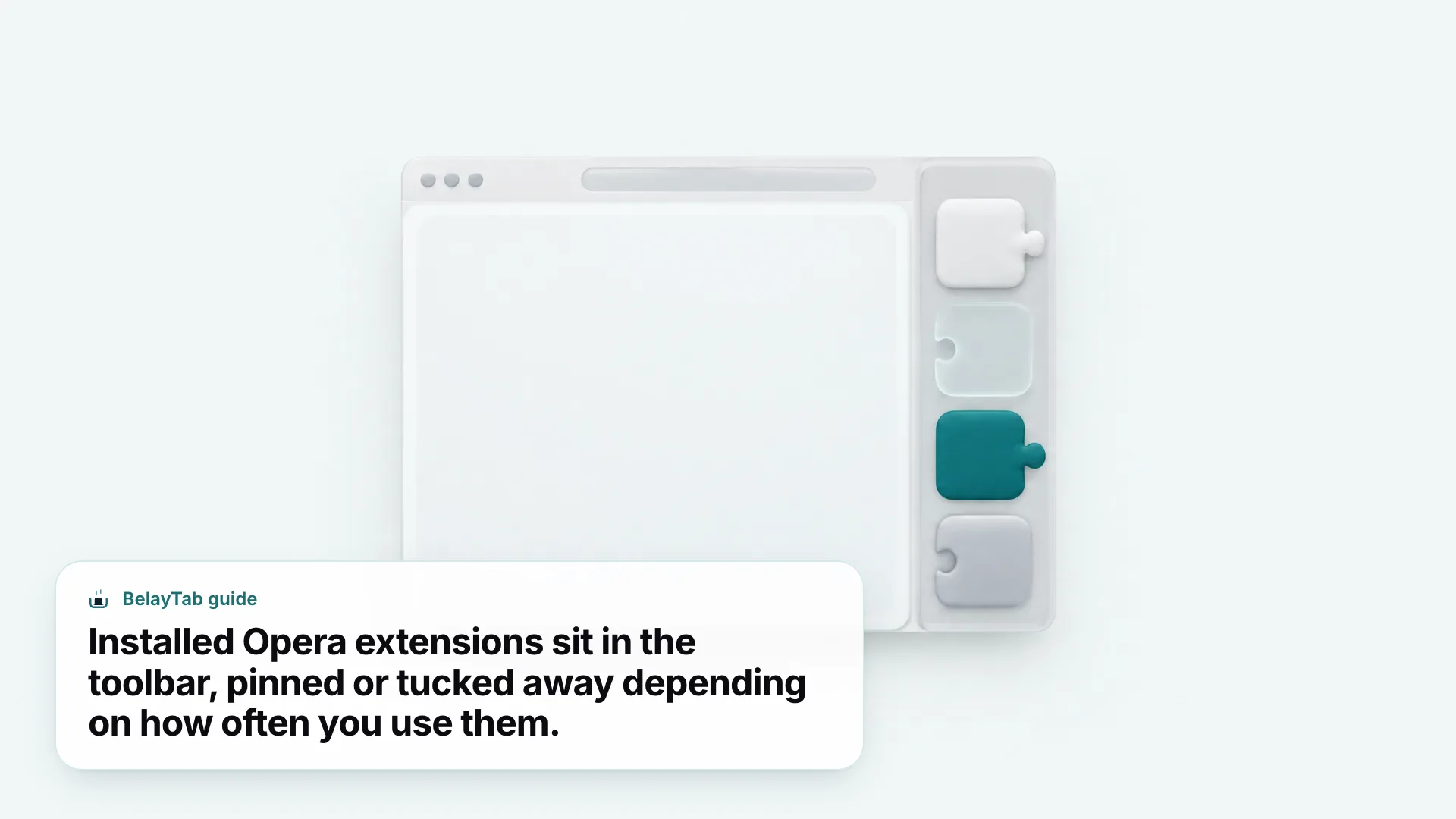
- Pin it if you’ll use it often. Extensions you reach for daily are worth keeping visible in the toolbar; ones you rarely touch can stay tucked away.
addons.opera.com is the safer default, since everything listed there has gone through Opera’s own review before it’s published. The Chrome Web Store route opens up a much bigger catalogue, though, and for anything niche (a specific site-blocking tool, an obscure productivity add-on) it’s often your only option. Either path lands the extension in the same place: your toolbar, next to the address bar, ready to pin or ignore.
Which route you start with is mostly a matter of habit. If you already know exactly which extension you want because a colleague or a review mentioned it by name, the Chrome Web Store search is usually faster since its catalogue is larger. If you’re browsing for something in a general category (ad blocking, password management) addons.opera.com is worth checking first, since everything there has already cleared Opera’s own review before it reached the listing page.
Are Opera Extensions the Same as Chrome Extensions?
Mostly, yes. Opera extensions and Chrome extensions run on the same underlying format, because Opera is built on Chromium and can load Chrome’s CRX files directly. That’s why clicking “Add to Opera” on a Chrome Web Store listing works at all.
Search Both Stores. If you can’t find something on addons.opera.com, try the Chrome Web Store before giving up — most listings there install into Opera just as easily.
The practical difference is curation, not compatibility. addons.opera.com is Opera’s own vetted catalogue; the Chrome Web Store is a much larger, open marketplace that Opera happens to be able to read directly. If you split your time across more than one browser, the same logic applies elsewhere too — our guides to Brave extensions and Edge extensions cover the equivalent setup for those browsers, which also run the Chromium extension format.
One thing worth remembering: not every Chrome extension you find appears on Opera’s own curated store, even though it’ll still install fine through the Chrome Web Store route. That’s a listing gap, not a technical limit.
This compatibility also means an extension built and tested for Chrome doesn’t get a separate testing pass for Opera. It just runs on the same engine underneath. In practice that’s a good thing: bugs get fixed once by the developer and the fix reaches every Chromium browser using that extension, rather than each browser needing its own patched version.
What Are the Best Opera Add-ons for Everyday Browsing?
The Opera add-ons worth installing fall into a handful of categories: ad blocking, password management, writing help, and tab or session management — pick based on what slows you down day to day, not on whatever’s trending in the store.
- Ad blocking. Opera already blocks ads by default, but if you want more granular control, addons.opera.com lists dedicated ad-blocking add-ons you can layer on top.
- Password management. A password manager add-on saves you from reusing the same weak password everywhere; look for one that also works outside Opera, since browser lock-in gets old fast.
- Writing and reading help. Grammar checkers and reading-mode add-ons cut down on the tab-switching between your work and a spellchecker.
- Tab and session management. BelayTab saves every open window as a named session and restores it later, which matters more the day Opera crashes.
If you only install one thing from this list, make it something that protects work you can’t redo. Ad blockers and password managers are conveniences; losing forty research tabs because Opera crashed mid-session is a different kind of problem, and it’s the one this guide keeps circling back to.
Writing and reading tools tend to be the easiest to evaluate, since you’ll know within a day whether a grammar checker’s suggestions are useful or just noisy. Password managers are worth a slightly longer trial, since switching later means re-saving every login you’d stored. Tab and session tools are different again: you often don’t find out whether one was worth installing until the day Opera crashes, which is exactly why it’s worth having one running before that day arrives rather than after.
What Happens When an Extension Slows Down Opera or Closes Your Tabs?
A misbehaving extension can eat memory, conflict with another add-on, or in rare cases crash the tab or window it’s running in — and none of Opera’s built-in tools will get your tabs back for you automatically.
This is more common than people expect once a toolbar fills up with five or six extensions, each running its own background script. None of them is necessarily broken on its own; it’s the combination competing for the same resources that eventually causes a stall, a frozen tab, or a window that just disappears.
The fix isn’t to avoid extensions. It’s to stop treating your open tabs as the only copy of your work. BelayTab’s automatic snapshots run in the background regardless of what else is installed, and the recovery screen is where you’d go the moment something goes wrong to bring everything back.
It’s worth being specific about what causes this, because it’s rarely one single culprit. Extensions that inject scripts into every page you visit, run their own timers, or keep persistent connections open are the most likely to add up to a stall — a simple ad blocker with a static filter list is a lot lighter than a shopping extension that’s constantly checking prices in the background across every open tab.
What Are the Best Opera GX Extensions?
Opera GX extensions install the same way regular Opera extensions do (through addons.opera.com or the Chrome Web Store) the real difference is the gaming-focused tools GX ships with, which aren’t extensions at all.
| GX Feature | What It Does | Is It an Extension? |
|---|---|---|
| GX Control | RAM, CPU, and network limiters to manage system resources | No — built in |
| GX Corner | A feed of gaming news and deals | No — built in |
| GX Mods | Custom themes, sounds, and layouts | No — built in |
| Store add-ons | Ad blockers, password managers, tab managers, and more | Yes — from addons.opera.com or the Chrome Web Store |
GX Control is worth using before you go extension-hunting, not after — its RAM and CPU limiters exist specifically to keep a browser full of extensions, tabs, and a game running at the same time from bogging your system down. GX Corner and GX Mods are purely cosmetic and informational; neither one touches your browsing data.
Whether Opera GX’s extension support lines up feature-for-feature with regular Opera isn’t something we can confirm from official documentation, so treat the in-browser store listing as the final word — if an extension shows up and installs, it works.
The overlap between GX’s built-in tools and third-party extensions is worth noting too. Before installing a separate system-monitor extension to watch RAM or CPU use, check GX Control first. It’s already doing that job natively, and adding another extension on top just uses more of the resources you’re trying to save. The same logic applies to theming: GX Mods covers most of what a generic Chrome theme extension would offer, without the extra background process.
For a deeper look specifically at gaming-oriented picks, see our guide to Opera GX extensions.
How Do You Manage, Disable, or Remove Opera Extensions?
Every extension you add to Opera can be turned off, removed, or checked for what it can access — the exact menu wording shifts between versions, but those three actions are always available.
- Find your extensions list. Open it from Opera’s main menu — look for an “Extensions” entry, since Opera keeps the same basic layout as other Chromium browsers.
- Toggle it off first. Disabling an extension is reversible and a good first step if you’re not sure whether it’s causing a problem.
- Remove it if you’re done. Removing deletes the extension and its data from that browser; you can always reinstall it from the same store later.
Chrome and Edge both break site access down into tiers (specific sites, all sites, or only when you click the icon) and Opera’s underlying Chromium engine supports the same distinctions, even if the exact wording in Opera’s own menus differs slightly. The habit worth building is simple: if you stop using something, remove it rather than letting it sit disabled. A disabled extension still takes up a listing in your extensions page and can usually be re-enabled with one click if you change your mind.
If you’re not sure whether something is safe to remove outright, disabling it for a week is a reasonable middle ground. You’ll notice quickly if a page stops working the way you expect, and if nothing changes, that’s a decent sign you didn’t need it in the first place. Removing at that point is just cleanup, not a risky decision.
Are Opera Extensions Safe to Install?
Most are, especially the ones vetted for addons.opera.com — but every extension technically has the power to see and touch more than you might realize, and it’s worth a five-second check before you approve one.
A few practical habits go a long way here. Check when an extension was last updated — something untouched for years is more likely to be abandoned than malicious, but neither is great. Read a handful of recent reviews rather than the star average alone. And be specifically wary of anything asking for “read and change all your data on all websites” when its stated job is something narrow, like changing a font or adding a button.
None of this means you need to audit every extension like a security researcher. For most people, checking the permission list once at install time and glancing at recent reviews covers the realistic risk. The extensions worth real scrutiny are the ones that touch sensitive data by nature (password managers, form fillers, anything reading your browsing history) since those are the ones where a bad actor would have something to gain.
Do Opera Extensions Work in Private Browsing?
Not automatically. Chrome and Edge both keep extensions switched off in private windows unless you allow each one individually, and Opera (built on the same Chromium engine) very likely follows the same general pattern, though there isn’t an official Opera page to point to for the exact steps.
In Chrome, that setting lives on the extension’s own details page as an “Allow in incognito” toggle. In Edge, the equivalent is an “Allow in InPrivate” switch under the extension’s site-access settings. If you rely on something like an ad blocker while browsing privately in Opera, the first place to check is that extension’s own details or settings page — most extensions that support private browsing expose the option there rather than through a browser-wide setting.
If you can’t find a toggle at all, assume the extension simply doesn’t run in private windows and plan around that rather than waiting for it to kick in.
This trips people up most often with ad blockers, since it’s easy to assume a private window is automatically as protected as your regular browsing. If ads and trackers reappear the moment you open a private window, that’s the extension being switched off by default, not a sign it’s broken — the fix is checking its settings for a private-browsing toggle rather than reinstalling it.
How Do You Protect Your Tabs While You Experiment With New Opera Extensions?
The safest way to try new Opera extensions is to make sure your tabs don’t depend on the browser staying open and undisturbed — which is exactly what BelayTab is built for.
BelayTab is a free browser extension, with no account required and no limits on sessions or tabs. It takes an automatic snapshot of every open window every 5 minutes and again whenever a window closes, keeps the last 20 versions of every session so restoring never overwrites anything, and holds deleted sessions in a 30-day trash. All of it, along with the browser’s own recently closed windows, shows up on one recovery screen.
Press Ctrl + Shift + S (Cmd + Shift + S on Mac) to save your current window as a named session before you install anything new. Tab groups, pinned tabs, and tab order all come along, and you can choose to close the tabs or leave them open once they’re saved.
Saving before an extension spree takes a few seconds and covers you even if nothing goes wrong that day. It’s a habit, not a one-time fix. Between manual saves, the automatic snapshots are already running every five minutes and again whenever a window closes, so the gap you’re protecting against is small: whatever changed in the minutes right before something breaks, which is a lot easier to recover from than losing an entire afternoon’s research.
None of this requires you to be careful forever. Save a session before a big extension spree, let BelayTab’s automatic snapshots handle the rest, and if you ever want your sessions to follow you to another browser, Sync adds cloud version history and cross-browser access for $4 a month, with a 30-day refund if it’s not for you. You can download BelayTab and have it running in Opera in less time than it takes to read one more extension review.