






Firefox closed unexpectedly, or you closed it on purpose and now regret it, and the tabs you had open (the flight booking, the recipe, the fifteen backlog tickets) are gone. Restoring your last session in Firefox is usually a two-click fix, and sometimes it happens automatically without you doing anything at all. This guide covers every way Firefox brings tabs back: the Restore Previous Session menu item, the startup setting that does it every time, the shortcuts for a single tab or window, and what happens when Firefox shows you a recovery page after a crash. Near the bottom, we’ll also cover the last-resort option (opening Firefox’s own session files by hand) for the rare case when none of the built-in tools work. If you’d rather have tabs protected automatically, independent of Firefox’s own session store, BelayTab’s free extension for Firefox snapshots every window every 5 minutes and whenever you close one, so a bad crash never has the last word.
Quick Answer: How Do I Restore My Last Session in Firefox?
Click the menu button, go to History, and choose Restore Previous Session — or turn on automatic restore once and never think about it again. Search for how to restore last session in Firefox and you’ll usually land on one of those two answers, plus a handful of edge cases depending on how you lost your tabs.
The table below matches your situation to the fastest fix. Full details for each one follow underneath, including what to do if the menu item is missing, if a shortcut isn’t responding, or if you’re trying to recover from a corrupted file.
| Situation | What to Do |
|---|---|
| Just closed Firefox by accident | Menu (☰) > History > Restore Previous Session |
| Want tabs back automatically every launch | Settings > General > Startup > check “Open previous windows and tabs” |
| Closed one tab | Press Ctrl + Shift + T (Cmd + Shift + T on Mac) |
| Closed a whole window | Press Ctrl + Shift + N (Cmd + Shift + N on Mac) |
| Firefox just crashed | Look for the Restore Session page on next launch |
| Restore Previous Session is missing from the menu | Auto-restore is already on — your tabs are back or on the way |
| sessionstore.jsonlz4 seems lost or damaged | See the manual recovery steps further down |
Most people only ever need the first two rows. The manual menu item is fine if you close Firefox rarely and want a choice each time; the startup setting is better if you restart often and just want your tabs there without thinking about it. Neither one is a backup in the usual sense — both depend on a single file that Firefox itself manages, which is worth keeping in mind before you assume “restore” means “safe.” We’ll come back to that limit later in this guide, along with what to do about it.
How Do I Manually Restore My Previous Session in Firefox?
Open the menu, go to History, and click Restore Previous Session. It reopens every window and tab from your last session in one step. This is the option Mozilla documents as the standard way to bring back a session you closed, whether on purpose or by mistake (Restore Previous Session in Firefox).
- Open the Firefox menu. Click the three lines in the top-right corner of the window.
- Go to History. It’s listed in the main menu.
- Choose Restore Previous Session. Every window and tab you had open comes back at once.
If you don’t see Restore Previous Session in the list, that’s not a bug. It means you’ve already turned on automatic restore in Settings, so Firefox no longer offers the manual option. It just reopens everything for you the moment you launch it. Check the next section if you want to confirm or change that setting.
One thing this method won’t do, no matter how many times you try: bring back a Private Browsing window. Firefox treats that browsing data as gone the instant you close the window, on purpose, and no menu command changes that.
It’s also worth knowing that Session Restore can keep you signed in to sites you were logged into before you closed Firefox. That’s convenient on your own laptop and a real privacy consideration on a shared or public computer, since the next person to open Firefox could land right back on your accounts. If that’s a concern, sign out of sensitive sites before closing, or use Private Browsing for that session in the first place.
How Do I Get Firefox to Restore My Tabs Automatically on Startup?
Turn on “Open previous windows and tabs” under Settings, General, Startup, and Firefox will reopen your tabs every time it launches, including after a crash. This is the setting people mean when they ask how to make Firefox restore session behavior automatic instead of doing it by hand each time.
- Open Settings. Click the menu button, then choose Settings.
- Go to General, then Startup. Scroll to the Startup section.
- Check “Open previous windows and tabs.” Firefox now restores your tabs on every launch from here on.
Once this is on, Restore Previous Session quietly disappears from the History menu, since Firefox is doing the same job automatically. If you’d rather choose case by case (say, you sometimes want a fresh start with no tabs) leave the setting off and use the manual method from the section above instead.
There’s a trade-off worth naming plainly: automatic restore is convenient, but it also means every crash, freeze, or forced quit brings back exactly what was open, mistakes and memory-hungry tabs included. If Firefox has been unstable lately, restoring the same forty tabs that were open when it crashed can just set you up for the next crash. Pair this setting with the troubleshooting steps later in this guide if crashes are a recurring problem, not a one-off.
How Do I Reopen Just One Closed Tab or Window?
Press Ctrl + Shift + T (Cmd + Shift + T on Mac) to reopen a single closed tab, or Ctrl + Shift + N (Cmd + Shift + N on Mac) to reopen the last closed window. Both shortcuts are documented in Mozilla’s list of keyboard shortcuts for common Firefox tasks, and they’re the fastest fix when you only lost one tab, not your whole session.
- One Tab. Press Ctrl + Shift + T (Cmd + Shift + T on Mac) to bring back the tab you just closed.
- One Window. Press Ctrl + Shift + N (Cmd + Shift + N on Mac) to reopen the last window, tabs and all.
- Several Items. Open History > Recently Closed Tabs or Recently Closed Windows to pick from a list instead of guessing which shortcut to use.
If you’d rather browse a list than press a shortcut blind, the menu route works just as well: open the menu, go to History, then choose Recently Closed Windows or Recently Closed Tabs depending on what you lost. That list shows everything closed recently, not just the most recent item, which is handy if you closed several tabs in a row and only want a couple of them back.
For a full rundown of reopen shortcuts across every major browser, not just Firefox, see How to Reopen Closed Tabs in Any Browser. It covers the same idea for Chrome, Edge, and Safari, which is useful if you switch between browsers during the day and keep mixing up the shortcuts.
Why Isn’t Ctrl+Shift+T Working in Firefox?
The most common cause is that Firefox history is turned off, and the shortcut depends on that history to know what to reopen. Check Settings > Privacy & Security > History, and set “Firefox will” to Remember history, or to Use custom settings with history enabled, then try the shortcut again.
It’s easy to run into this without realizing it, especially if you’ve tightened your privacy settings recently or you’re using a custom configuration that clears history on exit. The trade-off is real: stronger privacy settings mean less browsing history stored, but also fewer built-in ways to recover what you just closed. If you want strict privacy and reliable tab recovery at the same time, that’s really a job for a tool that keeps its own record outside Firefox’s history system, which is where a dedicated extension like BelayTab comes in — more on that toward the end of this guide.
Also worth checking: are you actually in the same window? The shortcut reopens tabs relative to the window you’re currently using, so if you’ve got several Firefox windows open, the tab you’re looking for might have closed in a different one. Switching to that window and trying the shortcut there usually solves it.
What Is the Firefox Restore Session Page After a Crash?
It’s a page Firefox shows you after automatic recovery fails following a crash, letting you choose which tabs to reopen rather than guessing. Mozilla’s documentation refers to it as the Restore Session page, and it’s sometimes nicknamed the “Well, this is embarrassing” page by longtime users, since that’s roughly the tone of the message (Restore Previous Session in Firefox).
Not Every Restart Shows This Page. The Restore Session page only appears after a failed automatic recovery from a crash. A normal restart, or a manual Restore Previous Session, won’t trigger it, unless a hidden preference has been changed.
If you land on this page, you’ll typically see a list of the windows and tabs Firefox was tracking when it went down, with checkboxes so you can pick and choose rather than reopening everything blindly. That’s useful if one of those tabs was the thing that crashed Firefox in the first place, since you can leave it out and avoid triggering the same crash again on restart.
Seeing this page once after an unusual crash isn’t worth worrying about. Seeing it repeatedly is a different story, and it usually points to something more specific going on, whether that’s a misbehaving extension, a graphics driver issue, or a profile that’s developed a problem. The section on repeated crashes further down walks through Mozilla’s own troubleshooting order for exactly that situation.
What Won’t Firefox’s Session Restore Save?
Firefox’s session restore only remembers what was open in its own session file, and it skips Private Browsing entirely, so it was never meant to work as a full backup. That’s an important distinction: restoring your last session gets back what Firefox itself was tracking a moment ago, not a history of everything you’ve had open over the past few days.
There’s no version history built in. Once Restore Previous Session overwrites what it’s tracking, or you restart again, the previous state is generally gone. There’s no menu where you can browse “sessions from three days ago” the way you might browse file versions in cloud storage. If you closed a window last Tuesday and didn’t act on it right away, Firefox’s own tools won’t have it anymore by the time you go looking.
It also depends entirely on one file working correctly. If sessionstore.jsonlz4 gets corrupted, or Firefox never gets the chance to write it because of a hard crash, there’s nothing left for Restore Previous Session to pull from. You’re down to the backup files in sessionstore-backups, covered in the next two sections, and even those aren’t a long-term archive.
Where Does Firefox Store Session Files, and Can I Recover One Manually?
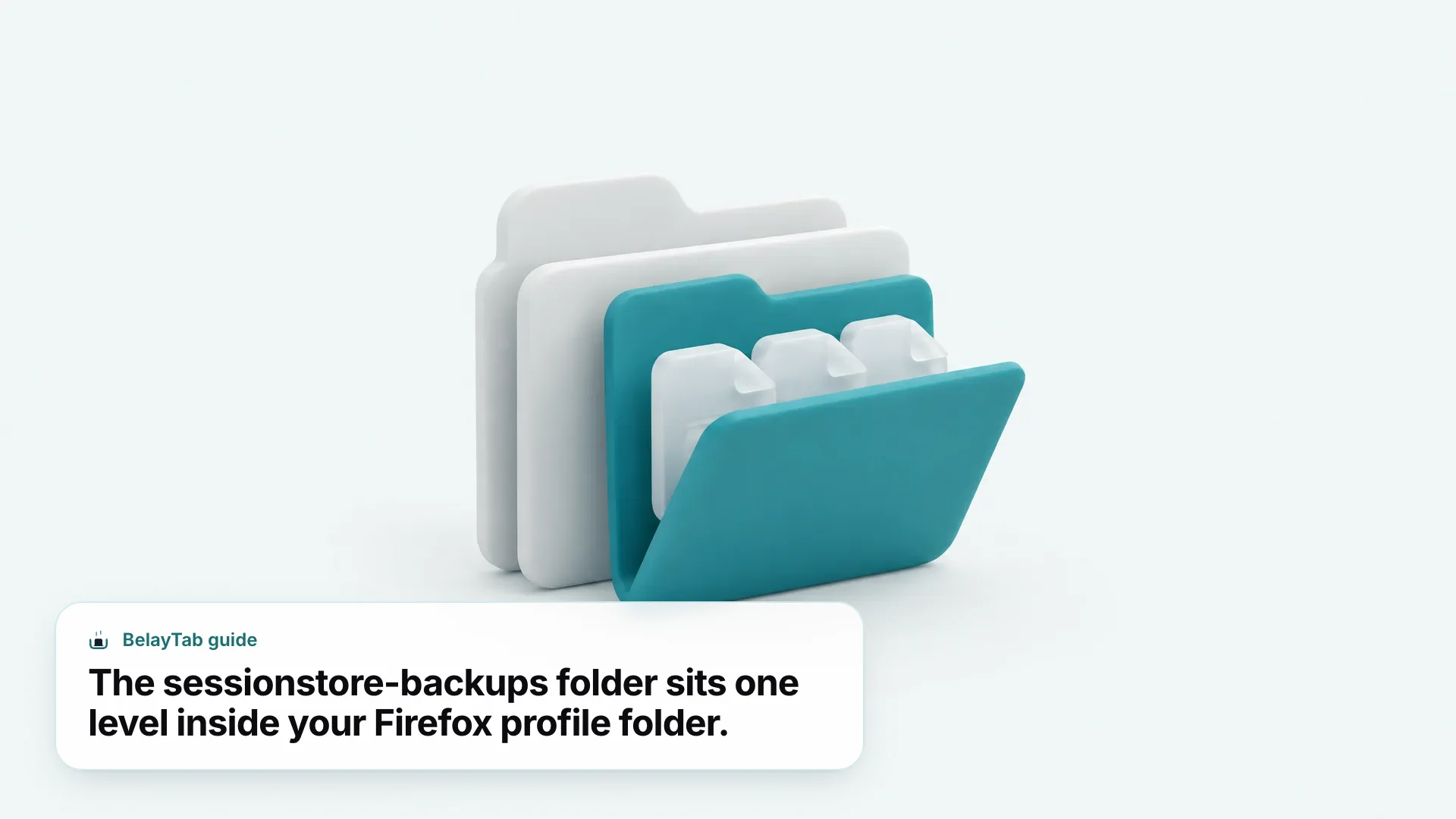
Firefox’s main session file is sessionstore.jsonlz4, stored in your profile folder and written only when Firefox closes normally; while it’s running, backup copies live in a subfolder called sessionstore-backups. This is genuinely a last-resort method (try Restore Previous Session and the startup setting first) but it’s worth knowing it exists for the rare case those don’t work.
| File | What It Is |
|---|---|
| sessionstore.jsonlz4 | The main saved session, written only when Firefox closes normally |
| recovery.jsonlz4 | The latest live copy, updated continuously while Firefox runs |
| recovery.baklz4 | The previous live copy, one step older than recovery.jsonlz4 |
| previous.jsonlz4 | A clean copy saved from the last session that loaded successfully |
| upgrade.jsonlz4-buildID | A copy made automatically during a Firefox version upgrade |
To recover a session from one of these files: find your profile folder through about:support (Help > Troubleshooting Information) or about:profiles, move your existing sessionstore.jsonlz4 aside somewhere safe, copy one of the backup files into the main profile folder, and rename it sessionstore.jsonlz4. Relaunch Firefox and it should load from that file.
- Open about:support or about:profiles to find your profile folder.
- Move the current sessionstore.jsonlz4 out of that folder, so you don’t lose it if the backup doesn’t help.
- Open sessionstore-backups and copy recovery.jsonlz4 (or previous.jsonlz4, if the live copy looks wrong) into the main profile folder.
- Rename that copy to sessionstore.jsonlz4, then start Firefox.
Full instructions live on Mozilla’s own page on recovering a browsing session from a backup, which is worth reading in full before touching any files, since renaming the wrong one can leave you worse off than before. If you’d rather see what’s inside a backup file before overwriting anything, BelayTab’s Firefox session reader opens .jsonlz4 files directly so you can check the tab list first. For finding profile and session folders across other browsers too, see the browser file locations reference.
What Do I Do If sessionstore.jsonlz4 Is Corrupted?
If the manual recovery above doesn’t fix it, deleting the sessionstore files and the sessionstore-backups folder is a known fix, though it clears Firefox’s memory of your open tabs. This should be near the bottom of your list of things to try, after Restore Previous Session, the backup-file swap, and a basic restart, not the first thing you reach for.
Before deleting anything, move the files somewhere else on your computer instead of deleting them outright, the same way you would when swapping in a backup file. That way, if deleting turns out not to have been necessary, or a specialist wants to look at the original file later, you haven’t destroyed the evidence.
Once you do clear those files and restart Firefox, it starts a fresh session file from scratch. You’ll lose whatever tab history Firefox was tracking, but the browser itself, your bookmarks toolbar, and your regular settings aren’t part of this file, so this fix is narrower than it might sound. It resets tab memory, not your whole Firefox setup.
If corruption keeps happening rather than being a one-off, that’s a signal worth paying attention to. A session file that keeps getting damaged usually isn’t random; it tends to track back to a crash pattern, a disk issue, or a profile problem, which is exactly what the next section walks through.
Why Does Firefox Keep Losing My Session After It Crashes?
Repeat crashes that wipe out your session usually come down to one of a short list of causes, and Mozilla lays out the troubleshooting order officially: update Firefox, try Troubleshoot Mode, disable extensions and hardware acceleration, refresh Firefox, create a new profile, check for malware, and update your graphics drivers (troubleshoot Firefox crashes).
Troubleshoot Mode is worth trying early, since it’s quick and reversible. Open the menu, go to Help, then Troubleshoot Mode, and restart — or just hold Shift while launching Firefox. It temporarily disables all extensions, switches to the default theme, and turns off hardware acceleration. If the crashing stops, one of those three is the cause; if it keeps happening anyway, it isn’t an extension or theme problem, and you can move down Mozilla’s list.
Refreshing Firefox is the next reasonable step if Troubleshoot Mode doesn’t resolve it. A refresh keeps your bookmarks, history, open tabs, passwords, and cookies, but removes extensions and their data, themes, and any custom preference or CSS changes — and it saves your old profile to a folder called “Old Firefox Data” on your desktop first, so nothing is truly lost. If a refresh still doesn’t help, creating a new profile is the recommended next move, since it rules out a damaged profile as the cause. A malware scan and updated graphics drivers round out Mozilla’s list, and if crashes specifically happen right at startup, there’s a dedicated Mozilla guide for that scenario worth reading directly.
The connection to lost sessions is straightforward: sessionstore.jsonlz4 is only written when Firefox closes cleanly, so a crash means it’s relying on the live recovery.jsonlz4 backup instead, which might be seconds or minutes behind. Fix the crashing, and the session-loss problem usually goes with it. For a deeper, dedicated walkthrough of crash fixes, see Firefox Keeps Crashing: Fixes and Session Recovery.
How Is BelayTab Different From Firefox’s Built-In Session Restore?
BelayTab runs alongside Firefox and keeps its own independent record of your open tabs, rather than relying on a single file that Firefox only writes when it closes cleanly. It’s a free browser extension, with no account required and no limits on how many sessions or tabs you save.
Where Firefox’s session restore tracks one “previous session,” BelayTab takes a snapshot of every open window automatically every 5 minutes, and again the instant a window closes, so a crash between saves is far less likely to cost you anything. Restoring a saved session never overwrites the last one, either. It adds a new version instead, and BelayTab keeps the last 20 versions of each session, plus a 30-day trash for anything you delete on purpose or by mistake. One Recovery screen brings together your automatic snapshots, deleted sessions, Firefox’s own recently closed windows, and any export files, so you’re not hunting through several different menus to find an old tab.
Saving works with one click, or Ctrl + Shift + S (Cmd + Shift + S on Mac), and you can name a window, save just the tabs you’ve selected, or capture every window at once. You can also turn on a rolling export to your Downloads folder on a schedule, which is a simple extra layer if you like having a file copy outside the browser entirely — see exporting your sessions for how that works. If you want your sessions available on other browsers or computers too, optional Sync adds cross-browser sync and 90 days of cloud version history for $4 a month or $36 a year, with a 30-day refund if it’s not for you; everything else about BelayTab stays free either way. Read more about how automatic snapshots work in the automatic snapshots guide.
See how restoring works in detail on the restore tabs feature page, or visit BelayTab’s Firefox overview and download page to install it and start saving your first session.