






If Firefox keeps crashing, quitting without warning, or freezing until you force-close it, you’re dealing with one of the more disruptive browser problems there is. Maybe it happens once a week. Maybe it’s every time you open a certain site, or every time you start your computer. Either way, you want two things: the crashing to stop, and your tabs back.
This guide follows Mozilla’s own troubleshooting order for Firefox crash issues: check for updates, try Troubleshoot Mode, disable extensions and hardware acceleration, refresh Firefox, and, if none of that works, create a new profile. Each step rules something out, so skipping ahead usually means redoing work later. We’ll flag exactly what refreshing Firefox removes, since that step catches people off guard, and cover how to get your tabs back afterward, through Firefox’s own Session Restore or a tool like BelayTab that keeps a copy of your sessions outside the browser.
Why Does Firefox Keep Crashing?
Firefox usually crashes because of a conflicting extension, a graphics driver or hardware acceleration issue, or a corrupted profile, and less often because of malware or an outdated Firefox build. Mozilla’s official crash troubleshooting order lists these causes in the sequence it recommends checking them, and that order matters: extensions are common and easy to rule out, while a corrupted profile is rarer and more disruptive to fix, so you check the easy stuff first.
The pattern of your crash is a useful clue before you touch a single setting. Does Firefox crash the moment you launch it, before you’ve even opened a tab? That points toward a startup-specific problem, which Mozilla covers separately. Does it crash only on certain sites, like ones with heavy video or graphics content? That’s a strong sign of a hardware acceleration or driver conflict. Does it crash randomly, sometimes after hours of normal use? That’s more consistent with an extension leaking memory or a profile issue that builds up over a session.
It also helps to check whether the crashes are new. If Firefox ran fine for months and then started acting up right after an update, a driver change, or a new extension install, that recent change is your prime suspect and worth testing first, even out of Mozilla’s default order.
| Situation | Likely cause | Where to start |
|---|---|---|
| Crashes right at launch, before any tab loads | Startup-specific fault, sometimes a stuck extension | Firefox’s startup crash guide |
| Crashes on specific sites (video, games, heavy graphics) | Hardware acceleration or graphics driver | Disable hardware acceleration |
| Crashes randomly after normal use | Extension or corrupted profile | Troubleshoot Mode |
| Crashes right after installing a new add-on | That extension | Disable it, or use Troubleshoot Mode |
| Crashes on nearly everything, even blank tabs | Corrupted profile or malware | Refresh Firefox, then a malware scan |
What Should I Do Before I Start Troubleshooting?
Before you change any settings, save your open tabs and check Firefox’s built-in crash reports, so you don’t lose work while you experiment. Troubleshooting a crash usually means restarting Firefox several times in a row, sometimes with extensions or hardware acceleration turned off, and each restart is a moment where an unsaved session could disappear if something goes wrong.
Start by looking at what Firefox already knows. Type about:crashes in the address bar to see a list of crash reports Firefox has submitted or has waiting to submit. Each report gets an ID starting with bp-, and if you end up asking for help in Mozilla’s support forum, that’s the ID they’ll want. The Mozilla Crash Reporter itself usually pops up right after a crash, offering to send the report; letting it send is what generates those IDs in the first place.
Then take a beat and note the pattern from the last section: startup, specific sites, or random timing. Write it down, even just mentally, because you’ll want to remember it two or three restarts from now. This diagnostic pass costs a few minutes and saves you from repeating steps later, especially if you end up needing Mozilla’s support forum and they ask for details you didn’t write down.
- Save your tabs somewhere safe. Export a bookmark list, or use a session tool like BelayTab so a bad restart doesn’t cost you the tabs you’re working with.
- Check about:crashes. See what Firefox has already recorded, and grab any Report ID starting with bp- if you’ll need support later.
- Note the pattern. Startup, specific sites, or random timing all point toward different fixes later in this guide.
How Do I Fix Firefox Crashing With Troubleshoot Mode?
Troubleshoot Mode temporarily turns off every extension, your theme, and hardware acceleration, so you can tell whether one of those three things is causing the crash. It’s Firefox’s built-in equivalent of testing with nothing extra running, and Mozilla recommends it as the first real diagnostic step after checking for updates.
Getting into Troubleshoot Mode takes one restart. You can launch it from the menu, or hold Shift while starting Firefox if the browser is too unstable to open the menu at all.
- Open the menu button. Click the three horizontal lines (☰) in the top right corner of Firefox.
- Go to Help, then Troubleshoot Mode. Firefox will ask you to confirm.
- Click Restart. Firefox reopens with all extensions and the current theme disabled, and hardware acceleration turned off.
- Use Firefox normally for a while. Revisit the sites or actions that triggered crashes before.
What happens next tells you where to look. If Firefox stops crashing in Troubleshoot Mode, the cause is almost certainly an extension, a theme, or hardware acceleration, and the next section covers how to narrow that down further. If Firefox still crashes even with everything disabled, you can rule those three things out entirely and move straight to refreshing Firefox or checking your graphics drivers, since the problem lives somewhere deeper than an add-on.
Troubleshoot Mode doesn’t delete or change anything permanently. It’s a temporary state, and exiting it, or just restarting normally, brings your extensions and theme straight back. That makes it a safe first move even before you know what’s wrong, according to Mozilla’s Troubleshoot Mode guide.
Is an Extension or Theme Causing the Crash?
If Firefox stopped crashing in Troubleshoot Mode, yes, an extension, a theme, or hardware acceleration is the likely cause, and the fastest way to find which one is to turn things back on one at a time. Restart normally, then go to the menu and choose Add-ons and Themes, or type about:addons in the address bar, to see everything installed.
Work through it methodically rather than turning everything back on at once. Re-enable one extension, use Firefox as you normally would for a while, especially the sites or actions that used to trigger the crash, and watch for it to come back. If it doesn’t, re-enable the next one. This is slower than it sounds like it should be, but it’s the only reliable way to isolate a single misbehaving add-on without guessing.
A few types of extensions are more likely culprits than others: ad blockers and privacy tools that rewrite page content, tab management or session extensions that hook into browser events constantly, and anything that hasn’t been updated in a long time. If you find the extension causing crashes, check whether a newer version is available before you give up on it entirely; a lot of crash-causing bugs get fixed within a few releases.
Themes are a less common cause but worth a quick check too, since Troubleshoot Mode disables your theme along with your extensions. If you’re running a custom theme and crashes stopped in Troubleshoot Mode, try switching back to Firefox’s default theme before you start reinstalling extensions one by one, just to rule it out quickly.
Does Hardware Acceleration Cause Firefox to Crash?
Yes, hardware acceleration can cause Firefox to crash or glitch when your graphics driver or GPU doesn’t handle it well, and it’s specifically called out in Mozilla’s troubleshooting guidance as something to test on its own. Hardware acceleration offloads rendering work to your graphics card instead of your CPU, which usually makes video and scrolling smoother, but it depends on your driver playing nicely with Firefox.
You don’t need Troubleshoot Mode to test this in isolation; you can turn hardware acceleration off directly. Open Settings, scroll to General, and find Performance, then uncheck “Use recommended performance settings.” That reveals a checkbox for “Use hardware acceleration when available,” which you can turn off on its own without touching your extensions or theme at all.
This is worth testing separately from Troubleshoot Mode if your crash pattern points at graphics: crashes on video sites, crashes during scrolling or animations, or visual glitching right before Firefox closes. Those are classic hardware acceleration symptoms.
If turning it off fixes the crash, you have two options. You can leave it off, which costs a little smoothness on graphics-heavy pages but nothing else, or you can update your graphics drivers first and try turning it back on, since a driver update sometimes resolves the underlying conflict. We’ll get to driver updates later in this guide, but if crashes stop the moment you disable hardware acceleration, that’s often the fastest fix available, and plenty of people just leave it off permanently rather than chase a driver fix.
How Do I Refresh Firefox to Fix Crashes?
Refreshing Firefox resets it to a default state by removing extensions, themes, and custom settings while keeping your bookmarks, history, and passwords, and Mozilla recommends it when Troubleshoot Mode and disabling hardware acceleration haven’t fixed the crashing. It’s a bigger step than anything covered so far, essentially a reset of everything except your core data, so it’s worth trying only after the earlier steps haven’t worked.
To refresh, type about:support in the address bar to open the Troubleshooting Information page, then look for the “Refresh Firefox” button near the top right and click it. Firefox will ask you to confirm, close, and reopen itself automatically. Full details are in Mozilla’s Refresh Firefox support page.
| Kept after Refresh | Removed after Refresh |
|---|---|
| Bookmarks | Extensions and add-ons (and their data) |
| Browsing history | Themes |
| Open tabs and windows | Custom preference changes |
| Saved passwords | Custom userChrome/userContent CSS |
| Cookies | — |
That “extensions removed” line is the one that catches people off guard, especially if you rely on a session manager or tab organizer extension. Anything living inside Firefox as an extension is gone after a refresh, and you’ll need to reinstall and reconfigure it from scratch. This is exactly the kind of moment where having your tabs backed up somewhere outside Firefox itself, rather than inside an extension that Refresh will wipe, saves you from starting over twice.
When Should I Create a New Firefox Profile?
Create a new Firefox profile when refreshing didn’t fix the crashing, since Mozilla recommends it as the next step to rule out a corrupted profile specifically. A profile holds more than what Refresh touches, including some lower-level data and settings, so corruption there can survive a refresh and still cause crashes afterward.
A fresh profile is essentially a clean slate: no bookmarks, no history, no saved logins, nothing carried over automatically. That makes it a good diagnostic tool but an inconvenient thing to live in permanently, so treat this step as a test first, and a permanent switch only if it actually fixes things and you’re willing to rebuild your setup.
- Open about:profiles. Type it into the address bar and press Enter.
- Click “Create a New Profile.” Follow the short wizard; you can name the profile whatever you like.
- Launch the new profile. Use Firefox normally with it for a while and watch for the crash to return.
- Compare results. If crashes stop in the new profile, your old profile was likely corrupted, and you can migrate bookmarks and passwords back over manually.
You can find your existing profile folder through the same about:profiles page, or through about:support under Help, Troubleshooting Information, which is useful if you want to manually copy data across rather than starting completely from zero. If the new profile crashes just as much as the old one, that’s a meaningful result too: it means the problem isn’t your profile at all, and points you back toward malware or a driver issue instead, which we’ll cover next.
Why Does Firefox Keep Crashing at Startup?
Firefox crashing at startup, before you’ve opened a single tab, usually points to something loading automatically and failing, like an extension, a corrupted session file, or a graphics driver conflict triggering the moment the window tries to render. If you’re specifically dealing with Firefox crashing on startup, Mozilla has a dedicated guide for this exact scenario, since startup crashes need slightly different handling than crashes that happen mid-session.
The tricky part about a startup crash is that you often can’t reach Firefox’s menu to try the fixes covered earlier in this guide, since the window closes before you can click anything. That’s why holding Shift while launching Firefox to force Troubleshoot Mode is worth trying first here specifically; it doesn’t require the menu to be open, just the launch itself.
If Troubleshoot Mode won’t even open, the Troubleshooting Information page can sometimes still gather diagnostics, since Mozilla notes it’s built to work even when Firefox is unstable. That gives you a place to look for crash IDs and system details without needing a fully functional browser window.
A corrupted sessionstore file is a specific and fixable cause of startup crashes worth knowing about: if Firefox is trying to reopen a broken session on launch and failing every time, removing or renaming that file can let it start clean. We’ll cover exactly where those files live and how to work with them in the recovery section below, since it’s the same information you need to get your tabs back afterward, according to Mozilla’s dedicated startup crash guide.
How Do I Check for Malware or Update Graphics Drivers?
Run a malware or adware scan and update your graphics drivers directly from your hardware manufacturer’s site, since Mozilla lists both as standard steps once the earlier fixes haven’t resolved the crashing. Neither is Firefox-specific, which is exactly why they come later in the order: they take more time and don’t isolate anything inside Firefox itself, so it’s worth ruling out the browser-side causes first.
Malware and adware can cause crashes by injecting content into pages, hijacking extensions, or simply consuming enough resources that Firefox becomes unstable. A reputable malware scanner for your operating system is the standard tool here; there’s no Firefox-specific scanner needed, since the problem lives at the system level rather than inside the browser.
Graphics drivers matter because Firefox, like most modern browsers, relies on your GPU for rendering through hardware acceleration. An outdated or buggy driver is a known source of both crashes and visual glitches, and it’s worth going straight to your graphics card manufacturer’s site (NVIDIA, AMD, or Intel, depending on your hardware) rather than relying on whatever your operating system installed automatically, since manufacturer sites usually carry newer releases.
If you tested hardware acceleration earlier and found that disabling it fixed the crash, updating your drivers first and then trying hardware acceleration again is worth doing before you settle for leaving it off permanently. Sometimes the fix is a driver update rather than a permanent trade-off, and it’s a five-minute check against a setting you might otherwise live with turned off indefinitely.
How Do I Get My Tabs Back After Firefox Crashes?
Firefox usually offers to restore your tabs automatically the next time it opens, either through a Restore Session page or silently if you’ve turned on automatic restore, and if neither works there are backup session files you can recover manually. Which path you get depends on your settings and on whether the crash corrupted the session data Firefox was trying to save.
If you have “Open previous windows and tabs” turned on under Settings, General, Startup, Firefox restores your tabs automatically on every launch, crash or not, without you doing anything. If that setting is off, look for a “Restore Previous Session” option under the History menu instead. When auto-restore is on, that menu item disappears, since Firefox handles it for you automatically.
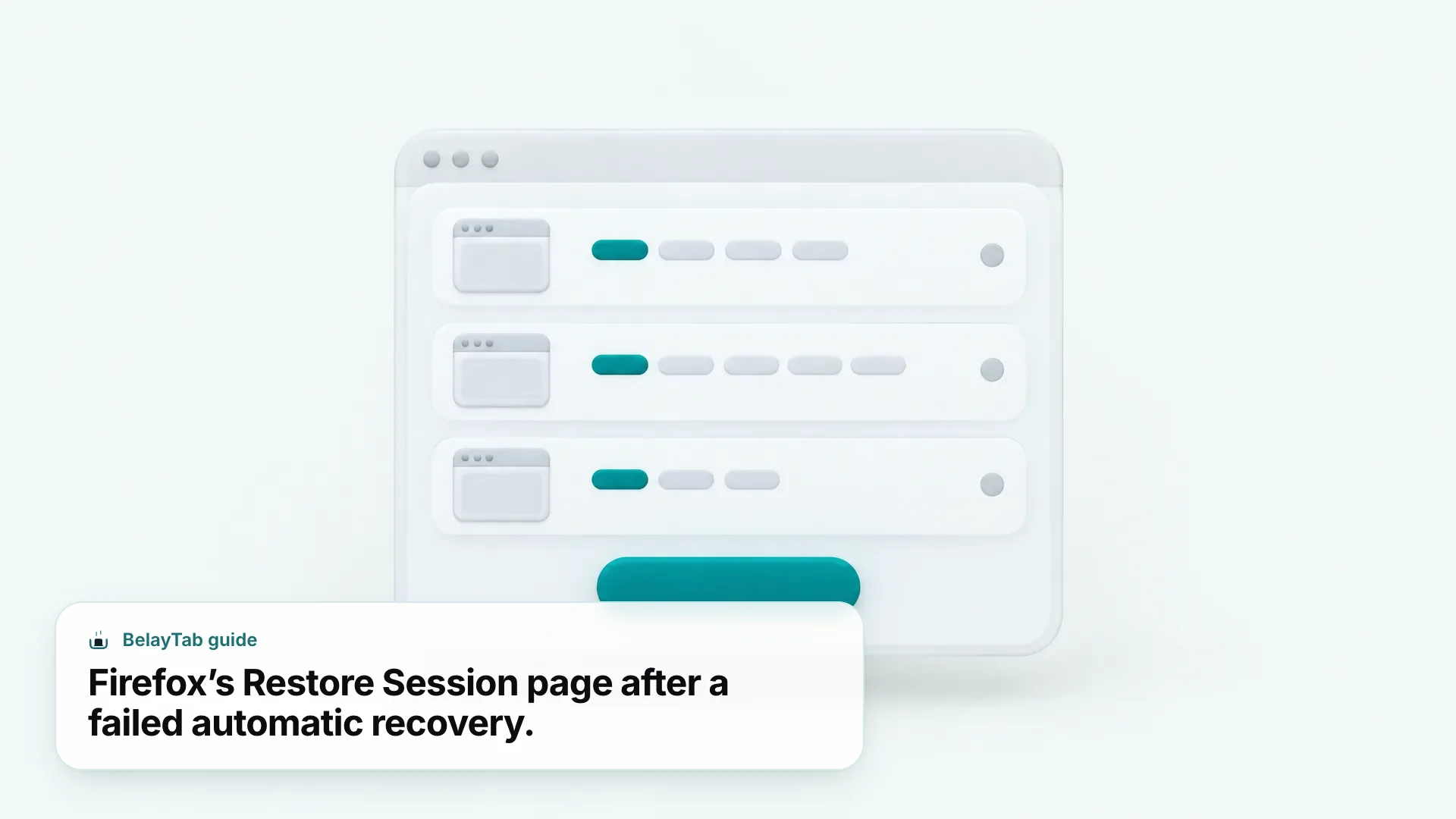
Sometimes auto-restore itself fails after a crash, and Firefox shows a dedicated Restore Session page instead, letting you pick which windows and tabs to bring back rather than doing it silently. That page should only appear after a failed recovery attempt, not on a normal restart.
If none of that brings your tabs back, Firefox sessionstore files back up your session automatically in a sessionstore-backups folder inside your profile, including recovery.jsonlz4 (the most recent live copy) and previous.jsonlz4 (a clean copy from your last successfully loaded session). Renaming one of these to sessionstore.jsonlz4 in your main profile folder, after moving any existing file aside, can bring an older session back. Our browser file locations guide and Firefox session file reader walk through finding and reading these files without guesswork, and our guide to restoring your last Firefox session covers this in more depth.
Reopening a single closed tab, as opposed to a whole crashed session, uses a different shortcut: Ctrl + Shift + T on Windows and Linux, or Cmd + Shift + T on Mac, reopens your last closed tab, and Ctrl + Shift + N (Cmd + Shift + N on Mac) reopens your last closed window. Both need history enabled under Settings, Privacy & Security to work.
How Do I Stop Firefox From Crashing Again?
Keep Firefox updated, keep extensions to the ones you use, and watch for the same pattern that caused the crash before, since most repeat Firefox crashes come from letting the original cause creep back in rather than a new problem appearing. If an old extension was the culprit, reinstalling it later without checking for updates first is a common way to end up right back where you started.
A few habits make repeat crashes less likely. Update Firefox promptly rather than deferring it for weeks, since Mozilla ships crash fixes in regular releases. Audit your extensions occasionally, particularly ones you installed once and forgot about, since an abandoned extension that no longer gets updates is more likely to break as Firefox itself changes underneath it. And if you deliberately left hardware acceleration off to stop crashes, revisit that decision after major driver updates rather than assuming it’ll never be safe to turn back on.
None of Firefox’s own troubleshooting, though, protects the thing you cared about in the first place: your open tabs. Refresh wipes extensions, a new profile wipes almost everything, and even a routine crash can occasionally corrupt a session file. Firefox’s own recovery tools are genuinely useful, but they all live inside the same browser that just crashed on you, which is a real limitation.
That’s the gap BelayTab is built for. It runs as a Firefox extension, and on Chrome, Edge, Brave, and other browsers too, taking automatic snapshots of every open window, on a schedule and whenever a window closes, and keeping the last 20 versions of each saved session so restoring never overwrites your history. Everything shows up in one Recovery screen alongside your browser’s own recently closed windows, and it’s free with no account and no limits on sessions or tabs. It can’t stop Firefox from crashing, since that’s a browser-level problem BelayTab has no control over, but it makes sure the crash never costs you the tabs themselves, even through a refresh, a new profile, or a crash that catches Session Restore off guard.
If you’re dealing with tab overload on top of crash troubleshooting, our guide to taming too many tabs covers how to cut down without losing anything, and if you’re comparing notes with a Chrome user, what to do when Chrome crashes walks through the same kind of recovery on that browser.