






You open an incognito tab to book a surprise trip, check a symptom you’d rather not have in your search history, or shop for a gift without the browser giving it away later. It’s the darker-themed window Chrome (and every other major browser, under different names) offers as a quick privacy switch. Most people know roughly how to open incognito tabs. Far fewer know exactly what they hide, what they don’t, and what happens once the window closes.
This guide covers opening a new incognito tab in Chrome, on iPhone, and in Firefox, what actually stays private and what doesn’t, why extensions sit disabled by default, and the question that trips people up most: once an incognito tab is closed, can you ever get it back? Short answer — no, and that’s the point. We’ll walk through why, and what to use instead for the tabs you don’t want to disappear.
What Is an Incognito Tab?
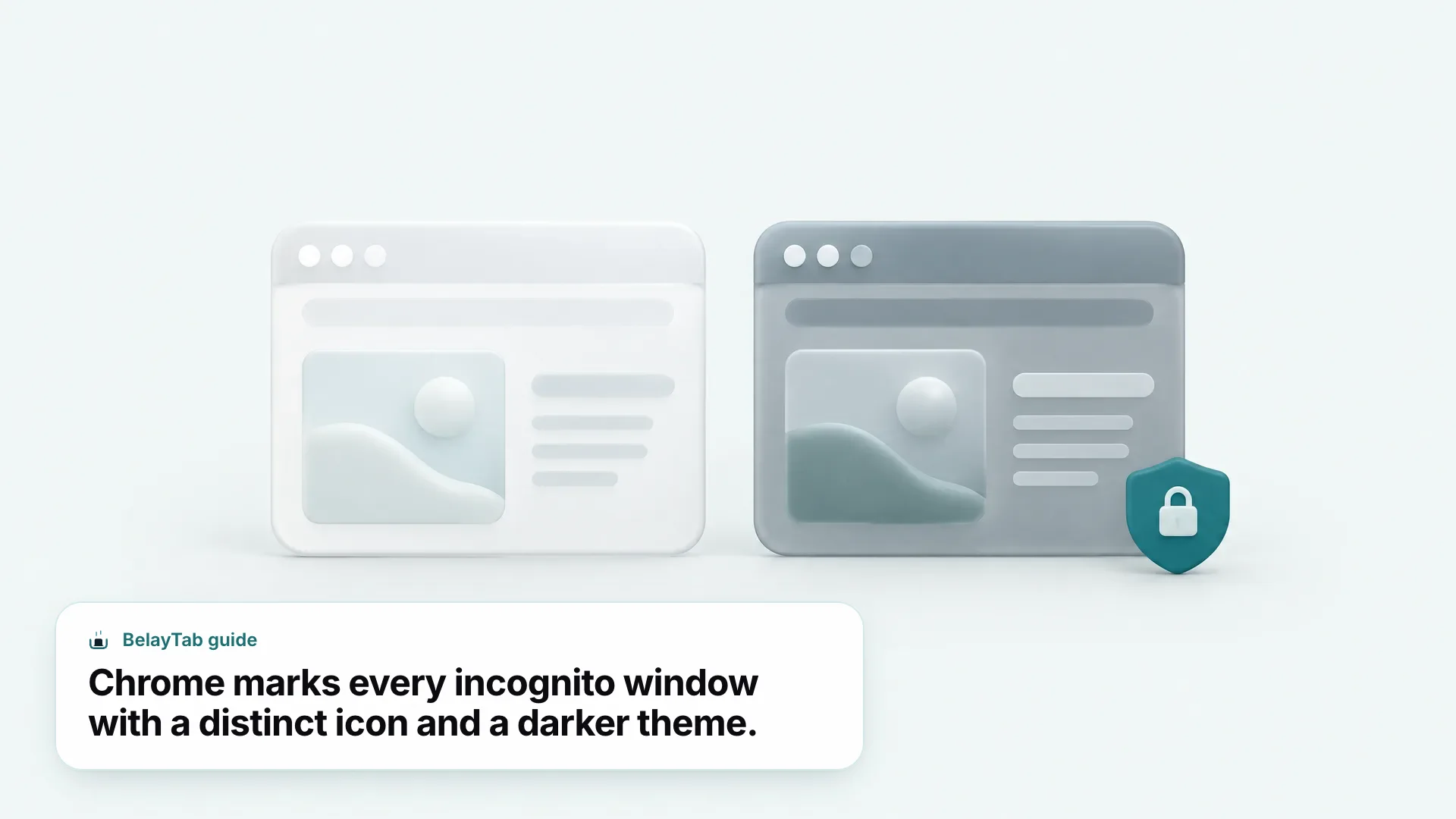
An incognito tab is a private browsing window that doesn’t save your history, cookies and site data, or form entries to your device once every incognito window is closed. Google built the feature into Chrome under the name “Incognito”; it opens as its own separate window, distinct from your normal browsing, with its own darker visual theme so you always know which one you’re in.
The Google incognito tab feature isn’t unique to Chrome in spirit (every major browser now ships something equivalent) but the name and exact controls differ. Firefox calls it Private Browsing. Safari calls it Private. The underlying promise is nearly identical across all of them: local data from that session doesn’t stick around after you close the window.
Here’s a quick reference for where to find it depending on what you’re using:
| Situation | What to Do |
|---|---|
| Chrome desktop | Press Ctrl + Shift + N (Cmd + Shift + N on Mac) |
| Firefox desktop | Open a private window — see our Firefox private tabs guide |
| iPhone (Safari or Chrome) | See our iPhone incognito guide for exact taps |
| Android | See our Android incognito guide |
One thing worth saying plainly: an incognito tab open in one window doesn’t affect any other window on your machine. Your regular tabs, bookmarks, and history keep working exactly as they were — incognito is additive, not a mode you switch your whole browser into.
How Do You Open a New Incognito Tab?
You open a new incognito tab in Chrome with a single keyboard shortcut: Ctrl + Shift + N on Windows, Linux, and ChromeOS, or Cmd + Shift + N on Mac. That opens an entire incognito window, not just a single tab — and everything you open inside it after that is private too, without needing to repeat the shortcut.
- Use the shortcut. Press Ctrl+Shift+N (Cmd+Shift+N on Mac) to open incognito tab windows instantly, no menu digging required.
- Keep working inside it. Open as many tabs as you need inside that same window — each one inherits the same private session.
- Watch for the visual cue. The darker theme and incognito icon in the corner confirm you’re browsing privately, not in a normal window.
Most people just want to open incognito tab windows quickly and get back to what they were doing, and the shortcut is genuinely the fastest path on desktop. If you’d rather open in incognito tab mode from a link instead of starting fresh, most browsers support a right-click option to send that specific link into a private window — the exact wording varies by browser and version, so check your own right-click menu rather than assuming a fixed label.
Behavior differs slightly once you leave Chrome on desktop:
- Chrome. Press Ctrl+Shift+N for a new incognito window; every tab inside it is private automatically.
- Firefox. Opens a “private window” instead of an “incognito” one — same underlying idea, different name and shortcut. See our Firefox guide for specifics.
- Edge and Brave. Both are Chromium-based and offer their own private-window option from the app menu; naming and shortcuts vary slightly by version, so check the menu directly.
- iPhone and Android. Safari and Chrome’s mobile apps each have their own incognito or private toggle, reached through the app’s own menu rather than a keyboard shortcut.
If you use more than one Chromium browser day to day (say Chrome at work and Brave at home) the private-window behavior is close enough that switching between them rarely trips people up. It’s the naming, not the mechanics, that changes.
How Do You Open an Incognito Tab on iPhone?
On iPhone, you open an incognito tab inside whichever browser app you’re using (Safari calls it a Private tab, Chrome for iOS calls it Incognito) and both work on the same principle as desktop: nothing from that session saves locally once you close it. The toggle sits in the app’s own tab-switcher or menu rather than behind a keyboard shortcut, since there isn’t one on a touchscreen.
The two apps place that toggle in different spots, and Apple and Google both update their iOS interfaces often enough that exact tap sequences can shift between versions. Rather than guess at a menu path that might be stale by the time you read this, it’s worth going straight to the dedicated walkthrough.
Full iPhone steps live elsewhere. For the exact taps in both Safari and Chrome on iPhone, see our guide to incognito tabs on iPhone. It covers both apps and what changes when you close a private tab.
One thing that holds true regardless of app: closing a private tab on iPhone behaves the same as closing one on desktop. The session’s local data goes away with the tab, and there’s no separate recovery path built into either browser for that data once it’s gone.
What About an Incognito Tab in Firefox?
Firefox doesn’t call it “incognito” (it’s Private Browsing) but it does the same job: no history, cookies, or form data left behind locally once you close the window. The rebranding trips up a fair number of people searching for “incognito tab Firefox,” since the feature exists, it’s just under different signage.
Under the hood, Firefox’s approach is conceptually close to Chrome’s: a private window opens separately from your normal one, marked with its own visual cue, and any tab you open inside it inherits the same private status. What differs between the two browsers is the exact shortcut, the menu wording, and some of the finer session details — and those are worth getting right rather than guessing.
If you regularly bounce between Chrome and Firefox, it’s worth remembering that “incognito” and “private browsing” are the same promise dressed in different words — neither one syncs its private history to the other, and neither remembers a thing about the session once you’ve closed it.
What Does Incognito Actually Keep Private?
An incognito tab keeps three things off your device locally: your browsing history, cookies and site data, and anything you type into forms — none of it is retained after every incognito window is closed, according to Chrome’s own help documentation. That’s the entire scope of the promise, and it’s worth being precise about it, because “private” gets read as broader than it is.
During an active incognito session, the browser does temporarily hold onto some cookies and site data — just enough to keep sites functioning while the tab is open, like staying logged in to something across two pages in the same session. That temporary data disappears the moment you close the window, along with everything else.
Incognito isn’t a VPN. Incognito only changes what your device remembers locally. It doesn’t hide your IP address, doesn’t encrypt your traffic, and doesn’t make you anonymous to the sites or networks you connect through.
That’s really the dividing line worth remembering: incognito protects you from your own device’s memory. It was never designed to protect you from the sites, networks, or providers standing between you and the page you’re loading.
What Can Still See Your Incognito Activity?
Websites you visit, your employer or school if you’re on their network, and your internet provider can all still see your incognito activity — the browser only hides things locally, it doesn’t hide anything on the network in between, per Google’s incognito documentation. This is the part of incognito that gets misunderstood most often, and it’s worth spelling out plainly rather than leaving it implied.
| Who | Can they see your activity? | Why |
|---|---|---|
| Websites you visit | Yes | They still receive your visit and can set session cookies while the tab is open |
| Your employer or school network | Yes | Network traffic still passes through their systems regardless of browser mode |
| Your internet provider | Yes | ISPs see connection-level traffic; incognito changes nothing about that |
| Someone using your computer after you close the window | No | Local history, cookies, and form data are discarded when the session ends |
So incognito genuinely solves one problem well: keeping a shared or later-used device from showing what you looked at. It solves that problem completely. It solves none of the network-visibility problems, and it was never marketed to — Google’s own help page is explicit that activity isn’t hidden from the sites, network administrators, or ISPs involved.
If the actual goal is hiding your traffic from your network or provider, incognito is the wrong tool entirely; that’s a VPN’s job, not a browser mode’s. If the goal is just keeping a search off a shared family computer’s history, incognito does exactly what it says.
Why Are Extensions Disabled in Incognito Tabs?
Chrome disables extensions by default inside incognito windows to keep the private session as clean as possible. You have to turn each extension on manually if you want it active there, according to Chrome’s incognito help page. It’s a deliberate default, not a bug or an oversight, and it applies to every extension equally, regardless of what that extension does.
The reasoning is straightforward: an extension that can read tabs or inject scripts could, in theory, undercut the whole point of incognito by logging something the mode is specifically trying not to log. Rather than vet every extension’s behavior individually, Chrome just switches all of them off and lets you opt back in one at a time.
- Open extension settings. Go to chrome://extensions in your address bar.
- Find the extension. Click “Details” on the one you want to allow.
- Flip the toggle. Turn on “Allow in Incognito” for that extension specifically.
Allowing an extension isn’t the same as it tracking more. Turning on “Allow in Incognito” just lets that extension’s normal features work inside the private window too. It doesn’t change what data the extension collects elsewhere.
Worth noting: this setting is per-extension and per-profile, so switching browsers or profiles means doing it again. If you only occasionally need an extension inside incognito, it’s often simpler to leave the default off and just use a regular window for that task instead.
Can You Recover a Closed Incognito Tab?
No — once you close an incognito tab or window, Chrome discards its history, cookies, and session data immediately, and there’s no built-in way to bring any of it back. That’s not a gap in the feature; it’s the feature. The entire design goal of incognito is to leave nothing behind, so “recovery” would directly contradict what you asked the browser to do.
Compare that to a regular tab: close one of those by accident, and Chrome’s History or the reopen-closed-tab shortcut can usually get it back within a session or two. We cover that in detail in our guide on how to reopen closed tabs. None of that applies to incognito. There’s no history entry to search, because incognito never wrote one.
This is also why an extension like BelayTab, which saves your open tabs and windows as recoverable sessions, has nothing to do with incognito. First, extensions are switched off inside incognito windows by default, as covered above. Second, even if you enabled one there, saving incognito activity would defeat the entire purpose of the mode — so there’s genuinely nothing to restore, by design, not by limitation.
If you find yourself wishing you could recover something from incognito, the honest fix isn’t a setting to change. It’s using a regular tab next time, or bookmarking the page before you close it.
How Do You Close an Incognito Tab (or the Whole Window)?
You close an incognito tab the same way you close any tab — click the X on the tab itself, or close the last tab in the window, which ends the whole incognito session at once. There’s no special confirmation step and no warning dialog; the moment the last incognito tab closes, that session’s data is gone.
If you’re closing several incognito tabs at once and want to double-check the keyboard shortcuts available across different browsers and operating systems, our close-tabs shortcut guide covers the full set rather than repeating it here.
There’s no undo for this one. Once you close the last incognito tab, that session’s data is gone for good — no recycle bin, no history entry, and no session to restore, because incognito never let anything save in the first place.
A practical habit worth building: if there’s anything in an incognito tab you’ll want again (a confirmation number, an address, a specific product page) copy it out or bookmark it before you close the window. Once it’s closed, it’s genuinely closed.
Incognito vs Guest Mode vs a Separate Profile — What’s the Difference?
Incognito is a temporary private window inside your normal Chrome profile, Guest mode is a whole separate session with no access to your bookmarks or extensions, and a separate profile is a permanent, distinct identity with its own saved history and settings, per Chrome’s profile documentation. All three keep some form of separation from your main browsing, but they solve different problems.
Guest mode goes further than incognito: opening it from the profile icon starts a session with none of your existing bookmarks, saved passwords, or extensions available at all, and closing the guest session deletes that session’s history, cookies, and site data, same as incognito does. It exists for handing your laptop to someone else briefly, not for your own quick private search. On Chromebooks specifically, this shows up as a separate “Guest browsing” toggle under device management rather than the same profile-icon menu used on Windows and Mac.
A separate Chrome profile is the opposite of temporary. It’s a permanent, ongoing identity with its own bookmarks, history, passwords, extensions, and settings, kept apart from your other profiles indefinitely. If you’re regularly trying to keep work and personal browsing apart, a profile is usually the better long-term fit; incognito is for a single private task, not an ongoing separation.
Picking the right one. Reach for incognito for a single private search or purchase, Guest mode when someone else is briefly using your device, and a separate profile when you want an ongoing, permanent split between two parts of your browsing life.
None of the three protect you from a crash or an accidental close the way a tab-saving tool does. They’re built to solve privacy and separation, not durability. That last piece, keeping your regular tabs intact through the browser’s bad days, is a different job entirely.