






Type “incognito” into Firefox’s settings and you won’t find it — Firefox doesn’t use that word at all. It calls the same feature a private window, and if you’ve been searching for how incognito tabs work in Firefox, that’s the first thing to know. The mode itself does what you’d expect: it skips your history, drops cookies when you close it, and keeps that browsing separate from your regular tabs.
What it doesn’t do trips people up more. Private mode has never made you invisible online, and there’s real confusion about what’s actually protected versus what just feels protected. This guide covers how to open a private window, what it hides, where the protection stops, and what happens to a closed private tab once you can’t get it back.
What Is an Incognito Tab in Firefox, Exactly?
Firefox doesn’t call it incognito. That’s Chrome’s name for the same idea, which Firefox has called a private window since the feature launched. Functionally they’re close cousins: a separate window that doesn’t add pages to your history, doesn’t remember what you typed into forms, and clears its cookies when you close it.
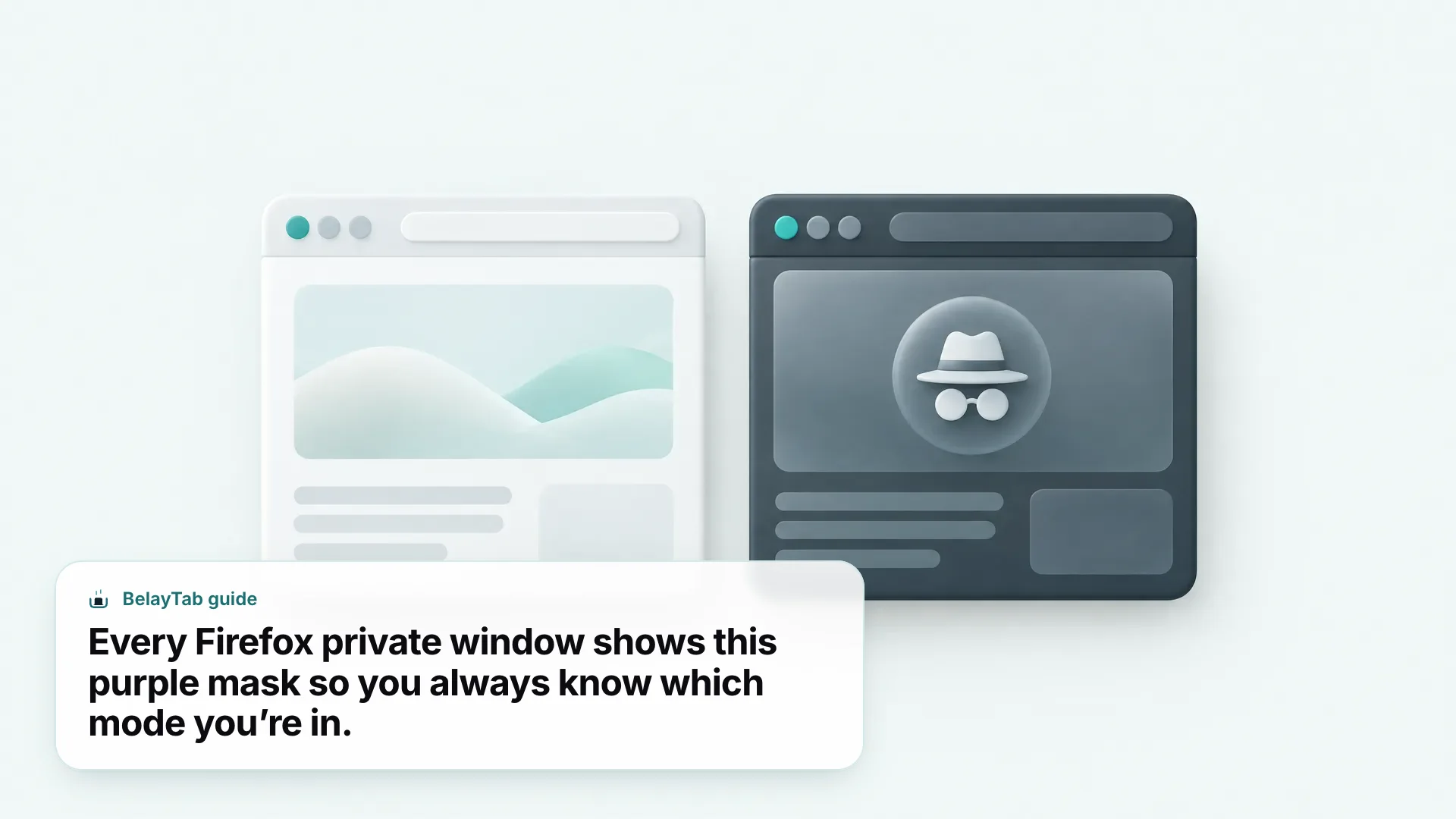
Every private window in Firefox shows a purple mask icon at the top of the window, so you can tell at a glance which windows are private and which are regular. That’s the only visual difference — private windows use the same toolbar, the same bookmarks, and the same extensions setup as your normal browsing, aside from the parts private mode deliberately switches off.
As of September 2026, Firefox 151 added a fire-icon button next to the address bar inside private windows. Click it and Firefox instantly wipes the current private session’s data and opens a fresh one, without you having to close the browser or lose your other regular tabs. It’s a fast reset for anyone who wants to start clean mid-session rather than closing and reopening the window.
Here’s the fast version for the most common situations:
| You want to… | Do this |
|---|---|
| Open a private window right now | Menu button > New private window, or press Ctrl + Shift + P |
| Open a link privately | Right-click the link > Open Link in New Private Window |
| Make private mode the default | Settings > Privacy & Security > History > Always use private browsing mode |
| Get back a private tab you closed by mistake | Only possible while that window is still open |
| Run an extension while private | Add-ons and Themes > pick the extension > Run in Private Windows > Allow |
How Do I Open a Private Window in Firefox?
You’ve got three ways to open one, and which you reach for usually depends on whether you’re starting fresh or opening a specific link.
- From the menu. Click the menu button in the top-right corner and choose New private window. It opens instantly as a separate window.
- Keyboard shortcut. Press Ctrl + Shift + P (Cmd + Shift + P on Mac) from anywhere in Firefox.
- From a link. Right-click (or Ctrl-click on Mac) any link and choose Open Link in New Private Window.
The link option is worth knowing on its own. It’s the fastest way to open one specific page privately without dragging your whole session into private mode. Say a friend sends you a gift-buying link and you don’t want it showing up in your regular history: right-click, open it privately, and your normal tabs never see it.
Once open, a private window behaves like any other Firefox window. You can open new tabs in it with Ctrl + T (Cmd + T on Mac), bookmark pages, and use extensions you’ve allowed to run there. The only thing that changes is what Firefox remembers when you’re done.
What’s the Keyboard Shortcut for a Private Window in Firefox?
The shortcut is Ctrl + Shift + P on Windows and Linux, or Cmd + Shift + P on Mac. It works from any regular Firefox window and skips the menu entirely.
A handful of related shortcuts come in handy once you’re in a private window, since most standard Firefox shortcuts still apply there:
| Task | Windows/Linux | Mac |
|---|---|---|
| New private window | Ctrl+Shift+P | Cmd+Shift+P |
| New tab | Ctrl+T | Cmd+T |
| Close tab | Ctrl+W | Cmd+W |
| Reopen closed tab/window | Ctrl+Shift+T | Cmd+Shift+T |
| Close window | Ctrl+Shift+W | Cmd+Shift+W |
One thing worth flagging: shortcuts only fire if your operating system or window manager hasn’t already claimed that key combination for something else. If Ctrl + Shift + P does nothing, check whether another app or a system shortcut is intercepting it first. For the full official list, see Firefox’s keyboard shortcuts page.
What Does Firefox Actually Hide in Private Browsing?
Private browsing hides a specific, limited set of things — not everything you do online. Firefox skips saving visited pages to History, form and search bar entries, entries in your download list, and cached or offline copies of pages you loaded.
Cookies get special handling. Inside a private window, cookies live only in memory, kept entirely separate from the cookies your regular windows use, and Firefox discards them the moment you close the last private window open. That’s why sites that remember you in regular browsing treat you as a stranger every time you open a fresh private window.
Here’s the breakdown at a glance:
| Stays private (not saved) | Saved anyway |
|---|---|
| Visited pages / History entries | New bookmarks |
| Form and search bar entries | New passwords |
| Download list entries | Downloaded files themselves |
| Cached and offline page content | — |
| Session-only cookies (discarded on close) | — |
That table is the whole feature, really. It’s a narrower kind of privacy than a lot of people assume, which is exactly why the next question matters so much.
Is Private Browsing Actually Anonymous?
No. Private browsing only controls what Firefox stores on your own device. It does nothing to hide your traffic from anyone watching outside your computer.
Your internet service provider can still see which sites you connect to. Your employer’s network, if you’re on a work or school connection, can too. And the websites themselves still see your visit; private mode doesn’t block tracking scripts or make you invisible to the page you’re on, it just stops Firefox from writing a local record of the visit.
It’s not protection against monitoring. Private browsing gives you no defense against keyloggers, spyware, or anything else already installed on the device you’re using. If someone has that kind of access to your computer, a private window won’t stop them from seeing what you type or view.
Think of private browsing as a “don’t remember this on my end” switch, not a cloak. It’s built for the person who might use your computer after you (a shared family laptop, a public library machine, a roommate’s desktop) not for hiding from your network or the sites you visit. For a deeper look at how private and incognito modes compare across browsers, the general incognito tab guide covers the same trade-offs outside Firefox specifically.
Do Passwords and Bookmarks Save in a Private Window?
Yes. Anything you bookmark or any new password you save while in a private window sticks around permanently, exactly as it would in a regular window.
That surprises some people, since it seems to contradict the whole point of “private.” But Firefox draws a clear line: history, form entries, and cookies are session data tied to that specific browsing activity, while bookmarks and saved logins are things you deliberately chose to keep. Private mode only suppresses the automatic, passive stuff.
Bookmark it, it’s there for good. If you bookmark a page inside a private window, it lands in your regular Bookmarks menu right alongside everything else. Nothing about it is hidden or temporary — treat it exactly like a bookmark made anywhere else.
This is a good moment to separate two problems people often lump together: keeping certain browsing private, and not losing work you care about. Private windows are built for the first and were never meant to solve the second — closing one on purpose wipes it clean, which is the point. Your regular tabs are a different story, and that’s where a lot of people lose things they didn’t mean to.
How Do I Make Firefox Always Open in Private Mode?
Go to Settings > Privacy & Security > History, choose “Use custom settings for history,” and check Always use private browsing mode, then restart Firefox. From then on, every window Firefox opens starts in private mode automatically.
- Open Settings. Click the menu button and choose Settings.
- Go to Privacy & Security. Find the History section on that page.
- Switch to custom history settings. From the dropdown, pick “Use custom settings for history.”
- Check Always use private browsing mode. You can also choose “Never remember history” as an alternative, similar setting.
- Restart Firefox. The change takes effect the next time Firefox opens.
Worth thinking through before you flip this on: it applies to every window, not just the ones you’d normally want private. You’ll stop building browsing history for anything, including sites where you’d like Firefox to remember what you looked at last week. Bookmarks and saved passwords still work fine either way, since those were never tied to history in the first place.
If you only want privacy for specific browsing sessions rather than all of them, skip this setting and just use Ctrl + Shift + P (Cmd + Shift + P on Mac) when you need it. That’s the lighter-weight option, and it’s what most people end up sticking with after trying the always-on setting for a week.
Do Extensions Work in a Private Window?
Not by default. Firefox blocks extensions from running in private windows unless you specifically grant permission, either when you first install the extension or later in its settings.
This is deliberate: private browsing is supposed to leave a light footprint, and an extension running unchecked in that window could quietly undercut that by reading or storing data from pages you’re trying to keep unrecorded. Firefox puts the decision in your hands instead of assuming every extension should have access.
- Open Add-ons and Themes. Reach it from the Firefox menu.
- Click Extensions. You’ll see every extension you’ve installed.
- Select the extension. Click into its details page.
- Set “Run in Private Windows” to Allow. It’s off by default for most extensions until you change it here.
Some extensions ask for this permission right at install time with a checkbox; others need you to go find the setting afterward the way above. Either way, it’s per-extension — allowing one doesn’t automatically allow the rest.
BelayTab, for what it’s worth, doesn’t request or need host permissions at all. It never reads page content, only tab and window metadata, using the tabs, tabGroups, sessions, storage, and related permissions. Even so, it follows Firefox’s default and doesn’t run in private windows unless you turn that on, which lines up with what private browsing is meant to do: leave no trace, including from the extensions you’ve installed. For your regular, non-private windows, it just works in the background. See the import and export options if you’re weighing it against other tab tools.
Can I Get Back a Closed Private Tab in Firefox?
Only while that private window is still open. The reopen-closed-tab shortcut, Ctrl + Shift + T (Cmd + Shift + T on Mac), works within the current window’s session — close a tab by accident and you can bring it straight back, same as in a regular window.
The moment you close the last private window, though, that record is gone. Private browsing never writes visited pages to History, so unlike a regular window’s closed tabs (which Firefox can often reconstruct from session data even after a restart) a private window leaves nothing behind to reconstruct from. There’s no history entry, no cache, no list anywhere pointing back to what was open. That’s not a bug to work around; it’s the entire point of the feature.
Closing the window is the real point of no return. If you’re mid-task in a private window and might need those tabs again later, that’s a sign private browsing isn’t the right tool for this particular session. Once the window’s closed, there’s no recovery screen, no backup file, and no setting that brings it back.
If it’s your regular Firefox tabs and windows you’re worried about losing (after a crash, an accidental close, or Firefox itself acting up) that’s a solvable problem, just not through private browsing. The Firefox restore last session guide covers Firefox’s own built-in recovery for regular windows, and what to do when Firefox keeps crashing walks through getting your tabs back after repeated crashes.
How Do I Stop Losing Tabs Outside of Private Mode?
Use a tool that snapshots your open windows automatically, so a closed window or a crash doesn’t cost you anything — private browsing was never meant to solve this, and Firefox’s own closed-tab list only covers the current session.
This is really a separate problem from incognito tabs, but the two get confused often enough that it’s worth being clear: private windows are supposed to forget everything on purpose. Your regular windows, full of research tabs, half-read articles, and the twelve tabs you’ll get back to “later,” are the ones at risk of an accidental close, a browser crash, or a laptop restart wiping out work you didn’t mean to lose.
BelayTab is a free browser extension, including for Firefox, that saves your open windows as named sessions and takes automatic snapshots every 5 minutes and whenever a window closes — no account required, no limit on how many sessions or tabs you keep. It keeps the last 20 versions of each saved session, holds deleted sessions in a 30-day trash, and puts snapshots, deleted sessions, and Firefox’s own recently closed windows in one Recovery screen instead of scattered across different menus.
- Install BelayTab. Get it from the download page for Firefox or any other supported browser.
- Keep browsing normally. BelayTab captures your windows in the background — no setup, no manual saving required.
- Open the Recovery screen when you need it. Restore an entire window, a whole session, or a single tab, into a new window or your current one.
Tab groups, pinned tabs, and tab order all come back the way you left them. And since automatic snapshots run without you doing anything, the protection is there whether or not you remembered to save before things went wrong.
Private browsing and tab loss are opposite problems with opposite fixes: one is about making sure nothing sticks, the other is about making sure nothing disappears. Firefox’s private window handles the first well. For the second, an automatic backup is worth having running in the background before you need it, not after.