






Pinned tabs are the small, icon-only tabs stuck to the far left of your browser window — the ones for your inbox, your calendar, your team chat, the site you check forty times a day. You’ve probably pinned a couple without thinking much about it: right-click, choose Pin, done. What most people never ask is what happens to those tabs when Chrome crashes, restarts, or gets reset. Do they come back on their own? Can you lose them the same way you lose a regular tab?
Short version: pinning changes how a tab looks and behaves right now. It doesn’t back anything up. This guide covers how to pin and unpin tabs, what makes pinned tabs vanish, how they stack up against tab groups and bookmarks, and how to make sure a bad crash never costs you the tabs you depend on.
What Are Pinned Tabs, and Why Bother Pinning Them?
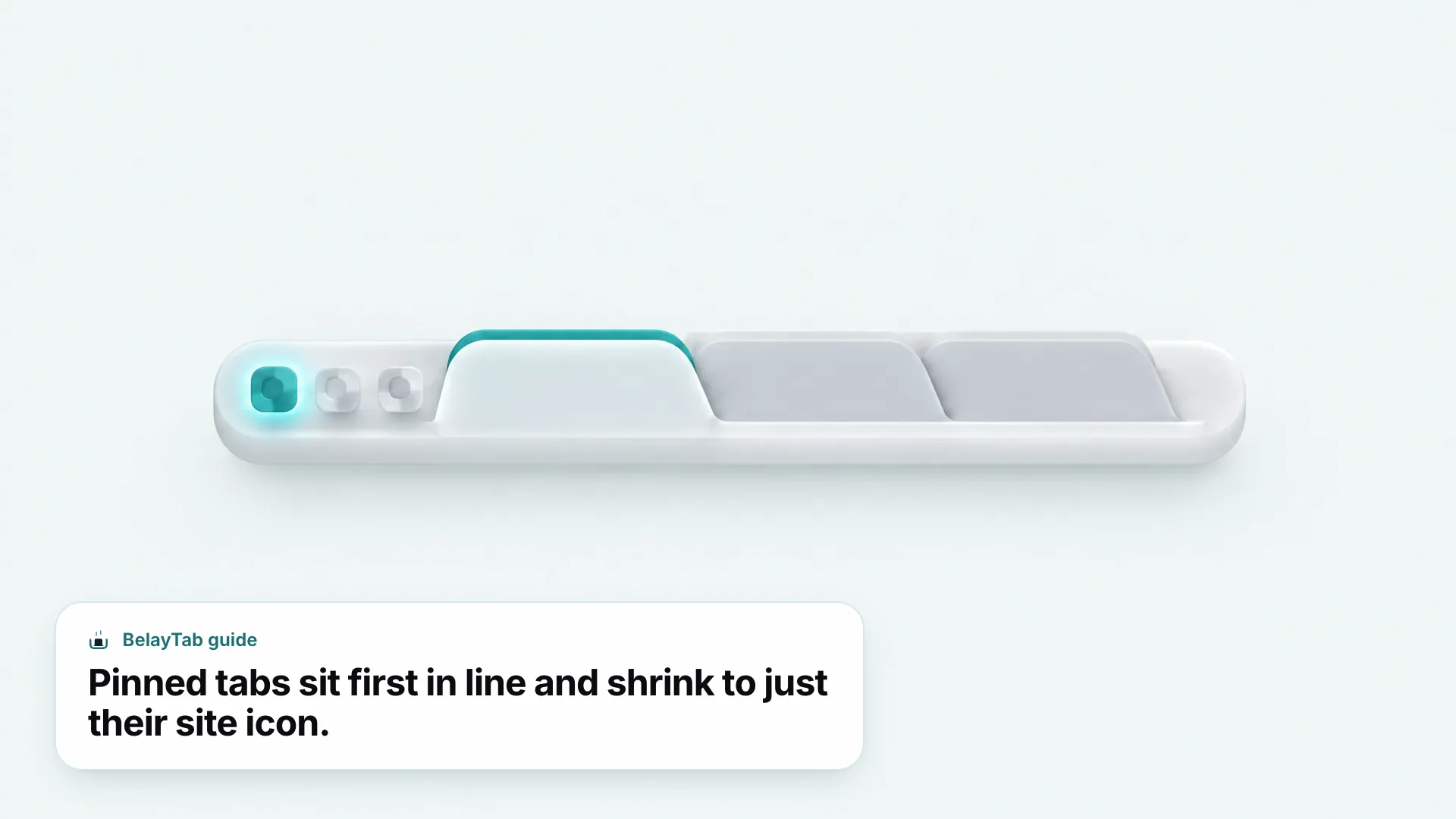
A pinned tab is a regular tab that’s been shrunk to just its site icon and locked to the left edge of the tab strip, so it stays in place no matter how many other tabs you open. Right-clicking any tab and choosing “Pin” turns it into this compact, icon-only shortcut — no title text, no visible close button, just the favicon sitting in a fixed spot at the front of the row (Chrome tab help).
Why bother? Three reasons, mostly. First, pinned tabs don’t drift. Open twenty more tabs and your pinned ones stay exactly where you left them, first in line, instead of getting pushed off to the right where you’d have to hunt for them. Second, they’re compact — a pinned tab takes up a sliver of space instead of a full-width slot, so five or six “always open” sites fit without crowding out everything else. Third, they resist accidental closing a little better, since the X button that invites a stray click is gone.
None of that makes pinning a backup system. It’s a layout choice, not protection. A pinned tab is still just an open tab: close the window, wipe the profile, or have the browser crash hard, and it’s gone the same as any other tab. Keep that distinction in mind for the rest of this guide — pinning organizes your tabs, it doesn’t preserve them.
| Situation | What Happens to Pinned Tabs |
|---|---|
| Normal close, then reopen Chrome | Comes back if “On startup” is set to continue where you left off |
| Chrome crash | Depends on whether the last session was saved before the crash |
| Settings reset or new profile | Gone — pinning isn’t stored anywhere else |
| New device, signed in | Open tabs can sync, but pinned status isn’t clearly documented as part of that |
How Do You Pin a Tab in Chrome, Edge, or Brave?
Right-click the tab and choose Pin. That’s the whole process in Chrome, and the same right-click menu shows up in Edge and Brave since both share Chrome’s tab strip design. There’s no separate settings page for this and no bulk “pin all” button; you pin tabs one at a time, directly from the tab itself.
- Right-click the tab you want to keep around. Any open tab works, including one you just opened.
- Choose “Pin” from the menu. It’s usually near the top of the right-click list.
- Watch it shrink. The tab loses its title text and slides to the left edge of the strip, next to any other pinned tabs.
Pinning doesn’t change the page. It’s purely a tab-strip trick — the site behaves exactly the same. Pinning just changes where the tab sits and how much space it takes up.
Each browser handles the fine details slightly differently once you get past the basic right-click, and that’s worth knowing before you assume something’s broken.
- Chrome. Right-click any tab, choose Pin; the tab shrinks to an icon-only shortcut at the left of the strip.
- Edge. Built on the same Chromium tab strip as Chrome, so the same right-click option applies. See our Edge guide for browser-specific details.
- Brave. Also Chromium-based, with the same right-click Pin option. More in our Brave guide.
- Firefox. Has its own pinning feature through each tab’s context menu, though this brief doesn’t verify Firefox’s exact wording.
- Safari on Mac. Offers a similar pin-style option; check Safari’s own tab menu for current wording.
How Do You Unpin a Tab (or Tell If One’s Pinned)?
Right-click the pinned tab and choose Unpin, and it pops back out to full width and rejoins the rest of your open tabs (Chrome tab help). There’s no drag-to-unpin shortcut documented — the right-click menu is the reliable way to do it, and it works the same whether the tab has been pinned for five minutes or five months.
Telling a pinned tab from a regular one is easy once you know the signs. A pinned tab shows only the site’s favicon, with no page title next to it and no visible close (X) button when the tab isn’t active. It also sits ahead of every unpinned tab, even if you open new tabs constantly — Chrome always slots new tabs in after the pinned ones, never in front of them.
If you’ve got a long row of pinned icons and you’re not sure which one is which, hover over each briefly; most browsers show a small tooltip with the page title. That’s a minor annoyance worth remembering when you’re deciding how many tabs to pin in the first place — a topic we’ll come back to later, since icon-only tabs get harder to tell apart the more of them you stack up in a row.
Do Pinned Tabs Stay Open When You Close and Reopen Chrome?
It depends entirely on your “On startup” setting, not on the fact that a tab is pinned. Chrome’s startup behavior is controlled from Settings, under the “On startup” section, with three choices: open the New Tab page, continue where you left off, or open a specific page or set of pages (Chrome startup settings).
If “Continue where you left off” is selected, closing and reopening Chrome restores whatever was open before, pinned tabs included, in the same order and position. If “Open the New Tab page” is selected instead, every tab (pinned or not) closes for good when you quit, and nothing brings them back automatically next time you launch. The pinned status itself has no bearing on which of these happens; it’s entirely down to that one setting.
Worth knowing: this setting affects a clean, deliberate close-and-reopen. It says nothing about what happens after a crash, which behaves differently and is covered next. If you closed a single pinned tab by mistake rather than the whole browser, pressing Ctrl + Shift + T (Cmd + Shift + T on Mac) reopens the most recently closed tab — see our full guide to reopening closed tabs for edge cases.
Can a Pinned Tab Get Closed by Accident?
Yes — pinning makes it harder, not impossible. Removing the visible close button cuts down on the classic “meant to close the tab next to it” mistake, but the right-click menu still offers a Close tab option, and closing the entire browser window takes every pinned tab down with it, the same as any regular tab.
There’s also a subtler risk: browser extensions, a “Close all tabs” action, or an accidental window close (especially on a trackpad, where a stray gesture can shut a window faster than you’d expect) don’t treat pinned tabs as special. They close along with everything else in that window. Pinning is a convenience for day-to-day browsing, not a lock.
If you do lose a pinned tab this way, the recovery path is the same as for any closed tab: Ctrl + Shift + T brings back the last one closed, and repeating it steps back further through recently closed tabs. That works well for a single accidental close. It works far less well once you’re several closures deep, or once the browser itself has crashed rather than closed cleanly — which is where the next section gets less forgiving.
Why Did My Pinned Tabs Disappear?
A handful of causes account for almost every case: a crash that happened before Chrome saved the session, an “On startup” setting that doesn’t reopen previous tabs, a settings reset, or moving to a new profile or a freshly reinstalled browser. None of these are things Chrome can undo from inside the browser itself — once the tab list is gone, it’s gone.
Crashes are the trickiest, because whether tabs come back depends on timing you don’t control: if Chrome managed to save state right before it went down, “Continue where you left off” can restore it; if not, there’s nothing to restore. A “Reset settings” action (sometimes used to fix a browser acting strangely) also clears startup behavior and any recently-closed history, along with the pinned layout you’d built up. And a brand-new profile — whether from a factory-reset computer, a fresh install, or simply signing into a different account — starts with no pinned tabs at all, because pinning lives with that specific browser profile, not with your account.
Pinning is not a backup. Pinned tabs aren’t stored anywhere separate from the browser itself. A crash, a reset, or a wiped profile takes them out exactly the way it takes out regular tabs. There’s no extra layer of protection just because a tab is pinned.
Can You Pin Tabs in Firefox and Safari Too?
Both browsers offer their own version of pinning, reached through each tab’s context menu, though this guide’s verified facts are Chrome-specific and don’t cover Firefox’s or Safari’s exact current wording. If you don’t see a Pin option where you’d expect it, check that browser’s own tab menu directly rather than assuming it’s missing.
What’s consistent across browsers, even without pinning-specific details for each, is that a pinned tab is always a local, per-browser, per-profile thing. It doesn’t travel with you automatically when you switch computers, switch browsers, or start fresh — Safari on Mac and Firefox each track their own pinned tabs separately from Chrome’s, with no built-in way to move a pinned layout from one browser to another.
That’s a real gap if you use more than one browser, or if you’re thinking about switching. BelayTab is built for exactly that case: it runs on Chrome, Edge, Brave, Opera, Vivaldi, Arc, Firefox, and Safari on Mac, and saving a window as a session keeps pinned tabs, tab groups, and order together as one unit you can restore in the same browser or move somewhere else. The one caveat: Safari doesn’t support tab groups the way Chromium browsers do, and Safari doesn’t let extensions read its recently closed windows, so those two things behave a little differently there. Everything else works the same.
Pinned Tabs vs Tab Groups vs Bookmarks: Which Should You Use?
Pinned tabs are for a small handful of sites you want open and visible at all times; tab groups are for organizing a larger, related batch of tabs you’re actively using; bookmarks are for pages you’re done browsing but want to find again later. They solve three different problems, and mixing them up is the most common source of a cluttered tab strip.
Pin your email, calendar, and team chat — the things you check constantly and never want to hunt for. Group tabs when you’re deep in a project: ten tabs of flight comparisons, fifteen tabs of research for a report, all the tabs from planning one trip. A tab group can be named, colored, and collapsed down to a single label so it doesn’t dominate your tab strip while you’re not actively using it (Chrome tab groups help). Bookmark anything you’re finished actively using but might need again — an article to reread, a receipt, a reference page. Once it’s bookmarked, close the tab; there’s no reason to keep it open.
| Pinned Tabs | Tab Groups | Bookmarks | |
|---|---|---|---|
| Best for | A handful of always-open tools | A large, active batch of related tabs | Pages you’re done using, for now |
| Stays visible in the tab strip | Yes, always | Yes, but collapsible | No — it’s closed |
| Good for many items | No — gets confusing fast | Yes | Yes |
| Survives a browser crash | Not guaranteed | Not guaranteed | Yes, stored separately |
Our guide to tab groups and BelayTab’s tab groups support go deeper on the middle column if that’s the piece you’re missing.
How Many Tabs Should You Actually Pin?
Somewhere around four to six tabs is the practical sweet spot for most people. Past that point, a row of identical-looking favicons starts working against you instead of for you, since pinned tabs show no title text — two pinned Gmail tabs or two pinned Notion tabs are genuinely indistinguishable at a glance.
There’s also a physical limit worth remembering: pinned tabs still take up horizontal space, even shrunk down, so a window that’s not especially wide (a laptop screen, a window shared with another app) can run out of room before you run out of things to pin. If you catch yourself scrolling to find a pinned tab, that’s the signal you’ve pinned too many — the entire point of pinning is that you shouldn’t have to look for it.
One more practical note: pinned tabs are meant for sites, not for tasks. If what you actually need is “get back to this exact research state tomorrow,” pinning the wrong thing (a search results page, a half-filled form, a document mid-edit) is a weak substitute for saving the state of your browser. That’s a session-management problem, and it’s worth treating it as one.
How Do You Make Sure You Never Lose a Pinned Tab Again?
Save your window as a named session before anything goes wrong, rather than relying on pinning plus hope. Pinning is layout; saving is protection, and the two aren’t the same thing no matter how permanent a pinned tab feels while it’s sitting there.
BelayTab is a free browser extension that saves your open tabs (pinned status, tab groups, order, and all) as a named session you can restore any time, with no account required and no limit on how many sessions or tabs you keep. It also takes automatic snapshots of every open window every five minutes and whenever a window closes, so even if you forget to save manually, a recent copy of your pinned layout is sitting in the Recovery screen waiting for you.
- Install BelayTab from the download page. It takes a minute and works on Chrome, Edge, Brave, and several other browsers.
- Save your window. Click the BelayTab icon or press Ctrl + Shift + S (Cmd + Shift + S on Mac), then name the session. Pinned tabs, groups, and order all come with it.
- Restore whenever you need to. Open the session into a new window or the current one — even months later, even after a crash wiped everything else.
If you’re weighing this against other habits (bookmarking everything, exporting URL lists, or just being careful) it helps to see the full picture of what happens when tabs pile up in the first place. Our guide on too many tabs and what to do about a crashed Chrome window cover the two situations pinning alone can’t fix.