






Yes, Chrome has vertical tabs. Google began rolling the feature out in April 2026: right-click any tab or the browser window and choose “Show Tabs Vertically” to move your tab strip into a resizable sidebar on the left, with full page titles instead of cramped icons. Tab groups, pinned tabs, and tab search keep working. If you don’t see the option yet, the fix is usually just updating Chrome.
This guide covers how to turn Chrome vertical tabs on and off, what happens to the rest of your setup when you switch, what to do if the option is missing, and how Chrome’s version compares to Microsoft Edge’s longer-standing one. It also covers the part vertical tabs doesn’t touch: keeping the tabs themselves safe.
If you’ve searched “vertical tabs chrome” before and only found extensions, forum threads, or outdated flag names, that’s because the native option is genuinely new. Treat anything you read that predates April 2026 as describing the workaround era, not the current, built-in feature.
Chrome Vertical Tabs: Does the Feature Exist Yet?
Yes — as of this writing (September 2026), Chrome has a native vertical tabs option, after years of users requesting it in the Google Chrome community forum. Google’s own Chrome blog announced the rollout, describing a sidebar that shows full page titles instead of the narrow tab strip, aimed at people who keep a lot of tabs open at once.
The rollout is staged, which is normal for Chrome features — not everyone gets it on the same day, even on the same version. That is the most common reason people search “chrome vertical tabs” and can’t find the setting: it hasn’t reached their copy of the browser yet, not that the feature doesn’t exist.
Requests for a built-in vertical layout had been a recurring topic in the Google Chrome community forum for years, with users pointing to Edge and Arc as examples of what they wanted. Google’s own framing of the feature keeps it close to the tab strip you already know (full titles, right-click access, and tab groups carried over) rather than introducing a new way of organizing tabs.
Quick Answer by Browser
| Browser | Native vertical tabs? | How to turn it on |
|---|---|---|
| Chrome | Yes, since April 2026 | Right-click a tab or window, choose “Show Tabs Vertically” |
| Edge | Yes, since 2021 | Tab actions menu (top-left arrow) or Settings > Appearance |
| Firefox | No built-in toggle; sidebar-based tab list via Firefox View | Check Firefox’s own settings |
| Safari (Mac) | Yes, via the sidebar tab bar option | Check Safari’s own settings |
| Brave, Opera, Vivaldi, Arc | Each has its own vertical or sidebar layout | Check each browser’s own settings |
Not sure which browser you’re comparing. BelayTab works the same way regardless of how your tabs are arranged on screen, on both Chrome and Edge.
How Do I Turn On Vertical Tabs in Chrome?
Right-click any open tab, or right-click an empty part of the window near the top, and select “Show Tabs Vertically.” Your tabs move into a sidebar immediately — no restart needed.
- Update Chrome first. Click the three-dot menu, go to Help, then About Google Chrome. Let it install any pending update and relaunch. The vertical tabs option only shows up once the rollout has reached your build.
- Right-click a tab. Right-click any open tab in your current window (or right-click blank space near the top of the browser).
- Select “Show Tabs Vertically.” Your tab strip disappears from the top and reappears as a sidebar on the left, with each tab showing its full title.
- Resize it if you want. Drag the right edge of the sidebar to make it wider or narrower, or collapse it when you need the screen space back.
Turning on vertical tabs is one setting, not a backup. Vertical tabs changes how your open tabs look, not what happens to them if you close the window by mistake, restart your computer, or Chrome updates in the background. That part is what BelayTab is for. It snapshots every window automatically so the tabs are still there after.
How Do I Turn Off Vertical Tabs in Chrome?
Right-click a tab in the vertical sidebar (or right-click near the top of the window) and choose the option to show tabs horizontally again. Your tabs move back to the standard top strip.
The toggle works the same way in reverse: there’s no separate settings page to hunt through, just the same right-click menu you used to turn it on. This is a per-window setting in some Chrome builds, so if you use multiple windows, check each one separately if you expect vertical tabs everywhere.
That per-window behavior is worth knowing before you assume something’s wrong. If you open a new window and the tabs default back to horizontal, that’s expected in builds where the setting doesn’t carry over automatically — right-click and turn it on again for that window rather than looking for a global setting that may not exist yet.
What Happens to Tab Groups and Pinned Tabs in Vertical Tabs?
Tab groups keep their names and colors, and pinned tabs stay pinned. They just render as a vertical stack instead of a horizontal row. You can still collapse a group to hide its tabs, and expand it again, the same way you would in the horizontal layout.
If you rely heavily on tab groups to keep projects separated, vertical tabs tends to make long group names easier to read, since the sidebar has more horizontal room than a narrow tab does at the top of the window.
How Many Tabs Fit in the Sidebar at Once?
Vertical tabs doesn’t cap how many tabs you can have open. Like the horizontal strip, the sidebar scrolls once your tabs exceed its visible height, so a long list stays scannable by title instead of shrinking down to unreadable slivers the way horizontal tabs do once you pass a few dozen. That’s the main practical benefit people report: a list you can scroll and read, instead of a row of favicons you have to hover over one at a time to identify.
If you regularly run into so many tabs that scrolling itself becomes the problem, that’s usually a sign it’s time to save a batch as a named session and close them, rather than keeping everything open indefinitely. See how saving tabs works for the one-click way to do that.
Why Can’t I Find Vertical Tabs in My Version of Chrome?
The most common reason is that Google’s staged rollout hasn’t reached your installation yet. Update Chrome, restart it, and check the right-click menu again before assuming something is broken.
- Check your Chrome version. Go to the three-dot menu, then Help, then About Google Chrome. If an update is available, it installs automatically — relaunch when prompted.
- Look for the option again. Right-click a tab. If “Show Tabs Vertically” is there, you’re set.
- Check chrome://flags as a fallback. Type
chrome://flagsinto the address bar, search for “vertical,” and enable any vertical tabs flag you find, then relaunch Chrome. Flags are experimental and can change or disappear between updates, so treat this as a temporary workaround rather than the permanent path. - If it’s still missing, wait. Staged rollouts can take weeks to reach every user on the same channel, even with identical version numbers.
Which Chrome Channel Gets New Features First?
Chrome ships on several channels (Stable, Beta, Dev, and Canary) and new features typically reach Beta and Dev before they reach Stable, which is what most people have installed by default. If you’re impatient to try vertical tabs specifically, switching to Chrome Beta is a reasonable option, but treat it as a separate install for testing rather than your everyday browser, since beta channels are less stable by design and not where you want to be managing tabs you can’t afford to lose.
How Does Chrome’s Vertical Tabs Compare to Microsoft Edge’s?
Both move your tab strip into a left-hand sidebar with full page titles, but Edge has had the feature since 2021, with a dedicated toggle, while Chrome’s version is new and currently sits behind a right-click menu.
- Chrome. Right-click a tab or the window and choose “Show Tabs Vertically.” Rolled out from April 2026, tab groups and pinned tabs carry over.
- Edge. Open the tab actions menu at the top left of the tab bar, or go to Settings > Appearance and turn on the vertical tabs switch. Available since 2021, with a dedicated on-screen toggle button next to the tab strip.
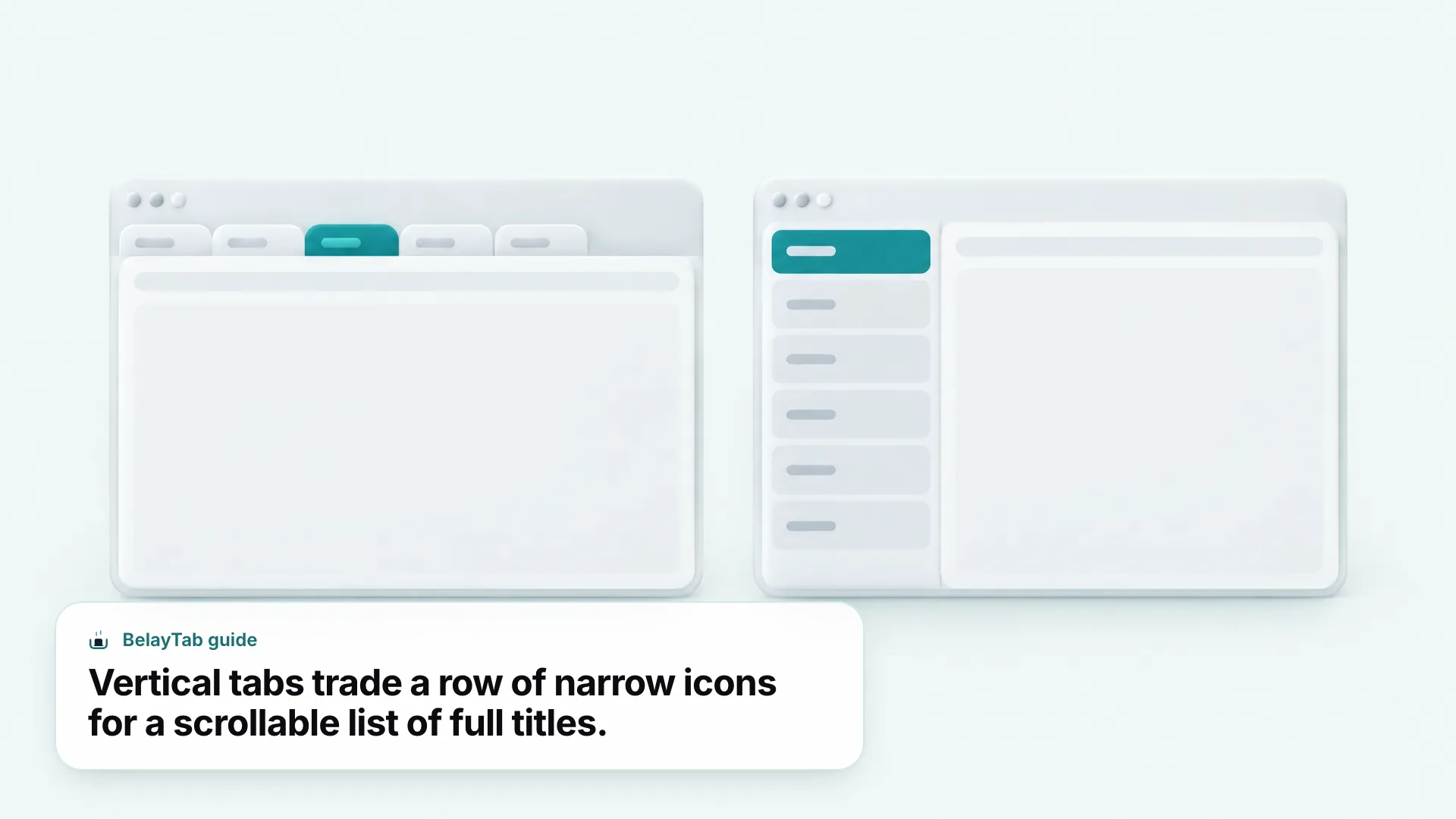
If you switch between the two browsers, the underlying idea is the same (trade a horizontal row of narrow tabs for a scrollable list of full titles) but the settings live in different places, so don’t expect the exact same click path on each. See our Edge browser guide for more on Edge specifically, or the Chrome browser guide for Chrome.
Are There Still Extensions for Vertical Tabs in Chrome?
Yes, and some people prefer them even now that Chrome has a native option, because extensions can add features Chrome’s built-in sidebar doesn’t have, like nested “tree” tabs or built-in tab search. But an extension is a separate piece of software with its own permissions, so weigh that against what the native toggle already gives you for free.
Try the native option first. Since Chrome’s built-in vertical tabs covers the basic layout switch at no extra cost and no extra permissions, it’s worth testing before adding an extension just for tab orientation. Reach for an extension only if you specifically need nesting, custom colors, or another feature the native sidebar doesn’t offer.
Does Chrome’s Side Panel Do the Same Thing as Vertical Tabs?
No. Chrome’s side panel, opened from the toolbar, is a separate sidebar for things like your reading list, bookmarks, and history. It doesn’t rearrange your open tabs. Vertical tabs specifically moves the tab strip itself into the sidebar.
It’s easy to confuse the two since both live on the left or right edge of the window. The side panel is a viewer for saved content; vertical tabs changes where your live, open tabs are displayed. You can use both at once.
What Happens to Your Tabs When the Window Closes or Chrome Crashes?
Nothing about vertical tabs changes what happens here — arranging your tabs vertically doesn’t save them anywhere. If the window closes, your computer restarts, or Chrome crashes, you’re relying on Chrome’s own recently-closed history or a separate tool, the same as you would with horizontal tabs.
Chrome does keep a short list of recently closed tabs and windows, reachable from Ctrl + Shift + T (Cmd + Shift + T on Mac) to reopen the last one you closed. That works whether your tabs are arranged horizontally or vertically. For what to do when that isn’t enough (a crash, a wiped profile, dozens of tabs at once) see our guide on restoring tabs in Chrome and what to do after Chrome crashes.
How Do You Keep Dozens of Vertical Tabs From Getting Lost?
Save them as a named session before you close anything, rather than hoping Chrome’s recently-closed list still has them later. That’s the gap vertical tabs doesn’t close — a longer, more readable tab list is still just as easy to lose as a short one.
- Install BelayTab from the download page. It adds tabs, tabGroups, sessions, storage, alarms, favicon, and contextMenus permissions only — no host permissions, so it never reads what’s on your pages.
- Save the window as a session. Click the BelayTab icon or press Ctrl + Shift + S (Cmd + Shift + S on Mac) to save your current window, selected tabs, or all windows at once, with tab groups, pinned state, and order kept.
- Let automatic snapshots back you up. BelayTab also snapshots every open window every 5 minutes and whenever a window closes, on its own, without you doing anything.
- Restore from the Recovery screen when needed. One screen holds your saved sessions, automatic snapshots, deleted sessions (30-day trash), and your browser’s own recently closed windows.
This works the same whether your tabs are arranged horizontally or vertically — BelayTab reads your tab list through Chrome’s tabs and sessions APIs, not the layout on screen. For what the recovery screen covers, see restoring tabs.
| Chrome’s recently closed | BelayTab | |
|---|---|---|
| How far back it reaches | Usually just the last closed tabs and windows in the current session | Automatic snapshots every 5 minutes, plus whenever a window closes |
| Named, searchable sessions | No | Yes, unlimited, free |
| Version history | No | Last 20 versions per session; restoring never overwrites |
| Works after a browser update or crash | Not guaranteed | Yes — snapshots are saved independently of the current session |
| Cost | Free, built in | Free for local sessions; optional paid Sync for cross-browser and cloud history |
Chrome’s own recently-closed list is fine for the tab you closed five minutes ago. It’s not designed as a backup, which is the difference that matters once you’re relying on dozens of tabs staying available days or weeks later.
What BelayTab doesn’t do. BelayTab can’t recover tabs from before it was installed, and it doesn’t fix a Chrome crash or freeze by itself. It makes sure the tabs survive one. If Chrome is actually frozen or unresponsive, see our Chrome freezing guide for fixes to the browser itself.
Does Chrome’s Vertical Tabs Work the Same on a Chromebook?
Yes, in principle — Chrome on ChromeOS shares the same browser and the same right-click “Show Tabs Vertically” option once the rollout reaches that device, though ChromeOS devices tend to receive Chrome updates on their own schedule. If you manage a lot of tabs specifically on a Chromebook, our Chromebook tab management guide covers the ChromeOS-specific tools alongside this.
Is Chrome’s Vertical Tabs Worth Switching To?
That depends on how many tabs you usually have open and how much you rely on reading full titles rather than favicons to find one. If you regularly lose track of tabs in a crowded top strip, a vertical list of full titles is easier to scan; if you keep only a handful of tabs open, the difference is smaller.
It’s also reversible in one click, so there’s little cost to trying it for a few days and switching back if it doesn’t suit your workflow. The setting is per-window in some builds, so you can even run one window vertical and another horizontal while you decide.
The main trade-off is horizontal screen space rather than vertical. A sidebar wide enough to show full page titles takes room away from the page itself, which matters more on a laptop with a narrow, 13-inch display than on a wide external monitor. If you mostly browse full-width pages that already feel cramped, narrowing or collapsing the sidebar when you are not actively switching tabs is a reasonable middle ground. You still get the sidebar layout without permanently losing the width.
Compare browsers built around vertical tabs. Arc built its entire interface around a vertical, sidebar-first layout years before Chrome added the option. See our Arc browser guide for where that project stands now and what it means if you’re considering a switch.
That trade-off is worth thinking through before you commit to the switch, and it’s small enough to test for a day or two before deciding either way.