






You’ve got fifteen tabs open across three topics and you need to close the laptop, but you don’t want to lose any of it. Bookmarking tabs is the fastest built-in way to hold onto a pile of open pages: one shortcut, one folder, done. But bookmarking and actually protecting your tabs aren’t quite the same thing, and the gap between them catches a lot of people off guard.
This guide covers how to bookmark tabs in every major desktop browser, where those bookmarks end up, how to back them up, and (honestly) where bookmarking stops being enough and you need something built for saving whole sessions instead of just links.
What Does It Mean to Bookmark Tabs?
Bookmarking tabs means saving every currently open tab in a window as a set of links you can reopen later, usually grouped into one folder. It’s a built-in browser feature, not a separate app, so it works offline and needs no sign-in.
The key word is “links.” A bookmark remembers a URL and a page title. It doesn’t remember which tabs were grouped together, which order they were in, which ones were pinned, or whether you were three scrolls down a long article. When you reopen a bookmarked tab, you get a fresh page load, not the state you left it in.
That distinction matters more as the number of tabs grows. Bookmarking five tabs from one research session is trivial to manage. Bookmarking forty tabs from a week of scattered browsing turns into an unlabeled folder you’ll scroll through once, feel defeated by, and probably never open again. Here’s a quick reference before the step-by-step details for each browser.
| Browser | Bookmark all open tabs | Notes |
|---|---|---|
| Chrome | Ctrl+Shift+D / Cmd+Shift+D | Confirmed shortcut; creates one folder |
| Edge | Ctrl+Shift+D / Cmd+Shift+D | Same Chromium shortcut, “Favorites” terminology |
| Brave, Opera, Vivaldi | Likely Ctrl+Shift+D | Chromium-based; not individually confirmed by each vendor |
| Firefox | Menu-based, not a confirmed shortcut | Check Firefox’s own bookmark shortcuts guide |
| Safari (Mac) | No official shortcut listed | Use the Bookmarks menu |
Terminology varies by browser. Chrome, Firefox, and Safari call this feature “bookmarks.” Edge calls the same thing “Favorites” throughout its interface and help docs. It’s the same underlying feature with a different label.
How Do I Bookmark All Open Tabs in Chrome?
Press Ctrl+Shift+D (Cmd+Shift+D on Mac) and Chrome bookmarks every open tab in the current window into a new folder. This is the official, documented shortcut, and it’s the fastest way to save a whole browsing session as bookmarks in Chrome.
Chrome also has Ctrl+D (Cmd+Shift+D on Mac) for bookmarking a single page — easy to confuse with the all-tabs shortcut since they’re one key apart. Get them mixed up and you’ll either bookmark one page when you meant to save fifteen, or flood your bookmarks bar with a folder you didn’t want.
- Gather the tabs. Open everything you want saved in one window; close anything you don’t want included, since this shortcut saves the whole window at once.
- Press the shortcut. Hit Ctrl+Shift+D (Windows/Linux) or Cmd+Shift+D (Mac).
- Name the folder. Chrome suggests a name and a save location — type something you’ll recognize in three weeks.
- Click Save. Every tab in that window is now a bookmark inside the new folder.
You can find that folder later through Chrome’s Bookmark Manager, opened with Ctrl+Shift+O on Windows and Linux (Cmd+Option+B on Mac, or via the menu). From the manager you can rename the folder, drag bookmarks between folders, or delete the ones you no longer need. If you’d rather browse visually, Chrome also lets you pop bookmark folders open in a side panel next to your tabs — handy for dragging links straight into a document while you work. For a broader rundown of every Chrome bookmark shortcut and menu path, see our Chrome bookmarks guide.
How Do I Bookmark All Tabs in Edge?
Press Ctrl+Shift+D (Cmd+Shift+D on Mac) — the same shortcut as Chrome, since Edge runs on the same Chromium engine. Microsoft’s own shortcuts page confirms Ctrl+D adds the current page to Favorites (Cmd+D on Mac), which is Edge’s name for bookmarks.
Where Edge differs from Chrome is in a couple of smaller details worth knowing before you go looking for a menu that doesn’t exist. Opening the Favorites manager with Ctrl+Shift+O is listed as Windows-only on Microsoft’s shortcuts page, with no confirmed Mac equivalent. Toggling the Favorites bar on and off is Ctrl+Shift+B on Windows, or Command+Shift+B on Mac — one extra modifier key than you might expect if you’re used to Chrome’s Ctrl+Shift+B.
If you’re switching between Chrome and Edge regularly, or migrating bookmarks from one to the other, Edge’s own import tool can pull bookmarks directly from an existing Chrome profile rather than making you export and re-import a file by hand. That’s a separate process from the bookmark-all-tabs shortcut, but worth knowing if you’re setting up Edge for the first time and don’t want to start your bookmarks list from zero.
How Do I Bookmark All Tabs in Firefox and Safari?
Firefox and Safari both let you save open tabs as bookmarks, but neither has the same cleanly documented, single-keystroke shortcut that Chrome and Edge share. That doesn’t mean it’s not possible. It means the exact menu path is more browser-specific and worth confirming in each browser’s own help pages before you build a habit around a shortcut that might not be current.
For Firefox, the reliable approach is to work through the browser’s built-in bookmark tools rather than guessing at a key combination. Our Firefox bookmarks guide and Firefox keyboard shortcuts guide cover the current menu paths and shortcuts Mozilla documents, and they’re the better reference than trying to memorize an unverified key combo here.
Safari on Mac is a similar story. Apple’s official Safari keyboard shortcuts page doesn’t list a dedicated combination for bookmarking an entire window of tabs, and even the commonly assumed Cmd+D for bookmarking a single page isn’t on Apple’s own shortcuts list. Safari does let you save tabs to bookmarks through its Bookmarks menu, and it also supports Tab Groups — a separate, built-in way to organize related tabs that behaves more like a workspace than a folder of static links. See our Safari bookmarks guide for the current steps on both.
Don’t guess at unconfirmed shortcuts. A few keyboard combos for Safari and Firefox circulate widely online but aren’t confirmed on the vendors’ own support pages. If a shortcut doesn’t work the way a blog post says it should, trust the browser’s own menu over the blog post.
How Do I Bookmark Tabs in Brave, Opera, and Vivaldi?
Try Ctrl+Shift+D (Cmd+Shift+D on Mac) first — Brave, Opera, and Vivaldi are all built on the Chromium engine, so Chrome’s bookmark-all-tabs shortcut is a reasonable starting point, even though none of the three vendors has published their own confirmation of that specific combination.
If the shortcut doesn’t behave as expected in one of these browsers, the fallback is the same everywhere: right-click on any open tab and look for a “Bookmark all tabs” or “Bookmark tabs” option in the context menu, or check that browser’s own settings/help pages for the current wording. Chromium browsers tend to inherit Chrome’s core keyboard shortcuts, but menu labels and edge-case behavior can drift between forks over time.
Vivaldi in particular has its own alternative worth knowing about: named Sessions, which save your currently open tabs as a session you can reopen later through the File menu or a dedicated Sessions panel. That’s closer to a lightweight session manager than a bookmarks folder, and it’s built into Vivaldi without needing an extension. Opera has a comparable organizing feature called Workspaces, which groups tabs by topic rather than saving them as bookmarks — useful for staying organized day to day, though it isn’t the same as a backup you can restore after closing the browser.
- Try the shortcut first. Ctrl+Shift+D / Cmd+Shift+D across Chromium browsers before assuming it’s broken.
- Fall back to right-click. Look for a “Bookmark tabs” option in the tab context menu.
- Check for a native session feature. Vivaldi’s Sessions and similar tools can save more than a bookmarks folder does.
Where Do Bookmarked Tabs Go, and How Do I Find Them Later?
They land in a new folder inside your existing bookmarks, typically placed on the bookmarks bar or in a default save location Chrome suggests when you bookmark all tabs. From there, you find them the same way you’d find any bookmark folder — through the Bookmark Manager, the bookmarks bar itself, or Chrome’s side panel.
Chrome’s side panel is worth turning on if you save bookmark folders often. It puts a bookmarks tab right next to your open tabs, so you can browse a saved folder and your current tabs side by side without switching windows. That’s a small but genuinely useful habit if you regularly bookmark a batch of tabs and then want to work through them one at a time.
If you signed in to Chrome when you saved the bookmarks, they sync to your Google Account and become available across every device where you’re signed in — worth checking if a folder you know you saved isn’t showing up on your laptop but is on your desktop. Google’s own documentation states that up to 100,000 bookmarks can be stored per Google Account, which is far more than most people will ever need, so running out of storage isn’t a realistic worry.
Turn on the bookmarks bar for quick access. Press Ctrl+Shift+B (Cmd+Shift+B on Mac) to show or hide the bookmarks bar in Chrome. Keeping it visible makes newly saved folders easy to spot without opening the full Bookmark Manager.
The harder problem isn’t finding the folder. It’s remembering what’s in it six months later. A folder named “New folder (12)” from a random Tuesday tells you nothing. If you bookmark tabs often, get in the habit of naming folders by project or date the moment you save them, since Chrome’s default name is rarely descriptive enough to be useful later.
Can I Bookmark Just Some of My Open Tabs, Not All of Them?
Yes — select the specific tabs you want first, then bookmark that selection instead of the whole window. Ctrl-click (Cmd-click on Mac) each tab you want to include to build a multi-tab selection, then right-click and choose the bookmark option from the context menu.
This is the move when you’ve got a mixed window: half research tabs, half unrelated browsing you don’t want cluttering a saved folder. Selecting first keeps the folder focused on exactly what you need, rather than saving everything and deleting the noise afterward.
For a single tab, it’s simpler still. Drag the tab directly onto the bookmarks bar, or use Ctrl+D (Cmd+D on Mac) while that tab is active. Both save just that one page without touching anything else open in the window.
- Select your tabs. Hold Ctrl (or Cmd on Mac) and click each tab you want included.
- Right-click the selection. A context menu appears with bookmark and other tab-management options.
- Choose the bookmark option. Name the folder and save — only the selected tabs are included, not the whole window.
Related shortcuts for managing bookmarks more broadly (adding, editing, and organizing individual bookmarks across every major browser) are covered in our bookmark shortcut key guide, which is worth bookmarking itself if you switch between browsers often.
What Happens If I Bookmark Too Many Tabs at Once?
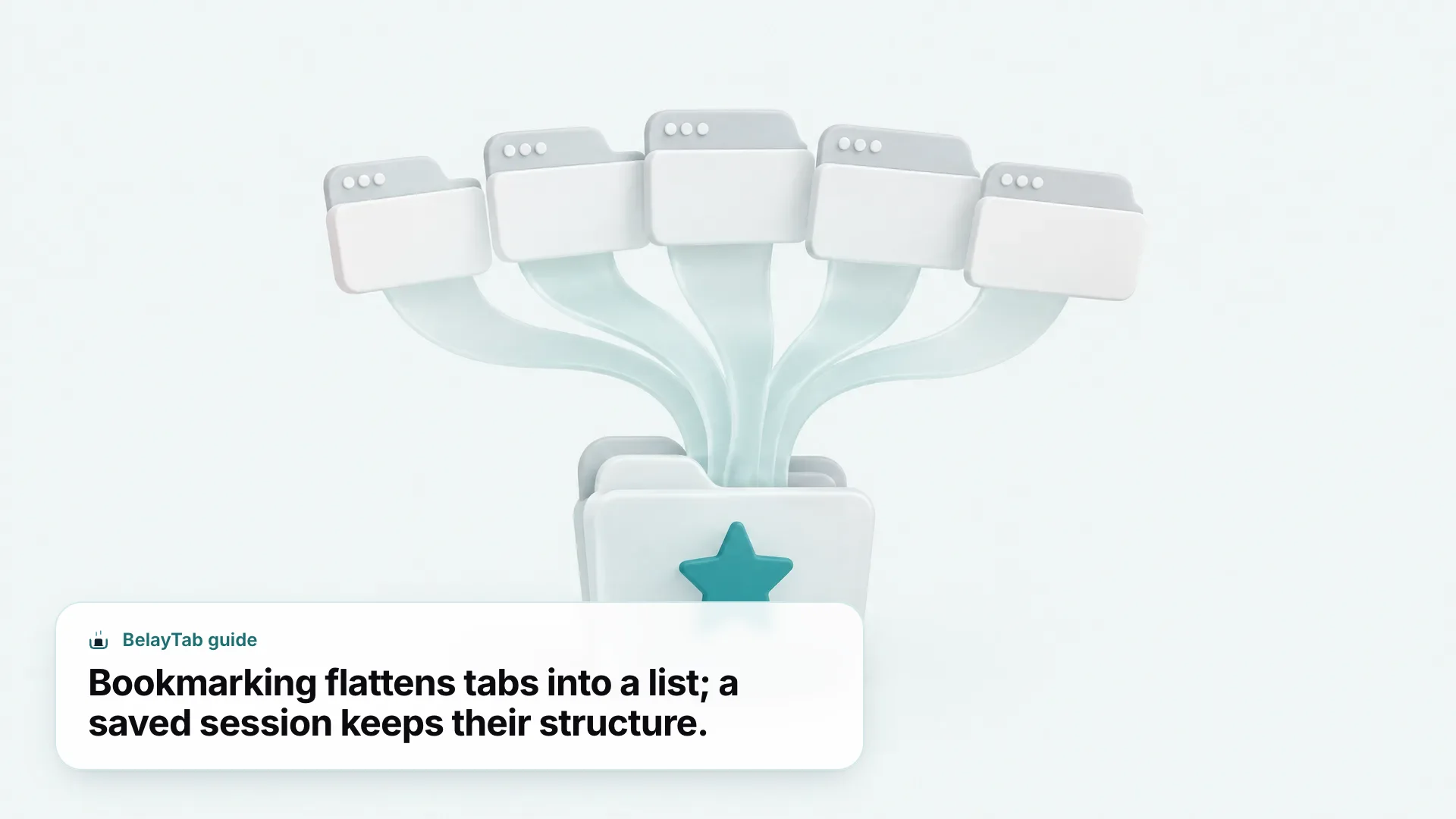
You get a working list of links, but you lose the structure that made those tabs useful in the first place. Bookmarking forty tabs saves forty flat entries in one folder — no groups, no order, no indication of which three were the important ones and which thirty-seven were just open in the background.
This is where bookmarking quietly stops solving the problem it feels like it’s solving. A bookmarks folder is a list. Your open tabs, before you closed them, were a working set: grouped by topic maybe, ordered by priority, some pinned because you needed them all day. None of that survives the bookmark-all-tabs shortcut. Reopening forty bookmarked links means forty individual clicks and forty fresh page loads, with zero indication of which tab group each one used to belong to.
There’s also a practical risk that has nothing to do with bookmarks at all: if the browser crashes, or a window closes by accident before you get to bookmark anything, none of this helps, because bookmarking is something you have to remember to do. It’s a manual, after-the-fact save, not automatic protection.
If you only ever save a handful of tabs occasionally, bookmarking is genuinely fine — don’t overthink it. The trouble starts specifically with volume: the more tabs you’re trying to protect at once, and the more often you’re doing it, the more a flat bookmarks folder becomes a chore instead of a solution.
How Do I Back Up or Export My Bookmarked Tabs?
Open Chrome’s Bookmark Manager and use its Export Bookmarks option to save your entire bookmarks structure as a single HTML file. This works whether you bookmarked tabs today or years ago — the export includes every bookmark and folder you have, not just recent additions.
The HTML file format is what makes exported bookmarks portable. Nearly every browser can import an HTML bookmarks file, which makes this the standard way to move bookmarks between browsers or keep an offline backup somewhere outside the browser itself, like a cloud drive folder.
- Open the Bookmark Manager. Ctrl+Shift+O on Windows/Linux, Cmd+Option+B on Mac, or through the browser menu.
- Find the export option. Click the three-dot menu (⋮) at the top of the Bookmark Manager and select Export Bookmarks.
- Save the HTML file. Choose a location you’ll remember. This file is your entire bookmarks structure in one portable document.
- Import elsewhere if needed. Use the matching Import Bookmarks option in another browser’s Bookmark Manager to bring the same file in.
This export/import cycle is well documented and reliable, but it’s worth knowing what it doesn’t cover: it’s a snapshot at the moment you export, not an ongoing backup. If you bookmark ten more tabs next week, that HTML file doesn’t update itself. You’d need to export again. For a full walkthrough with screenshots of every menu step, see our guide on exporting and importing Chrome bookmarks.
If you’re looking for a backup that updates on its own rather than one you have to remember to redo, that’s a genuinely different kind of tool than a bookmarks export — one built around scheduled, automatic saves instead of a manual export step. BelayTab’s import and export tools can bring in bookmarks or other tab-manager exports and also write a rolling export file to your Downloads folder on a schedule you turn on, which covers the “did I remember to back this up” problem that manual bookmark exports don’t.
Bookmarking Tabs vs Saving a Session: What’s the Difference?
Bookmarking saves links you reopen manually, one at a time; saving a session saves the whole window state so you can restore it as a working set in one action. They solve related but genuinely different problems, and knowing which one you need saves a lot of frustration later.
Bookmarks are built for permanent reference: a page you’ll want to find again in six months, a recipe, a documentation link you cite constantly. They’re stable, they sync across devices if you’re signed in, and they don’t expire. A session, on the other hand, is built for picking up exactly where you left off — all fifteen tabs from yesterday’s research sprint, back in the same tab groups, same order, same pinned tabs, restored together instead of clicked open one by one.
| Bookmarking tabs | Session manager (e.g. BelayTab) | |
|---|---|---|
| Saves tab groups and colors | No | Yes (Chromium browsers and recent Firefox) |
| Preserves tab order | No | Yes |
| Restores as one action | No — each link opens individually | Yes — restore into a new or current window |
| Automatic, no manual step | No | Yes — snapshots every 5 minutes and on window close |
| Version history if you save again | No | Yes — last 20 versions kept, restoring never overwrites |
| Works across your usual browsers | Per-browser, syncs if signed in | Chrome, Edge, Brave, Opera, Vivaldi, Arc, Firefox, Safari on Mac |
Neither tool replaces the other, and that’s fine — plenty of people use both. Bookmark the pages you want to keep permanently. Save sessions for the tabs you’re actively working through and need back exactly as you left them. If you’ve been using OneTab, Session Buddy, or Tab Session Manager for the session side of things and are curious how they compare, our OneTab comparison and broader session manager guide lay out the differences. For a closer look at what a session manager protects and how automatic snapshots work, see how tab recovery works and automatic snapshots.
Whichever you pick for a given moment, the underlying habit is the same: don’t wait until a browser crash or an accidental window close to decide you needed a backup. Bookmark the pages worth keeping, save sessions for the tabs you’re actively using, and you won’t lose either one.