






The bookmarks bar is that thin row just under Chrome’s address bar — the one with your favorite sites lined up as little icons and folders. It’s easy to lose (a stray keyboard shortcut hides it in a blink), and just as easy to forget how to bring back once it’s gone. This guide covers the two things people actually search for: getting the bar to show up again, and keeping it organized once it does.
We’ll walk through Chrome first, since that’s where almost everyone runs into this, then touch on other browsers and what changes when you switch computers. One thing worth knowing upfront: bookmarks and open tabs are not the same thing. The bookmarks bar only remembers pages you deliberately saved, not whatever forty tabs happen to be open right now. We’ll get to why that distinction matters near the end.
What Is the Bookmarks Bar, and Why Use It?
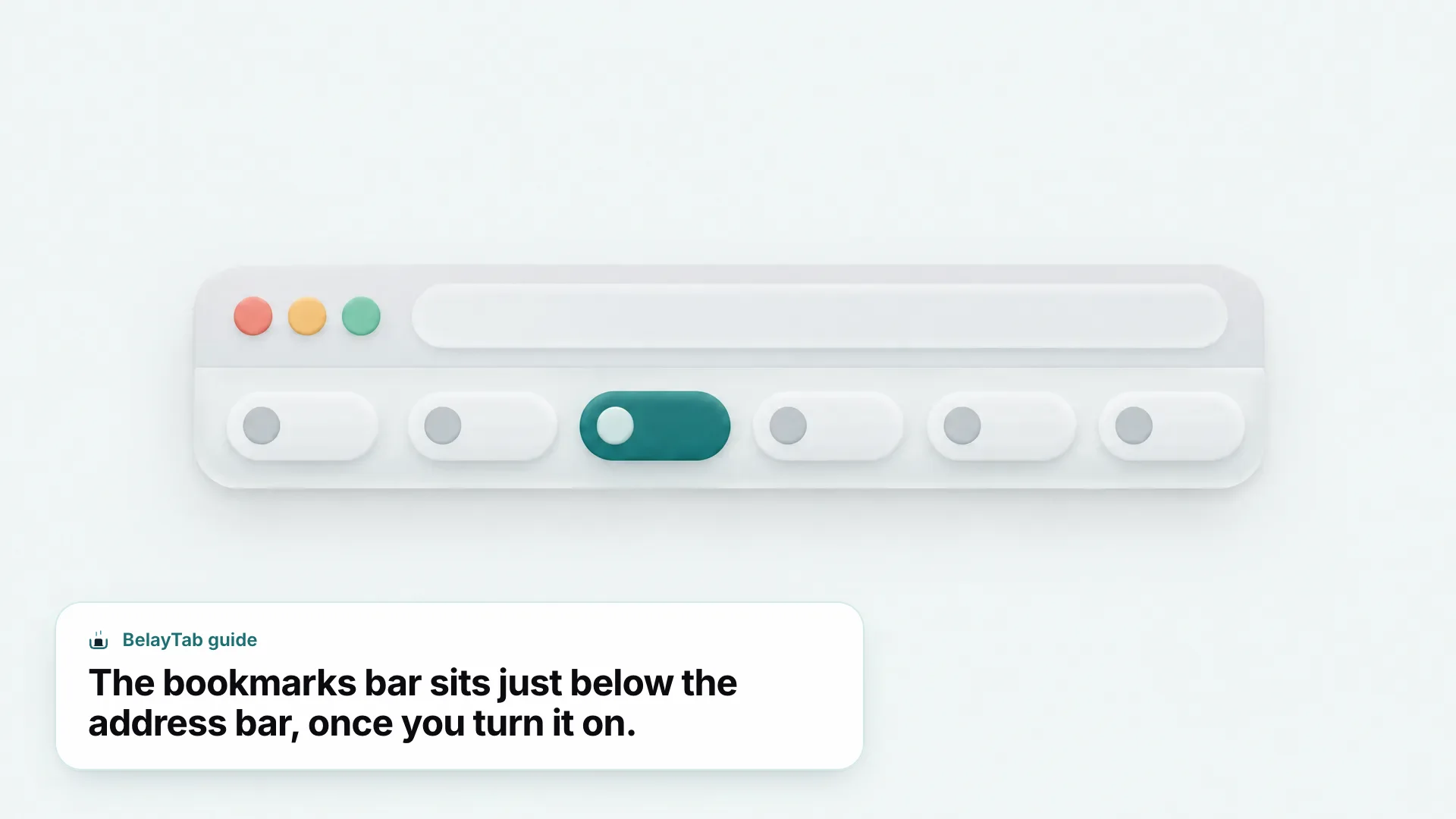
The bookmarks bar is the strip of shortcuts Chrome can display directly under the address bar, putting your most-used sites one click away instead of buried in a menu. Each entry can be a single page or a folder holding a whole group of pages — handy for something like “Work” or “Recipes” that you open constantly but don’t want cluttering your actual tabs.
A regular bookmark, by contrast, just sits in Chrome’s full bookmarks list until you go looking for it. Put one on the bar instead, and it’s visible every time you open a window. That’s exactly why most people reserve the bar for a small, daily-use set:
- A work email or project tracker you check constantly.
- A banking or billing site you don’t want to type out each time.
- A folder of reference links for whatever you’re currently working on.
The bar isn’t unique to Chrome, either. Edge, Brave, Opera, Vivaldi, Firefox, and Safari on Mac all offer some version of it, since it’s one of the oldest browser features around. What differs is where the toggle lives and what the shortcut is, which is part of why “show bookmarks bar chrome” and “show bookmark bar” pull up such different steps depending on which browser someone’s using. For most people, the bar earns its space with three or four items, not thirty — once a row of icons wraps or gets too cramped to read, it stops saving clicks and starts becoming one more thing to scan.
How Do You Show the Bookmarks Bar in Chrome?
Press Ctrl + Shift + B (Cmd + Shift + B on Mac) and the bar appears right below the address bar, on every page you visit. This is the fastest route, and it works whether you’re on the New Tab page or deep in some other site.
If you’d rather use a menu, Chrome puts the same toggle a couple of clicks away.
| Situation | What to do |
|---|---|
| Bar is hidden, you want it back | Press Ctrl + Shift + B (Cmd + Shift + B on Mac) |
| You’d rather click through a menu | Chrome menu (⋮) → Bookmarks and lists → bookmarks bar toggle |
| Can’t remember which shortcut it was | It’s the same key combination for showing and hiding — there’s nothing else to memorize |
| Window is small or low-resolution | Chrome may keep the bar hidden by default to save vertical space; resizing the window can help |
- Open Chrome’s menu. Click the three dots in the top-right corner of the window.
- Go to Bookmarks and lists. The bookmarks bar toggle sits near the top of that submenu.
- Turn it on. Click the toggle, or skip the menu entirely and press Ctrl + Shift + B (Cmd + Shift + B on Mac). It works from any tab, any time.
Both routes land in the same place. Google documents the shortcut and menu location as the two supported ways to control the bookmarks bar’s visibility Chrome bookmarks bar help thread, so there’s no hidden third method you’re missing.
How Do You Hide the Bookmarks Bar in Chrome?
Hide it the exact same way you showed it: press Ctrl + Shift + B (Cmd + Shift + B on Mac). Chrome treats this as a single toggle rather than two separate commands, so the shortcut simply flips whatever state the bar is currently in.
Some people hide it permanently to reclaim vertical space, especially on smaller laptop screens where every pixel of page height counts. Others hide it only while screen-sharing or presenting, then bring it right back afterward. Either way, nothing about your saved bookmarks changes.
If you’d rather not rely on muscle memory for a keyboard shortcut, the menu path works just as well: open the three-dot Chrome menu, go to Bookmarks and lists, and click the same toggle you’d use to show the bar. It’s a couple more clicks, but it’s easy to find again if you forget the keys.
Why Is the Bookmarks Bar Not Showing in Chrome?
The bar is almost always just switched off, and pressing Ctrl + Shift + B fixes it in one keystroke. It’s a surprisingly easy shortcut to hit by accident — a stray keypress while reaching for something else, or a setting you toggled months ago and forgot about.
If the shortcut doesn’t seem to do anything, check the window size first. Chrome can keep the bar hidden by default on small windows or low-resolution displays to save room, so maximizing the window or making it wider sometimes reveals a bar that was there all along, just squeezed out of view.
If neither the shortcut nor a resized window brings it back, walk through the menu path instead: three-dot menu, Bookmarks and lists, and look for the toggle directly. Doing it manually through the menu rules out any doubt about whether the keyboard shortcut is registering, and it’s the same setting either way. There’s no separate “advanced” version hiding somewhere in Settings.
How Do You Add a Bookmark to the Bookmarks Bar?
Press Ctrl + D (Cmd + D on Mac) on any page and choose the bookmarks bar as the save location in the small dialog that pops up. That’s the quickest way to get a single page onto the bar without opening any other window.
Got a whole set of open tabs you want saved at once? Chrome has a shortcut for that too, and it’s worth knowing separately from the single-page one.
- Bookmark one page. Press Ctrl + D (Cmd + D on Mac), then pick “Bookmarks bar” from the folder dropdown before saving.
- Or bookmark every open tab at once. Press Ctrl + Shift + D, which saves all tabs in the current window as a folder — drag that folder onto the bookmarks bar afterward if you want it there permanently.
- Drag it into place. Once a bookmark or folder is saved, drag it left or right along the bar to reorder it exactly how you want.
Google’s help pages confirm both shortcuts as the standard way to bookmark a single page or an entire window of tabs Chrome bookmark shortcuts. Note that Ctrl+Shift+D creates a bookmark folder from your currently open tabs. It doesn’t create a live, restorable session the way saving to BelayTab does, since a bookmark only ever remembers the URL, not the tab’s scroll position, form data, or whether it was part of a group.
How Do You Organize the Bookmarks Bar With Folders?
Create folders in the Bookmark Manager, then drag them onto the bookmarks bar to pin them there permanently. Open the manager with Ctrl + Shift + O on Windows or Linux, or Cmd + Option + B on Mac, and you’ll see every bookmark and folder you’ve ever saved in one searchable list.
Folders on the bar work the same way folders work anywhere else: click one and it drops down a menu of what’s inside, rather than opening every page at once. This is the trick that lets a handful of bar items represent dozens of saved pages without the row ever looking crowded.
A few habits keep a bookmarks bar useful instead of turning into digital clutter:
- Group by task, not by site — a “Taxes” folder beats five loose government-site bookmarks.
- Rename anything with a vague default title; right-click any bookmark or folder and choose Edit.
- Periodically drag stale items into the general Bookmark Manager instead of deleting them outright, in case you need them later.
- Keep the bar itself short — folders are for depth, the bar is for breadth.
If you’d rather see everything at a glance before you start reorganizing, BelayTab’s free bookmarks viewer lays out your whole bookmark tree in one page, which makes it easier to spot duplicates and folders worth merging before you touch the bar itself.
Bookmarks Bar vs Bookmark Manager: What’s the Difference?
The bookmarks bar is a visible shortcut row you can show or hide, while the Bookmark Manager is the full library holding every bookmark and folder you’ve ever saved, whether or not it’s pinned to the bar. Think of the bar as the display case and the manager as the whole storeroom behind it.
| Bookmarks Bar | Bookmark Manager | |
|---|---|---|
| What it shows | Only what you’ve dragged onto it | Every bookmark and folder you own |
| How you open it | Toggle with Ctrl + Shift + B | Ctrl + Shift + O (Cmd + Option + B on Mac) |
| Best for | A handful of daily-use sites | Searching, organizing, importing, exporting |
| Visibility | A row under the address bar, on or off | A dedicated page, opened when you need it |
You’ll usually use both together: the manager to build and clean up folders, the bar to surface a small slice of them where you’ll see them. For a deeper look at organizing the manager itself, and how it compares to third-party bookmark tools, see our guide to choosing a bookmark manager.
How Do You Show the Bookmarks Bar in Other Browsers?
Most Chromium-based and non-Chromium browsers offer a bookmarks or favorites bar, but the exact menu path and shortcut vary enough that we won’t guess at another browser’s current settings here. Rather than risk outdated steps, here’s where to look and where to find verified instructions for each.
- Edge, Brave, Opera, Vivaldi. These browsers share Chrome’s underlying engine and generally offer a similar bar with its own toggle, but the exact menu wording differs by browser and version — check that browser’s own settings or bookmarks menu directly.
- Firefox. Firefox calls its equivalent the Bookmarks Toolbar, with its own toggle separate from Chrome’s. See our Firefox shortcuts guide for the current keys.
- Safari on Mac. Safari has a Favorites bar with its own View menu setting. Our Safari bookmarks guide covers Mac and iPhone specifics.
- Chromebook. ChromeOS runs the same Chrome browser, so the Chrome steps above apply — see our Chromebook bookmarks guide for anything ChromeOS-specific.
If you’re switching between two or three browsers regularly, it’s worth accepting that the bar’s exact behavior won’t be identical everywhere. What does transfer cleanly is the underlying bookmark data itself, which every major browser can export to a standard HTML file and import somewhere else. That’s the part worth relying on if you’re the type who bounces between browsers.
How Do You Move Your Bookmarks to a New Computer?
Turn on Chrome sync and sign in on the new computer, and your bookmarks carry over automatically without any manual export. This is the simplest path if you’re staying inside the Chrome ecosystem and don’t mind signing into a Google Account.
If you’d rather not sign in, or you’re moving bookmarks into a different browser, exporting is just as reliable and keeps everything under your own control.
- Open the Bookmark Manager and click the three-dot menu inside it.
- Choose Export Bookmarks, which saves everything as a single HTML file.
- On the new computer, open its Bookmark Manager and choose Import Bookmarks from that same HTML file.
Google documents both routes (sync or manual export and import) as the two supported ways to move bookmarks between installs Chrome Bookmark Manager help. One detail worth knowing: if the new computer’s Chrome already has bookmarks of its own, the imported ones typically land in a separate folder rather than merging straight onto the bar, so you’ll want to drag anything you use daily back onto the bar yourself afterward.
Sync and backup aren’t the same thing. Turning on sync keeps bookmarks current across signed-in devices, but it’s not a version history — delete a folder on one device and sync deletes it everywhere else too. An exported HTML file is the closer thing to an actual backup, since it’s a snapshot frozen at the moment you exported it.
For step-by-step screenshots of the export and import dialogs specifically, our guide on exporting and importing Chrome bookmarks and our walkthrough on moving bookmarks to a new computer both cover the process in more detail than fits here.
Does the Bookmarks Bar Save Your Open Tabs and Sessions?
No — a bookmark only remembers a page’s title and URL at the exact moment you saved it, not your open tabs, your tab groups, or anything you haven’t explicitly bookmarked. This trips people up constantly: they assume that because a page is bookmarked somewhere, it’s “safe,” when really the bookmarks bar has no idea what’s currently open in your browser at all.
That gap is exactly what BelayTab was built to close. It’s a free browser extension that saves your actual open windows (every tab, tab group name and color, pin state, and tab order) as a named session you can restore later, with no account required and no limit on how many sessions or tabs you keep. It also saves a snapshot of every open window on its own on a schedule and whenever a window closes, so even tabs you never got around to saving manually still show up on the Recovery screen if something goes wrong.
Bookmarks and BelayTab aren’t competitors. They solve different problems. Bookmarks are for pages you’ll want to find again someday. BelayTab is for the forty research tabs open right now that you can’t afford to lose before you’ve had a chance to look at them properly, or the work session you want to close tonight and reopen tomorrow exactly as you left it, groups and all.
- Install BelayTab. Grab it free from the download page for your browser.
- Save your window. Click the toolbar icon or press Ctrl + Shift + S (Cmd + Shift + S on Mac) to save every open tab as a named session.
- Restore it anytime. Reopen the whole window, or pull back a single tab, from the Save Tabs feature page whenever you need it.
Keep your bookmarks bar for the handful of sites you visit daily. Let BelayTab carry the weight of everything else you’ve got open.