






You just unboxed a new laptop, or maybe you’re finally retiring an old desktop, and now every login page, recipe, and half-finished research thread you’d bookmarked over the years is stuck on the wrong machine. Chrome doesn’t have a single “move bookmarks” button, but it gives you two reliable ways to get them across: turn on sync so your Google Account carries them automatically, or export your bookmarks to a file and import it on the new computer. Both are free, both take a few minutes, and neither needs third-party software.
This guide walks through each method to move Chrome bookmarks, what to do when both computers already have bookmarks worth keeping, and how to remove bookmarks (single ones, whole folders, or the bookmarks bar itself) when you’re tidying up instead of moving. It also covers something Chrome’s export never touches: the tabs you actually have open right now.
How Do I Move Chrome Bookmarks to a New Computer?
The fastest way is to sign in to Chrome with the same Google Account on both computers and turn on sync — bookmarks appear on the new machine within moments, with no file to manage. If you don’t use a Google Account, or you’re moving between a work and personal machine that shouldn’t share one, export your bookmarks to an HTML file from Bookmark Manager and import that file on the new computer. Both routes are officially supported by Chrome, and both keep your full folder structure intact.
Which one you pick usually comes down to how the two computers are set up. Sync is the easiest route when you’re happy signing in to a Google Account on the new machine anyway. It also brings passwords, open tabs, and settings along for free. Export and import is the better choice for a one-time copy without linking accounts, for a work laptop you’re about to hand back, or for a new computer that will stay offline for a while before you sign in.
The table below is the short version. The sections after it walk through each method step by step, plus what to check first if both computers already have bookmarks worth keeping.
| Situation | Best method | What moves with it |
|---|---|---|
| Both computers use the same Google Account | Turn on Chrome sync | Bookmarks, open tabs, passwords, history, settings |
| No Google Account, or a one-time copy | Export to HTML, then import | Bookmarks and folder structure only |
| Moving from another browser (Firefox, Edge) | Import bookmarks and settings | Bookmarks, and sometimes history or passwords depending on the browser |
| Sharing one device’s collection without linking accounts | Export to HTML, share the file | Bookmarks only |
How Do I Move Bookmarks in Chrome Using Sync?
Sign in to Chrome on the new computer with the Google Account you already used, and sync turns on by default, copying your bookmarks over automatically. There’s no export file to create or move — Chrome handles the transfer as soon as both devices are signed in and connected to the internet.
Sync doesn’t stop at bookmarks. By default it also brings over history, saved passwords, payment info, addresses, and your Chrome settings, so a freshly signed-in computer starts feeling like the old one within a minute or two. If you’d rather sync only bookmarks and leave the rest behind, Chrome lets you customize exactly which data types sync from Settings > “You and Google” > sync options.
- Sign in on your old computer. Click the profile icon (top right) and sign in with your Google Account if you haven’t already; this turns sync on.
- Sign in on the new computer. Open Chrome, click the profile icon, and sign in with the same account.
- Wait for sync to finish. Bookmarks usually appear within a few seconds to a minute once both devices are online.
- Check your bookmarks bar. Open a new tab and confirm your folders and bookmarks match the old computer.
Synced data is encrypted by default. If you want an extra layer, Chrome lets you set a custom sync passphrase for additional encryption — just don’t lose it, since there’s no official way to recover a forgotten passphrase short of resetting sync and starting fresh. For a closer look at exactly what syncs and what stays local, see our guide to Chrome sync.
How Do I Transfer Bookmarks to Another Computer by Exporting Them?
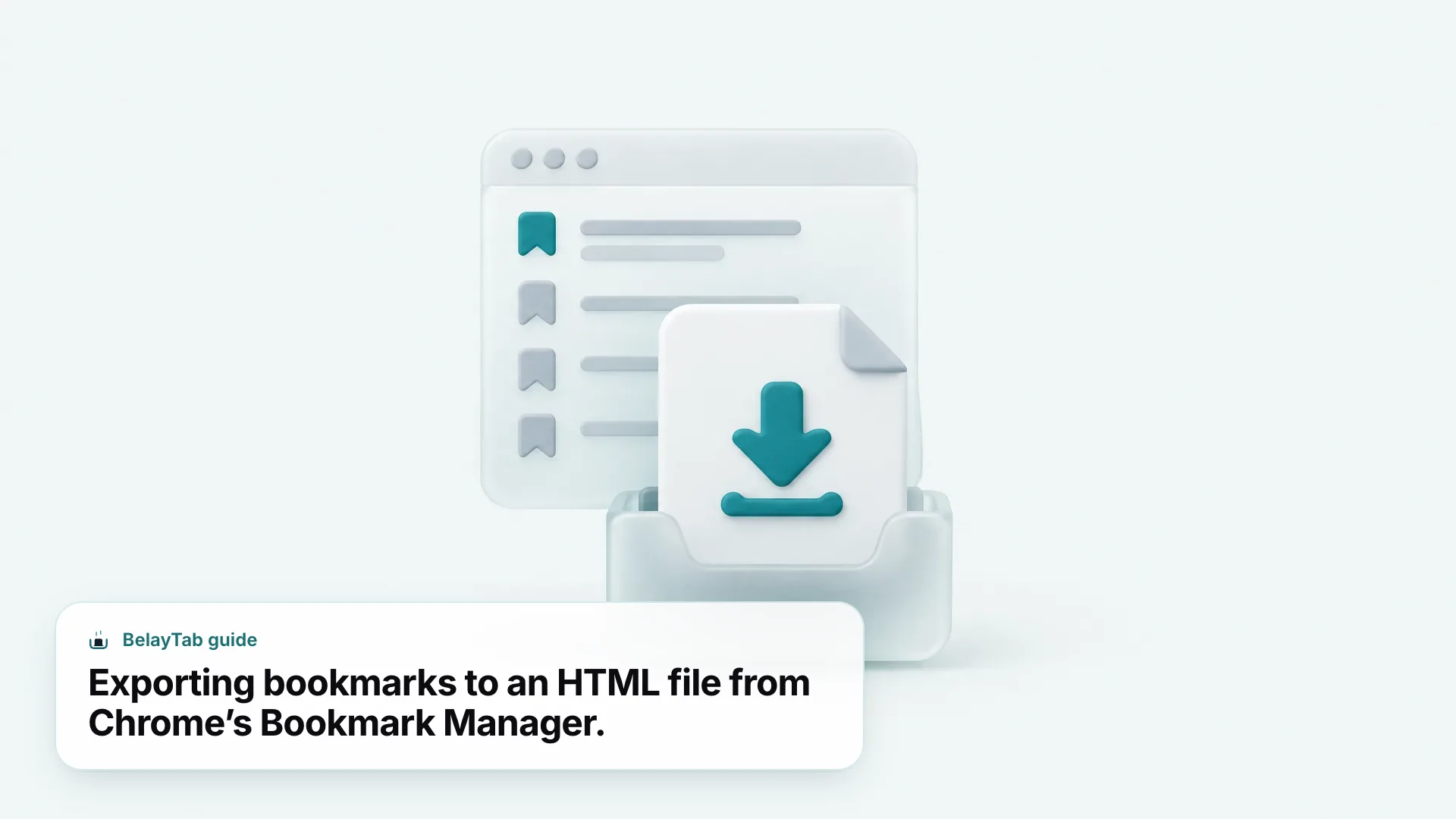
Open Bookmark Manager, use the three-dot menu to export your bookmarks as an HTML file, then import that same file into Chrome on the new computer. This is the method Google documents directly for moving bookmarks between machines, and it works whether or not either computer is signed in to a Google Account.
The exported file is a plain HTML page with a link for every bookmark, organized into the same folders you see in Chrome. That makes it easy to move: email it to yourself, drop it in a cloud storage folder, or copy it onto a USB drive. Once it’s on the new computer, importing it takes about the same two clicks as exporting did.
- Open Bookmark Manager on the old computer. Press Ctrl + Shift + O on Windows or Linux, or use the Chrome menu on Mac.
- Export your bookmarks. Click the three-dot menu at the top, choose Export Bookmarks, and save the HTML file somewhere you’ll remember, like your Desktop.
- Move the file to the new computer. Use a USB drive, cloud storage, or email — whatever’s easiest for you.
- Open Bookmark Manager on the new computer and click the three-dot menu again.
- Import the file. Choose Import Bookmarks, select the HTML file, and Chrome adds everything in a matter of seconds.
If Chrome on the new computer already has bookmarks, the imported ones land in a new folder (usually called “Imported”) rather than overwriting anything. If it’s a brand-new profile with no bookmarks yet, they populate the bookmarks bar directly. Either way, nothing from the old computer gets deleted; export just makes a copy.
If you’re used to a tool that saves more than bookmarks (your actual open tabs, tab groups, and window layout) BelayTab’s import and export feature reads the same kind of files and a few more formats besides.
How Do I Copy Chrome Bookmarks to Another Computer Without Signing In?
Export the HTML file from Bookmark Manager as usual, then move that file to the new computer using a USB drive, cloud storage, or an email attachment — none of it requires a Google Account on either machine.
Skipping sign-in usually comes down to privacy or workplace policy — some people don’t want a personal Google Account tied to a work laptop, and some managed computers won’t let you add one at all. The export file itself doesn’t care either way; it’s just HTML, so any transfer method that gets a file from one computer to another works fine.
- USB drive. Copy the exported HTML file onto a flash drive, plug it into the new computer, and import from there — no internet connection needed on either end.
- Cloud storage. Drop the file into a Drive, Dropbox, or similar folder accessible from both computers, then download and import it on the new one.
- Email attachment. Send the file to yourself if it’s the only computer-to-computer link you have handy, like moving between a home and office machine.
Whichever method you use, keep the export file somewhere safe for a while after you import it. It doubles as a plain-text backup of your bookmarks — useful if you ever need to check what you had before a big cleanup. This is also the fastest path if you’re only moving between a couple of computers once rather than keeping them permanently linked through an account.
How Do I Copy Bookmarks From One PC to Another When Both Already Have Bookmarks?
Import the exported HTML file as usual — Chrome adds the new set into its own folder rather than merging or overwriting what’s already on the second PC, so you’ll end up with both collections side by side.
That’s good news for safety (you can’t accidentally wipe out existing bookmarks by importing) and slightly annoying for tidiness, since you may now have two “Work” folders or duplicate links to the same site. There’s no built-in Chrome tool that automatically merges or deduplicates bookmarks for you.
The cleanup is manual but quick for most people: open Bookmark Manager, look at the new “Imported” folder, and drag anything worth keeping into your existing structure, deleting the duplicates as you go. This matters most on shared or family computers, where two people’s personal bookmarks might collide inside the same profile — a separate Chrome profile for each person avoids the merge question entirely, since each profile keeps its own bookmarks, history, and passwords.
Signing in later can create a second copy. If you export and import bookmarks manually now, then sign in to sync on both computers later, you might merge two already-overlapping sets. Pick one method (sync or manual export) for a given pair of computers, and stick with it once your bookmarks are lined up.
What Should You Check Before You Move Bookmarks in Chrome?
Confirm you’re moving the right profile, make sure the old computer still has the bookmarks you expect, and export a backup file even if you’re planning to use sync.
Chrome supports multiple profiles per computer, each with its own separate bookmarks. If you or someone else has more than one profile on the old machine, double check you’re exporting from the one you use before writing off the rest as “nothing important.”
It’s also worth a quick sanity check on the new computer before you start: is Chrome signed in to the account you expect, or a leftover one from a previous owner or setup? Signing in to the wrong account and turning on sync can pull in someone else’s bookmarks instead of yours, or start syncing your data into an account you don’t control.
How Do I Remove Bookmarks in Chrome?
Open Bookmark Manager, right-click the bookmark or folder you want gone, and choose Delete. It disappears immediately with no confirmation step, whether you’re trying to remove Chrome bookmarks one at a time or clear out an entire folder.
You can also delete straight from the bookmarks bar or menu: right-click any bookmark you see there and choose Delete without opening the full manager. Both routes remove the item everywhere it appears, including the bar, the menu, and Bookmark Manager itself, since they’re all just different views of the same list.
Deleting a folder removes everything inside it, so check what’s in a folder before you clear it if you’re not sure. Chrome doesn’t have an official undo for deleted bookmarks; your safest recovery option is a recent export file, if you kept one, or a synced copy still sitting on another signed-in device.
| What you want to remove | How to do it |
|---|---|
| One bookmark | Right-click it in Bookmark Manager or the bookmarks bar, choose Delete |
| A whole folder | Right-click the folder, choose Delete — this removes everything inside it too |
| Several bookmarks at once | In Bookmark Manager, select multiple items (Ctrl/Cmd-click), then right-click and choose Delete |
| Everything | Select all in Bookmark Manager, then Delete — Chrome has no single “delete all bookmarks” button |
How Do I Remove the Bookmarks Bar From Chrome?
Press Ctrl + Shift + B (Cmd + Shift + B on Mac) to hide the bookmarks bar — the same shortcut brings it back.
This shortcut toggles visibility only; it doesn’t delete a single bookmark, so everything you had saved is still there the moment you turn the bar back on. It’s the quickest fix if the bar is just taking up space you’d rather use for tabs or page content.
You’ll get the same toggle from the menu if you’d rather click than remember a shortcut: open the Chrome menu, go to Bookmarks and lists, and select Show bookmarks bar to check or uncheck it. You can also right-click any empty space on the bar itself and choose the same option. On smaller windows or lower screen resolutions, Chrome sometimes keeps the bar hidden by default to save space, which can look like it disappeared on its own. It’s just responding to how much room your window has.
Hiding the bar is not the same as removing bookmarks. If your goal is to get specific bookmarks out of the bar rather than hide the whole thing, drag them out and drop them into a folder instead. The bar only shows what you’ve put directly on it or in its top-level folders.
For every way to show, hide, and organize it across browsers, see our guide to the bookmarks bar in every browser.
How Do I Remove Bookmarks on a Chromebook?
The steps are identical to any other computer running Chrome (open Bookmark Manager, right-click the bookmark or folder, and choose Delete) since a Chromebook is just ChromeOS running the standard Chrome browser.
There’s no separate “Chromebook version” of bookmark management; every shortcut and menu path in this guide works the same way, including Ctrl + Shift + O for Bookmark Manager and Ctrl + Shift + B for the bookmarks bar.
Where Chromebooks differ a bit is account handling. Many are set up for a single Google Account, or shared across a family or classroom with each person getting their own profile. If you’re clearing bookmarks on a shared Chromebook, check which profile you’re in first (the profile icon sits in the same top-right spot) so you don’t delete someone else’s saved pages by mistake. Guest browsing sessions on a Chromebook don’t keep bookmarks at all once the session ends, so there’s nothing to remove there in the first place. If you manage a school or work fleet of Chromebooks and need bookmarks gone from many devices at once, that’s a policy handled through your organization’s device management, not something you’d do bookmark by bookmark yourself.
See our full Chromebook bookmarks guide for more on organizing bookmarks specifically on ChromeOS.
What Happens to Your Open Tabs When You Move to a New Computer?
Nothing, unless you bookmark them first or turn on sync — bookmarks and open tabs are two separate things in Chrome, and only one of the methods in this guide touches your tabs at all.
Export and import moves bookmarks only. If you’ve got forty research tabs open the night before a deadline and none of them are bookmarked, exporting an HTML file won’t save a single one. They’re simply not part of what gets written to that file.
Sync does carry open tabs, since they’re one of the data types Chrome keeps synced by default alongside bookmarks and history. But sync shows a live snapshot of what’s currently open; it doesn’t keep a history of past sessions, and if you close a window before the new computer catches up, that snapshot is gone with it. Neither method restores tabs from before a crash, and neither keeps a version you can roll back to.
If you’re specifically worried about losing tabs to a crash rather than a computer switch, our guide to restoring tabs in Chrome after closing or crashing covers the built-in recovery options too.