






“Chrome keeps stopping” on your Android phone is one of those errors that always shows up at the worst moment — mid-scroll on a work email, halfway through checking in for a flight, or right as you’re looking something up before a meeting. The good news is that this specific error has a well-documented cause list and a fix order Google actually recommends, so you don’t have to guess your way through it.
This guide walks through that order exactly: what to try first, what’s safe to skip, and what each step deletes before you tap it. You’ll also see how to get your open tabs, bookmarks, and history back afterward, whether Chrome just crashed once or you had to wipe its storage completely. None of it requires rooting your phone or installing anything new. It’s all built into Android and Chrome already.
Quick Answer: Why Does Chrome Keep Stopping on Android?
Chrome keeps stopping on Android mainly because it’s run out of memory, has too many tabs open, or Android System WebView broke something after an update, and as of September 2026 Google’s own fix order starts with closing tabs, not reinstalling anything. The table below matches your situation to the fix worth trying first, and the sections after it walk through every step in full.
| Your Situation | Try This First |
|---|---|
| Chrome crashes right after you open it | Force stop Chrome, then restart your phone |
| Only certain sites or apps trigger the crash | Update Android System WebView in Google Play |
| Chrome gets slow, then crashes with lots of tabs open | Close unused tabs and other running apps |
| Crashing continued after a cache clear | Clear Chrome’s storage (this deletes local data) |
| Nothing above has worked | Uninstall Chrome’s updates, or uninstall and reinstall it |
It’s tempting to jump straight to the drastic option, especially if this is the third time today Chrome has stopped on you. Resist that. Google’s own troubleshooting page for Chrome problems puts memory and tab count first for a reason: they’re the most common cause, they cost you nothing to check, and they don’t touch any of your saved data. Uninstalling and reinstalling should be your last move, not your first, because it’s the only step here that risks losing anything you haven’t backed up.
If Chrome crashed but the rest of your session (other apps, other tabs) is still fine, this is a different situation from Chrome freezing entirely or not responding to taps at all. That’s covered in our guide to Chrome freezing or not responding. And if you’re troubleshooting this same kind of crash on desktop Chrome rather than your phone, see Chrome Crashed? How to Restart It and Get Your Tabs Back, which covers the desktop-specific recovery options that don’t apply here.
What Causes “Chrome Keeps Stopping” on Android?
Three things cause the vast majority of “Chrome keeps stopping” errors: low device memory, too many open tabs, and a broken Android System WebView update. Google’s own support documentation calls out memory pressure and tab count specifically as the first things to check when Chrome fails to load pages or behaves like it’s crashing.
Memory pressure happens when your phone is juggling Chrome alongside several other apps, and there isn’t enough RAM left for Chrome to keep running smoothly. This gets worse on phones with less memory to begin with, and worse still if you’ve had the same session open for days without restarting anything. Tab count compounds the problem directly, since each open tab holds its own slice of memory even when you’re not looking at it.
The third cause is less obvious and harder to self-diagnose: Android System WebView. This is a separate system component, distinct from the Chrome app itself, that many other apps use to render web content inside their own interfaces. Multiple official Google support-community threads across Android, Chrome, Google Play, and Gmail have documented WebView updates causing crash-like behavior in Chrome and other apps at the same time. It’s well-corroborated across those threads rather than being a single, official Google bulletin, but the pattern is consistent enough that it’s worth checking early if the crashes started right around when you last updated an app.
- Low memory. Chrome competes with every other running app for RAM, and it’s usually the one that loses first.
- Too many tabs. Each tab holds memory even in the background, so forty open tabs add up fast.
- WebView update. A shared system component breaking after an update can crash Chrome and other apps together.
How Do You Close Tabs and Apps to Stop Chrome From Crashing?
Closing unused tabs and other running apps is the first fix Google recommends, and it takes under a minute. This works because it directly addresses the most common cause: Chrome running low on memory while competing with everything else on your phone.
- Open the tab switcher. Tap the square icon (or the number badge) near the address bar.
- Tap More, then Close all tabs. This clears every open tab in one move rather than swiping each one away individually.
- Close other running apps. Open your phone’s recent apps view and swipe away anything you’re not actively using.
- Pause any active downloads. Downloads running in the background compete for the same memory Chrome needs.
If you’d rather not lose track of what was open, this is exactly the moment where a habit of naming and saving tab groups before things get out of hand pays off — on desktop, at least, where extensions can do this automatically. On Android itself there’s no equivalent built-in safety net beyond Chrome’s own sync, which we’ll get to further down. For now, if the crash stops after this step, you’ve confirmed memory was the issue, and you can rebuild your open tabs more selectively instead of piling forty back in at once. If you’re regularly hitting this wall, our guide on taming tab overload covers habits that keep it from recurring, on both phone and desktop.
Check your tab count first. Open the tab switcher and glance at the number badge before you do anything else. If it’s in the double digits, that’s very likely your answer, and everything below this step is secondary.
How Do You Restart Your Phone to Fix Chrome?
Restarting your phone is Google’s second recommended step, and it clears out memory and background processes that closing apps alone doesn’t always catch. It’s a full power cycle, not just locking and unlocking the screen.
Hold the power button until you get the restart or power-off option, then give the phone a few seconds after it powers down before turning it back on. This flushes every app’s memory footprint, not just Chrome’s, which is why it can fix crashes that persist even after you’ve closed every tab and app manually. It also clears up any lingering issue from a stuck background process that isn’t visible in the recent apps list at all.
This step is easy to skip because it feels like it shouldn’t matter. You already closed everything, right? In practice it catches a meaningful slice of cases that step one alone doesn’t, mostly because Android doesn’t always fully release memory the moment an app closes. If Chrome still crashes immediately after a full restart, that’s a useful data point: it points toward something more specific than general memory pressure, like a broken WebView update or a corrupted piece of Chrome’s local data, both of which are covered in the sections below.
How Do You Force Stop Chrome on Android?
Force stopping Chrome kills the app process directly through Android’s own settings, which is more forceful than closing it from the recent apps view and can clear a stuck state that a normal close doesn’t touch. It’s standard Android app management, available for any app, not something unique to Chrome.
Open your phone’s Settings app, tap Apps (sometimes labeled Apps & notifications), find and select Chrome, and tap Force stop. Android will warn you that force stopping might cause the app to misbehave, which you can safely ignore here since that warning is generic and applies to every app on the list. Force stopping doesn’t delete anything: it just ends the running process so the next launch starts clean.
Menu wording varies by phone. The exact path (Settings, then Apps, then Chrome) is standard across Android, but some phone makers rename or reorganize these menus slightly. If you can’t find Apps directly, try searching “Chrome” inside your phone’s Settings search bar instead.
Reopen Chrome after force stopping it and see whether the crash comes back immediately, after a few minutes, or only when you load a specific site. That timing tells you a lot: an immediate repeat crash usually means something more persistent, like WebView, while a delayed one often points back to memory building up again over time.
Why Does Android System WebView Cause Chrome to Crash?
Android System WebView causes Chrome to crash because it’s a shared system component that Chrome and many other apps both rely on to render web content, and a broken update to it can take several apps down together, not just Chrome. It’s a separate piece of software from the Chrome app itself, even though the two are closely related and often updated around the same time.
You’ll notice this pattern specifically if other apps besides Chrome (things like Gmail, or any app with an embedded browser view) start acting up around the same time Chrome does. That’s the tell. Multiple official Google support-community threads spanning Android, Chrome, Google Play, and Gmail have documented this exact pattern following WebView updates, which is corroborating evidence across several official channels even without a single canonical bulletin naming it.
The fix is to update both pieces from the Google Play Store: search for Chrome and update it if available, then separately search for Android System WebView and update that too. If updating doesn’t help, Google’s own troubleshooting for this specific scenario also includes clearing the Play Store app’s own storage and reopening it before trying the updates again, and as an alternative path, disabling Chrome, updating WebView on its own, then re-enabling Chrome.
How Do You Clear Chrome’s Cache on Android?
Clearing Chrome’s cache removes only temporary files that Chrome stores to make pages load faster, and it’s the safest storage-related fix to try, since it doesn’t touch your saved data or open tabs. Google’s own guidance on Android app storage describes cache clearing as removing temporary data only, with the app possibly loading a bit slower the next time you open it while it rebuilds those files.
To clear it, open Settings, then Apps, then Chrome, then tap Storage. You’ll see two separate buttons here: Clear cache and Clear storage. Tap only Clear cache for this step. It’s a genuinely low-risk move, worth trying any time Chrome feels sluggish or crash-prone, even outside a full troubleshooting session, because there’s essentially no downside to doing it.
If clearing the cache fixes the crashing, it was likely a corrupted temporary file causing the problem rather than anything structural. If it doesn’t help, that’s useful information too: it means the issue is either memory-related (already ruled out if you tried the earlier steps), tied to WebView, or serious enough that it lives in Chrome’s actual stored data rather than its cache. That’s the point where clearing storage becomes worth considering, but it comes with real trade-offs covered next.
What’s the Difference Between Clearing Cache and Clearing Storage?
Clearing cache removes only temporary files, while clearing storage deletes all of Chrome’s local data and settings on that device, including anything that hasn’t synced to your Google Account. Google’s Android storage documentation is explicit about this distinction, describing storage clearing as permanently removing an app’s data.
| Clearing Cache | Clearing Storage | |
|---|---|---|
| What it removes | Temporary files only | All local Chrome data and settings |
| Risk to your data | None | Can delete unsynced tabs and local data |
| Signed-in synced data | Unaffected | Unaffected (lives on your Google Account) |
| When to try it | Anytime, low risk | Only after cache clearing hasn’t helped |
Before you clear storage, it’s worth spending thirty seconds checking whether you’re signed in and syncing. Open Chrome, tap your profile picture or the menu, and look for your account name — if it’s there and “History and tabs” is turned on under sync settings, you’re in reasonably good shape. If you’re signed out, sign in first if you can before clearing anything, since that alone can move your open tabs and bookmarks to safety before you touch the storage button.
How Do You Uninstall Chrome Updates or Reinstall Chrome?
Uninstalling Chrome’s updates reverts the app to the version that came pre-installed on your phone, which can fix crashes tied to a specific recent update without wiping your synced data. It’s worth trying once force stopping, restarting, and clearing cache haven’t resolved things, and it’s a smaller step than a full reinstall.
- Open Chrome’s app info. Go to Settings, then Apps, then Chrome.
- Tap the overflow menu. Look for the three-dot icon, usually top right.
- Choose Uninstall updates. Confirm when prompted, then reopen Chrome.
- If it still crashes, uninstall Chrome entirely. Long-press the Chrome icon and choose Uninstall, or remove it from Settings, then Apps.
- Reinstall from Google Play. Search for Chrome, install it fresh, then sign in to bring back your synced data.
Uninstalling and reinstalling is Google’s own listed fix for crashes severe enough to block Chrome from opening at all, and it’s genuinely effective, since it replaces every local file Chrome has, not just the ones storage clearing touches. The trade-off is the same one covered above: only what was synced to your Google Account comes back automatically. If you weren’t signed in, treat this as a step you take deliberately, not a reflex reach, because there’s no undo once the app and its local data are gone.
How Do You Get Your Tabs Back After Chrome Crashes or You Clear Storage?
You get your tabs back by signing into the same Google Account you were using before and turning on “History and tabs” sync, which restores any tabs, bookmarks, passwords, and history that had synced before the crash, reinstall, or storage clear. This is the official mechanism Google documents for recovering that data on a fresh copy of Chrome.
To turn it on, open Chrome’s menu, tap your account name, and switch on “History and tabs” if it isn’t already. There’s a related toggle worth knowing about too: “Automatically open tab groups from other devices,” which is on by default and controls whether tab groups synced from your other signed-in devices open automatically once you’re back in Chrome. Beyond syncing, Chrome’s tab switcher also keeps an “Inactive tabs” section for anything you haven’t touched in fourteen days or more, which is worth checking if a tab you expected to see has quietly moved there rather than being gone; inactive tabs and groups only close automatically after six months of sitting untouched.
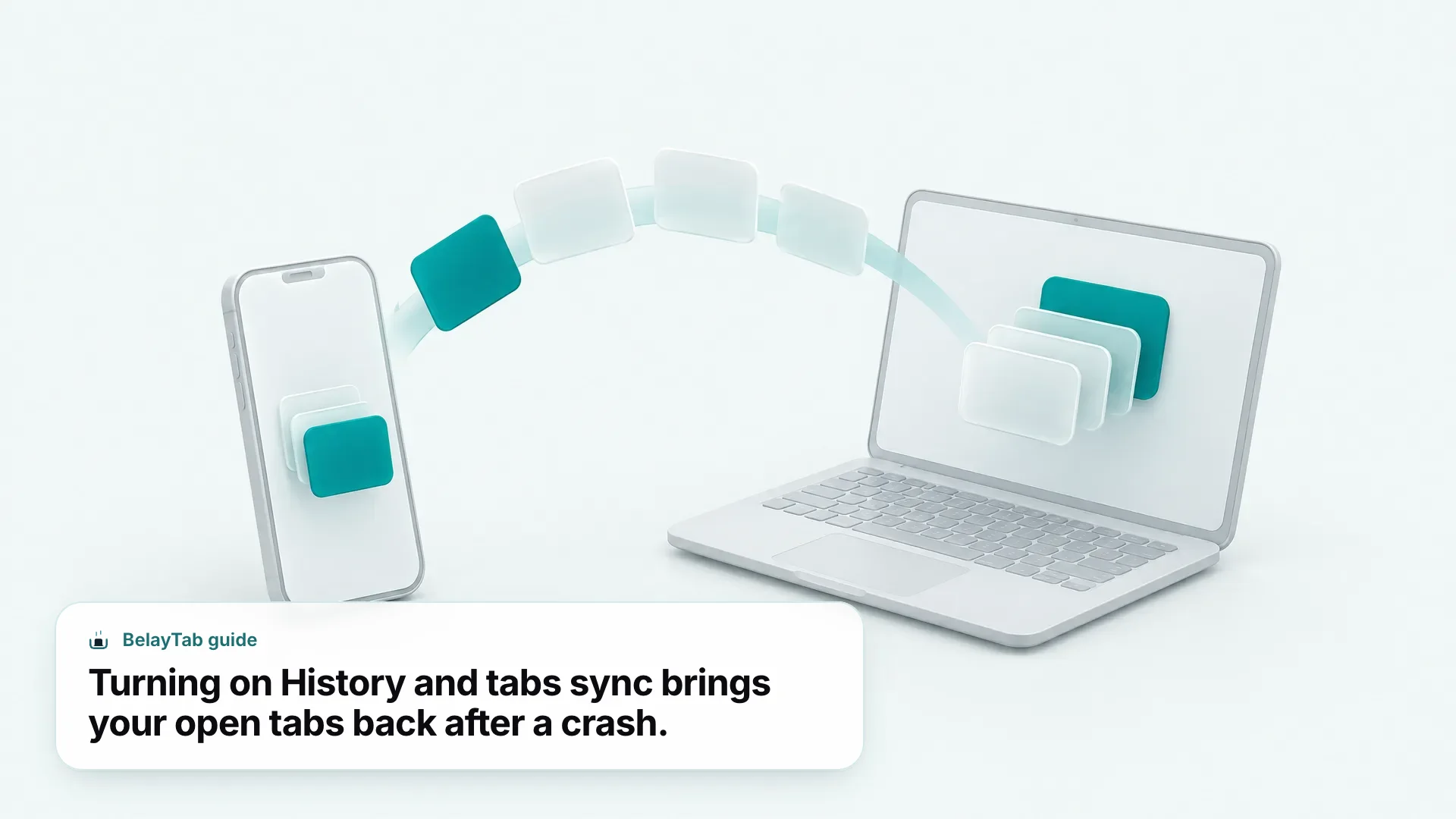
For anything that was never synced, though, there’s no equivalent recovery path on Android itself; local-only tabs and data are simply gone once storage is cleared or the app is reinstalled. This is one of the clearest gaps between mobile Chrome and desktop Chrome, where dedicated recovery tools exist. If you also work across desktop Chrome, our guide to restoring tabs in Chrome after closing or crashing covers the built-in options there, and where they run out.
How Do You Prevent “Chrome Keeps Stopping” From Happening Again?
You prevent Chrome from crashing again mainly by keeping your tab count reasonable, turning on sync so nothing local-only is ever at risk, and updating Chrome and Android System WebView promptly instead of letting updates queue up. None of these are one-time fixes; they’re habits that keep the same three causes covered earlier from building back up.
Check your tab count periodically rather than only when Chrome starts acting up. If you’re routinely running dozens of tabs on your phone, that’s worth addressing directly rather than treating each crash as a one-off; our guide to handling too many tabs has practical habits for keeping that number down without losing anything you need. Turning on sync costs nothing and means that even in a worst-case scenario, a full reinstall only costs you time, not your bookmarks or history.
It’s also worth checking for Chrome and WebView updates on a regular basis rather than waiting for Google Play to prompt you, especially if you’ve noticed a pattern of crashes following specific app updates in the past. If you’re unsure exactly which browser and version you’re running, whether on your phone or a desktop machine, BelayTab’s free browser and version checker identifies it in one click, which is a quick way to confirm you’re on the latest build before you assume an update fixed something.
Sign in and sync before you troubleshoot, not after. If you’re not already signed into Chrome with sync on, do that first, before you touch cache, storage, or uninstalling anything. It’s the single step that makes every other fix in this guide effectively risk-free.
Finally, if crashing keeps happening specifically when you have a lot of tabs open, that’s less a “fix Chrome” problem and more a “manage your tabs better” problem, and the two call for different responses. On desktop browsers, tools like BelayTab handle that by saving named sessions you can close out of and restore later, tab groups and all; see how saving sessions works if that’s a habit worth building on your laptop even though it won’t help your phone directly.