






Chrome on iPhone looks and behaves almost exactly like the Chrome you already know on a laptop, with a handful of iOS rules layered on top. You can’t add extensions, ad blocking doesn’t work the way it does on a desktop, and sync runs through your Google Account instead of iCloud. None of that is a dealbreaker. It just means the app plays by Apple’s platform rules first and Google’s second.
This guide covers what Chrome for iPhone actually does: setting it as your default browser, managing a screen full of open tabs, using tab groups and Incognito mode, syncing across your devices, and where ad blocking fits (or, more accurately, doesn’t). We’ll also compare it to Safari and be upfront about the one thing BelayTab can’t do here, because BelayTab is built for desktop browsers, not iPhone.
What Is Chrome on iPhone, and Do You Need It?
Chrome on iPhone is Google’s mobile version of its browser, free to download from the App Store, and it works on iOS 14 and later. If you already use Chrome on a Windows PC, Mac, or Chromebook, installing google chrome for iphone gives you the same address bar, the same bookmarks (once you sign in), and roughly the same look and feel, just adapted for a touchscreen.
The table below answers the questions people ask most before installing it.
| Question | Quick Answer |
|---|---|
| Is Chrome free on iPhone? | Yes — download it from the App Store. |
| Can Chrome be my default browser? | Yes, on iOS 14 and later. |
| Does Chrome sync bookmarks and passwords? | Yes, through your Google Account. |
| Can I add an ad blocker to Chrome on iPhone? | No — it doesn’t support desktop-style extensions. |
| Does Chrome support tab groups on iPhone? | Yes, created on-device and synced automatically. |
Using google chrome with iphone mostly makes sense if you’re already deep in Google’s ecosystem — Gmail, Google Drive, an Android tablet, a Chromebook at work. If your other devices are all Apple, Safari’s tighter iOS integration is worth weighing before you switch. Either way, installing Chrome doesn’t require anything you don’t already have; you just need an App Store account and, ideally, a Google Account to turn on sync.
How Do You Set Chrome as Your Default Browser on iPhone?
You set Chrome as your default browser from inside the Chrome app itself, which then hands you off to iOS’s own default-browser picker. Once it’s set, links you tap in Mail, Messages, or any other app will open in Chrome instead of Safari.
- Open Chrome and tap More. Launch the app and tap the three-dot icon.
- Tap Settings, then Default Browser. This is where the switch lives.
- Tap “Go to Settings.” Chrome hands you off to the iPhone’s system Settings app.
- Choose Chrome. Under Default Browser App, select Chrome.
This is a one-time setup per device. It won’t carry over automatically if you get a new iPhone, so it’s worth checking again after a device switch. If you ever want to flip back, the same steps apply, just choosing Safari (or another installed browser) at the last step instead.
Check both directions. If Chrome is already your default and links open there when you didn’t expect it, you set this once and probably forgot. It’s not a Chrome bug. It’s working as designed.
For a closer look at what Chrome offers on the desktop side of things, see our guide to Chrome as a browser, or check out Safari on iPhone if you’re weighing the built-in option instead.
How Do You Manage Tabs in Chrome on iPhone?
Chrome on iPhone manages tabs through a tab grid, a scrollable view of thumbnails you open by tapping the tab-count icon in the toolbar. Every open tab gets its own card, and you can swipe a card away to close it or tap one to jump back into it.
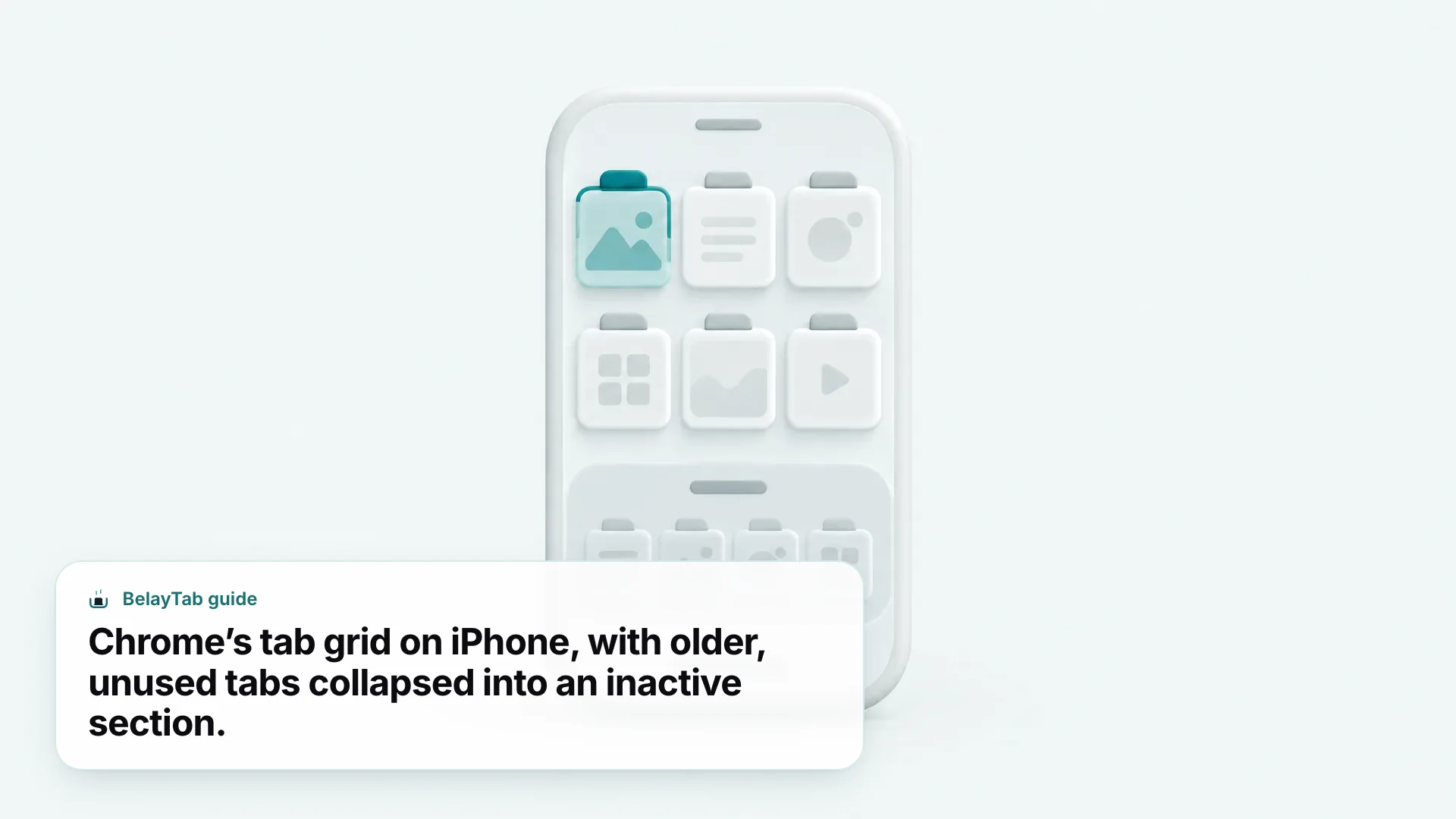
The grid also has an inactive-tabs area near the top, which quietly collects tabs you haven’t touched in a while, so your active tabs don’t get buried under forty research tabs you opened for a trip you’re not planning anymore. It’s a small feature, but it does a lot of the tidying you’d otherwise do by hand.
If you’re the type who opens a tab for every tangent (a recipe, a flight confirmation, three different reviews of the same blender) the grid view makes it easier to scan and prune than a plain list would. Long-pressing a tab also brings up quick actions like sharing or closing, which saves a few taps compared to opening each tab individually.
If tab overload is a recurring problem rather than an occasional one, our post on closing all your tabs on iPhone walks through the cleanup options for both Chrome and Safari.
Does Chrome on iPhone Support Tab Groups?
Yes — Chrome on iPhone supports tab groups, and you can create or edit them right on your phone. Group a handful of tabs together for a project, a trip, or a shopping spree, and Chrome keeps them bundled instead of scattering them across the grid.
What makes this useful across devices is that groups you build on your iPhone are automatically saved and synced to any other device signed in with the same Google Account. Start a group on your phone during a commute, and it’s waiting for you on your laptop when you sit down at your desk. That two-way sync is arguably the best reason to use tab groups on mobile at all — a group you never look at again isn’t worth the tap, but one that follows you between screens earns its keep.
Tab groups are also a decent middle ground between “one giant pile of tabs” and “close everything and start over.” Instead of hunting through twenty unrelated tabs for the three that matter for your weekend project, you collapse them into a single labeled group and expand it only when you need it. It won’t organize itself for you, though — Chrome doesn’t suggest groupings, so the labeling and sorting is on you.
How Do You Use Incognito Mode in Chrome on iPhone?
You start Incognito mode in Chrome on iPhone from the tab switcher, and once you’re in it, opening additional tabs keeps you in that same private session rather than starting a new one. The session only fully ends once every Incognito tab is closed — so if you leave one open by accident, you’re still “in” Incognito even if you’ve moved on to something else.
That persistence is worth knowing about, because it’s easy to assume closing the app ends the private session. It doesn’t, unless you’ve also closed the tabs. If privacy matters enough that you’re using Incognito in the first place, it’s worth double-checking the tab switcher before you hand your phone to someone else.
Chrome also lets you lock Incognito tabs behind device authentication, so a stray glance at your unlocked phone doesn’t reveal what you were browsing privately.
- Open Chrome and tap More. Then tap Settings.
- Tap Privacy and security. Look for the Incognito lock option.
- Turn it on. Chrome will now require Face ID, Touch ID, or your passcode before Incognito tabs are visible.
This is a genuinely useful setting if you share a phone occasionally, hand it to a kid to watch a video, or just don’t want someone scrolling your tab switcher while you’re in the other room. It doesn’t change what Incognito does (your history still isn’t saved) it just adds a lock on top. For a closer walkthrough of private tabs specifically, see Incognito tabs on iPhone.
How Do You Sync Chrome Between iPhone and Other Devices?
You sync Chrome between your iPhone and other devices by signing in to the same Google Account everywhere you use it. Once signed in, Chrome saves bookmarks, passwords, and other browsing data to your account, and that data becomes available on every other signed-in device.
This is the piece that makes Chrome genuinely convenient across a phone-and-laptop life: bookmark an article on your iPhone during lunch, and it’s sitting in your bookmarks bar on your desktop that evening. Save a password on one device, autofill it on the next. It’s not flashy, but it’s the kind of thing you only notice when it’s missing.
If you want the full picture of what Chrome sync does and doesn’t cover, including open tabs specifically, our Chrome sync guide goes deeper than this section does.
Can You Block Ads in Chrome on iPhone?
Not directly inside the app. Chrome on iPhone doesn’t support desktop-style browser extensions, and that’s the same restriction that rules out installing an ad blocker the way you would on a Mac or Windows PC. There’s no extensions menu, no add-ons store, and no toggle in Chrome’s own settings that adds one.
This trips people up because ad blocking is such a normal expectation on desktop Chrome — install uBlock Origin or a similar extension, and most ad clutter disappears. On chrome mobile, adblock on iphone chrome just isn’t available the same way, because the extension architecture that ad blockers rely on doesn’t exist in Chrome’s iOS build. It’s a platform-level limitation rather than something Google chose to leave out of the app specifically.
If chrome adblock for iphone matters enough to change your habits, the honest answer is that you’re choosing between browsers rather than configuring Chrome around it. Some browsers on iOS build ad and tracker blocking into the app itself instead of relying on extensions, so it’s worth comparing options if this is a dealbreaker rather than assuming there’s a hidden setting in Chrome you’ve missed.
Don’t expect a workaround inside Chrome. There’s no hidden flag or experimental setting in chrome mobile adblock iphone scenarios that reliably restores extension support. If you’ve seen a “fix” that claims otherwise, treat it with real skepticism — iOS controls what browsers are allowed to do at a level Chrome itself can’t override.
For adblock chrome mobile iphone searches specifically, the practical takeaway is simple: this is a browser choice, not a settings problem. If it’s a priority, weigh it against the sync and tab-group features you’d give up by switching away from Chrome.
How Do You Recover a Closed Tab in Chrome on iPhone?
You recover a closed tab in Chrome on iPhone by tapping Undo right after closing it, or by searching for it in the tab switcher if that moment’s passed. Chrome typically shows a brief Undo option the instant you close a tab — tap it fast, before it disappears, and the tab comes right back.
If you’ve already moved on and the Undo option is gone, the tab switcher’s search field can list recently closed tabs, which you can tap to reopen. It’s a little less obvious than a dedicated “recently closed” menu, but it works, and it’s worth remembering the next time you close something by mistake mid-scroll.
- Open the tab switcher. Tap the tab-count icon in Chrome’s toolbar.
- Tap the search field. Type a keyword or leave it blank and look for Recently closed tabs.
- Tap the tab you want back. It reopens where you left off.
There’s also a cross-device option if the tab was open on your phone but you’re now on your laptop: since Chrome Sync carries open-tab state to your Google Account, signing in to Chrome on another device and checking synced tabs can surface it there too. It’s not instant magic, but if you had sync turned on when the tab was open, it’s usually recoverable.
For the fuller picture across both iPhone and Android, our guide on restoring closed tabs in Chrome mobile covers both platforms side by side.
Chrome vs Safari on iPhone: Which Should You Use?
Chrome makes the most sense if your life runs through a Google Account and you want tab groups and bookmarks that follow you to a Windows PC or Chromebook; Safari makes more sense if you’re fully in Apple’s world and want the browser that’s already built in. Neither is objectively “better”. It comes down to which ecosystem you live in day to day.
- Chrome on iPhone. Syncs through your Google Account, supports tab groups created right on your phone, and can be set as your default browser on iOS 14 and up.
- Safari on iPhone. Apple’s built-in browser, with its own tab organization and a Private Browsing lock you can require Face ID or a passcode for.
- Both. Let you lock private or Incognito tabs behind device authentication, so neither leaves sensitive tabs exposed if someone picks up your phone.
Here’s a side-by-side on the specifics we can confirm for each:
| Feature | Chrome on iPhone | Safari on iPhone |
|---|---|---|
| Default browser eligibility | Yes, iOS 14+ | Already the default unless you change it |
| Tab groups | Yes, created on-device, synced automatically | See our Safari on iPhone guide for details |
| Private/Incognito tab lock | Face ID, Touch ID, or passcode | Face ID, Touch ID, or passcode |
| Browser extensions | Not supported | See our Safari on iPhone guide for details |
If you’re trying to decide, our full Safari on iPhone guide is the natural next read. It covers tab groups, settings, and recovery on the Safari side in the same depth this guide covers Chrome.
Does BelayTab Work on Chrome on iPhone?
No — BelayTab doesn’t run on iPhone, iPad, or Android at all. It’s a desktop browser extension, built for Chrome, Edge, Brave, Opera, Vivaldi, Arc, and Firefox on a computer, plus Safari on Mac, and it isn’t available on mobile in any form.
If you’re reading this because you lost a tab on your phone, the mobile-side fixes above (Undo, recently closed tabs, cross-device sync) are genuinely your best options, and BelayTab won’t add anything on iPhone itself. Where it does help is on the desktop side of a phone-and-laptop life. If you’re the kind of person who opens research on your phone, then picks it back up on a laptop later, the tabs that matter usually end up open on a computer eventually — and that’s where a crash, a bad update, or an accidental “close all” can wipe out a window’s worth of work in a second.
BelayTab saves those desktop windows as named sessions with one click, takes automatic snapshots of every open window every 5 minutes, plus each time a window closes, and keeps the last 20 versions of each session, so restoring never overwrites what you already have. Deleted sessions sit in a 30-day trash instead of vanishing outright, and everything (snapshots, deleted sessions, even the browser’s own recently closed windows) lives on one Recovery screen.
If you split work between a phone and a computer and want to understand how sync and recovery fit together, BelayTab’s sync feature and our setup guide cover the desktop half of that picture.