






Open Chrome for the first time on a new laptop and you get one profile by default: your bookmarks, your history, your passwords, all in one bucket. That’s fine until you start sharing a computer with a partner, testing an extension you don’t fully trust, or trying to keep forty work tabs away from your personal browsing. That’s exactly what a Chrome profile is for — a separate, self-contained space inside the same browser.
This guide covers what a Chrome profile actually keeps separate, how to create and switch between them, how they interact with sync, and what happens to your open tabs when you jump between profiles or lose one entirely. We’ll also get into where Chrome’s built-in tools stop being enough — like the moment you delete the wrong profile and realize nothing backed up those forty tabs — and what to do about it.
What Is a Chrome Profile?
A Chrome profile is a self-contained space inside Chrome that keeps one person’s (or one context’s) bookmarks, history, passwords, extensions, and settings apart from everyone else’s, even though it’s all running in the same install of the browser. Google built profiles so multiple people, or one person juggling multiple roles, don’t have to share a single pile of browsing data. Chrome’s help page on profiles describes exactly this setup: each profile is its own space, with its own history, bookmarks, passwords and settings.
Think of a Chrome browser profile as a separate account inside the app, not a separate copy of Chrome. You only install Chrome once. What changes is which profile is active in a given window: click the profile icon in the top right corner and Chrome shows you which one you’re in, plus any others you’ve added.
A Chrome user profile isn’t the same thing as a Google Account, even though the two often get created together. You can add a profile and sign it into a Google Account to turn on sync, or keep a profile entirely local and skip sign-in. Either way, extensions installed in one profile don’t show up in another, and tabs open in one profile never appear in a different one’s window.
Most people never touch this feature, because Chrome sets up one default profile automatically and that’s plenty for a single person on a single computer. It starts to matter the moment you add a second person, a second job, or a computer other people also use.
Which Chrome Profile Setup Fits You?
Here’s the short version before we get into steps: match the tool to how much separation you need, not to how many browsing “modes” you can imagine.
| Your Situation | Best Setup | Why |
|---|---|---|
| Sharing one computer with family or roommates | A separate Chrome profile for each person | Keeps everyone’s bookmarks, history and passwords apart |
| Testing a new extension you don’t fully trust | A new, throwaway profile | Isolates it from your main browsing data |
| Borrowing someone else’s computer for five minutes | Guest mode, not a new profile | Nothing gets saved locally once you close it |
| Splitting work and personal tabs on your own laptop | Tab groups or a second window first, a second profile only if that’s not enough | Switching profiles is slower than switching windows or groups |
Each row above trades speed for isolation. Guest mode and tab groups cost you nothing to set up and tear down, which is why they suit anything temporary or purely visual. A full profile costs more: a new sign-in, a blank bookmarks bar, extensions you have to reinstall from scratch. That cost only pays off when the isolation needs to be real, not just tidy. Family members sharing one computer need real isolation, because nobody wants a sibling’s autofill showing up in their address bar mid-search. Testing an unfamiliar extension needs it too, since a rogue extension confined to a throwaway profile can’t touch your main passwords or history. Splitting work from personal tabs on your own machine is the one case where people reach for a profile too quickly; you already trust yourself with your own bookmarks, so the isolation a profile offers doesn’t buy you much beyond what a free tab group already does.
Start smaller than you think you need. If you’re only trying to keep work and personal tabs visually apart on one machine, try a second window or a tab group before you commit to a whole extra profile. Profiles are the heaviest tool on this list — great for real isolation, overkill for tidiness.
How Do I Create a New Chrome Profile?
You create a new Chrome profile from the profile icon in the top right corner of any Chrome window. It only takes a few clicks and Chrome walks you through the rest.
- Click the profile icon. It’s the circle in the top right corner of any Chrome window.
- Select “Add.” This starts the new profile setup.
- Sign in or skip it. Sign in with a Google Account if you want this profile to sync, or skip sign-in to keep everything local to this device.
- Start using the new window. Chrome opens a fresh window for the profile you just created, with its own blank bookmarks and history.
Name profiles by job, not by mood. Give each profile a purpose before you create it (“Work,” “Personal,” “Client X”) so you don’t end up with three identically labeled profiles and no idea which one has your tax documents bookmarked.
There’s no cap mentioned on official pages for how many profiles you can add, but in practice, more than four or five gets hard to manage. Each one is a fully separate browsing identity, and remembering which passwords and bookmarks live where gets harder the more you create.
It’s also worth deciding upfront whether a new profile needs its own browsing history at all, or whether you’re really just trying to isolate one extension or one login. Chrome doesn’t let you convert a regular window into a profile after the fact — the bookmarks, history and saved passwords you accumulate in a profile stay tied to it from the first tab you open. If you’re on the fence about whether a new profile is worth the setup, it usually is once you’ve caught yourself signing out of one Google Account just to sign into another inside the same window a couple of times a week.
How Do I Switch Between Chrome Profiles?
You switch Chrome profiles the same way you create them: click the profile icon in the top right corner and pick the one you want. Chrome doesn’t replace your current window. It opens a new one for the profile you selected.
That means you can run two or more profiles side by side, each in its own window with its own tabs, rather than jumping back and forth inside a single window. It’s a useful trick if you genuinely need both open at once, like a work profile on one monitor and a personal one on the other.
Don’t confuse this with Incognito. Pressing Ctrl + Shift + N (Cmd + Shift + N on Mac) opens an Incognito window, which is a temporary, unsaved session tied to whatever profile you’re currently in — not a profile of its own, and it disappears the moment you close it. Chrome doesn’t currently publish a dedicated keyboard shortcut for jumping straight to a named profile, so clicking the icon is the fastest route on desktop.
One quirk worth knowing: closing every window that belongs to a profile doesn’t close the profile itself, only its windows. The profile, and everything saved in it, is still there the next time you click its icon in another window — Chrome just doesn’t keep an empty window sitting on your screen for no reason.
How Is a Chrome Profile Different From Guest Mode?
A Chrome profile saves its data locally until you delete it; Guest mode saves nothing once you close it. That’s the whole distinction, and it’s worth knowing before you hand your laptop to someone for five minutes.
| Chrome Profile | Guest Mode | |
|---|---|---|
| Saves history and bookmarks locally | Yes, until you delete it | No |
| Needs a Google Account | Optional | Not used |
| Extensions available | Whatever you’ve installed in it | None by default |
| Good for | A person or role you use repeatedly | A one-off session on a device that isn’t yours |
| On Chromebooks | Same profile system as desktop | A separate “Guest browsing” toggle under People |
The practical test is simple: will you use this browsing session again tomorrow? If yes, it belongs in a profile, because a profile is built to accumulate history, saved logins and extensions over time. If the answer is no, or if it’s someone else’s laptop you’re borrowing to check email at a coffee shop, Guest mode is the better fit precisely because it forgets everything the moment you’re done. Mixing the two up is where people get burned: creating a full profile for a one-time visit leaves behind saved passwords nobody remembers to clean up, and using Guest mode as a daily driver means starting from zero, with no saved logins, every single time you open the browser.
Guest mode opens from the same profile icon — choose “Guest” and Chrome starts a session that doesn’t add to your local history, cookies, or site data. Closing the guest session deletes whatever it accumulated during that visit. Chromebooks handle this slightly differently, with guest browsing living as its own toggle rather than an entry in the profile switcher, since ChromeOS treats “people” management a bit separately from desktop Chrome.
How Do I Delete a Chrome Profile?
You delete a Chrome profile from the same profile menu used to create it, or from Settings under “You and Google,” by choosing the option to remove that person. Chrome has reworded this option across versions, so the exact label you see may not match what’s in an older screenshot or forum post.
Before you go looking for the delete option, ask whether you need to remove the profile or just want it out of the switcher for a while. If a coworker used your laptop for a project and you want their profile gone for good, deletion is the right call. If you’re really just trying to declutter a switcher that’s grown to six entries, consider merging two of them first — export bookmarks from the redundant one, import them into the one you’re keeping, then delete the leftover — so you get the tidiness without throwing away logins you might still want.
Once you do delete, know exactly what you’re giving up. That profile’s bookmarks, history, saved passwords, and installed extensions are all tied to it locally, and Chrome doesn’t offer a built-in way to undo the deletion once it’s done. If any of the tabs open in that profile matter, deal with them first (bookmark what you need, or save the whole window as a session somewhere else) before you touch the delete option, because Chrome’s deletion flow removes the profile’s browsing data along with it, tabs included, with no confirmation screen that gives you a second chance. If the profile was signed into a Google Account with sync turned on, the account itself stays untouched and you can sign back in and start a fresh profile any time, but whatever wasn’t synced is simply gone.
Does Each Chrome Profile Sync Separately?
Yes, each Chrome profile syncs independently, tied to whichever Google Account (if any) you signed that specific profile into. Turning sync on for one profile has no effect on any other profile on the same computer.
When sync is on, Chrome shares bookmarks, history, open tabs, passwords, payment info, addresses and phone numbers, and general settings and preferences by default. For history specifically, only URLs you typed or entered directly into the address bar get synced, not every page you visited by clicking a link. You can fine-tune exactly which categories sync from Settings under “You and Google,” and add a custom sync passphrase if you want an extra layer of encryption on top of what Chrome applies by default.
It’s worth being precise about what “syncs open tabs” means here, because people assume more than it delivers. Sync keeps a rolling list of tabs open in your other signed-in Chrome windows so you can jump to them from a different device. It’s not a version history, and it won’t hand you back a window you closed last Tuesday. For that kind of protection you’re looking at something closer to what Chrome sync syncs, and what it doesn’t covers in more depth, or at BelayTab’s Sync feature, which layers 90 days of cloud version history on top of the same idea.
How Do I Move a Chrome Profile to a New Computer?
You move a Chrome profile to a new computer by turning on sync and signing the same Google Account in on both machines, or, without sync, by exporting and importing your bookmarks manually. Sync is the official route and it’s the one Google recommends for most of what a profile holds.
- Best route: turn on sync. Sign the profile into a Google Account on the old computer, then sign into that same account on the new one. Bookmarks carry over automatically once sync finishes.
- No sync? Export bookmarks. On the old computer, open Bookmark Manager with Ctrl + Shift + O (or Cmd + Option + B on Mac), click the three-dot menu, and choose “Export Bookmarks” to save an HTML file.
- Import them on the new computer. Open Bookmark Manager there and choose “Import Bookmarks” from that same menu, pointing it at the HTML file you just saved.
- Recreate the rest by hand. Passwords, extensions, and settings don’t travel with an HTML export — sync is the only official way to bring those along automatically.
For a closer walkthrough of the export step itself, see how to export and import Chrome bookmarks.
Notice what’s missing from both routes: your actual open tabs, tab groups, and the state of what you were mid-task on. Sync does cover open tabs while both profiles stay signed in, but it’s a live mirror, not an archive — close the old computer for good and there’s nothing to reopen from.
Should You Use Separate Profiles or Separate Windows for Work and Personal Tabs?
Use tab groups or a second window first, and reach for a full separate profile only when you need genuinely different passwords, extensions, or sign-ins. Profiles are the strongest form of separation Chrome offers, but that strength comes with friction: every switch resets your autofill, your signed-in sites, and your extension bar.
None of the three options below are mutually exclusive, and most real setups end up combining two of them without anyone really planning it that way. A common pattern is one profile per Google Account that has to stay genuinely separate (a personal account and a client’s shared account, say) with tab groups doing the finer sorting inside each profile for whatever projects are active that week. The mistake worth avoiding is treating a profile as a to-do-list organizer. Profiles were built to separate identities, not tasks, and using one that way means carrying the full weight of separate sign-ins and separate extension setups just to get color-coded tabs, when a tab group gives you the same color-coding for free.
- Separate profile. Full isolation — different passwords, extensions, and history. Best when you genuinely can’t have the two mixing, like a personal profile alongside a shared work computer.
- Separate window, same profile. Same bookmarks and passwords, just tabs grouped into their own window. Faster to set up, easier to lose track of what’s in which window.
- Tab groups, one window. Color-coded groups keep work and personal tabs visibly apart without the overhead of switching profiles at all.
I’d default to tab groups first, honestly. They’re part of Chrome’s tab groups feature already, they take seconds to set up, and you don’t lose your signed-in state every time you glance at the other side of your day. If your work and personal browsing keep bleeding into each other even with groups (too many tabs open, groups collapsing into noise) that’s usually a sign you’ve outgrown groups before you’ve outgrown profiles. For that specific problem, too many tabs, and how to fix the overload without losing anything is worth a read before you jump straight to a new profile.
What’s a Simple Plan for Setting Up Work and Personal Chrome Profiles?
The simplest split is two profiles: one signed into your work Google Account with sync turned on, and one either local or signed into a personal account, so neither shares passwords or bookmarks with the other. You don’t need more than two to start, and starting with more usually just creates confusion about which profile has which tab open.
- Create the work profile. Follow the Add flow covered earlier, sign in with your work Google Account, and turn sync on so bookmarks and passwords land back there automatically.
- Create the personal profile. Add a second profile, either signed into a personal Google Account or left local if you’d rather keep it off Google’s servers entirely.
- Pin a shortcut to each. Chrome profiles can be launched from their own taskbar or dock shortcut, so you’re not hunting through the profile icon every morning to find the right one.
- Decide what syncs and what doesn’t, per profile. Open Settings under “You and Google” on each profile and turn off any category you don’t want shared — payment info on the personal one, for instance.
- Add a tab-safety layer on top. Install BelayTab once and it works across both profiles’ windows, saving named sessions and automatic snapshots no matter which profile happens to be active when your day ends.
This plan is deliberately boring, and that’s the point. Two profiles doing exactly one job each, with sync configured once and left alone, is far easier to live with than a rotating cast of “Work 2,” “Temp,” and “Old Personal” profiles that quietly pile up over a year. If you catch yourself creating a third or fourth profile to solve what’s really a tab-organization problem rather than an account-separation problem, that’s a sign tab groups or a second window would do the job with a fraction of the overhead, as covered above.
What Happens to Your Open Tabs When You Switch or Lose a Chrome Profile?
Switching Chrome profiles doesn’t touch your tabs in the profile you’re leaving. They stay open in their own window, waiting for you. The real risk isn’t switching, it’s losing the profile itself.
Delete a profile, hit a Chrome crash that corrupts the profile folder, or reset the browser, and every tab open in that profile at that moment goes with it. A profile’s tab list isn’t a backup; it’s just the current state, and current state disappears the instant the thing holding it does.
Session restore isn’t a safety net you can count on. Chrome’s “Continue where you left off” startup option reopens the tabs you had when Chrome last closed normally, but it isn’t guaranteed to catch every crash, forced quit, or deleted profile. Treat it as a convenience, not insurance.
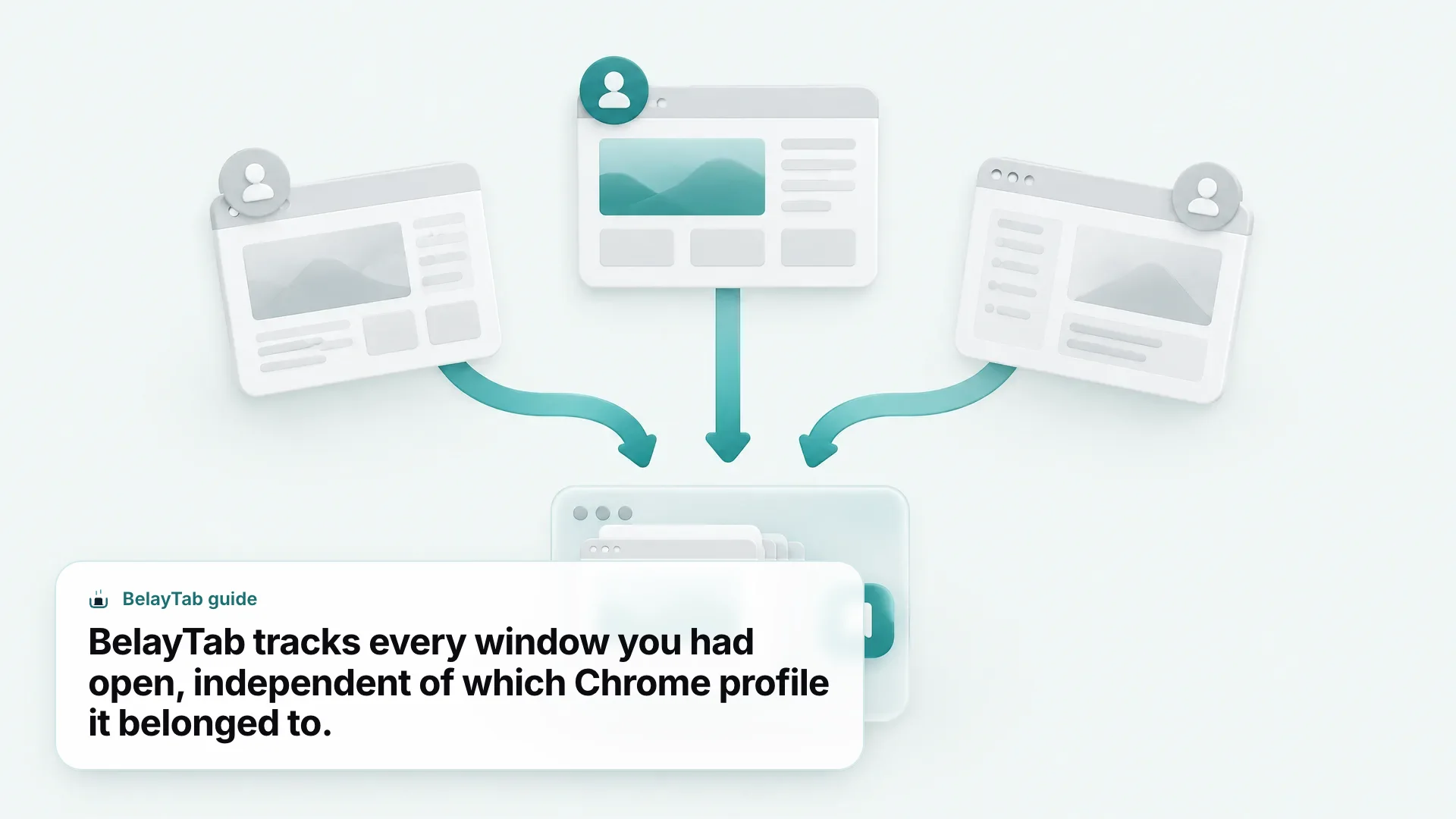
This is the actual gap between what a Chrome profile gives you and what real tab protection looks like. A profile organizes your browsing; it was never designed to preserve it against deletion, crashes, or a fresh install. That’s a separate job, and it’s the one BelayTab exists to do.
BelayTab saves every open window as a named session automatically, every 5 minutes and whenever a window closes, completely independent of Chrome’s profile system. It’s free, with no account required and no limits on sessions or tabs, and it keeps the last 20 versions of every session plus a 30-day trash, so restoring never overwrites what you already had. If a profile gets deleted, a browser crashes, or you reset the whole machine, your Recovery screen still has the tabs waiting, sitting alongside your browser’s own recently closed windows and any automatic snapshots taken before things went wrong. See the full restore tabs feature, or just install BelayTab and let it run quietly in the background.