






Forty tabs open, and the one you need is buried somewhere in the middle. Maybe it’s a flight confirmation, maybe it’s the one research article with the number you actually needed, and you’re scrolling past a dozen near-identical page titles trying to spot it by eye. Chrome has a proper answer to this: a feature called Tab Search that lets you type a few letters and jump straight to the tab you want. Most people never touch it, because it lives behind a small, easy-to-miss arrow icon at the edge of the tab strip, and nobody goes looking for a feature they don’t know exists.
This guide covers chrome search tabs from every angle: the real keyboard shortcut, what the search covers, how it behaves on Mac versus Windows, and a practical workflow for the nights when you’ve genuinely got too many tabs to scan. It also covers the point where Chrome’s own search runs out, and how BelayTab covers that gap with named, searchable sessions instead of a list that resets every time you close a window.
Quick Answer: How Do You Search Tabs in Chrome?
The fastest way to search tabs in Chrome is Ctrl + Shift + A on Windows and Linux, or clicking the small arrow icon at the end of the tab strip, which works the same way on every platform, Mac included.
Chrome calls this feature Tab Search. It opens a small panel listing every open tab, plus a few recently closed ones, and narrows the list as you type. Which method you reach for depends on what you’re trying to do in the moment: recover a tab you’re still using, dig one up from ten minutes ago, or accept that it’s gone from the current window entirely and you need a different tool. Here’s a quick lookup before the details below.
| Situation | What to do |
|---|---|
| Tabs open right now, Windows or Linux | Press Ctrl + Shift + A |
| Tabs open right now, Mac | Click the small arrow icon at the end of the tab strip |
| Closed a tab a minute ago | Press Ctrl + Shift + T (Cmd + Shift + T on Mac) |
| Closed a whole window | Check Chrome History, or BelayTab’s Recovery screen |
| Need the words written on a page, not a tab title | Use that page’s own find-in-page tool, not Tab Search |
| Want sessions you can search by name weeks later | Save them with BelayTab |
That table covers the day-to-day cases, but it’s worth understanding why there are several different tools instead of one. Chrome treats “what’s open right now” and “what used to be open” as separate problems, handled by separate features with separate limits. The rest of this guide walks through each one properly, including the parts Chrome’s own help pages leave a little vague.
What Is Chrome Search Tabs (Tab Search), and What Does It Actually Search?
Chrome Search Tabs, officially called Tab Search, matches the title and URL of each open tab, not the words written on the page itself. Some people search for this as chrome search in tabs, or just “search my tabs,” but they all land on the same built-in Chrome feature, so don’t worry about getting the exact phrasing right when you go looking for it.
Practically, that means if a tab’s title says “Flight Confirmation - Delta” and you type “delta,” it shows up immediately. If you only remember a sentence from the middle of an article you had open, Tab Search won’t find it, because it never reads the page’s content, it only reads the label Chrome puts on the tab. That distinction trips people up the first time they use it, especially if they’re used to Google-style search that reaches into a page’s full text.
It’s not just open tabs. Tab Search also lists a short set of recently closed tabs in the same panel, right alongside your open ones. Check there before assuming a tab is gone for good.
That combination, open tabs plus a short recently-closed list, is what makes Tab Search genuinely useful day to day. It’s a different tool from Chrome’s History page, which keeps a much longer, searchable record but requires you to open a separate page to use it. Think of Tab Search as the quick, in-the-moment tool, and History as the deeper archive you dig into when Tab Search doesn’t have what you need.
How Do I Search Open Tabs in Chrome With the Keyboard Shortcut?
On Windows and Linux, press Ctrl + Shift + A to open Tab Search instantly, with no clicking required.
- Press the shortcut. Hit Ctrl + Shift + A from anywhere in Chrome, even while your cursor is in a text field on a page.
- Type a keyword. Enter part of the tab’s title or its URL; the list filters as you type, so you rarely need more than a few characters.
- Jump to the tab. Click the result, or use the arrow keys and Enter if your hands are already on the keyboard.
Mac and ChromeOS don’t have the same confirmed key combination, so it’s worth knowing where each platform stands before you go hunting for a shortcut that isn’t there.
| Platform | Shortcut | Notes |
|---|---|---|
| Windows / Linux | Ctrl + Shift + A | Opens Tab Search directly |
| Mac | No officially documented shortcut | Use the tab strip icon instead |
| ChromeOS | Not confirmed for this guide | Try the tab strip icon, or check Chrome’s official Chromebook shortcuts page |
If you’re the kind of person who lives on the keyboard, this shortcut is worth memorizing alongside the rest of Chrome’s keyboard shortcuts, since it saves you from ever reaching for the mouse just to switch tabs. It pairs especially well with the jump-to-tab shortcuts, Ctrl + 1 through Ctrl + 8 for specific positions and Ctrl + 9 for the last tab, for the cases where you already know roughly where the tab is sitting.
How Do I Use the Tab Search Icon in the Tab Strip?
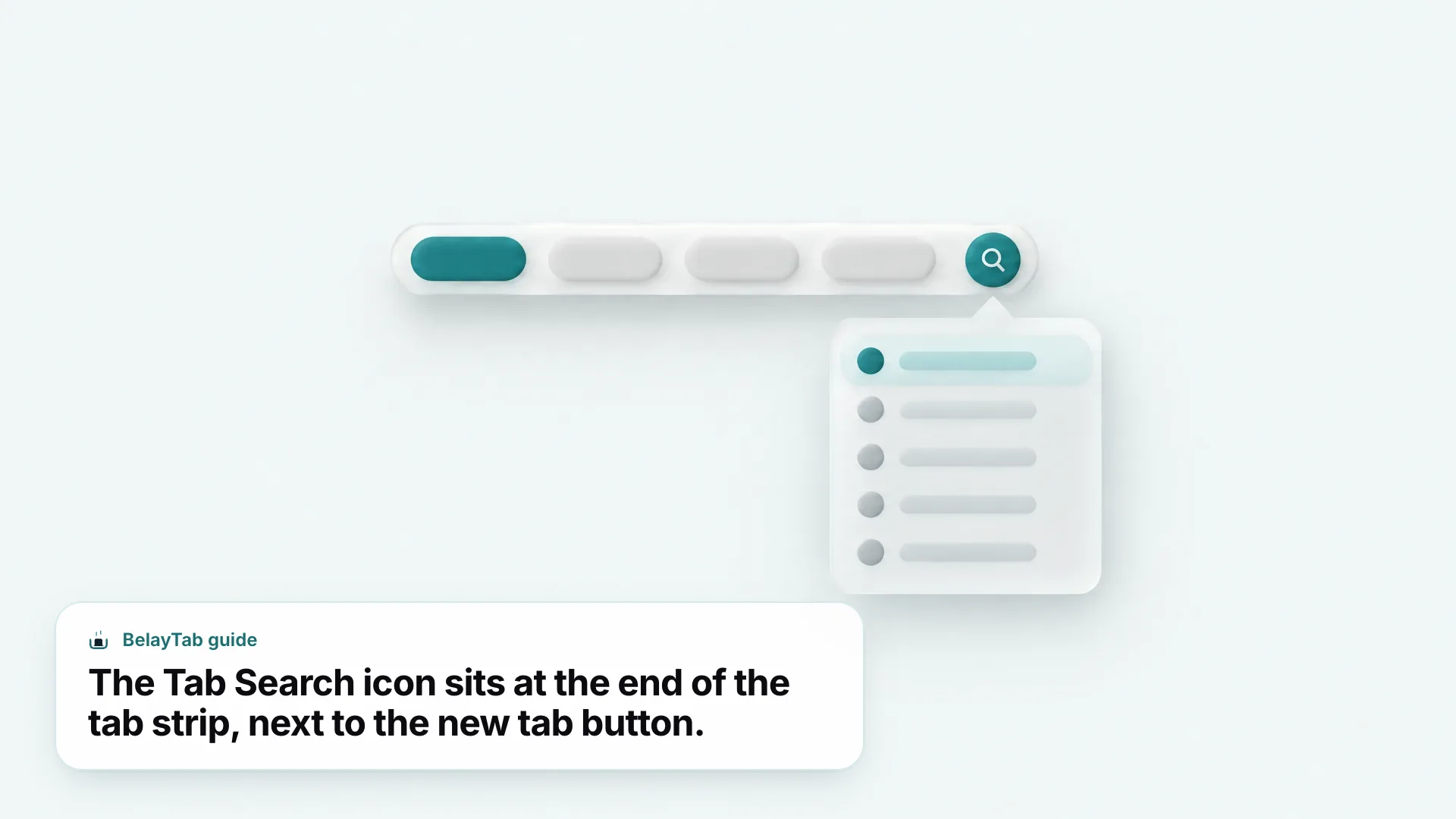
The Tab Search icon, a small downward arrow at the very end of your tab strip, opens the same search panel as the keyboard shortcut, and it works identically on Windows, Mac, Linux and ChromeOS.
- Find the icon. Look at the far right of the tab strip, past your last open tab and before the window controls.
- Click it. A search panel opens with your open and recently closed tabs listed, most recent first.
- Type and select. Enter a keyword, then click the tab you want, or use the arrow keys if you’d rather not touch the mouse.
This icon matters more than it looks. If you’re on a laptop without a full keyboard, working from a touchscreen Chromebook, or you just forgot the shortcut under pressure, the icon gets you to the exact same list every time, with zero memorization required. It’s also the only reliable route on Mac, since Chrome hasn’t confirmed a dedicated Mac key combination for the feature. Once you know where it lives, it becomes a habit fast: it’s genuinely faster than hunting through fifteen visually similar tab favicons with your eyes.
Can Tab Search Find Tabs in Other Chrome Windows?
Yes. Chrome describes Tab Search as finding “any open tab,” and in practice that includes tabs sitting in other Chrome windows, not just the one you’re currently looking at.
That’s genuinely useful if you tend to split work across windows, one for a project, one for research, one you forgot about entirely on a second monitor. Instead of clicking through each window one by one to hunt for a tab, a single search from any window surfaces results from all of them, labeled so you can tell which window each match belongs to. It removes a whole category of “which window did I leave that in” moments that used to mean minimizing everything and squinting at thumbnails.
Scope of the search. Tab Search only sees windows open in this installation of Chrome. It doesn’t reach into a different Chrome profile on the same computer, or a different device, even if sync is turned on.
That distinction, current windows versus saved sessions, is really the dividing line between what Chrome’s built-in search is for and what BelayTab is for. Chrome searches what exists right now, in this browser, on this device. Nothing about Tab Search is designed to reach further than that, and it isn’t meant to; more on that toward the end of this guide.
How Do I Search Tabs on Mac in Chrome?
On Mac, click the Tab Search icon at the end of the tab strip, since Chrome hasn’t published an official keyboard shortcut for the feature on macOS.
That’s a small gap, but not a big obstacle. Once you’ve clicked the icon once, the search panel behaves exactly like the Windows version: type a keyword, get matches by title or URL, click to jump. A few other Mac shortcuts are worth knowing alongside it, since they cover adjacent needs Tab Search doesn’t. Reopen a closed tab with Cmd + Shift + T, open History with Cmd + Y, and switch between adjacent tabs with Cmd + Option + Right Arrow or Cmd + Option + Left Arrow. You can also jump straight to a specific tab position with Cmd + 1 through Cmd + 8, or the last tab with Cmd + 9, and bookmark every open tab at once with Cmd + Shift + D if you want a snapshot before closing a window.
None of those replace Tab Search when you’ve got dozens of tabs open and no idea where the one you want is sitting. For that job, the icon click is still your best route on a Mac, and it’s fast enough in practice that the missing shortcut barely matters once it’s part of your routine. If Google adds an official Mac shortcut in a future release, it’ll likely follow the same pattern as the rest of the Mac shortcut set, but until that’s confirmed, the icon is the dependable option.
Does Tab Search Work the Same Way in Edge or Brave?
Not necessarily. Edge, Brave and other Chromium-based browsers build their own tab-management tools, and this guide doesn’t have verified specifics on whether their search panels match Chrome’s Tab Search feature exactly, so it’s worth checking each one directly rather than assuming they’re identical.
- Edge. Built on the same engine as Chrome, but its own settings and menu layout may present tab search differently. See our Edge guide for specifics.
- Brave. Also Chromium-based, with its own privacy-focused defaults layered on top. Check our Brave guide before assuming feature parity.
- Firefox and Safari. Built on entirely different engines, so their tab tools, and their keyboard shortcuts, follow their own conventions rather than Chrome’s.
If you regularly switch between two or three of these browsers, relying on each one’s own search tool means learning multiple sets of shortcuts and menu paths, and re-learning them every time one of the browsers updates its interface. That’s a small tax, but it adds up if you’re the kind of person who has Chrome open for work and something else open for personal browsing. BelayTab works the same way across Chrome, Edge, Brave, Opera, Vivaldi, Arc, Firefox and Safari on Mac, so saving a session looks and behaves identically no matter which browser you’re in that day, which removes the need to keep several mental models of “how does search work here” in your head at once.
How Do I Find a Tab I Already Closed?
Press Ctrl + Shift + T (Cmd + Shift + T on Mac) to reopen your most recently closed tab, and press it again to keep working backward through the ones before that.
- Reopen the last tab. Press Ctrl + Shift + T once per tab, working backward in the order you closed them.
- Search further back. Open History with Ctrl + H (Cmd + Y on Mac) and use the search box at the top to look up a page by keyword.
- Check Tab Search too. Its recently closed section sometimes catches what you’re after without leaving the tab strip at all.
Each of these covers a different amount of ground. Ctrl+Shift+T is fastest for something you closed seconds ago, since it just walks backward through the tabs you closed most recently. History is your best bet once you’re searching by keyword instead of trying to remember the order you closed things in, and it’s worth knowing that if you’re signed in to Chrome, deleting an item from History there removes it from your other synced devices too, not just the one in front of you, so search before you clear anything. For a fuller walkthrough of every method and every browser, see how to reopen closed tabs.
How Do You Organize Tabs So They’re Easier to Search?
Tab groups make Tab Search faster to scan, because related tabs carry a shared colored label you recognize before you even read the title.
To create one, right-click a tab and choose “Add tab to group,” either a new one or an existing one. Right-click the group’s name or colored circle to rename it or change its color, and click that same circle to collapse or expand the whole group. Pinning individual tabs helps too: right-click any tab and choose “Pin” to shrink it down to just its icon, keeping the tabs you use constantly out of the way of the ones you’re searching through. Groups have a quiet advantage worth knowing about: if History-and-tabs sync is on, a group you close doesn’t just vanish, Chrome saves it rather than deleting it, tucking it into your bookmarks bar or bookmarks menu instead. Our guides to tab groups and organizing tab groups go deeper on naming conventions and color schemes, and if your tab strip is running out of horizontal room entirely, Chrome’s vertical tabs are worth a look too, since a taller list is often easier to scan than a squeezed row of favicons.
That limit is exactly where the workflow below, and the last section of this guide, pick up.
What’s a Good Workflow for Finding One Tab Among Dozens?
Start with the fastest tool first: Tab Search with two or three keystrokes, before you scroll or click through anything manually.
Picture the familiar version of this problem: forty research tabs open the night before a deadline, half of them titled almost identically because they’re all from the same site. Scrolling and squinting at favicons is the slowest way through that. Here’s a workflow that works whether you’re on Windows, Mac or ChromeOS.
- Group first, while you still remember why you opened each tab. As you open research tabs, drop them into a named group right away rather than leaving everything loose. Five minutes of grouping now saves much more time later.
- Search before you scroll. Press Ctrl + Shift + A (or click the tab strip icon on Mac) and type two or three letters from the site name or the part of the title you remember.
- Narrow by group name if the keyword is too generic. If ten tabs from the same news site all match your search, type the group’s name instead, since Tab Search matches titles broadly and a more specific term filters faster.
- Fall back to History for anything you already closed. If it’s not in the open list or the recently-closed section, Ctrl+H with a keyword search covers more ground than trying to remember which window it was in.
- Save the whole group once you’re done, if you’ll need it again. A quick session save means you’re not repeating this same search from scratch next week.
That last step is the one most people skip, and it’s the one that saves the most time in the long run. Tab Search is excellent at solving “where is it right now,” but it has no memory of yesterday’s forty tabs once you’ve closed that window, so if research tabs are a recurring part of your work, treating the group as disposable is exactly what turns “search my tabs” into a weekly chore instead of a one-time fix.
What If Chrome’s Tab Search Comes Up Empty?
Tab Search only shows what’s currently open, plus a short recently-closed list, so it comes up empty for anything closed further back, a browser crash, or a window from before you even opened Chrome that day.
That’s a real gap, and it’s the one BelayTab is built around. Instead of a list that resets with every closed window, BelayTab saves whole windows as named sessions you choose, and it also snapshots every open window automatically, every five minutes and whenever a window closes, without you doing anything. It’s free with no account and no limits: unlimited sessions, unlimited tabs, and version history that keeps the last 20 versions of each session rather than overwriting your work, so restoring an older version never erases what you had. Deleted sessions sit in a 30-day trash, and everything, snapshots, deleted sessions, the browser’s own recently closed windows, and any export files, shows up in one Recovery screen instead of scattered across several different menus.
Restoring is just as simple: pick a session and it opens in a new window or the current one, tab groups (names and colors included), pinned tabs and tab order intact. If you only need one tab back rather than the whole window, you can restore just that one, and large sessions open in manageable batches of twenty rather than flooding your screen at once. None of this touches page content either; BelayTab requests no host permissions and never reads what’s on your tabs, it only manages the tabs themselves, and it works across Chrome, Edge, Brave, Opera, Vivaldi, Arc, Firefox and Safari on Mac.
Chrome’s Tab Search is genuinely good at what it does: finding something you have open right now, fast. It was just never built to survive a closed window, and it isn’t meant to; that’s a different job entirely, and it’s the one BelayTab handles. You can install it free and keep using Chrome’s own shortcut for everything else.