






Search “chromebook antivirus” and you’ll find no shortage of apps promising to scan your laptop for threats. Before you install one, it helps to know what a Chromebook actually is under the hood, because Google built ChromeOS on different foundations than Windows or macOS. That’s the reason virus protection on Chromebook works so differently: instead of a background scanner hunting for known malware signatures, the operating system itself is built so most malware can’t run at all.
This guide walks through exactly what protects a Chromebook — Verified Boot, sandboxing, the read-only file system, automatic updates, and Chrome’s Safe Browsing — using Google’s own security documentation. Then it covers where those defenses stop, because no operating system removes every risk. Phishing still works on a Chromebook. So does a bad browser extension, or a Powerwash that wipes your open tabs while you’re chasing a problem that was never a virus.
Is Virus Protection on Chromebook Even Necessary?
No — a Chromebook does not need separate antivirus software for normal, personal use, according to Google’s own security documentation. Google states it directly: “No need for anti-virus software: Active threat protection fights external attacks and employee negligence. The read-only OS, Verified Boot, and blocked executables eliminate the need for third-party antivirus software” (chromeenterprise.google/os/security/).
That’s not a marketing aside. It’s Google’s official position, aimed mostly at IT departments deciding whether to budget for endpoint security tools, and it applies just as well to a Chromebook you bought for browsing at the kitchen table.
The reasoning holds up because a Chromebook is architected differently from a traditional PC, not just patched to be safer. Windows and macOS let you run executable programs, which is exactly the mechanism most viruses use to install themselves. ChromeOS doesn’t give a downloaded file that option to begin with, as you’ll see below.
That said, “you don’t need antivirus” isn’t the same as “nothing can go wrong.” This table is a fast way to see where you land.
| Your situation | Do you need antivirus software? | What’s actually protecting you |
|---|---|---|
| Personal Chromebook, everyday browsing | No | Verified Boot, sandboxing, read-only OS, Safe Browsing |
| Chromebook issued by a school or employer | Decided by IT, not you | Same OS protections, plus admin-managed policies |
| Switching from Windows, used to running antivirus | No | ChromeOS blocks the executable files antivirus exists to catch |
| Worried about a phishing link or scam site | Turn on Enhanced Safe Browsing | Chrome’s Safe Browsing, not antivirus |
| Chromebook is slow or acting strange | Probably not a virus | Standard troubleshooting, not a scanner |
How Does ChromeOS Protect You Without Antivirus Software?
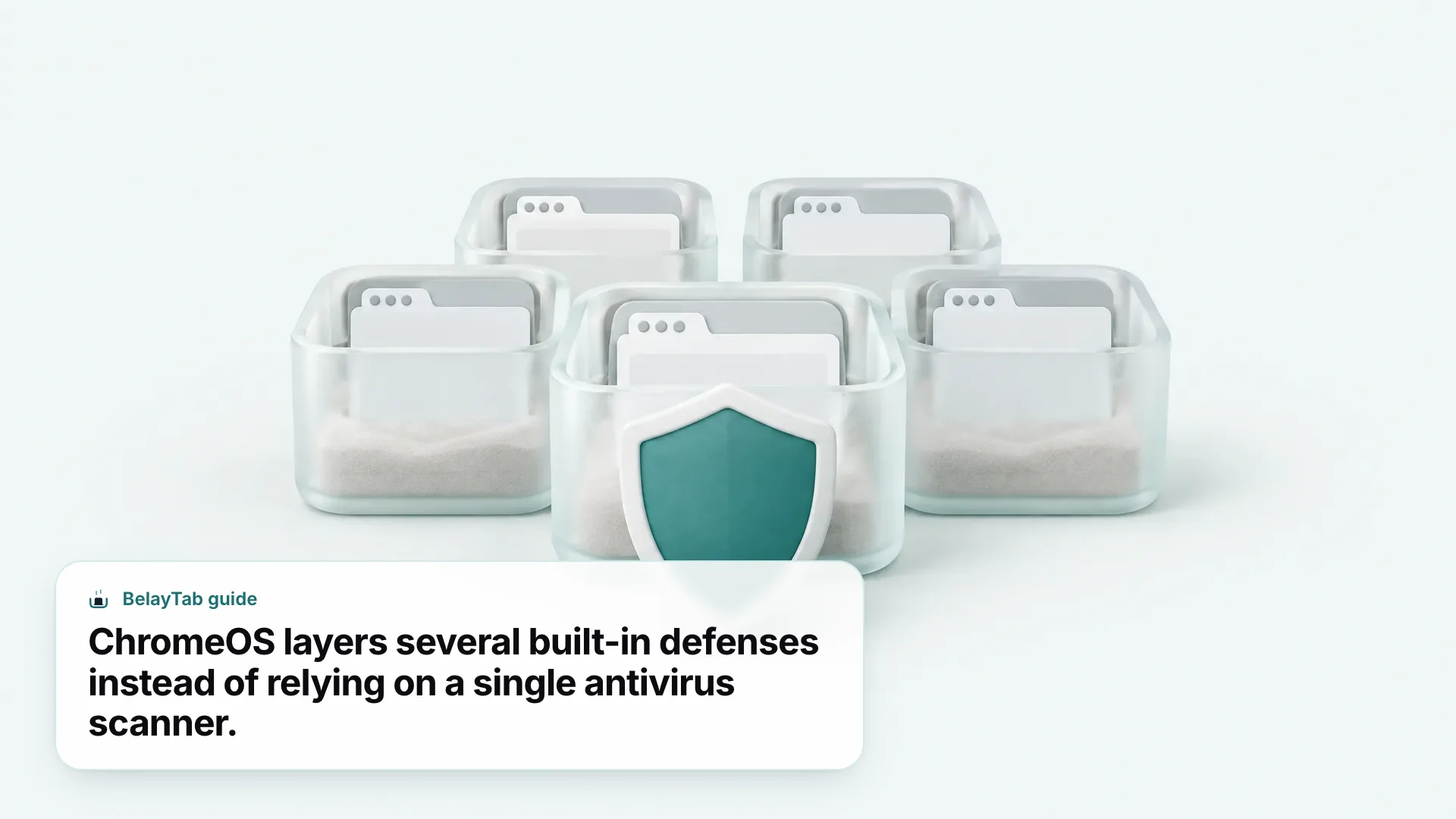
ChromeOS relies on four built-in layers instead of a scanner: Verified Boot, sandboxing, a read-only system that can’t run executable files, and automatic background updates, backed by a dedicated security chip. That combination is the virus protection Chromebook devices rely on by default, and it starts working before you ever open a browser tab.
Each layer covers a different stage of a would-be attack. Verified Boot checks the system on every startup. Sandboxing contains anything that does run. The read-only design removes the usual installation method malware needs. Updates close known holes before most people would even hear about them. None of that requires you to click “scan now” or renew a subscription.
| Security layer | What it does |
|---|---|
| Verified Boot | Checks the system every time it starts and repairs itself if it finds unfamiliar code |
| Sandboxing | Runs every webpage and app in its own restricted space |
| Read-only OS | Can’t execute .exe-style files, the usual way malware installs |
| Automatic updates | Patches ship in the background roughly every 2–4 weeks |
| Google Security Chip (H1) | Hardware-backed protection for your data and encryption keys |
Every Chromebook also ships with the Google Security Chip, known as the H1, which provides hardware-backed protection for encryption keys and is designed to resist brute-force attacks (chromeenterprise.google/os/security/). The next several sections go through the biggest of these layers one at a time, starting with the one that runs before anything else on the device even loads.
What Is Verified Boot and How Does It Stop Malware?
Verified Boot is a self-check ChromeOS runs every single time the Chromebook powers on, and it automatically repairs the system if it finds anything unfamiliar. Google describes it as reverting to a previous known-good version the moment it spots unfamiliar code, with no input needed from you.
That’s a fundamentally different approach than a virus scanner, which looks for known malware signatures after the fact. Verified Boot doesn’t need to recognize a specific threat. It just needs to notice that today’s system doesn’t match the trusted version it expects, and roll back. If something did manage to tamper with the boot process, the fix happens automatically, often before you’d even know there was a problem.
A vendor claim, not an independent audit. Google also states that “as of 2026, there has been no evidence of any documented, successful virus attack or ransomware attack on ChromeOS,” based on its own monitoring of national and internal databases. That’s Google’s own claim about its own product, worth noting as context but not the same as a third-party security audit.
This is also why a Chromebook rarely needs the kind of “boot-time rescue disk” that Windows security tools sometimes require. If the startup sequence itself is compromised on a traditional PC, fixing it can mean specialized recovery tools. On a Chromebook, that check and repair is just part of turning the device on.
Why Can’t Viruses Run on a Read-Only Chromebook?
Because ChromeOS is a read-only operating system that can’t execute files the way Windows or macOS can, the most common delivery method for viruses and ransomware simply doesn’t work. Google describes ChromeOS this way specifically, calling out that it “cannot run executable files” (a common hiding place for viruses and ransomware) so even a downloaded malicious file can’t reach the device or its data.
Think about how a typical Windows infection spreads: someone downloads an attachment, double-clicks an .exe file, and that program installs itself with whatever access the operating system allows. On a Chromebook, there’s no equivalent step. A downloaded file sits in Downloads, but there’s no mechanism for it to run itself and start modifying the system.
This is a structural difference, not a setting you could accidentally turn off. It’s also why chromebook antivirus protection from a third-party scanner has so little to do — the file type most scanners are built to catch can’t execute on the device in the first place. That doesn’t mean every risk disappears (more on that later), but it does explain why Google’s guidance treats antivirus as redundant rather than merely optional.
How Does Sandboxing Contain a Bad Tab or App?
Sandboxing means every webpage, extension, and app on a Chromebook runs inside its own restricted environment, isolated from the rest of the system. Google calls ChromeOS “segmented by design” for exactly this reason: containing anything malicious so it can’t reach the rest of the device.
In practice, this changes what happens when you land on a shady site or open a sketchy download. On a traditional PC, a single compromised process can sometimes escalate and touch files across the whole system. On a Chromebook, that tab is boxed in. Closing it, or hard-refreshing it, is often the entire fix for whatever went wrong, because the damage was never able to spread past that one sandbox.
This same logic extends to browser extensions, which is worth remembering even though extensions aren’t antivirus territory. An extension still requests its own permissions, and a poorly-behaved one can read page content or track browsing within the scope it’s granted — which is a reason to periodically review what’s installed on chromebook extensions rather than assume sandboxing alone makes every add-on harmless. Sandboxing limits how far a problem can spread; it doesn’t vet whether an extension deserves the access it asked for.
How Often Does ChromeOS Update, and Why Does That Matter?
ChromeOS updates automatically, with Google shipping “a full update every 4 weeks, and minor security fixes and software updates every 2 to 3 weeks,” applied in the background without interrupting what you’re doing. That cadence matters because most operating-system vulnerabilities get closed through patches, not caught later by a scanner — staying current does more preventive work than an add-on ever could.
Updates download automatically once you’re connected to the internet, and a notification badge tells you when one is ready: blue means recommended, orange means required. Restarting applies it. It’s worth checking in occasionally rather than assuming it happens invisibly, especially before a big task where you don’t want an update prompt mid-session.
- Select the time. Click the clock in the bottom-right corner of the screen, then select Settings.
- Open About ChromeOS. Scroll to the bottom of the Settings menu and select “About ChromeOS.”
- Check for updates. Select “Check for updates” — a blue notification means an update is recommended, orange means it’s required.
- Restart to apply. Select Restart to finish installing whatever downloaded.
Google also guarantees a device’s Auto Update Expiration (AUE) window, up to 10 years of automatic updates from the platform’s release, with the specific cutoff shown at Settings > About ChromeOS > Additional details > Update schedule. If you’re wondering whether an update itself could disrupt your open work, that’s a fair question — see updating a Chromebook for what happens to your tabs and files when one installs.
What Does Chrome’s Safe Browsing Actually Block?
Safe Browsing checks every site you visit against Google’s list of known phishing, malware, unwanted-software, and social-engineering sites, and it’s turned on by default. When it recognizes a match, Chrome shows a red “Dangerous site” warning before the page loads, rather than letting you land on it and hope for the best.
The default level is good coverage, but Enhanced Safe Browsing is an opt-in upgrade that checks new and unknown unsafe sites in real time, catching threats the static list hasn’t indexed yet. It’s the closest thing ChromeOS has to a “more protection” toggle, and it costs nothing to turn on.
- Open Privacy and security settings. Select the three-dot Chrome menu, choose Settings, then Privacy and security.
- Select Security. This page lists Chrome’s Safe Browsing protection levels.
- Choose Enhanced protection. It checks new or unknown unsafe sites in real time, beyond the default level.
Leave Safe Browsing on. Google explicitly recommends against turning Safe Browsing off entirely. The “No protection” option exists in Settings, but it removes your default warnings for known-bad sites — and on a managed Chromebook, an admin may lock this setting so it can’t be changed anyway.
Should You Still Install Antivirus Software for Chromebook?
For most personal Chromebooks, no — a third-party antivirus app adds very little on top of what ChromeOS already does, and some listed in the Play Store lean more on nag screens and upsells than on genuinely useful scanning. Antivirus software for Chromebook exists mainly because people switching from Windows expect to need it, not because Google’s own documentation identifies a gap it fills.
Android apps installed from the Play Store run through their own permission model on top of ChromeOS’s web sandboxing, which is a second layer of containment rather than a hole that needs patching. Checking what permissions an Android app requests before installing it does more good than running a scanner over it afterward.
The one place this gets murkier is a managed Chromebook at a school or company. There, the decision isn’t yours to make either way — IT administrators have their own tools, like Chrome Enterprise’s URL blocklist and allowlist policies, to control what a managed device can reach, and they may or may not add endpoint software on top. If you’re on a personal device, I’d skip antivirus and put the five minutes toward turning on Enhanced Safe Browsing instead; it does more for you day to day than a Play Store scanner would.
What Can Antivirus Not Protect You From on a Chromebook?
Antivirus software, even if you installed one, wouldn’t stop the things that cause most Chromebook problems: phishing scams, overly-permissioned extensions, weak account passwords, and data loss during troubleshooting. These aren’t virus problems, so a virus scanner has nothing to check.
- Phishing and scam sites. Safe Browsing helps, but the real fix is your own caution — no scanner replaces double-checking a link before you type in a password.
- Risky browser extensions. An extension with broad permissions can read what you type or track your browsing; review what’s installed at chrome://extensions, not inside an antivirus app.
- Weak or reused passwords. A scanner never checks whether your password is also your email password. A password manager does that job — see Chrome’s password manager for what it can check for you.
- Losing tabs during a fix. A hard reset, Powerwash, or recovery wipes local data, and none of those are the same as removing a virus, because there usually isn’t one to remove.
That last one is worth slowing down on, because it’s the scenario people run into. A Chromebook gets slow or a tab keeps refreshing, someone assumes a virus, and starts working through fixes. Google’s own troubleshooting order for exactly this situation is: restart, hard-refresh a stuck tab with Ctrl + Shift + R, open Task Manager with Shift + Esc to close the offending process, disable recently added extensions, run Diagnostics, then try a hard reset, and Powerwash only as a last resort. None of that is virus removal. It’s memory and performance troubleshooting, which is a very different problem with a very different fix. See how to unfreeze a Chromebook and resetting a Chromebook for the full versions of that sequence.
How Do You Keep a Chromebook With Virus Protection Working for You Day to Day?
Keeping a Chromebook with virus protection working in your favor is mostly about using what Google already built in, not adding new software on top. The built-in layers do their job automatically; the remaining gaps are things only you can close.
- Turn on Enhanced Safe Browsing. Settings > Privacy and security > Security > Enhanced protection.
- Keep ChromeOS updating. Check Settings > About ChromeOS occasionally, and restart whenever a badge appears instead of ignoring it for weeks.
- Review your extensions. Open chrome://extensions and remove anything you don’t recognize or actively use, especially ones asking to “read and change all your data on all sites.”
- Lock the screen properly. A fingerprint reader or PIN keeps a borrowed or lost Chromebook from handing over accounts you’re still signed into — see setting up fingerprint sign-in.
- Save your tabs before big changes. Before a Powerwash, recovery, or even a routine update, make sure whatever’s open survives the process instead of trusting memory.
That last step is where most guides stop short, because ChromeOS was never designed to protect the specific window you had open before you started troubleshooting. It protects the system. What’s in your tabs at that moment is on you to save.