






Your Chromebook locks up mid-scroll, the cursor turns into a spinner, and nothing you click does anything. It’s one of the most common Chromebook complaints, and it’s almost never one single cause. A frozen screen usually comes down to a short list of usual suspects: too many tabs eating memory, a misbehaving extension, a stuck app, or (less often) a real hardware issue with the battery, CPU, or Wi-Fi.
The good news is that most freezes clear up with a restart or a targeted fix, and you rarely need to wipe the device. This guide covers what to try first, how to use ChromeOS’s built-in diagnostics, when a hard reset or Powerwash actually makes sense, and how to make sure a reset doesn’t also wipe the tabs you had open. Work through the sections in order — most people are unstuck by the third one.
Why Does My Chromebook Keep Freezing?
A Chromebook usually freezes because something running on it (a browser tab, an extension, an Android app) is using more memory or CPU than the device has free, or because ChromeOS itself hit a snag mid-update. On a device with a modest amount of RAM and thirty tabs open, that’s rarely a coincidence.
Before you try anything, it helps to match your symptom to the likely cause. Here’s the short version:
| Symptom | Likely Cause | Try This First |
|---|---|---|
| Whole screen frozen, nothing responds | Too many tabs or apps running at once | Restart the Chromebook |
| One tab frozen, rest of the browser is fine | That page crashed or is stuck loading | Hard-refresh with Ctrl+Shift+R |
| Freezing started after installing something | A new extension conflicting with Chrome | Disable it under Extensions |
| Freezes happen randomly, no clear pattern | Possible hardware issue (battery, CPU, Wi-Fi) | Run the Diagnostics app |
| Freezing right after an update prompt | Update stuck mid-install | Force a restart, then recheck for updates |
Most of the causes above sort themselves out with something you can do in under a minute, and the rest of this guide walks through each one in the order it’s worth trying. If your Chromebook is freezing constantly, on every login, or within seconds of turning on, skip ahead to diagnostics rather than working through browser tabs first. That pattern points more toward hardware than software.
One thing worth ruling out early: a nearly full storage drive can make ChromeOS sluggish enough to feel like a freeze, even when nothing is technically stuck. Check available storage in Settings before you assume it’s a bug. It’s also worth reading up on why your Chromebook keeps crashing if what you’re seeing is closer to a full crash-and-reboot than a frozen screen — the causes overlap but the fixes differ slightly.
How Do I Unfreeze My Chromebook Right Now?
Turn the Chromebook off and back on. That single step clears out whatever process locked things up, and it’s the fix Google’s own troubleshooting page recommends trying first for a Chromebook that isn’t working properly.
- Hold the Power button. If the screen doesn’t respond to anything else, hold Power for about 10 seconds until the device shuts off completely.
- Turn it back on. Press Power again and give ChromeOS a minute to reload your session before you touch anything.
- Check whether it was really the whole system. If only your browser feels sluggish rather than fully frozen, try closing a few tabs before restarting at all — the restart is a bigger hammer than you might need.
If you know it’s just one page (the tab spins forever, the rest of the browser still clicks and scrolls fine) press Ctrl + Shift + R on it first. That forces a full reload and skips the cache, which clears up more stuck pages than people expect. You can find the same trick, plus every other Chrome tab shortcut, in the full Chromebook keyboard shortcuts list.
Restarting to clear a freeze is the recommended first move, but it does mean ChromeOS reloads your windows from scratch, and the layout you get back isn’t always the layout you had. For a closer look at what a restart does and doesn’t preserve, see how to restart a Chromebook.
How Do I Force Close a Frozen Tab or App?
Press Shift + Esc to open Chrome’s Task Manager, select whichever tab or app is marked as not responding, and end that process specifically. This is the more surgical option compared to a full restart, and it’s Google’s documented step for isolating an unresponsive app.
Task Manager lists every open tab, extension, and running app alongside how much memory and CPU each one is using. Click the Memory column to sort by size, and the biggest offender is usually your answer — a tab that’s been open for days, an extension quietly polling in the background, or an Android app you forgot was running. Select it and click End process to close just that one item without touching anything else.
This is also the fastest way to confirm your Chromebook is not responding because of one specific thing rather than the system as a whole. If ending a process brings everything else back to life immediately, you’ve found your cause and you don’t need to go any further down this list. If Task Manager itself is slow to open or freezes too, that’s a stronger signal you’re dealing with a system-wide resource problem rather than a single bad tab — worth reading through managing Chromebook tabs for ways to keep your tab count from creeping up in the first place.
One quirk worth knowing: ending an Android app’s process in Task Manager doesn’t always fully quit it the way closing it from its own interface would. If an Android app keeps reappearing in the list after you end it, close it from within the app itself or from the shelf, then check Task Manager again.
Could an Extension Be Causing the Freezes?
Yes — a single extension can quietly consume enough memory or CPU to freeze the whole browser, especially ones that run on every page you visit rather than only when you click them. Extensions are one of the most common causes of a Chromebook that used to run fine and now doesn’t.
Open the Chrome menu, choose More tools, then Extensions, and work through them one at a time rather than disabling everything at once. You want to know which one it was, not just that it was one of them. Start with anything you installed shortly before the freezing began; that timing is rarely a coincidence.
Extensions aren’t the only background process worth a look, though. A few other categories tend to cause similar symptoms:
- Extensions. Ones that scan every page (ad blockers, price trackers, grammar checkers) are the most common freeze culprits because they’re active constantly, not just when opened.
- Android apps. A stuck Android app running in the background can drag down the whole system, not only its own window.
- Linux (Crostini) apps. If you’ve enabled Linux, a runaway process there can spike CPU usage even while your browser looks completely idle.
- Chrome flags. Experimental features turned on at chrome://flags can destabilize the browser; resetting them to default is worth trying if you’ve enabled any.
If disabling extensions fixes it, re-enable them one by one over the next few days rather than all at once, so a repeat freeze tells you immediately which one is still the problem.
How Do I Run Diagnostics on My Chromebook?
Open the Diagnostics app (type Diagnostics into the launcher, or go to Settings > About ChromeOS > Diagnostics) to test the four things most likely to cause repeated freezing. It’s built into ChromeOS and requires no extra download, though it needs ChromeOS version 90 or later to run.
| Test | What It Checks | Sign of Trouble |
|---|---|---|
| Battery | Health percentage and cycle count | Health dropping noticeably over time |
| CPU | Usage graph over time | Spikes to 100% with little or nothing open |
| Memory | Available versus used RAM | Consistently maxed out even at idle |
| Connectivity | Wi-Fi, Ethernet, cellular, Google services | Frequent drops or failed connection tests |
Run all four rather than guessing which one applies. A Chromebook that freezes only on Wi-Fi-dependent tasks, for instance, might be a connectivity issue disguised as a general freeze — the page isn’t stuck, it’s waiting on a network request that never finishes. The CPU and memory graphs are the most useful for catching a runaway tab or extension you might have missed in Task Manager, since they show usage over time rather than a single snapshot.
If every test comes back clean and the Chromebook still freezes constantly, that’s a reasonable point to consider whether the device itself (not anything running on it) is simply reaching the end of its useful life, which the next couple of sections cover.
When Should I Try a Hard Reset?
Try a hard reset only after a normal restart, Task Manager, and Diagnostics haven’t fixed it. Google treats this as a last resort, not a first step, because it’s a more forceful interruption than a regular restart.
To do it: hold Refresh and tap Power, then release Refresh once the device starts up again. On a tablet or detachable, hold Back, Refresh, and Power together for at least 10 seconds instead.
Will Updating ChromeOS Stop the Freezing?
Sometimes — an out-of-date ChromeOS build can carry unpatched bugs that cause instability, so checking for updates is worth doing before you reset anything. Select the time in the bottom right, go to Settings, then About ChromeOS, then Check for updates.
ChromeOS downloads updates automatically once you’re connected to the internet. A blue notification means the update is recommended; orange means it’s required. Either way, select Restart to apply it — postponing a required update indefinitely is a common, overlooked reason a Chromebook keeps misbehaving.
Older devices eventually stop getting updates. ChromeOS devices receive automatic updates for up to 10 years from their platform’s release, tracked as the Auto Update Expiration (AUE) date. Check yours at Settings > About ChromeOS > Additional details > Update schedule. Once a device passes that date, per Google’s update schedule page, technical support and reliable policy behavior are no longer guaranteed — freezing and general flakiness can become more frequent as a result, and no software fix addresses that.
If your Chromebook was released before 2021 and is getting close to that window, it may be eligible to opt into Extended Updates to reach the full 10 years — worth checking before you assume the device itself needs replacing.
What Does Powerwash Actually Erase?
Powerwash erases everything stored locally on the device (your Downloads folder, installed apps, and local settings) but it leaves your Google Drive files and Google Account data untouched, since account data was never stored on the device to begin with.
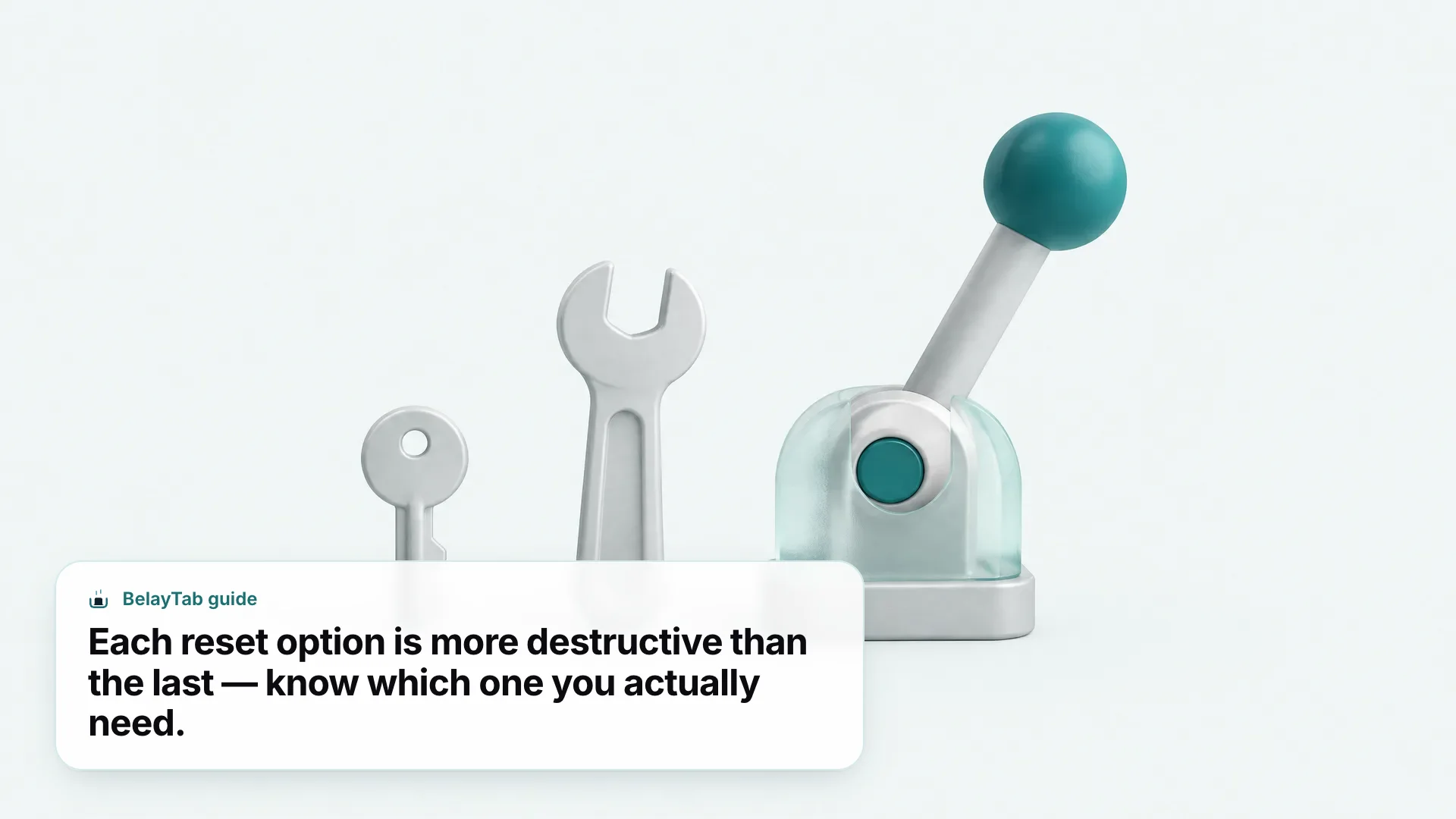
It helps to think of the options as a ladder, each one more destructive than the last. A restart reboots without erasing anything. A hard reset is a forced restart, also without erasing anything. Powerwash wipes local data back to factory settings. Recovery goes furthest of all: it reinstalls ChromeOS itself and erases the entire drive, which is why Google reserves it for a device that’s corrupted or won’t boot at all rather than one that’s simply freezing.
To Powerwash from the sign-in screen, hold Ctrl + Alt + Shift + R, select Restart, then choose Powerwash and Continue. Details on the deeper Recovery process and the Chromebook Recovery Utility are worth reading before you go that far. It’s genuinely more destructive than Powerwash and erases downloaded files along with everything else.
On school- or work-managed Chromebooks, an admin can disable Powerwash entirely. If the option is greyed out or missing, that’s why — contact IT rather than trying to force it. For the full breakdown of when each reset type makes sense, see Chromebook reset options explained.
How Do I Save My Tabs Before a Powerwash or Recovery?
Move anything you need out of Downloads first, since that’s exactly what Powerwash and Recovery erase — including a BelayTab export file if you have scheduled exports turned on, because that file lives in Downloads too.
- Turn on BelayTab Sync, or move your export file manually. Sync keeps your sessions in the cloud automatically; without it, drag your rolling export JSON from Downloads into Google Drive before you start.
- Confirm your sessions are safe. Check that they’re visible at app.belaytab.com, or that the file has landed in Drive, before you touch the Powerwash keys.
- Run the Powerwash, then reinstall BelayTab. Sign back into your Chromebook, install the extension again from the Chrome Web Store, and pull your sessions back down.
BelayTab itself can’t stop a browser from freezing (no extension can fix a hardware fault or a stuck update) but it makes sure the tabs you had open survive the fix. That’s a narrower job than “unfreeze your Chromebook,” and it’s worth being precise about: it protects what you were working on, not the freeze itself.
How Do I Stop My Chromebook From Freezing for Good?
Keep your tab count manageable, save sessions instead of hoarding open tabs indefinitely, and let ChromeOS auto-update instead of postponing it — most Chromebooks stop freezing once those three habits are in place.
Dozens of open tabs are the single most avoidable cause on this whole list. Every tab holds memory whether you’re looking at it or not, and a Chromebook doesn’t have the RAM headroom a desktop does to absorb that. If you’re the type to keep forty tabs open “just in case,” saving them as a named session and closing the windows does the same job without the ongoing memory cost — see too many tabs for a broader look at why this happens and what fixes it, versus what just delays the problem.
A few habits beyond tab count are worth building in too: restart the Chromebook every few days instead of only closing the lid, review your extensions every month or two the way you’d clean out a junk drawer, and don’t ignore an orange “required update” notification for weeks at a time. None of these take more than a minute, and together they prevent most of the freezes that would otherwise send you back to this guide.
If tab hoarding is your actual habit rather than an occasional lapse, BelayTab is free, works with no account, and saves named sessions you can close and restore later — so keeping a light tab count doesn’t mean losing track of everything you had open.