






Your Chromebook is stuck on a frozen screen, or you’re about to hand it back to a school IT department, or you just want it running like new again. Whatever brought you here, how to reset my Chromebook actually covers four different actions, and picking the wrong one can cost you files you needed and time you didn’t have to lose. A restart just reboots the machine and erases nothing. A hard reset forces a frozen screen to respond, again without touching a single file. Powerwash is the real factory reset. It wipes local data and returns ChromeOS to a clean, out-of-box state. Recovery goes further still, reinstalling the operating system itself from a USB drive, and it’s the most destructive option of the four.
This guide walks through each option in the order Google itself recommends trying them, tells you which to reach for first, and covers the managed-device wrinkle if your Chromebook belongs to a school or employer. It also covers what none of these resets can touch on their own: your open tabs, which live inside Chrome, not in ChromeOS, and don’t automatically survive a wipe the way your Google Account does.
How Do I Reset My Chromebook? A Quick Answer by Situation
You have four options, from mildest to most destructive: restart, hard reset, Powerwash (factory reset), and full Recovery — and the right one depends on what’s wrong.
| Situation | What to try | Data loss? |
|---|---|---|
| An app is stuck, but the Chromebook still responds | Restart | None |
| The whole screen is frozen and nothing responds | Hard reset (hold Refresh, tap Power) | None |
| Selling, returning, or wiping the device clean | Powerwash | Downloads, installed apps, local settings |
| ChromeOS won’t boot or is corrupted | Recovery via USB | Everything on the local drive |
Most people typing “how to reset my Chromebook” into a search bar want one of the middle two rows. If a specific app has locked up but you can still click around and open other windows, you don’t need anything drastic — a restart handles that in under a minute. If the whole device is unresponsive, a hard reset is the next step up, and it’s still just a forced reboot, not a factory reset; nothing on the drive changes.
Powerwash is what most people mean by “how to factory reset a Chromebook,” and it’s the option covered in the most detail below, including exactly what it deletes, what it leaves alone, and how it behaves differently on a managed device. Recovery is the outlier here: it’s not really a “reset” in the everyday sense, it’s a full reinstall you’d only reach for if ChromeOS itself won’t boot or has become corrupted in a way Powerwash can’t fix. Work through this guide in the order Google itself suggests (restart, then hard reset, then Powerwash, then Recovery) rather than jumping straight to the most destructive fix because it sounds more thorough.
How Do I Restart My Chromebook?
A restart is the first thing to try for a stuck app or a Chromebook that feels sluggish, and it erases nothing. Turn the Chromebook off, then back on. That’s it. Google lists this as the very first troubleshooting step for a Chromebook that’s freezing, crashing, or running slow, before anything more involved.
It sounds too simple to matter, but a restart clears out whatever process is misbehaving in memory without touching a single file. If you’ve got forty tabs open and the browser feels heavy, this is worth trying before you assume something’s broken. It’s also reversible in the most literal sense: nothing changes on disk, so there’s no risk in trying it.
Start here, always. If you haven’t tried a plain restart yet, do that first. It fixes most stuck-app and slowdown issues and erases nothing.
This one step covers more ground than people expect. Google’s own troubleshooting guidance for a Chromebook that’s freezing, crashing, or running slow starts here, before more targeted fixes like Task Manager or the Diagnostics app come into play — which says something about how often a stuck process, not a damaged file system, turns out to be the real cause.
Where a restart falls short is when the screen itself has stopped responding. You can’t open the menu to restart normally because nothing on screen is reacting to clicks or key presses. That’s the situation a hard reset is built for, and it’s covered next. For a deeper walkthrough of every restart method and what survives it, see our Chromebook restart guide.
What Should I Check Before I Reset My Chromebook?
Run through a short checklist before you touch any key combo. It saves you from wiping data you needed or attempting a reset that was never going to work on your particular device.
- Check for a pending ChromeOS update first. Go to Settings > About ChromeOS > Check for updates; a blue notification means recommended, orange means required, and either just needs you to select Restart, not a full reset. An update sometimes fixes an issue that looks like it needs Powerwash.
- Confirm you need Powerwash, not Recovery. If Chrome opens fine and only a specific behavior is wrong, Powerwash is almost always enough; save Recovery for when the Chromebook won’t boot at all.
- Check whether the device is managed. If it’s owned by a school or employer, don’t assume the sign-in-screen combo will work — some admins disable Powerwash entirely, and checking with IT first saves a wasted attempt.
- Move anything in Downloads to Google Drive or a USB drive. This includes any exported files a tool has written there, since Powerwash treats Downloads like every other local folder.
- Know your Google Account password. You’ll need to sign back in immediately after Powerwash finishes, and there’s no way to skip that screen.
- Have a USB drive ready only if you expect to need Recovery. Powerwash needs none, so there’s no reason to prepare one unless Recovery is genuinely the answer.
None of this takes long, but running through it before you start turns a five-minute reset into something you don’t have to redo because you forgot a file was only saved locally.
How Do I Hard Reset a Frozen Chromebook?
Hold Refresh and tap Power — if the screen won’t respond to anything else, this forces the Chromebook to restart. It’s a physical override, not a menu option, which is exactly why it works when the interface itself is locked up.
- Hold Refresh and tap Power. Press and hold the Refresh key, then tap Power without letting go of Refresh.
- Release Refresh once it restarts. The screen should go dark and the Chromebook will boot back up on its own.
- On a tablet or detachable, use the alternate combo. Hold Back + Refresh + Power together for at least 10 seconds.
Google’s own guidance is worth repeating here: try a hard reset only after other troubleshooting has failed. It’s a last resort for a frozen device, not a routine fix, and it’s not the same thing as Powerwash — a hard reset just forces the machine to reboot, it doesn’t wipe your files or reset any settings.
The distinction trips people up constantly, so it’s worth being explicit: a hard reset is mechanically similar to unplugging a desktop and plugging it back in. Nothing about your account, files, or settings changes. It just forces the hardware to reboot when the software layer has stopped taking input. That’s also why it’s safe to try more than once if the first attempt doesn’t seem to work; there’s no data at risk in retrying it, and no reason to escalate straight to Powerwash just because the first try didn’t fix things.
If hard resets are becoming a regular part of your week, that’s a sign of a deeper problem worth chasing down rather than a habit to build around. Our guide on a Chromebook that keeps freezing walks through the causes behind repeated freezes, from misbehaving extensions to memory pressure, before you reach for anything more drastic.
How Do I Factory Reset (Powerwash) My Chromebook?
Powerwash is Google’s name for a Chromebook factory reset, and you trigger it from the sign-in screen, not from inside a signed-in session. If you’re looking for how to reset a Chromebook to factory settings, this is the process — a clean wipe of local user data that returns the device to the state it shipped in.
- Sign out. Get to the sign-in screen. You can’t start a Powerwash from inside a signed-in session.
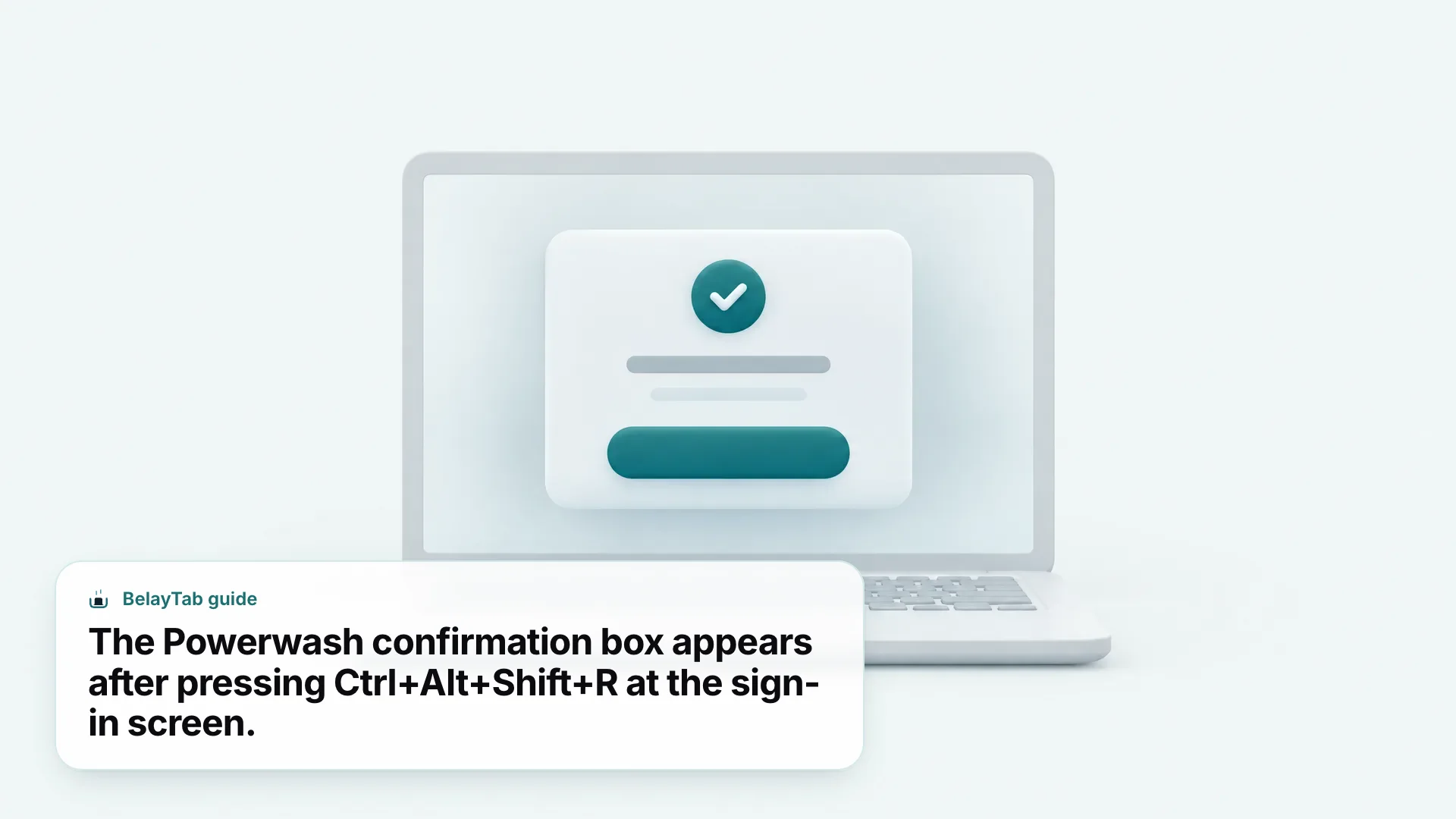
- Hold Ctrl+Alt+Shift+R. Press Ctrl + Alt + Shift + R at the sign-in screen.
- Select Restart. A box appears asking you to confirm.
- Choose Powerwash, then Continue. The Chromebook restarts and wipes local data back to factory state.
That’s the whole process — no USB drive, no separate app, just a key combo and two confirmations. Once it finishes, the Chromebook boots into the same out-of-box setup flow it showed the first time you turned it on.
What you do at that setup screen depends on why you reset in the first place. If you’re preparing the Chromebook to sell or hand off to someone else, stop at the language and network screens rather than signing back in with your own account. That leaves it ready for whoever gets it next without any of your data attached. If you’re resetting your own device to fix a problem, sign back in as usual and Chrome will restore your bookmarks, extensions, and settings from your Google Account, much like setting up a brand new machine. For the full, official steps straight from Google, see the Powerwash help page.
What Does Powerwash Actually Delete?
Powerwash erases everything stored locally (your Downloads folder, installed Android or Linux apps, and local settings) but it leaves cloud data alone. That distinction matters more than most people realize until they’ve already run it.
| Erased | Kept |
|---|---|
| Downloads folder | Google Drive files |
| Installed apps and local settings | Files on external or USB storage |
| Anything exported to Downloads | Google Account data (synced bookmarks, etc.) |
Google Account data isn’t stored on the device at all, which is why it survives regardless of what happens to the local disk — the same account with the same settings is waiting for you the moment you sign back in. Files on Google Drive and anything on a plugged-in USB drive or external storage are equally untouched, since Powerwash only reaches what’s physically stored on the Chromebook itself.
It helps to think about it by location rather than by app. Anything the Chromebook keeps on its own storage chip disappears. That’s the Downloads folder, any Android or Linux app data, offline files, and local settings that haven’t synced. Anything that lives somewhere else (Google’s servers, a USB stick, an SD card) is completely out of reach for Powerwash, because the process only ever touches the device doing the wiping.
That last row matters if you use any tool that writes backup or export files to Downloads on a schedule. Those files live locally by default, and “local” is precisely what Powerwash targets. More on handling that later in this guide.
How Do I Reset a Managed Chromebook?
You may not be able to — admins can disable Powerwash entirely on school- or work-managed Chromebooks, and if that’s the case you’ll need to contact IT or your school’s tech department instead of trying to force it yourself.
If Powerwash hasn’t been disabled, the same sign-in-screen combo works on a managed device the way it does on a personal one — hold Ctrl + Alt + Shift + R, select Restart, then Powerwash and Continue. The wrinkle for enterprise devices is what happens underneath: on managed hardware, Powerwash also performs a cryptographic erase that clears the encryption keys protecting local data, though Google notes that not every trace is guaranteed to be removed. That’s a stronger wipe than a personal device gets, but it doesn’t change the steps you take to trigger it.
It’s worth knowing why admins disable this in the first place, since it explains why trying a different key combo won’t help: a managed Chromebook is set up so it can be wiped and reassigned to a different student or employee without losing the organization’s control over it, and turning off user-triggered Powerwash keeps someone from routing around that policy on their own. If your device genuinely needs resetting, that request goes through the same admin, not around them.
Anyone searching for how to reset a managed Chromebook is usually hitting the same wall: the option is there in the menu, but nothing happens when you select it, because a device policy is blocking it. That’s not a bug to troubleshoot around. It’s working as intended. Full details on the policy live on Google’s Chrome Enterprise Powerwash documentation.
How Do I Use Chrome OS Recovery Instead of Powerwash?
Recovery reinstalls ChromeOS from scratch and erases the entire local drive, so save it for when the operating system itself won’t boot or is corrupted — not for routine resets. It’s the most destructive option covered here, more thorough than Powerwash because it touches the whole drive, not just user data.
You build the recovery media with the Chromebook Recovery Utility, a Chrome extension:
- Install the Chromebook Recovery Utility extension from the Chrome Web Store.
- Open it and click Get Started.
- Choose your Chromebook’s manufacturer and model.
- Insert a USB drive and select it as the destination.
- Click Create now to build the recovery media.
You’ll need another computer to build the recovery media, since the Chromebook that needs recovering usually can’t run the extension that creates its own fix — the Recovery Utility installs in Chrome on a working machine, not the broken one. Keep the USB drive dedicated to this task while you’re using it; the utility writes directly to it, and anything already saved on the drive won’t survive the process.
Once you’ve got the USB drive ready, boot into recovery mode by holding Esc + Refresh, then pressing Power and releasing it. Some models use Esc + Maximize + Power instead — check your specific model if the standard combo doesn’t trigger it.
This is a rare thing to need. Most people who think they need Recovery need Powerwash, and jumping straight to Recovery when Powerwash would have worked just means erasing more than necessary. Our dedicated guide to the Chromebook Recovery Utility covers the tool in more depth if you’ve reached the point where the OS genuinely won’t start.
What Should I Back Up Before Resetting My Chromebook?
Anything living only in your Downloads folder or local app data — back it up before you Powerwash or run Recovery, because neither one gives you a second chance at recovering it afterward.
Start with the obvious stuff: anything in Downloads that isn’t already backed up elsewhere, any offline files you’ve saved for a trip or a flight, and any local documents you’ve been editing without cloud storage turned on. It’s easy to forget these exist precisely because they work fine day to day. You only notice they were local-only once they’re gone.
- Google Drive. Files here aren’t touched by Powerwash, so it’s the simplest place to move anything important before you start.
- External or USB storage. Also untouched by Powerwash — plug in a drive and copy over local files first.
- BelayTab. Automatic snapshots protect your open tabs separately from the device; turn on Sync or move any export file out of Downloads so it isn’t erased.
Your open tabs deserve the same treatment, and they’re easy to overlook because they don’t feel like “files” the way a downloaded PDF does. Chrome sync brings back bookmarks and some settings after a reset, but it was never built to preserve the specific set of tabs you happened to have open — the ones with a half-finished form, a dozen research tabs for a project due tomorrow, or a flight confirmation you haven’t saved anywhere else. Those are exactly what a reset erases without asking twice, and the pattern holds everywhere in this guide: if a copy exists somewhere other than the device, it survives; if it only exists on the Chromebook, it doesn’t.
Will Resetting Fix Freezing, Crashing, or Slow Performance?
Sometimes, but Google’s own order is restart first, then troubleshoot, and treat Powerwash as a last resort — not the first move you reach for when things feel slow.
Work through it in this order: restart the Chromebook, then hard-refresh a specific stuck tab with Ctrl + Shift + R. If an app or tab still won’t respond, open Task Manager with Shift + Esc and close whatever’s misbehaving. From there, check recently installed extensions under the Chrome menu’s More tools, since a bad extension is a common culprit for slowdowns and crashes. The built-in Diagnostics app (find it via the launcher, or Settings > About ChromeOS > Diagnostics) checks battery health, CPU usage, memory, and connectivity, and can point to a hardware cause instead of a software one. It requires ChromeOS 90 or later.
Only after all of that should a hard reset enter the picture, and Google recommends testing in Guest mode afterward to see whether the problem is specific to your account before you go anywhere near Powerwash. If Guest mode runs fine and your regular account doesn’t, the issue is probably a corrupted profile or a problem extension, not something Powerwash is needed to fix. None of these steps risk your files, which is exactly why they belong before Powerwash rather than after it. You can work through the entire list, find nothing, and still not have lost a single tab or document along the way. For the deeper causes behind repeated crashes, see our guide on a Chromebook that keeps crashing.
How Do I Keep My Tabs and Sessions Safe Before Any Reset?
None of the built-in reset options are designed to protect your open tabs. That’s not what they’re for, and Powerwash or Recovery will wipe any local backup of them along with everything else on the device.
This is where BelayTab fits in. It’s a browser extension that saves your open windows as named sessions and takes automatic snapshots of every window every 5 minutes and whenever one closes, so you’re covered even if you never remember to save manually. It’s free, with no account required and no limit on sessions or tabs, and it keeps up to 20 versions of each saved session so restoring never overwrites your history.
One detail worth flagging given everything above: BelayTab can write a rolling export file to your Downloads folder on a schedule you switch on. That’s exactly the folder Powerwash erases, so if you’ve turned on scheduled exports, that file needs to live somewhere else before you reset — Google Drive or a USB drive both work, the same way they do for any other local file. The alternative is BelayTab’s optional Sync, which keeps your sessions in the cloud with 90 days of version history and web access at app.belaytab.com, so a device-level wipe never touches them at all.
You can also manually export your sessions to Drive right before a reset as a one-time safeguard, even if you don’t use scheduled exports day to day. If you’ve never used BelayTab before, this is also a reasonable moment to start — install it, save your current windows as a session, and you’ve got a baseline copy of your tabs before you touch any reset option at all. Either way, the underlying point holds for every method in this guide: a reset only erases what’s local, so anything you care about needs a copy that isn’t.