






You open your Chromebook and there’s a little dot on the clock: “Update available.” Before you click anything, you want a straight answer, will updating Chromebook wipe out the forty tabs you’ve got open, or the draft sitting in Downloads? For a routine ChromeOS update, no. Google built these updates to install in the background and only ask you to restart, the same way any operating system update works. What actually erases things is a different pair of tools entirely, Powerwash and Recovery, and people mix all three up constantly. This guide walks through what a normal update does, what Powerwash and Recovery each erase, how to check your device’s update cutoff, and what to do with your open tabs before you touch any of it. The short version: your Google Account survives everything; your local Downloads folder does not.
Updating Chromebook: Will It Delete Your Files?
No, a normal ChromeOS update doesn’t touch your files, apps, or settings. It installs a new version of the operating system in the background and asks you to restart when it’s ready. The confusion usually comes from mixing this up with two very different tools: Powerwash and Recovery, which live in different menus and are built to erase things, not preserve them.
“Updating your Chromebook” gets used loosely online to mean at least four separate actions, and each one treats your data differently. A software update swaps out the OS underneath you while leaving your desktop exactly as you left it. A hard reset forces a frozen device to reboot without erasing anything. A Chromebook Powerwash factory-resets the device, wiping local files and settings but leaving your Google Account and Drive files untouched. Recovery goes further still. It reinstalls ChromeOS from scratch and erases the entire drive, which makes it the one option that can take out things a Powerwash would have spared.
Here’s the fast version, so you can find your situation and skip to the right section.
| Action | What it does | What happens to your data |
|---|---|---|
| ChromeOS update | Installs a new OS version | Nothing erased, just restart to finish |
| Restart | Reboots the device | Nothing erased |
| Hard reset | Forces a stuck device to reboot | Nothing erased, but Google calls it a last resort |
| Powerwash | Factory-resets the device | Erases local files and settings; Google Account and Drive survive |
| Recovery | Reinstalls ChromeOS from USB | Erases the entire drive, more than Powerwash |
If you just came here to install a routine update, the next section covers exactly how, it takes a couple of clicks and a restart. If a Powerwash or Recovery is what you’re facing, say, before selling the device or fixing a stuck login, skip ahead to what each one erases and how to get your open tabs somewhere safe first, or read the fuller breakdown of Chromebook reset options.
How Do I Update ChromeOS?
Open Settings, go to About ChromeOS, and click Check for updates, Chromebooks handle almost everything else automatically. You don’t need to download an installer or hunt for a file; the update lives inside the same menu where you check your ChromeOS version.
- Open Settings. Select the time in the bottom-right corner, then click the gear icon in the quick panel.
- Go to About ChromeOS. It’s near the bottom of the menu on the left.
- Click Check for updates. ChromeOS looks for a newer version and starts downloading it if one exists.
- Keep working while it downloads. You can keep browsing normally; the update finishes in the background as long as you’re connected to the internet.
- Restart when you see the notification. A blue notification means the update is recommended; an orange one means it’s required. Either way, select Restart to apply it.
You can put off a blue notification for a while, but an orange one is Google telling you the update matters, usually a security fix. There’s no harm in restarting the moment you see it, since the download already happened and the restart itself is quick. If a restart seems to hang instead of completing, what to do when a Chromebook won’t restart walks through that separately, and Google’s own guide to updating ChromeOS covers the same steps if you want the source.
Does Updating ChromeOS Close My Open Tabs?
It restarts your Chromebook, and Chrome typically reopens the same tabs afterward, the same way it does after any restart. That’s Chrome’s built-in session memory doing its job, not a backup, and the distinction matters more than it sounds. Google’s own guidance backs this up in a roundabout way: a normal restart or shutdown erases no local data at all, which is exactly why it’s the first troubleshooting step for a stuck app or a sluggish Chromebook, not a risky one.
Session memory only holds one copy: the last state Chrome saved. If a tab was still loading when you hit Restart, if Chrome doesn’t have “continue where you left off” turned on, or if something interrupts the update itself, that one copy is what you’re relying on. There’s no version history behind it, and nothing to fall back on if it doesn’t come back cleanly.
For a routine update, this is rarely a real problem, restarts are quick and Chrome’s memory is decent at picking up where you left off. It becomes a real problem the moment you’re also clearing browsing data, switching accounts, or heading toward a Powerwash, all of which behave differently. If you’ve already lost tabs after a restart or crash and need them back right now, how to restore tabs in Chrome and the broader Chromebook tabs guide both cover recovery steps in more detail.
How Long Does a Chromebook Update Take?
There’s no fixed number Google publishes for this, because most of the waiting happens before you ever see a prompt. ChromeOS downloads updates in the background whenever you’re connected to the internet, so by the time you get a notification, the heavy part, the download, is usually already done.
What you’re left with is the restart, and that’s the fast part. Applying an update that’s already downloaded and rebooting the device takes roughly as long as any other restart. The real variable isn’t the update itself, it’s how long your Chromebook has been idle or offline, since a device that’s rarely connected to Wi-Fi can sit several versions behind before it catches up.
Blue versus orange also tells you something about urgency, not speed. Blue means Google considers the update recommended: new features, minor fixes, nothing urgent. Orange means required, typically because it patches something Google wants closed quickly. Neither notification changes how long the restart takes; it only changes how soon you should stop postponing it.
Update before you travel, not during. If you know you’ll be offline for a while, a flight, a trip somewhere with spotty Wi-Fi, check for updates and restart the night before. That way you’re not stuck watching a download with no connection.
If you keep seeing the same notification without it ever finishing, that’s usually a connectivity issue rather than something wrong with the update itself, and it’s worth checking your Wi-Fi before assuming the Chromebook is broken.
What Is Auto Update Expiration (AUE) and How Do I Check Mine?
Every Chromebook has a cutoff date after which Google stops sending it automatic updates, and that date is called Auto Update Expiration, or AUE. Chromebooks currently get automatic updates for up to ten years from when that platform first released, a long window compared to most laptops, but not an unlimited one.
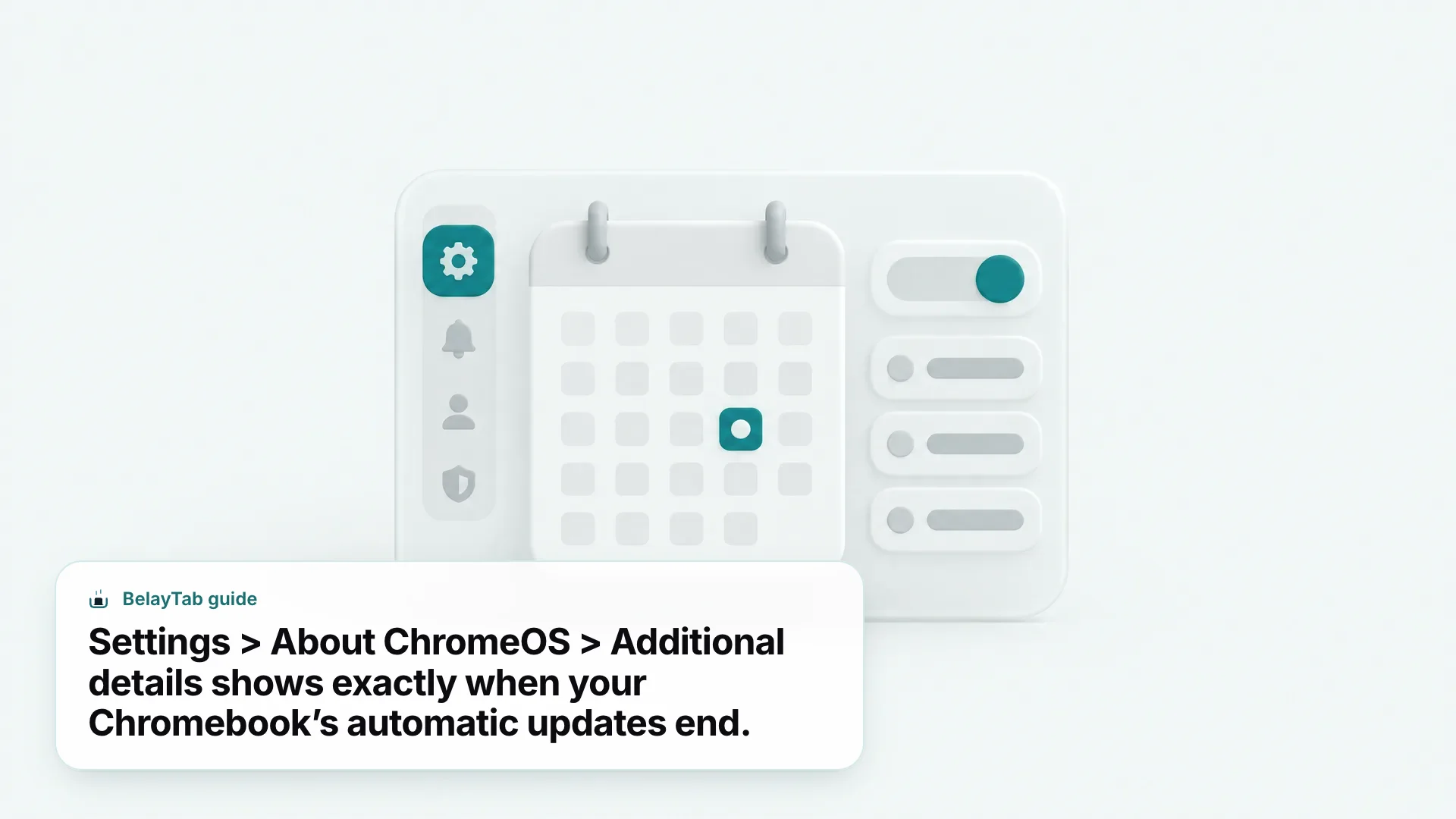
You can see your device’s specific date without guessing. Go to Settings, then About ChromeOS, then Additional details, and look for Update schedule, it spells out exactly when your device stops getting automatic updates.
If your Chromebook shipped before 2021, you may need to opt in to Extended Updates during its final support years to reach the full ten-year window, it isn’t always automatic on older models. Once a device passes its AUE date, updates aren’t the only thing that stops: Google no longer provides technical support for it, and any device policies you rely on may not keep working as intended. None of that erases what’s already on the Chromebook, but it’s a good reason to check the date now rather than after something breaks.
This matters more than it sounds like it should, because an aging Chromebook that’s still getting security patches behaves very differently from one that’s quietly stopped. Nothing warns you loudly when the cutoff passes, the device keeps working, just without the safety net.
What’s the Difference Between Restart, Hard Reset, Powerwash, and Recovery?
They form a ladder from mildest to most destructive, and mixing them up is the easiest way to lose something you didn’t mean to. Restart and hard reset don’t erase anything; Powerwash and Recovery do, just at different scales.
A restart is a normal reboot, nothing erased, and it’s the right first move for almost any glitch. A hard reset is what you use when the device won’t respond to anything else: hold Refresh and tap Power, releasing Refresh once it starts up. On tablets and detachables, hold Back, Refresh, and Power together for at least ten seconds. Google’s own guidance is to treat a hard reset as a last resort, only after other troubleshooting has failed, not a routine fix.
Powerwash is where erasing starts. From the sign-in screen, hold Ctrl + Alt + Shift + R, select Restart, then Powerwash and Continue. It factory-resets the device. Recovery is the most destructive of the four: hold Esc + Refresh, then press and release Power, and it reinstalls ChromeOS entirely using the Chromebook Recovery Utility and a USB drive, erasing the whole hard drive in the process.
| Action | Key combo | Data erased |
|---|---|---|
| Restart | Power button | None |
| Hard reset | Refresh + Power | None, but treat as a last resort |
| Powerwash | Ctrl+Alt+Shift+R at sign-in | Local files and settings, not Drive or your account |
| Recovery | Esc+Refresh+Power | The entire hard drive |
It’s worth knowing this before you need it, because at the moment something’s wrong, you rarely want to be reading fine print. None of these four is the same as simply signing out of your account, which clears nothing and just returns you to the login screen. For the full walkthrough of when to reach for each one, including what your school or workplace might have disabled on a managed device, see the Chromebook Recovery Utility guide.
Will a Powerwash or Recovery Erase My Downloads and Saved Tabs?
Yes. Powerwash erases everything stored locally on the device, and that includes your entire Downloads folder along with local settings and installed apps. Recovery goes further and erases the whole hard drive, so anything Powerwash would have spared on that drive is gone too. Neither one touches your Google Account data or files saved in Google Drive, since those never lived on the device to begin with.
That distinction, local versus Drive, is the whole ballgame. A PDF you downloaded and never moved anywhere else disappears in a Powerwash. The same PDF, sitting in your Drive folder, survives without you doing anything.
This is the part people miss, because Google’s Powerwash help page focuses on what it does to the device, not on where your own backup files happen to sit. If you’re about to reset a Chromebook and you’ve turned on BelayTab’s export feature, check where that file landed before you start.
How Do I Back Up My Tabs Before Updating, Resetting, or Recovering a Chromebook?
Save your sessions somewhere that survives the reset, not just somewhere convenient. Downloads doesn’t count, since it’s exactly what Powerwash and Recovery both erase, so the goal is getting a copy of your tabs into Drive or the cloud before you start.
- Save your current windows as a session. Press Ctrl + Shift + S (or Cmd + Shift + S) in BelayTab to save every open tab, tab group, and pinned tab, named and ready to restore later.
- Check your export destination. If you’ve turned on scheduled export, open Downloads and move the latest export file into a Google Drive folder, it won’t survive a Powerwash or Recovery on its own.
- Turn on Sync instead, if you’d rather not think about it. Set up Sync once and your sessions back up to the cloud on their own, with 90 days of version history behind them.
- Do the reset. Powerwash, Recovery, or whatever you came here to do, your tabs are now somewhere the wipe can’t reach.
- Restore afterward. Reinstall BelayTab, sign in if you’re using Sync, and restore your sessions from the recovery screen.
None of this is required for a routine ChromeOS update, that one doesn’t erase anything, so there’s nothing to protect against. It matters specifically when Powerwash or Recovery is on the table, or honestly any time you want a copy of your tabs that doesn’t depend on Chrome’s memory alone. The download page has the extension for every supported browser if you haven’t installed it yet.
My Chromebook Won’t Update or Keeps Freezing, What Do I Try First?
Restart it first, a plain restart erases nothing and clears most one-off glitches, including a stuck update. If that doesn’t help, work through the options below roughly in order, from least to most drastic.
- Restart and hard-refresh. A full restart clears most freezes. If it’s one tab misbehaving, click into it and press Ctrl + Shift + R to hard-refresh just that page.
- Task Manager and Diagnostics. Press Shift + Esc to find and close whatever’s unresponsive, or open Diagnostics from the launcher to check memory, CPU, battery, and connectivity.
- Hard reset, then Guest mode. If nothing else works, hold Refresh and tap Power. Still stuck? Try Guest mode to see if the problem is specific to your account before considering a Powerwash.
Extensions are a common, overlooked cause too, a recently installed one can be exactly what’s making a Chromebook sluggish or an update stall. Open the Chrome menu, then More tools, then Extensions, and disable anything you installed recently to see if that clears it. Diagnostics needs ChromeOS 90 or later to run, which by 2026 covers nearly every supported device, so if it’s missing entirely, that’s itself a sign the Chromebook is overdue for an update or nearing its Auto Update Expiration.
If you’ve worked through all of this and the Chromebook is still frozen or refusing to update, a Powerwash is the next step, with Recovery reserved for when ChromeOS itself won’t boot. Google’s own troubleshooting steps for a slow or frozen Chromebook and the Chromebook keeps freezing guide go deeper into each of these if the short version here doesn’t fix it.
What If My Chromebook Is Too Old to Get Updates Anymore?
Past its Auto Update Expiration date, a Chromebook keeps running, but Google stops sending it security updates and stops providing technical support for it. Any device policies it relies on may also stop working the way they’re supposed to, since those policies were designed against a version of ChromeOS the device will never receive.
Nothing about that date erases what’s on the device or breaks it outright. It’s a quieter problem: the Chromebook becomes gradually less protected against new vulnerabilities, with no update notification ever showing up again to remind you. That’s exactly why checking the date in Settings, About ChromeOS, Additional details, Update schedule, is worth doing well before you think you need to.
If your Chromebook is heading toward end of support, that’s also a good moment to stop treating its local storage as anywhere permanent. Downloads, local export files, anything saved only on the device, none of it is protected by Google’s updates once support ends, and it’s exactly the kind of device where a Powerwash or full replacement eventually becomes necessary.