






Your Firefox profile is the quiet workhorse behind everything you actually see in the browser: every bookmark, every saved password, every bit of history, and the extensions you installed and forgot about months ago. Most people never think about it until something goes wrong — a corrupted install, a new laptop, or a co-worker asking how to keep their bookmarks off your shared computer. Suddenly a word you’ve never had to type before, “profile,” is the thing standing between you and a working browser.
This guide covers what a Firefox profile is, where it lives, and how to open, create, switch, and back one up using Firefox’s own tools. Along the way we’ll walk through setting up separate profiles for work, personal browsing, and testing, since that’s the single most common reason people go looking for this page in the first place. It also covers the one thing a profile backup won’t save for you: the exact tabs you had open when things went sideways. We’ll get to that near the end.
Quick answer, by situation
| Situation | What to do |
|---|---|
| I want to see all my profiles | Type about:profiles in the address bar |
| I’m setting up a fresh browser | Create a profile from about:profiles, then import bookmarks |
| I need to keep work and personal separate | Create a second profile for the other context |
| I’m backing up before a reinstall | Back up bookmarks via the Library, and copy the Root Directory folder |
| Firefox feels broken or slow | Try a new profile before reinstalling the whole app |
| I need my open tabs saved, not just bookmarks | Use a dedicated tool like BelayTab alongside your profile backup |
What Is a Firefox Profile, Exactly?
A Firefox profile is the folder where Firefox stores everything that makes the browser yours, kept entirely separate from the program files that run the app. Bookmarks, saved passwords, browsing history, installed extensions, and every preference you’ve tweaked all live inside that one folder.
This separation matters more than it sounds like it should. It’s why you can reinstall Firefox, or update it to a new version, without losing a single bookmark: the update replaces the program, not your profile. It’s also why Firefox can support more than one profile on the same computer, each with its own independent set of bookmarks, logins, and extensions, as if you had several separate browsers installed on the same machine, sharing nothing but the underlying app.
Every Firefox installation creates a default profile automatically the first time you launch it, so most people use Firefox for years without ever seeing the word “profile.” You only run into it when you need to troubleshoot a broken setup, separate work from personal browsing, or move your data to a new machine. If you’ve used Chrome, the concept will feel familiar — Chrome profiles work on the same basic idea, just with different terminology and a different menu, and switching between the two browsers’ mental models is mostly a matter of relearning where the settings live.
It also helps to know what a profile is not. It isn’t a user account in the operating-system sense, it isn’t tied to any particular website login, and it isn’t something Firefox asks you to name or choose unless you deliberately go looking for it. For the overwhelming majority of people, “my Firefox profile” and “my Firefox” are functionally the same thing, right up until the moment they need to be split apart.
One default, unlimited extras. Firefox creates a default profile the moment you first open it. You can add as many additional profiles as you want later, and none of them affect the others.
Where Does Firefox Store My Profile Data?
Your Firefox profile lives inside a profile folder on your hard drive, but the exact path depends on your operating system, your Firefox install method, and whether you’re on a managed or portable install — so rather than guess at a path that might be wrong for your setup, it’s more reliable to let Firefox tell you directly. The About Profiles page does exactly that, and it’s the same page you’ll use later in this guide to create, switch, and back up profiles.
If you’d rather not open Firefox at all, or you’re trying to find profile folders across several different browsers on the same machine, BelayTab’s browser file locations tool lists where common browsers keep their data by operating system, which saves you from digging through hidden folders by hand, guessing at version-specific paths, or turning on hidden files in your file manager just to check one thing.
Either way, the folder itself isn’t something you normally need to browse manually. Firefox’s own menus handle almost everything (viewing your bookmarks, changing settings, exporting data) without ever asking you to open a file explorer. The folder mostly matters when you’re backing things up, troubleshooting a corrupted profile, or moving to a new computer, which is exactly what the rest of this guide walks through, one situation at a time.
One more thing worth knowing: the profile folder isn’t a single flat pile of files. Inside it you’ll find separate pieces for bookmarks, passwords, extension data, and cached preferences, plus a dedicated backups subfolder that Firefox maintains on its own. You don’t need to understand that internal structure to use Firefox day to day, but it explains why copying “the profile folder” as a whole is the only backup method that reliably captures everything at once.
How Do I Open the About:profiles Page?
Type about:profiles into the Firefox address bar and press Enter. That opens a page listing every profile on your computer, which one is currently active, and which one is set as the default that launches automatically when you double-click the Firefox icon.
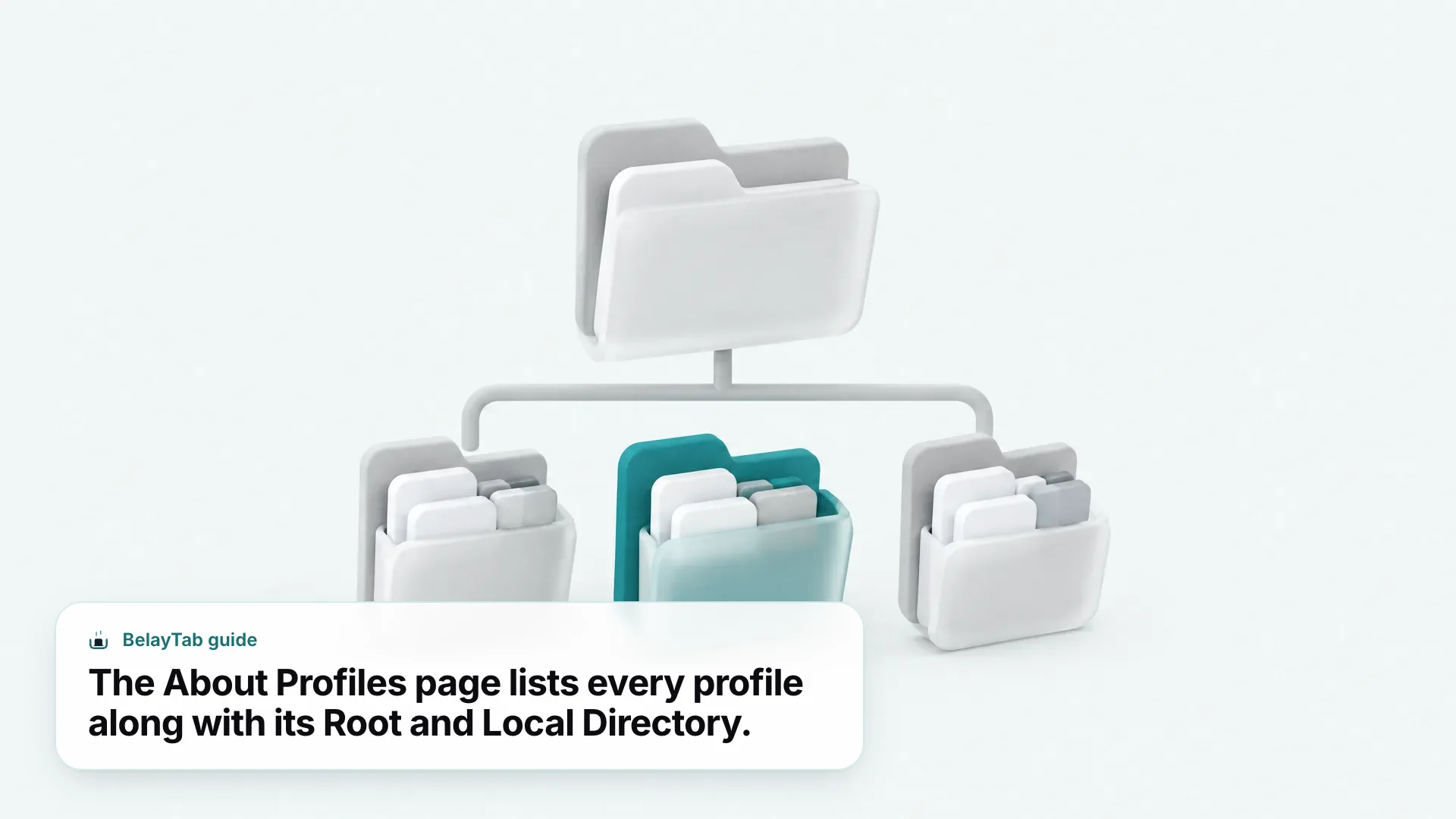
For each profile, the page lists a Root Directory and a Local Directory, so you can see exactly where its data lives without hunting through your file system. It’s the closest thing Firefox has to a built-in profile manager you can reach without closing the browser first, and it’s genuinely the fastest way to answer most “where is my Firefox profile” questions.
Mozilla has been rolling out a newer profile management interface, but as of September 2026 it’s part of a gradual rollout and isn’t available to every user yet. If your about:profiles page looks a little different from a screenshot you find online, that’s likely why — the underlying data and folder structure work the same regardless of which interface version you see, so don’t worry if a button is labeled or positioned differently than what someone else describes.
Because about:profiles works while Firefox is still running, it’s worth treating it as your first stop for almost anything profile-related, rather than closing the browser and reaching for the Profile Manager right away. Save the Profile Manager for the moments when Firefox won’t start at all, which is where it genuinely earns its keep.
How Do I Create a New Firefox Profile?
Open about:profiles and use the option there to create a new profile, then give it a name you’ll recognize later, like “Work” or “Testing.” The new profile launches with a blank slate: no bookmarks, no saved passwords, no history, and no extensions carried over from your existing profile.
That blank slate is exactly why people reach for a new profile. It’s the cleanest way to test a new extension without risking your real bookmarks, or to rule out a corrupted profile as the cause of crashes and slowdowns. If Firefox starts acting strange, spinning up a fresh profile costs you nothing and tells you a lot — if the problem disappears in the new profile, you know the issue lives in your old profile’s data rather than in Firefox itself.
- Open About Profiles. Type about:profiles into the address bar and press Enter.
- Find the create option. Look for the option to create a new profile on the page and select it.
- Name it. Give the profile a clear, specific name so you don’t mix it up later.
- Launch it. The new profile opens in its own window, completely separate from your existing one.
On older Firefox versions, or if you prefer working from outside the browser, the Profile Manager does the same job. Close Firefox first, then launch it with the -P flag (firefox.exe -P on Windows, firefox -P on Mac or Linux) to open a dedicated window for creating, removing, renaming, and switching profiles, as described in Mozilla’s guide to the Firefox Profile Manager. This route is also the one to remember if Firefox refuses to open normally, since it bypasses your default profile entirely and lets you troubleshoot from a clean starting point.
Naming profiles well pays off the first time you have three or four of them open across different windows. A name like “Work” or “Client-Testing” tells you instantly which window you’re looking at; the default “Profile 1” style names Firefox suggests do not, and you’ll end up clicking through several windows just to find the one you meant to open.
How Do I Set Up Separate Profiles for Work, Personal, and Testing?
Set up separate Firefox profiles by creating one from about:profiles for each context you want to keep apart, naming each clearly, and then treating every window that opens from that profile as belonging entirely to that context. The mechanics are identical to creating any single profile; the only extra step is being deliberate about what goes where.
Most people who search for this are trying to solve one of three problems: keeping a work Google account separate from a personal one, testing extensions or settings without risking a daily-driver setup, or handing a computer to a family member without sharing bookmarks and saved logins. All three use the same basic pattern, just with different names and different habits once the profile exists.
- List your contexts first. Decide how many separate identities you need — most people only need two or three, since each additional profile is another window to remember to check.
- Create one profile per context. Repeat the create-profile steps from about:profiles for each one, naming them something obvious like “Work,” “Personal,” or “Testing.”
- Sign into accounts inside the matching profile. Log into your work email, work Sync account, or test accounts only inside the profile meant for that purpose, so nothing crosses over.
- Bookmark each profile’s starting pages. Set up a small bookmarks bar in each profile for the sites you use in that context, so the separation feels intentional rather than empty.
- Pin the profiles you use daily. If your operating system lets you pin an app shortcut, create one that launches Firefox with a specific profile so you’re not navigating through about:profiles every morning.
A testing profile deserves a slightly different habit than a work or personal one: treat it as disposable. Install the extension you’re evaluating, poke at the setting you’re unsure about, and if anything looks wrong, delete the whole profile and start over rather than trying to clean it up. That’s the entire point of keeping it separate from your daily browser in the first place — a bad extension in a testing profile is a two-minute inconvenience, while the same extension in your main profile could mean digging through settings for an hour.
How Do I Switch Between Firefox Profiles?
Open about:profiles in your current profile and launch the other one from that list, or close Firefox and reopen it through the Profile Manager to pick a profile at startup. Firefox lets each profile run in its own window, so if you launch two profiles, you’ll see two separate windows with entirely different bookmarks, tabs, and logins.
That independence is the whole point of Firefox multiple profiles, and it’s also the tradeoff. Nothing carries over between them automatically (not your open tabs, not your extensions, not your saved logins) unless you deliberately sign the same Mozilla account into Firefox Sync on both. Each profile is its own self-contained browser identity, which is exactly what makes it useful for separating contexts and exactly what makes it easy to lose track of things across them.
- Testing extensions. Try a new add-on in a throwaway profile without risking your main bookmarks or passwords.
- Work and personal. Keep a separate bookmark bar and set of saved logins for each side of your life.
- A fresh start. Spin up a clean profile when your main one feels sluggish or tangled, without deleting the old one.
If your real problem is Firefox crashing rather than needing separate identities, a new profile is a reasonable first troubleshooting step, but it’s worth reading through what fixes a crashing Firefox before you rebuild anything from scratch. A crash that happens in every profile you try points to something outside your profile data entirely, which a fresh profile won’t fix no matter how many times you recreate it.
What’s the Difference Between the Root Directory and Local Directory?
The Root Directory stores your real profile data (bookmarks, passwords, history, and preferences) while the Local Directory only stores disk cache and other temporary files. That distinction, straight from the About Profiles page itself, tells you exactly what’s worth protecting and what isn’t.
| Directory | What it stores | Safe to delete? |
|---|---|---|
| Root Directory | Bookmarks, passwords, history, preferences | No — this is your actual data |
| Local Directory | Cache, thumbnails, temporary files | Yes, Firefox rebuilds it automatically |
In practice, this means your backup effort should go entirely toward the Root Directory. If Firefox is running slowly and you’re tempted to clear out profile files to free up space, the Local Directory is the safe target; clearing it won’t touch a single bookmark or saved password, and Firefox simply rebuilds whatever it needs the next time it caches a page.
Mixing the two up is the most common way people accidentally delete data they meant to keep, so it’s worth taking a second to confirm which folder you’re looking at before deleting anything. If you only remember one rule from this section, make it this one: when in doubt, back up the Root Directory and leave the Local Directory alone entirely. There’s no upside to touching it manually, and very little downside to ignoring it forever.
How Do I Back Up My Firefox Profile?
Back up your Firefox profile in two layers: a quick bookmarks-only backup through the Library window, and a full copy of the Root Directory folder for everything else. Doing both gives you a fast recovery option for the data you touch most often and a complete one for everything else.
- Open About Profiles. Type about:profiles into the address bar and press Enter to find your Root Directory path.
- Close Firefox. Quit the app completely so no files are locked while you copy them.
- Copy the Root Directory folder. Copy it in full to an external drive or a cloud-synced folder.
- Back up bookmarks separately. Open the Library window and choose Import and Backup > Backup to save a dated JSON file just for your bookmarks.
The Library’s backup option is described in Mozilla’s guide to exporting Firefox bookmarks, and Firefox also keeps its own rolling set of automatic bookmark backups (the last 15) tucked inside a bookmarkbackups subfolder in your Firefox profile folder, so you often have a recent one available even if you forgot to make one yourself. That automatic history is a nice safety net, but it only covers bookmarks; it won’t help you recover a lost password or a changed setting, which is why the full Root Directory copy still matters.
How often you repeat the backup depends on how much changes in your browser. If you bookmark a handful of pages a week and rarely touch settings, a monthly copy of the Root Directory is plenty. If you’re actively reorganizing bookmarks or testing new configurations, back up before any change you’d be annoyed to redo.
Sync isn’t a backup. Mozilla states plainly that Firefox Sync “does not provide a true backup service, nor is it intended to be used as one.” Sync keeps devices matching in real time, so a bookmark you delete on one device disappears from all of them. It’s not a substitute for an actual backup file.
How Do I Restore Bookmarks or a Profile After a Reinstall?
Restore bookmarks from the Library window’s Import and Backup > Restore option, where you can pick a recent automatic backup or choose a specific saved file. Be aware that restoring overwrites whatever bookmarks you currently have, so it’s not something to click through casually if you’ve made changes since your last backup.
For everything else in a profile (passwords, history, extensions, and settings) the more reliable path after a fresh install or a new computer is Settings > General > Import Data, which pulls bookmarks, saved logins, history, and form data directly from another browser or a previous Firefox install, as covered in Mozilla’s import documentation. Manually copying a saved Root Directory folder back into place works too, but it’s fussier and more likely to go wrong if the Firefox versions don’t match exactly, so treat it as a fallback rather than your first choice.
If you’re specifically trying to get back a session that closed unexpectedly rather than restoring an old backup, that’s a different problem with its own fix — see how to restore your last Firefox session for that. Restoring a profile and restoring a session solve different problems, and confusing the two is the fastest way to end up disappointed with either method.
Should I Use Multiple Firefox Profiles for Work and Personal Browsing?
Yes, if you want a clean, permanent separation between two contexts, Firefox multiple profiles do that better than private browsing or bookmarks folders ever could. Each profile keeps its own bookmarks, saved logins, and extensions, so nothing from your work account leaks into your personal browsing or the other way around, and nothing you research for a personal project accidentally shows up in a work-related search suggestion.
The tradeoff is friction. Switching profiles means switching windows, and unlike browser tabs, you can’t glance across profiles to see what’s open in the other one. If you keep a dozen tabs open in your work profile and a dozen more in your personal one, tracking all of them at once gets harder, not easier, the more contexts you split across, especially once you’re several days into a project and can’t remember which window had the tab you need.
Extension developers often use separate profiles for testing too, since a broken or misbehaving add-on in a test profile can’t touch the bookmarks and passwords in your daily-driver profile. If that’s your use case, a throwaway profile costs you nothing and takes under a minute to set up, and deleting it afterward is just as quick.
What a Firefox Profile Backup Doesn’t Cover (And How BelayTab Fills the Gap)
A profile backup protects your bookmarks, passwords, history, and settings, but it doesn’t reliably protect the exact tabs you had open at any given moment. Firefox can reopen your previous windows after a normal shutdown, but that’s session data tied to how the browser last closed, not a running history of every window you’ve had open over the past week.
That gap is easy to underestimate until you lose it — the forty research tabs from a project you haven’t finished, the half-read articles you meant to get back to, the window with a flight booking still open in it. None of that lives in your bookmarks unless you deliberately saved it there, and a bookmarks backup won’t recreate it no matter how recent or thorough that backup is.
This is the specific problem BelayTab was built around. It’s a free browser extension, with no account required, that saves your open tabs as named sessions and automatically snapshots each open window every five minutes and whenever a window closes, keeping up to 20 versions of each session and a 30-day trash for anything deleted. Everything shows up on one Recovery screen, alongside recently closed windows and your export files, and it works on Firefox the same way it does on Chrome, Edge, and most other browsers. If your Firefox profile ever gets corrupted, a saved session brings your tabs back regardless — restoring a profile backup won’t reopen a single tab on its own, since bookmarks and open windows are simply different kinds of data.
It’s also useful across the multiple-profile setup described earlier in this guide: since BelayTab runs independently in each profile you install it in, you get the same automatic snapshots and one-click saves whether you’re in your work profile, your personal one, or a testing profile you’re about to delete.