






If you searched “island browser” expecting another Chrome alternative to try at home, this one’s different. Island is an enterprise browser — a product IT and security teams deploy across a company, not something you download for yourself on a Tuesday night. It’s built on Chromium, the same engine under Chrome and Edge, but everything else about it is aimed at controlling what happens on a work device.
This review sticks to what island.io states about its own product: what it is, how it works, who buys it, and what it costs. Then it covers the one thing an enterprise browser like Island still doesn’t promise (protecting the tabs and sessions you personally rely on every day) and where a tool like BelayTab fits into that gap.
What Is the Island Browser?
Island is a Chromium-based enterprise browser from island.io, marketed as “The Enterprise Agentic Control Plane.” The company’s own homepage frames it around three pillars: access, security, and AI-powered productivity, built around delivering “all the systems enterprise work requires in a single, unified environment,” per its enterprise browser product page.
In plain terms, Island looks and behaves like a normal Chromium browser on the surface (tabs, an address bar, extensions support) but every layer underneath is designed for corporate policy enforcement. It’s aimed at companies with contractors, regulated data, or BYOD (bring your own device) workforces who need a way to control what happens inside a browser window without installing a full virtual desktop.
It’s worth separating Island from consumer Chromium browsers you might compare it to, like Vivaldi or Brave. Those are built for individual users choosing their own privacy and customization settings. Island is sold to IT departments as infrastructure, with pricing, deployment, and policy decisions made centrally rather than by the person typing into the address bar. That distinction matters for anyone landing on this page expecting a personal download — Island simply isn’t built that way, and its own site doesn’t pretend otherwise.
If your actual goal is finding a general browser to install yourself, our best browser roundup and browser comparison hub cover options built for individual use rather than enterprise deployment.
Quick Answer: Island Browser at a Glance
Here’s the short version if you’re comparing Island against other browser options before reading further.
| Question | Answer |
|---|---|
| What is it? | A Chromium-based enterprise browser and browser extension from island.io |
| Who buys it? | IT and security teams at companies, via demo or quote — not individual consumers |
| Is it free? | No public pricing or free tier is listed on island.io |
| Platforms (native browser) | Windows, macOS, Linux, Chromebook |
| Platforms (extension) | Chrome, Edge, Safari, Firefox |
| Mobile | iOS, iPadOS, Android |
| Core focus | Data-loss prevention, device posture checks, privileged access, web-threat protection |
| How to get it | Schedule a demo or request a quote at island.io; existing users log in to download |
How Does Island Browser Actually Work?
Island works two ways at once: as a full native browser and as a browser extension, both built on the same Chromium engine. Its own product page states the product is “a Chromium-based browser and our browser extension,” which means a company can choose to hand employees the full Island browser app or install the Island extension inside a Chromium browser they already use.
That extension approach is notably flexible. Island’s platform matrix confirms the extension works inside “any Chromium-based browser, including ChatGPT Atlas and Perplexity Comet” — a detail that shows Island is designed to layer onto whatever Chromium-family browser an organization has already standardized on, including newer AI browsers, rather than forcing a full app switch everywhere.
The native browser app, by contrast, is the deeper deployment option. Because it’s a standalone application rather than an extension, it can enforce policies at the operating-system level in ways a browser extension alone cannot — things like blocking screen capture across other apps, or restricting virtual machines and remote-desktop tools system-wide. Respondus’s LockDown Browser (which we cover separately, since it’s aimed at academic exam integrity rather than corporate security) makes a similar architectural point about native apps versus extensions, though for a very different use case.
For IT teams, this dual delivery model means rollout doesn’t have to be all-or-nothing. A pilot group might start with the extension on their existing Chrome or Edge install, then move to the full native browser once policies are tuned. That’s a meaningfully different rollout path than Chrome or Edge deployments, which don’t offer an equivalent “extension first, full browser later” enterprise option out of the box.
What Security and Policy Controls Does Island Include?
Island’s core pitch is bundling several enterprise security functions directly into the browser instead of stacking separate tools on top of it. The headline feature is data-loss prevention: Island’s own page describes “granular, context-based policies that allow data to move freely between enterprise apps, while preventing data leakage,” with “last-mile controls” governing printing, downloads, screenshots, and copy/paste — including copy/paste happening outside the browser entirely.
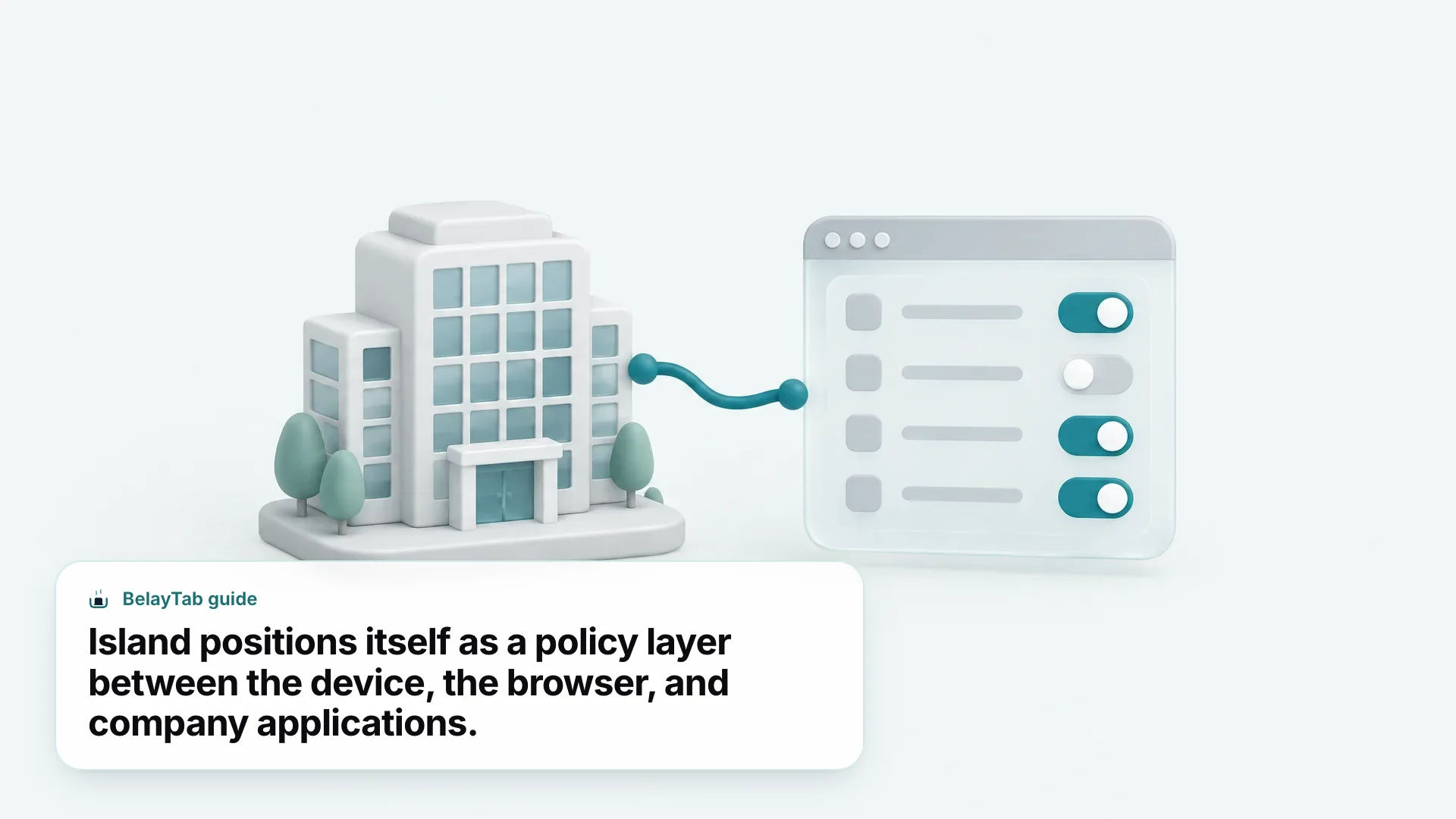
On top of DLP, Island layers device posture and conditional access. The browser “automatically assesses device posture to ensure devices meet policy requirements,” and administrators can set conditional access rules based on identity, device, network, location, and application, all enforced from within the browser itself rather than a separate network appliance. Policy reach even extends past the browser window: Island states its device management controls can apply to outside applications like Zoom, Slack, Teams, or WhatsApp.
Web-threat protection is built in as a baseline layer, described as defending against “malware, phishing attacks, session hijacking, man-in-the-browser, and other browser exploits.” For organizations with especially sensitive systems, Island adds a Secure Privileged Access feature aimed at admin consoles and backend access, which “enforces security posture and user authentication while capturing full session details, including the user, device details, and specific actions” — useful for audit trails in regulated industries.
What Productivity Features Are Built Into Island?
Island bundles a handful of end-user productivity features directly into the browser rather than requiring separate extensions. Officially listed features include an AI assistant for writing, researching, and summarizing; a smart clipboard with advanced copy/paste handling; an ad and tracker blocker; and a geolocation anonymizer.
There’s also a built-in password manager, described as “encrypted and stored using a zero-knowledge architecture,” with the explicit selling point that it requires “no extensions to deploy or manage” — a detail that matters to IT teams trying to reduce the number of third-party extensions running across a fleet of managed devices. Companies can also apply fully customizable browser branding and UI to match their own internal tools.
Beyond individual productivity, Island DEX (Digital Employee Experience) rounds out the toolkit by collecting analytics on application usage, performance, network conditions, and device health, feeding that data back to IT to inform infrastructure decisions. Combined with the zero trust network access feature for reaching private apps, Island is positioning itself as a replacement for some of the separate agents and VDI setups that IT teams have historically stacked on top of a plain browser.
It’s a genuinely broad feature set for a single application. Whether all of it gets used at any given company depends on how deeply that company configures it — Island supplies the levers, but an IT admin still decides which ones to pull.
Who Is Island Browser Built For?
Island targets organizations with specific access-control problems: contractor access, regulated data, BYOD policies, and internal app sprawl. Its navigation lists target industries including Business Process Outsourcers, Financial Services, Government, Healthcare, Higher Education, K-12 Education, Manufacturing, and Retail.
Beyond industry, Island organizes its pitch around named use cases that map to common IT headaches.
- 3rd party contractors. Give outside workers access to specific systems without provisioning a full company laptop.
- BYOD workforce. Let employees use personal devices for work while keeping company data inside policy boundaries.
- M&A onboarding. Get newly acquired teams into corporate systems fast, without waiting on full device re-imaging.
- Privileged access management. Add extra authentication and session logging around admin consoles and backend systems.
- VDI reduction. Replace some virtual desktop deployments with browser-level policy controls instead.
- Zero trust. Apply identity, device, and network checks continuously rather than once at login.
That list tells you a lot about who’s actually evaluating Island: security architects, IT directors, and compliance teams, not end users searching for a faster or prettier browser. If none of those use cases describe your situation, Island likely isn’t the product you’re looking for — a mainstream option compared in our Chrome vs Edge breakdown is probably a better fit.
Which Devices and Browsers Does Island Support?
Island supports a wider platform spread than most single-vendor browsers, split across four delivery methods. The official breakdown, stated under “Built for every environment,” looks like this.
| Delivery method | Supported platforms |
|---|---|
| Native browser | Windows, macOS, Linux, Chromebook |
| Browser extension | Chrome, Edge, Safari, Firefox |
| Desktop app | macOS, Windows |
| Mobile | iOS, iPadOS, Android |
That’s a notably wide net for an enterprise product. The extension option in particular means a company doesn’t have to standardize every device on the full Island app to get some of its policy controls — installing the extension inside an existing Chrome or Edge deployment is enough to bring Island’s Chromium-based controls to a browser employees already know.
For comparison, most consumer browsers publish a simpler platform list. Firefox, Safari, and Brave each ship a desktop app plus a mobile app, but none of them offer an enterprise-grade “extension mode” designed specifically to layer policy onto a different vendor’s browser the way Island does. That’s a genuinely distinct approach from the top 10 browsers most people compare when picking a personal browser, and it reflects Island’s audience: fleets of managed devices, not individual choice.
How Much Does Island Browser Cost?
Island doesn’t publish pricing, and there’s no self-serve signup. The company’s enterprise browser page offers exactly two calls to action for prospective customers: “Schedule a demo” and “Request a Quote,” plus a separate login path reserved for people who are already Island customers wanting to download the software.
That structure is typical of enterprise security software sold to IT departments rather than individuals — pricing usually scales with seat count, feature tier, and support level, and vendors prefer to quote it after a sales conversation rather than post a number publicly. No specific dollar figure, per-seat cost, or free-tier terms could be confirmed on Island’s official site as of this writing, so treat any number you see elsewhere with caution.
- Identify your use case. Match your need (contractor access, BYOD, privileged access, VDI reduction) to Island’s listed solutions before reaching out, so the sales conversation starts focused.
- Schedule a demo or request a quote. Both options are listed directly on island.io’s enterprise browser page as the entry points for new organizations.
- Confirm platform fit internally. Check your fleet against Island’s platform matrix (native browser, extension, desktop app, or mobile) before committing to a rollout plan.
- If you’re an existing customer, log in to download. Island’s site gates its direct download behind an existing account, separate from the demo and quote paths.
Is Island Browser Safe for Employee Privacy?
Island does monitor work activity, but its own documentation states that personal browsing stays private and that a visible indicator shows when monitoring is active. The company’s language is specific: it lets organizations “see all work activity in high fidelity, while keeping personal browsing private,” and adds that users are shown “a privacy indicator” so they know how and when they’re being monitored.
That’s a meaningfully different posture from a browser silently logging everything an employee does. Whether that distinction feels reassuring in practice depends on how a given employer configures the split between “work” and “personal” activity — Island supplies the mechanism, but the policy boundary itself is set by IT, not by the browser vendor.
If you’re an employee being asked to install Island or its extension, it’s worth asking your IT team directly what activity gets logged and where those analytics go, since Island states that monitoring data can be shared with an organization’s SIEM (security information and event management) system for enterprise-wide visibility. That’s a reasonable question to ask before installing any managed browser on a device you also use for anything personal.
Do You Still Need to Manage Your Own Tabs and Sessions on Island?
Yes — Island’s published feature list doesn’t include tab-session saving, tab groups, or a way to recover a window you accidentally closed, so that part of your workflow is still your own responsibility. Island is focused on access, security, and policy enforcement, not on the everyday problem of forty research tabs surviving a restart or a crash.
That gap isn’t a criticism of Island specifically. It’s simply outside what an enterprise control-plane browser is built to do. If your company issues you an Island-managed device, check with IT before installing any additional extension, since a locked-down enterprise browser may restrict what you’re allowed to add. On the browsers you do control — a personal laptop, a secondary Chrome profile, or any Chromium-based browser your policy permits — a dedicated session tool fills that gap.
BelayTab is built specifically for that everyday problem. It saves an open window (or selected tabs, a single tab, or every open window) as a named session with one click, or with the shortcut Ctrl + Shift + S (Cmd + Shift + S on Mac). It also saves a snapshot of every open window on its own every five minutes, and again the moment you close a window, so even tabs you never manually saved have a recovery point.
- Install BelayTab on a browser you control. It’s free, works without an account, and runs on Chrome, Edge, Brave, Opera, Vivaldi, Arc, Firefox, and Safari on Mac — check with IT first if the device is managed.
- Save your working sessions by name. Group tabs by project or task instead of letting them pile up in one window.
- Use the Recovery screen when something goes wrong. It surfaces snapshots, deleted sessions, the browser’s own recently closed windows, and export files in one place.
- Turn on Sync if you switch browsers or machines often. It’s optional and paid, and it keeps 90 days of cloud version history plus web access at app.belaytab.com.
BelayTab keeps the last 20 versions of every session, so restoring one never overwrites your current setup. It just adds another version you can compare against. Everything stays on your computer unless you turn on Sync, and BelayTab never reads page content or requests host permissions. Compare it against other options in our session manager guide, or head to the download page to install it directly.