






Save a page on your phone and it’s supposed to be waiting for you later on a bigger screen. Most of the time it is. But mobile bookmarks cover more ground than a single star icon in the address bar: how you save one, where it lands, whether it shows up on a different browser, and what happens when a sync setting gets switched off somewhere along the way without you noticing.
This guide covers saving and finding bookmarks in Chrome on Android and iPhone, how Safari does things differently, and where phone-saved bookmarks actually go once they reach a desktop browser. It also covers something almost nobody mentions: a bookmark saves a page, not the tabs you had open or the research session you were in the middle of. If what you’re losing is a whole browsing session, not a link, the fix for that lives on desktop, and we’ll get to it near the end.
What Are Mobile Bookmarks, and How Are They Different From History?
A mobile bookmark is a link you deliberately save inside your phone’s browser so you can return to that exact page again, while history is simply every page you happened to open, saved or not.
The difference matters because people often go looking for a “lost” bookmark that was never bookmarked at all, it was just something they visited once. Bookmarks stay put until you delete them; history usually gets cleared out or ages off, and Chrome doesn’t publish a fixed retention window for local history, so “it’ll always be there” isn’t something you can count on. Reading lists, which some browsers offer alongside bookmarks, are a related but separate idea: a queue of pages meant to be read once and forgotten, rather than kept as a permanent reference.
Where this gets confusing is that “mobile bookmarks” isn’t one system. Chrome, Safari, and every other phone browser keep their own bookmark store, tied to their own account. A bookmark you save in Chrome on Android doesn’t appear in Safari on the same phone, and it won’t show up in Edge on your laptop unless you’ve specifically synced or imported it. The table below is a quick reference for where each major mobile browser keeps things.
| Browser | How You Save a Page | Where It Shows Up on Desktop | Syncs Automatically? |
|---|---|---|---|
| Chrome (Android/iPhone) | Bookmark control near the address bar or in the overflow menu | Your Google Account’s bookmarks, visible in Chrome’s desktop Bookmark Manager | Yes, once you sign in to Chrome |
| Safari (iPhone) | Bookmark control in Safari’s toolbar or share sheet | Safari on Mac, if you use the same Apple ID | Managed through Apple’s own account settings, separate from Chrome’s |
| Edge, Brave, Opera (Android/iPhone) | Similar bookmark or favorites control inside each app | The matching desktop browser, once signed in | Depends on that browser’s own account system |
Whatever you use bookmarks on mobile for, quick references, a shopping list, articles for later, the save step and the sync step are two different things, and most of the confusion below comes from mixing them up.
How Do I Save a Bookmark in Chrome on Android or iPhone?
You save a bookmark in Chrome on a phone by tapping the star or “Bookmark” control near the address bar while the page is open, or through the three-dot overflow menu if the star isn’t visible; Chrome has shuffled this control’s exact spot across versions, so don’t panic if it’s not where an old screenshot shows it.
- Open the page you want to keep. Load it normally in Chrome and let it finish loading before you save it.
- Tap the bookmark control. Look near the address bar first; if it’s not there, check the overflow menu (the three dots) for a “Bookmark” option.
- Find it again from the menu. On Android, tap More then Bookmarks to open the folder holding that page. This is the path Google documents directly for reaching a saved bookmark.
Bookmarks survive Incognito, even though history doesn’t. If you bookmark a page while in an Incognito tab, Chrome keeps that bookmark in your regular library after the Incognito session ends. Only the browsing history and cookies from that session get wiped, not saved bookmarks or reading list items.
On iPhone and iPad, Chrome mobile bookmarks work the same way, tied to the account you’re signed into rather than the device. Chrome on iPhone also has its own tab grid with an inactive-tabs area, and it supports tab groups that save and sync automatically once you’re signed in, worth knowing, because tab groups and bookmarks solve different problems and people often reach for one when they mean the other. If you save a lot from your phone, our Chrome Android and Chrome on iPhone guides cover the tab side of things in more depth.
How Do I Save and Find Bookmarks in Safari on iPhone?
Safari keeps a separate bookmarking system on iPhone from Chrome, with its own toolbar control and its own storage, so a page you bookmark in one won’t show up in the other.
Apple updates Safari’s exact tap sequence for adding a bookmark often enough that printing precise steps here risks being wrong by the time you read this. Our dedicated Safari bookmarks and Safari on iPhone guides track the current UI and are worth checking instead of guessing from an old screenshot.
What is stable: on the Mac, Safari calls its default bookmarks folder “Favorites,” and since Safari’s bookmark set is shared across your devices when you’re signed in with the same Apple ID, you’ll typically see that same folder name on iPhone. Don’t confuse this with Microsoft Edge’s “Favorites,” a completely different product that happens to use the same word for the same idea. Safari on iPhone also lets you lock Private Browsing behind Face ID, Touch ID, or a passcode, under Settings > Apps > Safari > the Face ID lock for Private Browsing, worth turning on if bookmarks or history from a private tab would be sensitive should someone pick up your phone.
None of this requires an account with Google, which is exactly why safari bookmarks iphone users and Chrome bookmark users never see their libraries mix automatically, however similar the two features look on the surface.
Where Do Bookmarks You Saved on Your Phone Show Up on Desktop?
Bookmarks you save in Chrome on your phone show up in Chrome’s desktop Bookmark Manager, opened with Ctrl+Shift+O on Windows and Linux or Cmd+Option+B on Mac, as long as you’re signed into the same Google Account on both.
You might notice a mobile bookmarks folder in that list, one that collects everything you saved from a phone separately from bookmarks you added on desktop. This is widely reported by Chrome users, but it isn’t documented on Google’s official bookmarks help page as of this writing, so treat the exact folder name as something to confirm in your own account rather than a guaranteed label. If you don’t see a separate folder, your phone’s bookmarks are probably just mixed in with everything else.
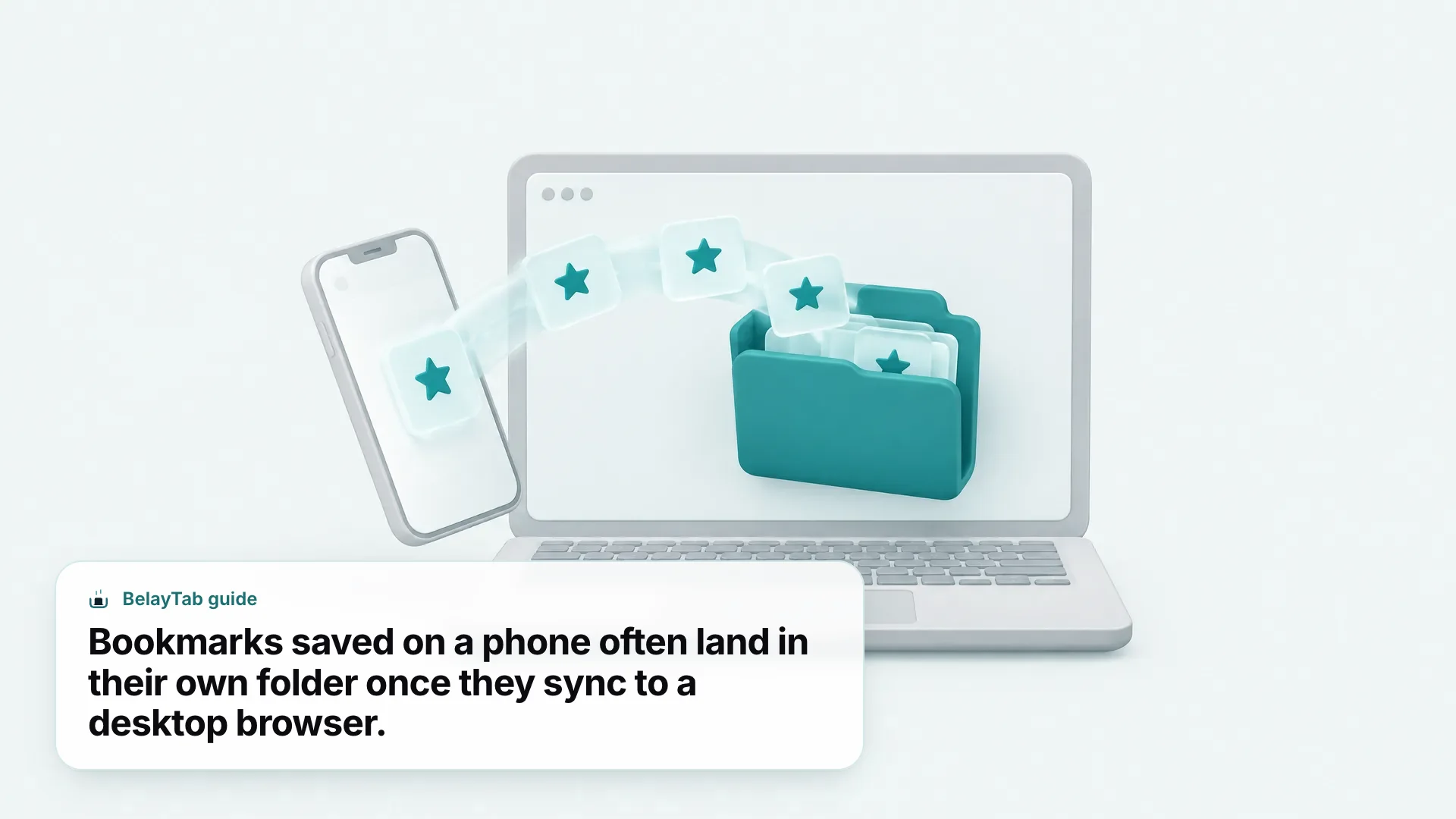
Getting there in the first place relies on the same account being signed in everywhere; Chrome menu > Bookmarks and lists > Bookmark Manager gets you to the same screen from the desktop menu if you’d rather click than remember a shortcut. Safari’s equivalent path runs through your Apple ID rather than a Google Account, and Chrome’s help pages don’t cover how that folder structure looks, so if you’re hunting for iPhone-saved Safari bookmarks on a Mac, check Safari’s own bookmarks sidebar rather than Chrome’s Bookmark Manager.
How Do I Sync Bookmarks to Desktop So They Match My Phone?
You sync bookmarks to desktop by signing in to the same account, Chrome or otherwise, on both your phone and your computer; in Chrome, signing in turns sync on automatically.
- Sign in to Chrome on your phone. Tap your profile icon and sign in with a Google Account. Sync turns on by default the moment you do, per Chrome’s sync help page.
- Check what’s included. Go to Settings > “You and Google” > sync options and confirm bookmarks is one of the data types turned on, alongside history, open tabs, and passwords.
- Sign in to the same account on desktop. Open Chrome on your computer and sign in with the identical Google Account.
- Add a sync passphrase if you want it. Synced data is encrypted by default; a custom passphrase adds an extra layer you control on top of that.
Google caps synced bookmarks at 100,000 per account, a limit almost nobody hits, but worth knowing if you bookmark constantly. It’s also worth knowing that Chrome sync covers more than bookmarks: history, open tabs, passwords, and settings all ride along by default, which occasionally surprises people who only meant to turn on one of them. Our Chrome Sync guide breaks down exactly what does and doesn’t travel between devices, including the open-tabs piece that trips people up most often.
How Do I Organize and Search Bookmarks on a Small Screen?
You organize bookmarks on a small screen the same way you would on desktop, folders and renaming, but it’s slower on a phone, so most people do the heavy sorting later on a bigger screen instead.
Folders work the same conceptually on mobile as desktop: you can create one, move bookmarks into it, and rename it. What’s different is the search experience. Chrome’s mobile tab switcher can search across open tabs, recently closed tabs, and tabs from other signed-in devices, but that’s tab search, not bookmark search, and it’s easy to conflate the two when you’re hunting for something you saved days ago.
For actual bookmark searching and cleanup, finding duplicates, dead links, or bookmarks you meant to delete months ago, doing it from a desktop Bookmark Manager is faster than tapping through folders on a six-inch screen. If you want a lighter way to browse everything you’ve saved without opening your full browser settings, our bookmarks viewer tool gives you a quick read-only view. And if your bookmark collection has grown into something unmanageable across multiple browsers, our best bookmark manager roundup compares the dedicated tools built for that job specifically.
None of this is unique to phones, it’s just slower there, which is exactly why most serious reorganizing happens once, on desktop, in one sitting.
How Do I Export or Back Up Bookmarks Saved on Mobile?
The reliable way to export bookmarks saved on mobile is from a desktop browser after they’ve synced there, since Chrome’s desktop Bookmark Manager has a built-in export tool that its phone apps don’t clearly expose the same way.
| Action | Where (Desktop Chrome) | What You Get |
|---|---|---|
| Export bookmarks | Bookmark Manager > More (⋮) > Export Bookmarks | A single HTML file with your full bookmark set |
| Import bookmarks | Bookmark Manager > More (⋮) > Import Bookmarks from HTML file | Bookmarks added into a new folder, or the bar directly if you had none |
| Move to a new computer | Turn on sync, or export then import the HTML file | The same bookmarks on the new machine either way |
Both paths are documented directly by Google on Chrome’s Bookmark Manager help page, and either one gets your phone’s bookmarks onto a new machine as long as they synced there first. If the destination browser already has bookmarks, imported ones land in a folder rather than overwriting anything, so you won’t lose what was already there. For the full walkthrough, including format quirks between browsers, see How to Export and Import Chrome Bookmarks.
This is also where it’s worth separating two different backup problems. Bookmarks are links; they’re small, and exporting them is a five-minute job. Browser tabs and windows are a different kind of data entirely, open, unsaved, often numbering in the dozens, and Chrome’s mobile apps don’t offer anything like an export for those. Desktop import and export tools handle whole sessions, not just bookmarks, which is exactly the gap. If losing an open research session, not a bookmarked page, is the thing that worries you, that’s a desktop problem with a desktop answer, which we get to below.
Chrome vs Safari on iPhone: How Do Mobile Bookmarks Differ?
Chrome ties mobile bookmarks to your Google Account, syncing them to any signed-in device on any platform, while Safari ties them to your Apple ID, syncing mainly within Apple’s own ecosystem.
- Chrome. Account-based and cross-platform: the same Google Account carries bookmarks to Android, iPhone, Windows, Mac, Linux, and Chromebooks, up to 100,000 bookmarks. Chrome on iPhone doesn’t support the desktop-style extensions some people use to manage bookmarks in bulk.
- Safari. Tied to your Apple ID, and its default desktop folder is called Favorites rather than Bookmarks. It’s built for people mostly inside Apple’s devices; if your other computer runs Windows and Chrome, Safari’s bookmarks don’t travel there on their own.
Neither system is wrong, they’re just built for different setups. If your phone, laptop, and work computer run different platforms, Chrome’s account-based approach is the more practical choice simply because it isn’t tied to one company’s hardware. If everything you own has an Apple logo on it, Safari’s tighter integration with the rest of the system, things like the shared reading list, can be the more convenient default. The one thing worth avoiding either way is assuming they talk to each other automatically. They don’t, and the export/import path from the previous section is the bridge between them when you need one.
What Don’t Mobile Bookmarks Do (and What Covers the Gap on Desktop)?
Mobile bookmarks save a page you chose to keep; they don’t save the tabs you had open, the order you had them in, or a browsing session that was still in progress when your phone restarted or your browser crashed.
This is the gap that catches people out. You bookmark the three articles you finished reading, but the twelve tabs you still had open, half-read, mid-research, aren’t bookmarks. Nobody bookmarks a tab they’re not done with yet; that’s exactly why it’s the one that gets lost when a browser restarts, a phone reboots, or you accidentally swipe a whole window closed.
On desktop, this is a solved problem in a way mobile isn’t. BelayTab, for example, is a free browser extension for Chrome, Edge, Brave, Opera, Vivaldi, Arc, Firefox, and Safari on Mac that takes automatic snapshots of every open window on a five-minute timer and again when a window closes, then lets you restore the whole thing, tabs, tab groups, and order intact, later. It’s worth being clear that BelayTab doesn’t run on iPhone, iPad, or Android, so this only covers the desktop side of the problem. On mobile, bookmarking what you can and being mindful of tab limits is still the best you’ve got.
How Do I Fix Mobile Bookmarks That Went Missing or Won’t Sync?
Missing mobile bookmarks are almost always a sync problem, not a deleted one, so check that both devices are signed into the same account before assuming anything was lost.
Start with the account. Open Settings on your phone and confirm you’re signed in with the same Google Account, or Apple ID for Safari, as the desktop browser where the bookmark is missing. A bookmark saved under a different account, a work profile, a second Google Account added later, simply won’t appear under the one you’re currently checking.
Next, check that sync includes bookmarks specifically. It’s possible to be signed in with sync partially on, history and passwords flowing through while bookmarks got switched off at some point, deliberately or by accident. Settings > “You and Google” > sync options is where that toggle lives in Chrome.
If both of those check out and the bookmark still isn’t there, it may genuinely be gone, and Chrome’s official help pages don’t document a single-click way to undo a deleted bookmark. Your realistic options are checking another signed-in device where it might still exist, or restoring from an HTML export if you made one. This is a good moment to build that habit going forward: export your bookmarks occasionally, the same way you’d back up anything else you’d be annoyed to lose.