






You open a new tab to look something up, and for half a second the blank white page makes you forget what you were even doing. That’s the itch Momentum is built to scratch. It’s one of the older new-tab replacement extensions still around, and the search term “momentum extension for chrome” gets typed a lot by people who want their browser’s emptiest page to feel like less of a void.
This guide covers what the free version actually includes, what you’re paying for if you upgrade to Momentum Plus, how it stacks up against Chrome’s own new-tab settings, and (because this is the one thing a pretty dashboard can’t do for you) what happens to the forty tabs you already have open when you’re not looking at a fresh one.
What Is the Momentum Chrome Extension?
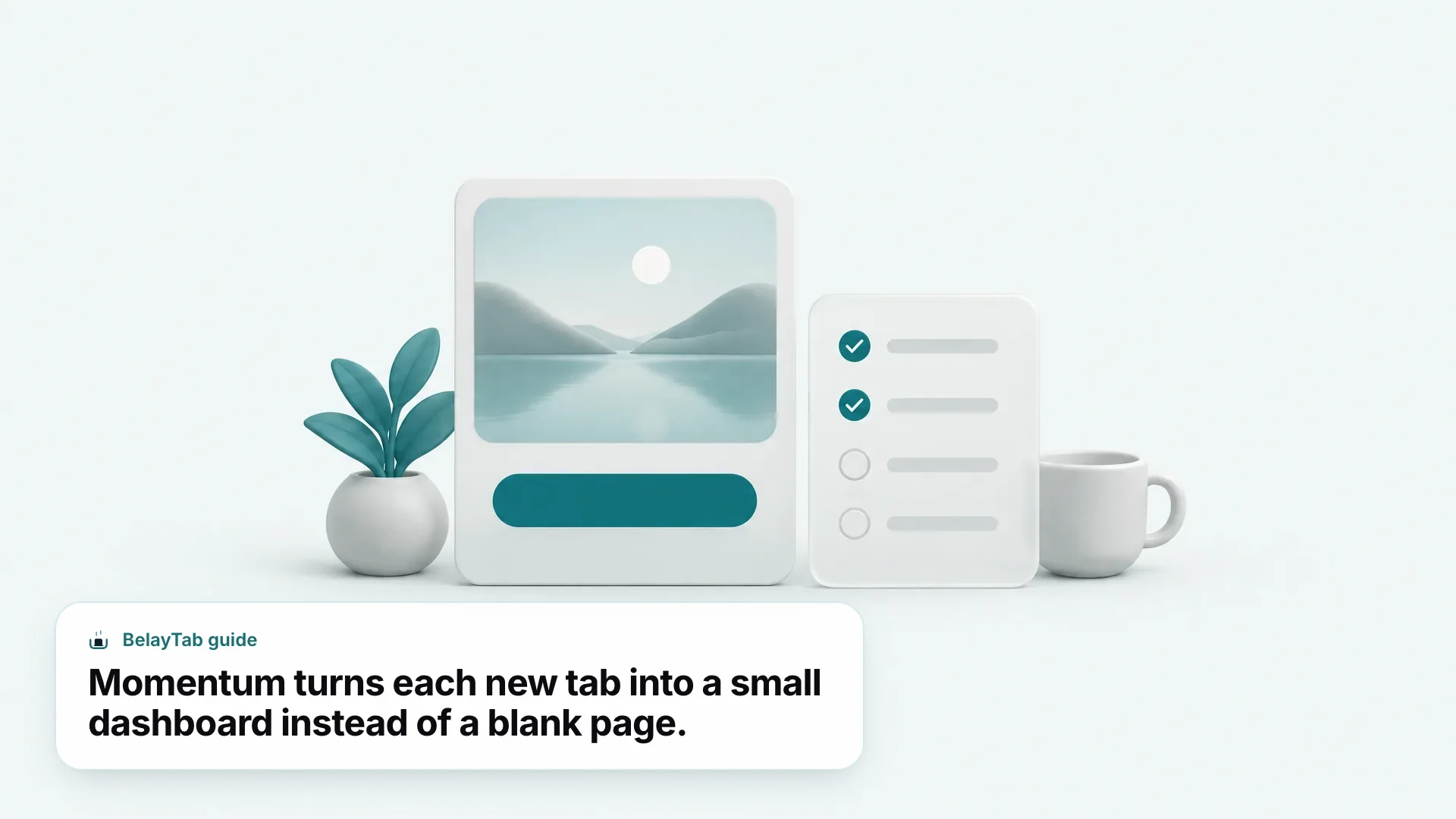
Momentum is a new-tab replacement extension that swaps Chrome’s blank default page for a personal dashboard. Instead of an empty page or a grid of shortcut tiles, you get a daily rotating background photo, a short quote or mantra, a search and links bar, and a single “Daily Goal” box where you write down the one thing you want to accomplish. Momentum’s own site frames the idea simply: the new tab should be “your personal space,” not a placeholder — and it backs that up by citing that the average person opens a new tab more than 5,000 times a year.
That’s a lot of empty moments to fill, and it’s the whole pitch behind the product. Momentum has been around since 2013, which makes it one of the longer-running entries in this category, predating most of the newer AI-flavored new-tab tools. It’s not a tab manager, a bookmarking tool, or a note-taking app in the traditional sense. It’s specifically a new-tab dashboard, and everything it does happens on that one page.
Before you install anything, it helps to match your actual situation to what Momentum can and can’t do.
| Situation | What Momentum Does | Best Fix |
|---|---|---|
| You want a calmer new tab page | Free daily photo, quote, and one Daily Goal | Install the free tier |
| You want a real Pomodoro timer and site blocker | Only unlimited in Momentum Plus ($39.95/year) | Upgrade, or try a dedicated timer first |
| You have 40+ tabs open and worry about losing them | Not addressed — Momentum doesn’t touch open tabs | Use a session manager like BelayTab |
| You’re on Chrome for Android | No Momentum extension exists there | Stick with Chrome’s default new tab |
| You already use Chrome tab groups | Momentum doesn’t interact with them at all | Keep tab groups; Momentum just changes the new-tab look |
Is Momentum Free, and What Do You Get for Free?
Yes, Momentum’s free tier is a complete, usable product on its own. You get the daily rotating background photo with its accompanying quote or mantra, the basic Daily Goal box for a single task, a search and links bar built into the new tab page, and integration with Google Calendar or Outlook so upcoming events show up without opening a separate app.
The free tier also gives you limited access to Focus Mode, Momentum’s Pomodoro-style timer and site blocker combo. “Limited” is doing real work in that sentence — the cap is what nudges most regular users toward Plus once they start relying on the timer daily.
For someone who just wants a nicer-looking new tab and one visible reminder of today’s priority, the free version is genuinely enough. You don’t need an account beyond what Momentum requires for calendar syncing, and you’re not locked out of the core visual experience that makes the extension worth installing in the first place.
What Does Momentum Plus Add for $39.95 a Year?
Momentum Plus costs $39.95 a year and removes the limits on Focus Mode while adding a set of features the free tier doesn’t include at all. The headline addition is unlimited Focus Mode: the Pomodoro-style timer plus a site blocker, usable as often as you want instead of being capped.
Beyond that, Plus adds ambient “Soundscapes” for background noise while you work, the ability to use your own custom photos, quotes, and mantras instead of Momentum’s rotating defaults, and AI-powered notes attached to the dashboard. It also adds integrations with external task apps (Momentum names Asana, Todoist, and Trello among others) plus metrics tracking, countdowns, and world clocks for people juggling schedules across time zones.
That’s a wide feature set for one price, but it’s worth being honest about who needs it. If your interest in Momentum starts and ends with “I want a nicer new tab page,” the free tier already covers that. Plus earns its price mainly for people who’ll use the unlimited Focus Mode and the task-app integrations regularly — not for the photo and quote alone.
How Do I Install the Momentum Extension in Chrome?
You install Momentum the same way you install any Chrome extension: through the Chrome Web Store, in a few clicks. There’s no separate installer and no account required just to try the free tier.
- Open the Chrome Web Store. Search for “Momentum” or go directly to its official listing page.
- Click Add to Chrome. Confirm the permission prompt — Momentum needs to override your new tab page, which is normal for this category of extension.
- Open a new tab. Press Ctrl + T (Cmd + T on Mac) and you should immediately see the background photo, quote, and search bar.
- Set your first Daily Goal. Click into the goal box and type the single task you want to finish today.
- Connect a calendar, if you want one. Open Momentum’s settings and link Google Calendar or Outlook so events show on the dashboard.
If you’re not sure which Chrome-based browser you’re currently running, or whether an extension listing applies to your setup, our browser identification tool will tell you in a second. And before installing any new-tab extension broadly, it’s worth reading our guide on how to find, install, and vet extensions on the Chrome Web Store so you know what you’re granting access to.
How Does Momentum Compare to Chrome’s Built-In New Tab and Focus Tools?
Momentum adds a layer of personalization and focus tooling that Chrome doesn’t offer natively, but the two aren’t solving identical problems. Chrome’s own new-tab settings let you change a background color or photo and show shortcut tiles; that’s personalization without any task tracking or timer behavior attached to it.
The bigger gap is around focus tooling specifically. As of September 2026, Chrome has no built-in Pomodoro or focus timer of its own. That functionality only exists in Chrome through third-party extensions like Momentum, or through OS-level tools like Windows 11’s Focus sessions or macOS Focus, neither of which lives inside the browser.
| Feature | Momentum (Free) | Momentum Plus | Chrome Built-In |
|---|---|---|---|
| Custom new-tab background | Daily rotating photo | Custom photos and quotes | Solid color or one static photo |
| Daily task tracking | One basic Daily Goal | AI notes, task-app integrations | None |
| Pomodoro / focus timer | Limited Focus Mode | Unlimited Focus Mode + site blocker | Not available natively |
| Calendar on new tab | Google/Outlook integration | Same, plus more | Not available |
| Tab groups | No interaction | No interaction | Native, free, cross-device |
That last row matters. If organizing the tabs you already have is your real goal, Chrome’s tab groups already do that natively, at no cost, and Momentum doesn’t touch them either way.
Two different jobs. Momentum decorates and organizes the moment before you start browsing. Chrome’s tab groups and reading list organize the tabs you’ve already collected. You can use both at once. They don’t overlap or conflict.
Is Momentum Available on Firefox, Edge, Safari, or Mobile?
Yes, on desktop — Momentum’s own site lists support for Chrome, Firefox, Microsoft Edge, Safari, and other Chromium-based browsers. That means if you switch between Chrome and Edge, or use Brave day to day, Momentum installs the same way on each of them through their respective extension stores.
Mobile is where the story gets more limited. Momentum offers a separate iOS app rather than a mobile browser extension, since neither Safari nor Chrome for iOS support the same kind of new-tab override that desktop browsers do. There’s no Android app or Android extension listed at all, so if Chrome for Android is your main mobile browser, your new tab page there stays Chrome’s default regardless of what you’ve installed on desktop.
If you regularly hop between browsers (say, Edge at work and Brave at home) worth checking each one’s extension compatibility before assuming settings carry over. Our guides to Edge and other Chromium browsers cover what’s consistent and what isn’t across that ecosystem, and the same logic applies to any extension, not just Momentum.
Check permissions before you install anywhere. Any extension that replaces your new tab page runs on every single tab you open, which is a broad footprint. Before installing Momentum or any similar tool on a new browser, open your extensions manager and confirm what it’s asking to access — our guide on how to manage Chrome extensions walks through reviewing and revoking permissions.
Does Momentum Help With Too Many Open Tabs?
No — Momentum does nothing for the tabs you already have open. It only changes what a fresh, empty tab looks like the moment you create one; it has no way to see, list, save, or restore the tabs sitting in your other windows.
That distinction matters more than it sounds. A lot of people search for “calm new tab” tools like Momentum because their browser feels chaotic, and a soothing photo and a single daily goal genuinely helps with the feeling of overwhelm for a minute. But the actual chaos — forty research tabs open the night before a deadline, three windows of half-read articles, a shopping cart you were about to check out three days ago — lives outside the new tab page entirely. Momentum was never built to touch it, and it doesn’t claim to.
If your new tab page anxiety is really about the tabs you’re afraid to close, that’s a different, solvable problem. It’s the one we built our tab-overload guide around, and it’s the exact gap a dedicated session manager fills.
Is Momentum Safe and What Data Does It See?
Any extension that overrides your new tab page can see every new tab you open, simply because that’s the page it’s rendering. This is true of Momentum and of any competitor in the same category, not a claim specific to one product’s behavior beyond what that category structurally requires. That’s not automatically a red flag, but it is a reason to be deliberate about which new-tab extensions you keep installed.
Before granting that kind of access, it’s worth doing the same basic check you’d do for any extension: look at what permissions it requests, whether the developer is identifiable, and whether the Chrome Web Store listing looks actively maintained. Google’s own review process catches a lot, but it isn’t a substitute for checking yourself, especially for an extension that sits on every tab you’ll ever open.
If you’re connecting Google Calendar or Outlook through Momentum’s integration, that’s an additional layer worth thinking through: you’re granting a third-party extension read access to your calendar, not just letting it change how a page looks. That’s a reasonable trade for a lot of people, but it’s not nothing, and it’s worth revisiting periodically in your account’s connected-apps settings rather than granting it once and forgetting about it.
Revisit connected accounts occasionally. If you link a calendar or task app to Momentum, check back every so often to confirm the connection is still one you want active. Our browser security checklist covers the broader habit of auditing what you’ve connected to your browser over time, not just at install.
What Are the Best Alternatives to Momentum for Focus and Tabs?
The right alternative depends on which part of Momentum you want — the new-tab dashboard, the Pomodoro timer, or a way to stop losing tabs. Treating those as three separate needs, rather than one bundle, usually leads to a better setup than trying to make one extension do everything.
If you only want the timer without a new-tab takeover, a standalone Pomodoro tool skips the dashboard entirely. If website blocking during focus sessions is the priority, a dedicated blocker with no new-tab component might suit you better than paying for Momentum Plus just for that one feature. And if the tabs themselves are the real anxiety, no new-tab extension (Momentum included) was ever built to solve that.
- Pomofocus. A free, customizable Pomodoro timer with a task list and reports, usable in-browser or on desktop, without replacing your new tab page.
- Forest. A gamified focus app that grows a virtual tree while you stay off your phone or blocked sites, with a free tier covering the core timer and Deep Focus blocking.
- TickTick. Combines a to-do list, calendar, habit tracker, and Pomodoro timer in one free app if you’d rather have your tasks and timer live together outside the browser.
- BelayTab. Not a focus tool at all — a session manager that saves and restores your open tabs automatically, so the browsing you did during focus sessions doesn’t disappear when the window closes.
If your focus struggles are less about timers and more about staying on task generally, our focus apps roundup and focus timer guide cover the wider field beyond just Momentum. And for the tab-management side specifically, session manager compares the tools built for exactly that job.
How Do I Set Up Momentum for a Distraction-Free New Tab Page?
Set Momentum up by keeping it deliberately simple: one goal, one calendar connection if you need it, and a clear decision about Focus Mode before you ever hit its free limit. Overloading the dashboard with every available widget tends to recreate the same clutter you were trying to escape.
- Pick a photo or quote style you won’t tune out. The free rotating defaults work fine for most people; only bother with custom photos if the default feels distracting rather than calming.
- Write one real Daily Goal, not a task list. The box is built for a single item — resist turning it into a running to-do list, which is what apps like TickTick or Todoist are built for.
- Connect only the calendar you check daily. Linking both Google and Outlook when you only use one adds noise without adding value.
- Test the free Focus Mode limit before paying for Plus. Give it a week of real use before deciding $39.95 a year is worth it.
- Pair it with a way to save your open tabs. A calm new tab page doesn’t back up the window you’re about to close by mistake. That’s a separate habit worth building alongside it.