






You open one article to actually read, and get three pop-up ads, a newsletter box, and a floating video before the first paragraph even loads. If you searched read mode chrome to make that stop, good news: Chrome already has it built in, free, with no extension required. Chrome calls it reading mode (you’ll also see it called reader view chrome or google chrome reader mode), and it strips a page down to plain text and images in a side panel — with a read-aloud player attached.
This guide covers how to turn on reading mode, its keyboard shortcut, how the read-aloud controls work, how it’s different from Chrome’s reading list, what to do when the icon won’t show up, and whether a reader extension is worth adding on top.
What Is Read Mode in Chrome?
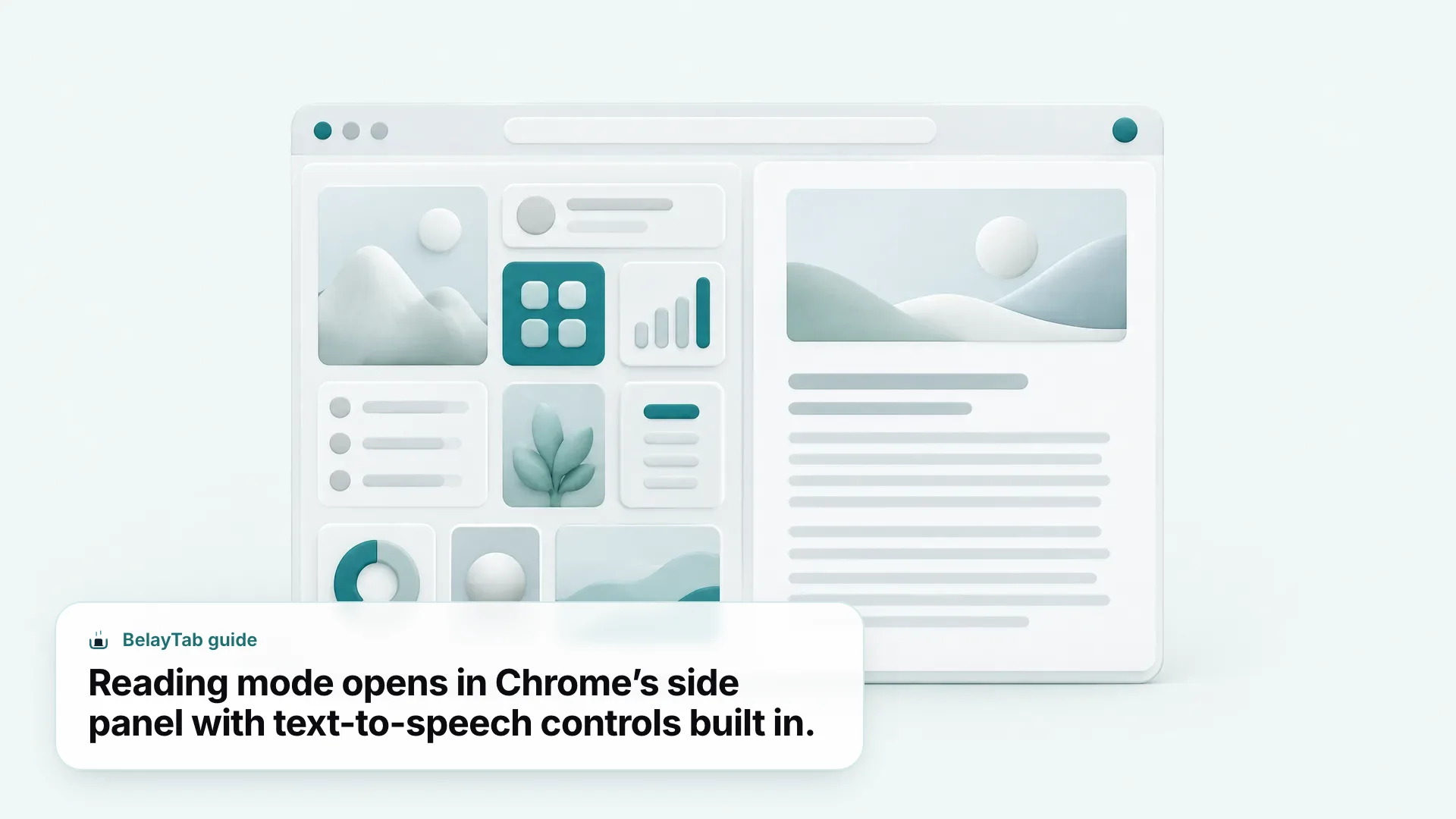
Read mode in Chrome (Chrome’s own settings call it reading mode) is a built-in side panel that reformats the page you’re on into plain text and images, with a text-to-speech player attached. It’s not a separate app or extension. It ships with the browser.
Open it on any long page and the ads, comment sections, related-article widgets and floating video players disappear. What’s left is the headline, the body text, and any images that belong to the article. The side panel sits next to your page rather than replacing the tab, so you can still see the address bar and switch tabs while it’s open.
The read-aloud player is the part people find once and then use constantly. It includes voice selection, a speed control, and play, pause, rewind and fast-forward buttons, all inside the same side panel as Google’s support documentation describes. That combination (clean text plus a narrator) is why reading mode gets used for recipes with a life story before the ingredients list, long-form news pieces, and research papers alike.
It’s worth saying what reading mode isn’t. It doesn’t save the page anywhere, doesn’t sync it to another device, and doesn’t change the actual webpage — close the side panel and the original page is exactly as it was. For saving a page to read later, that’s a different Chrome feature, covered a few sections down.
How Do You Turn On Reading Mode in Chrome?
The fastest way is to right-click the page and choose “Open in reading mode”. It works on nearly any article-style page and doesn’t depend on an icon showing up first. Two other methods exist if you’d rather not right-click.
- Open the page you want to read. Any article, blog post, or long page works.
- Right-click anywhere on the page. A context menu opens with the usual options plus reading mode.
- Choose “Open in reading mode.” The side panel opens on the right with a simplified version of the page.
The right-click method is the one to remember, because it always shows up in the menu regardless of whether Chrome has detected the page as an article yet. The other two methods are handy once you know they’re there, but they depend on Chrome recognizing the page first.
| Method | How | Best For |
|---|---|---|
| Right-click | Choose “Open in reading mode” from the context menu | The most reliable method on any page |
| Address bar icon | Click the reading mode icon when it appears | Quick access once you’ve used it before |
| Chrome menu | More > More tools > Reading mode | When you’d rather not right-click |
All three open the same side panel. There’s no difference in what you get, only in how you get there per Google’s official guide. Pick whichever fits how you already browse.
What’s the Keyboard Shortcut for Chrome’s Reading Mode?
On a Mac, reading mode opens with Cmd + Option + R. On Windows, Linux and ChromeOS, it’s Alt + Shift + R. Either one toggles the side panel open or closed on the page you’re currently viewing.
This shortcut is different from an extension’s shortcut in one important way: it’s fixed. Extensions you install can have their keyboard commands remapped on chrome://extensions/shortcuts, where you can assign whatever key combination you like to whatever installed extension you like. Reading mode is a native browser feature, not an extension, so it doesn’t show up on that page and its shortcut can’t be changed.
If you use a lot of keyboard shortcuts already, this one is easy to fold in because it doesn’t overlap with anything else Chrome uses for tabs or windows. Worth building the muscle memory if you read a handful of articles a day. It’s faster than hunting for the address-bar icon every time. For the rest of Chrome’s shortcuts, including tab and window management, see the complete Chrome keyboard shortcut guide.
How Do You Use Chrome’s Read-Aloud Feature in Reading Mode?
Once reading mode is open, click the play button at the top of the side panel and Chrome starts reading the article out loud. From the same controls you can pick a different voice, change the reading speed, and rewind or fast-forward through the text.
This is the feature that turns reading mode from a formatting tool into something you’d use hands-free — doing dishes, on a walk, commuting on a train where pulling out headphones and playing a podcast feels like more setup than the fifteen-minute article deserves.
- Open reading mode first. Right-click the page and choose “Open in reading mode,” or use the keyboard shortcut.
- Click the play button. It sits at the top of the reading mode side panel, next to the article title.
- Adjust the voice and speed. Open the read-aloud settings to choose a different voice or change how fast it reads.
- Rewind or fast-forward. Use the controls next to play/pause to jump back a sentence or skip ahead.
The controls stay available the whole time the side panel is open, so you can pause mid-sentence, switch tabs to check something, and come back without losing your place as documented by Google. If the built-in voices aren’t enough (say you want a specific accent or a much wider voice library) a dedicated read-aloud extension will usually offer more options than the native player, at the cost of one more thing installed in your browser.
Reading Mode vs Reading List: What’s the Difference?
Reading mode reformats the page you’re looking at right now; the reading list saves a page’s link so you can come back to it another day. They live in the same side panel area, which is probably why people mix them up, but they solve completely different problems.
Reading mode does nothing to remember the page — close the tab and it’s gone, same as any other tab. The reading list, by contrast, is built for exactly that: saving something for later without cluttering your open tabs or your bookmarks bar. To add a page, click Chrome’s menu, choose Bookmarks and lists > Reading list, then “Add tab to reading list” — or right-click the tab itself and pick the same option per Google’s help page. Saved pages show up in a side panel under Bookmarks and lists, ready whenever you open Chrome again.
| Reading Mode | Reading List | |
|---|---|---|
| What it does | Reformats the current page | Saves a link to read later |
| Where it lives | Side panel, current tab | Side panel, under Bookmarks and lists |
| Includes read-aloud | Yes | No |
| Best for | An article you want to read now | Pages you’ll come back to another day |
The reading list is genuinely useful for one article at a time. It’s less useful the moment you’re mid-research with a dozen tabs open across three windows, each representing a different thread you’re not ready to close. That’s a different kind of saving problem entirely.
Why Doesn’t the Reading Mode Icon Show Up?
Usually it’s because the page hasn’t finished loading, or because the page doesn’t have enough article-style text for Chrome to reformat. Right-click the page and choose “Open in reading mode” directly. It works even when the address-bar icon never appears.
A page that’s mostly navigation links, a single image, or an embedded video won’t give reading mode much to work with, since there’s no real block of text to reformat. Give the page a moment to fully load before checking for the icon, especially on slower connections or heavier sites. If right-clicking doesn’t show the option either, try the Chrome menu path (More > More tools > Reading mode) since it’s a second route to the same feature.
If none of the three methods work on a page you’re sure has plenty of text, it’s worth double-checking you’re in Chrome and not a different Chromium-based browser — reading mode as described here is a Chrome-specific feature, and its availability elsewhere isn’t something to assume.
Can You Get Reader View with a Chrome Extension Instead?
Yes — the Chrome Web Store has reader-view extensions if you want more customization than Chrome’s built-in reading mode offers, like custom fonts, color themes, or a consistent look across every site you visit. They’re optional, not a replacement most people need.
Installing one follows Chrome’s standard extension flow: open the Chrome Web Store, find the extension, and click “Add to Chrome.” If it requests permissions, a dialog appears listing what it wants access to, and you click “Add extension” to approve according to Google’s support page. One thing worth knowing upfront — extensions can’t be added while you’re browsing in Incognito mode or signed in as a Guest, so you’ll need a regular window to install one.
- More customization. Extensions can add custom fonts, color themes and layout options beyond what Chrome’s built-in mode offers.
- Consistent styling everywhere. The same look on every site, instead of depending on Chrome detecting “article” content first.
- Extra tools. Some add highlighting, annotation or saving features alongside the plain-text view.
None of this makes the built-in reading mode worse. It’s free, already installed, and covers most people’s needs without adding anything to your extension list. An extension only earns its place if you specifically want one of the things above and are willing to trade a bit of privacy for it, which the next section covers.
Is It Safe to Install a Reader-View Extension?
Usually, yes — but check what it can access before you approve it, since reader extensions typically need to read the text of every page for their formatting to work. That’s a meaningful amount of access, and it’s worth a second look before clicking through.
Chrome’s own install dialog is built around this: a permission screen appears at install or update time, and Chrome Web Store Help is direct about what it means — “the warning doesn’t mean the app is dangerous, just that it can be.” Permissions are grouped into three risk tiers: high alert (access to all your computer data and all websites), medium alert (access to specific or all websites), and low alert (access to things like bookmarks, history, tabs or location) per Google’s official guidance. A reader-view extension asking for access to all sites is common and reasonable (that’s how it reads your pages) but it’s still worth knowing that’s what you approved.
Chrome also has a built-in check for this after the fact: run Safety Check from Chrome menu > Settings > Privacy and security > Safety Check, and it will flag risky extensions already installed, with instructions for what to do about each one. If you ever spot an extension behaving badly, its Chrome Web Store listing has a “Flag Issue” link at the bottom, once you’re signed in, to report it directly to Google.
How Do You Manage or Remove a Chrome Extension Later?
Open chrome://extensions, and you can toggle, remove, or check permissions on any installed extension from one page — reader-view extensions included. There’s nothing special about how they’re managed compared to any other extension.
Each extension shows up as a card with a toggle switch to enable or disable it without uninstalling. To remove one entirely, click “Remove” on its card and confirm, or right-click its toolbar icon and choose “Remove from Chrome” if it’s pinned. Speaking of pinning — click the puzzle-piece Extensions icon in the toolbar, then click the pin icon next to an extension to keep it visible, or unpin it the same way when you don’t need quick access anymore as Google documents. If you want an extension to work in Incognito windows too, open its Details page from chrome://extensions and turn on “Allow in incognito”. It’s off by default for every extension.
For a fuller walkthrough of adding, organizing and cleaning up extensions beyond just this one, see the guides on managing Chrome extensions and adding extensions to Chrome. Both cover the same chrome://extensions page in more depth, including Developer mode for anyone loading unpacked extensions.
What Happens to Your Tabs While You’re Deep in Reading Mode?
Nothing changes about the tab itself — reading mode only changes how the current tab displays, so it closes, crashes, or gets lost the exact same way any other tab would. It’s a small difference with real consequences.
Picture the actual moment: forty tabs open for a research project, and you’ve opened reading mode on the one article that finally explains the thing you’ve been trying to understand for an hour. Reading mode makes that one tab easier to focus on. It does nothing for the other thirty-nine tabs sitting behind it, and it does nothing if Chrome crashes, your laptop restarts for an update, or you fat-finger the wrong keyboard shortcut and close the window. Chrome’s own reopen shortcut only brings back your most recently closed tab one at a time — not the whole project, organized the way you had it.
That gap is exactly the kind of thing that turns a productive afternoon into a scramble to remember what forty tabs even were. If losing a window like that sounds familiar, it’s worth reading how too many tabs tends to end, and what prevents it.
Reading mode and BelayTab aren’t competing for the same job. One makes a page easier to read right now. The other makes sure the tab (and the thirty-nine others around it) are still there tomorrow. Worth having both installed, since neither one does what the other does. If you want to see how the saving side works before you need it, the download page has the free extension for Chrome, Edge, Brave, Opera, Vivaldi, Arc and Firefox.