






Chrome shortcuts save you from digging through menus for the fifty things you do a dozen times a day: opening a tab, closing one, jumping back to the window you actually meant to be in. Learn a handful of them and your hands barely leave the keyboard.
This guide covers the real Chrome shortcuts and Chrome hotkeys, the ones Google documents for Windows, Mac, Linux, and ChromeOS, not guesses about what might work. You’ll get the core tab and window shortcuts, bookmarks and history hotkeys, the newer split view shortcut, and where Chromebook shortcuts match the desktop list. Worth saying up front: shortcuts are fast, but none of them are a backup. Ctrl + Shift + T brings back a tab you just closed. It can’t bring back a window from before Chrome crashed. We’ll get to what can.
What Are the Most Useful Chrome Keyboard Shortcuts?
The Chrome shortcuts you’ll use every day are a small set: new tab, close tab, reopen tab, switch tabs, and hard refresh. Master those five before anything else on this page.
| Action | Windows / Linux | Mac |
|---|---|---|
| New tab | Ctrl + T | Cmd + T |
| New window | Ctrl + N | Cmd + N |
| New Incognito window | Ctrl + Shift + N | Cmd + Shift + N |
| Reopen closed tab | Ctrl + Shift + T | Cmd + Shift + T |
| Close tab | Ctrl + W | Cmd + W |
| Switch tabs | Ctrl + Tab | Cmd + Option + Right Arrow |
| Hard refresh | Ctrl + Shift + R | Cmd + Shift + R |
| Bookmark all tabs | Ctrl + Shift + D | Cmd + Shift + D |
These google chrome keyboard shortcuts are the same set Google lists in its own Chrome keyboard shortcuts reference, which is worth bookmarking since Google updates it as Chrome changes rather than freezing it at one version. Everything below builds on this table: tab and window management first, then bookmarks, history, reload behavior, split view, Incognito, and where a Chromebook diverges from a Windows laptop. If you only remember one row, make it reopen closed tab. It’s the shortcut that saves the most panic.
How Do I Open, Close, and Reopen Tabs With Chrome Shortcuts?
Press Ctrl + T (Cmd + T on Mac) to open a tab, and Ctrl + W (Cmd + W on Mac) to close one. Those two cover most of a browsing session on their own.
- Open a new tab. Press Ctrl + T on Windows or Linux, Cmd + T on Mac.
- Open a new window. Press Ctrl + N (Cmd + N on Mac) when you want a separate window instead of another tab in the same one.
- Close the tab you’re on. Press Ctrl + W or Ctrl + F4 on Windows and Linux, Cmd + W on Mac.
- Bring back the tab you just closed. Press Ctrl + Shift + T (Cmd + Shift + T on Mac).
Closing a whole window works the same way as closing a tab, just one level up: Ctrl + Shift + W or Alt + F4 on Windows and Linux, Cmd + Shift + W on Mac. If you want a link to open in a new tab instead of replacing the page you’re on, hold Ctrl (or Cmd on Mac) while you click it, no keyboard shortcut needed for the click itself.
The Chrome shortcut worth building muscle memory for is reopen closed tab. It doesn’t just cover a single tab, either: close a whole window by accident and Ctrl + Shift + T brings the whole thing back, tabs and all. You can press it repeatedly to step backward through several closed tabs in a row, most recently closed first. For the full breakdown of this one shortcut across every browser, see our guide to reopening closed tabs and the dedicated close tabs shortcut guide. There’s also a full walkthrough of the new-tab hotkey and its variations at Chrome new tab shortcut.
How Do I Jump Between Tabs and Windows in Chrome?
Use Ctrl + Tab to move to the next tab and Ctrl + Shift + Tab to move back, or jump straight to a specific tab by number. These are the chrome browser hotkeys that matter most once you’re juggling more than a handful of tabs.
On Windows and Linux, Ctrl + Tab or Ctrl + PageDown moves forward one tab, and Ctrl + Shift + Tab or Ctrl + PageUp moves back. Want a specific tab instead of stepping through them one at a time? Press Ctrl + 1 through Ctrl + 8 to jump to the first through eighth tab, and Ctrl + 9 to jump straight to the last tab in the window, no matter how many you have open.
Mac uses a different pair for stepping through tabs: Cmd + Option + Right Arrow moves forward and Cmd + Option + Left Arrow moves back. The numbered jump shortcuts carry over directly, Cmd + 1 through Cmd + 8 for specific tabs and Cmd + 9 for the last one. Ctrl + Tab also works on Mac if it feels more natural coming from another platform.
None of this reorders tabs with a shortcut. Chrome doesn’t publish an official keyboard combination for moving a tab’s position in the strip; that’s still a drag-and-drop action with the mouse or trackpad. If you’re regularly working across two or more browser windows rather than just tabs, Alt + Tab on Windows and Cmd + Tab on Mac switch between whole applications, including separate Chrome windows, though that’s an operating-system shortcut rather than a Chrome-specific one.
What Are the Chrome Shortcuts for Bookmarks and History?
Press Ctrl + D to bookmark the page you’re on, or Ctrl + Shift + D to bookmark every open tab at once (use Cmd on Mac for both). These two google chrome shortcut keys turn a messy window of tabs into an organized folder in seconds.
| Action | Windows / Linux | Mac |
|---|---|---|
| Bookmark this page | Ctrl + D | Cmd + D |
| Bookmark all open tabs | Ctrl + Shift + D | Cmd + Shift + D |
| Show/hide bookmarks bar | Ctrl + Shift + B | Ctrl + Shift + B |
| Open Bookmark Manager | Ctrl + Shift + O | Cmd + Option + B |
| Open History | Ctrl + H | Cmd + Y |
| Clear browsing data | Ctrl + Shift + Delete | Cmd + Shift + Delete |
Bookmark all open tabs is the shortcut people discover too late. If you’re the kind of person who ends up with thirty tabs open for a single research project, Ctrl + Shift + D drops every one of them into a folder in one move, instead of you bookmarking them one by one before you dare close the window. The bookmarks bar toggle, Ctrl + Shift + B, is handy on smaller screens where Chrome sometimes hides the bar by default to save space.
History opens with Ctrl + H on Windows, Linux, and ChromeOS, or Cmd + Y on Mac, and it includes a search box for finding a page by keyword. If you’re signed in to Chrome, clearing history with Ctrl + Shift + Delete removes it from every synced device, not just the one in front of you, so it’s worth pausing before you confirm. For deeper dives, see our guides to Chrome bookmarks, the bookmarks bar across browsers, and exporting bookmarks with Google’s own Bookmark Manager help page.
How Do I Reload a Page or Force a Hard Refresh in Chrome?
Press F5 or Ctrl + R to reload a page normally, and Shift + F5 or Ctrl + Shift + R to force a hard refresh that skips the cache. On Mac, it’s Cmd + R for a normal reload and Cmd + Shift + R for a hard one.
A hard refresh matters more than people think. A normal reload can still show you a cached version of a stylesheet or script, which is exactly why a page looks broken or out of date even after you’ve reloaded it three times. The hard refresh shortcut forces Chrome to fetch everything fresh from the server, which fixes the vast majority of “why does this page look wrong” problems. Our hard refresh tool guide covers this in more depth, including when a hard refresh alone isn’t enough and you need to clear cached data separately.
There’s no single official shortcut to reload every open tab at once. Google doesn’t document one. What does work is multi-select, a couple more steps than a single hotkey but the officially supported path:
- Select the tabs. Hold Ctrl and click each tab you want, or click the first tab and Shift + click the last one to grab a range.
- Right-click any selected tab. The menu that opens applies to every tab you selected, not just the one under the pointer.
- Reload them together. Choose the reload option, and every selected tab refreshes at once.
We cover the exact clicks and the Mac equivalent in Chrome reload all tabs.
How Do I Use Chrome’s Split View Shortcut?
Press Shift + Alt + N on Windows or Linux, Cmd + Option + N on Mac, or Ctrl + Alt + N on ChromeOS to start split view. As of September 2026, split view is a native Chrome feature that shows two tabs side by side in a single window, on both computer and ChromeOS.
Beyond the shortcut, Chrome gives you several other ways in: click the split view icon next to the address bar and pick the second tab, right-click an inactive tab and choose “New split view with current tab,” right-click the active tab and choose “Add tab to new split view,” drag a tab to the edge of the window until a plus icon appears, or right-click a link and choose “Open link in split view.” The shortcut is just the fastest of these once you’ve done it a few times.
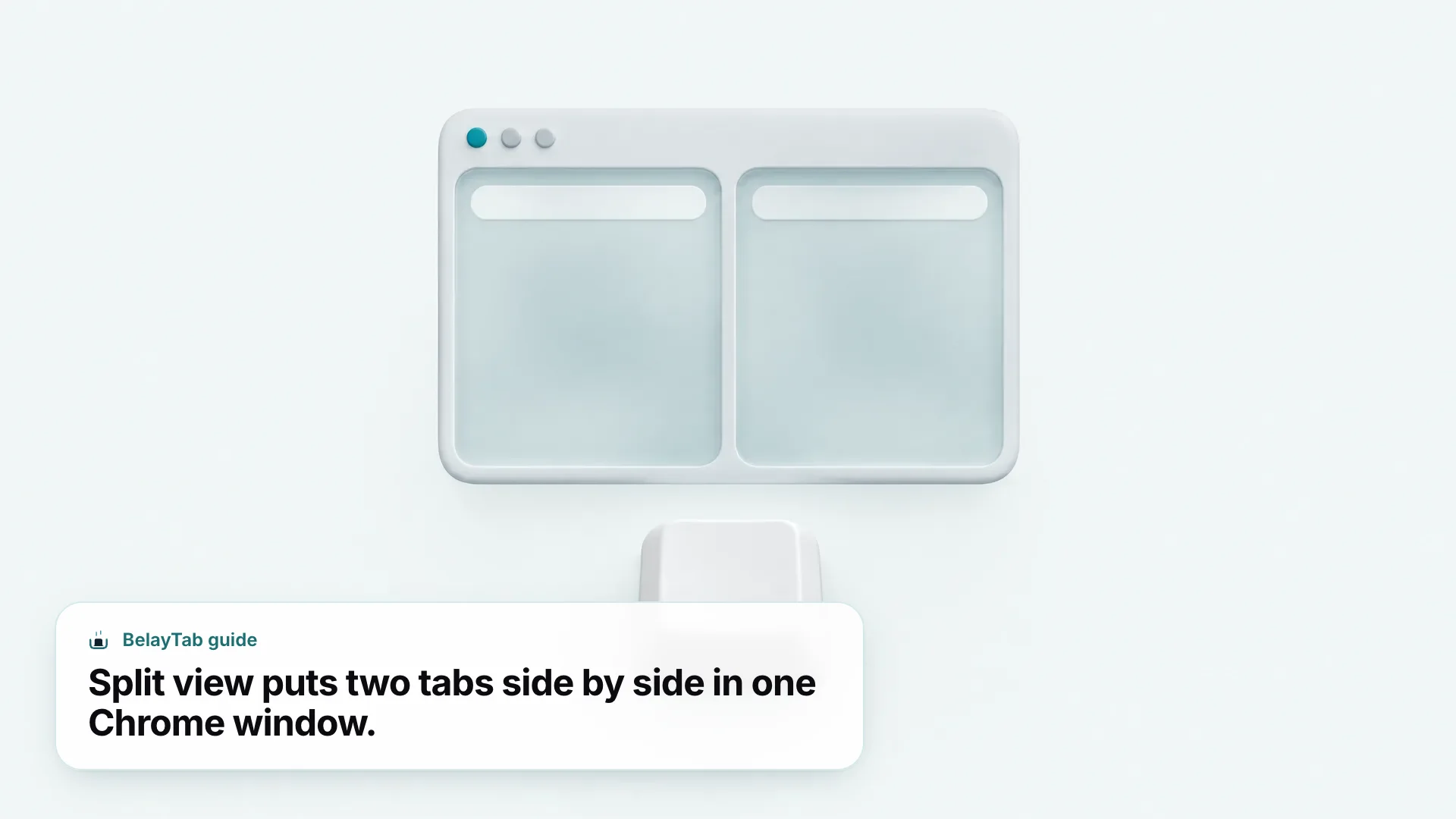
Split view is capped at exactly two sites at a time, you can’t add a third. Whichever side is active gets a thicker border and owns the toolbar, the back and forward buttons and address bar all apply to that side. Click the other side to make it active instead. Actions like Translate and Print only apply to the active side, not both at once, which trips people up the first time they try to translate a page and nothing happens because the wrong side is focused. To exit, separate the tabs back into regular tabs or close one side. Full details, including the click-based methods, are in split screen Chrome and Google’s own split view help page.
What Keyboard Shortcuts Work for Incognito Mode?
Press Ctrl + Shift + N on Windows and Linux, or Cmd + Shift + N on Mac, to open a new Incognito window. It’s the same shortcut on ChromeOS as on Windows and Linux.
Incognito doesn’t save browsing history, cookies and site data, or anything typed into forms to the device once every Incognito window is closed. It does still keep some cookies and site data temporarily while the session is active, just long enough for websites to function normally, and it doesn’t hide your activity from the websites you visit, from an employer or school managing the network, or from your internet provider. Extensions are disabled by default inside Incognito windows; you have to explicitly allow each one from chrome://extensions if you want it available there.
Closing all the tabs in an Incognito window, or closing the window itself, ends the session immediately and discards its browsing data as described above. That’s also the catch: there’s no keyboard shortcut to bring an Incognito tab back once it’s closed, because Chrome isn’t keeping a record of it to reopen. Ctrl + Shift + T won’t help here the way it does in a regular window.
Incognito shortcuts don’t mean invisible. The Incognito shortcut controls what’s saved locally on your device. It has no effect on what a network administrator, school, or employer can see. Treat it as a local privacy tool, not a hiding tool.
Are Chromebook Shortcuts Different From Windows and Mac?
Mostly, no. Since ChromeOS runs the same Chrome browser as Windows and Linux, most chromebook shortcuts for the browser itself, tabs, bookmarks, history, are identical to what you’d use on a Windows laptop. Shortcuts on Chromebook diverge mainly at the system level, not inside Chrome.
Confirmed examples that carry straight over: Ctrl + T for a new tab, Ctrl + H to open History, and Ctrl + Shift + Delete to open the clear browsing data dialog all work the same way on a Chromebook as they do on a Windows PC. Split view is one place where ChromeOS gets its own dedicated combination, Ctrl + Alt + N, distinct from the Windows and Mac versions of the same feature, though it does the same job.
- Windows & Linux. Ctrl is the modifier for nearly everything, and function keys like F5 still reload the page.
- Mac. Cmd replaces Ctrl for most actions, though Ctrl+Tab still switches tabs alongside the Option-arrow shortcuts.
- ChromeOS. Runs the same Chrome browser, so most shortcuts match Windows and Linux, plus a few ChromeOS-specific ones like split view.
Where Chromebooks genuinely differ is outside the browser: screen brightness, the overview key, screenshots, and other system-level chromebook key shortcuts live on the keyboard itself and aren’t Chrome features at all, so Google documents them separately from the browser shortcuts list. If you want the complete, Chromebook-specific rundown including those system keys, our Chromebook shortcuts guide and Chromebook tabs guide cover both layers in one place.
How Do I Find and Search My Open Tabs Without a Mouse?
Press Ctrl + Shift + A on Windows or Linux to open Tab Search, a searchable list of every open tab by title or URL. It’s one of the more underused keyboard shortcuts for Chrome browser users who regularly lose track of a tab somewhere in a long strip.
Tab Search also has a clickable entry point: the small down-arrow icon at the end of the tab strip, which works identically on every platform including Mac, where the exact keyboard shortcut for search hasn’t been separately confirmed by Google. If you’re on Mac and want a keyboard-first way in, the icon is the reliable option until that changes. We go through the search box, the results list, and how it handles recently closed tabs in how to search your open tabs in Chrome.
For a different kind of lookup, when you want to know which tab is slowing your computer down rather than just find one, Chrome’s Task Manager is the tool. Press Shift + Esc on Windows, Linux, and ChromeOS to open it directly. On Mac, there’s no dedicated key combination; open it from the Window menu in the menu bar, or right-click empty space on the tab strip. Task Manager lists every tab, extension, and background process with memory, CPU, and network columns, so it’s the fastest way to spot the one tab eating your RAM before it drags the whole browser down. Our full Chrome Task Manager guide walks through reading those columns.
What Should I Do When a Shortcut Doesn’t Bring Back My Tabs?
Try Ctrl + Shift + T a few more times first, since it steps backward through closed tabs one at a time and people often give up one press too early. If that still doesn’t produce the window you’re looking for, the tabs are probably outside what a keyboard shortcut can reach.
Reopen closed tab only works within a single Chrome session. It cannot rebuild a window from before Chrome crashed, before you restarted the computer, or before you reinstalled the browser. It also can’t recover anything from before the shortcut’s history buffer was cleared, which happens on a full restart. If you’re dealing with a crash specifically, our guides to Chrome crashed and Chrome freeze or not responding cover recovery steps beyond the keyboard, and how to restore tabs in Chrome covers the built-in “continue where you left off” options.
This is where BelayTab comes in. It’s a free extension that snapshots every open window automatically, every five minutes, and again the moment you close a window, with no account needed and no limit on sessions or tabs. It keeps the last 20 versions of every saved session, so restoring never overwrites anything, it just adds a version, and deleted sessions sit in a 30-day trash before they’re gone for good. One Recovery screen brings together your snapshots, deleted sessions, the browser’s own recently closed windows, and any exported files, so you’re not hunting through several different menus to find the version you need.
Once you’ve installed it, the shortcuts in this guide and BelayTab work together rather than competing: use Ctrl + Shift + T for the quick, in-session undo, and let automatic snapshots handle everything a keyboard combination was never designed to survive. If you want to see exactly how the snapshot schedule and version history work under the hood, the automatic snapshots help page breaks it down.