






Safari tabs work differently enough from Chrome or Edge that a lot of the advice built for those browsers doesn’t quite apply — the shortcuts are different, the tab overview looks different, and closing “all tabs” on iPhone isn’t the same action as closing them on a Mac. This guide covers both, in enough detail to actually solve what you searched for: closing every tab at once, getting one back after you did, setting up tab groups, and the handful of keyboard shortcuts worth memorizing.
It also covers where Safari’s own tools stop. Safari is good at the basics, but it was never built to keep a running history of your sessions the way a dedicated tool can. That’s the gap a free extension like BelayTab is built to close.
What’s the Fastest Way to Manage Safari Tabs?
The fastest way to handle most Safari tab situations is a single click, tap, or shortcut, and the table below maps the most common ones to the exact action.
Safari splits these tools cleanly between Mac and iPhone, which is part of why searches for “how to close all tabs safari” and “how to close all tabs safari iphone” often land on different answers depending on which device someone’s using. Both are covered here, along with what happens after you close a tab in each case.
| Situation | What to do |
|---|---|
| Close all tabs in Safari on Mac except one | Option-click the tab you want to keep open |
| Close every other tab in Safari on Mac | Control-click the tab to keep, choose Close Other Tabs |
| Close all tabs in Safari on iPhone | Open the tab overview and choose Close All Tabs |
| Reopen a tab you just closed (Mac) | Press Shift-Cmd-T |
| Reopen a tab you just closed (iPhone) | Touch and hold the New Tab (+) button |
| Stop old tabs from piling up on iPhone | Settings > Apps > Safari > Close Tabs > choose a timeframe |
| Save every tab as a session you can restore anytime | Install BelayTab and save the window |
A couple of these are worth walking through step by step, especially the two “close all tabs” methods, since they behave differently enough on Mac and iPhone that guessing wrong wastes time.
How Do You Close All Tabs in Safari on Mac?
You close all tabs in Safari on Mac by Option-clicking the one tab you want to keep open, which closes every other tab in that window instantly.
If you’d rather pick the tab to keep from a menu instead of guessing which click does what, Control-click that tab and choose Close Other Tabs. Both methods land you in the same place: one tab left open, everything else gone from the window but not necessarily gone for good.
- Decide which tab to keep. Option-click it, and Safari closes every other tab in the window immediately.
- Or use the menu instead. Control-click the tab you want to keep, then choose Close Other Tabs.
- Close the whole window if you don’t need any of it. Press Cmd + W to close the front window, or Option + Cmd + W to close every Safari window at once.
- Changed your mind? Press Shift + Cmd + T to reopen the last closed tab or window.
Neither of these closing methods deletes your bookmarks, saved passwords, or Reading List. They only affect the tabs themselves. If you’re closing tabs because the window has gotten out of hand rather than because you’re done with them, that distinction matters: you can close aggressively and still get back anything you need through the shortcut above, at least for a little while. For the wider picture on closing tabs across every browser, not just Safari, see our guide on closing all tabs at once.
How Do You Close All Tabs in Safari on iPhone?
You close all tabs in Safari on iPhone by opening the tab overview and choosing the Close All Tabs option from there, which clears every open tab in one action.
That single action answers most of the ways people phrase this search (iPhone safari close all tabs, close all tabs safari iphone, close all tabs iphone safari) since the underlying steps are the same regardless of the exact wording. What differs is what happens next, and it’s worth knowing before you tap it.
- Open the tab overview. Tap the tabs icon in Safari to see everything you currently have open.
- Choose Close All Tabs. It’s among the options available from the tab overview.
- Don’t worry, they’re not erased. Closed tabs move to History and Recently Closed Tabs rather than being permanently deleted right away. You can still get them back the same way you’d recover any single closed tab.
- Set them to close automatically instead, if that’s really what you want. Go to Settings > Apps > Safari > Close Tabs, and choose Manually, After One Day, After One Week, or After One Month.
That last option solves a slightly different problem than a one-time cleanup: instead of manually closing everything when it gets overwhelming, Safari can quietly close tabs you haven’t touched in a while, on its own schedule. It only affects tabs by how long they’ve sat idle. It doesn’t touch bookmarks, browsing history, saved passwords, or your Reading List. For a closer look at recovering tabs after this kind of cleanup, see our guide on closing all tabs on iPhone.
Private tabs don’t work the same way. Private Browsing tabs are never saved to History, so closing one is final. There’s no Recently Closed Tabs entry to fall back on. They can also be locked, requiring Face ID, Touch ID, or a passcode just to view them.
How Do You Reopen Closed Tabs in Safari?
You reopen a closed tab in Safari on Mac with Shift-Cmd-T, and on iPhone by opening the tab overview and touching and holding the New Tab (+) button until Recently Closed Tabs appears.
On Mac, Shift-Cmd-T brings back the most recently closed tab or window, and you can press it again to keep working backward through others closed before that. It’s the single most useful Safari shortcut to memorize, since it turns “I closed the wrong thing” from a small disaster into a two-second fix.
On iPhone, the touch-and-hold gesture on the New Tab button is the fastest route, but it’s not the only one. Safari also keeps closed tabs accessible through History, which you can reach from the Bookmarks icon, or by long-pressing the Back button while in a tab.
Long-press Back works too. On iPhone, long-pressing the Back button pulls up recent history for that tab, which can be quicker than digging through the tab overview if you just navigated away from the page you want.
Both routes rely on the same underlying idea: Safari doesn’t delete a closed tab immediately, it just moves it out of the active tab list and into a recoverable list instead. That’s true whether you closed one tab by accident or used Close All Tabs on purpose. For a deeper walkthrough of each platform, see our guides on reopening closed tabs in Safari on Mac and restoring closed tabs in Safari on iPhone.
How Do Safari Tab Groups Work?
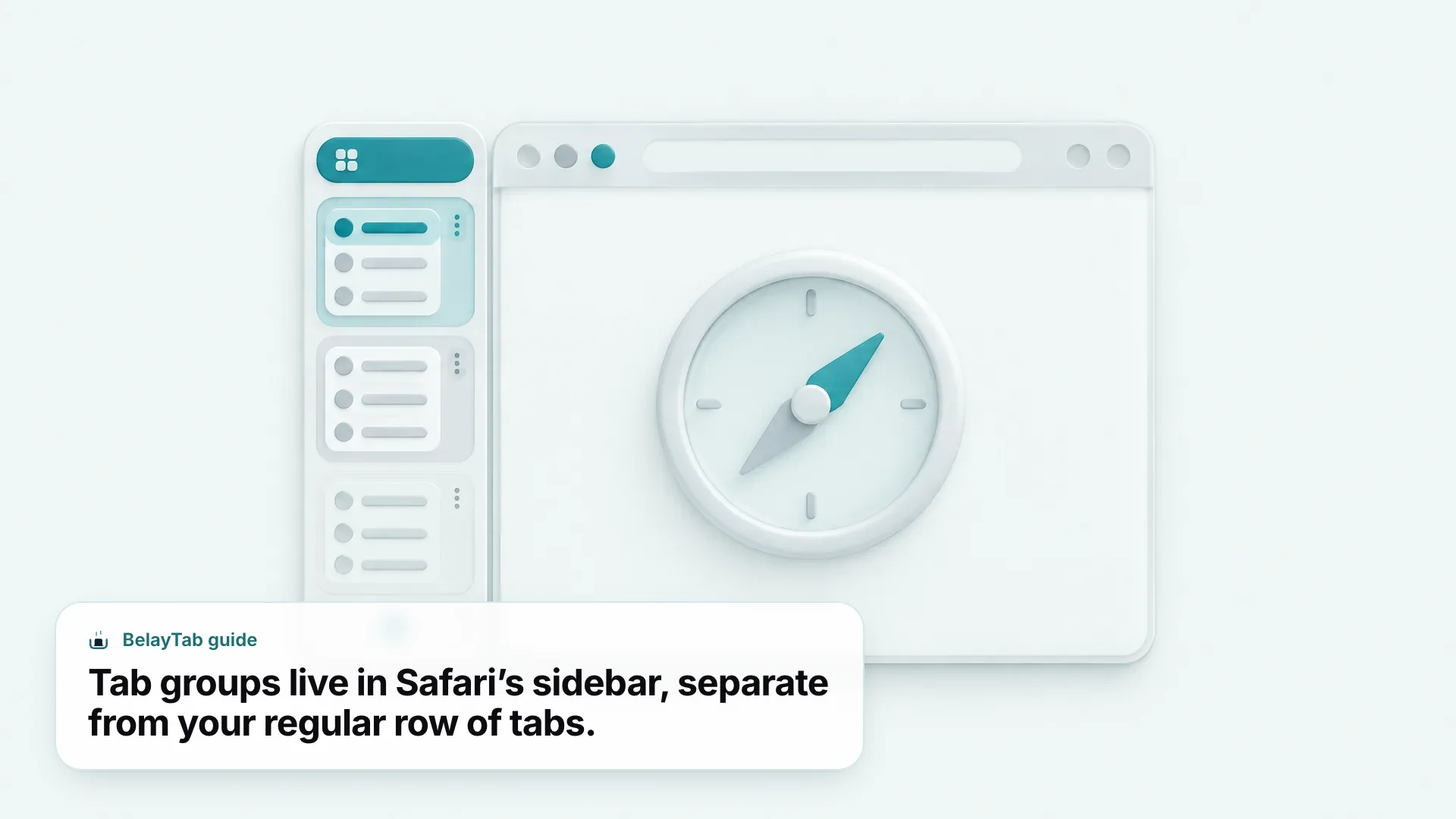
Safari tab groups let you organize related tabs together, on Mac by clicking the down arrow next to the Sidebar button and choosing a new group, and on iPhone by moving a tab into one from the tab overview.
On Mac, once you click that down arrow, you can pick “New Tab Group with [number] Tabs” to turn your currently open tabs into a group, or “New Empty Tab Group” to start one from scratch and add tabs to it as you go. Groups show up in the sidebar, distinct from the regular tab bar, which is part of why they’re easy to overlook if you don’t already have the sidebar open.
On iPhone, tap the tabs button, then touch and hold any tab, tap Move Tab, choose New Tab Group, and give it a name. You can switch between groups from the bottom center of the screen once you have more than one set up.
iOS 27, released September 2026, added an automatic version of this idea called “Organize by Topic,” which uses Apple Intelligence to group tabs by subject on supported iPhones (iPhone 15 Pro, iPhone 15 Pro Max, or iPhone 16 and later). Tab groups can also be shared: a shared group can have up to 100 participants who add and remove tabs in real time, all kept in sync through iCloud. If you want tab groups without the device requirements of Apple Intelligence, manually building one the traditional way still works exactly the same on any current iPhone. Our tab groups feature page covers how BelayTab handles groups across every browser it supports.
What Keyboard Shortcuts Manage Tabs in Safari on Mac?
Safari’s Mac shortcuts for tabs are a short, memorable list, and the ones below cover the situations people search for.
| Action | Shortcut |
|---|---|
| Close active tab | Cmd + W |
| Reopen last closed tab/window | Shift + Cmd + T |
| Show tab overview | Shift + Cmd + \ |
| Select tabs 1–8 | Cmd + 1 through Cmd + 8 |
| Select last tab | Cmd + 9 |
| Go back / forward | Cmd + [ / Cmd + ] |
| Show/Hide Bookmarks sidebar | Control + Cmd + 1 |
| Show/Hide Reading List sidebar | Control + Cmd + 2 |
A couple of these are worth calling out specifically. Show tab overview is the fastest way to see everything open in a window at a glance, which beats scanning a crowded tab bar when you’ve got a dozen tabs open and can’t remember which one had the thing you needed. Selecting tabs 1 through 8 directly, and 9 for the last one, is a quick way to jump around without touching the trackpad at all, though it only works cleanly up to eight tabs before you’re relying on position rather than memory.
One thing worth knowing if you’ve searched for other combinations: shortcuts like Cmd-T for new tab, Cmd-N for new window, and Cmd-D for adding a bookmark aren’t listed on Apple’s own current shortcuts page for Safari, so don’t build muscle memory around them expecting official support. For the complete list beyond tabs specifically, see our Safari shortcuts guide.
How Do You See Tabs Open on Your Other Apple Devices?
You see Safari tabs open on your other Apple devices through iCloud Tabs, which appears as “Tabs from Other Devices” in the tab overview once you’re signed in to the same Apple Account everywhere.
This is one of the more genuinely useful parts of using Safari across a Mac and an iPhone together. Start reading something on your iPhone during a commute, and the same tab shows up as available to open on your Mac later, without emailing yourself a link or copying a URL. It works the same way in reverse.
Tab Groups sync through this same mechanism, so a group you set up on your Mac shows up on your iPhone too, kept current as you add or remove tabs from either device. Bookmarks sync the same way through iCloud, which is worth knowing if you’re trying to keep a consistent set of tabs and saved pages across every device you use rather than just one.
If you’re managing bookmarks across devices as part of this setup, our Safari bookmarks guide and the Safari bookmarks exporter tool cover finding, adding, and moving them without relying on iCloud sync alone.
What Happens to Tabs When You Clear Safari History?
Clearing Safari history on Mac also clears the back/forward list for your tabs, along with webpage icons and snapshots, recent searches, and the list of downloaded items (though not the downloaded files themselves).
This catches people off guard sometimes: clearing history isn’t just about the History menu, it also resets how far back a tab’s own back button can go, since that navigation list is tied to the same data. Choose History > Clear History, then use the pop-up menu to pick how far back to clear, from the last hour up to everything.
If iCloud is set up for Safari across your devices, clearing history on one device removes it from all of them, not just the Mac you’re using. It’s also worth knowing that clearing history in Safari doesn’t clear history kept independently by the websites you visited. That’s a separate thing entirely, outside Safari’s control.
On iPhone, clearing history works from the tabs/start-page icon, tapping the History icon, then Clear History and a timeframe. It also removes cookies and location/notification permissions, but not history kept in other apps outside Safari.
How Does Private Browsing Affect Your Tabs in Safari?
Private Browsing tabs in Safari don’t appear in History at all, which means closing one is permanent in a way that closing a regular tab isn’t.
That’s the core trade-off of Private Browsing: it’s built to leave no trace, so there’s no safety net if you close a private tab by accident. Regular tabs get a second chance through Recently Closed Tabs or History; private ones don’t, because they were never written there in the first place.
Private tabs also come with a locking option that regular tabs don’t have. You can lock a Private Browsing tab so that viewing it requires Face ID, Touch ID, or a device passcode, which is a genuinely useful feature if you’re using Private Browsing for something you don’t want visible to anyone who picks up your phone or glances at your Mac.
If you’re weighing whether Private Browsing is the right mode for a given task, it’s worth being clear about what you’re trading: privacy from your own browsing history, in exchange for losing the recovery options that make regular tabs forgiving of mistakes. For everyday tabs where you might want that safety net, regular windows saved as sessions are a better fit than Private Browsing.
What Should You Do When Safari’s Built-In Tools Aren’t Enough?
You should pair Safari’s built-in tools with a dedicated session manager when you need more than a single “last closed tab” shortcut can reliably cover, since none of Safari’s native recovery options are built to survive a crash, a full quit, or simply forgetting what you had open last week.
Safari’s own tools are genuinely useful for what they do: Recently Closed Tabs, History, and iCloud Tabs between devices all solve real, common problems. What they don’t do is keep a running archive of entire browsing sessions the way a dedicated tool can, which matters more the more tabs you tend to have open at once.
- OneTab. Turns a window’s tabs into a list with one click; free, but its Safari version (1.87) is outdated and lacks folders, search, and sync.
- Session Buddy. Saves tabs as collections with an automatic history of them, but it’s Chrome-only, with no Safari version at all.
- Tab Session Manager. Open-source and free across Firefox, Chrome, and Edge, but doesn’t ship for Safari either.
- BelayTab. Runs on Safari on Mac alongside Chrome, Edge, Brave, Opera, Vivaldi, Arc, and Firefox, so it’s a session manager you can use on Apple’s browser.
BelayTab is free, with no account required and no limit on sessions or tabs. It automatically snapshots every open window every 5 minutes and whenever a window closes, keeps the last 20 versions of each session so restoring never overwrites anything, and holds deleted sessions in a 30-day trash. Everything (snapshots, deleted sessions, and export files) lives on one Recovery screen, which is a lot less to keep track of than checking History, Recently Closed Tabs, and iCloud sync separately.
If you’re comparing session managers more broadly before you pick one, our session manager guide and tab manager guide walk through how they differ, and our comparisons against OneTab and Session Buddy go deeper on those two specifically.