






A tab suspender is a tool that puts open tabs to sleep so they stop eating memory, without actually closing them. You get the icon and the title back in your tab strip, but the page underneath goes dormant until you click on it again. If you’re the type of person who ends a workday with forty tabs open across three windows, a tab suspender for Chrome is one of the cheaper ways to keep your machine from grinding to a halt.
Chrome now ships with one built in, called Memory Saver, and for most people that’s genuinely enough. There’s also a chapter worth knowing before you install anything else: The Great Suspender, once the most popular tab suspender extension around, was pulled from the Chrome Web Store in 2021 after it started shipping malicious code. That history is why so many people still ask whether third-party suspenders are safe.
This guide walks through what a tab suspender does, how to turn on Chrome’s version, what happened with The Great Suspender, and how BelayTab fits in. Short version: it doesn’t suspend anything, it makes sure your tabs survive.
What Does a Tab Suspender Do?
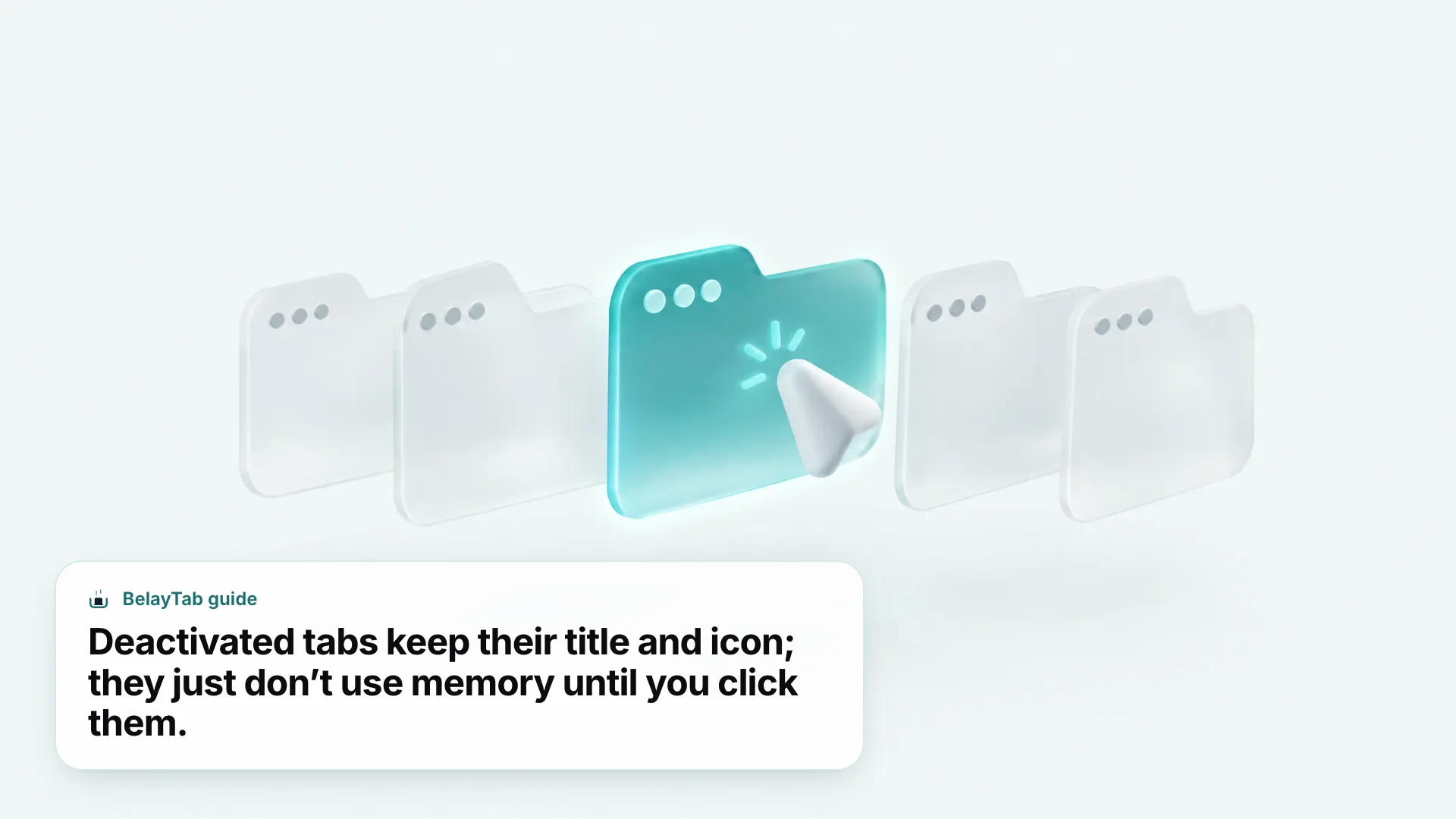
A tab suspender unloads the content of a tab you’re not using, while keeping its title, favicon, and position in the tab strip, so it looks the same but uses close to no memory until you click back on it.
Under the hood, the browser throws away the page’s rendered content, its JavaScript state, and most of what’s in memory for that tab. What stays behind is just enough bookkeeping information, the URL, the title, and the icon, so the tab can be redrawn instantly and reloaded on demand. Click a suspended tab and it reloads from scratch, the same way it would if you’d typed the address in fresh.
This matters because open tabs are the single biggest driver of Chrome’s memory use once you get past a dozen or so. Each tab runs its own process, complete with a chunk of RAM for scripts, images, and cached data. A suspender doesn’t change how many tabs you have; it changes how many of them are doing anything at a given moment.
Two things a tab suspender does not do: it doesn’t save your tabs anywhere outside the browser, and it doesn’t protect you if Chrome itself crashes or your computer restarts unexpectedly. Suspended tabs are still just tabs. If the browser closes, whether on purpose or because of a crash, those suspended tabs go with everything else, unless you’ve bookmarked them, they’re part of a saved session, or your browser’s own session restore kicks in successfully.
That last point is the one people miss most often, and it’s why this guide spends time later on how a tool like BelayTab complements a suspender instead of competing with it.
What’s the Best Tab Suspender for Chrome Right Now?
The best tab suspender for most Chrome users in 2026 is the one already built into the browser: Memory Saver, found in Settings under Performance. It needs no install, no extra permissions beyond what Chrome already has, and Google keeps it updated alongside the browser itself.
Whether you search for this as tab suspender chrome, chrome tab suspender, or tab suspender for chrome, you’re looking for the same thing, and the built-in answer covers most of it before you add anything else. Where a dedicated extension still earns its place is when you want finer control over exactly which tabs get suspended and when, or you’re on a browser that doesn’t offer a native option.
| Situation | Recommended option |
|---|---|
| You use Chrome and want the safest default | Chrome’s built-in Memory Saver |
| You want per-tab or per-site control over suspension | A well-reviewed, actively updated suspender extension |
| You used The Great Suspender before 2021 | Don’t reinstall it; see the recovery section below |
| You want your tabs backed up too, not just suspended | Pair Memory Saver with BelayTab |
| You’re on Edge, Brave, or Vivaldi | Check for the same Chromium memory-saving feature under Settings |
Edge and Brave are both built on Chromium, so they tend to get similar memory-saving controls, though the exact naming and location can differ from Chrome’s. If you split your browsing across more than one Chromium browser, check each one’s settings menu rather than assuming Memory Saver syncs across them. It doesn’t.
If you only take one thing from this table, take this: start with what’s built in before you add another extension that can read and modify your tabs. The built-in option is free, it’s maintained by the people who make the browser, and it doesn’t add another party with access to your browsing.
How Do I Turn On Chrome’s Built-In Tab Suspender (Memory Saver)?
Turn on Memory Saver from Chrome’s Settings menu, under Performance, and it starts working immediately on tabs you haven’t touched in a while.
- Open the menu. Click the three-dot menu at the top right of Chrome and choose Settings.
- Go to Performance. Click Performance in the left-hand sidebar.
- Turn on Memory Saver. Switch the toggle on, then choose a level: Moderate, Balanced, or Maximum.
- Protect specific tabs (optional). Under “Always keep these sites active,” add any site you never want deactivated, such as a music player or a chat app you check constantly.
The three levels trade speed for savings. Moderate takes the longest to deactivate a tab and frees up the least memory, which suits people who flip between tabs constantly. Maximum deactivates tabs fastest and frees the most memory, useful if your machine is genuinely struggling. Balanced sits in the middle and is what Google recommends for most people.
Start with Balanced. Balanced gives you most of the memory savings without deactivating tabs you’re likely to click back into within a minute or two. Switch to Maximum only if you’re still seeing slowdowns after a few days on Balanced.
One habit worth building: once Memory Saver is on, deactivated tabs reload automatically the moment you click them, so there’s no extra step to wake a tab up. If a site loses your scroll position or a half-written form after it reloads, that’s the trade-off of suspension in general, not a bug specific to Chrome’s version.
What Happened to The Great Suspender?
The Great Suspender was a popular third-party tab suspender extension that Google removed from the Chrome Web Store and force-disabled in February 2021. According to a report from 9to5Google, ownership of the extension changed hands, and a subsequent update, around version 7.1.8, added code that had been flagged as malware, including tracking and ad-fraud exploit code.
For years before that, The Great Suspender had been one of the go-to answers whenever someone searched for a chrome tab suspender. It was free, it worked well, and it had a loyal user base who’d built years of workflow around it. That’s exactly why its removal caught so many people off guard: Chrome disabled it automatically, on every machine that had it installed, without much warning.
If you were one of those users, the practical fallout was twofold. First, the extension stopped working entirely, so any tab it had suspended just sat there, unusable, until you dealt with it. Second, because The Great Suspender had quietly become part of so many people’s daily setup, plenty of tabs that mattered, research, half-finished purchases, tickets for events, went dark all at once. The next section covers what to do if that’s still sitting in your browser somewhere.
How Do I Recover Tabs Suspended by The Great Suspender?
You can often recover the original URLs from tabs The Great Suspender suspended by digging through Chrome’s history rather than the tab strip itself. Community reports describe searching chrome://history for the extension’s ID, since each suspended tab left behind a placeholder page with that ID in its address, and the real URL was tucked into the page’s title or parameters. This isn’t something Google documents officially, so treat it as a workaround rather than a guaranteed fix.
If you’ve got a browser sitting untouched since 2021 with a pile of grayed-out Great Suspender tabs still open, don’t panic and don’t close the window. Closing it is the one move that makes recovery harder, since you lose whatever trace is left in that session. Walk through the history search method first, before you do anything else.
We’ve put together a dedicated walkthrough for this exact situation at our Great Suspender recovery guide, including the steps for pulling URLs back out of history and what to do if the extension’s ID search comes up empty.
This is also the clearest argument for not relying on a suspender alone going forward. A suspender only ever holds a live tab in a dormant state; it was never meant to be a backup, and The Great Suspender’s shutdown is what happens when that gap gets exposed all at once. Later in this guide, we’ll cover how a session manager like BelayTab closes exactly that gap without replacing your suspender.
Is It Safe to Use a Third-Party Tab Suspender Extension?
A third-party tab suspender extension can be safe, but only if you check three things first: how recently it’s been updated, what permissions it requests, and who currently owns and maintains it. The Great Suspender didn’t start out malicious, it became dangerous after a change in ownership, and that’s exactly the pattern security researchers warn about with any extension that has broad access to your tabs.
Permissions are the biggest tell. A tab suspender needs to read your list of open tabs and control them, that’s unavoidable given what it does. What it shouldn’t need is access to read and change data on every website you visit, unless that’s genuinely part of a feature you use. If an extension’s permission list looks broader than what its job requires, that’s worth pausing on before you install it.
Update history matters almost as much. An extension that hasn’t been touched in two or three years might just be stable and finished, or it might be abandoned and a target for exactly the kind of ownership handoff that hit The Great Suspender. Check the “last updated” date on its Chrome Web Store listing, and skim recent reviews for anything mentioning unexpected behavior right after an update.
None of this means you should avoid third-party suspenders outright. Plenty of them are maintained by small, transparent teams and do exactly what they claim. It just means the bar for “safe” is a bit higher for an extension sitting on top of every tab you open than it is for, say, a wallpaper changer.
Chrome Memory Saver vs Third-Party Tab Suspenders: Which Should You Use?
For most people, Chrome’s built-in Memory Saver beats a third-party tab suspender, because it comes from the same company that makes the browser, needs no extra permissions, and updates automatically with Chrome itself. A dedicated extension only pulls ahead if you need something Memory Saver doesn’t offer, like suspending tabs after a custom time you set yourself, or excluding tabs by rule rather than adding them one at a time to an allowlist.
| Chrome Memory Saver | Third-party suspender extension | |
|---|---|---|
| Install required | No, already in Chrome | Yes |
| Extra permissions | None beyond Chrome itself | Usually tabs, and sometimes more |
| Maintained by | Google, alongside Chrome updates | Varies, check the listing |
| Control level | Three preset levels | Often more granular, per-site rules |
| Risk if abandoned | None, it’s part of Chrome | Extension can go stale or change hands |
The control level row is where most people’s decision lands. Memory Saver’s three levels, Moderate, Balanced, and Maximum, cover a lot of ground, but they’re presets, not rules you write yourself. If you specifically want, say, tabs suspended after exactly 15 minutes of inactivity, or a permanent exception list longer than what Chrome’s settings page comfortably handles, a dedicated extension can do that.
The trade-off is ongoing maintenance risk, not a one-time decision. Every third-party tab suspender you keep installed is something you’re implicitly trusting to stay maintained by whoever owns it next, not just whoever built it originally. That’s not a reason to avoid them, it’s a reason to check in on them occasionally rather than installing one and forgetting it exists.
How Do I Check Which Tabs Chrome Has Suspended?
Open chrome://discards in a new tab to see a live list of every open tab Chrome is tracking, including which ones it’s already deactivated. It’s an internal Chrome page, not something linked from any menu, so you have to type or paste the address yourself.
- Open a new tab. Press Ctrl + T (Cmd + T on Mac).
- Go to the discards page. Type chrome://discards into the address bar and press Enter.
- Read the table. Each row is an open tab, with columns showing its state and whether it’s eligible for discarding.
- Test it, optionally. Click “Urgent Discard” next to a tab to manually discard it and see the behavior for yourself.
Google says a discarded tab can use up to 80 percent less memory than an active one, according to the Chrome team, which is the whole point of a tab suspender in the first place, whether it’s Chrome’s own feature or a third-party extension doing the same job. The chrome://discards page is also useful for troubleshooting: if a tab you expected to be deactivated still isn’t, this page usually tells you why, often because it’s playing audio, has an active form, or is otherwise marked as ineligible.
If you’d rather see everything Chrome has open at once without digging into an internal page, press Ctrl + Shift + A to search and jump between open tabs, or Shift + Esc to open Chrome’s Task Manager and see memory use per tab directly. Our full keyboard shortcuts guide covers the rest of the shortcuts worth knowing, and Google’s own Chrome keyboard shortcuts page has the complete official list.
Does a Tab Suspender Stop You From Losing Tabs?
No, a tab suspender doesn’t stop you from losing tabs. It reduces how much memory an open tab uses, but a suspended tab is still just a tab sitting in a window. If that window closes, whether you clicked the wrong button, Chrome crashed, or your laptop restarted overnight for an update, every suspended tab in it disappears the same way an active one would.
This is the gap The Great Suspender’s shutdown exposed so clearly. People who’d built a whole workflow around suspended tabs, dozens of them, some going back months, lost access to all of it in a single afternoon when Google disabled the extension. The tabs weren’t backed up anywhere, they were just suspended. A suspender was never designed to be a safety net, and it’s worth being honest with yourself about the difference between using less memory and being safe.
BelayTab does not suspend tabs, and it’s worth being direct about that rather than blurring the line. What it does instead is save your open windows as named sessions automatically, on a five-minute timer and again when a window closes (see how automatic snapshots work), plus a full version history so restoring never overwrites what you had before. Everything lands in one Recovery screen alongside your browser’s own recently closed windows. If you’re already using Memory Saver or a third-party suspender to manage memory, BelayTab runs alongside it and covers the part suspenders skip: making sure the tabs themselves survive a crash, an accidental close, or a bad update.
Think of it as the difference between a tab suspender and a tab session manager. One manages memory for tabs you already have open. The other makes sure those tabs still exist tomorrow. You genuinely don’t have to choose, since BelayTab doesn’t suspend anything itself and won’t conflict with Memory Saver or another suspender running at the same time.
How Do I Choose a Tab Suspender Extension Safely?
Choose a tab suspender extension by checking its permissions, its update history, and its developer, roughly in that order, before you even look at what features it offers. A suspender with a beautiful settings page and a stale changelog is a worse bet than a plain one that’s still actively maintained.
- Permissions. Stick to extensions that ask for tab-related access and not much else. If it wants to read and change data on every site you visit, ask whether that matches what a suspender needs to do.
- Update history. Check the Chrome Web Store listing for the last update date. Anything untouched for a year or more deserves a closer look at recent reviews before you install it.
- Developer transparency. Look for a real developer name or company, a support email, and a changelog. Anonymous listings with vague descriptions are harder to hold accountable if something changes.
- Review pattern. A sudden cluster of low ratings mentioning odd behavior right after an update is the single clearest warning sign; it’s exactly what happened before The Great Suspender was pulled.
It’s also worth deciding upfront how much control you need. If you just want fewer tabs eating memory in the background, Chrome’s Memory Saver already covers that without adding another extension to the mix. Reach for a dedicated tab suspender for Chrome only if you’ve hit a specific limit Memory Saver doesn’t solve, like per-site scheduling or exceptions you want to manage in bulk rather than one at a time.
Once you’ve picked one, revisit it every few months. Check that it’s still being updated, that its permissions haven’t quietly expanded, and that reviews haven’t turned sour. An extension that was safe the day you installed it can stop being safe later, and the only real defense is checking in occasionally rather than assuming nothing’s changed.
What Should You Do If a Suspended Tab Won’t Reload?
If a suspended tab won’t reload when you click it, start with the simple explanation: check your internet connection, then reload the tab directly rather than waiting for it to wake on its own. Press Ctrl + R (Cmd + R on Mac), or use a hard reload with Ctrl + Shift + R if the page comes back looking broken or outdated.
If that doesn’t fix it, the tab itself might be the problem rather than the suspender. A page that was mid-error when it got suspended, or one pointing at a URL that’s since gone offline, will fail to load again exactly the same way it would have without ever being suspended. That’s not a suspender bug, it’s just the original page having an issue.
When a whole window full of suspended tabs stops responding, that’s usually closer to a Chrome freeze than a suspension problem, and it’s worth working through general troubleshooting steps rather than assuming the suspender is at fault. If you’re regularly running into this with dozens of tabs open at once, it’s also worth asking whether you need that many tabs open, or whether some of them belong saved as a session you can reopen later instead of left running.
Before you close that window to fix it. If restarting Chrome is what finally clears a stuck window, save it as a session first with Ctrl + Shift + S so you’re not relying on Chrome’s own crash recovery to bring everything back.
For deeper troubleshooting on frozen or crashing windows, see our guides on what to do when Chrome freezes and how to restart Chrome after a crash. And if the real issue is that you’re carrying too many open tabs in the first place, suspended or not, our guide to fixing tab overload covers how to cut the number down without losing anything you still need.